Iframe 区块

介绍

IFrame 区块允许将外部网页或内容嵌入到当前页面中。用户可以通过配置 URL 或直接插入 HTML 代码,轻松将外部应用集成到页面。使用 HTML 页面时,用户可以灵活定制内容,满足特定展示需求,这种方式特别适合需要定制化展示的场景,无需跳转即可加载外部资源,提升用户体验和页面的交互效果。

安装

内置插件,无需安装。

添加区块
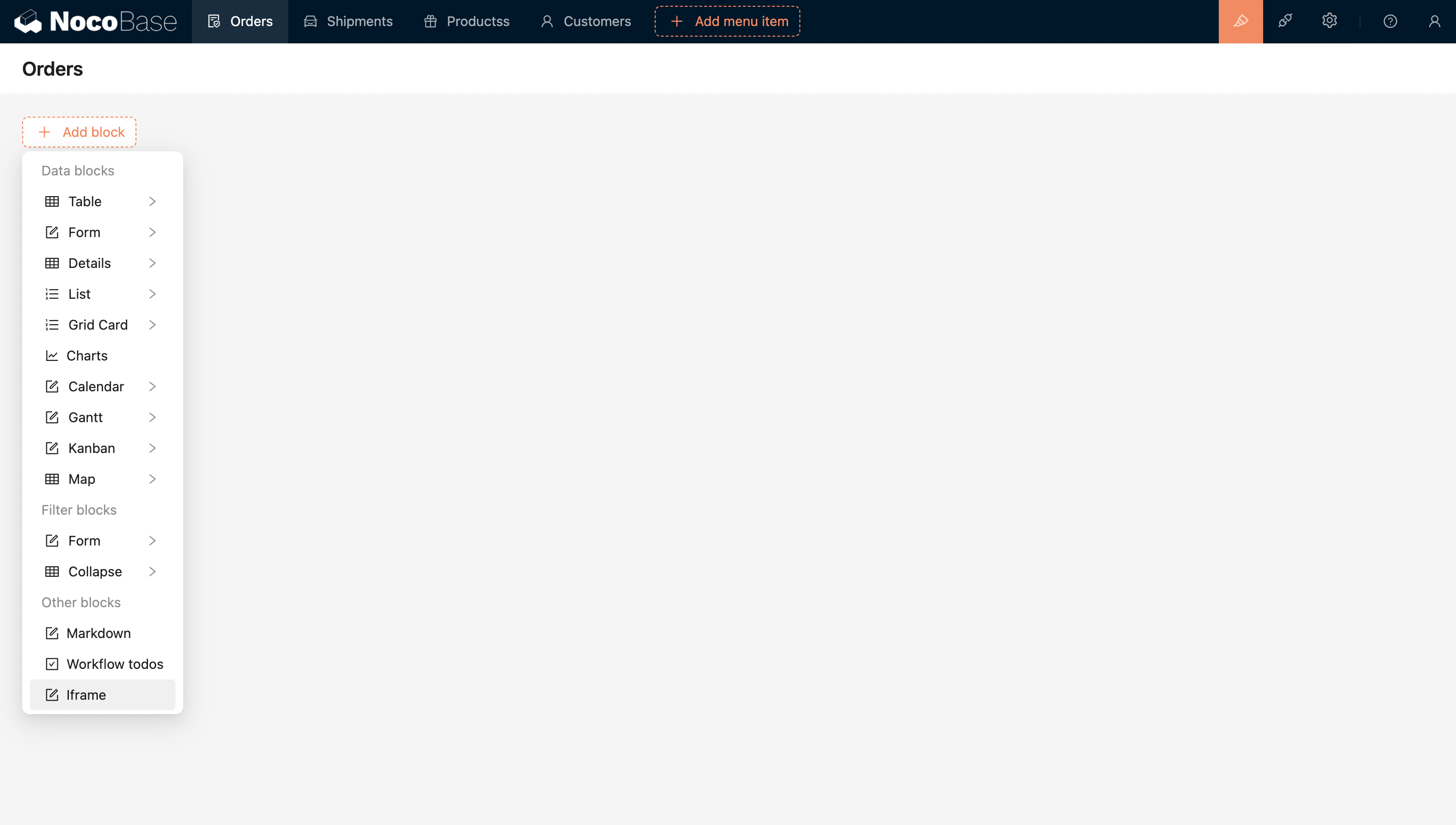
20240408220259

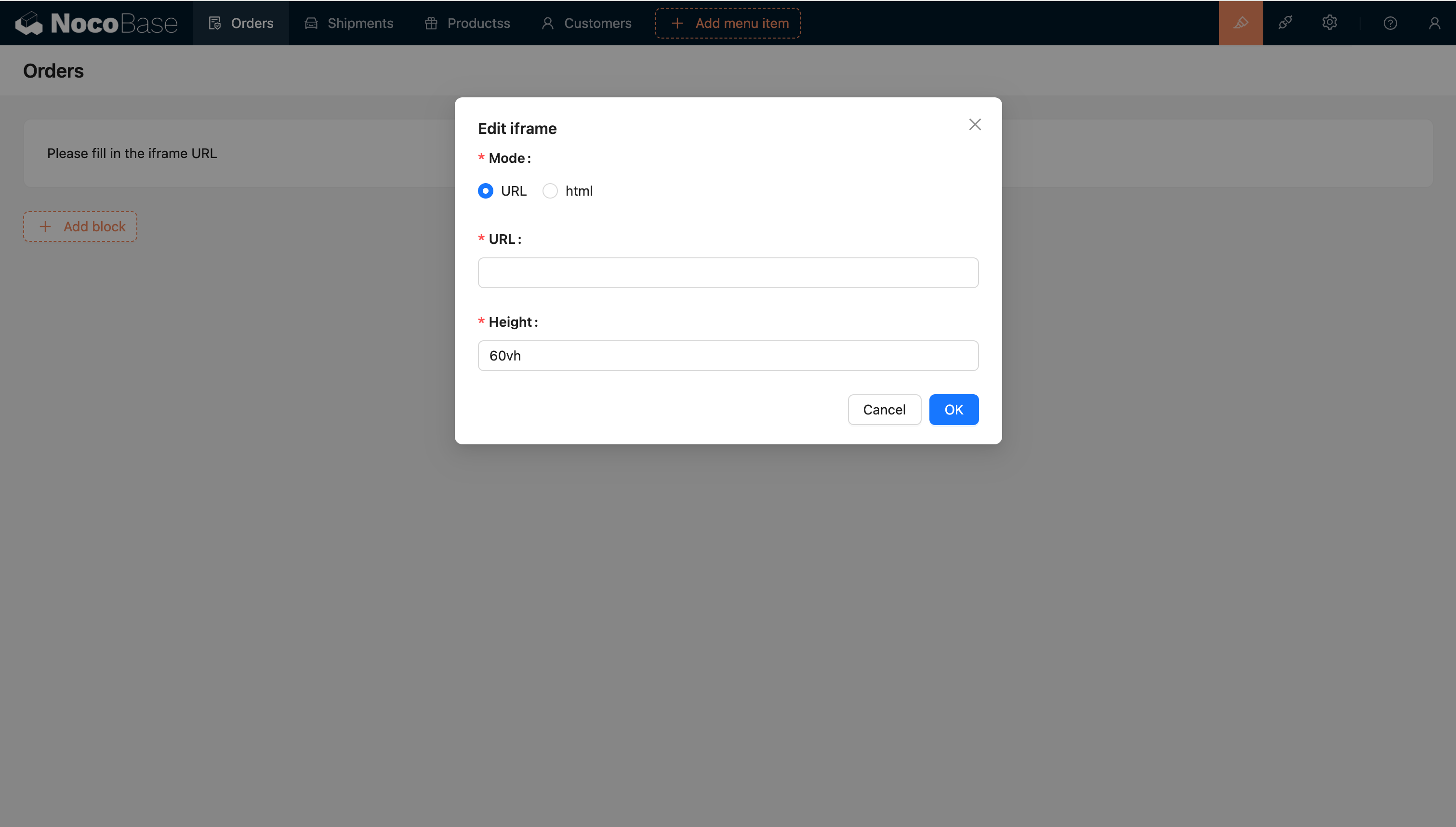
配置 URL 或 Html 直接将外部应用嵌入。

20240408220322

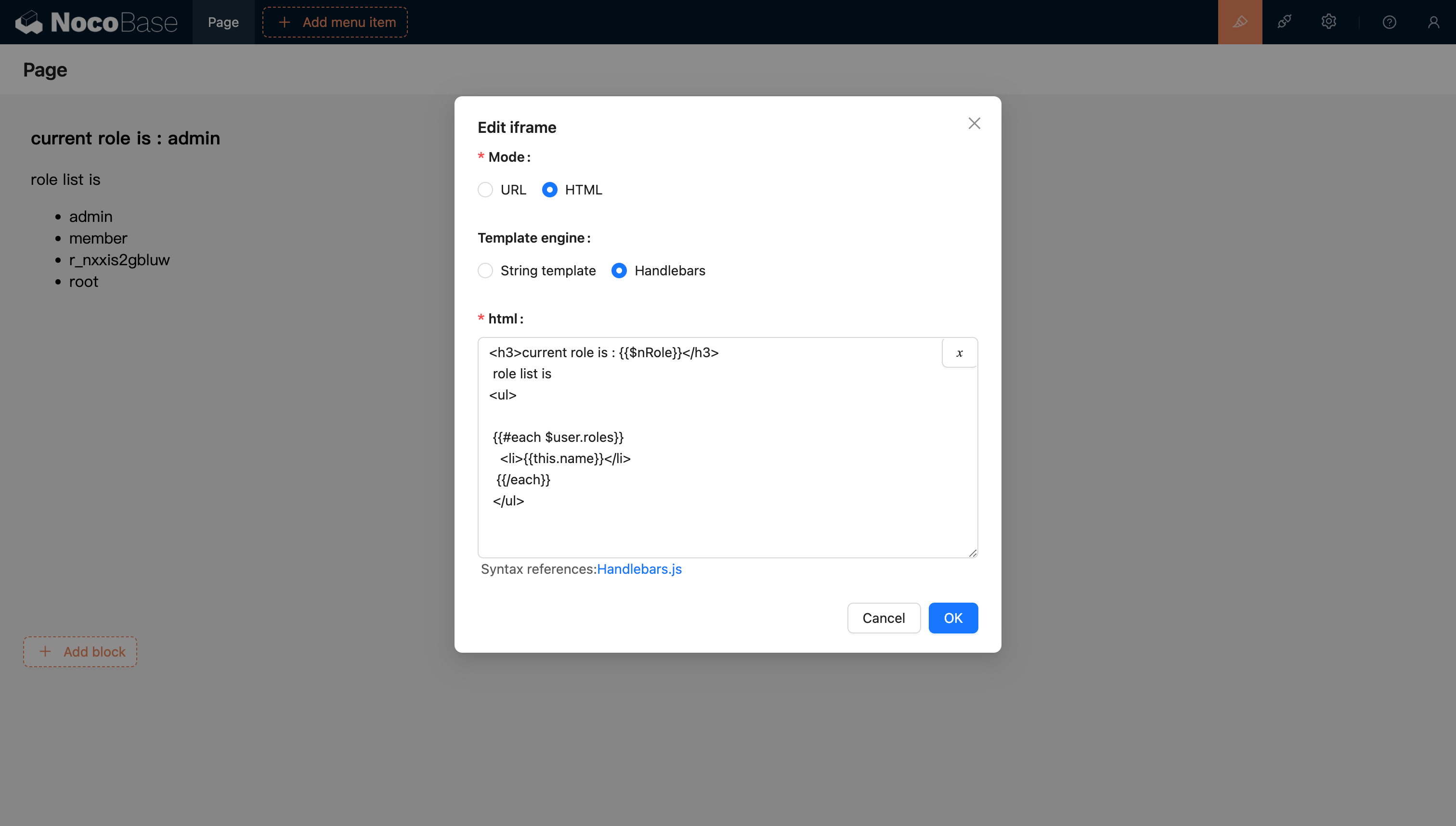
模板引擎

字符串模板

默认的模板引擎

Handlebars

20240811205239

更多内容参考 Handlebars 模板引擎文档

传入变量

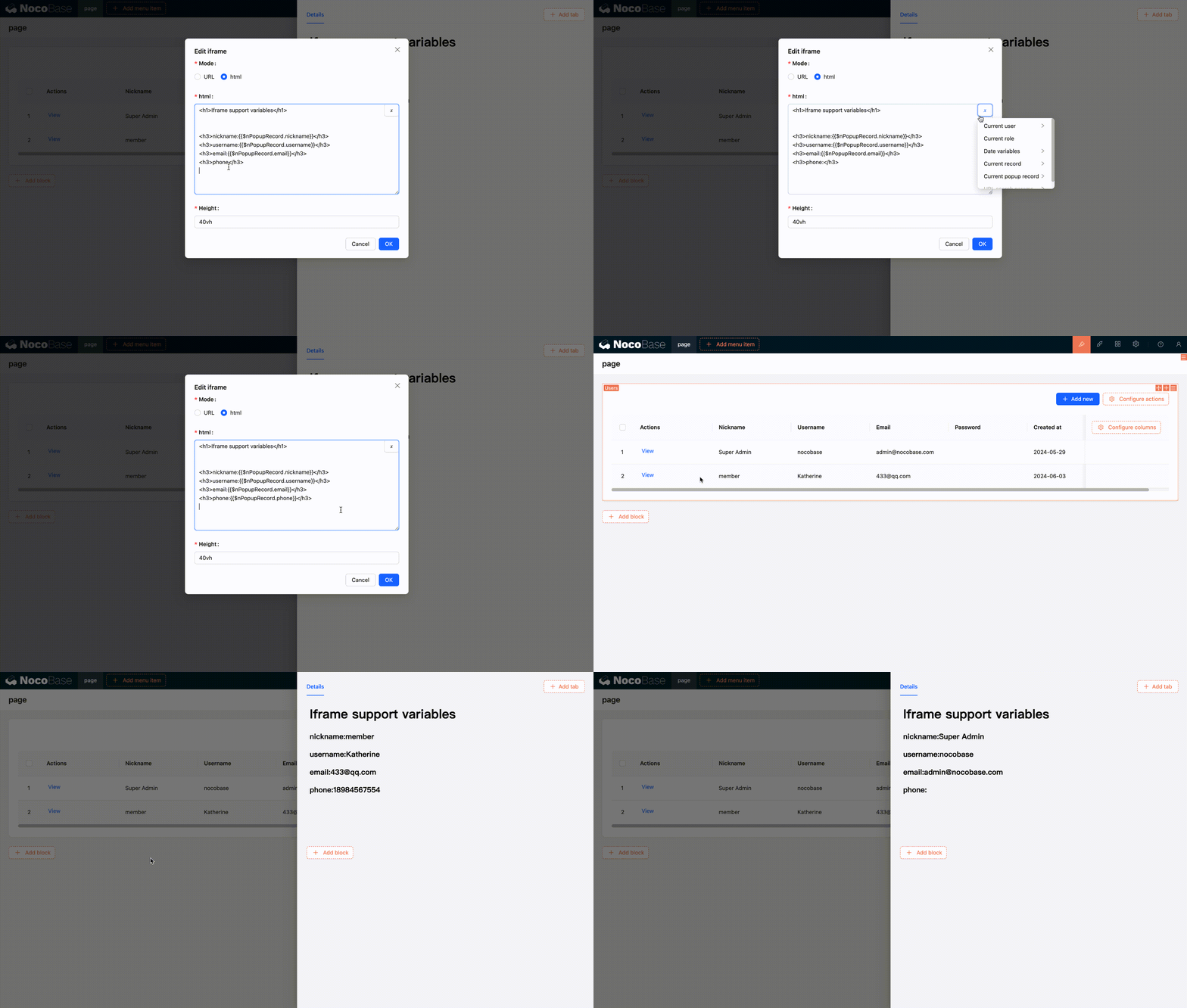
html 支持变量解析

支持从变量选择器中选择当前区块上下文的变量
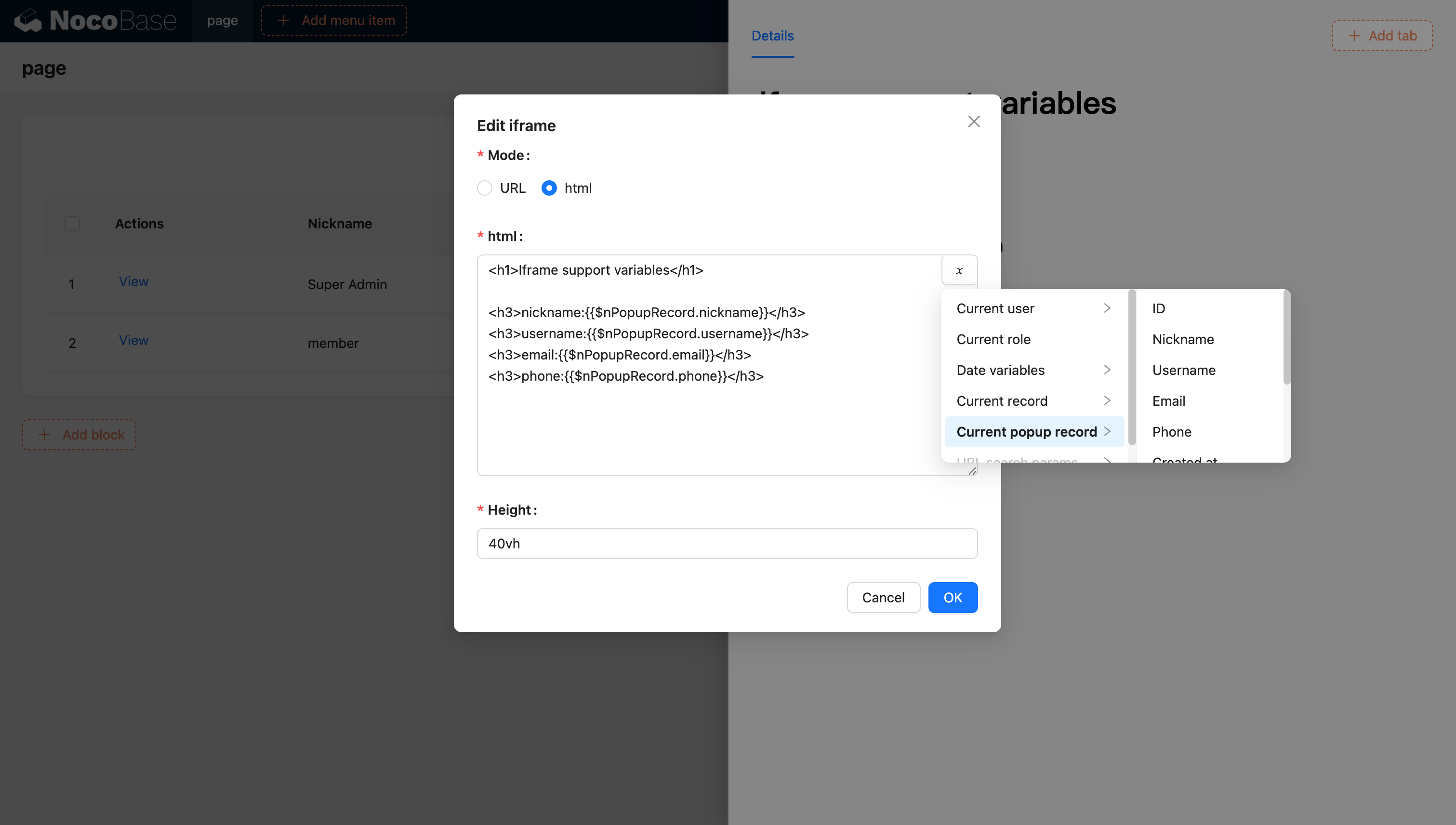
20240603120321

20240603120629

支持通过代码编写的方式向应用注入变量并使用

还可以通过代码将自定义变量注入到应用中,并在 HTML 中使用它们。例如,使用 Vue 3 和 Element Plus 创建一个动态日历应用:
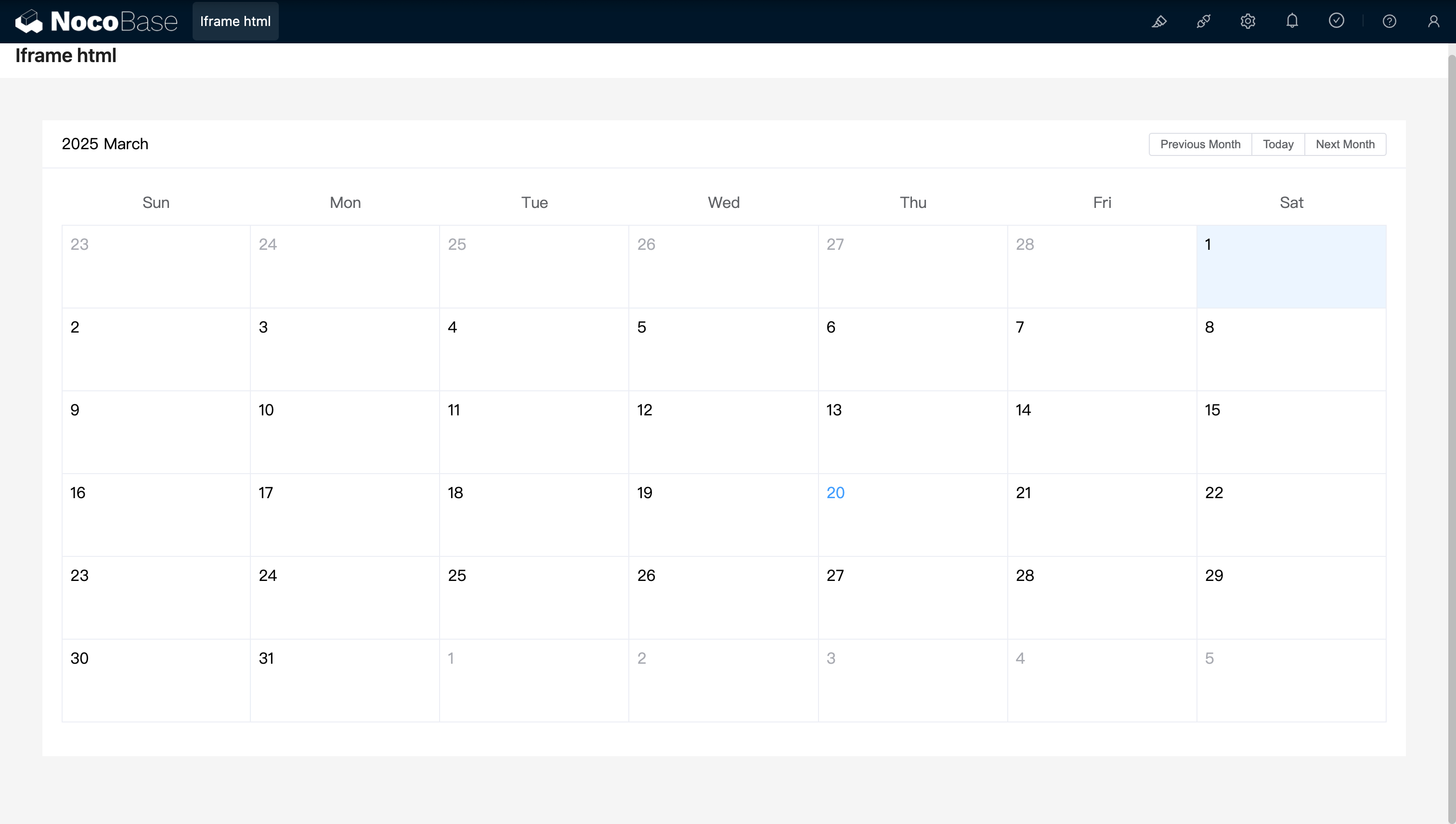
<!doctype html>
<html lang="zh">
  <head>
    <meta charset="UTF-8" />
    <meta name="viewport" content="width=device-width, initial-scale=1.0" />
    <title>Vue3 CDN Example</title>
    <script src="https://cdn.bootcdn.net/ajax/libs/vue/3.5.9/vue.global.prod.js"></script>
    <script src="https://unpkg.com/element-plus"></script>
    <script src="https://unpkg.com/element-plus/dist/locale/zh-cn"></script>
    <link
      rel="stylesheet"
      href="https://unpkg.com/element-plus/dist/index.css"
    />
  </head>
  <body>
    <div id="app">
      <el-container>
        <el-main>
          <el-calendar v-model="month">
            <div class="header-container">
              <div class="action-group">
                <span class="month-display">{{ month }}</span>
                <el-button-group>
                  <el-button
                    type="primary"
                    :loading="loading"
                    @click="changeMonth(-1)"
                    >Last month</el-button
                  >
                  <el-button
                    type="primary"
                    :loading="loading"
                    @click="changeMonth(1)"
                    >Next month</el-button
                  >
                </el-button-group>
              </div>
            </div>
          </el-calendar>
        </el-main>
      </el-container>
    </div>
    <script>
      const { createApp, ref, provide } = Vue;
      const app = createApp({
        setup() {
          const month = ref(new Date().toISOString().slice(0, 7));
          const loading = ref(false);

          const changeMonth = (offset) => {
            const date = new Date(month.value + '-01');
            date.setMonth(date.getMonth() + offset);
            month.value = date.toISOString().slice(0, 7);
          };
          provide('month', month);
          provide('changeMonth', changeMonth);
          return { month, loading, changeMonth };
        },
      });
      app.use(ElementPlus);
      app.mount('#app');
    </script>
  </body>
</html>

20250320163250

示例:使用 React 和 Ant Design (antd) 创建的简单日历组件,结合了 dayjs 来处理日期
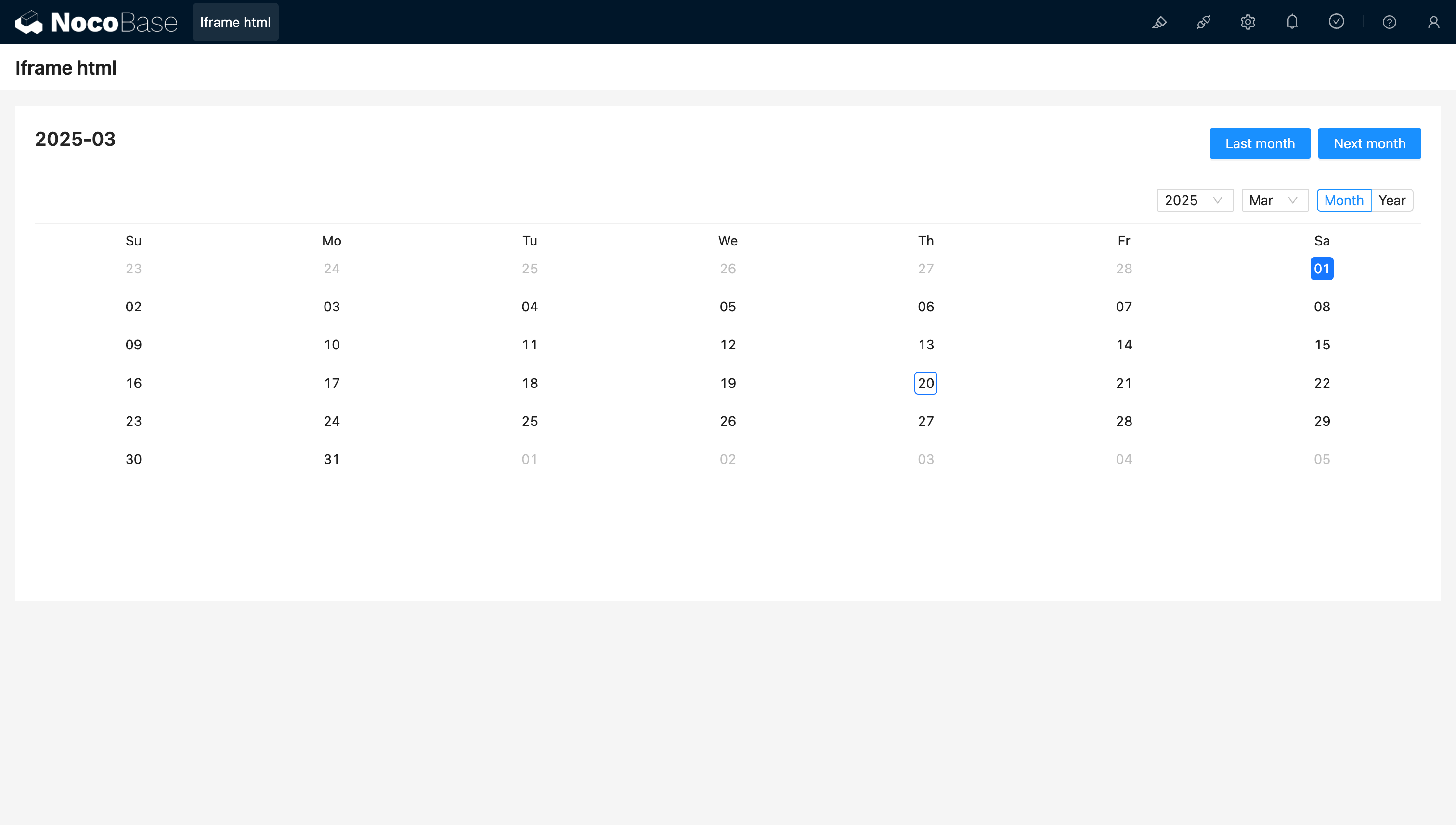
<!doctype html>
<html lang="zh">
  <head>
    <meta charset="UTF-8" />
    <meta name="viewport" content="width=device-width, initial-scale=1.0" />
    <title>React CDN Example</title>
    <script src="https://unpkg.com/react@18/umd/react.production.min.js"></script>
    <script src="https://unpkg.com/react-dom@18/umd/react-dom.production.min.js"></script>
    <link
      rel="stylesheet"
      href="https://cdn.jsdelivr.net/npm/antd/dist/antd.min.css"
    />
    <script src="https://unpkg.com/dayjs/dayjs.min.js"></script>
  </head>
  <body>
    <div id="app"></div>
    <script src="https://cdn.jsdelivr.net/npm/antd/dist/antd.min.js"></script>
    <script>
      document.addEventListener('DOMContentLoaded', function () {
        const { useState } = React;
        const { Calendar, Button, Space, Typography } = window.antd;
        const { Title } = Typography;
        const CalendarComponent = () => {
          const [month, setMonth] = useState(dayjs().format('YYYY-MM'));
          const [loading, setLoading] = useState(false);
          const changeMonth = (offset) => {
            const newMonth = dayjs(month)
              .add(offset, 'month')
              .format('YYYY-MM');
            setMonth(newMonth);
          };
          return React.createElement(
            'div',
            { style: { padding: 20 } },
            React.createElement(
              'div',
              {
                style: {
                  display: 'flex',
                  justifyContent: 'space-between',
                  alignItems: 'center',
                  marginBottom: 16,
                },
              },
              React.createElement(Title, { level: 4 }, month),
              React.createElement(
                Space,
                null,
                React.createElement(
                  Button,
                  { type: 'primary', loading, onClick: () => changeMonth(-1) },
                  'Last month',
                ),
                React.createElement(
                  Button,
                  { type: 'primary', loading, onClick: () => changeMonth(1) },
                  'Next month',
                ),
              ),
            ),
            React.createElement(Calendar, {
              fullscreen: false,
              value: dayjs(month),
            }),
          );
        };
        ReactDOM.createRoot(document.getElementById('app')).render(
          React.createElement(CalendarComponent),
        );
      });
    </script>
  </body>
</html>

20250320164537

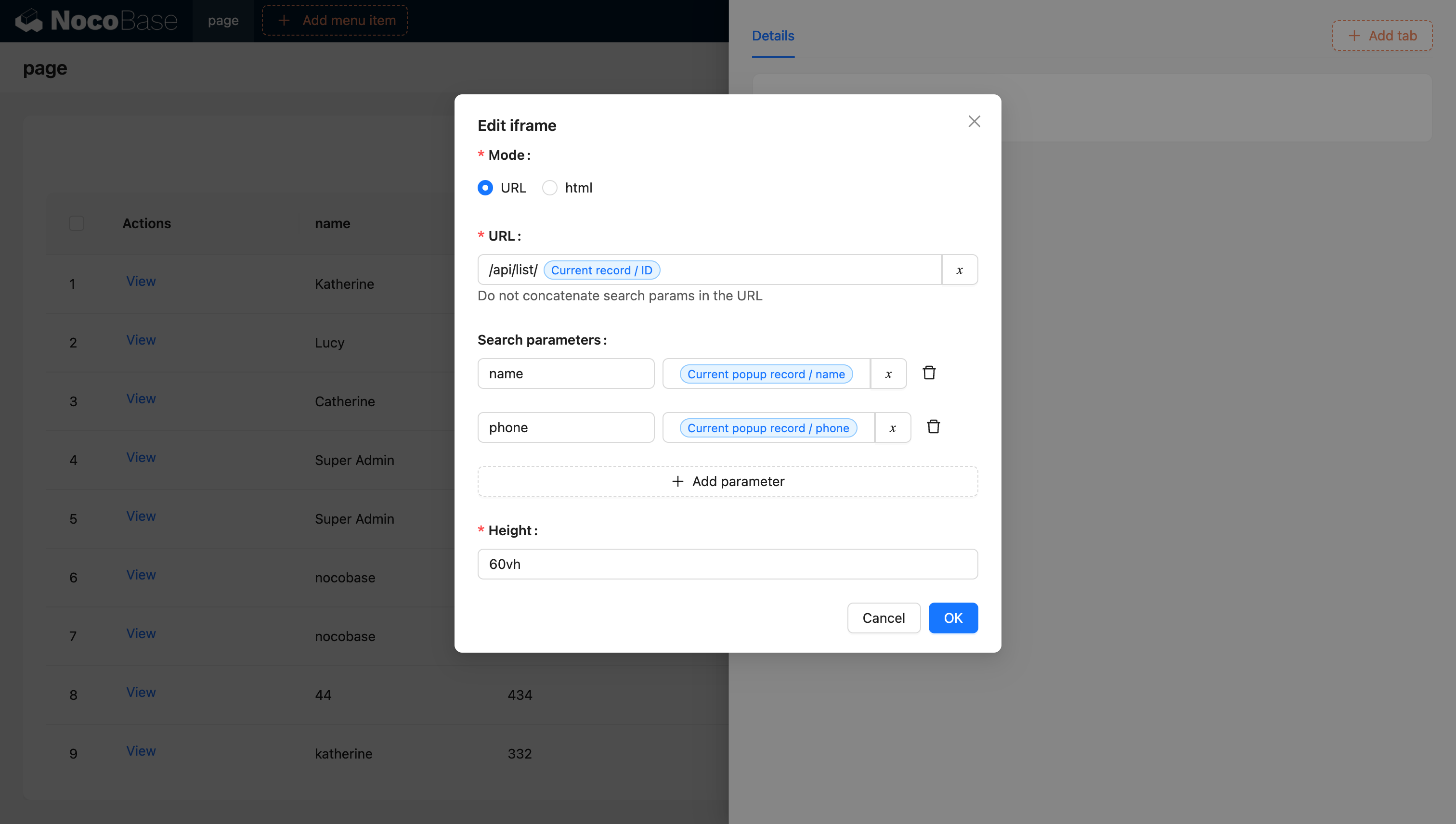
url 支持变量

20240603142219

更多关于变量内容参考变量文档

使用 JS 区块创建 Iframe (NocoBase 2.0)

在 NocoBase 2.0 中,您可以使用 JS 区块动态创建 iframe,从而获得更多控制。这种方法为自定义 iframe 行为和样式提供了更好的灵活性。

基础示例

创建一个 JS 区块并使用以下代码创建 iframe:

// 创建一个填充当前区块容器的 iframe
const iframe = document.createElement('iframe');
iframe.src = 'https://example.com';
iframe.setAttribute('sandbox', 'allow-scripts allow-same-origin');
iframe.style.width = '100%';
iframe.style.height = '100%';
iframe.style.border = 'none';

// 替换现有子元素,使 iframe 成为唯一内容
ctx.element.replaceChildren(iframe);

关键要点

  • ctx.element: 当前 JS 区块容器的 DOM 元素
  • sandbox 属性: 控制 iframe 内容的安全限制
    • allow-scripts: 允许 iframe 执行脚本
    • allow-same-origin: 允许 iframe 访问其自身源
  • replaceChildren(): 用 iframe 替换容器的所有子元素

带加载状态的高级示例

您可以通过加载状态和错误处理来增强 iframe 创建:

// 显示加载提示
ctx.message.loading('正在加载外部内容...');

try {
  // 创建 iframe
  const iframe = document.createElement('iframe');
  iframe.src = 'https://example.com';
  iframe.setAttribute('sandbox', 'allow-scripts allow-same-origin');
  iframe.style.width = '100%';
  iframe.style.height = '100%';
  iframe.style.border = 'none';

  // 添加加载事件监听器
  iframe.addEventListener('load', () => {
    ctx.message.success('内容加载成功');
  });

  // 添加错误事件监听器
  iframe.addEventListener('error', () => {
    ctx.message.error('加载内容失败');
  });

  // 将 iframe 插入容器
  ctx.element.replaceChildren(iframe);
} catch (error) {
  ctx.message.error('创建 iframe 出错: ' + error.message);
}

安全注意事项

使用 iframe 时,请考虑以下安全最佳实践:

  1. 使用 HTTPS: 尽可能始终通过 HTTPS 加载 iframe 内容
  2. 限制 Sandbox 权限: 仅启用必要的 sandbox 权限
  3. 内容安全策略: 配置适当的 CSP 头
  4. 同源策略: 注意跨域限制
  5. 可信来源: 仅从可信域加载内容