

App SSO
App supervisorEnterprise Edition+App SSO simplifies the sign-in flow when users enter sub-apps in a multi-app setup.
After it is enabled, when a user enters a sub-app from the main app entry or switches between sub-apps, the system attempts to automatically sign in to the target sub-app as the current user. Users do not need to enter their username and password repeatedly in each sub-app.
Use cases
App SSO is suitable for the following scenarios:
- The main app acts as a unified entry, and users enter different business sub-apps from it
- A system is split into multiple business sub-apps, but the user sign-in experience should remain continuous
- Users need to switch frequently between multiple sub-apps
- User accounts are mapped between sub-apps by the same username
Enable App SSO
Go to "App Supervisor", create or edit a sub-app, and enable "App SSO" in "Authentication configuration".
After it is enabled, the sub-app can trigger automatic sign-in through the main app entry or the app switcher.
After changing authentication configuration, the sub-app usually needs to be restarted for the change to take effect.
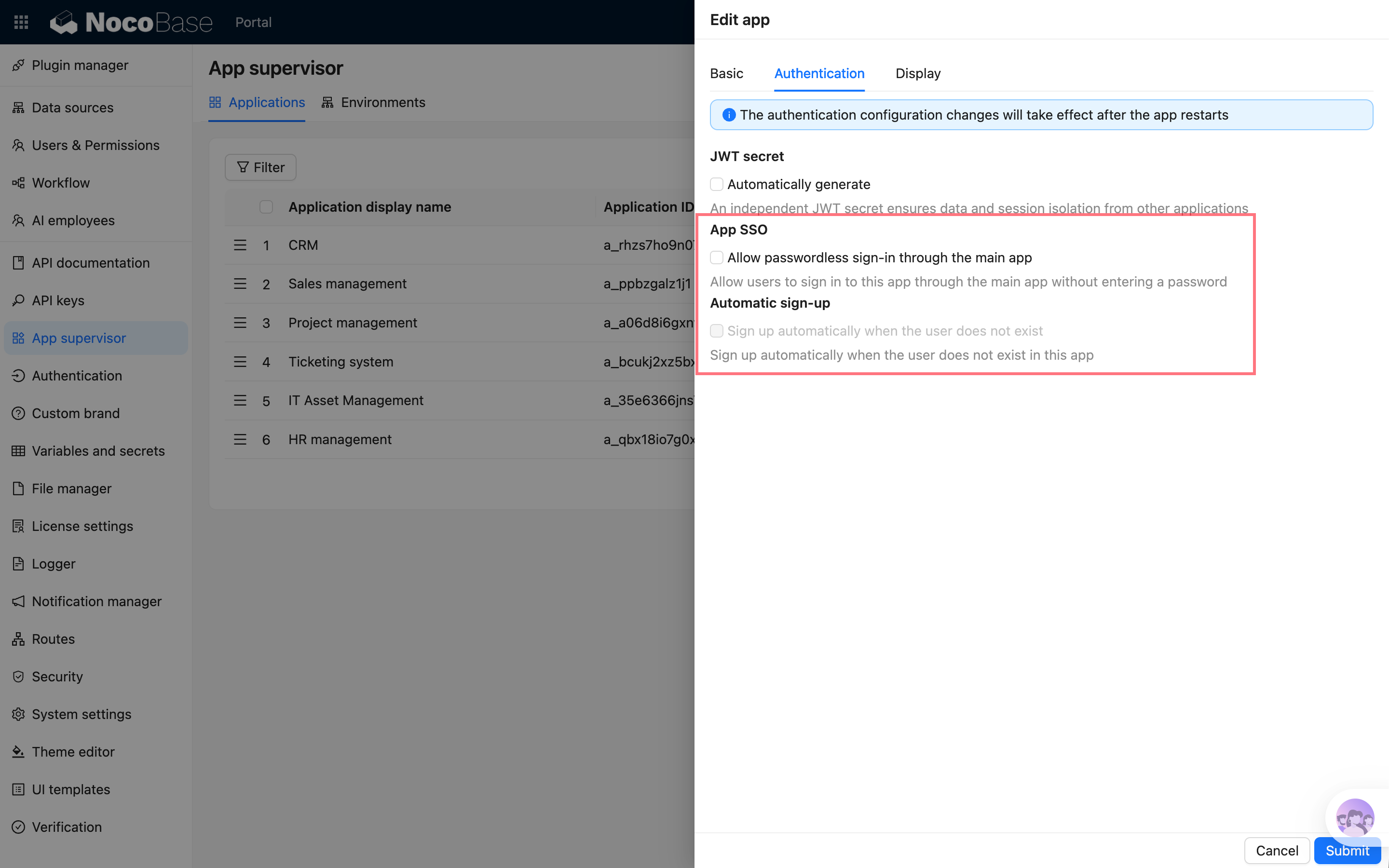
Automatic user signup
If the corresponding user does not exist in the target sub-app, you can enable "Automatically sign up when user does not exist".
After it is enabled, when a user enters a sub-app through App SSO for the first time, the system creates a basic user in the sub-app from the user information in the main app.
User mapping is mainly based on username. This means:
- If the username is the same in the main app and sub-app, the user signs in as the corresponding sub-app user
- If the username does not exist in the sub-app, the user is created only when automatic signup is enabled
- If automatic signup is not enabled, the administrator needs to create the user in the sub-app in advance
Roles and permissions after user creation are determined by the sub-app's own user and permission configuration.
Entries that trigger automatic sign-in
App SSO is mainly triggered from:
- Entering a sub-app from the main app's app entry
- Entering a sub-app from the upper-left app switcher
- Switching from one sub-app to another
Directly visiting the sub-app sign-in page or the sub-app's own URL does not force the main app sign-in state. This preserves the sub-app's own sign-in methods and makes it possible to manage sub-app accounts separately when needed.
FAQ
Still not signed in automatically after enabling it?
Check the following:
- Whether App SSO is enabled for the sub-app
- Whether the sub-app has been restarted so the authentication configuration takes effect
- Whether the user entered from the main app entry or app switcher
- Whether a user with the same username exists in the sub-app
- If the user does not exist, whether automatic signup is enabled
Why does direct access to a sub-app not automatically sign in?
This is expected. When directly visiting a sub-app, the sub-app may need to use its own sign-in method, so the main app sign-in state is not forced.