

Applications block and app switcher
App supervisorEnterprise Edition+Besides managing sub-apps in the admin panel, multi-app can also provide app entries on the frontend. Common ways include:
- Adding an "Applications" block to a page to display accessible sub-apps
- Enabling the app switcher in the upper-left corner so users can switch between the main app and sub-apps
Applications block
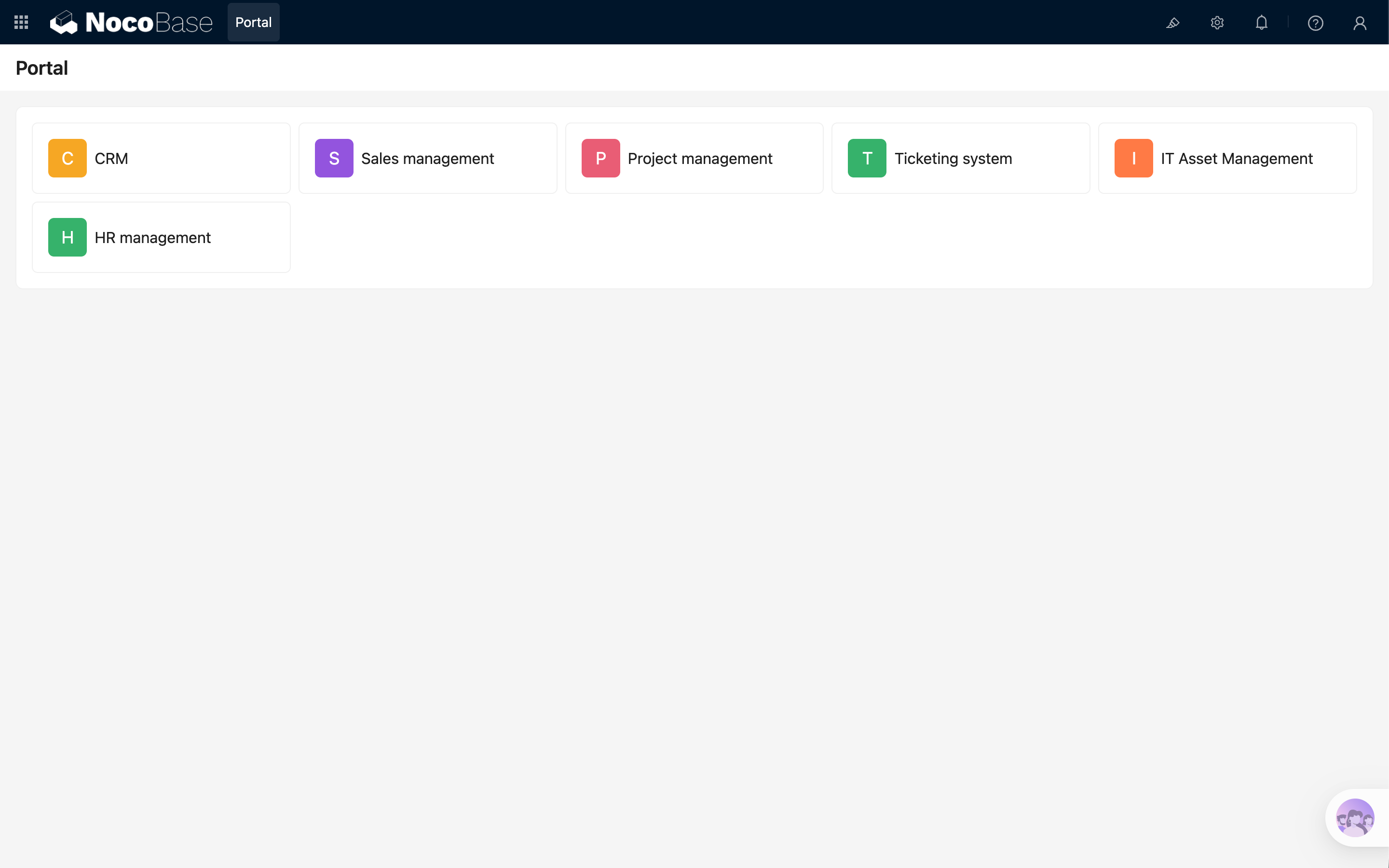
The "Applications" block displays a list of sub-apps on a frontend page. It is suitable for building a simple app portal, where end users can enter different business apps from one page.
Each app in the block displays:
- App icon
- App name
- Access entry
Clicking an app opens the corresponding sub-app.
Configure app icons
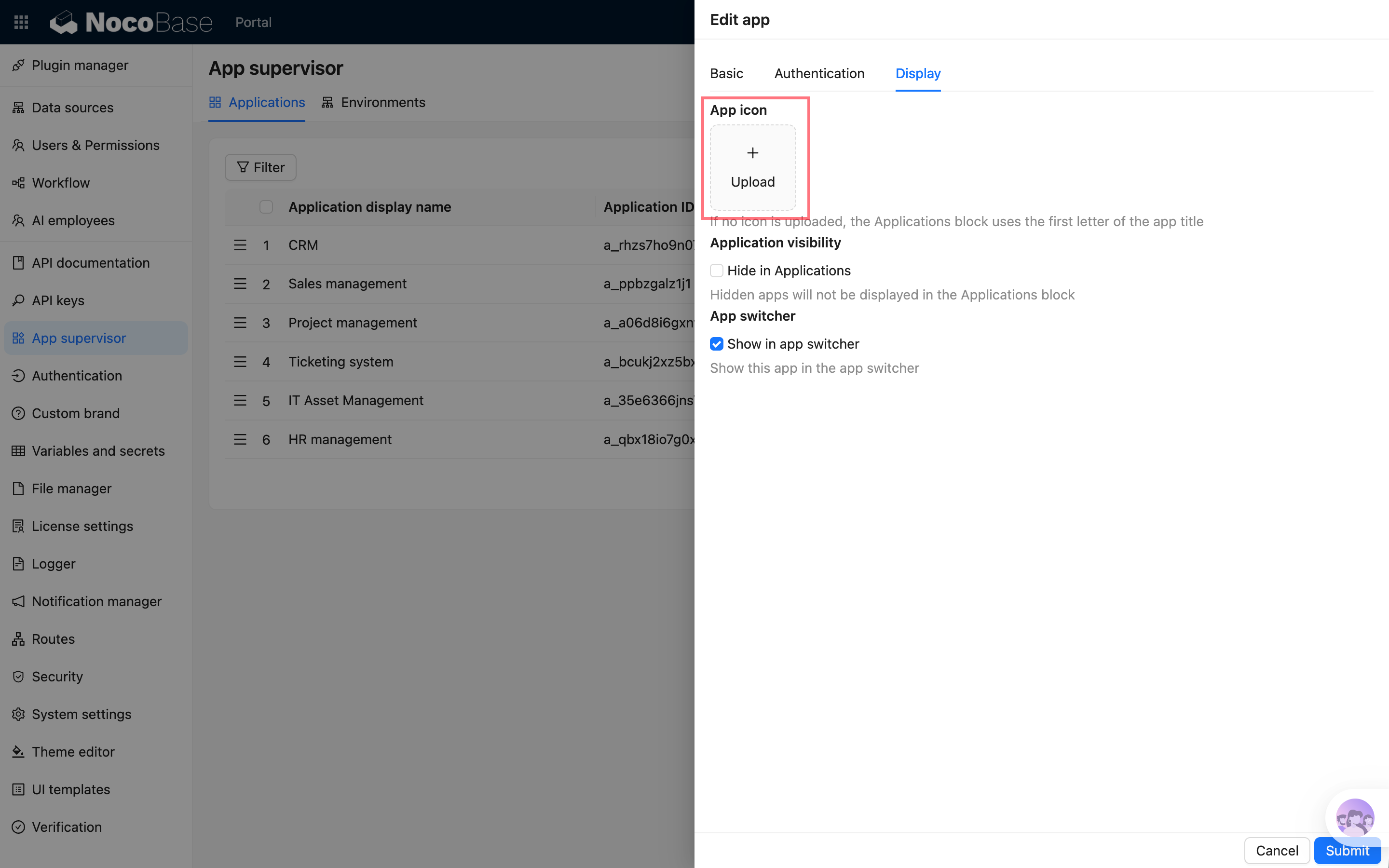
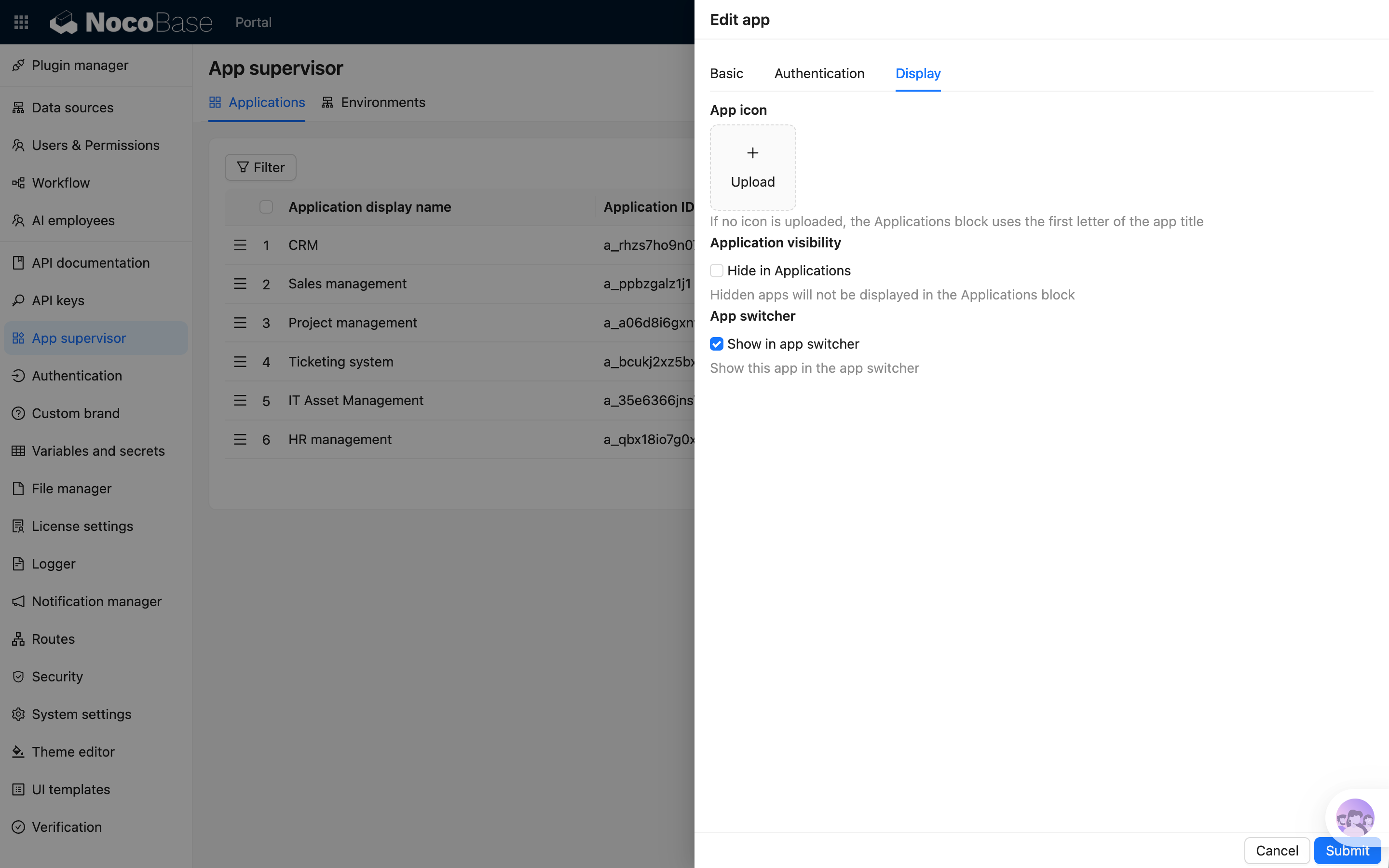
When creating or editing an app in App Supervisor, you can upload an app icon in "Display configuration".
If no icon is uploaded, the system generates a default icon from the first letter of the app name, making apps easier to distinguish in the list.
Hide apps
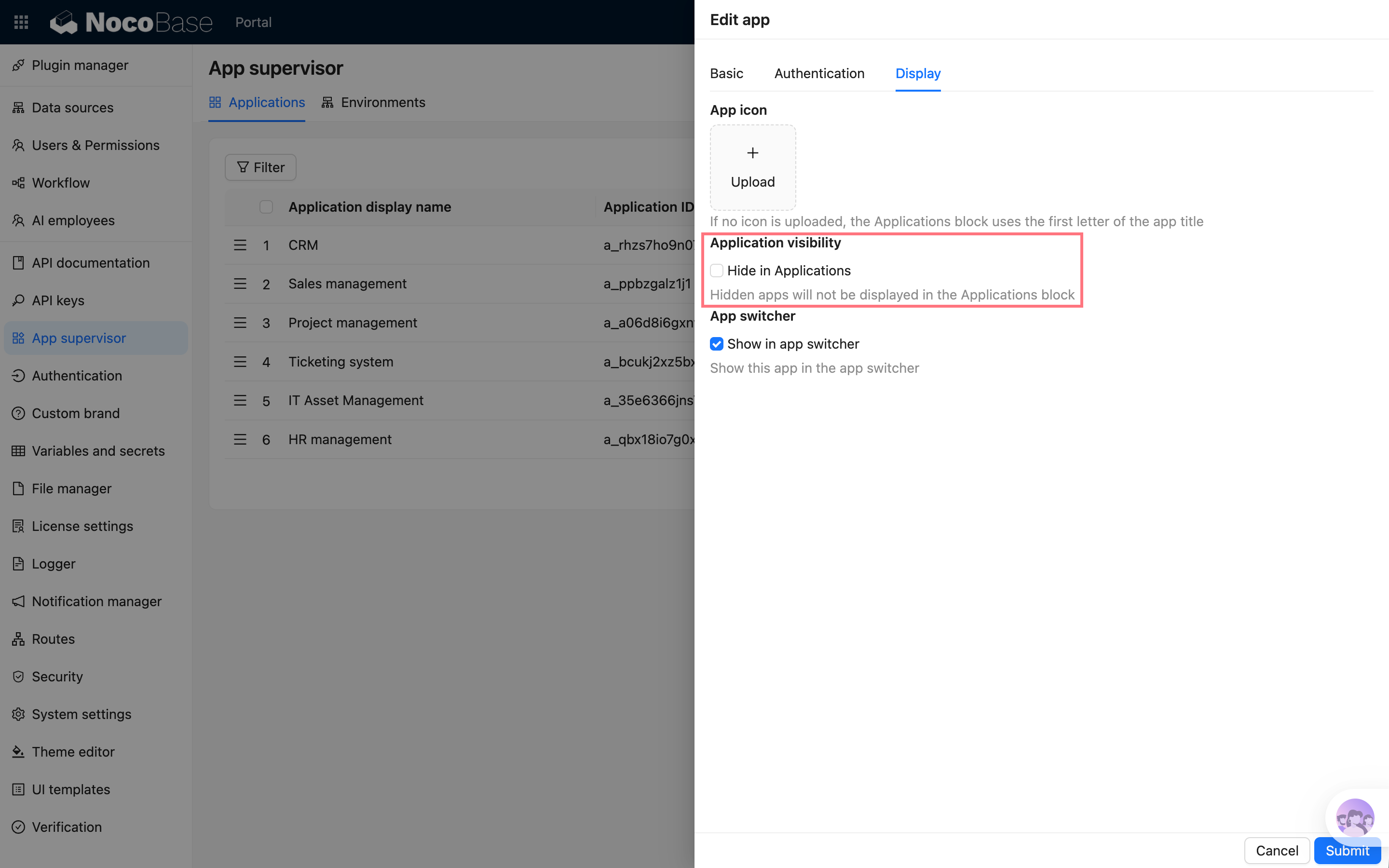
If an app should not appear in the frontend "Applications" block, select "Hide in Applications block" in the app configuration.
After it is hidden:
- The app can still be managed in the admin panel
- The app can still be opened through its direct URL
- It simply no longer appears in the frontend "Applications" block
App switcher
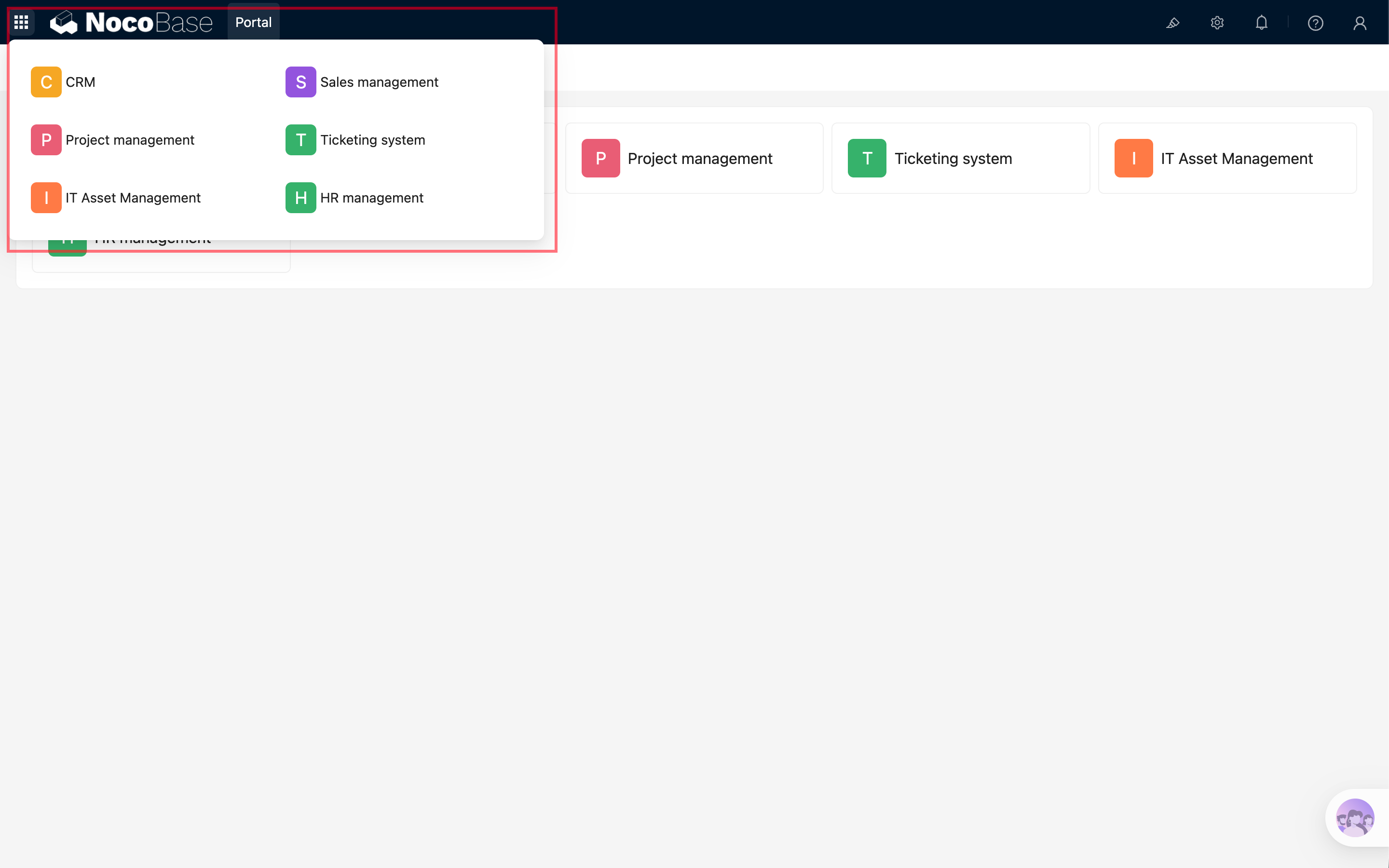
The app switcher appears in the upper-left corner and is used to quickly switch to other apps.
To show an app in the app switcher, enable "Show in app switcher" in the app configuration.
After it is enabled, users can see the app switcher in the upper-left corner of the main app or sub-apps and enter other apps from the list.
Opening behavior
The app switcher opens apps as follows:
- From the main app to a sub-app: opens in a new tab
- From one sub-app to another: opens in the current tab
This avoids interrupting work in the main app while keeping switching between sub-apps natural.