

Backups Manager
Backup managerCommunity Edition+Introduction
The NocoBase backup manager plugin provides features for fully backing up of the NocoBase database and user uploaded files, including backup's scheduling, downloading, deleting, and restoring operation.
Install Database Client
Backup Manager depends on the database client for the primary database. Before use, confirm that the current runtime environment has a client that matches your database version.
When installing NocoBase with Docker, use the corresponding full image when possible, such as latest-full, beta-full, or alpha-full. These images already include common database clients, so manual installation is usually not required.
If the current environment does not have the required database client, download the client that matches your database version from the official website:
- MySQL: https://dev.mysql.com/downloads/
- PostgreSQL: https://www.postgresql.org/download/
If you need to install it manually in a Docker environment, you can write a script in the ./storage/scripts directory:
The content of install-database-client.sh is as follows:
Then restart the app container
Check the database client version number, which must match the database server version number
Usage Instructions
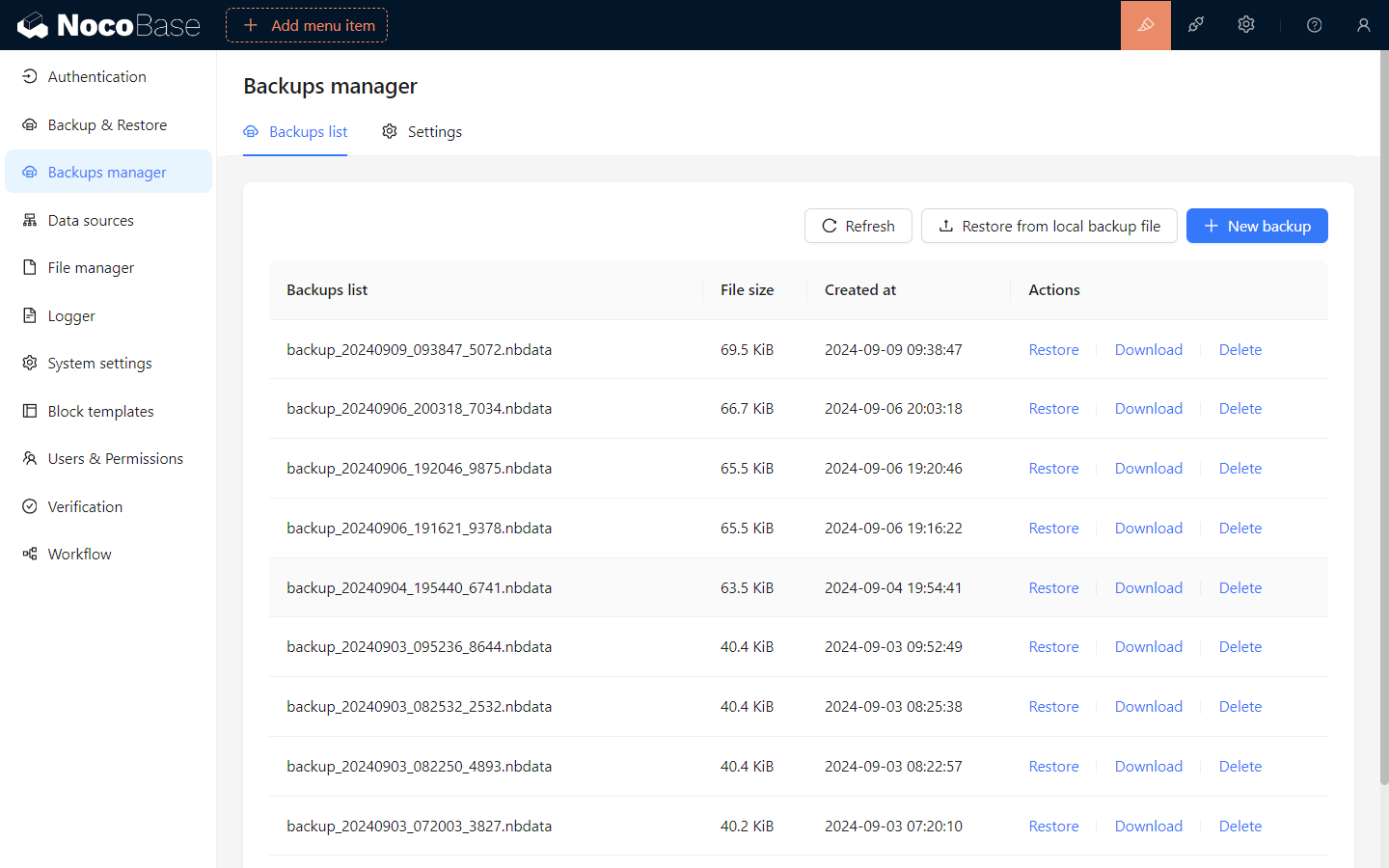
Create New Backup
Click the "New backup" button to create a new backup based on the backup configuration and display the backup status in the backup list.
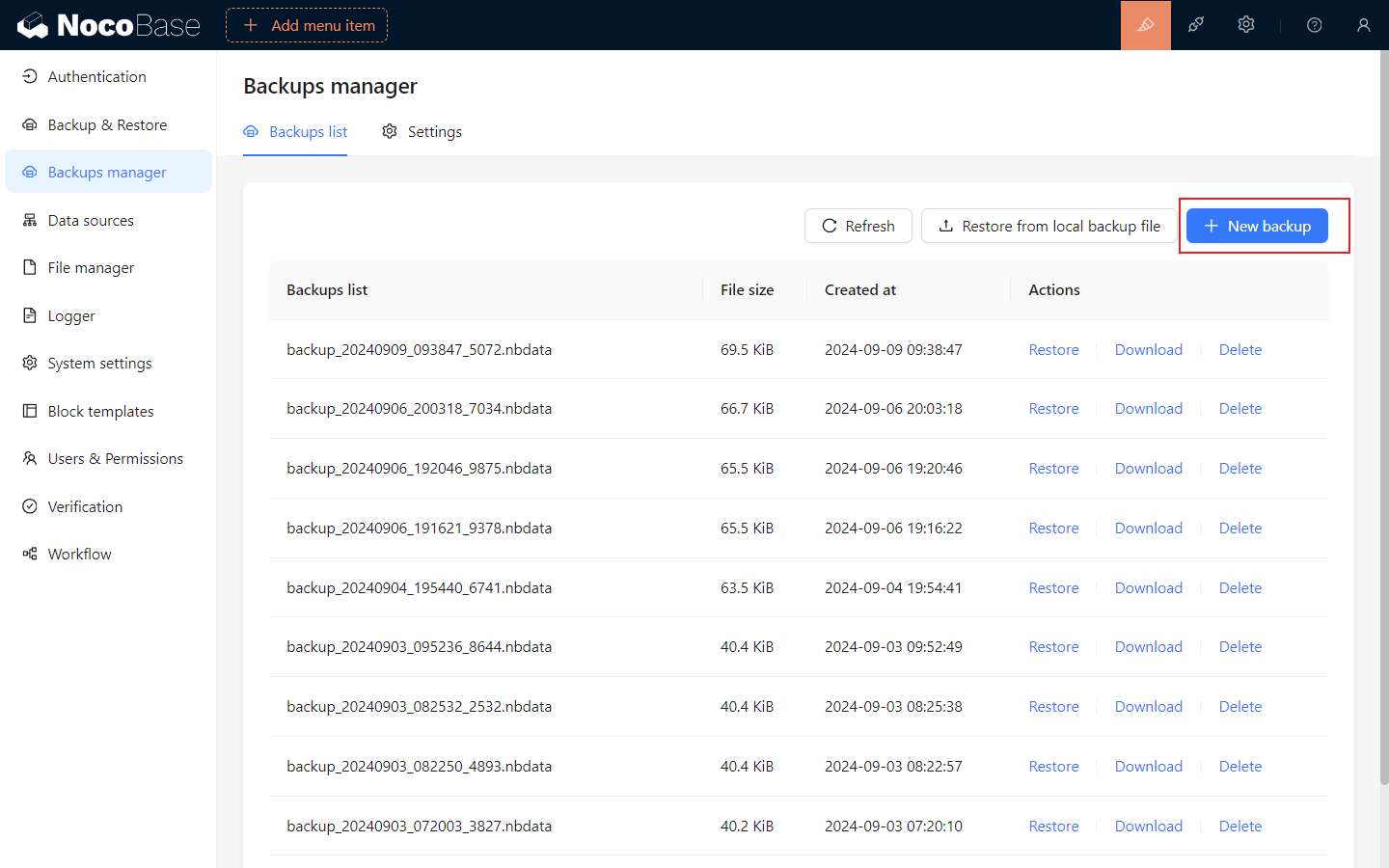
Restore Backup
Supports restoring backups from the backup list or uploading local backup files to restore backups. Restore operations are not allowed in the following scenarios:
- When the current NocoBase version is lower than the NocoBase version in the backup file.
- When the current NocoBase database is inconsistent with the following configurations in the backup file:
- dialect
- underscored
- table prefix
- schema
- When the
Tolerant modeis not enabled, and the database version when creating the backup is higher than the current application database version.
Restore is a full database operation. It is recommended to back up the current database before restoring a backup.
Restore from the backup list
Click the "Restore" button of the backup item in the backup list, enter the backup file encryption password in the pop-up window, and click "Confirm" to restore the backup.
Leave password empty for unencrypted backup.
If you need to restore the backup to a lower version of the database, you need to enable the tolerant mode.
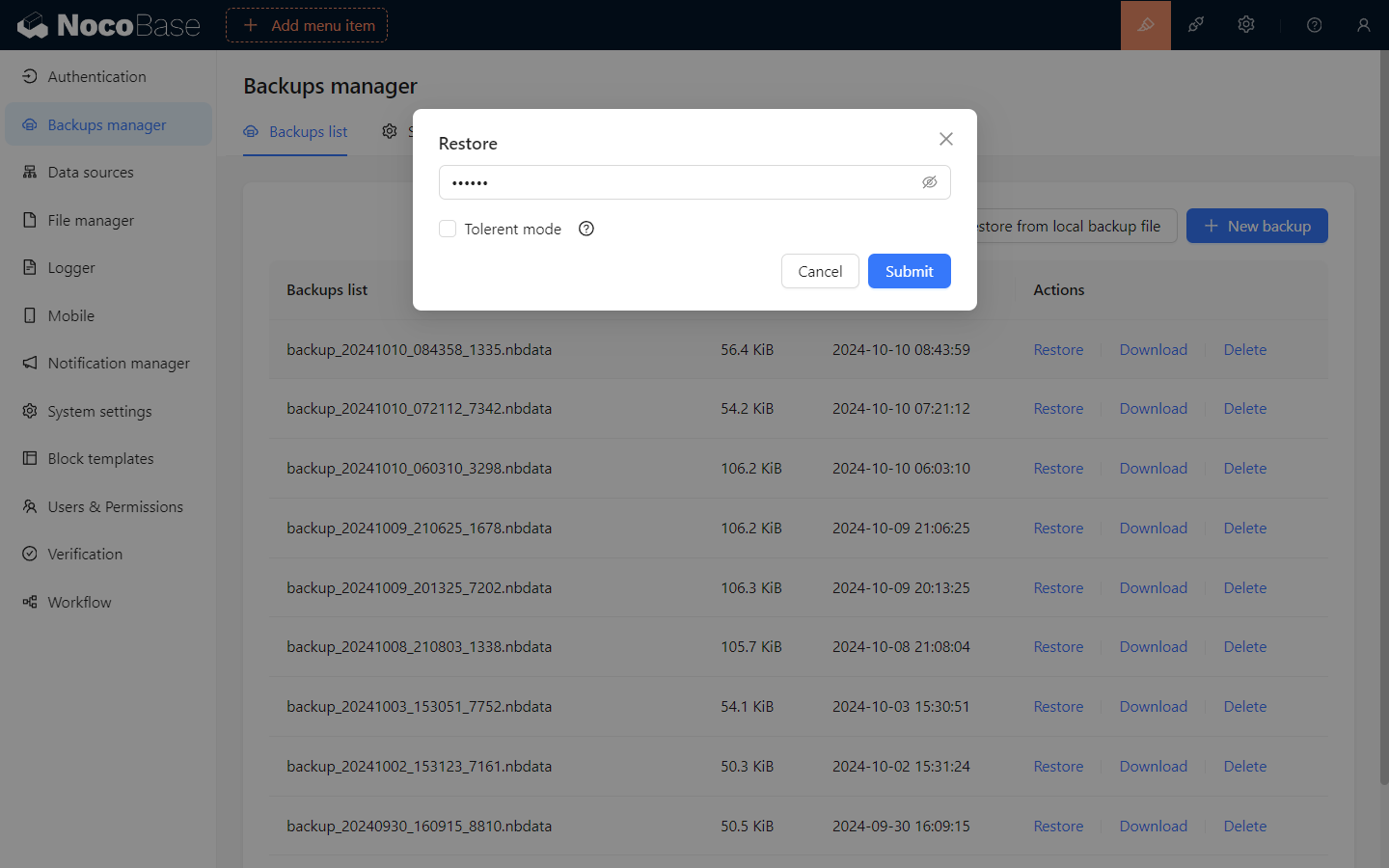
Restore from local backup file
Click the Restore from local backup button, select the local backup file in the pop-up window, enter the backup file encryption password, and click "Confirm" to restore the backup.
Leave password empty for unencrypted backup.
If you need to restore the backup to a lower version of the database, you need to enable the tolerant mode.
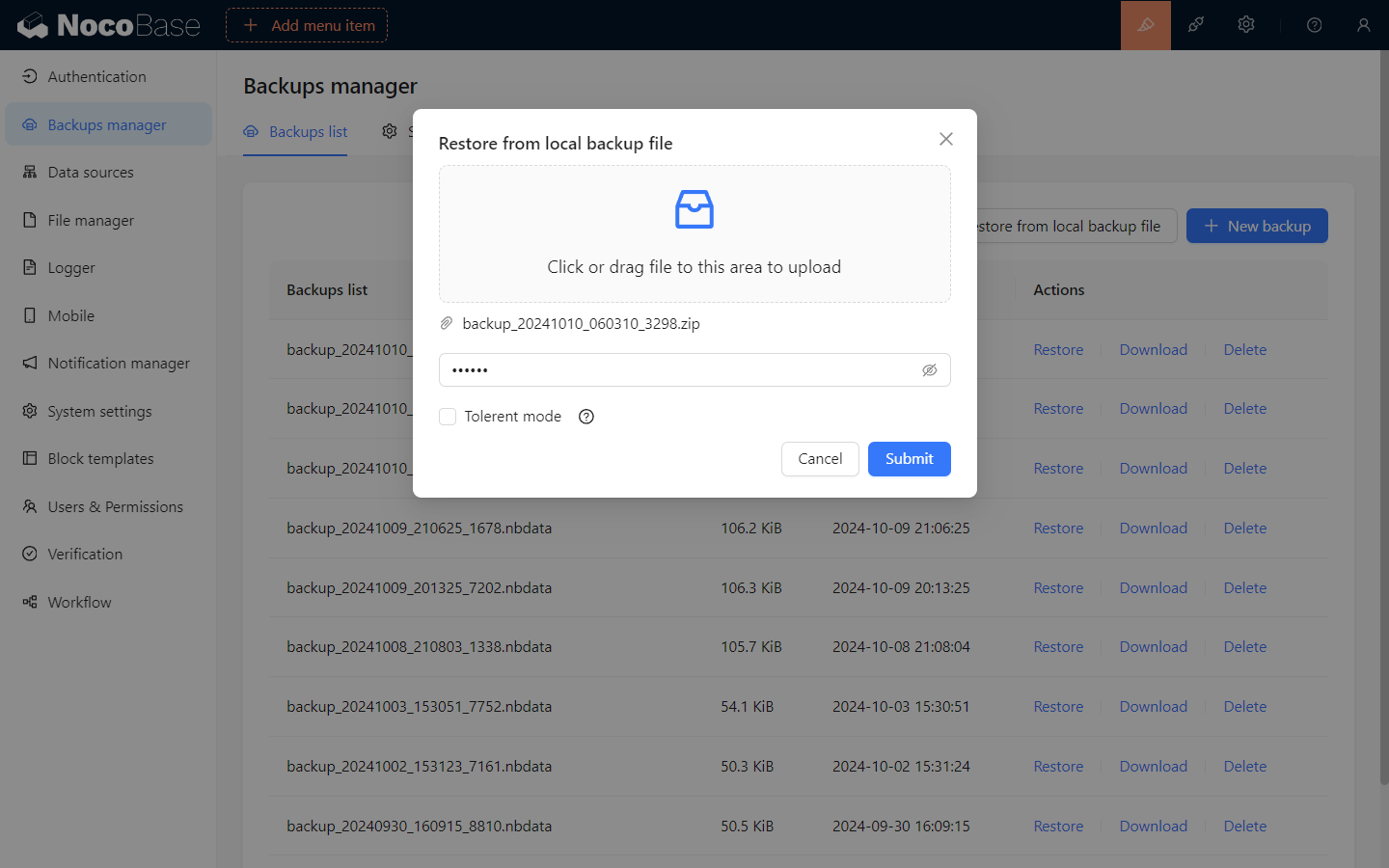
Download Backup File
Click the Download button of the backup item in the backup list to download the backup file.
Delete Backup
Click the Delete button of the backup item in the backup list to delete the backup file.
Backup Settings
Switch to the "Settings" tab, modify the backup settings, and click Save to take effect.
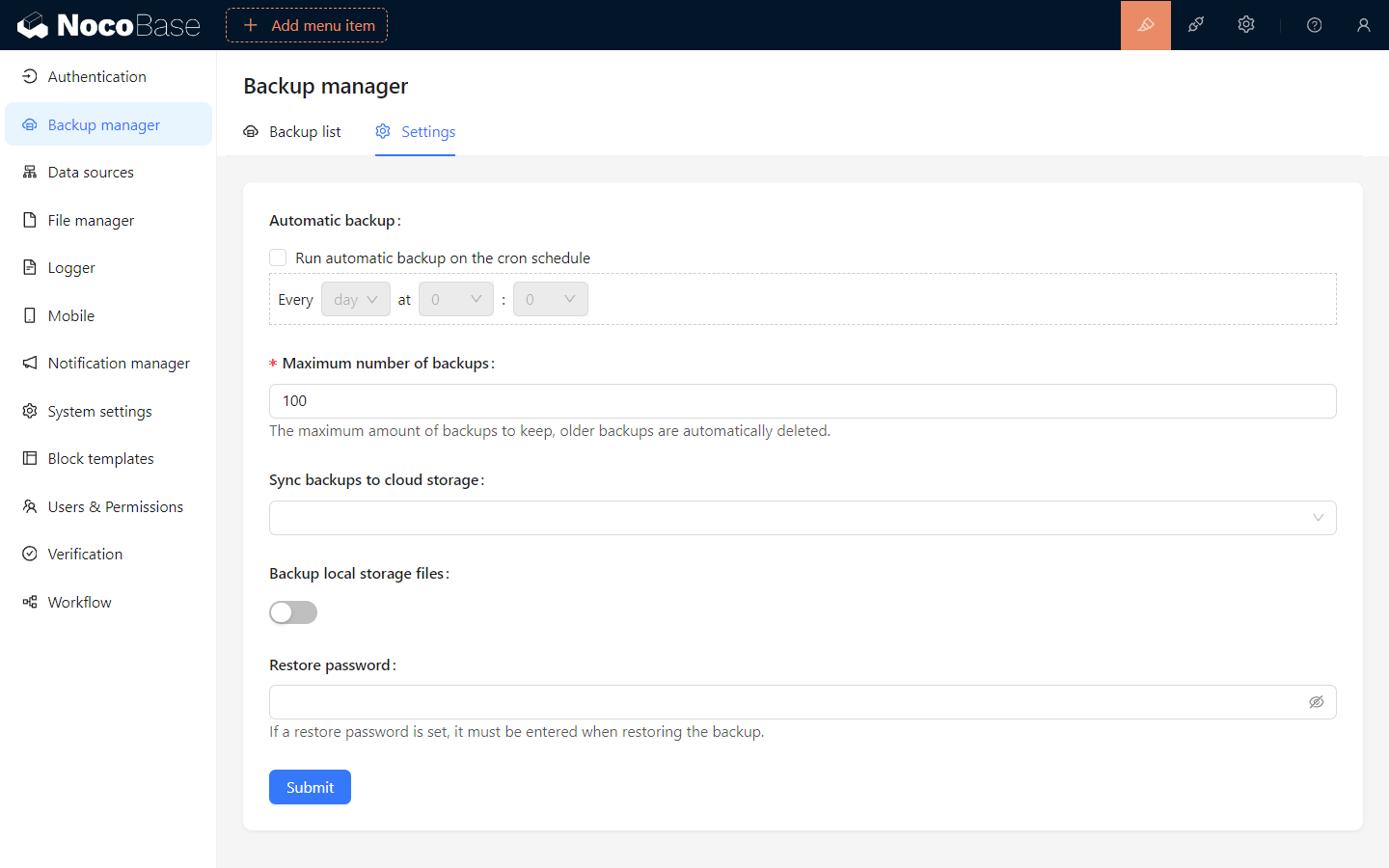
Backup Settings Description
Automatic backup: After enablingRun automatic backup on the cron schedule, you can set automatic backups at specified times.Maximum number of backups: Set the maximum number of locally saved backup files. After exceeding the number, the earliest backup files will be automatically deleted.Sync backup to cloud storage: Set the cloud storage where the backup files are automatically uploaded after a successful backup.Backup local storage files: Whether to include files uploaded by users to the server's local storage (storage/uploads) in the backup.Restore password: If a restore password is set, it must be entered when restoring the backup.
Please keep the restore password safe. Forgetting the password will make it impossible to restore the backup file.