

Version control
Version controlProfessional Edition+In NocoBase, Version control lets you save a restorable version of the current application. You can create versions manually, restore the application to a saved version when needed, and let AI Builder automatically save versions after meaningful milestones.
Version control depends on Backup manager to save and restore application states. Before using Version control, enable Backup manager first.
Community and Standard editions do not include the Version control plugin. If you need to save a restorable application state, use Backup manager: create a backup manually before key changes, and restore the corresponding backup when you need to roll back.
AI auto-saved versions
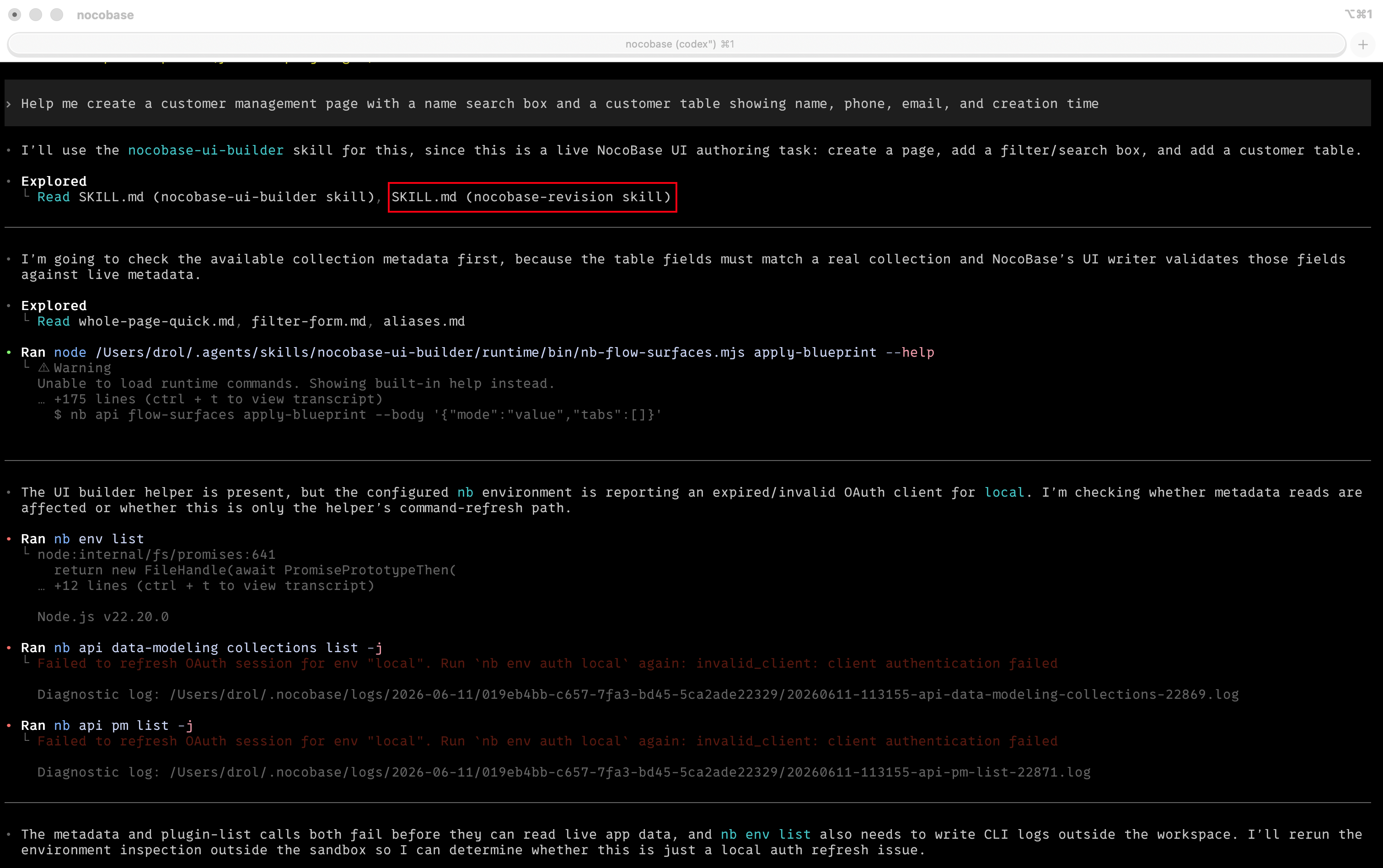
After the Version control plugin is enabled, AI Builder gets an extra rollback safeguard. When an AI Agent starts working on a request, it checks the NocoBase Skills available to the current application. If it finds the nocobase-revision skill, it can save key building milestones as restorable versions.
When AI completes a piece of work that can be reviewed on its own, such as building a page, creating a set of collections, or configuring a workflow, it runs nb revision create through the NocoBase CLI. You do not need to click 「Create version」 manually each time, and small adjustments will not create noisy version records.
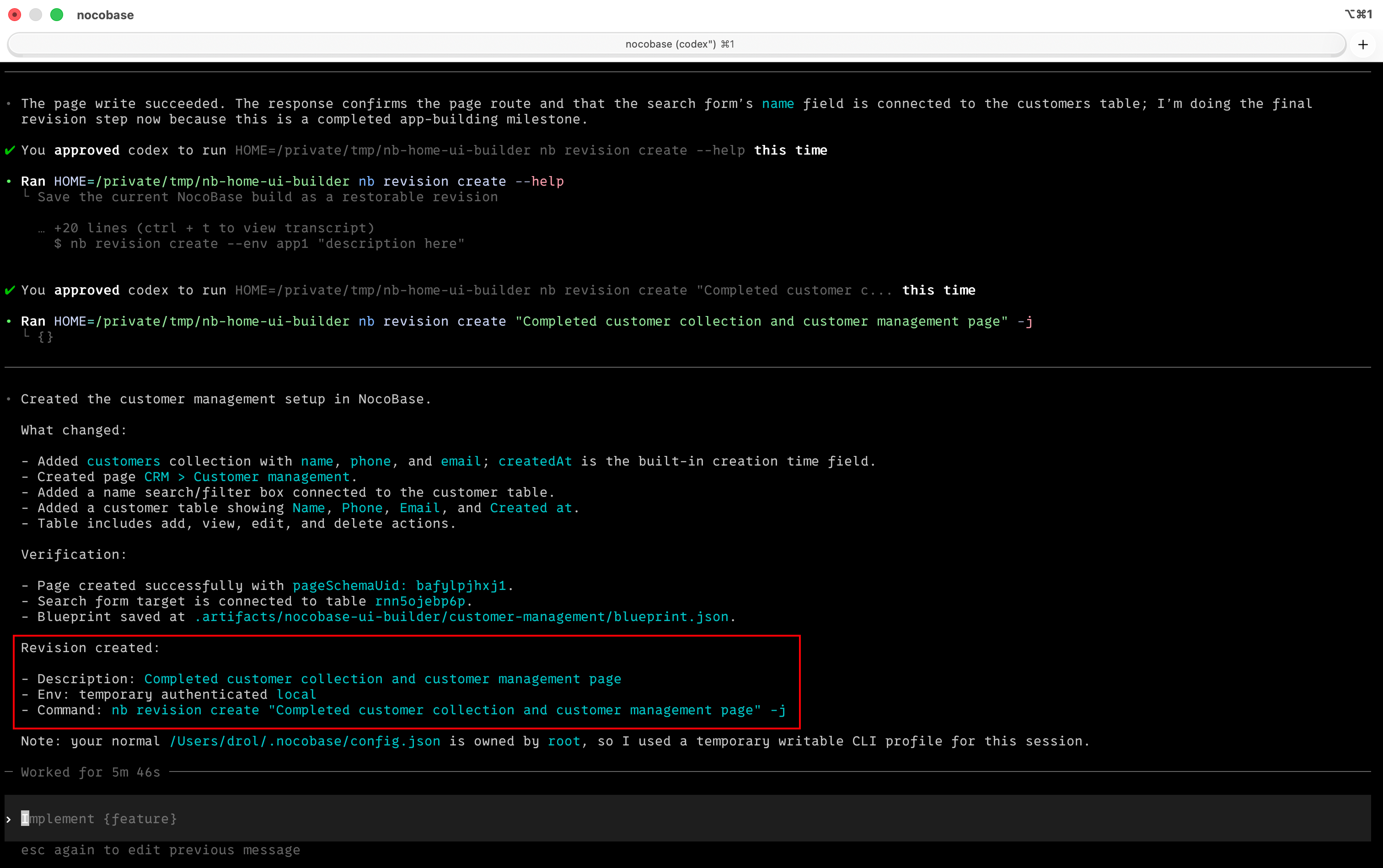
These versions appear in the versions list. If later changes do not match your expectations, you can restore to the previous clear building milestone and continue adjusting from there.
Open the plugin
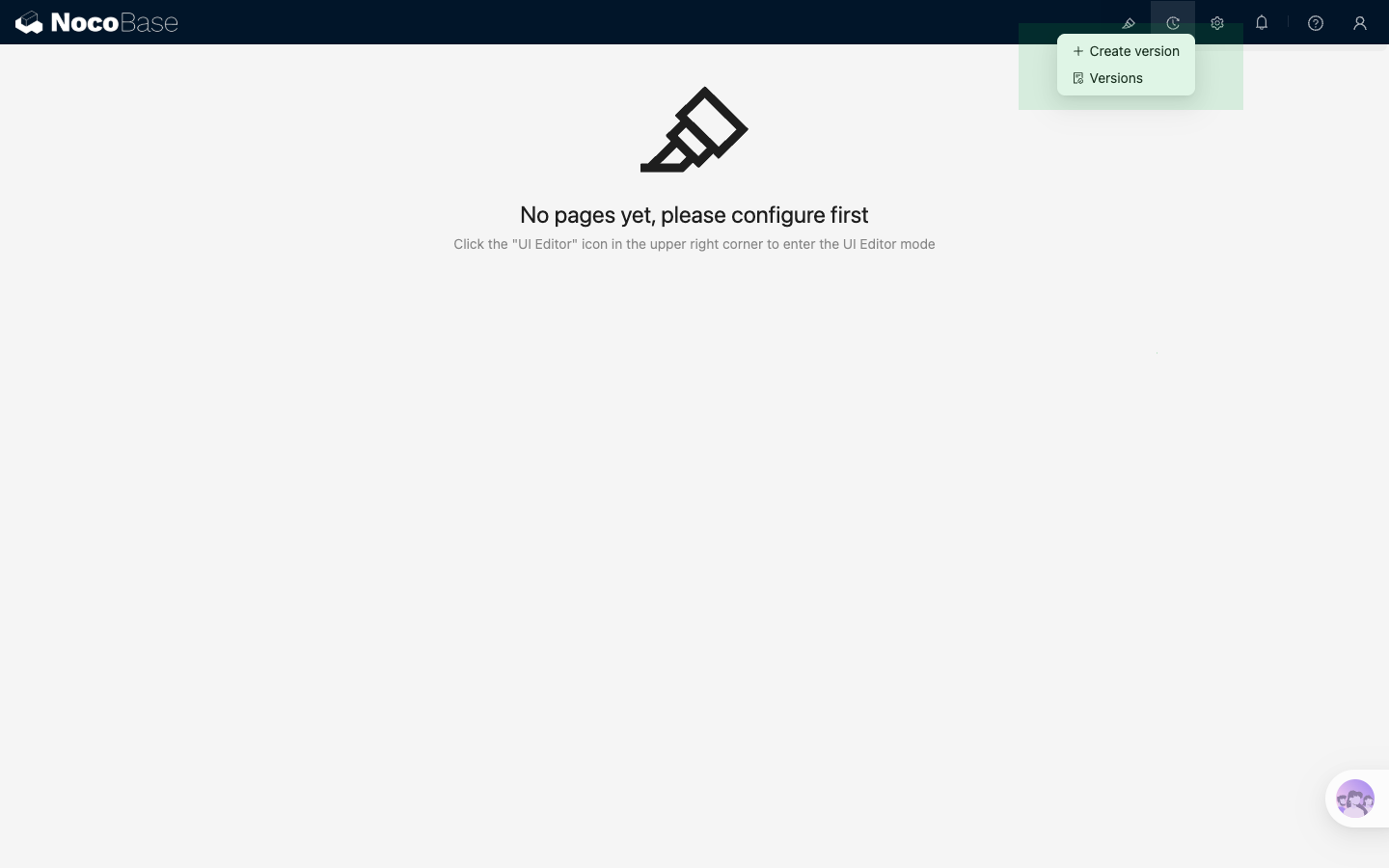
After the plugin is enabled, a 「Version control」 menu appears in the top bar. You can create a version directly from there or open the versions list.
You can also open the plugin from 「System settings / Version control」. The default shortcut for creating a version is Ctrl + K, and you can change it in the settings tab.
Create a version
Click 「Create version」, enter a description, and save it. The description can be up to 2000 characters. It is useful for recording the background of the change, such as “Adjusted approval fields and permissions”.
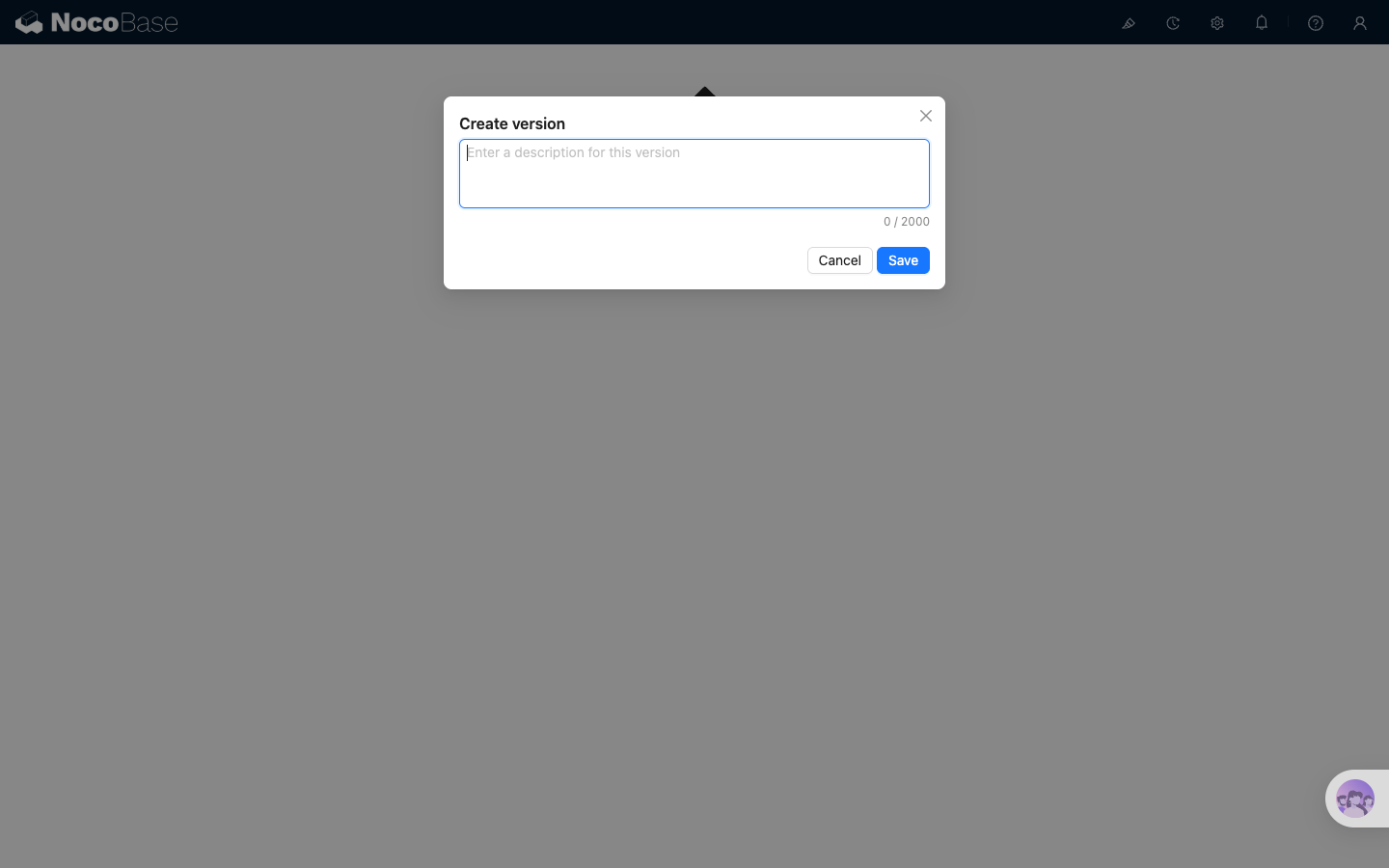
After you click save, the list first shows a temporary “Saving” entry. When the task finishes, the saved version appears in the list.
Key points:
- Version names are generated automatically
- Creating a version from the top bar, the shortcut, or the list page behaves the same
- The list shows the version name, description, file size, creation time, creator, and available actions
Manage and restore versions
The versions list mainly provides these actions:
- 「Refresh」 reloads the current list
- 「Delete」 removes one version, or multiple selected versions in batch
- 「Restore」 restores the application to the state saved in that version
Restoring a version overwrites the current application configuration and the data included in that version. It is recommended to create a version of the current state before restoring, so you can roll back again if needed.
After you click 「Restore」, the application enters maintenance mode for a short time while the restore is running. Do not submit another restore request during that time. If the restore fails, the UI shows an error notification.
Configure version rules
Open the 「Settings」 tab to control retention and what each version includes.
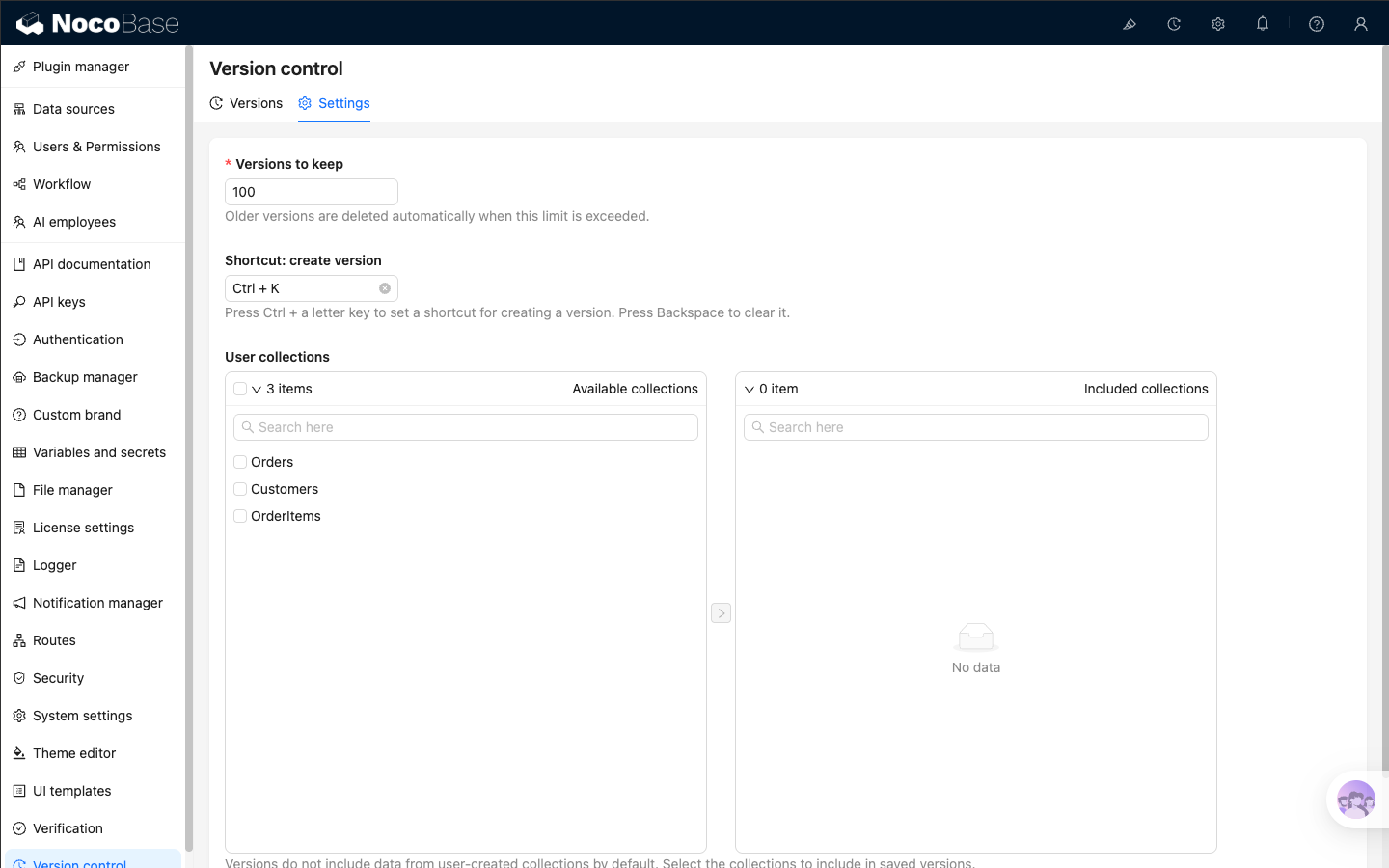
The settings include:
Versions to keep: the maximum number of saved versions. Older versions are deleted automatically after the limit is exceededShortcut: create version: the shortcut for creating a version. PressCtrl + a letter keyto set it, orBackspaceto clear itUser collections: choose which user-created collections should have their data included in saved versions
By default, saved versions do not include data from user-created collections. You only need to select collections here when you want some business data to be restored together with the application version.
If you include a user collection, NocoBase also includes related collections automatically, so restores are usually more complete.
Related links
- Backup manager — the underlying capability required by Version control
- Migration manager — move application configuration across environments
- Release management — plan release workflows with backups, migrations, and variables
- AI Builder quick start — use natural language to complete data modeling, page configuration, and workflow orchestration