

Migration Manager
Migration ManagerProfessional Edition+Introduction
The Migration Manager helps you transfer application configurations from one environment (e.g., Staging) to another (e.g., PROD). Its main focus is on migrating "application configurations."
Key Difference:
- Migration Manager: Best for moving specific configurations or table structures between environments.
- Backup Manager: Best for a complete data migration or full system backup/restore.
Installation
The Migration Manager depends on the Backup Manager. Make sure that the Backup Manager plugin is already installed and activated.
Process and Principles
The Migration Manager transfers tables and data from the primary database based on specified migration rules. Note that it does not migrate data from external databases or sub-applications.
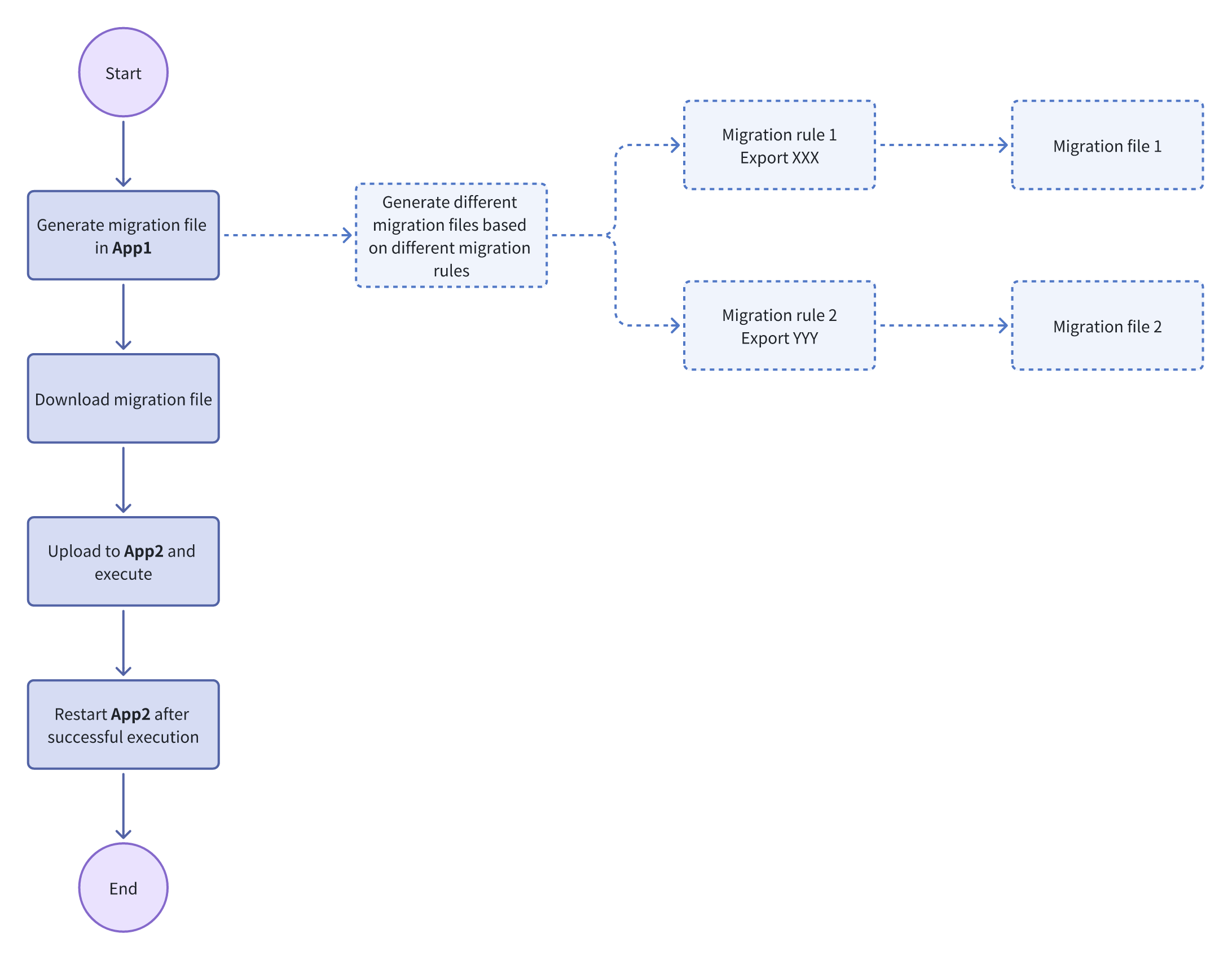
Migration Rules
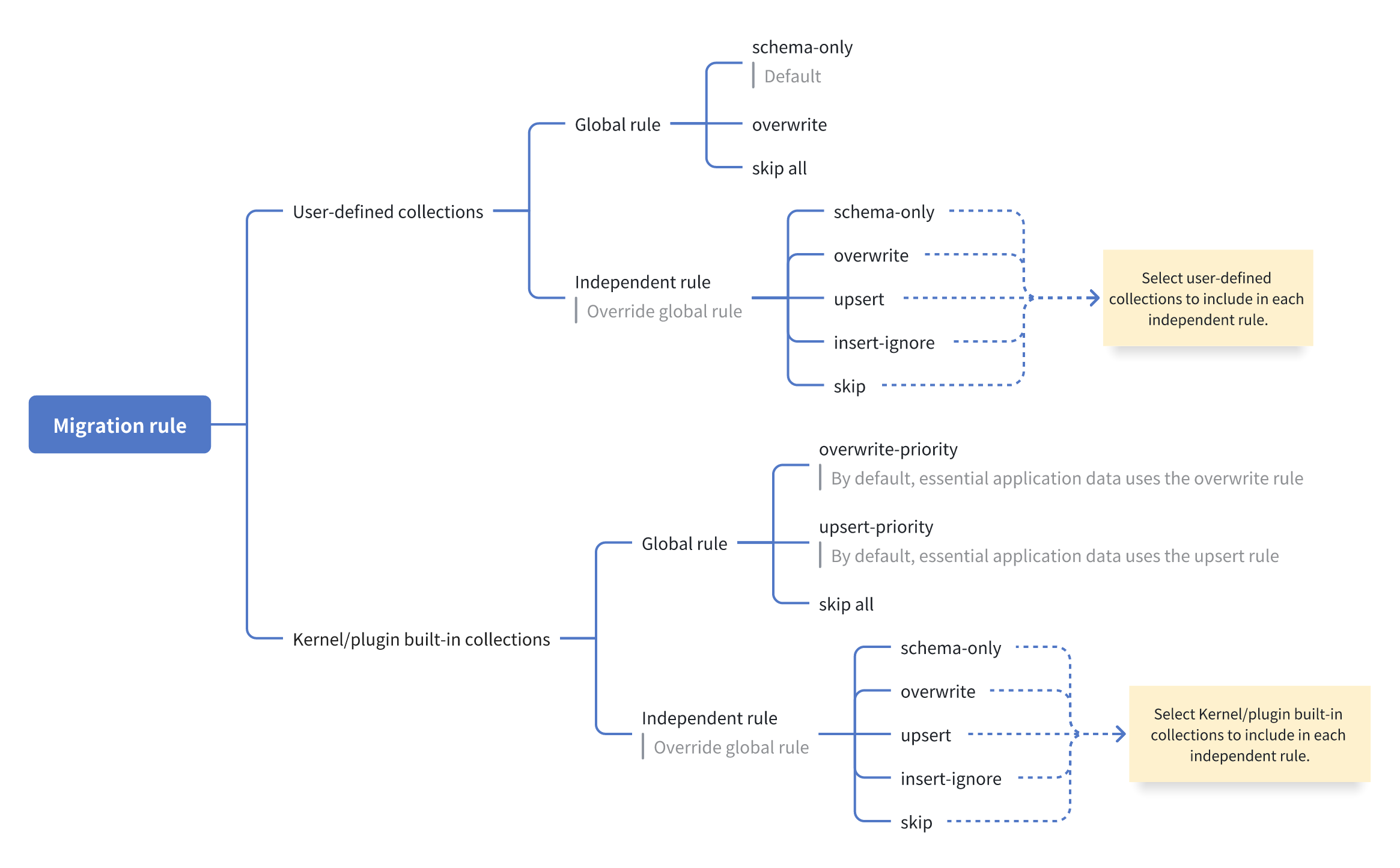
Built-in Rules
Migration Manager supports five built-in rules:
- Schema-only: Only migrates the structure—no data is moved.
- Overwrite: Deletes target table records, then inserts new data.
- Upsert: Updates existing records (by primary key) or inserts new ones.
- Insert-ignore: Inserts new records; skips existing ones.
- Skip: No changes to the table.
Additional notes:
- "Overwrite," "Upsert," and "Insert-ignore" all synchronize table structure changes.
- Tables with auto-increment IDs or no primary keys do not support "Upsert" or "Insert-ignore."
Detailed Design
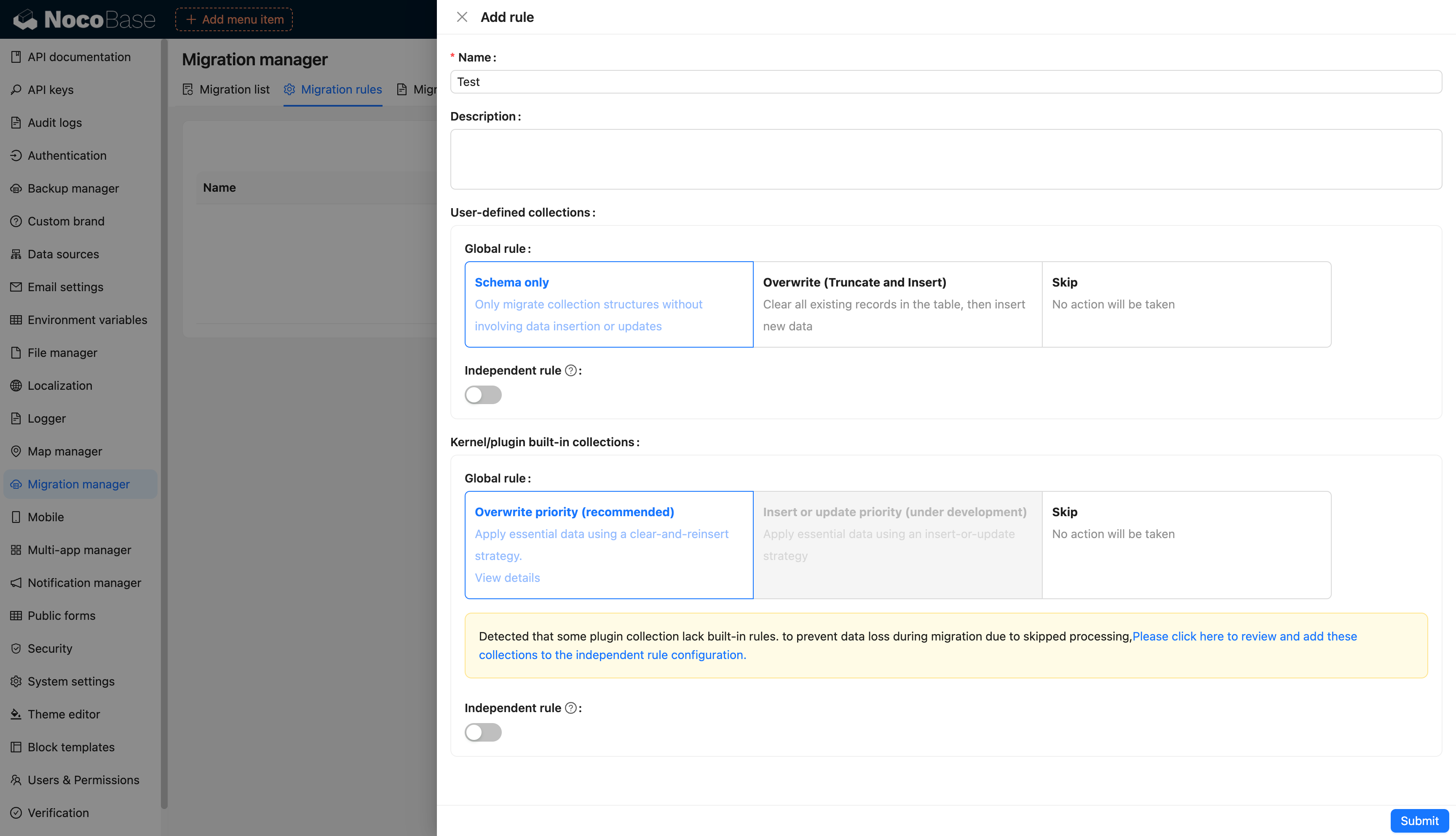
Configuration Interface
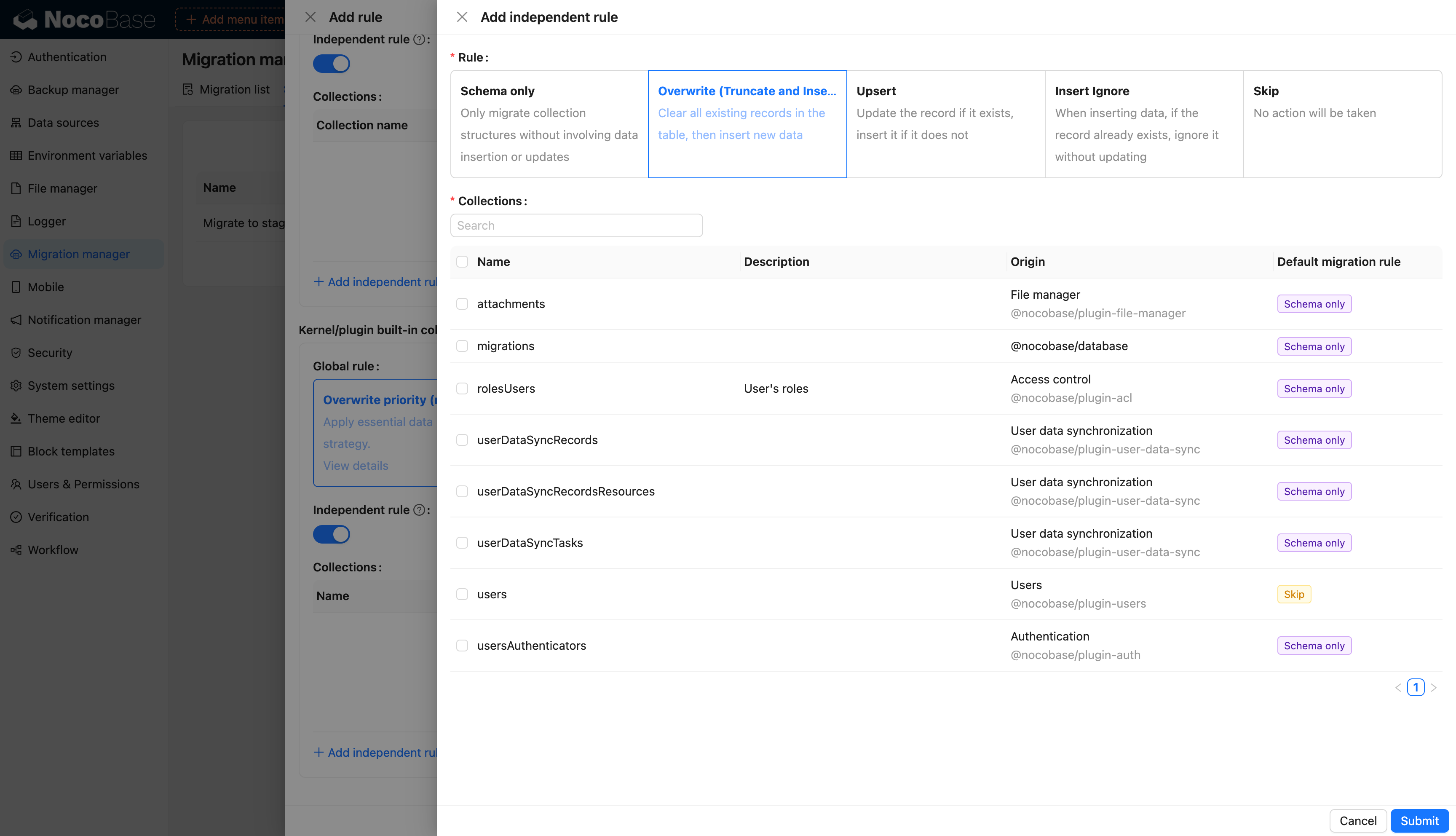
Configure migration rules
Enable independent rules
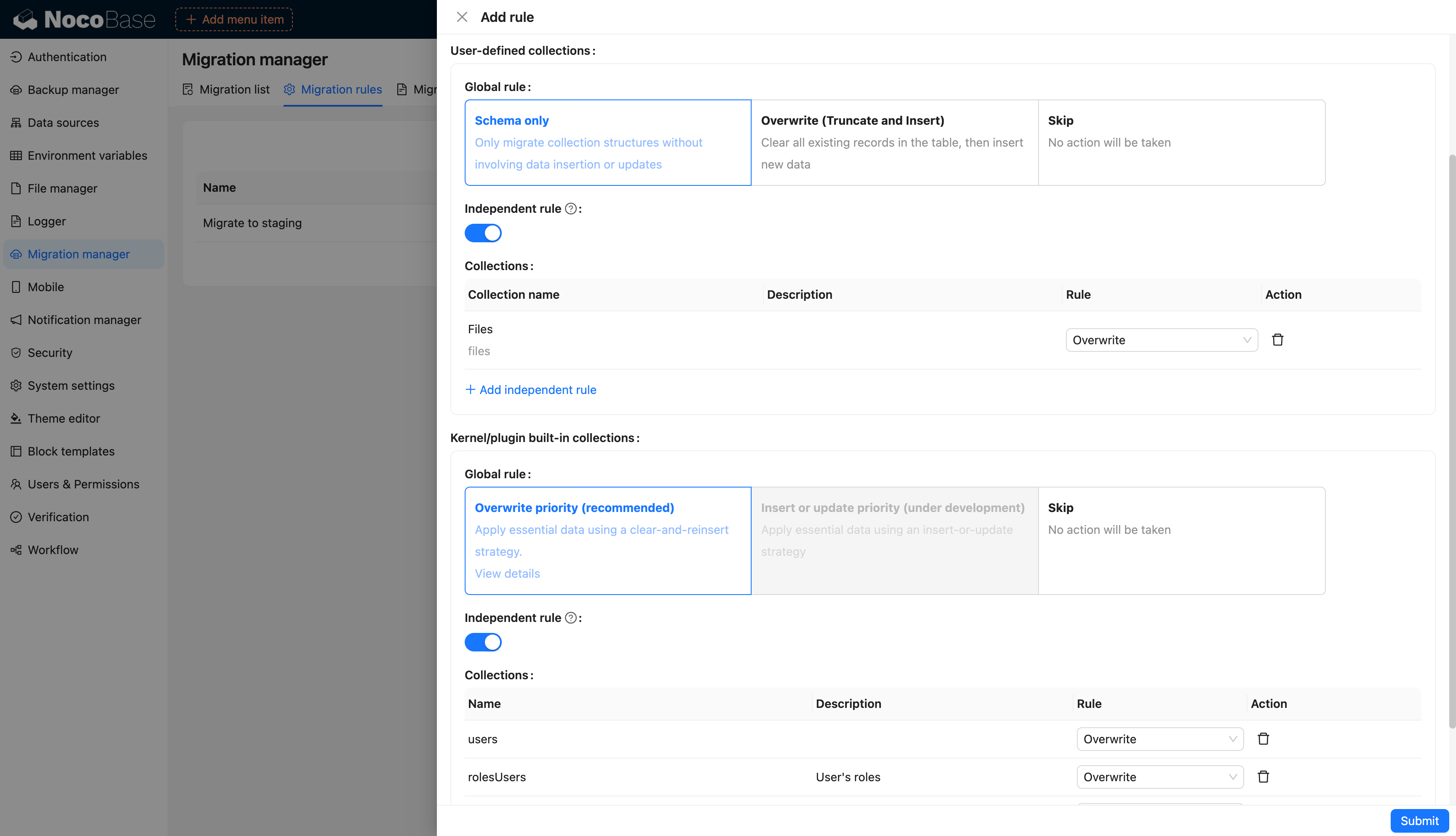
Select independent rules and the tables to be processed by the current independent rules
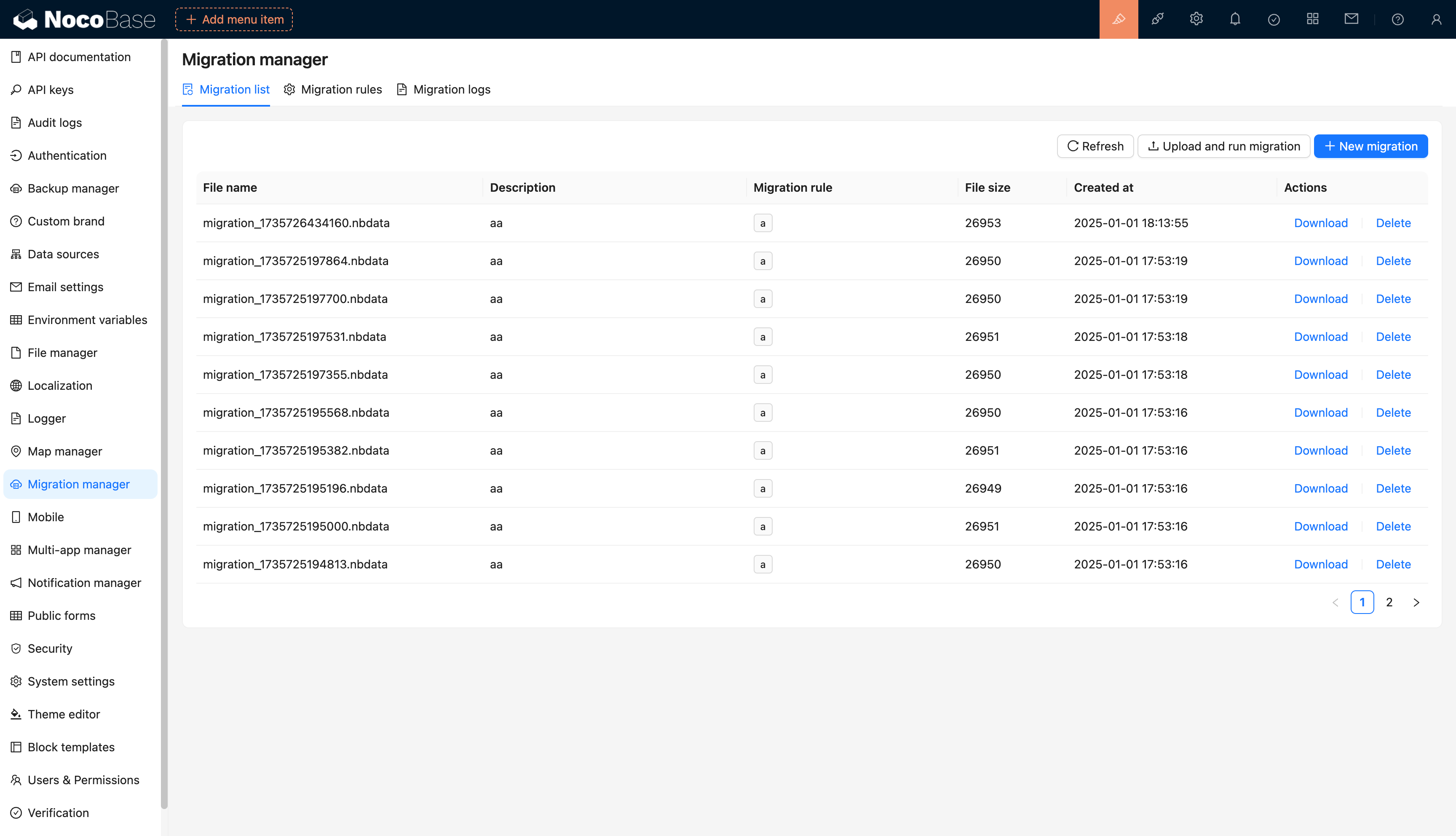
Migration Files
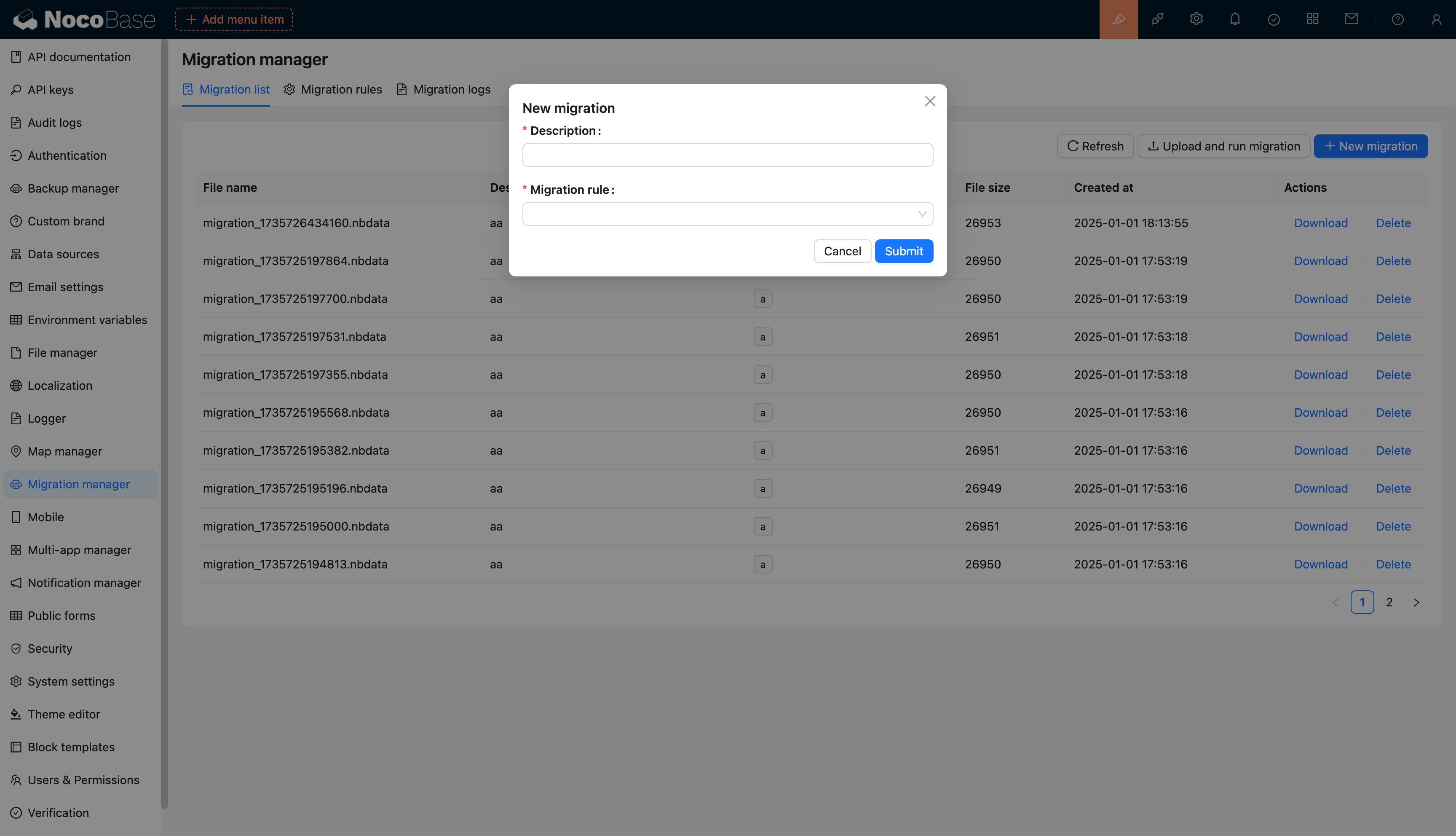
Creating a New Migration
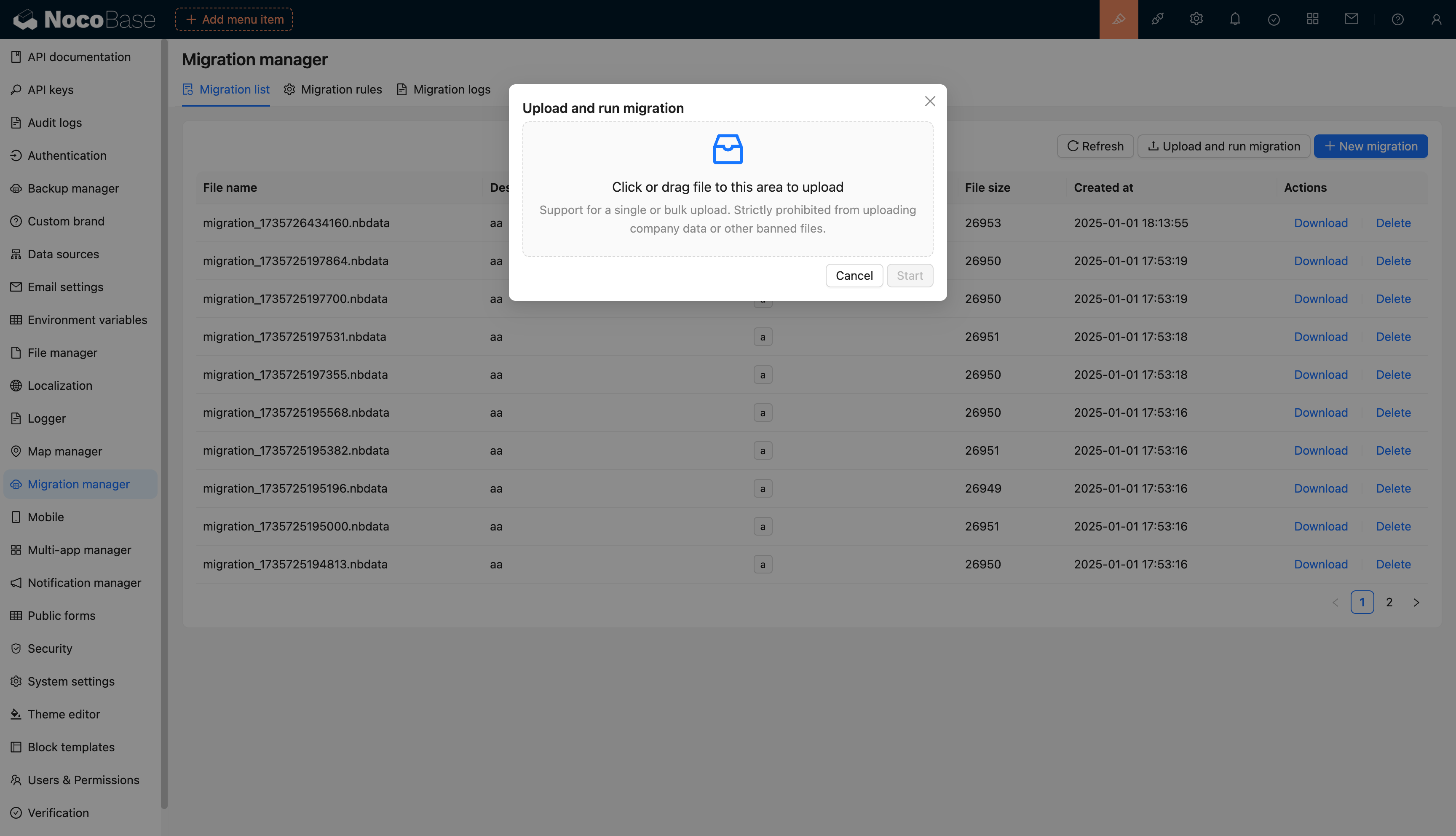
Executing a Migration
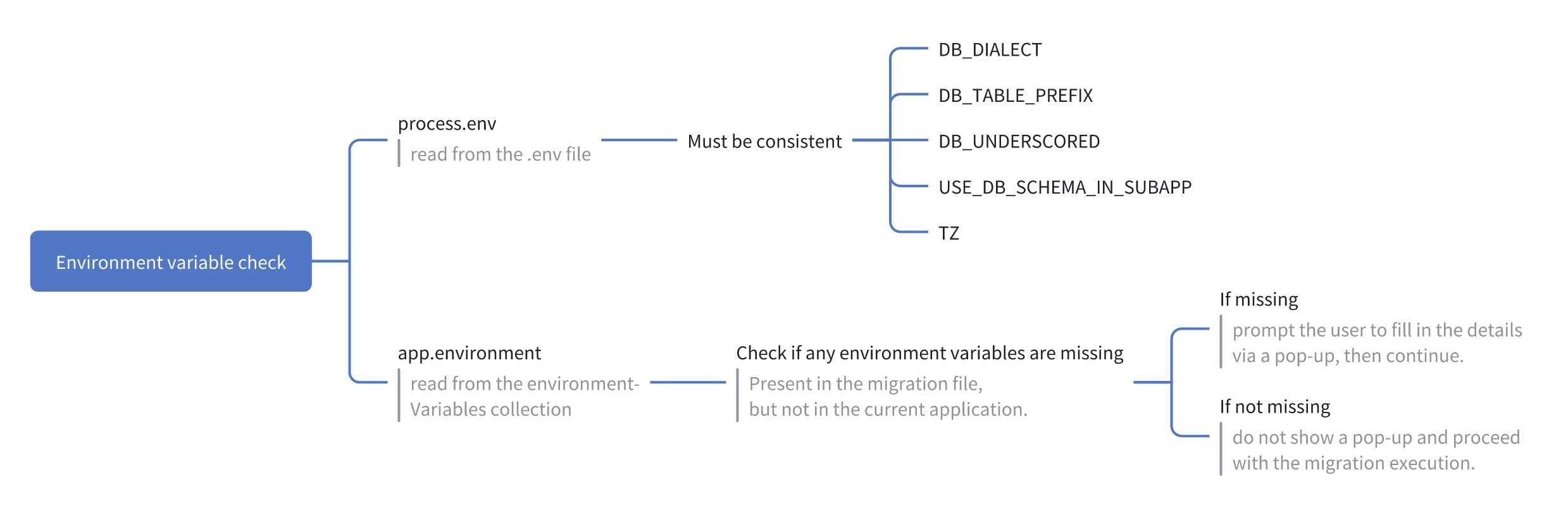
Environment Variable Check
Application environment variable check (learn more about Environment Variables)
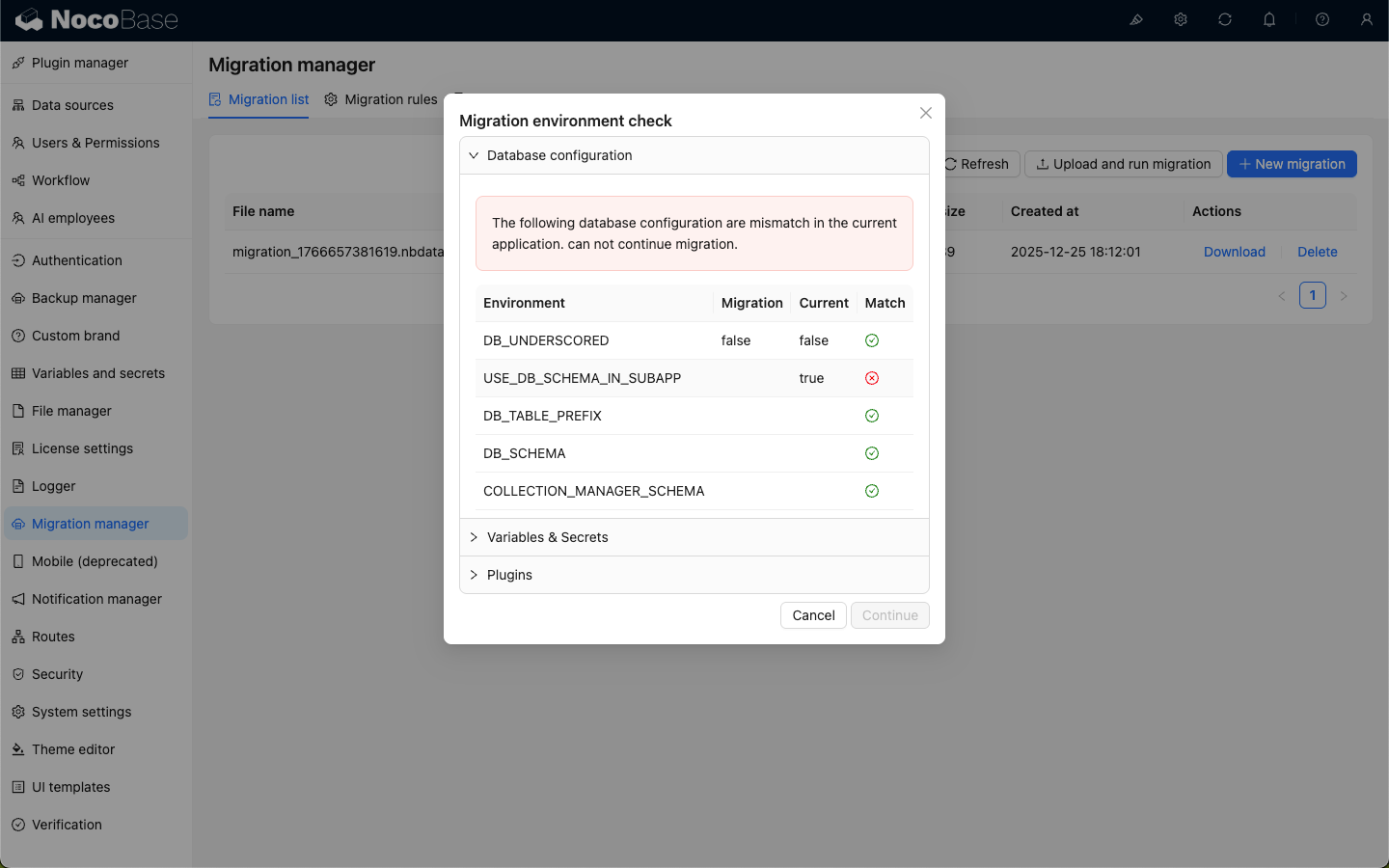
If the values of DB_UNDERSCORED, USE_DB_SCHEMA_IN_SUBAPP, DB_TABLE_PREFIX, DB_SCHEMA, or COLLECTION_MANAGER_SCHEMA in the .env file are inconsistent, a pop-up dialog will appear indicating that the migration cannot continue.
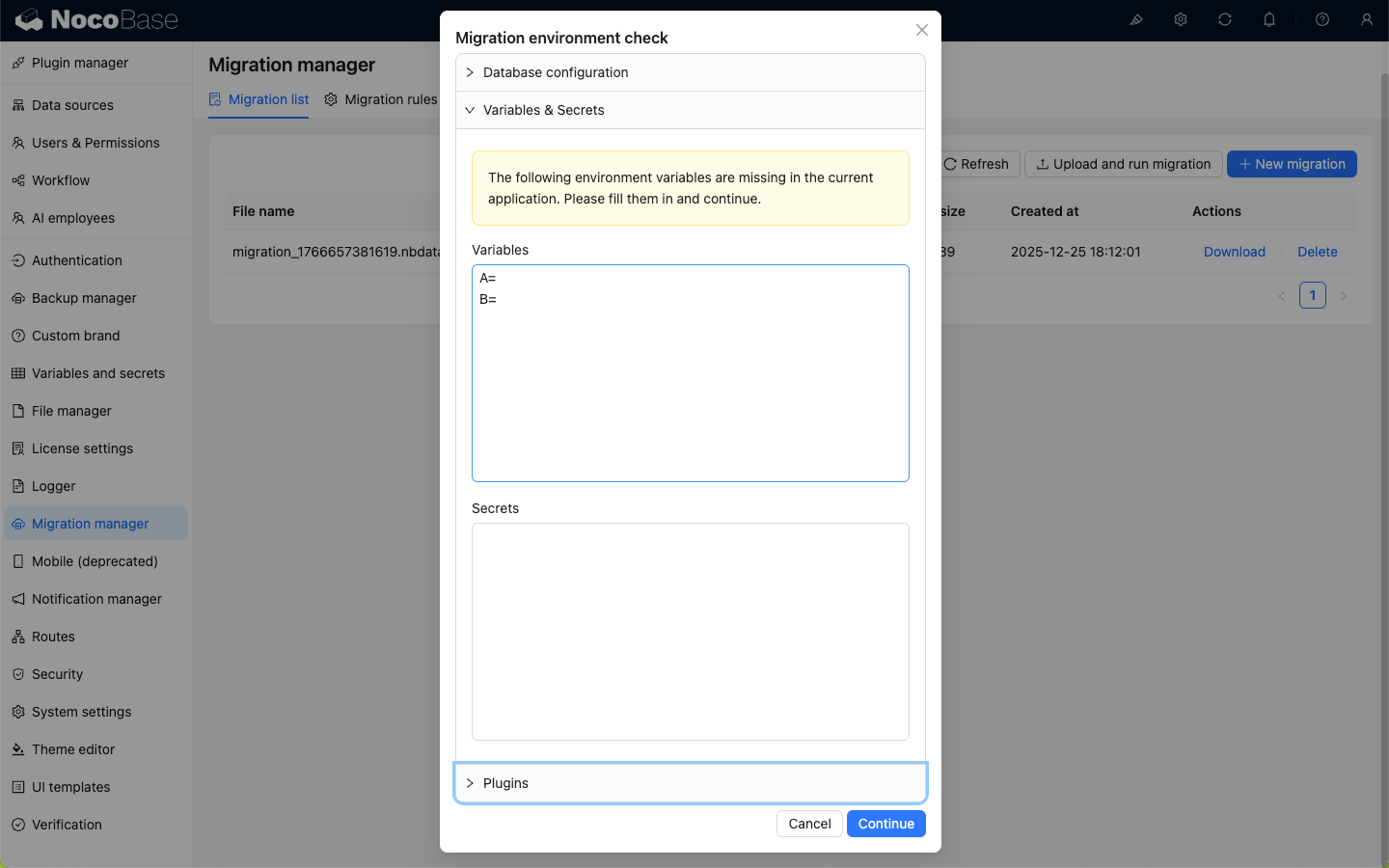
If any dynamically configured environment variables or secrets are missing, a pop-up will prompt the user to enter the required environment variables or secrets here, and then continue.
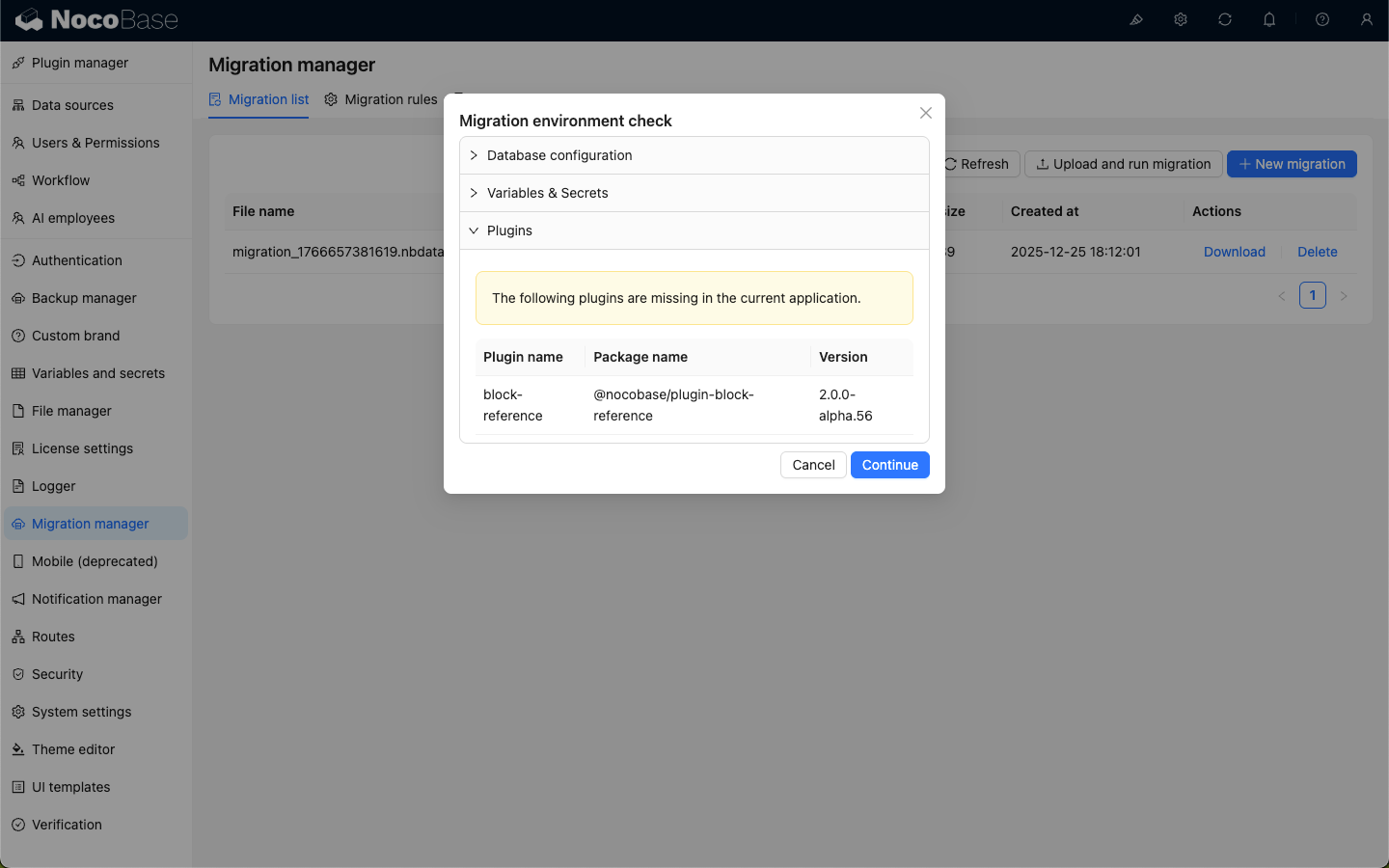
Plugin Check
Application plugin check. If required plugins are missing in the current environment, a pop-up notification will appear. You can also choose to continue the migration anyway.
Migration Logs & Storage
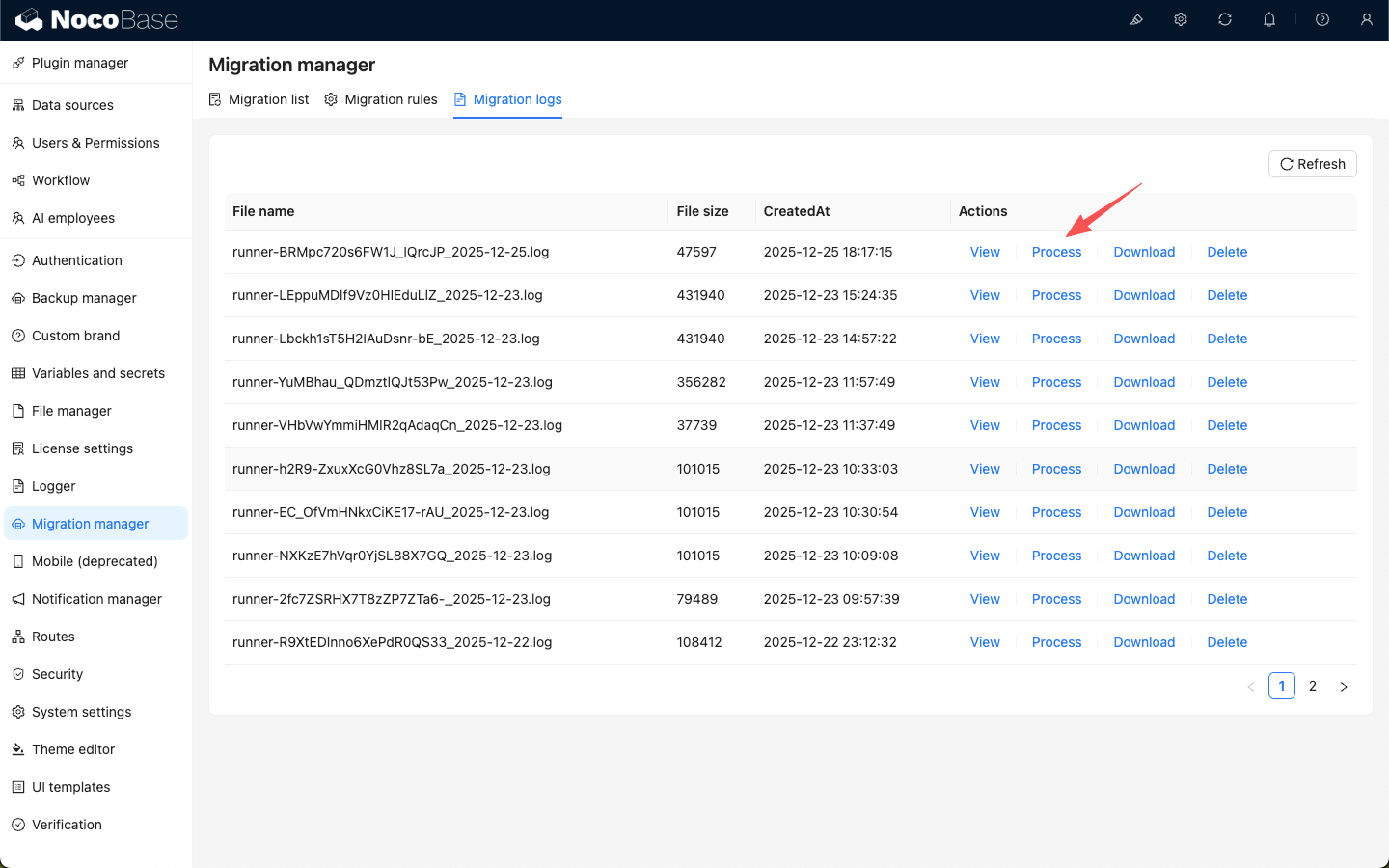
After the migration is completed, migration log files are saved on the server. You can view them online or download them.

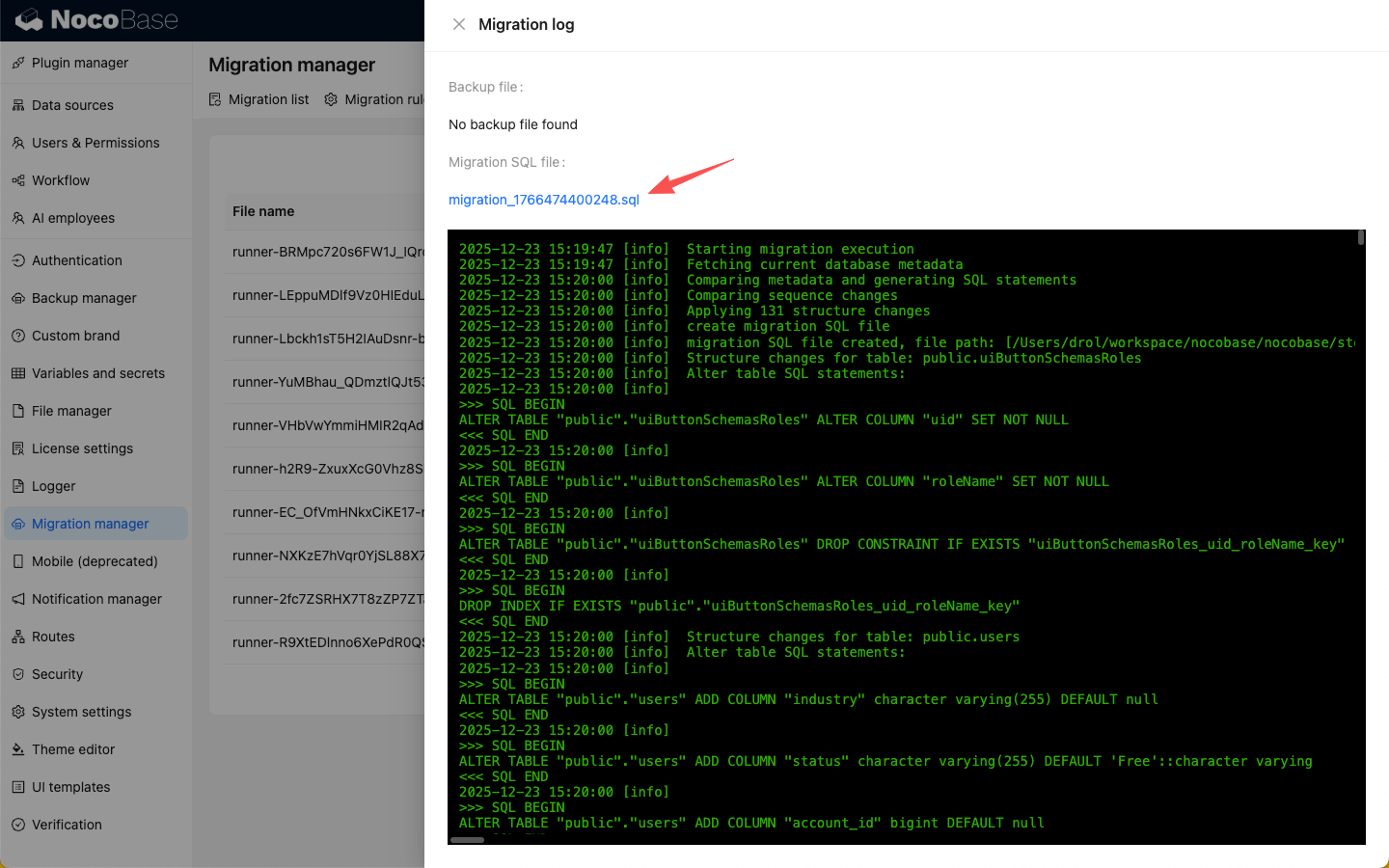
When viewing the migration logs online, you can also download the SQL statements executed during the migration of the data schema.
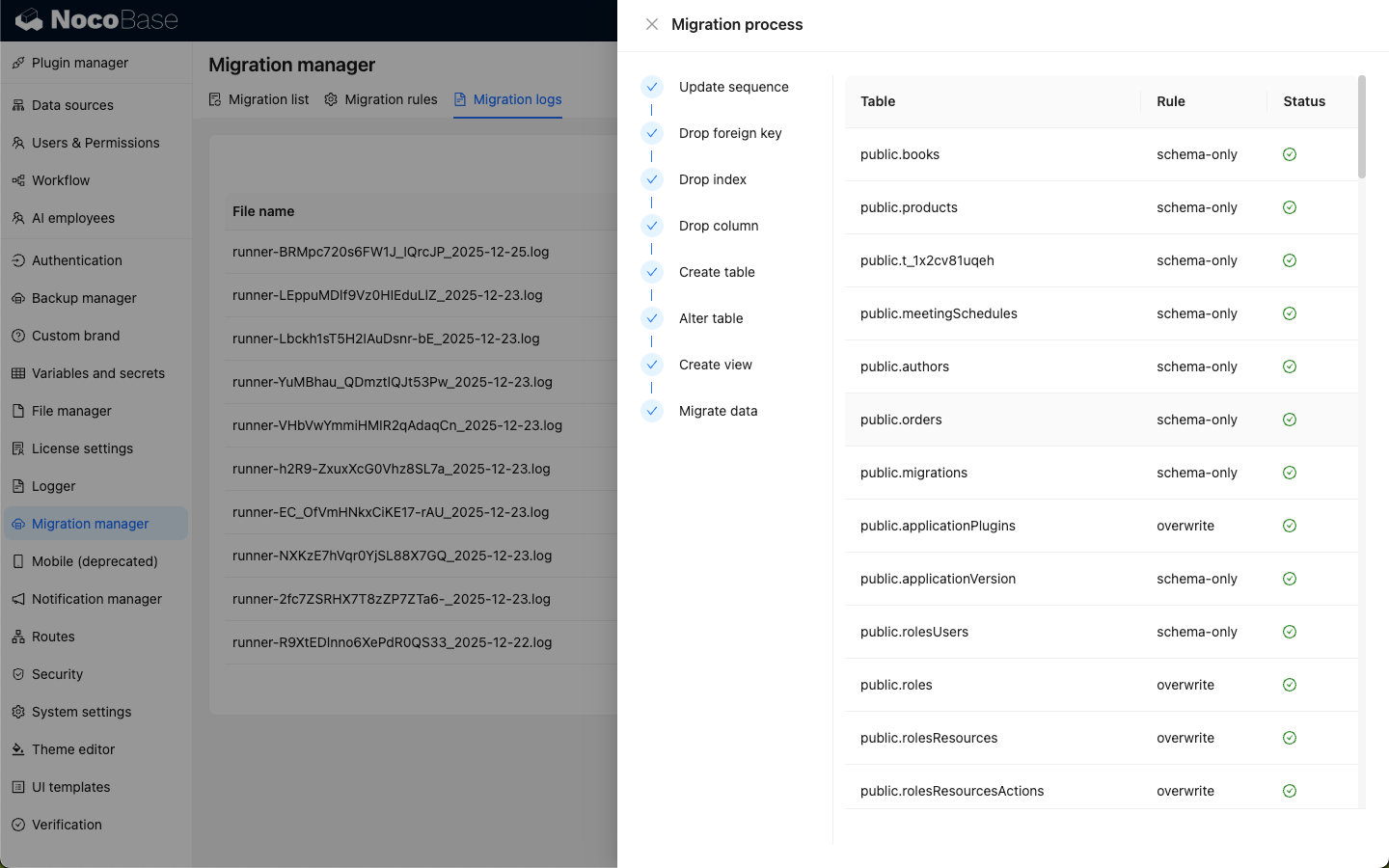
Click the Process button to view the completed migration execution process.
Handling the storage Folder
The Migration Manager primarily handles database records. Some data in the storage folder (like logs, backup history, or request logs) are not automatically moved.
- If you need these files in a new environment, you must manually copy the relevant folders within the
storagedirectory.
Rollback
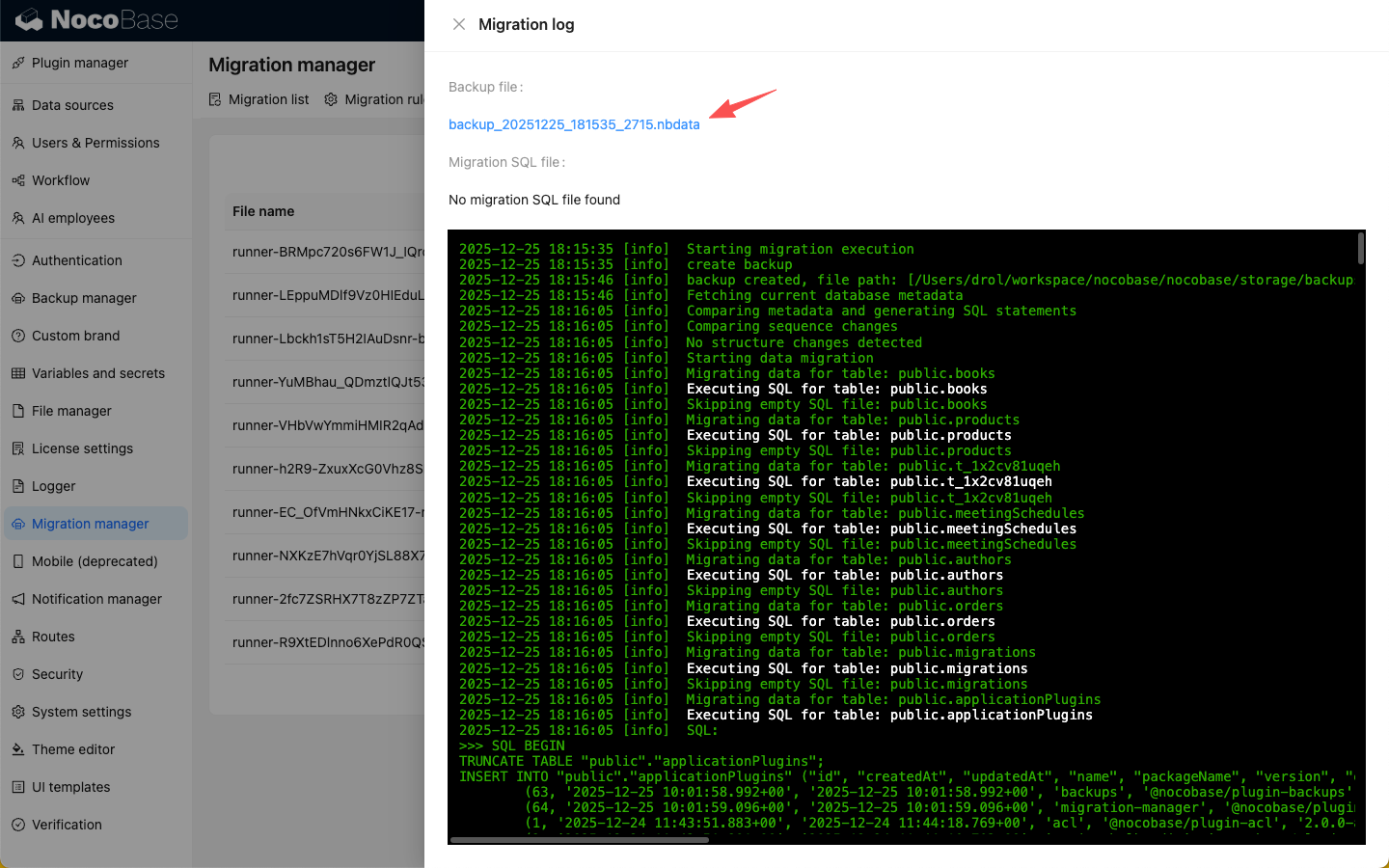
Before any migration runs, the system creates an automatic backup.
Rollback Principles
- Stop Service: Prevent further data writes before starting a rollback.
- Version Alignment: The NocoBase core version (Docker image) MUST match the version that generated the backup file.
- Clean State Recovery: If the current database or storage is corrupted, simply reverting the version is insufficient. You must restore the backup into a fresh application instance (new database and storage) using the correct core version.
Rollback Workflow
Scenario A: Migration Task Failure
If the migration fails but the core version remains the same, use the Backup Manager to restore the automatic backup created right before the migration.
Scenario B: System Corruption or Core Upgrade Failure
If you need to revert to a stable state after an upgrade or corruption:
- Stop Application: Stop the current containers.
- Prepare New Environment: Set up a fresh instance with an empty database and storage.
- Deploy Target Version: Use the Docker image tag used at the time of the backup.
- Restore Backup: Execute the restoration via the Backup Manager into this clean environment.
- Switch Traffic: Update your gateway/load balancer to point to the new, restored environment.
Best Practices
Recommended Deployment Workflow (Blue-Green Switch)
To ensure zero or minimal downtime and the highest safety, use a two-environment approach:
- Preparation (Staging): Create a migration file in your staging environment.
- Safety Backup (PROD-A): Create a full backup of your current production environment.
- Parallel Deployment (PROD-B): Deploy a new, empty application instance (PROD-B) using the target core version and the same environment variables.
- Restore & Migrate:
- Restore the backup from PROD-A into PROD-B.
- Execute the migration file from Staging into PROD-B.
- Verification: Test PROD-B thoroughly while PROD-A is still serving users.
- Traffic Switch: Update your Nginx/Gateway to point traffic from PROD-A to PROD-B.
- If issues occur, you can instantly switch traffic back to PROD-A.
Data Consistency & Downtime
NocoBase currently does not support zero-downtime migrations. To avoid data modification during the backup and migration process:
- Shut down the Gateway/App: It is highly recommended to stop user access before starting. You should configure your gateway (e.g., Nginx) to return a 503 Maintenance Page during this period to inform users and prevent any incoming data writes.
- Manual Data Sync: If users continue to generate data in the old version during migration, that data must be migrated manually.