

Encryption
Collection field: EncryptionProfessional Edition+Introduction
Sensitive business data, such as customer phone numbers, email addresses, and card numbers, can be encrypted and stored in the database as ciphertext.

Encryption method
The plugin generates an application key automatically. The key is stored in /storage/apps/main/encryption-field-keys.
An application-key file uses the key ID as its file name and has the .key extension. Do not change the file name.
Keep application-key files safe. If an application-key file is lost, encrypted data cannot be decrypted.
When the plugin is enabled for a sub-application, the default key directory is /storage/apps/${sub-application-name}/encryption-field-keys.
How it works
The plugin uses envelope encryption.
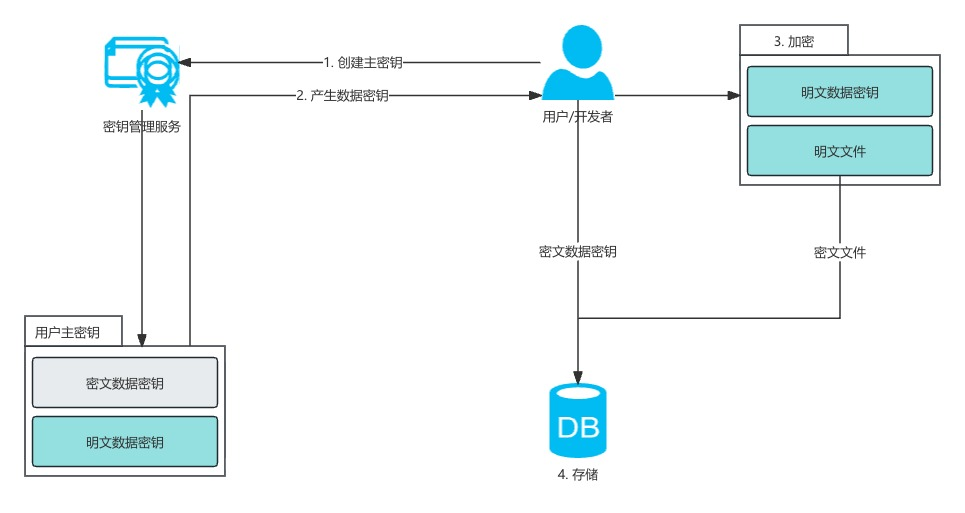
Key creation flow
- When you create an encrypted field for the first time, the system generates a 32-byte application key and saves it, Base64 encoded, in the default storage directory.
- When you create an encrypted field, the system generates a random 32-byte field key. It encrypts this key with the application key and a randomly generated 16-byte field initialization vector using AES, then saves it in the
optionsfield of thefieldstable.
Field encryption flow
- When data is written to an encrypted field, the system reads the encrypted field key and field initialization vector from the
optionsfield of thefieldstable. - It decrypts the encrypted field key with the application key and field initialization vector, then encrypts the data with the field key and a randomly generated 16-byte data initialization vector using AES.
- It signs the data with the decrypted field key using HMAC-SHA256, then Base64 encodes the result. This data signature is used for data lookup.
- It concatenates the 16-byte data initialization vector and encrypted data ciphertext as binary data, then Base64 encodes the result.
- It joins the Base64 data signature and Base64 data ciphertext with
.. - It saves the final concatenated string in the database.
Environment variable
To specify an application key, use the ENCRYPTION_FIELD_KEY_PATH environment variable. The plugin loads the file at this path as the application key.
Application-key file requirements:
- The file extension must be
.key. - The file name is used as the key ID. Use a UUID to keep it unique.
- The file content must be Base64-encoded 32-byte binary data.
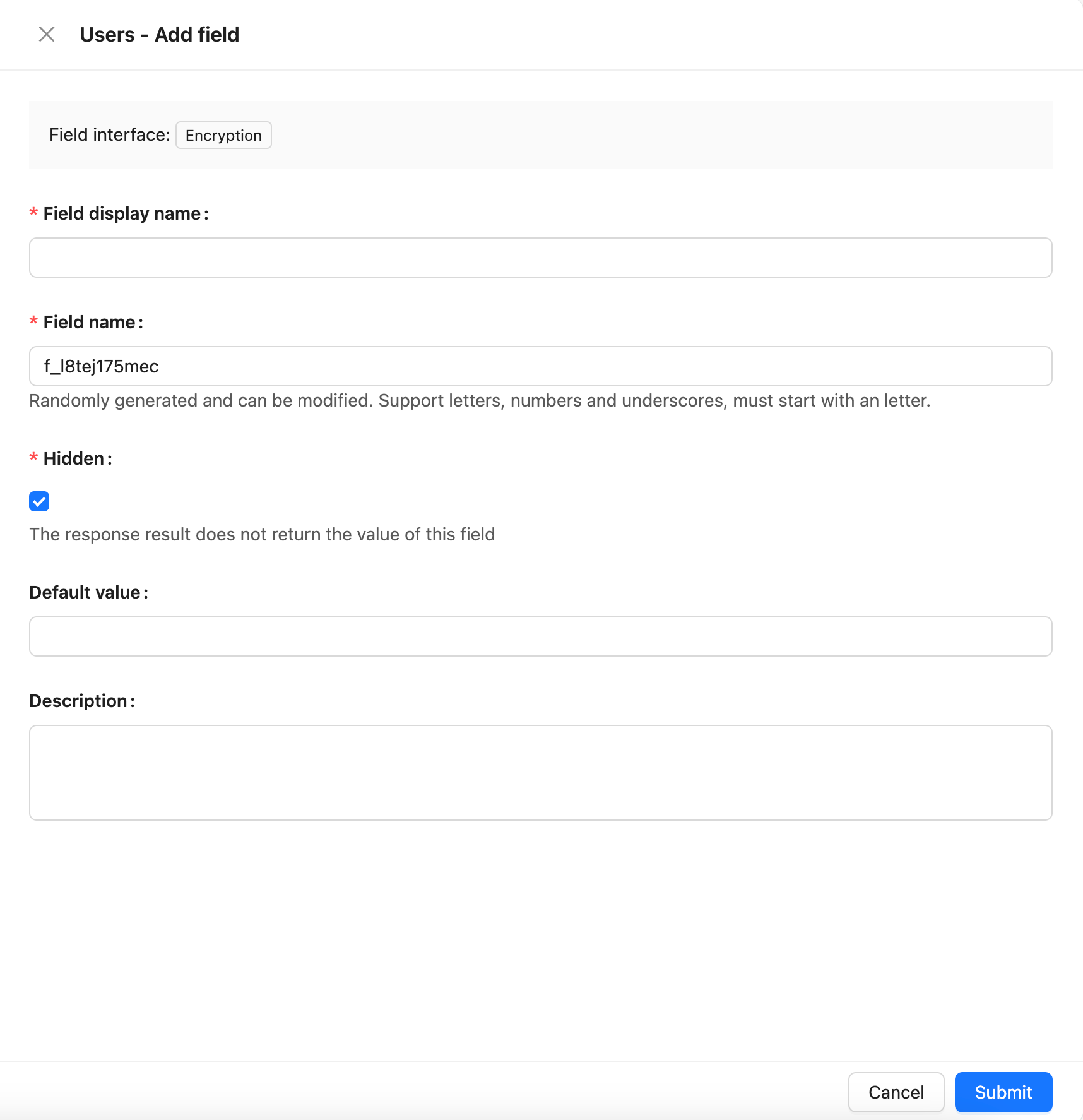
Field configuration
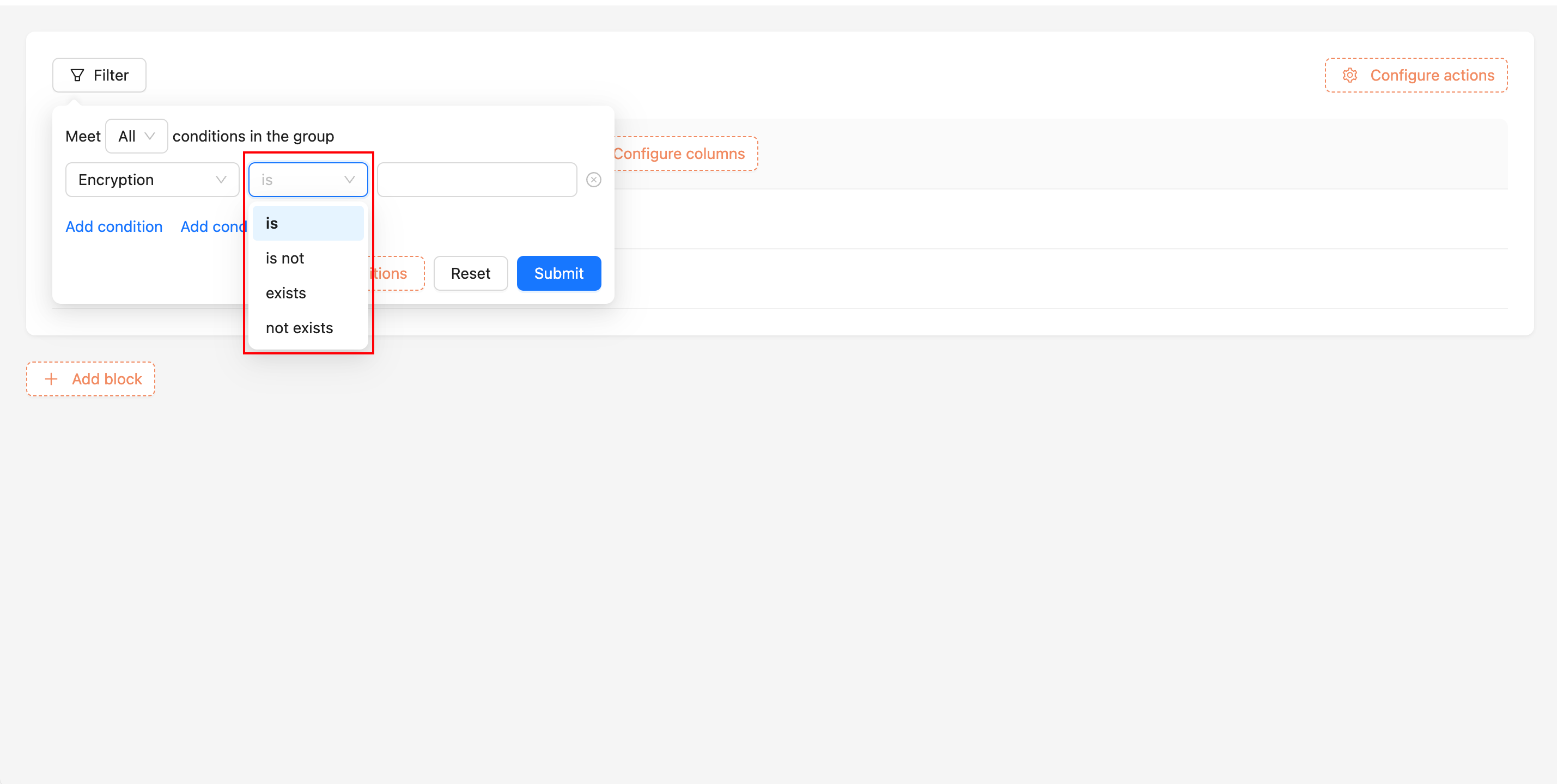
Effect on filtering
Encrypted fields support only equals, does not equal, exists, and does not exist filters.
Data is filtered as follows:
- Read the field key for the encrypted field and decrypt it with the application key.
- Sign the user-entered lookup text with the field key using HMAC-SHA256.
- Append
.to the signed lookup text and perform a prefix-match lookup against the encrypted database value.
Key rotation
Before using nocobase key-rotation, confirm that the application has loaded this plugin.
After an application is migrated to a new environment, use nocobase key-rotation when you do not want to continue using the old environment's application key.
Key rotation requires the old application's application key. The command generates a new application key, replaces the old key, and saves the new key Base64 encoded in the default storage directory.
To replace a sub-application application key, add --app-name and specify the sub-application name.