
This guide uses the task application as a worked example and also applies to your own NocoBase Core apps. Confirm the target environment with Choose a deployment method. For your own project, replace example application names, paths, and business acceptance checks.
An existing NocoBase Studio manages application releases, environments, configuration and processes. The development machine builds the artifact. Verify your application has passed its tests and obtain permissions to create, upload, configure and deploy an application in your target Studio.
This guide uses an environment accepting Linux x64, Node.js 24 archives, with an independent tutorial application and new database.
With an agent
From the application source directory, replace the Studio URL, application name and environment below. Choose a new application ID if the example ID already exists:
Please create a separate tutorial application in this Studio and deploy the current task app.

Studio URL: <full address including its path>
New application ID: tasks-tutorial
Display name: Tasks tutorial
Deployment environment: <my chosen environment name or ID>
Use a new database without importing development data or adding sample tasks.

Follow the project's Studio deployment guidance. Check the signed-in account, target environment and new app before making changes; leave existing apps untouched.
Prepare and publish the application version, set up administrator sign-in and preserve Studio-generated secrets.
If I need to sign in through the browser or supply credentials, tell me where to do that without putting passwords in the report.

Verify sign-in, task operations and reader permissions.
Restart only this new application and confirm its tasks survive.
Report the actual URL, verification results and remaining work.
If nb-studio is missing, obtain its installation command from the target Studio's Use Studio in your agent entry, then run nb-studio skills install. The CLI requires Node.js 24 or later. Installation download credentials and Studio login credentials serve different purposes.
nb-studio --profile tutorial login --server https://studio.example.com/main
nb-studio --profile tutorial whoami
Confirm the device code in your browser and reuse an existing correct session. Let the agent follow Studio’s own guidance to choose a supported publishing method. An unlinked local application needs the page-upload flow below; the request does not need to list CLI commands.
Without an agent
1. Select an environment and create the app
In Studio's release management, inspect deployment environments. Confirm archive support, platform, URL rules and approval policy. Create an independent application with a unique ID such as tasks-tutorial. The rehearsal used an existing preview environment; choose an appropriate environment for your actual deployment.
This creates a deployment target. You do not run create-app again on the Studio server.
2. Build and upload
pnpm build --target linux-x64 --node-version 24 --tarOpen the app's Deployments page, choose Upload a release, and select storage/exports/dist.tar.gz.
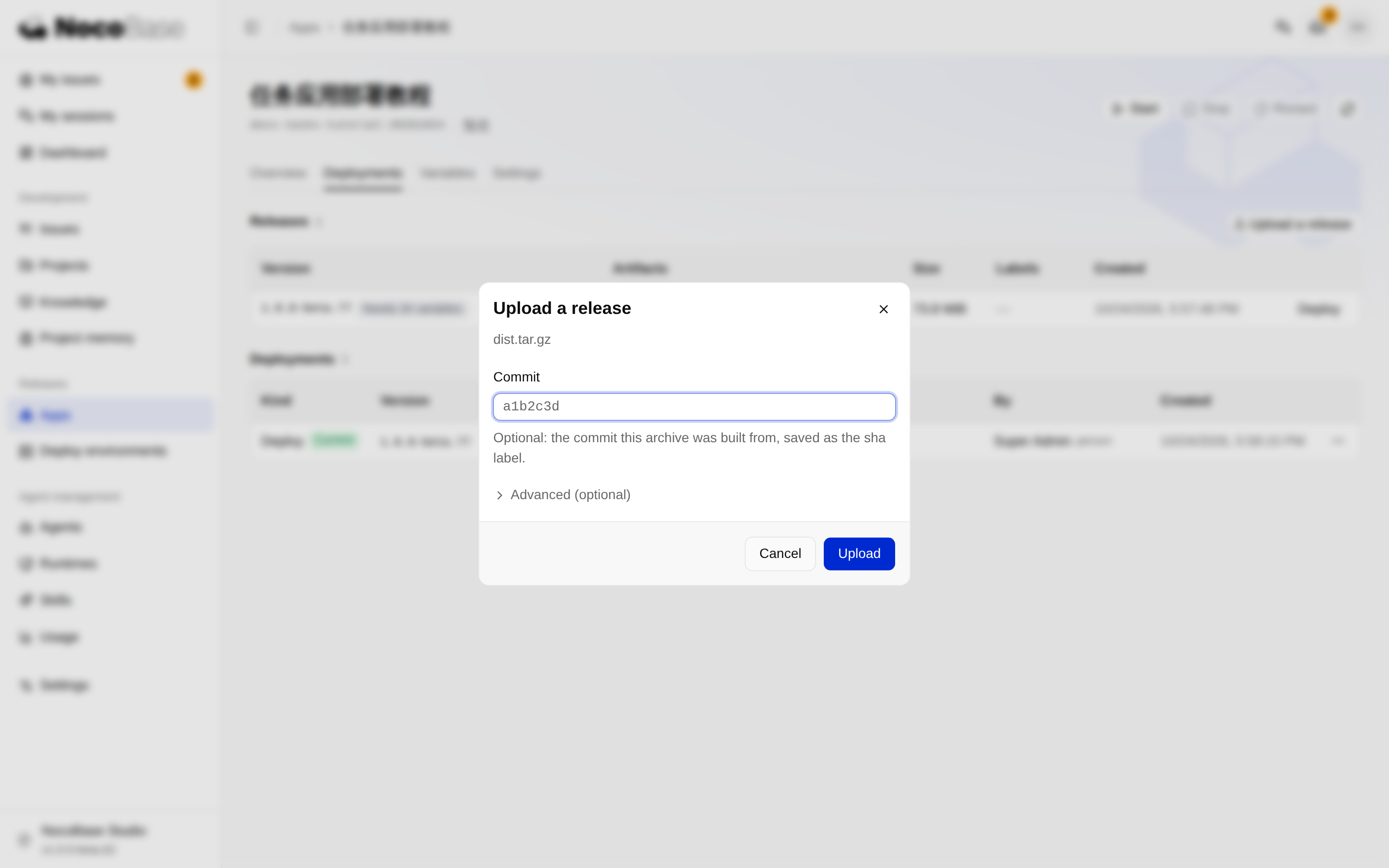
Supply a real corresponding source commit if available; otherwise leave the optional commit field blank. Upload creates a release with its version, artifact type, checksum and size. It does not start a deployment.
3. Configure variables
The app's Variables page shows variables declared by the uploaded release, including secret and first-start-only flags.
| Variable | What to set or check |
|---|---|
INITIAL_ADMIN_USERNAME |
Initial administrator for the new app |
INITIAL_ADMIN_PASSWORD |
Your password, saved as a Secret before first start |
APP_SAMPLE_DATA |
false |
DB_DIALECT and connection variables |
A new SQLite database here, or your actual external database |
APP_PUBLIC_ORIGIN |
Studio-generated external origin, without the app path |
SECRETS_KEYS |
Preserve Studio-generated values across restarts and updates |
Studio manages runtime paths, ports and storage. Do not apply standalone pm2 or Compose settings. First-start-only settings do not reset existing accounts when changed later.
For CLI configuration, inspect nb-studio docs app env set. For example:
nb-studio --profile tutorial app env set tasks-tutorial APP_SAMPLE_DATA falseUse the Secret field or supported --from-env option for passwords, not ordinary command arguments.
4. Deploy the release
Choose the release's deployment action and wait for the deployment record to succeed. Inspect runtime status and logs. A protected environment may require approval; a submitted request is not a successful deployment.
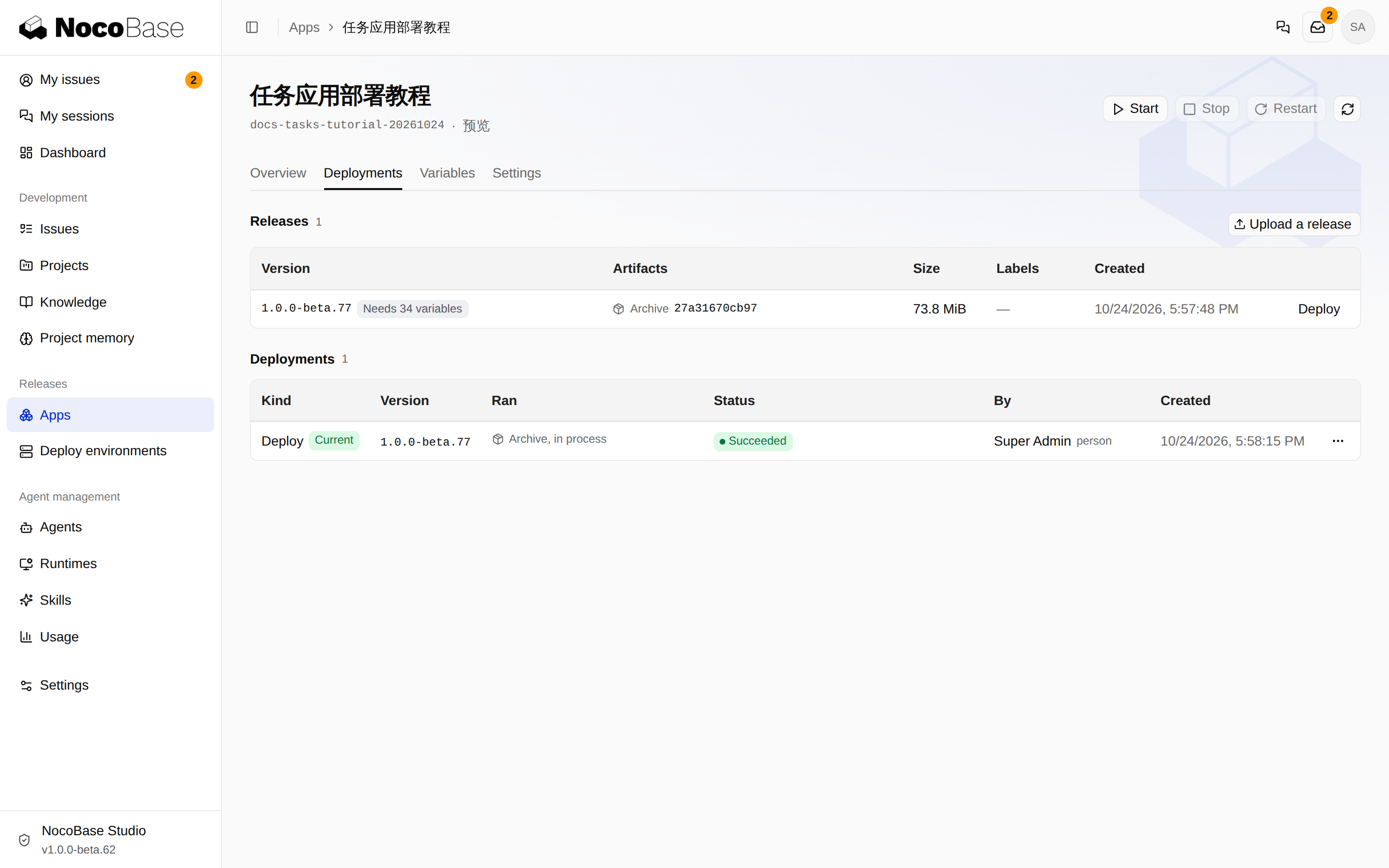
For an unprotected environment, an existing release can also be deployed through the CLI:
nb-studio --profile tutorial app deploy tasks-tutorial \
  --release <release-id> --wait true --json
nb-studio --profile tutorial app get tasks-tutorial --json
Use the uploaded release ID, not its version string. If waiting times out, inspect the deployment record before submitting another request.
5. Open and verify the application
Use the app overview's actual access URL. Studio's management page and the deployed app have separate entry paths, for example /main/ and /tasks-tutorial/. Sign in with the new app's own administrator. An empty task list is expected with a new database. The current getting-started example initializes task roles through required seeds; development team users and role assignments are not copied with the release.
Create, complete and reopen a task; refresh. Configure a normal read-only member and test rejected writes. Restart only this application in Studio, then verify the same record survives. The CLI equivalent is nb-studio --profile tutorial app restart tasks-tutorial.
When the repository is linked
If Studio can verify the repository and full source commit, an Agent or CI can upload and deploy with:
nb-studio --profile tutorial deploy \
  --app tasks-tutorial \
  --repository nocobase/app-tutorials \
  --sha <full-source-commit> \
  --file storage/exports/dist.tar.gz \
  --json
The repository is private: Studio's integration needs access. Creating this GitHub repository does not automatically link or authorize it in Studio. The documented rehearsal used page upload; do not invent a commit for uncommitted code.
Publish a new release
Test and build the new feature, upload to the same application, then deploy to the existing environment. Preserve database, files and stable secrets. Review backups, migration compatibility and recovery before publishing; see Publish an application release for an overview. Check old task data, roles and new behavior afterward.
With an Agent, provide the original App ID, environment and new archive path, and require those same checks. Switching a release does not reverse business writes or replace data recovery.
The original .77 rehearsal created an independent Studio app, uploaded through the UI, configured variables, deployed, tested real login/task permissions and verified restart persistence. Protected-environment approval, external database migration and cross-version rollback were not exercised. These Studio screenshots show that existing deployment; they do not show a new deployment of the current .81 npm example.