Permitir que los empleados de IA completen formularios personalizados en bloques JS

Los empleados de IA de NocoBase pueden usar la herramienta Rellenar formulario para extraer información de correos, conversaciones o documentos e introducirla en campos de formulario.

La función está disponible directamente en los bloques de formulario nativos. Un formulario creado dentro de un bloque JS no es un bloque de formulario nativo, por lo que no se reconoce de forma predeterminada.

Esta guía utiliza un formulario Event Planning Request para mostrar cómo crear un formulario Ant Design agrupado y condicional y permitir que un empleado de IA lo complete.

Cómo utilizarlo

  1. Abre un empleado de IA, como Dex: especialista en organización de datos.
  2. Selecciona Añadir contexto y después Seleccionar bloque.
  3. Selecciona el bloque Event Planning Request.
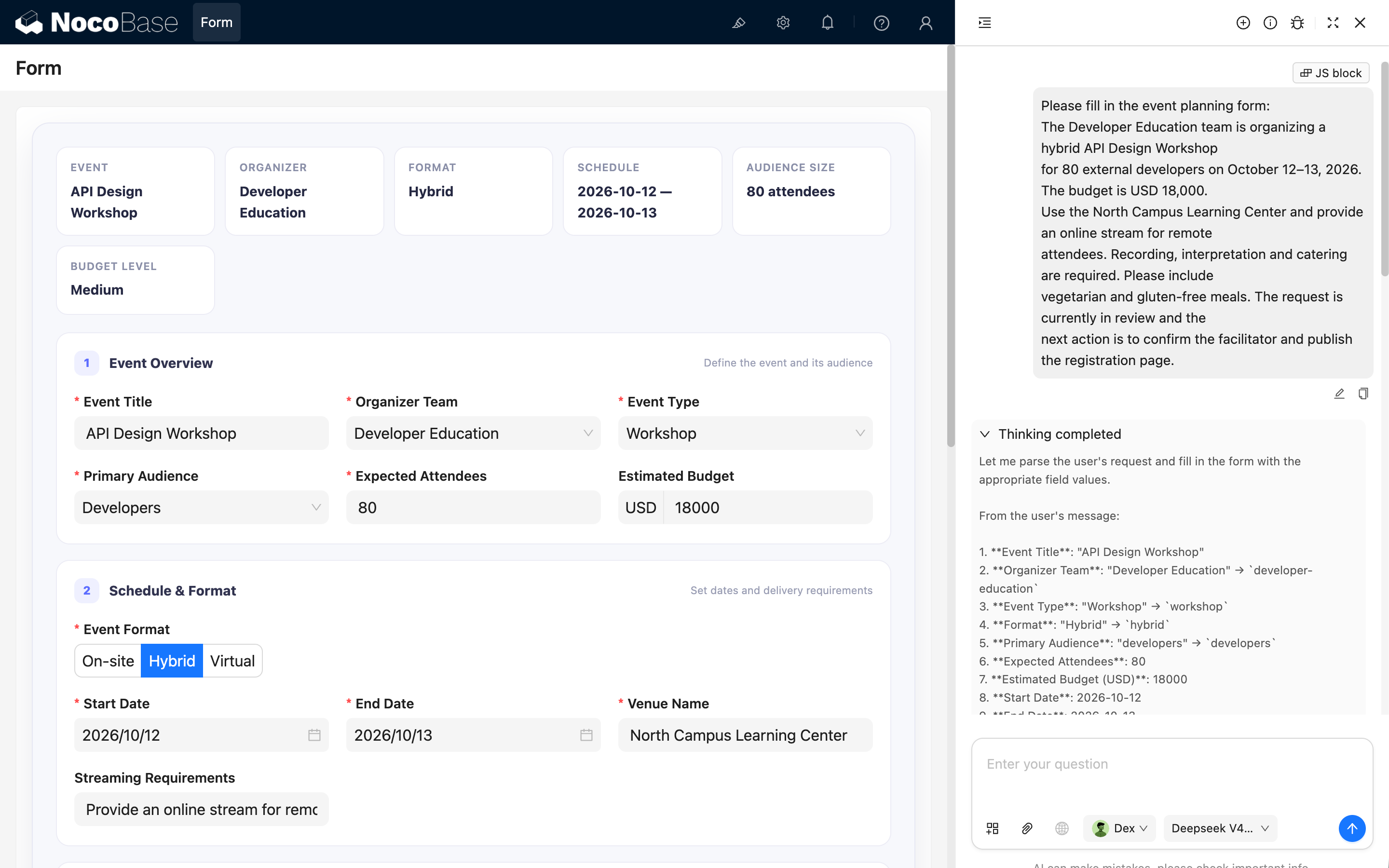
  4. Envía una descripción de los requisitos del evento.
  5. El empleado de IA extrae la información y completa los campos correspondientes.

Por ejemplo, envía:

Please fill in the event planning form:
The Developer Education team is organizing a hybrid API Design Workshop
for 80 external developers on October 12–13, 2026. The budget is USD 18,000.
Use the North Campus Learning Center and provide an online stream for remote
attendees. Recording, interpretation and catering are required. Please include
vegetarian and gluten-free meals. The request is currently in review and the
next action is to confirm the facilitator and publish the registration page.

Cómo funciona

La implementación tiene dos partes. Primero, expón la instancia de Ant Design Form mediante el modelo del bloque actual.

ctx.model.form = form;

Después, proporciona metadatos con nombres, tipos, valores de enumeración, formatos de fecha y el UID del bloque de destino.

  • Field names and data types;
  • Enum values for Select, Radio, and multi-select fields;
  • Date value formats;
  • The UID of the target block.

Mantén los metadatos y el formulario en el mismo bloque JS para actualizarlos conjuntamente.

Añadir el bloque JS

Añade un bloque JS, abre el editor JavaScript y pega el ejemplo completo.

Código completo del ejemplo

Haz clic para desplegar y copiar
const React = ctx.libs.React;
const { useEffect, useMemo } = React;
const {
  Form,
  Input,
  InputNumber,
  Select,
  Button,
  Radio,
  Space,
  Tag,
  DatePicker,
} = ctx.libs.antd;
const dayjs = ctx.libs.dayjs;

const BRAND = '#5B6CFF';

const TEAM_OPTIONS = [
  { value: 'product-design', label: 'Product Design' },
  { value: 'developer-education', label: 'Developer Education' },
  { value: 'customer-learning', label: 'Customer Learning' },
  { value: 'operations', label: 'Operations' },
];

const EVENT_TYPE_OPTIONS = [
  { value: 'workshop', label: 'Workshop' },
  { value: 'conference', label: 'Conference' },
  { value: 'webinar', label: 'Webinar' },
  { value: 'community-meetup', label: 'Community Meetup' },
  { value: 'team-offsite', label: 'Team Offsite' },
];

const FORMAT_OPTIONS = [
  { value: 'onsite', label: 'On-site' },
  { value: 'hybrid', label: 'Hybrid' },
  { value: 'virtual', label: 'Virtual' },
];

const AUDIENCE_OPTIONS = [
  { value: 'employees', label: 'Employees' },
  { value: 'customers', label: 'Customers' },
  { value: 'partners', label: 'Partners' },
  { value: 'developers', label: 'Developers' },
  { value: 'public', label: 'General Public' },
];

const STATUS_OPTIONS = [
  { value: 'draft', label: 'Draft', readiness: 15 },
  { value: 'in-review', label: 'In Review', readiness: 45 },
  { value: 'approved', label: 'Approved', readiness: 80 },
  { value: 'scheduled', label: 'Scheduled', readiness: 100 },
  { value: 'cancelled', label: 'Cancelled', readiness: 0 },
];

const SERVICE_OPTIONS = [
  { value: 'catering', label: 'Catering' },
  { value: 'recording', label: 'Recording' },
  { value: 'interpretation', label: 'Interpretation' },
  { value: 'photography', label: 'Photography' },
  { value: 'printed-materials', label: 'Printed Materials' },
  { value: 'accessibility-support', label: 'Accessibility Support' },
];

const CANCELLATION_REASON_OPTIONS = [
  { value: 'schedule-conflict', label: 'Schedule conflict' },
  { value: 'budget-unavailable', label: 'Budget unavailable' },
  { value: 'low-registration', label: 'Low registration' },
  { value: 'venue-unavailable', label: 'Venue unavailable' },
  { value: 'scope-changed', label: 'Scope changed' },
  { value: 'other', label: 'Other' },
];

const FORM_FIELDS = [
  {
    name: 'eventTitle',
    title: 'Event Title',
    type: 'string',
    required: true,
  },
  {
    name: 'organizerTeam',
    title: 'Organizer Team',
    type: 'string',
    required: true,
    enum: TEAM_OPTIONS,
  },
  {
    name: 'eventType',
    title: 'Event Type',
    type: 'string',
    required: true,
    enum: EVENT_TYPE_OPTIONS,
  },
  {
    name: 'format',
    title: 'Event Format',
    type: 'string',
    required: true,
    enum: FORMAT_OPTIONS,
  },
  {
    name: 'audience',
    title: 'Primary Audience',
    type: 'string',
    required: true,
    enum: AUDIENCE_OPTIONS,
  },
  {
    name: 'attendeeCount',
    title: 'Expected Attendees',
    type: 'number',
    required: true,
  },
  {
    name: 'budgetUsd',
    title: 'Estimated Budget (USD)',
    type: 'number',
  },
  {
    name: 'startDate',
    title: 'Start Date',
    type: 'string',
    required: true,
    prompt: 'Use YYYY-MM-DD format.',
  },
  {
    name: 'endDate',
    title: 'End Date',
    type: 'string',
    required: true,
    prompt: 'Use YYYY-MM-DD format.',
  },
  {
    name: 'venueName',
    title: 'Venue Name',
    type: 'string',
    prompt: 'Fill this field only for On-site or Hybrid events.',
  },
  {
    name: 'streamingNotes',
    title: 'Streaming Requirements',
    type: 'string',
    prompt: 'Fill this field only for Hybrid or Virtual events.',
  },
  {
    name: 'services',
    title: 'Required Services',
    type: 'array',
    enum: SERVICE_OPTIONS,
    prompt: 'Use an array containing service option values.',
  },
  {
    name: 'dietaryNotes',
    title: 'Dietary Requirements',
    type: 'string',
    prompt: 'Fill this field when Required Services includes Catering.',
  },
  {
    name: 'status',
    title: 'Request Status',
    type: 'string',
    required: true,
    enum: STATUS_OPTIONS.map(({ value, label }) => ({ value, label })),
  },
  {
    name: 'readiness',
    title: 'Readiness (%)',
    type: 'number',
  },
  {
    name: 'cancellationReason',
    title: 'Cancellation Reason',
    type: 'string',
    enum: CANCELLATION_REASON_OPTIONS,
    prompt: 'Fill this field only when Request Status is Cancelled.',
  },
  {
    name: 'objectives',
    title: 'Event Objectives',
    type: 'string',
  },
  {
    name: 'agendaNotes',
    title: 'Agenda Notes',
    type: 'string',
  },
  {
    name: 'risks',
    title: 'Risks and Constraints',
    type: 'string',
  },
  {
    name: 'nextAction',
    title: 'Next Action',
    type: 'string',
  },
];

ctx.model.setTitle('Event Planning Request');

ctx.model.setProps({
  aiForm: {
    prompt: `This is a fillable Event Planning Request form. Use the Fill form tool when the user asks to populate it. Use the current block UID as the form target: ${ctx.model.uid}. Always use enum values instead of labels, use YYYY-MM-DD for date fields, and use an array for services.`,
    fields: FORM_FIELDS,
  },
});

const styles = {
  shell: {
    overflow: 'hidden',
    border: '1px solid #E7E8F3',
    borderRadius: 18,
    background: '#F7F8FC',
    boxShadow: '0 16px 42px rgba(31, 35, 76, 0.10)',
  },
  body: {
    padding: 24,
  },
  summary: {
    display: 'grid',
    gridTemplateColumns: 'repeat(auto-fit, minmax(150px, 1fr))',
    gap: 10,
    marginBottom: 18,
  },
  summaryItem: {
    minHeight: 72,
    padding: '12px 14px',
    border: '1px solid #ECECF5',
    borderRadius: 12,
    background: '#FFFFFF',
  },
  summaryLabel: {
    marginBottom: 5,
    color: '#8A8FA8',
    fontSize: 11,
    fontWeight: 600,
    textTransform: 'uppercase',
    letterSpacing: 0.5,
  },
  summaryValue: {
    color: '#252842',
    fontSize: 14,
    fontWeight: 700,
  },
  section: {
    marginBottom: 16,
    padding: '18px 18px 4px',
    border: '1px solid #ECECF5',
    borderRadius: 14,
    background: '#FFFFFF',
  },
  sectionHeader: {
    display: 'flex',
    alignItems: 'center',
    gap: 10,
    marginBottom: 16,
  },
  sectionNumber: {
    display: 'inline-flex',
    width: 26,
    height: 26,
    alignItems: 'center',
    justifyContent: 'center',
    borderRadius: 8,
    color: BRAND,
    background: '#EEF0FF',
    fontSize: 12,
    fontWeight: 800,
  },
  sectionTitle: {
    color: '#30334F',
    fontSize: 14,
    fontWeight: 750,
  },
  sectionHint: {
    marginLeft: 'auto',
    color: '#9A9EB4',
    fontSize: 11,
  },
  grid: {
    display: 'grid',
    gridTemplateColumns: 'repeat(auto-fit, minmax(260px, 1fr))',
    columnGap: 18,
  },
  infoPanel: {
    marginBottom: 24,
    padding: '13px 14px',
    border: '1px dashed #D9DDFC',
    borderRadius: 10,
    background: '#F8F9FF',
  },
  actionBar: {
    position: 'sticky',
    bottom: 0,
    zIndex: 2,
    display: 'flex',
    alignItems: 'center',
    gap: 10,
    margin: '18px -24px -24px',
    padding: '13px 24px',
    borderTop: '1px solid #E8E9F2',
    background: 'rgba(255,255,255,0.94)',
    backdropFilter: 'blur(10px)',
  },
};

function Section({ number, title, hint, children }) {
  return (
    <section style={styles.section}>
      <div style={styles.sectionHeader}>
        <span style={styles.sectionNumber}>{number}</span>
        <span style={styles.sectionTitle}>{title}</span>
        {hint ? <span style={styles.sectionHint}>{hint}</span> : null}
      </div>
      {children}
    </section>
  );
}

function SummaryItem({ label, value }) {
  return (
    <div style={styles.summaryItem}>
      <div style={styles.summaryLabel}>{label}</div>
      <div style={styles.summaryValue}>{value || '—'}</div>
    </div>
  );
}

function DateField({ name, label, required = false }) {
  return (
    <Form.Item
      name={name}
      label={label}
      rules={
        required ? [{ required: true, message: `Please select ${label}` }] : []
      }
      getValueProps={(value) => ({
        value: value ? dayjs(String(value).slice(0, 10)) : null,
      })}
      getValueFromEvent={(value) => (value ? value.format('YYYY-MM-DD') : null)}
    >
      <DatePicker
        format="YYYY/MM/DD"
        placeholder="YYYY/MM/DD"
        style={{ width: '100%' }}
      />
    </Form.Item>
  );
}

function EventPlanningForm() {
  const [form] = Form.useForm();
  const watchedValues =
    Form.useWatch([], {
      form,
      preserve: true,
    }) || {};

  const values = {
    format: 'hybrid',
    status: 'draft',
    readiness: 15,
    services: [],
    ...watchedValues,
  };

  const teamLabel = TEAM_OPTIONS.find(
    (item) => item.value === values.organizerTeam,
  )?.label;
  const formatLabel = FORMAT_OPTIONS.find(
    (item) => item.value === values.format,
  )?.label;
  const status = STATUS_OPTIONS.find((item) => item.value === values.status);
  const hasPhysicalVenue =
    values.format === 'onsite' || values.format === 'hybrid';
  const needsStreaming =
    values.format === 'virtual' || values.format === 'hybrid';
  const needsCatering = values.services?.includes('catering');
  const isCancelled = values.status === 'cancelled';

  const dateRange = [values.startDate, values.endDate]
    .filter(Boolean)
    .join(' — ');

  const budgetLevel = useMemo(() => {
    const budget = Number(values.budgetUsd || 0);

    if (budget >= 50000) {
      return 'Large';
    }

    if (budget >= 10000) {
      return 'Medium';
    }

    return budget > 0 ? 'Small' : '';
  }, [values.budgetUsd]);

  useEffect(() => {
    const previousForm = ctx.model.form;

    // Allow the Fill form tool to write values into this form.
    ctx.model.form = form;

    return () => {
      if (ctx.model.form === form) {
        ctx.model.form = previousForm;
      }
    };
  }, [form]);

  useEffect(() => {
    if (!status) {
      return;
    }

    const currentReadiness = form.getFieldValue('readiness');

    if (currentReadiness !== status.readiness) {
      form.setFieldsValue({ readiness: status.readiness });
    }
  }, [form, status]);

  const handleFinish = (formValues) => {
    console.log('Event planning form values:', formValues);
    ctx.message.success('The form is complete and ready for submission.');
  };

  return (
    <div style={styles.shell}>
      <div style={styles.body}>
        <div style={styles.summary}>
          <SummaryItem
            label="Event"
            value={values.eventTitle || 'Untitled event'}
          />
          <SummaryItem label="Organizer" value={teamLabel} />
          <SummaryItem label="Format" value={formatLabel} />
          <SummaryItem label="Schedule" value={dateRange} />
          <SummaryItem
            label="Audience Size"
            value={
              values.attendeeCount
                ? `${values.attendeeCount} attendees`
                : undefined
            }
          />
          <SummaryItem label="Budget Level" value={budgetLevel} />
        </div>

        <Form
          form={form}
          layout="vertical"
          size="large"
          variant="filled"
          initialValues={{
            format: 'hybrid',
            status: 'draft',
            readiness: 15,
            services: [],
          }}
          onFinish={handleFinish}
        >
          <Section
            number="1"
            title="Event Overview"
            hint="Define the event and its audience"
          >
            <div style={styles.grid}>
              <Form.Item
                name="eventTitle"
                label="Event Title"
                rules={[
                  {
                    required: true,
                    message: 'Please enter the event title',
                  },
                ]}
              >
                <Input placeholder="e.g. API Design Workshop" />
              </Form.Item>

              <Form.Item
                name="organizerTeam"
                label="Organizer Team"
                rules={[
                  {
                    required: true,
                    message: 'Please select the organizer team',
                  },
                ]}
              >
                <Select options={TEAM_OPTIONS} placeholder="Select team" />
              </Form.Item>

              <Form.Item
                name="eventType"
                label="Event Type"
                rules={[
                  {
                    required: true,
                    message: 'Please select the event type',
                  },
                ]}
              >
                <Select
                  options={EVENT_TYPE_OPTIONS}
                  placeholder="Select event type"
                />
              </Form.Item>

              <Form.Item
                name="audience"
                label="Primary Audience"
                rules={[
                  {
                    required: true,
                    message: 'Please select the primary audience',
                  },
                ]}
              >
                <Select
                  options={AUDIENCE_OPTIONS}
                  placeholder="Select audience"
                />
              </Form.Item>

              <Form.Item
                name="attendeeCount"
                label="Expected Attendees"
                rules={[
                  {
                    required: true,
                    message: 'Please enter the expected attendee count',
                  },
                ]}
              >
                <InputNumber
                  min={1}
                  precision={0}
                  style={{ width: '100%' }}
                  placeholder="e.g. 80"
                />
              </Form.Item>

              <Form.Item name="budgetUsd" label="Estimated Budget">
                <InputNumber
                  min={0}
                  precision={0}
                  addonBefore="USD"
                  style={{ width: '100%' }}
                  placeholder="e.g. 18000"
                />
              </Form.Item>
            </div>
          </Section>

          <Section
            number="2"
            title="Schedule & Format"
            hint="Set dates and delivery requirements"
          >
            <Form.Item
              name="format"
              label="Event Format"
              rules={[
                {
                  required: true,
                  message: 'Please select the event format',
                },
              ]}
            >
              <Radio.Group
                optionType="button"
                buttonStyle="solid"
                options={FORMAT_OPTIONS}
              />
            </Form.Item>

            <div style={styles.grid}>
              <DateField name="startDate" label="Start Date" required />
              <DateField name="endDate" label="End Date" required />

              {hasPhysicalVenue ? (
                <Form.Item
                  name="venueName"
                  label="Venue Name"
                  rules={[
                    {
                      required: true,
                      message: 'Please enter the venue name',
                    },
                  ]}
                >
                  <Input placeholder="e.g. North Campus Learning Center" />
                </Form.Item>
              ) : null}

              {needsStreaming ? (
                <Form.Item name="streamingNotes" label="Streaming Requirements">
                  <Input placeholder="Access, recording and moderation needs" />
                </Form.Item>
              ) : null}
            </div>
          </Section>

          <Section
            number="3"
            title="Services & Approval"
            hint="Capture operational support and status"
          >
            <div style={styles.grid}>
              <Form.Item name="services" label="Required Services">
                <Select
                  mode="multiple"
                  showSearch
                  optionFilterProp="label"
                  options={SERVICE_OPTIONS}
                  placeholder="Select services"
                />
              </Form.Item>

              {needsCatering ? (
                <Form.Item name="dietaryNotes" label="Dietary Requirements">
                  <Input placeholder="Meal preferences and allergies" />
                </Form.Item>
              ) : null}

              <Form.Item
                name="status"
                label="Request Status"
                rules={[
                  {
                    required: true,
                    message: 'Please select the request status',
                  },
                ]}
              >
                <Select
                  options={STATUS_OPTIONS.map(({ value, label }) => ({
                    value,
                    label,
                  }))}
                  placeholder="Select status"
                />
              </Form.Item>

              <Form.Item name="readiness" label="Readiness (%)">
                <InputNumber
                  min={0}
                  max={100}
                  precision={0}
                  addonAfter="%"
                  style={{ width: '100%' }}
                  disabled
                />
              </Form.Item>

              {isCancelled ? (
                <Form.Item
                  name="cancellationReason"
                  label="Cancellation Reason"
                  rules={[
                    {
                      required: true,
                      message: 'Please select the cancellation reason',
                    },
                  ]}
                >
                  <Select
                    options={CANCELLATION_REASON_OPTIONS}
                    placeholder="Select reason"
                  />
                </Form.Item>
              ) : (
                <div style={styles.infoPanel}>
                  <div
                    style={{
                      marginBottom: 6,
                      color: '#8589A1',
                      fontSize: 11,
                      fontWeight: 700,
                      textTransform: 'uppercase',
                    }}
                  >
                    Current Progress
                  </div>
                  <Space size={6} wrap>
                    <Tag color="geekblue">{status?.label || 'Draft'}</Tag>
                    <Tag color="blue">{values.readiness || 0}% ready</Tag>
                  </Space>
                </div>
              )}
            </div>
          </Section>

          <Section
            number="4"
            title="Planning Notes"
            hint="Keep the delivery handoff clear"
          >
            <Form.Item name="objectives" label="Event Objectives">
              <Input.TextArea
                rows={3}
                placeholder="Describe the intended outcomes"
              />
            </Form.Item>

            <Form.Item name="agendaNotes" label="Agenda Notes">
              <Input.TextArea
                rows={3}
                placeholder="Outline the sessions and timing"
              />
            </Form.Item>

            <Form.Item name="risks" label="Risks and Constraints">
              <Input.TextArea
                rows={3}
                placeholder="Record dependencies, limits and open questions"
              />
            </Form.Item>

            <Form.Item name="nextAction" label="Next Action">
              <Input.TextArea
                rows={3}
                placeholder="Describe the next action, owner and due date"
              />
            </Form.Item>
          </Section>

          <div style={styles.actionBar}>
            <span
              style={{
                marginRight: 'auto',
                color: '#8C90A7',
                fontSize: 12,
              }}
            >
              Review AI-filled values before submission.
            </span>
            <Button onClick={() => form.resetFields()}>Reset</Button>
            <Button
              type="primary"
              htmlType="submit"
              style={{
                minWidth: 150,
                background: BRAND,
                borderColor: BRAND,
              }}
            >
              Validate Form
            </Button>
          </div>
        </Form>
      </div>
    </div>
  );
}

ctx.render(<EventPlanningForm />);

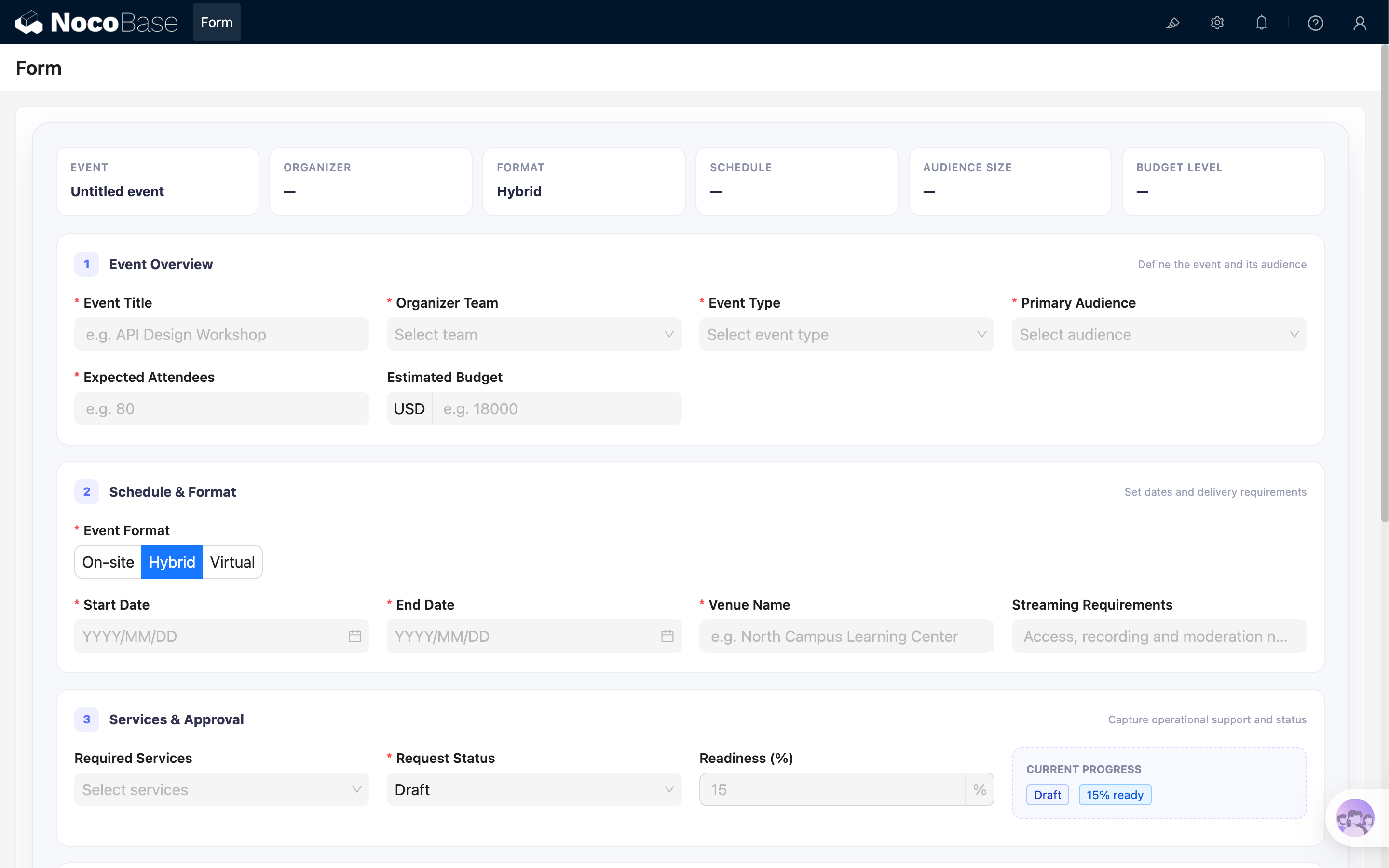
Al ejecutar el código, se mostrará el formulario Event Planning Request.

Detalles clave de implementación

Exponer Ant Design Form al empleado de IA

Asignar la instancia a ctx.model.form permite que la herramienta escriba valores. La limpieza restaura el valor anterior al desmontar el componente.

useEffect(() => {
  const previousForm = ctx.model.form;
  ctx.model.form = form;

  return () => {
    if (ctx.model.form === form) {
      ctx.model.form = previousForm;
    }
  };
}, [form]);

Establecer el nombre mostrado en Seleccionar bloque

Los bloques JS aparecen como JS block de forma predeterminada en Seleccionar bloque. Usa ctx.model.setTitle() para asignar un nombre más fácil de reconocer:

ctx.model.setTitle('Event Planning Request');

Después, los usuarios verán Event Planning Request al seleccionar el contexto, lo que facilita encontrar el formulario cuando una página contiene varios bloques.

Utiliza un nombre breve y descriptivo para cada bloque JS y conserva esta línea en el ejemplo completo.

Proporcionar información del formulario a la herramienta Rellenar formulario

ctx.model.form proporciona la instancia Form que recibe los valores. La herramienta también necesita conocer los campos disponibles y las reglas que debe seguir al rellenarlos.

Usa ctx.model.setProps() para proporcionar esta información al bloque JS actual:

ctx.model.setProps({
  aiForm: {
    prompt: `This is a fillable Event Planning Request form. Use the Fill form tool when the user asks to populate it. Use the current block UID as the form target: ${ctx.model.uid}. Always use enum values instead of labels, use YYYY-MM-DD for date fields, and use an array for services.`,
    fields: FORM_FIELDS,
  },
});

aiForm contiene dos elementos:

  • prompt describe el propósito, el UID del bloque y las reglas para enumeraciones, fechas y selecciones múltiples;
  • fields proporciona nombres, tipos, obligatoriedad y valores disponibles mediante FORM_FIELDS.

Cuando el usuario añade este bloque JS como contexto, la herramienta lee esta información para determinar qué campos debe rellenar en el bloque de destino.

Se necesitan ambos puntos de integración:

// Describir el formulario para la herramienta
ctx.model.setProps({
  aiForm: {
    prompt: '...',
    fields: FORM_FIELDS,
  },
});

// Proporcionar la instancia Ant Design Form que recibe los valores
ctx.model.form = form;

Si las opciones proceden de una API, cárgalas y conviértelas antes de definir FORM_FIELDS y llamar a ctx.model.setProps(). Así, los valores enum disponibles para la herramienta coincidirán con las opciones mostradas en la página.

Describir campos complejos

FORM_FIELDS describe el formulario para la IA. Cada name debe coincidir exactamente con Form.Item. Select y Radio deben incluir enum; la IA utiliza valores, no etiquetas. Los campos multiselección usan matrices.

{
  name: 'eventTitle',
  title: 'Event Title',
  type: 'string',
  required: true,
}
<Form.Item name="eventTitle" label="Event Title">
  <Input />
</Form.Item>
{
  "status": "in-review",
  "services": ["recording", "interpretation", "catering"]
}

Convertir fechas

DatePicker espera un objeto dayjs, mientras que la IA puede proporcionar una cadena YYYY-MM-DD. getValueProps y getValueFromEvent convierten ambos formatos.

<Form.Item
  name="startDate"
  getValueProps={(value) => ({
    value: value ? dayjs(String(value).slice(0, 10)) : null,
  })}
  getValueFromEvent={(value) =>
    value ? value.format('YYYY-MM-DD') : null
  }
>
  <DatePicker format="YYYY/MM/DD" />
</Form.Item>

Mantener las reacciones con valores de IA

setFieldsValue() no activa onValuesChange. Usa Form.useWatch() para campos dependientes. El ejemplo actualiza Readiness según Request Status.

const status = STATUS_OPTIONS.find(
  (item) => item.value === values.status,
);

useEffect(() => {
  if (status) {
    form.setFieldsValue({ readiness: status.readiness });
  }
}, [form, status]);

Mostrar campos condicionales

Los valores de Form.useWatch() pueden controlar JSX: Venue Name para eventos presenciales o híbridos, Dietary Requirements con Catering y Cancellation Reason con estado Cancelled.

{values.services?.includes('catering') ? (
  <Form.Item name="dietaryNotes" label="Dietary Requirements">
    <Input />
  </Form.Item>
) : null}

Completar el formulario con un empleado de IA

1. Activar la herramienta Rellenar formulario

Utiliza Dex o activa la herramienta para otro empleado de IA.

2. Seleccionar el bloque JS como contexto

Elige Añadir contexto → Seleccionar bloque y selecciona Event Planning Request. Consulta Añadir contexto - Seleccionar bloque.

3. Enviar el material de origen

Introduce texto o pega un correo, acta o solicitud de evento. La IA puede mapear contenido de otro idioma a los campos y valores en inglés.

4. Revisar antes de enviar

Comprueba opciones, números, unidades, fechas, matrices, campos condicionales y requisitos. La herramienta solo escribe valores; no pulsa Validate Form ni envía datos.

Adaptar el ejemplo

Opciones estáticas

Para listas pequeñas, define las opciones en el bloque JS y reutiliza la misma matriz en FORM_FIELDS y Select.

const TEAM_OPTIONS = [
  { value: 'team-a', label: 'Team A' },
  { value: 'team-b', label: 'Team B' },
];

Cargar opciones desde una API

Las opciones también pueden proceder de una API de NocoBase u otro endpoint. Completa la solicitud antes de definir FORM_FIELDS y transforma los registros a { value, label }.

const { data } = await ctx.request({
  url: 'eventCategories:list',
  method: 'get',
  params: {
    fields: ['id', 'name'],
    sort: ['name'],
    pageSize: 100,
  },
});

const categoryRecords = Array.isArray(data?.data) ? data.data : [];
const CATEGORY_OPTIONS = categoryRecords.map((record) => ({
  value: record.id,
  label: record.name,
}));

const FORM_FIELDS = [
  {
    name: 'categoryId',
    title: 'Event Category',
    type: 'number',
    enum: CATEGORY_OPTIONS,
  },
];

ctx.model.setProps({
  aiForm: {
    fields: FORM_FIELDS,
  },
});
<Form.Item name="categoryId" label="Event Category">
  <Select options={CATEGORY_OPTIONS} />
</Form.Item>

Llama a ctx.model.setProps() después de cargar las opciones para mantener sincronizados el enum de la IA y la interfaz. Conserva también el tipo del valor.

Las solicitudes utilizan la identidad y permisos actuales. Los endpoints externos requieren CORS y, si corresponde, autenticación. Consulta ctx.request.

Metadatos de campos

Ajusta nombres, títulos, tipos, enumeraciones, obligatoriedad e instrucciones.

const FORM_FIELDS = [
  {
    name: 'yourFieldName',
    title: 'Your Field Title',
    type: 'string',
  },
];

Campos y diseño

Actualiza los Form.Item correspondientes y el diseño. Puedes reutilizar Section, SummaryItem y styles.grid.

<Form.Item name="yourFieldName" label="Your Field Title">
  <Input />
</Form.Item>

Alcance y consideraciones

Un formulario principal por bloque JS

Mantén un solo formulario principal por bloque para que la IA identifique claramente el destino. Separa los formularios independientes.

No incluir listas enormes en el contexto

Las opciones estáticas y dinámicas son compatibles. Para cientos de registros, limita la consulta, solicita una selección previa o utiliza un flujo de coincidencia más específico.

Resumen

Para hacer rellenable un formulario de bloque JS, administra sus valores con Ant Design Form, expón la instancia mediante el modelo y proporciona metadatos precisos. El ejemplo también muestra JSX, cuadrículas adaptables, tarjetas, resúmenes, dependencias y campos condicionales.