Cho phép nhân viên AI điền biểu mẫu tùy chỉnh trong khối JS

Nhân viên AI của NocoBase có thể dùng công cụ Điền biểu mẫu để trích xuất thông tin từ email, cuộc hội thoại hoặc tài liệu và đưa vào các trường biểu mẫu.

Tính năng này hoạt động trực tiếp với khối biểu mẫu gốc. Biểu mẫu được viết trong khối JS không phải khối biểu mẫu gốc nên mặc định không được nhận diện.

Hướng dẫn này dùng Event Planning Request để minh họa cách tạo Ant Design Form có nhóm, điều kiện và cho phép nhân viên AI điền dữ liệu.

Cách sử dụng

  1. Mở một nhân viên AI, chẳng hạn Dex: chuyên gia tổ chức dữ liệu.
  2. Chọn Thêm ngữ cảnh, sau đó Chọn khối.
  3. Chọn khối Event Planning Request.
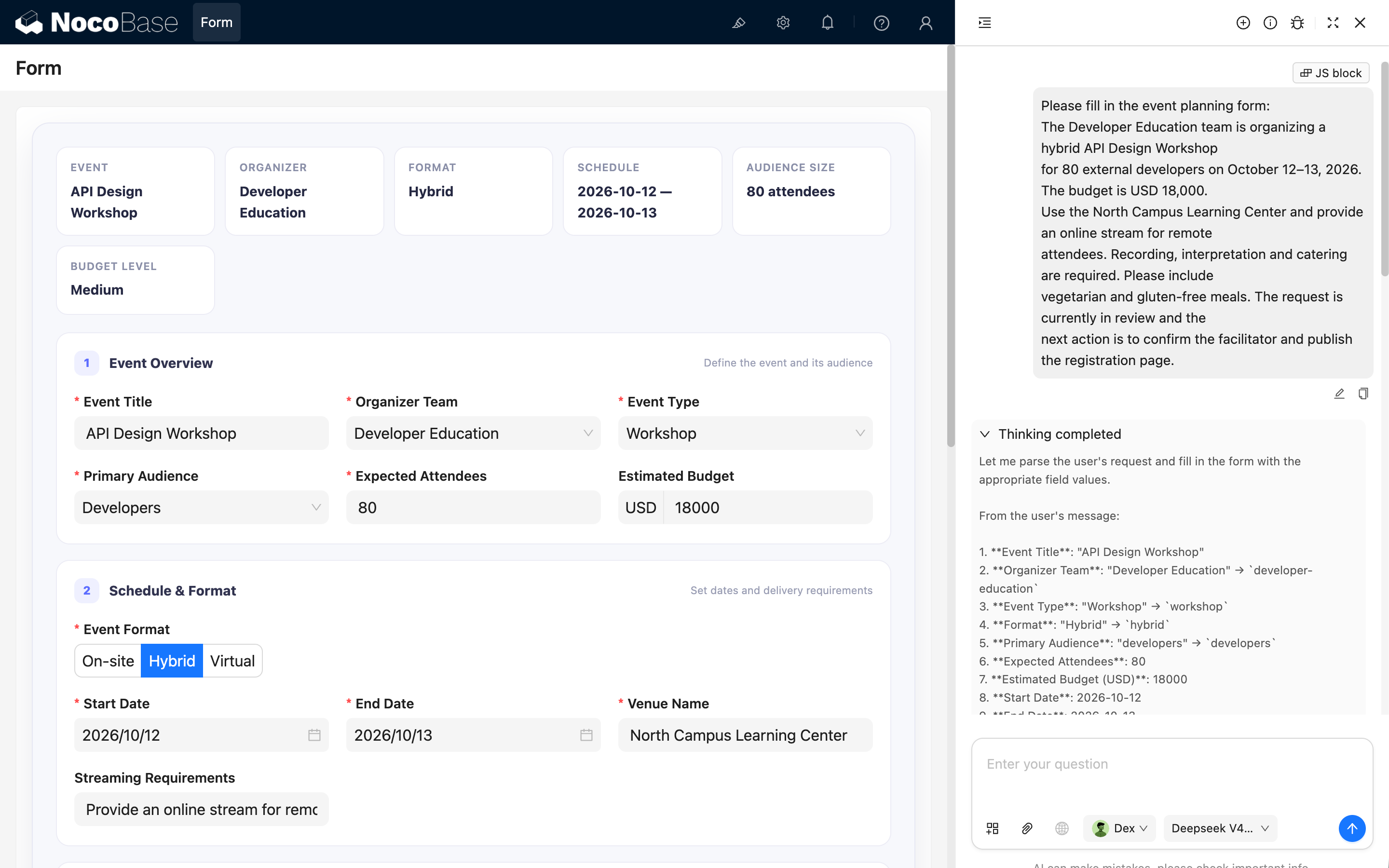
  4. Gửi mô tả yêu cầu sự kiện.
  5. Nhân viên AI trích xuất thông tin và điền vào các trường tương ứng.

Ví dụ, gửi:

Please fill in the event planning form:
The Developer Education team is organizing a hybrid API Design Workshop
for 80 external developers on October 12–13, 2026. The budget is USD 18,000.
Use the North Campus Learning Center and provide an online stream for remote
attendees. Recording, interpretation and catering are required. Please include
vegetarian and gluten-free meals. The request is currently in review and the
next action is to confirm the facilitator and publish the registration page.

Cách hoạt động

Phần triển khai gồm hai bước. Trước hết, cung cấp instance Ant Design Form thông qua model của khối hiện tại.

ctx.model.form = form;

Sau đó cung cấp metadata về tên trường, kiểu dữ liệu, giá trị enum, định dạng ngày và UID khối đích.

  • Field names and data types;
  • Enum values for Select, Radio, and multi-select fields;
  • Date value formats;
  • The UID of the target block.

Đặt metadata và biểu mẫu trong cùng khối JS để cập nhật đồng bộ.

Thêm khối JS

Thêm một khối JS, mở trình soạn thảo JavaScript và dán ví dụ đầy đủ.

Mã ví dụ đầy đủ

Nhấp để mở rộng và sao chép
const React = ctx.libs.React;
const { useEffect, useMemo } = React;
const {
  Form,
  Input,
  InputNumber,
  Select,
  Button,
  Radio,
  Space,
  Tag,
  DatePicker,
} = ctx.libs.antd;
const dayjs = ctx.libs.dayjs;

const BRAND = '#5B6CFF';

const TEAM_OPTIONS = [
  { value: 'product-design', label: 'Product Design' },
  { value: 'developer-education', label: 'Developer Education' },
  { value: 'customer-learning', label: 'Customer Learning' },
  { value: 'operations', label: 'Operations' },
];

const EVENT_TYPE_OPTIONS = [
  { value: 'workshop', label: 'Workshop' },
  { value: 'conference', label: 'Conference' },
  { value: 'webinar', label: 'Webinar' },
  { value: 'community-meetup', label: 'Community Meetup' },
  { value: 'team-offsite', label: 'Team Offsite' },
];

const FORMAT_OPTIONS = [
  { value: 'onsite', label: 'On-site' },
  { value: 'hybrid', label: 'Hybrid' },
  { value: 'virtual', label: 'Virtual' },
];

const AUDIENCE_OPTIONS = [
  { value: 'employees', label: 'Employees' },
  { value: 'customers', label: 'Customers' },
  { value: 'partners', label: 'Partners' },
  { value: 'developers', label: 'Developers' },
  { value: 'public', label: 'General Public' },
];

const STATUS_OPTIONS = [
  { value: 'draft', label: 'Draft', readiness: 15 },
  { value: 'in-review', label: 'In Review', readiness: 45 },
  { value: 'approved', label: 'Approved', readiness: 80 },
  { value: 'scheduled', label: 'Scheduled', readiness: 100 },
  { value: 'cancelled', label: 'Cancelled', readiness: 0 },
];

const SERVICE_OPTIONS = [
  { value: 'catering', label: 'Catering' },
  { value: 'recording', label: 'Recording' },
  { value: 'interpretation', label: 'Interpretation' },
  { value: 'photography', label: 'Photography' },
  { value: 'printed-materials', label: 'Printed Materials' },
  { value: 'accessibility-support', label: 'Accessibility Support' },
];

const CANCELLATION_REASON_OPTIONS = [
  { value: 'schedule-conflict', label: 'Schedule conflict' },
  { value: 'budget-unavailable', label: 'Budget unavailable' },
  { value: 'low-registration', label: 'Low registration' },
  { value: 'venue-unavailable', label: 'Venue unavailable' },
  { value: 'scope-changed', label: 'Scope changed' },
  { value: 'other', label: 'Other' },
];

const FORM_FIELDS = [
  {
    name: 'eventTitle',
    title: 'Event Title',
    type: 'string',
    required: true,
  },
  {
    name: 'organizerTeam',
    title: 'Organizer Team',
    type: 'string',
    required: true,
    enum: TEAM_OPTIONS,
  },
  {
    name: 'eventType',
    title: 'Event Type',
    type: 'string',
    required: true,
    enum: EVENT_TYPE_OPTIONS,
  },
  {
    name: 'format',
    title: 'Event Format',
    type: 'string',
    required: true,
    enum: FORMAT_OPTIONS,
  },
  {
    name: 'audience',
    title: 'Primary Audience',
    type: 'string',
    required: true,
    enum: AUDIENCE_OPTIONS,
  },
  {
    name: 'attendeeCount',
    title: 'Expected Attendees',
    type: 'number',
    required: true,
  },
  {
    name: 'budgetUsd',
    title: 'Estimated Budget (USD)',
    type: 'number',
  },
  {
    name: 'startDate',
    title: 'Start Date',
    type: 'string',
    required: true,
    prompt: 'Use YYYY-MM-DD format.',
  },
  {
    name: 'endDate',
    title: 'End Date',
    type: 'string',
    required: true,
    prompt: 'Use YYYY-MM-DD format.',
  },
  {
    name: 'venueName',
    title: 'Venue Name',
    type: 'string',
    prompt: 'Fill this field only for On-site or Hybrid events.',
  },
  {
    name: 'streamingNotes',
    title: 'Streaming Requirements',
    type: 'string',
    prompt: 'Fill this field only for Hybrid or Virtual events.',
  },
  {
    name: 'services',
    title: 'Required Services',
    type: 'array',
    enum: SERVICE_OPTIONS,
    prompt: 'Use an array containing service option values.',
  },
  {
    name: 'dietaryNotes',
    title: 'Dietary Requirements',
    type: 'string',
    prompt: 'Fill this field when Required Services includes Catering.',
  },
  {
    name: 'status',
    title: 'Request Status',
    type: 'string',
    required: true,
    enum: STATUS_OPTIONS.map(({ value, label }) => ({ value, label })),
  },
  {
    name: 'readiness',
    title: 'Readiness (%)',
    type: 'number',
  },
  {
    name: 'cancellationReason',
    title: 'Cancellation Reason',
    type: 'string',
    enum: CANCELLATION_REASON_OPTIONS,
    prompt: 'Fill this field only when Request Status is Cancelled.',
  },
  {
    name: 'objectives',
    title: 'Event Objectives',
    type: 'string',
  },
  {
    name: 'agendaNotes',
    title: 'Agenda Notes',
    type: 'string',
  },
  {
    name: 'risks',
    title: 'Risks and Constraints',
    type: 'string',
  },
  {
    name: 'nextAction',
    title: 'Next Action',
    type: 'string',
  },
];

ctx.model.setTitle('Event Planning Request');

ctx.model.setProps({
  aiForm: {
    prompt: `This is a fillable Event Planning Request form. Use the Fill form tool when the user asks to populate it. Use the current block UID as the form target: ${ctx.model.uid}. Always use enum values instead of labels, use YYYY-MM-DD for date fields, and use an array for services.`,
    fields: FORM_FIELDS,
  },
});

const styles = {
  shell: {
    overflow: 'hidden',
    border: '1px solid #E7E8F3',
    borderRadius: 18,
    background: '#F7F8FC',
    boxShadow: '0 16px 42px rgba(31, 35, 76, 0.10)',
  },
  body: {
    padding: 24,
  },
  summary: {
    display: 'grid',
    gridTemplateColumns: 'repeat(auto-fit, minmax(150px, 1fr))',
    gap: 10,
    marginBottom: 18,
  },
  summaryItem: {
    minHeight: 72,
    padding: '12px 14px',
    border: '1px solid #ECECF5',
    borderRadius: 12,
    background: '#FFFFFF',
  },
  summaryLabel: {
    marginBottom: 5,
    color: '#8A8FA8',
    fontSize: 11,
    fontWeight: 600,
    textTransform: 'uppercase',
    letterSpacing: 0.5,
  },
  summaryValue: {
    color: '#252842',
    fontSize: 14,
    fontWeight: 700,
  },
  section: {
    marginBottom: 16,
    padding: '18px 18px 4px',
    border: '1px solid #ECECF5',
    borderRadius: 14,
    background: '#FFFFFF',
  },
  sectionHeader: {
    display: 'flex',
    alignItems: 'center',
    gap: 10,
    marginBottom: 16,
  },
  sectionNumber: {
    display: 'inline-flex',
    width: 26,
    height: 26,
    alignItems: 'center',
    justifyContent: 'center',
    borderRadius: 8,
    color: BRAND,
    background: '#EEF0FF',
    fontSize: 12,
    fontWeight: 800,
  },
  sectionTitle: {
    color: '#30334F',
    fontSize: 14,
    fontWeight: 750,
  },
  sectionHint: {
    marginLeft: 'auto',
    color: '#9A9EB4',
    fontSize: 11,
  },
  grid: {
    display: 'grid',
    gridTemplateColumns: 'repeat(auto-fit, minmax(260px, 1fr))',
    columnGap: 18,
  },
  infoPanel: {
    marginBottom: 24,
    padding: '13px 14px',
    border: '1px dashed #D9DDFC',
    borderRadius: 10,
    background: '#F8F9FF',
  },
  actionBar: {
    position: 'sticky',
    bottom: 0,
    zIndex: 2,
    display: 'flex',
    alignItems: 'center',
    gap: 10,
    margin: '18px -24px -24px',
    padding: '13px 24px',
    borderTop: '1px solid #E8E9F2',
    background: 'rgba(255,255,255,0.94)',
    backdropFilter: 'blur(10px)',
  },
};

function Section({ number, title, hint, children }) {
  return (
    <section style={styles.section}>
      <div style={styles.sectionHeader}>
        <span style={styles.sectionNumber}>{number}</span>
        <span style={styles.sectionTitle}>{title}</span>
        {hint ? <span style={styles.sectionHint}>{hint}</span> : null}
      </div>
      {children}
    </section>
  );
}

function SummaryItem({ label, value }) {
  return (
    <div style={styles.summaryItem}>
      <div style={styles.summaryLabel}>{label}</div>
      <div style={styles.summaryValue}>{value || '—'}</div>
    </div>
  );
}

function DateField({ name, label, required = false }) {
  return (
    <Form.Item
      name={name}
      label={label}
      rules={
        required ? [{ required: true, message: `Please select ${label}` }] : []
      }
      getValueProps={(value) => ({
        value: value ? dayjs(String(value).slice(0, 10)) : null,
      })}
      getValueFromEvent={(value) => (value ? value.format('YYYY-MM-DD') : null)}
    >
      <DatePicker
        format="YYYY/MM/DD"
        placeholder="YYYY/MM/DD"
        style={{ width: '100%' }}
      />
    </Form.Item>
  );
}

function EventPlanningForm() {
  const [form] = Form.useForm();
  const watchedValues =
    Form.useWatch([], {
      form,
      preserve: true,
    }) || {};

  const values = {
    format: 'hybrid',
    status: 'draft',
    readiness: 15,
    services: [],
    ...watchedValues,
  };

  const teamLabel = TEAM_OPTIONS.find(
    (item) => item.value === values.organizerTeam,
  )?.label;
  const formatLabel = FORMAT_OPTIONS.find(
    (item) => item.value === values.format,
  )?.label;
  const status = STATUS_OPTIONS.find((item) => item.value === values.status);
  const hasPhysicalVenue =
    values.format === 'onsite' || values.format === 'hybrid';
  const needsStreaming =
    values.format === 'virtual' || values.format === 'hybrid';
  const needsCatering = values.services?.includes('catering');
  const isCancelled = values.status === 'cancelled';

  const dateRange = [values.startDate, values.endDate]
    .filter(Boolean)
    .join(' — ');

  const budgetLevel = useMemo(() => {
    const budget = Number(values.budgetUsd || 0);

    if (budget >= 50000) {
      return 'Large';
    }

    if (budget >= 10000) {
      return 'Medium';
    }

    return budget > 0 ? 'Small' : '';
  }, [values.budgetUsd]);

  useEffect(() => {
    const previousForm = ctx.model.form;

    // Allow the Fill form tool to write values into this form.
    ctx.model.form = form;

    return () => {
      if (ctx.model.form === form) {
        ctx.model.form = previousForm;
      }
    };
  }, [form]);

  useEffect(() => {
    if (!status) {
      return;
    }

    const currentReadiness = form.getFieldValue('readiness');

    if (currentReadiness !== status.readiness) {
      form.setFieldsValue({ readiness: status.readiness });
    }
  }, [form, status]);

  const handleFinish = (formValues) => {
    console.log('Event planning form values:', formValues);
    ctx.message.success('The form is complete and ready for submission.');
  };

  return (
    <div style={styles.shell}>
      <div style={styles.body}>
        <div style={styles.summary}>
          <SummaryItem
            label="Event"
            value={values.eventTitle || 'Untitled event'}
          />
          <SummaryItem label="Organizer" value={teamLabel} />
          <SummaryItem label="Format" value={formatLabel} />
          <SummaryItem label="Schedule" value={dateRange} />
          <SummaryItem
            label="Audience Size"
            value={
              values.attendeeCount
                ? `${values.attendeeCount} attendees`
                : undefined
            }
          />
          <SummaryItem label="Budget Level" value={budgetLevel} />
        </div>

        <Form
          form={form}
          layout="vertical"
          size="large"
          variant="filled"
          initialValues={{
            format: 'hybrid',
            status: 'draft',
            readiness: 15,
            services: [],
          }}
          onFinish={handleFinish}
        >
          <Section
            number="1"
            title="Event Overview"
            hint="Define the event and its audience"
          >
            <div style={styles.grid}>
              <Form.Item
                name="eventTitle"
                label="Event Title"
                rules={[
                  {
                    required: true,
                    message: 'Please enter the event title',
                  },
                ]}
              >
                <Input placeholder="e.g. API Design Workshop" />
              </Form.Item>

              <Form.Item
                name="organizerTeam"
                label="Organizer Team"
                rules={[
                  {
                    required: true,
                    message: 'Please select the organizer team',
                  },
                ]}
              >
                <Select options={TEAM_OPTIONS} placeholder="Select team" />
              </Form.Item>

              <Form.Item
                name="eventType"
                label="Event Type"
                rules={[
                  {
                    required: true,
                    message: 'Please select the event type',
                  },
                ]}
              >
                <Select
                  options={EVENT_TYPE_OPTIONS}
                  placeholder="Select event type"
                />
              </Form.Item>

              <Form.Item
                name="audience"
                label="Primary Audience"
                rules={[
                  {
                    required: true,
                    message: 'Please select the primary audience',
                  },
                ]}
              >
                <Select
                  options={AUDIENCE_OPTIONS}
                  placeholder="Select audience"
                />
              </Form.Item>

              <Form.Item
                name="attendeeCount"
                label="Expected Attendees"
                rules={[
                  {
                    required: true,
                    message: 'Please enter the expected attendee count',
                  },
                ]}
              >
                <InputNumber
                  min={1}
                  precision={0}
                  style={{ width: '100%' }}
                  placeholder="e.g. 80"
                />
              </Form.Item>

              <Form.Item name="budgetUsd" label="Estimated Budget">
                <InputNumber
                  min={0}
                  precision={0}
                  addonBefore="USD"
                  style={{ width: '100%' }}
                  placeholder="e.g. 18000"
                />
              </Form.Item>
            </div>
          </Section>

          <Section
            number="2"
            title="Schedule & Format"
            hint="Set dates and delivery requirements"
          >
            <Form.Item
              name="format"
              label="Event Format"
              rules={[
                {
                  required: true,
                  message: 'Please select the event format',
                },
              ]}
            >
              <Radio.Group
                optionType="button"
                buttonStyle="solid"
                options={FORMAT_OPTIONS}
              />
            </Form.Item>

            <div style={styles.grid}>
              <DateField name="startDate" label="Start Date" required />
              <DateField name="endDate" label="End Date" required />

              {hasPhysicalVenue ? (
                <Form.Item
                  name="venueName"
                  label="Venue Name"
                  rules={[
                    {
                      required: true,
                      message: 'Please enter the venue name',
                    },
                  ]}
                >
                  <Input placeholder="e.g. North Campus Learning Center" />
                </Form.Item>
              ) : null}

              {needsStreaming ? (
                <Form.Item name="streamingNotes" label="Streaming Requirements">
                  <Input placeholder="Access, recording and moderation needs" />
                </Form.Item>
              ) : null}
            </div>
          </Section>

          <Section
            number="3"
            title="Services & Approval"
            hint="Capture operational support and status"
          >
            <div style={styles.grid}>
              <Form.Item name="services" label="Required Services">
                <Select
                  mode="multiple"
                  showSearch
                  optionFilterProp="label"
                  options={SERVICE_OPTIONS}
                  placeholder="Select services"
                />
              </Form.Item>

              {needsCatering ? (
                <Form.Item name="dietaryNotes" label="Dietary Requirements">
                  <Input placeholder="Meal preferences and allergies" />
                </Form.Item>
              ) : null}

              <Form.Item
                name="status"
                label="Request Status"
                rules={[
                  {
                    required: true,
                    message: 'Please select the request status',
                  },
                ]}
              >
                <Select
                  options={STATUS_OPTIONS.map(({ value, label }) => ({
                    value,
                    label,
                  }))}
                  placeholder="Select status"
                />
              </Form.Item>

              <Form.Item name="readiness" label="Readiness (%)">
                <InputNumber
                  min={0}
                  max={100}
                  precision={0}
                  addonAfter="%"
                  style={{ width: '100%' }}
                  disabled
                />
              </Form.Item>

              {isCancelled ? (
                <Form.Item
                  name="cancellationReason"
                  label="Cancellation Reason"
                  rules={[
                    {
                      required: true,
                      message: 'Please select the cancellation reason',
                    },
                  ]}
                >
                  <Select
                    options={CANCELLATION_REASON_OPTIONS}
                    placeholder="Select reason"
                  />
                </Form.Item>
              ) : (
                <div style={styles.infoPanel}>
                  <div
                    style={{
                      marginBottom: 6,
                      color: '#8589A1',
                      fontSize: 11,
                      fontWeight: 700,
                      textTransform: 'uppercase',
                    }}
                  >
                    Current Progress
                  </div>
                  <Space size={6} wrap>
                    <Tag color="geekblue">{status?.label || 'Draft'}</Tag>
                    <Tag color="blue">{values.readiness || 0}% ready</Tag>
                  </Space>
                </div>
              )}
            </div>
          </Section>

          <Section
            number="4"
            title="Planning Notes"
            hint="Keep the delivery handoff clear"
          >
            <Form.Item name="objectives" label="Event Objectives">
              <Input.TextArea
                rows={3}
                placeholder="Describe the intended outcomes"
              />
            </Form.Item>

            <Form.Item name="agendaNotes" label="Agenda Notes">
              <Input.TextArea
                rows={3}
                placeholder="Outline the sessions and timing"
              />
            </Form.Item>

            <Form.Item name="risks" label="Risks and Constraints">
              <Input.TextArea
                rows={3}
                placeholder="Record dependencies, limits and open questions"
              />
            </Form.Item>

            <Form.Item name="nextAction" label="Next Action">
              <Input.TextArea
                rows={3}
                placeholder="Describe the next action, owner and due date"
              />
            </Form.Item>
          </Section>

          <div style={styles.actionBar}>
            <span
              style={{
                marginRight: 'auto',
                color: '#8C90A7',
                fontSize: 12,
              }}
            >
              Review AI-filled values before submission.
            </span>
            <Button onClick={() => form.resetFields()}>Reset</Button>
            <Button
              type="primary"
              htmlType="submit"
              style={{
                minWidth: 150,
                background: BRAND,
                borderColor: BRAND,
              }}
            >
              Validate Form
            </Button>
          </div>
        </Form>
      </div>
    </div>
  );
}

ctx.render(<EventPlanningForm />);

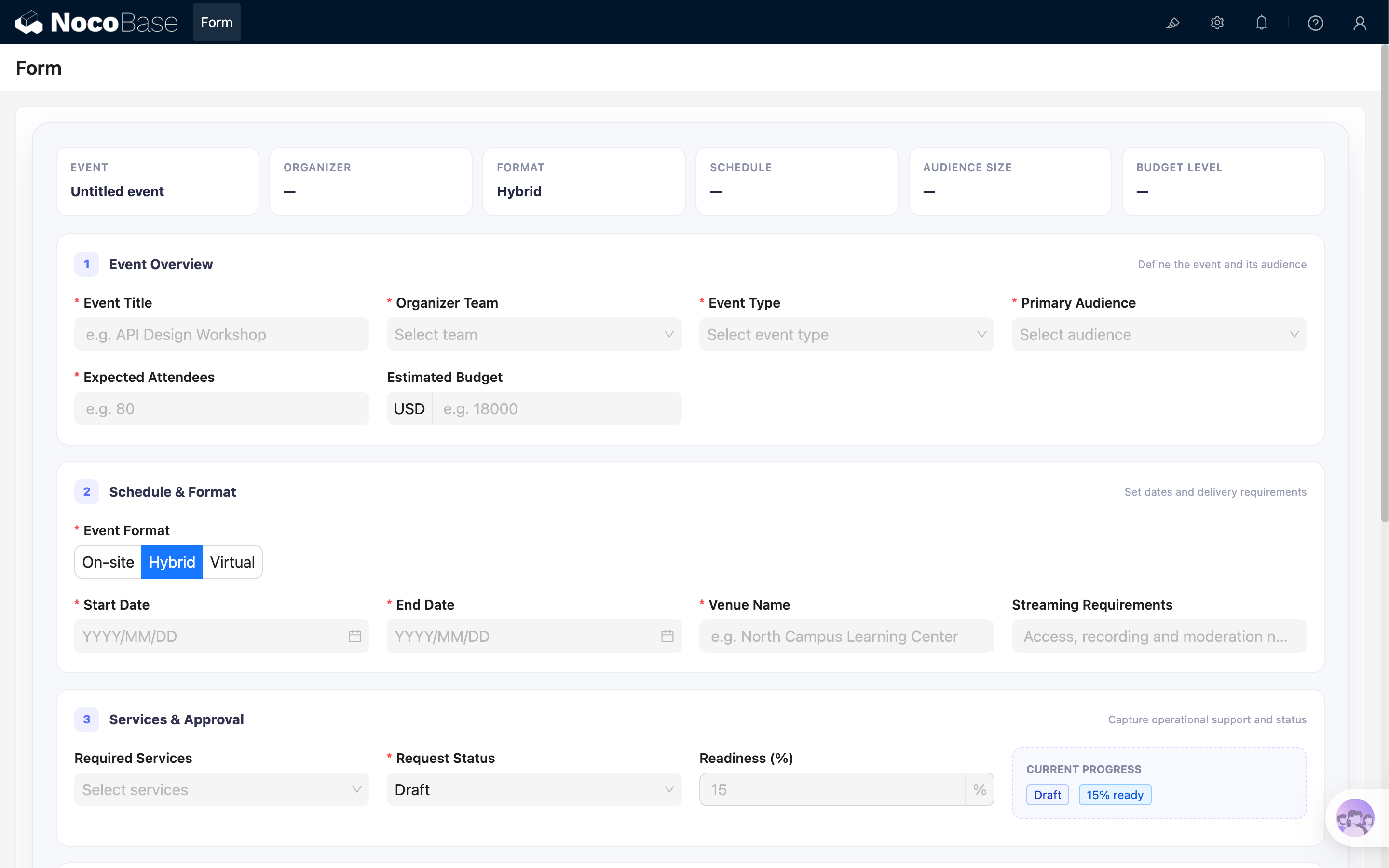
Sau khi chạy mã, biểu mẫu Event Planning Request sẽ xuất hiện.

Các chi tiết triển khai chính

Cung cấp Ant Design Form cho nhân viên AI

Gán instance cho ctx.model.form cho phép công cụ ghi giá trị. Hàm dọn dẹp khôi phục giá trị trước đó khi component bị tháo.

useEffect(() => {
  const previousForm = ctx.model.form;
  ctx.model.form = form;

  return () => {
    if (ctx.model.form === form) {
      ctx.model.form = previousForm;
    }
  };
}, [form]);

Đặt tên hiển thị trong Chọn khối

Theo mặc định, khối JS được hiển thị là JS block trong Chọn khối. Sử dụng ctx.model.setTitle() để đặt một tên dễ nhận biết hơn:

ctx.model.setTitle('Event Planning Request');

Sau khi thiết lập, người dùng sẽ thấy Event Planning Request khi chọn ngữ cảnh, giúp dễ tìm biểu mẫu đích trên trang có nhiều khối.

Hãy dùng tên ngắn gọn, rõ ràng cho từng khối JS và giữ dòng này trong ví dụ đầy đủ.

Cung cấp thông tin biểu mẫu cho công cụ Điền biểu mẫu

ctx.model.form cung cấp instance Form nhận giá trị trường. Công cụ cũng cần biết biểu mẫu có những trường nào và phải tuân theo quy tắc gì khi điền.

Sử dụng ctx.model.setProps() để cung cấp thông tin này cho khối JS hiện tại:

ctx.model.setProps({
  aiForm: {
    prompt: `This is a fillable Event Planning Request form. Use the Fill form tool when the user asks to populate it. Use the current block UID as the form target: ${ctx.model.uid}. Always use enum values instead of labels, use YYYY-MM-DD for date fields, and use an array for services.`,
    fields: FORM_FIELDS,
  },
});

aiForm gồm hai phần:

  • prompt mô tả mục đích biểu mẫu, UID khối đích và quy tắc cho enum, ngày và trường nhiều lựa chọn;
  • fields cung cấp tên, kiểu, trạng thái bắt buộc và giá trị khả dụng thông qua FORM_FIELDS.

Khi người dùng thêm khối JS này làm ngữ cảnh, công cụ sẽ đọc thông tin để xác định những trường cần điền trong khối đích.

Cần có cả hai điểm tích hợp:

// Mô tả biểu mẫu cho công cụ
ctx.model.setProps({
  aiForm: {
    prompt: '...',
    fields: FORM_FIELDS,
  },
});

// Cung cấp instance Ant Design Form nhận giá trị
ctx.model.form = form;

Nếu tùy chọn đến từ API, hãy tải và chuyển đổi dữ liệu trước khi định nghĩa FORM_FIELDS và gọi ctx.model.setProps(). Điều này giữ cho các giá trị enum mà công cụ sử dụng khớp với tùy chọn hiển thị trên trang.

Mô tả các trường phức tạp

FORM_FIELDS mô tả biểu mẫu cho AI. Mỗi name phải khớp chính xác với Form.Item. Select và Radio cần enum; AI ghi giá trị thay vì nhãn. Trường nhiều lựa chọn dùng mảng.

{
  name: 'eventTitle',
  title: 'Event Title',
  type: 'string',
  required: true,
}
<Form.Item name="eventTitle" label="Event Title">
  <Input />
</Form.Item>
{
  "status": "in-review",
  "services": ["recording", "interpretation", "catering"]
}

Chuyển đổi giá trị ngày

DatePicker yêu cầu đối tượng dayjs, trong khi AI có thể cung cấp chuỗi YYYY-MM-DD. getValuePropsgetValueFromEvent chuyển đổi giữa hai định dạng.

<Form.Item
  name="startDate"
  getValueProps={(value) => ({
    value: value ? dayjs(String(value).slice(0, 10)) : null,
  })}
  getValueFromEvent={(value) =>
    value ? value.format('YYYY-MM-DD') : null
  }
>
  <DatePicker format="YYYY/MM/DD" />
</Form.Item>

Duy trì liên kết trường với giá trị do AI điền

setFieldsValue() không kích hoạt onValuesChange. Hãy dùng Form.useWatch() cho các trường phụ thuộc. Ví dụ tự động cập nhật Readiness theo Request Status.

const status = STATUS_OPTIONS.find(
  (item) => item.value === values.status,
);

useEffect(() => {
  if (status) {
    form.setFieldsValue({ readiness: status.readiness });
  }
}, [form, status]);

Hiển thị trường có điều kiện

Giá trị từ Form.useWatch() có thể điều khiển JSX: Venue Name cho sự kiện trực tiếp hoặc kết hợp, Dietary Requirements khi chọn Catering và Cancellation Reason khi trạng thái là Cancelled.

{values.services?.includes('catering') ? (
  <Form.Item name="dietaryNotes" label="Dietary Requirements">
    <Input />
  </Form.Item>
) : null}

Điền biểu mẫu bằng nhân viên AI

1. Bật công cụ Điền biểu mẫu

Sử dụng Dex hoặc bật công cụ này cho một nhân viên AI khác.

2. Chọn khối JS làm ngữ cảnh

Chọn Thêm ngữ cảnh → Chọn khối, sau đó chọn Event Planning Request. Xem Thêm ngữ cảnh - Chọn khối.

3. Gửi nội dung nguồn

Nhập văn bản hoặc dán email, biên bản hay bản mô tả sự kiện. AI có thể ánh xạ ngôn ngữ khác sang trường và giá trị tiếng Anh.

4. Kiểm tra trước khi gửi

Kiểm tra tùy chọn, số, đơn vị, ngày, mảng, trường điều kiện và dữ liệu bắt buộc. Công cụ chỉ ghi giá trị; không nhấn Validate Form hoặc gửi dữ liệu.

Điều chỉnh ví dụ

Tùy chọn tĩnh

Với danh sách nhỏ, định nghĩa tùy chọn trong khối JS và tái sử dụng cùng một mảng trong FORM_FIELDS và Select.

const TEAM_OPTIONS = [
  { value: 'team-a', label: 'Team A' },
  { value: 'team-b', label: 'Team B' },
];

Tải tùy chọn từ API

Tùy chọn cũng có thể đến từ API NocoBase hoặc endpoint khác. Hoàn tất yêu cầu trước khi định nghĩa FORM_FIELDS, rồi chuyển bản ghi thành { value, label }.

const { data } = await ctx.request({
  url: 'eventCategories:list',
  method: 'get',
  params: {
    fields: ['id', 'name'],
    sort: ['name'],
    pageSize: 100,
  },
});

const categoryRecords = Array.isArray(data?.data) ? data.data : [];
const CATEGORY_OPTIONS = categoryRecords.map((record) => ({
  value: record.id,
  label: record.name,
}));

const FORM_FIELDS = [
  {
    name: 'categoryId',
    title: 'Event Category',
    type: 'number',
    enum: CATEGORY_OPTIONS,
  },
];

ctx.model.setProps({
  aiForm: {
    fields: FORM_FIELDS,
  },
});
<Form.Item name="categoryId" label="Event Category">
  <Select options={CATEGORY_OPTIONS} />
</Form.Item>

Gọi ctx.model.setProps() sau khi tải để enum của AI khớp giao diện. Kiểu giá trị cũng phải nhất quán.

Yêu cầu sử dụng danh tính và quyền hiện tại. Endpoint bên ngoài cần CORS và có thể cần xác thực. Xem ctx.request.

Metadata trường

Điều chỉnh tên, tiêu đề, kiểu, enum, yêu cầu bắt buộc và hướng dẫn.

const FORM_FIELDS = [
  {
    name: 'yourFieldName',
    title: 'Your Field Title',
    type: 'string',
  },
];

Trường và bố cục

Cập nhật Form.Item và bố cục tương ứng. Có thể tái sử dụng Section, SummaryItemstyles.grid.

<Form.Item name="yourFieldName" label="Your Field Title">
  <Input />
</Form.Item>

Phạm vi và lưu ý

Một biểu mẫu chính cho mỗi khối JS

Giữ một biểu mẫu chính trong mỗi khối để AI xác định rõ mục tiêu. Tách các biểu mẫu độc lập.

Không đưa danh sách tùy chọn quá lớn vào ngữ cảnh

Cả tùy chọn tĩnh và động đều được hỗ trợ. Với hàng trăm bản ghi, hãy giới hạn truy vấn, cho người dùng chọn bản ghi liên quan trước hoặc dùng luồng đối sánh riêng.

Tóm tắt

Để biểu mẫu trong khối JS có thể được điền, hãy quản lý giá trị bằng Ant Design Form, cung cấp instance qua model khối và khai báo metadata chính xác. Ví dụ cũng minh họa JSX, lưới đáp ứng, thẻ, tóm tắt, phụ thuộc và trường điều kiện.