

Write Your First Block Plugin
Before starting, it's recommended to read "Write Your First Plugin" to learn how to quickly create a basic plugin. Next, we'll extend it by adding a simple Block feature.
Step 1: Create Block Model File
Create a new file in the plugin directory: client/models/SimpleBlockModel.tsx
Step 2: Write Model Content
Define and implement a basic block model in the file, including its rendering logic:
Step 3: Register Block Model
Export the newly created model in the client/models/index.ts file:
Step 4: Activate and Experience the Block
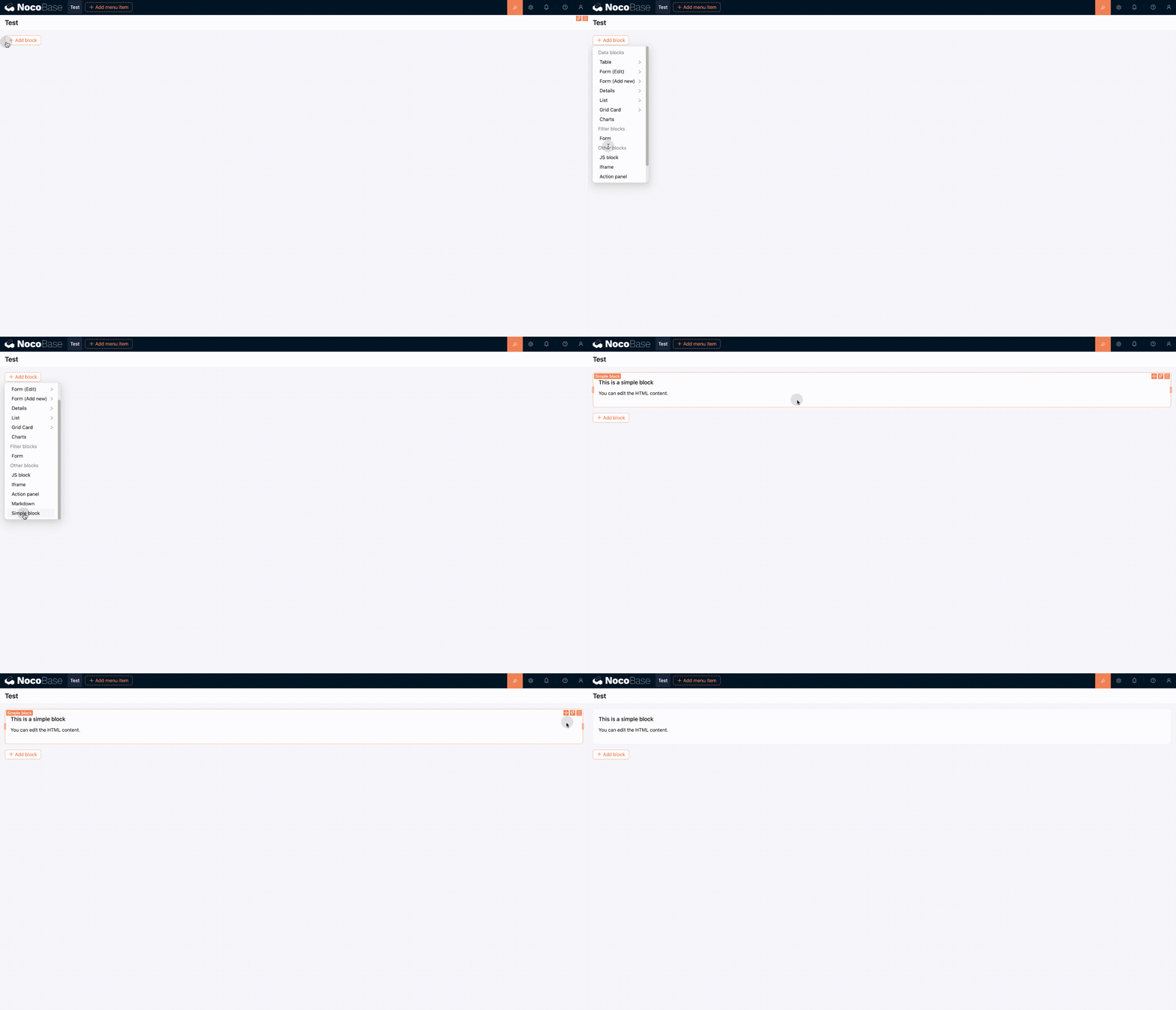
After enabling the plugin, you'll see the new Hello block option in the "Add Block" dropdown menu.
Demo effect:
Step 5: Add Configuration Capability to Block
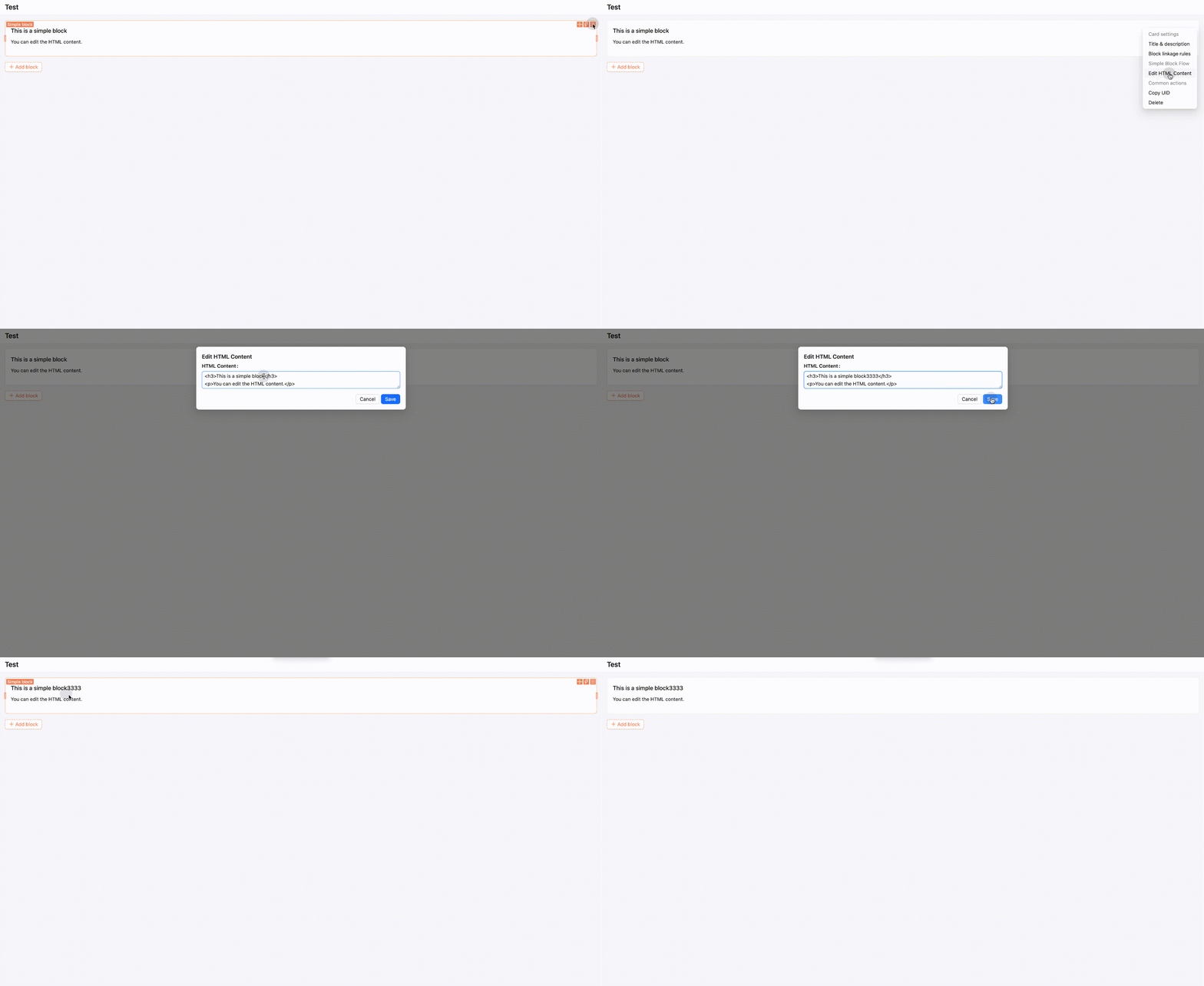
Next, we'll add configurable functionality to the block through Flow, enabling users to edit block content in the interface.
Continue editing the SimpleBlockModel.tsx file:
Demo effect:
Summary
This article introduces how to create a simple block plugin, including:
- How to define and implement a block model
- How to register a block model
- How to add configurable functionality through Flow
Complete source code reference: Simple Block Example