

Write Your First Plugin
This guide will walk you through creating a block plugin that can be used in pages from scratch, helping you understand the basic structure and development workflow of NocoBase plugins.
Prerequisites
Before getting started, make sure you have installed NocoBase. If not, you can refer to:
Once installation is complete, you can get started.
Step 1: Create Plugin Skeleton via CLI
Execute the following command in the repository root directory to quickly generate an empty plugin:
After the command runs successfully, it will generate basic files in the packages/plugins/@my-project/plugin-hello directory. The default structure is as follows:
The scaffold generates a minimal skeleton — src/client-v2/ contains only entry files. The models/ directory and locale.ts used in the following steps are ones you create yourself.
Next, start development mode so your code changes hot-reload:
-
If the project was created with the NocoBase CLI (
nb init), run this from the project root (<app-path>): -
If you cloned the NocoBase source repository yourself, run this from the source root:
Once it is running, access the plugin manager page in your browser (default URL: http://localhost:13000/admin/settings/plugin-manager) to confirm whether the plugin appears in the list.
Step 2: Implement a Simple Client Block
Next, we'll add a custom block model to the plugin to display a welcome message.
- Create the translation helper file
src/client-v2/locale.ts.tExprdeclares a namespaced translation expression, anduseTprovides the translation function inside components:
- Create a new block model file
src/client-v2/models/HelloBlockModel.tsx:
- Register the block model. Creating the model file is not enough on its own — the frontend runtime does not scan the
models/directory automatically, so you have to register it explicitly in the plugin entry. Editsrc/client-v2/plugin.tsxand declare how the model is loaded viaregisterModelLoadersinsideload():
registerModelLoaders takes lazy-loading functions, so a model is only loaded once it is actually used. The key (HelloBlockModel) must match the model class name — the runtime uses it to pick the model class out of the module's named exports.
After saving the code, if you're running development mode, you should see hot-reload logs in the terminal output.
Step 3: Activate and Test the Plugin
You can enable the plugin via command line or interface:
-
Command Line
-
Management Interface: Access the plugin manager, find
@my-project/plugin-hello, and click "Activate".
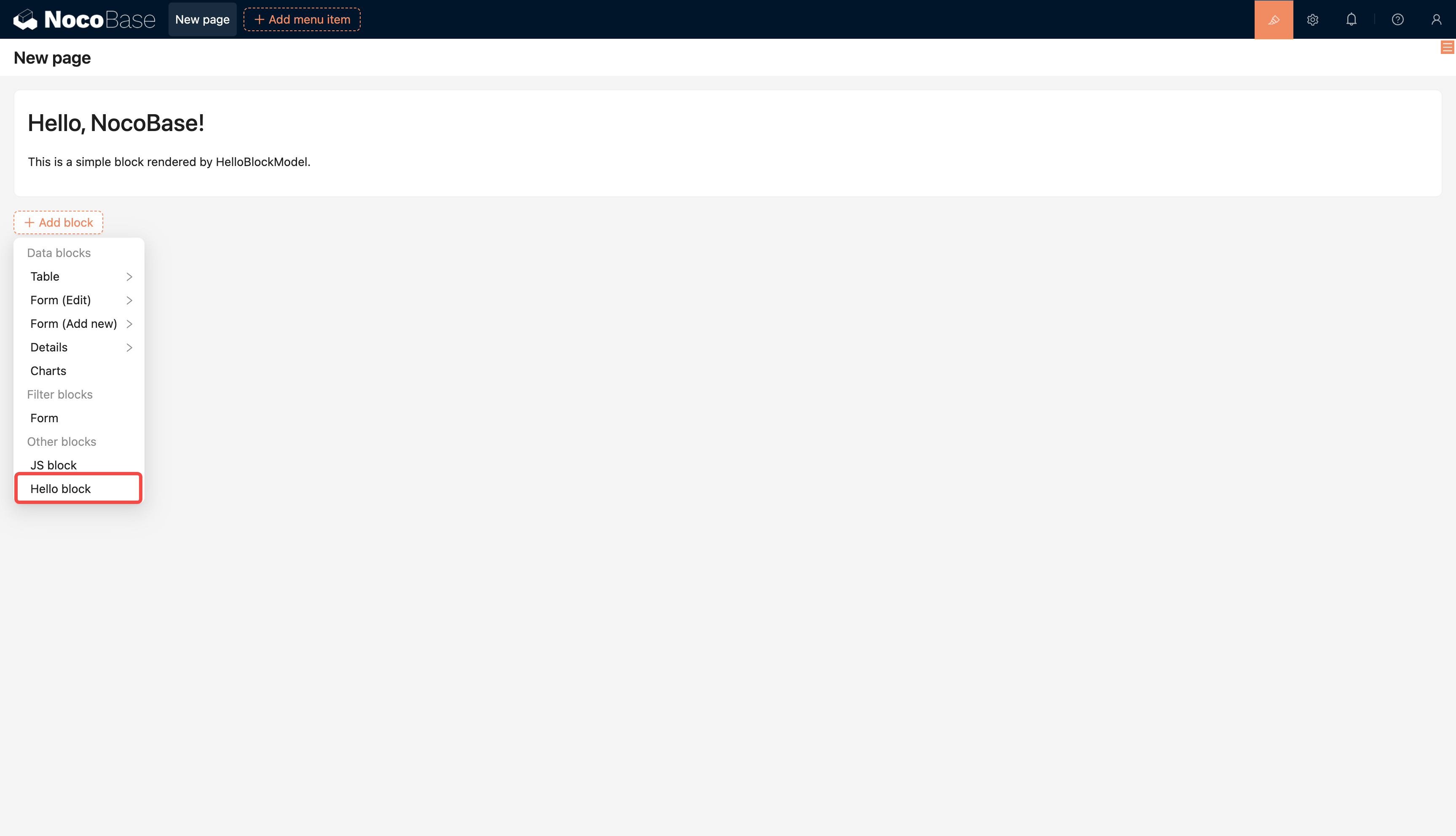
After activation, create a new "Modern page (v2)" page. When adding blocks, you'll see "Hello block". Insert it into the page to see the welcome content you just wrote.
Make a Plugin Preset or Built-in by Default (Optional)
The steps above describe manually enabling a single plugin. If you are maintaining your own NocoBase application and want certain plugins to be automatically ready after running nocobase install (first-time installation) or nocobase upgrade (upgrade), you can use two environment variables to control a plugin's default state:
APPEND_PRESET_LOCAL_PLUGINS(append preset local plugins) — Adds the plugin to the preset local plugin list. After installation it appears in the Plugin Manager but is not activated by default; you need to enable it manually.APPEND_PRESET_BUILT_IN_PLUGINS(append built-in plugins) — Adds the plugin to the built-in plugin list. It is automatically activated on installation and, as a built-in plugin, cannot be disabled or deleted from the Plugin Manager.
The value for both variables is the plugin package name (the name field in package.json); separate multiple plugins with commas. Configure them in .env like this:
For day-to-day local development and debugging, yarn pm enable (described above) is usually sufficient. These two variables are better suited for "out-of-the-box" distribution scenarios — for example, when you are shipping a NocoBase application bundled with a fixed set of plugins and want those plugins to be ready immediately after initialization.
- The plugin must already be downloaded locally and resolvable in
node_modules. See Project Structure for details. - After configuring, you need to re-run
nocobase installornocobase upgradefor the changes to take effect. - For the full list of environment variable options, see Environment Variables.
Step 4: Build and Package
When you're ready to distribute the plugin to other environments, you need to build and package it first:
If the plugin is created in a source code repository, the first build will trigger a full repository type check, which may take some time. It's recommended to ensure dependencies are installed and the repository is in a buildable state.
After the build completes, the package file is located under storage/tar/ by default, named <package-name>-<version>.tgz — for example, storage/tar/@my-project/plugin-hello-0.1.0.tgz.
It's recommended to write test cases to verify core logic before publishing a plugin. NocoBase provides a complete server-side testing toolchain. See Test for details.
Step 5: Upload to Other NocoBase Applications
Upload and extract the package file to the target application's ./storage/plugins directory. For detailed steps, see Install and Upgrade Plugins.
If the target application was created with the NocoBase CLI (nb init), you can also import it directly with nb plugin import instead of extracting it manually:
Related Links
- Plugin Development Overview — Understand NocoBase microkernel architecture and plugin lifecycle
- Project Structure — Project directory conventions, plugin loading paths and priority
- Server-side Development Overview — Overall introduction and core concepts of server-side plugins
- Client-side Development Overview — Overall introduction and core concepts of client-side plugins
- Build and Package — Plugin build, packaging, and distribution workflow
- Test — Writing server-side plugin test cases
- Install using create-nocobase-app — One of the NocoBase installation methods
- Install from Git source — Install NocoBase from source code
- Install and Upgrade Plugins — Upload packaged plugins to other environments
- Environment Variables — Environment variable configuration for preset and built-in plugins