

Supported Capabilities
Before reading this page, make sure you have completed the environment setup following AI Plugin Development Quick Start.
The AI plugin development capability is powered by the nocobase-plugin-development Skill. If you have already initialized via the NocoBase CLI (nb init), this Skill is automatically installed.
Here is a list of everything AI can currently help you do. Each capability comes with a sample prompt that you can copy and adapt to your own requirements.
- NocoBase is migrating from
client(v1) toclient-v2, andclient-v2is still under development. The client code generated by AI development is based onclient-v2and can only be used under the/v/path. It is available for early access and experimentation, but is not recommended for production use. - AI-generated code may not be 100% correct. We recommend reviewing it before enabling. If you encounter issues at runtime, send the error message to AI and let it investigate and fix -- it usually takes just a few rounds of conversation to resolve.
- We recommend using GPT or Claude series models for development, as they produce the best results. Other models can also work, but generation quality may vary.
Best Practices
- Explicitly tell AI to create or modify a NocoBase plugin and provide the plugin name -- for example, "Help me use nocobase-plugin-development skill to develop a NocoBase plugin called @my-scope/plugin-rating". Without a plugin name, AI may not know where to generate code.
- Explicitly specify using nocobase-plugin-development skill in your prompt -- for example, "Help me use nocobase-plugin-development skill to develop a NocoBase plugin...". This allows the AI Agent to directly access the Skills' capabilities, avoiding plan mode where it might ignore Skills.
- Run the AI Agent in the root directory of the NocoBase source code repository -- this way AI can automatically find the project structure, dependencies, and existing plugins. If you're not in the source code root directory, you need to additionally tell the AI Agent the path to the source code repository.
Quick Reference
Plugin Scaffolding
AI can generate a complete NocoBase plugin directory structure based on your requirements -- including frontend and backend entry files, type definitions, and base configuration.
Sample prompt:
AI will run yarn pm create @my-scope/plugin-todo and generate a standard directory:
Collection Definitions
AI can generate Collection definitions for all NocoBase field types, including relationships (one-to-many, many-to-many, etc.).
Sample prompt:
AI will generate a defineCollection definition, including field types, default values, relationship configuration, and more.
Custom Blocks
Blocks are the most fundamental way to extend the NocoBase frontend. AI can help you generate block models, settings panels, and menu registration.
Sample prompt:
AI will generate a BlockModel, create a settings panel via registerFlow + uiSchema, and register it in the "Add Block" menu.
For a complete example, see Build a Custom Display Block.
Custom Field Components
If NocoBase's built-in field rendering components don't meet your needs, AI can help you create a custom display component to replace the default field rendering.
Sample prompt:
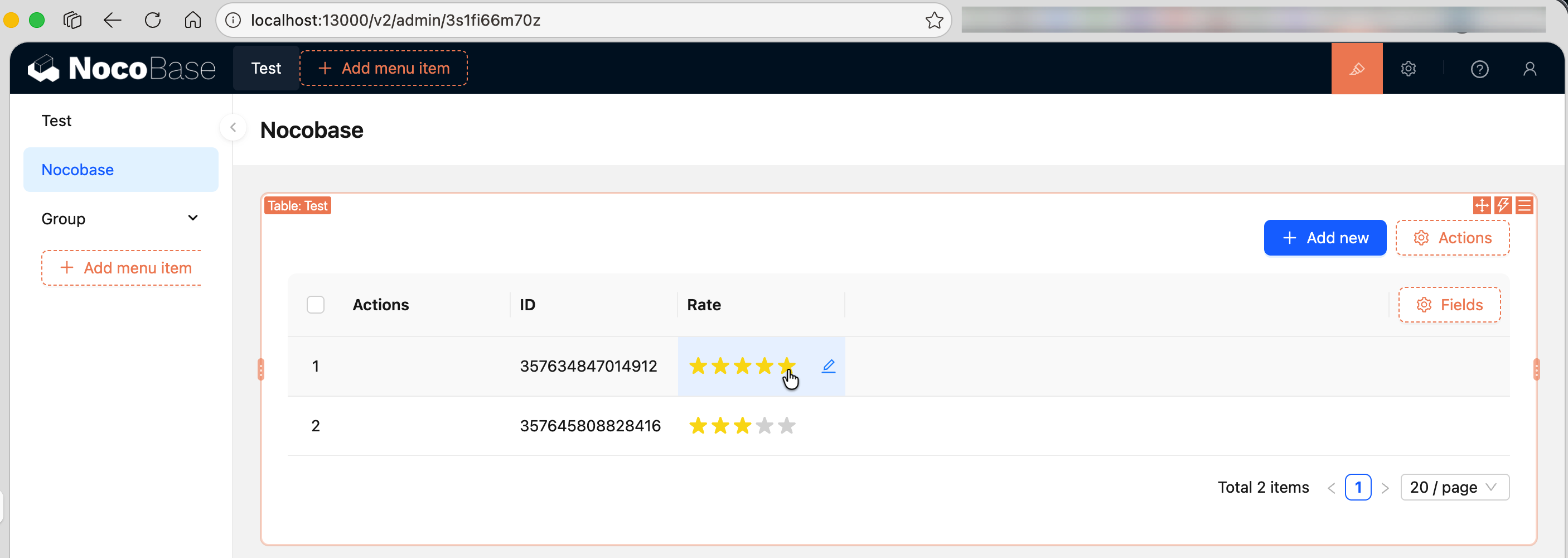
AI will generate a custom FieldModel to replace the default rendering component for integer fields.
Custom Actions
Action buttons can appear at the top of a block (collection level), in the action column of each table row (record level), or in both locations simultaneously. Clicking them can trigger prompts, open form popups, call APIs, and more.
Sample prompt:
AI will generate an ActionModel, control button placement via ActionSceneEnum, and handle click events via registerFlow({ on: 'click' }).
For a complete example, see Build a Custom Action Button.
Plugin Settings Page
Many plugins need a settings page for users to configure parameters -- such as third-party service API keys, webhook URLs, etc.
Sample prompt:
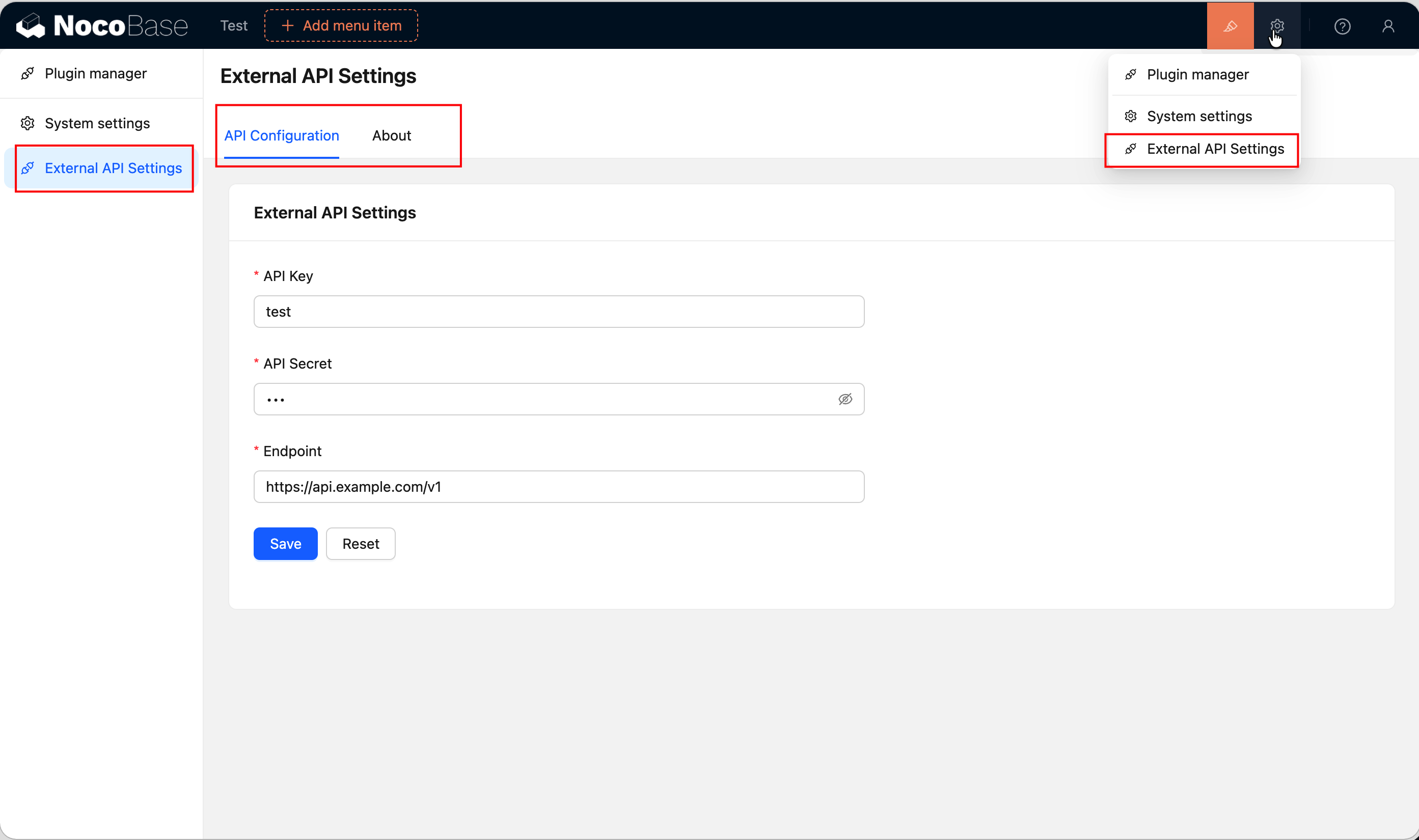
AI will generate the frontend settings page component, backend Resource Action, collection definition, and ACL configuration.
For a complete example, see Build a Plugin Settings Page.
Custom APIs
If the built-in CRUD endpoints aren't sufficient, AI can help you write custom REST APIs. Below is a complete frontend-backend example -- the backend defines collections and APIs, while the frontend creates a custom block to display the data.
Sample prompt:
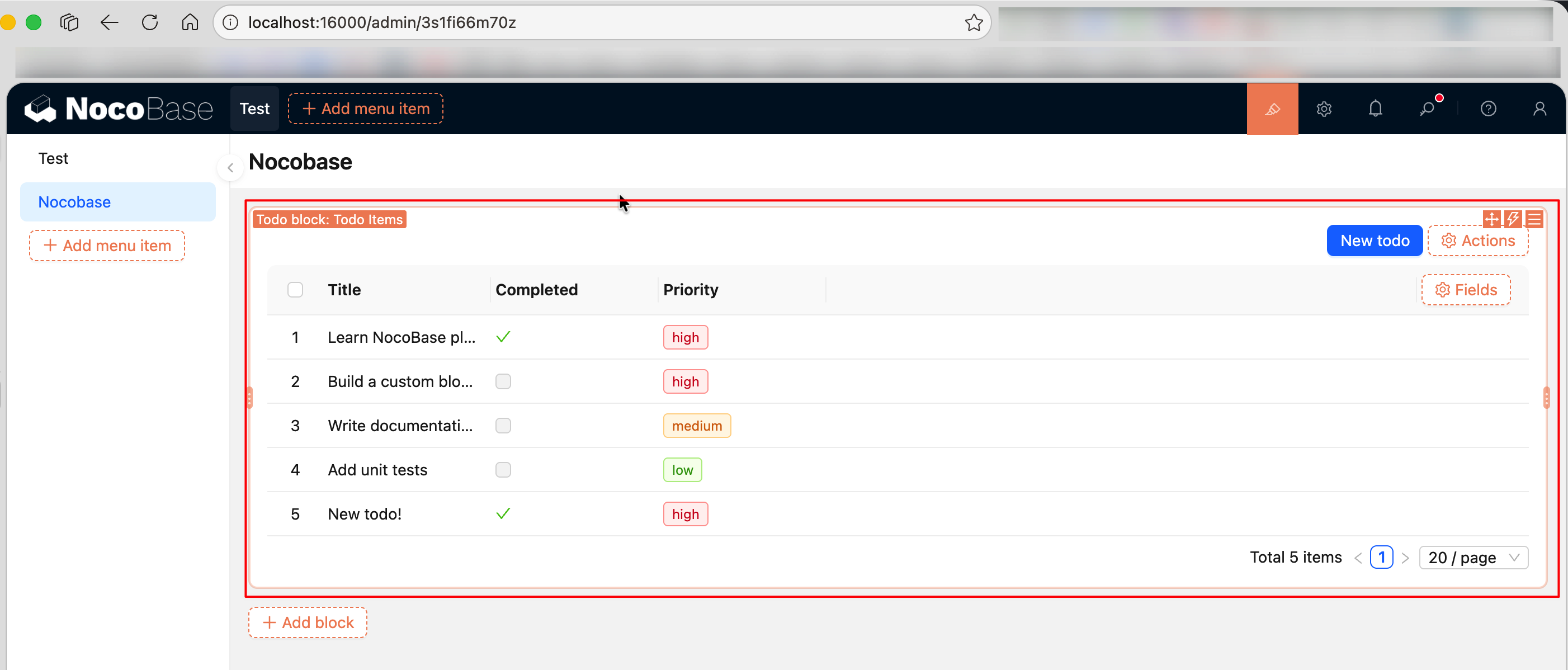
AI will generate server-side Collection definitions, Resource Actions, ACL configuration, as well as client-side TableBlockModel, custom FieldModel, and ActionModel.
For a complete example, see Build a Frontend-Backend Integrated Data Management Plugin.
Permission Configuration
AI will automatically configure appropriate ACL rules for generated APIs and resources. You can also explicitly specify permission requirements in your prompt:
Sample prompt:
AI will configure the corresponding access rules on the server side via this.app.acl.allow().
Internationalization
AI generates Chinese and English language packs (zh-CN.json and en-US.json) by default -- you don't need to ask for them separately.
If you need additional languages:
Migration Scripts
When a plugin needs to update the database schema or migrate data, AI can help you generate Migration scripts.
Sample prompt:
AI will generate a versioned Migration file, including DDL operations and data migration logic.
Related Links
- AI Plugin Development Quick Start -- Quick start and capability overview
- Tutorial: Building a Watermark Plugin -- A complete hands-on AI development case study
- Plugin Development -- The complete guide to NocoBase plugin development
- NocoBase CLI -- Command-line tool for installing and managing NocoBase