

Building a Plugin Settings Page

Many plugins need a settings page for users to configure parameters -- such as third-party service API Keys, Webhook URLs, etc. This example demonstrates how to build a complete plugin settings page using pluginSettingsManager + React components + ctx.api.

This example doesn't involve FlowEngine; it's purely a combination of Plugin + Router + Component + Context.

Prerequisites

It's recommended to familiarize yourself with the following content for a smoother development experience:

Final Result

We're building an "External API Settings" page:

  • Appears in the "Plugin Settings" menu
  • Provides form UI with Antd Form
  • Reads and saves configuration via ctx.api calling backend APIs
  • Shows a notification on successful save
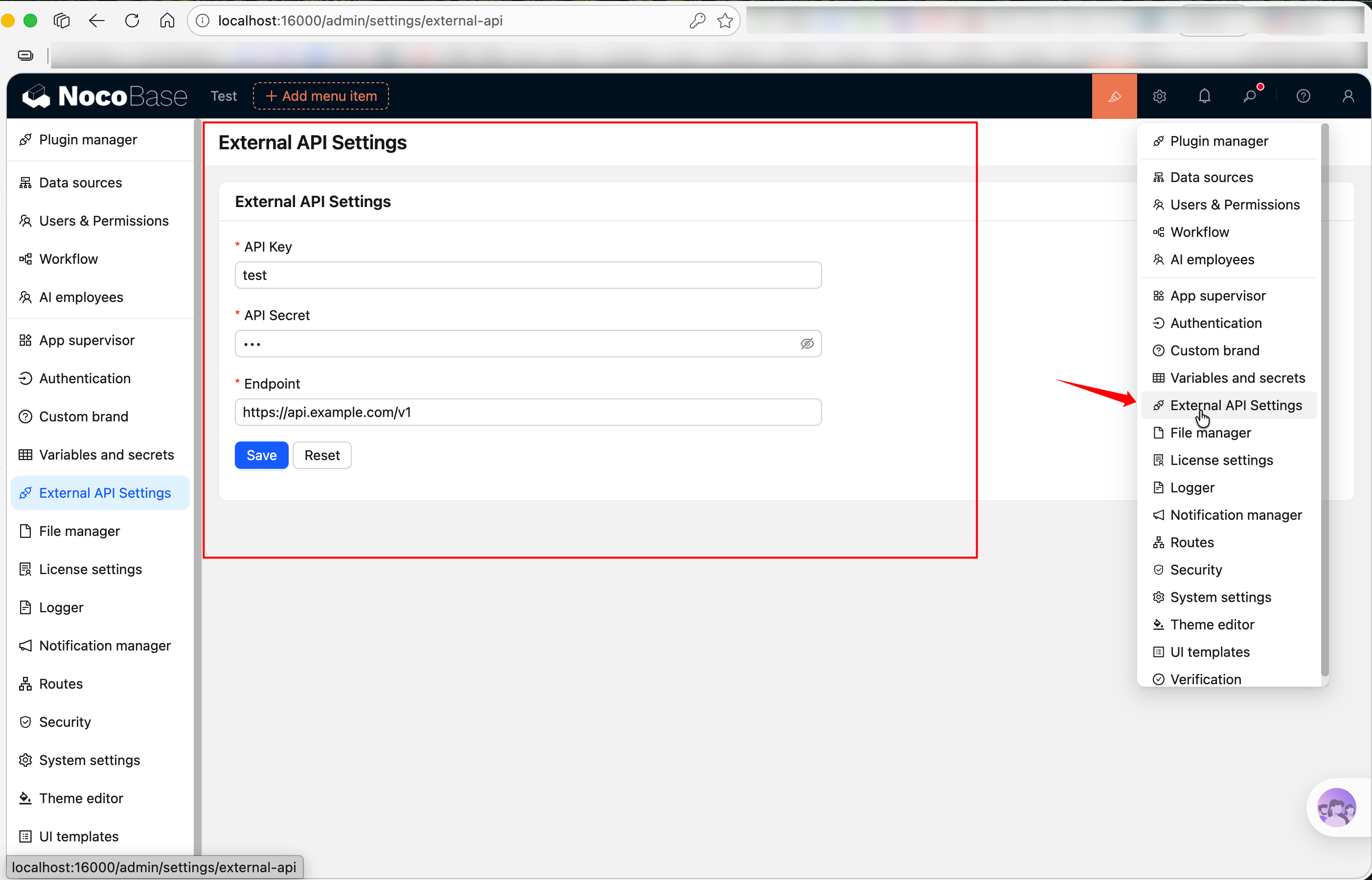
20260407161139

Full source code is available at @nocobase-example/plugin-settings-page. If you want to run it locally:

yarn pm enable @nocobase-example/plugin-settings-page

Let's build this plugin step by step from scratch.

Step 1: Create the Plugin Skeleton

Run the following in the repository root:

yarn pm create @my-project/plugin-settings-page

This will generate a basic file structure under packages/plugins/@my-project/plugin-settings-page, including src/client-v2/, src/server/, src/locale/, and other directories. For detailed instructions, see Writing Your First Plugin.

Step 2: Register the Settings Page

Edit src/client-v2/plugin.tsx. In load(), use this.pluginSettingsManager to register the settings page. This is done in two steps -- first register the menu entry with addMenuItem(), then register the actual page with addPageTabItem():

// src/client-v2/plugin.tsx
import { Plugin, Application } from '@nocobase/client-v2';

export class PluginSettingsPageClient extends Plugin<any, Application> {
  async load() {
    // Register menu entry
    this.pluginSettingsManager.addMenuItem({
      key: 'external-api',
      title: this.t('External API Settings'),
      icon: 'ApiOutlined', // Ant Design icon, see https://5x.ant.design/components/icon
    });

    // Tab 1: API Configuration (key is 'index', maps to the menu root path /admin/settings/external-api)
    this.pluginSettingsManager.addPageTabItem({
      menuKey: 'external-api',
      key: 'index',
      title: this.t('API Configuration'),
      componentLoader: () => import('./pages/ExternalApiSettingsPage'),
      sort: -1, // Lower sort value means higher position
    });

    // Tab 2: About page (maps to /admin/settings/external-api/about)
    this.pluginSettingsManager.addPageTabItem({
      menuKey: 'external-api',
      key: 'about',
      title: this.t('About'),
      componentLoader: () => import('./pages/AboutPage'),
    });
  }
}

export default PluginSettingsPageClient;

After registration, an "External API Settings" entry will appear in the "Plugin Settings" menu, with two tabs at the top -- "API Configuration" and "About". When there's only one page under a menu, the tab bar is automatically hidden; since we've registered two pages here, it will be displayed automatically. this.t() automatically uses the current plugin's package name as the i18n namespace; see Context -> Common Capabilities for details.
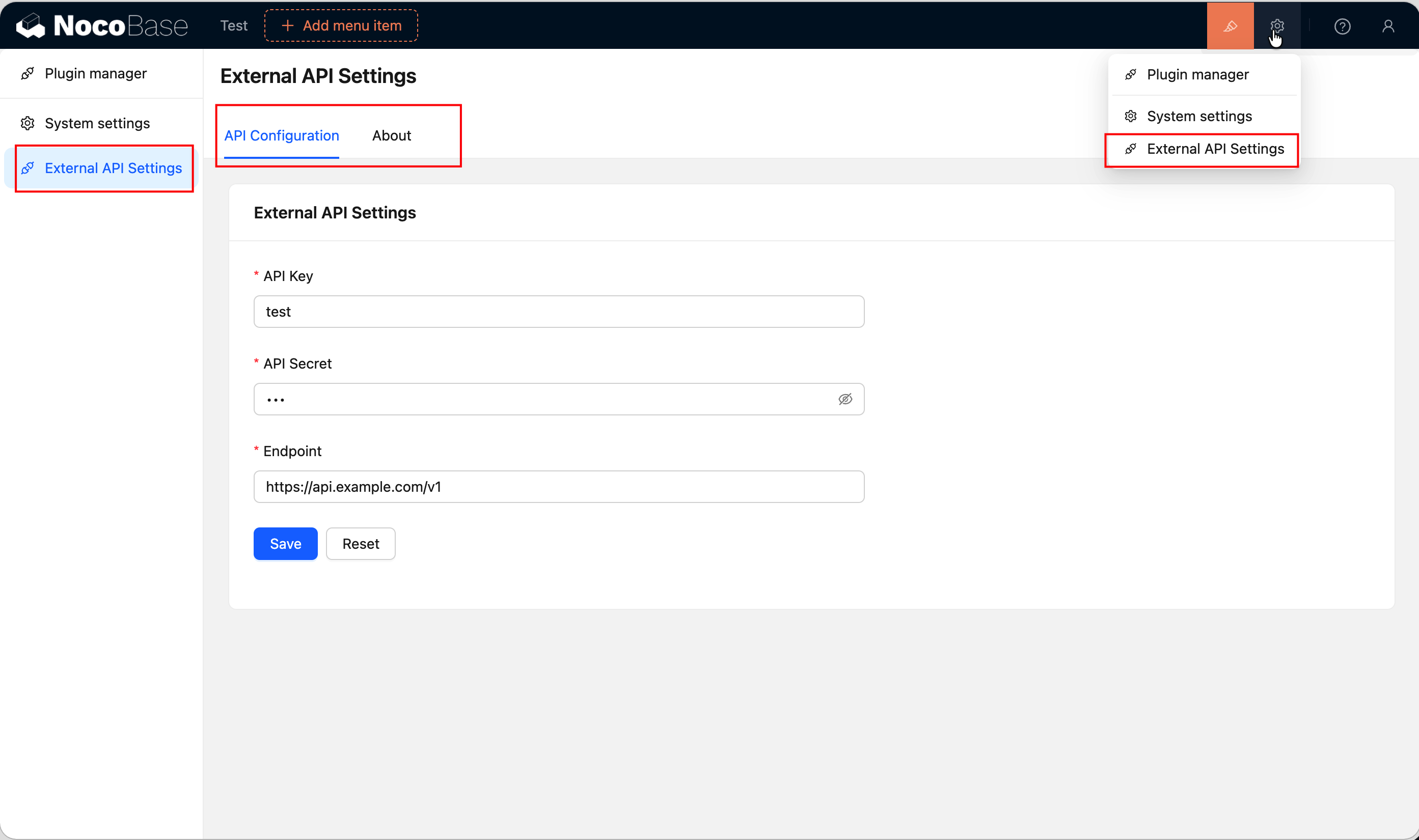
settings page

Step 3: Write the Settings Page Component

Create src/client-v2/pages/ExternalApiSettingsPage.tsx. A settings page is just a regular React component. Here we use Antd's Form and Card for the UI, useFlowContext() to get ctx.api for backend interaction, and useT() to get the translation function.

// src/client-v2/pages/ExternalApiSettingsPage.tsx
import React from 'react';
import { Form, Input, Button, Card, Space, message } from 'antd';
import { useFlowContext } from '@nocobase/flow-engine';
import { useRequest } from 'ahooks';
import { useT } from '../locale';

interface ExternalApiSettings {
  apiKey: string;
  apiSecret: string;
  endpoint: string;
}

export default function ExternalApiSettingsPage() {
  const ctx = useFlowContext();
  const t = useT();
  const [form] = Form.useForm<ExternalApiSettings>();

  // Load existing configuration
  const { loading } = useRequest(
    () =>
      ctx.api.request({
        url: 'externalApi:get',
        method: 'get',
      }),
    {
      onSuccess(response) {
        if (response?.data?.data) {
          form.setFieldsValue(response.data.data);
        }
      },
    },
  );

  // Save configuration
  const { run: save, loading: saving } = useRequest(
    (values: ExternalApiSettings) =>
      ctx.api.request({
        url: 'externalApi:set',
        method: 'post',
        data: values,
      }),
    {
      manual: true,
      onSuccess() {
        message.success(t('Saved successfully'));
      },
      onError() {
        message.error(t('Save failed'));
      },
    },
  );

  const handleSave = async () => {
    const values = await form.validateFields();
    save(values);
  };

  return (
    <Card title={t('External API Settings')} loading={loading}>
      <Form form={form} layout="vertical" style={{ maxWidth: 600 }}>
        <Form.Item
          label="API Key"
          name="apiKey"
          rules={[{ required: true, message: t('Please enter API Key') }]}
        >
          <Input placeholder="sk-xxxxxxxxxxxx" autoComplete="off" />
        </Form.Item>

        <Form.Item
          label="API Secret"
          name="apiSecret"
          rules={[{ required: true, message: t('Please enter API Secret') }]}
        >
          <Input.Password placeholder="••••••••" autoComplete="new-password" />
        </Form.Item>

        <Form.Item
          label="Endpoint"
          name="endpoint"
          rules={[{ required: true, message: t('Please enter endpoint URL') }]}
        >
          <Input placeholder="https://api.example.com/v1" />
        </Form.Item>

        <Form.Item>
          <Space>
            <Button type="primary" onClick={handleSave} loading={saving}>
              {t('Save')}
            </Button>
            <Button onClick={() => form.resetFields()}>
              {t('Reset')}
            </Button>
          </Space>
        </Form.Item>
      </Form>
    </Card>
  );
}

Key points:

  • useFlowContext() -- Imported from @nocobase/flow-engine, provides access to ctx.api and other context capabilities
  • useT() -- A translation hook imported from locale.ts, already bound to the plugin's namespace; see i18n Internationalization for details
  • useRequest() -- From ahooks, handles request loading and error states. manual: true means the request won't fire automatically and needs to be called manually via run()
  • ctx.api.request() -- Same usage as Axios; NocoBase automatically includes authentication information

Step 4: Add Multilingual Files

Edit the translation files under the plugin's src/locale/:

// src/locale/zh-CN.json
{
  "External API Settings": "外部服务配置",
  "API Configuration": "API 配置",
  "About": "关于",
  "Plugin name": "插件名称",
  "Version": "版本",
  "This is a demo plugin showing how to register a settings page with multiple tabs.": "这是一个演示插件,展示如何注册带多个 Tab 的设置页。",
  "Please enter API Key": "请输入 API Key",
  "Please enter API Secret": "请输入 API Secret",
  "Please enter endpoint URL": "请输入接口地址",
  "Save": "保存",
  "Reset": "重置",
  "Saved successfully": "保存成功",
  "Save failed": "保存失败"
}
// src/locale/en-US.json
{
  "External API Settings": "External API Settings",
  "API Configuration": "API Configuration",
  "About": "About",
  "Plugin name": "Plugin name",
  "Version": "Version",
  "This is a demo plugin showing how to register a settings page with multiple tabs.": "This is a demo plugin showing how to register a settings page with multiple tabs.",
  "Please enter API Key": "Please enter API Key",
  "Please enter API Secret": "Please enter API Secret",
  "Please enter endpoint URL": "Please enter endpoint URL",
  "Save": "Save",
  "Reset": "Reset",
  "Saved successfully": "Saved successfully",
  "Save failed": "Save failed"
}
Note

Adding language files for the first time requires restarting the application to take effect.

For more about translation file conventions, the useT() hook, tExpr(), and other usage patterns, see i18n Internationalization.

Step 5: Server-Side APIs

The client-side form needs two backend APIs: externalApi:get and externalApi:set. The server-side part is straightforward -- define a data table to store configuration and register two APIs.

Define the Data Table

Create src/server/collections/externalApiSettings.ts. NocoBase will automatically load collection definitions from this directory:

// src/server/collections/externalApiSettings.ts
import { defineCollection } from '@nocobase/database';

export default defineCollection({
  name: 'externalApiSettings',
  fields: [
    { name: 'apiKey', type: 'string', title: 'API Key' },
    { name: 'apiSecret', type: 'string', title: 'API Secret' },
    { name: 'endpoint', type: 'string', title: 'Endpoint' },
  ],
});

Register Resources and APIs

Edit src/server/plugin.ts. Use resourceManager.define() to register resources and configure ACL permissions:

// src/server/plugin.ts
import { Plugin } from '@nocobase/server';

export class PluginSettingsPageServer extends Plugin {
  async load() {
    // Register resources and APIs
    this.app.resourceManager.define({
      name: 'externalApi',
      actions: {
        // GET /api/externalApi:get -- Read configuration
        async get(ctx, next) {
          const repo = ctx.db.getRepository('externalApiSettings');
          const record = await repo.findOne();
          ctx.body = record?.toJSON() ?? {};
          await next();
        },
        // POST /api/externalApi:set -- Save configuration
        async set(ctx, next) {
          const repo = ctx.db.getRepository('externalApiSettings');
          const values = ctx.action.params.values;
          const existing = await repo.findOne();
          if (existing) {
            await repo.update({ values, filter: { id: existing.id } });
          } else {
            await repo.create({ values });
          }
          ctx.body = { ok: true };
          await next();
        },
      },
    });

    // Logged-in users can read the configuration
    this.app.acl.allow('externalApi', 'get', 'loggedIn');
  }
}

export default PluginSettingsPageServer;

Key points:

  • ctx.db.getRepository() -- Gets a data operation object by collection name
  • ctx.action.params.values -- The POST request body data
  • acl.allow() -- 'loggedIn' means any logged-in user can access. The set API is not explicitly allowed, so by default only administrators can call it
  • await next() -- Must be called at the end of every action; this is a Koa middleware convention

Step 6: Write the "About" Page

In Step 2, we registered two tabs. The "API Configuration" page component was written in Step 3. Now let's write the "About" tab page.

Create src/client-v2/pages/AboutPage.tsx:

// src/client-v2/pages/AboutPage.tsx
import React from 'react';
import { Card, Descriptions, Typography } from 'antd';
import { useT } from '../locale';

const { Paragraph } = Typography;

export default function AboutPage() {
  const t = useT();

  return (
    <Card title={t('About')}>
      <Descriptions column={1} bordered style={{ maxWidth: 600 }}>
        <Descriptions.Item label={t('Plugin name')}>
          @nocobase-example/plugin-settings-page
        </Descriptions.Item>
        <Descriptions.Item label={t('Version')}>1.0.0</Descriptions.Item>
      </Descriptions>
      <Paragraph style={{ marginTop: 16, color: '#888' }}>
        {t('This is a demo plugin showing how to register a settings page with multiple tabs.')}
      </Paragraph>
    </Card>
  );
}

This page is simple -- it uses Antd's Descriptions to display plugin information. In real projects, the "About" tab can be used for version numbers, changelogs, help links, etc.

Step 7: Enable the Plugin

yarn pm enable @my-project/plugin-settings-page

After enabling and refreshing the page, you'll see the "External API Settings" entry in the "Plugin Settings" menu.

20260407161139

Full Source Code

Summary

Capabilities used in this example:

CapabilityUsageDocumentation
Register Settings PagepluginSettingsManager.addMenuItem() + addPageTabItem()Router
Multi-Tab Settings PageMultiple addPageTabItem() with the same menuKeyRouter
API Requestsctx.api.request()Context -> Common Capabilities
i18n (Client)this.t() / useT()i18n Internationalization
i18n (Server)ctx.t() / plugin.t()i18n Internationalization (Server)
Form UIAntd FormAnt Design Form