Microsoft Configuration
Email managerEnterprise Edition+Prerequisites
For users to be able to integrate Outlook email into NocoBase, the system must be deployed on a server that supports access to Microsoft services. The backend will call Microsoft API.
Register Account
-
Open https://azure.microsoft.com/en-us/pricing/purchase-options/azure-account
-
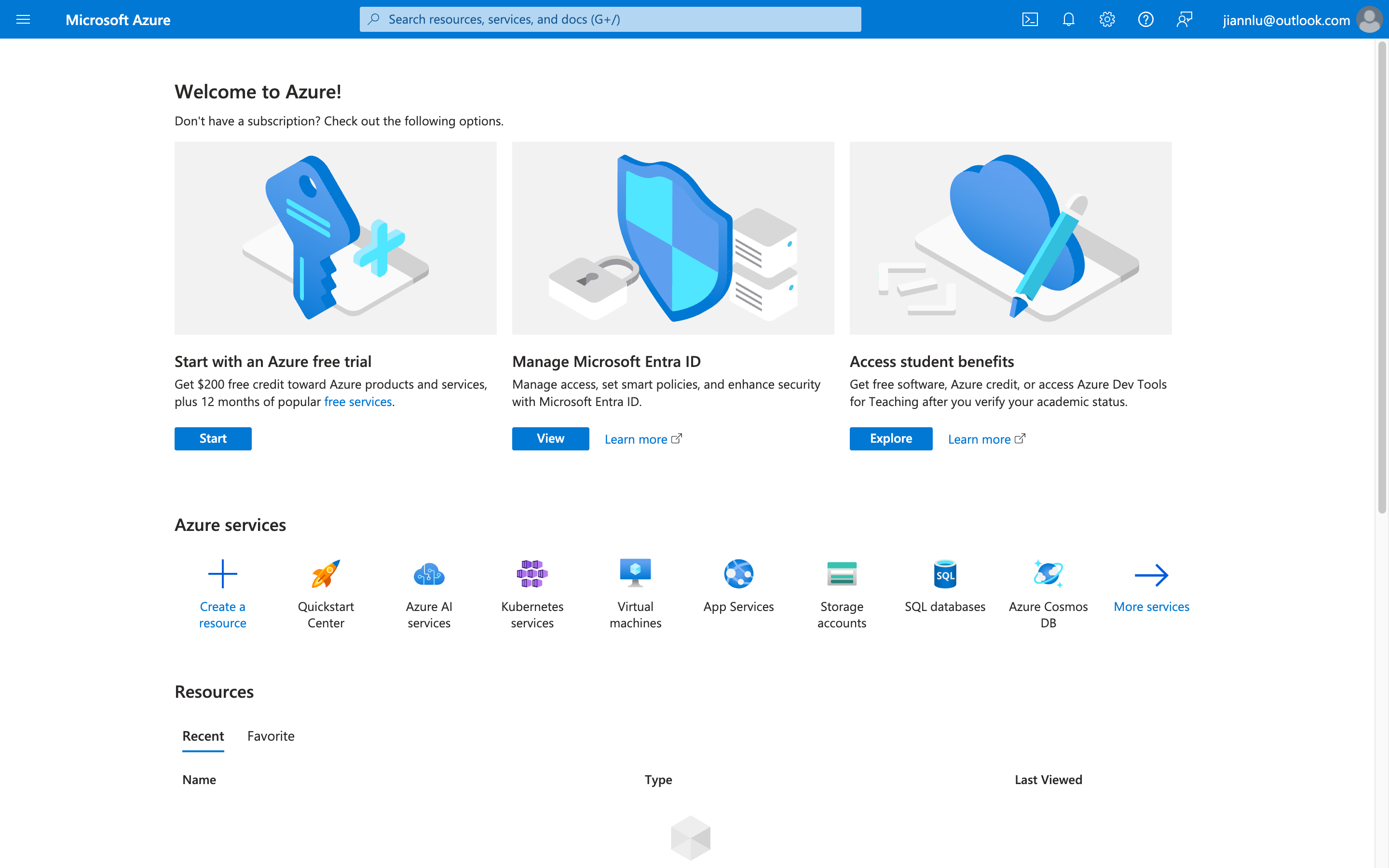
Log in to your Microsoft account
Create Tenant
-
Open https://azure.microsoft.com/zh-cn/pricing/purchase-options/azure-account?icid=azurefreeaccount and log in to your account
-
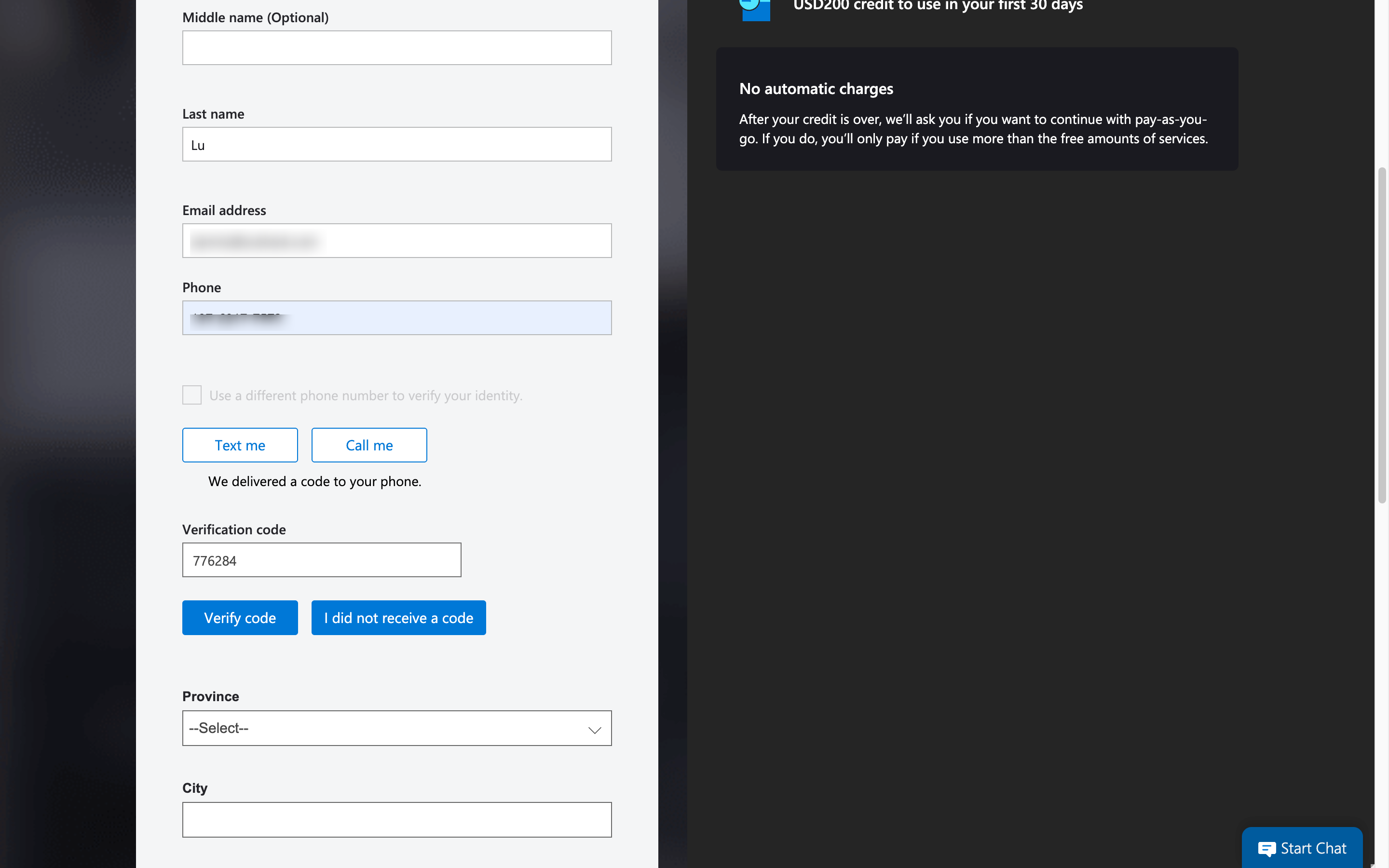
Fill in basic information and obtain verification code
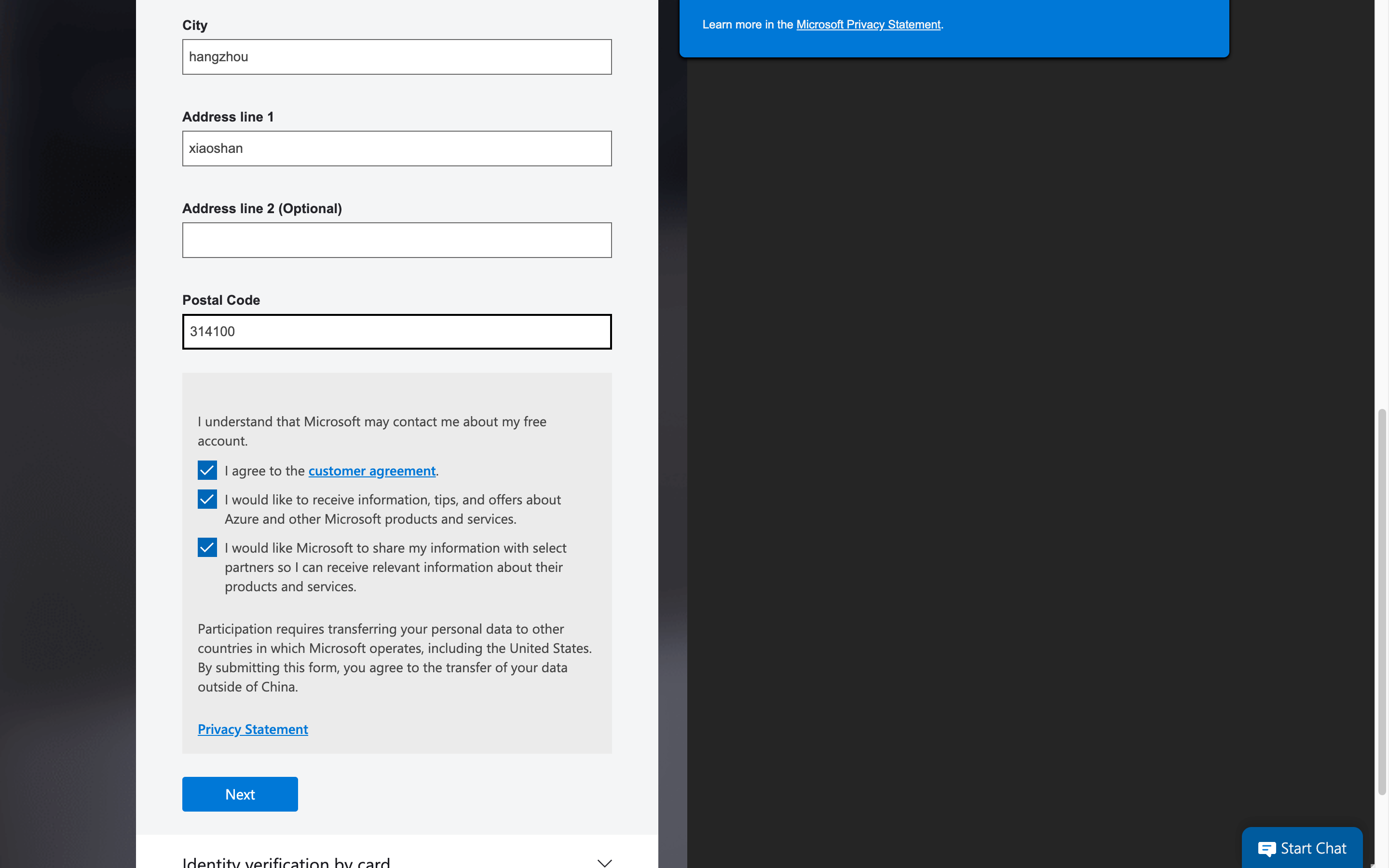
- Fill in other information and continue
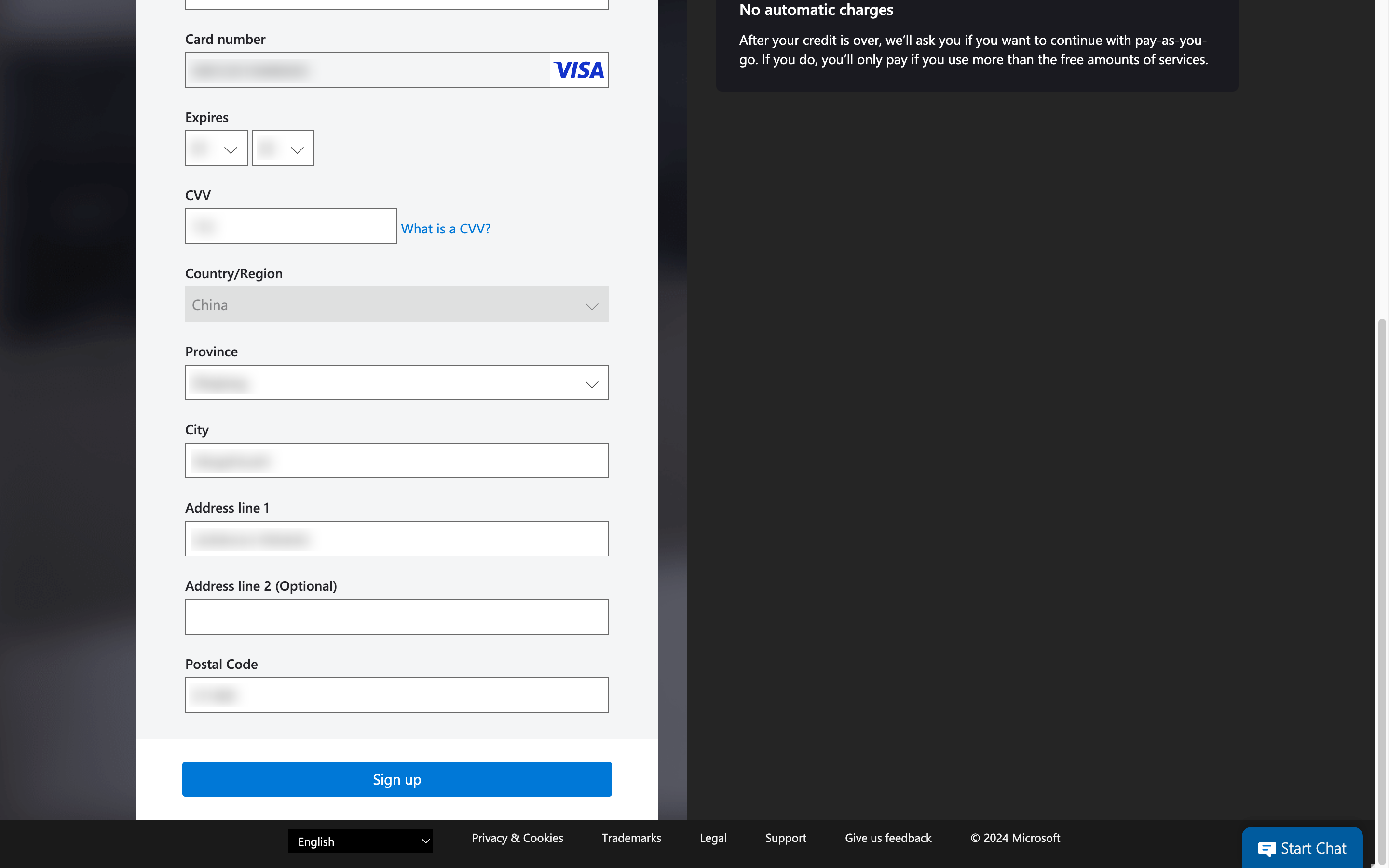
- Fill in credit card information (can be created later)
Get Client ID
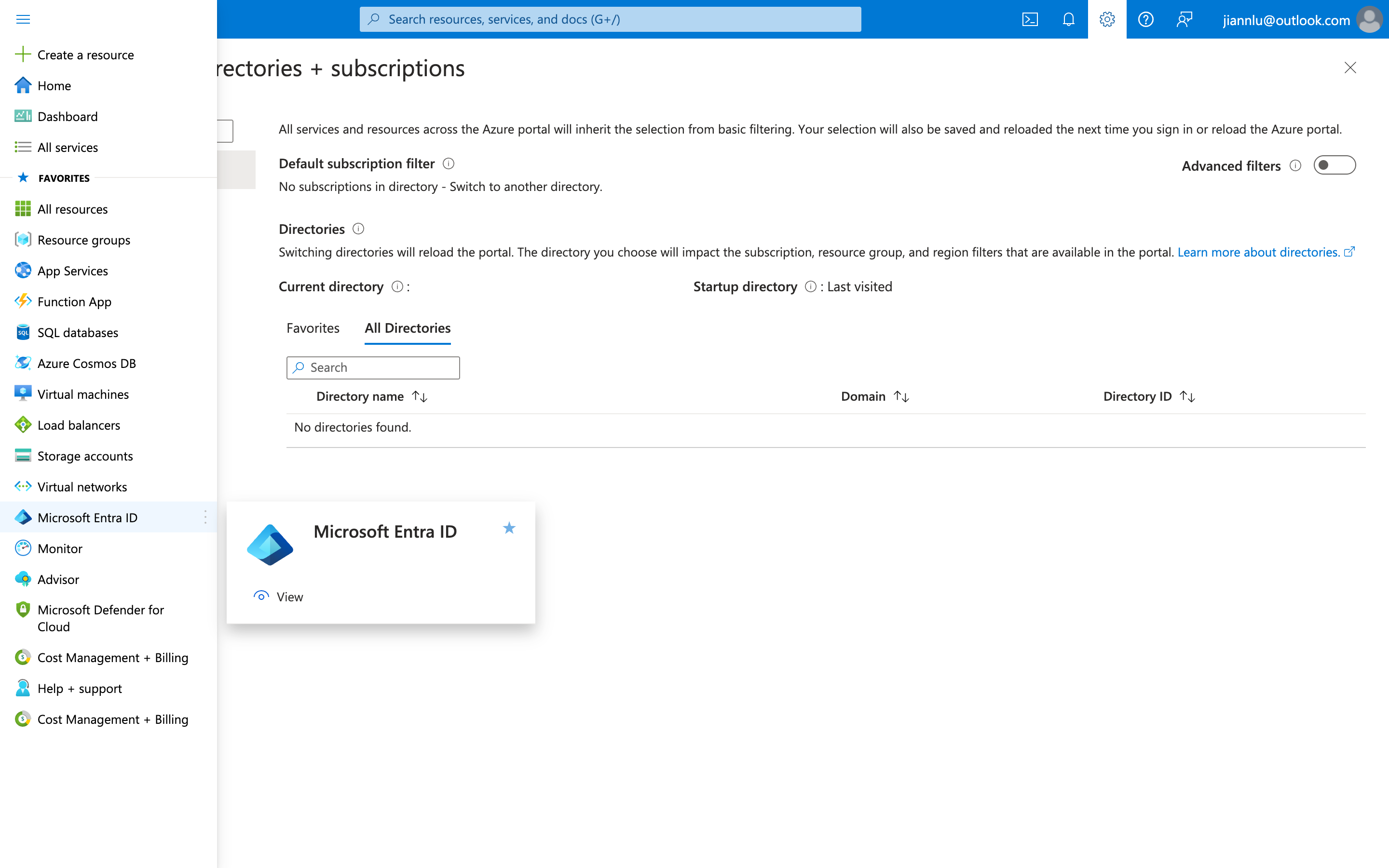
- Click the top menu and select Microsoft Entra ID
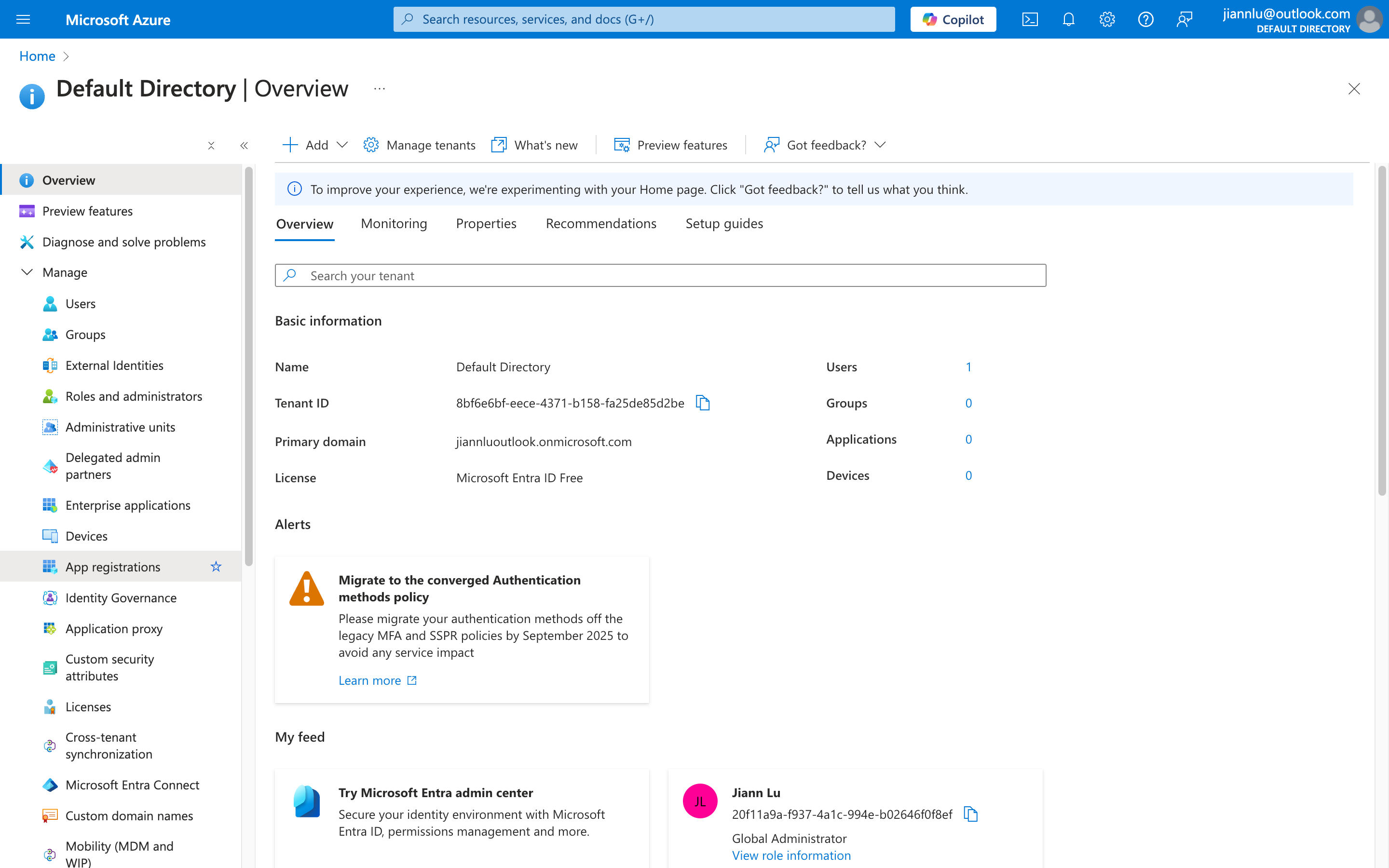
- Select App registrations on the left
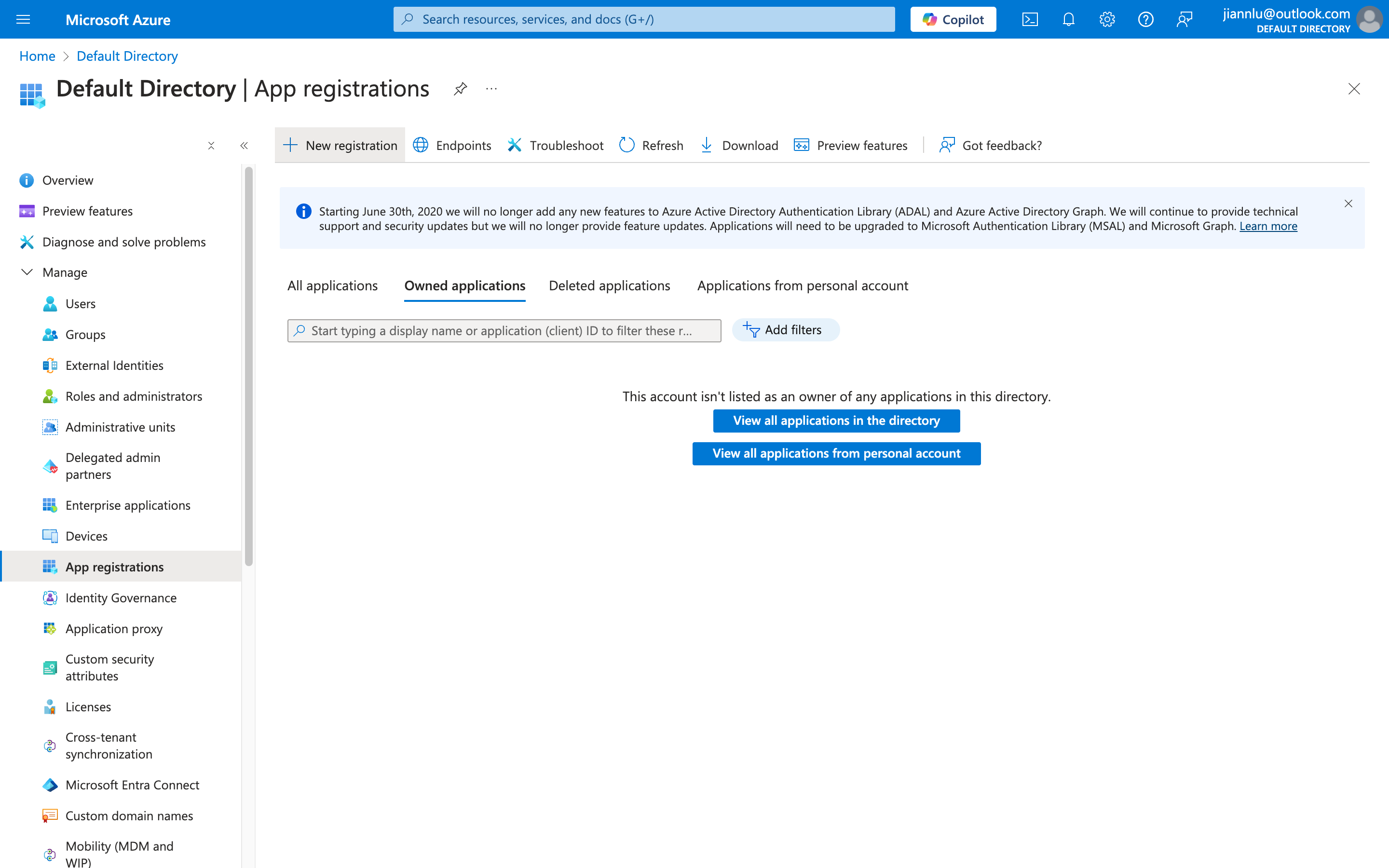
- Click New registration at the top
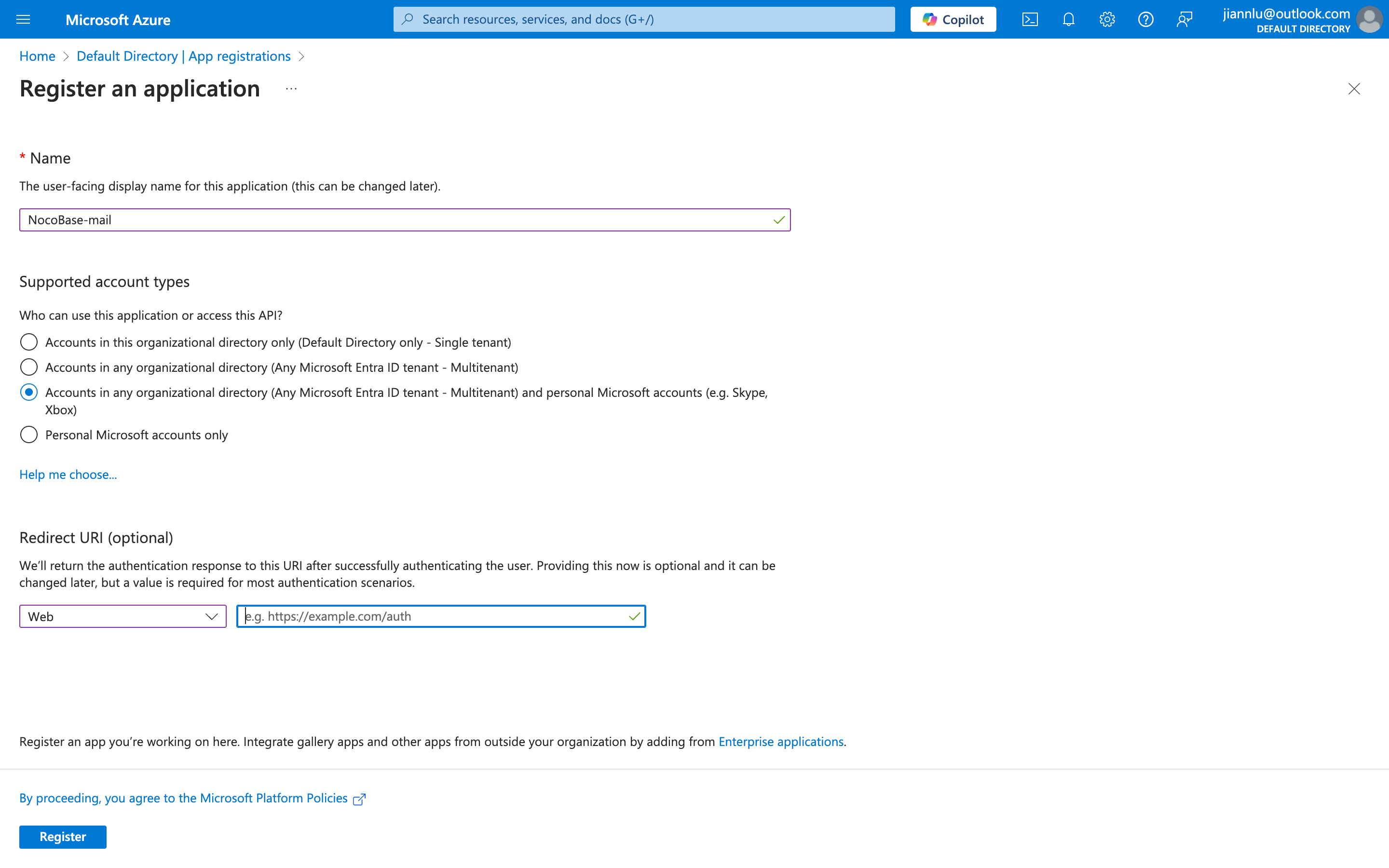
- Fill in the information and submit
The name can be anything, select account types as shown in the figure, and Redirect URI can be left blank for now
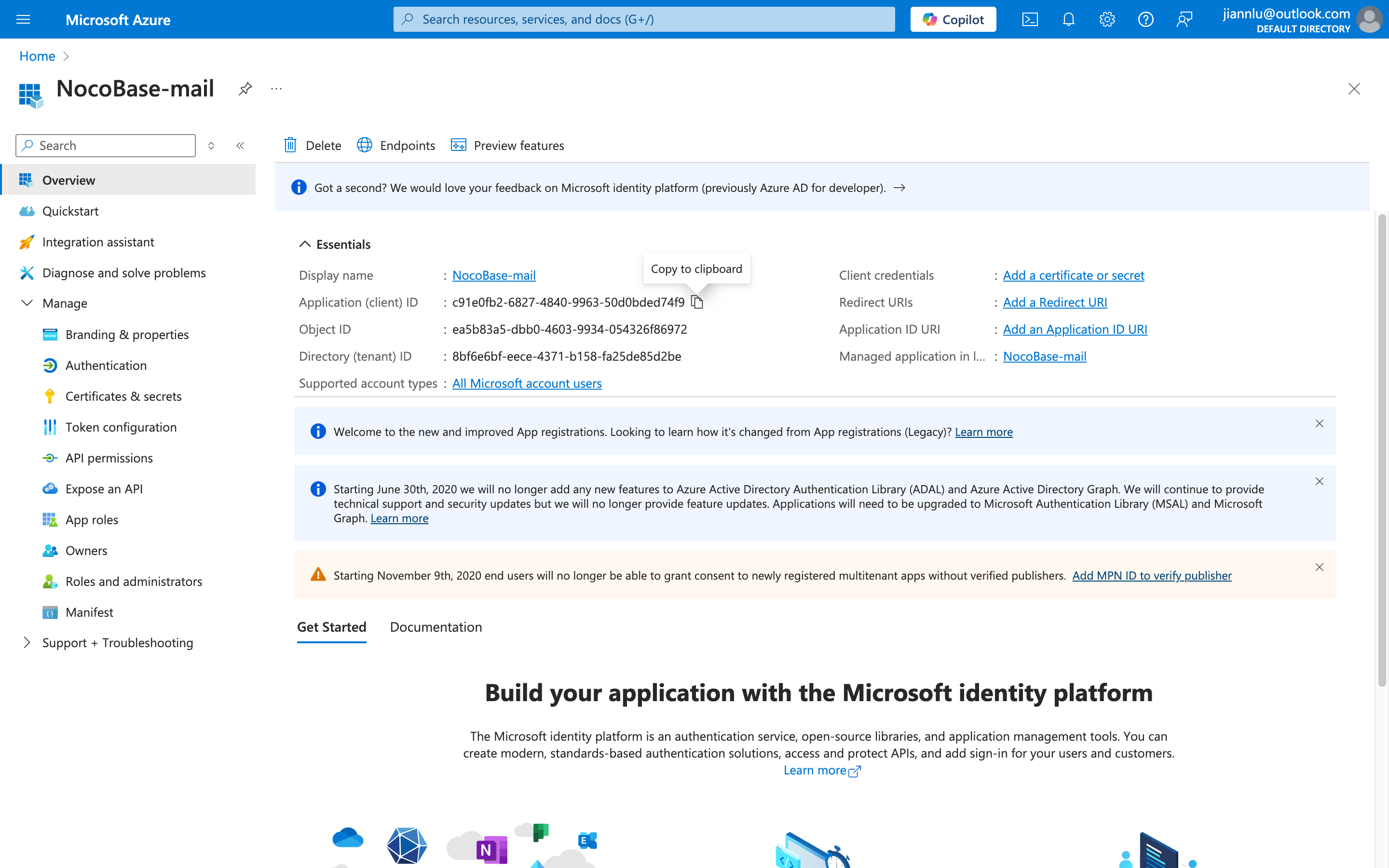
- Obtain the Client ID
API Permissions
- Open the API permissions menu on the right
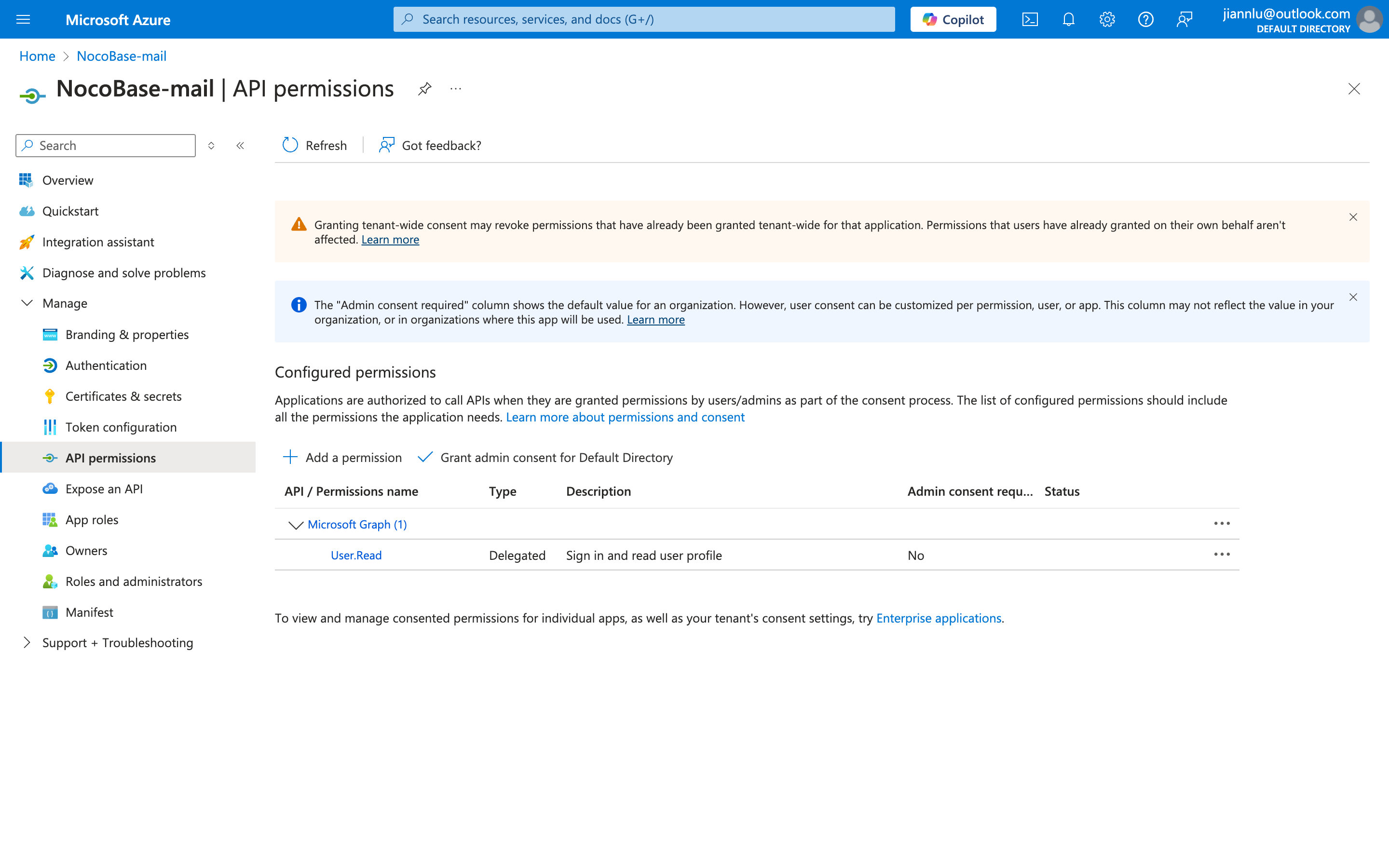
- Click the Add a permission button
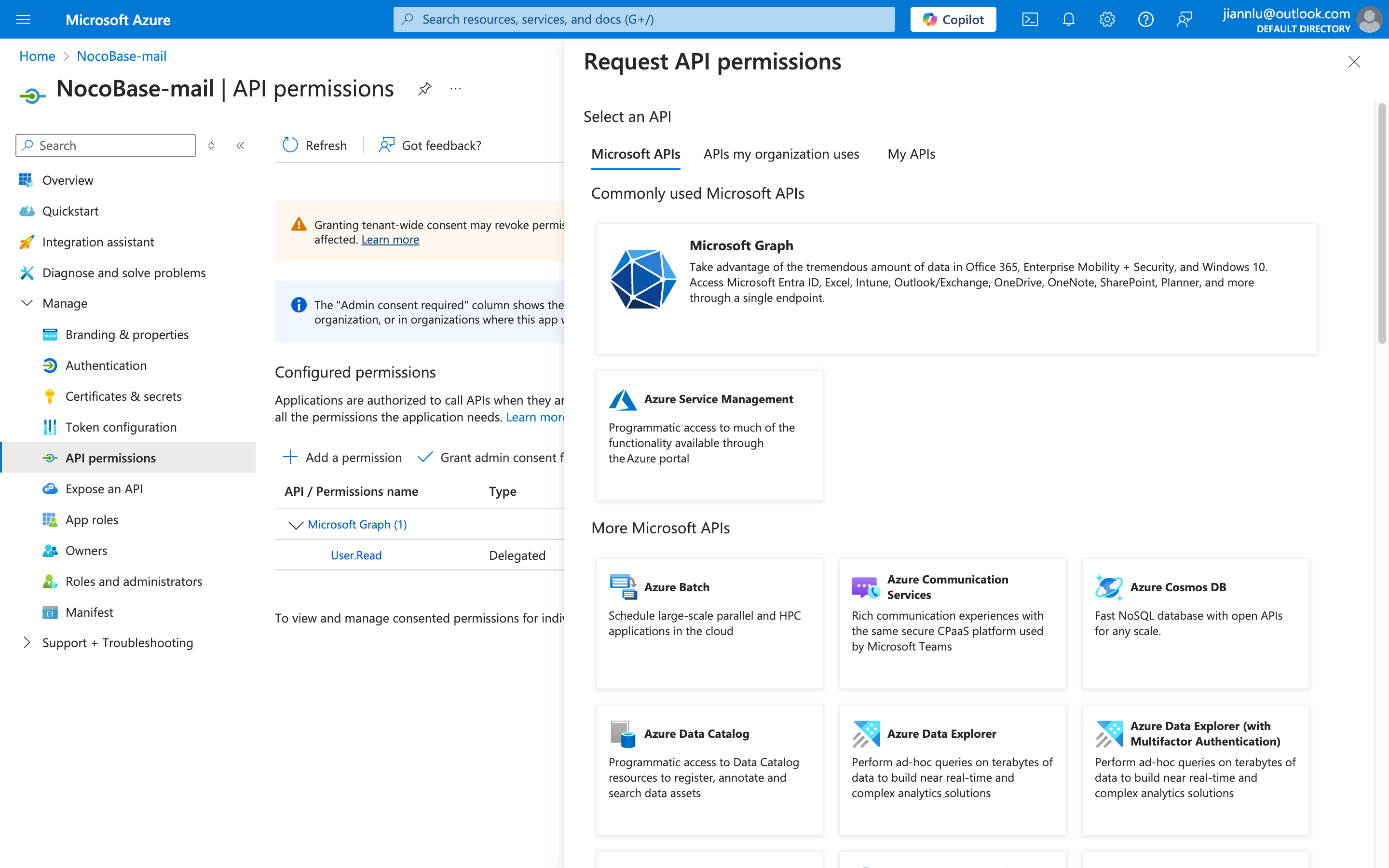
- Click Microsoft Graph
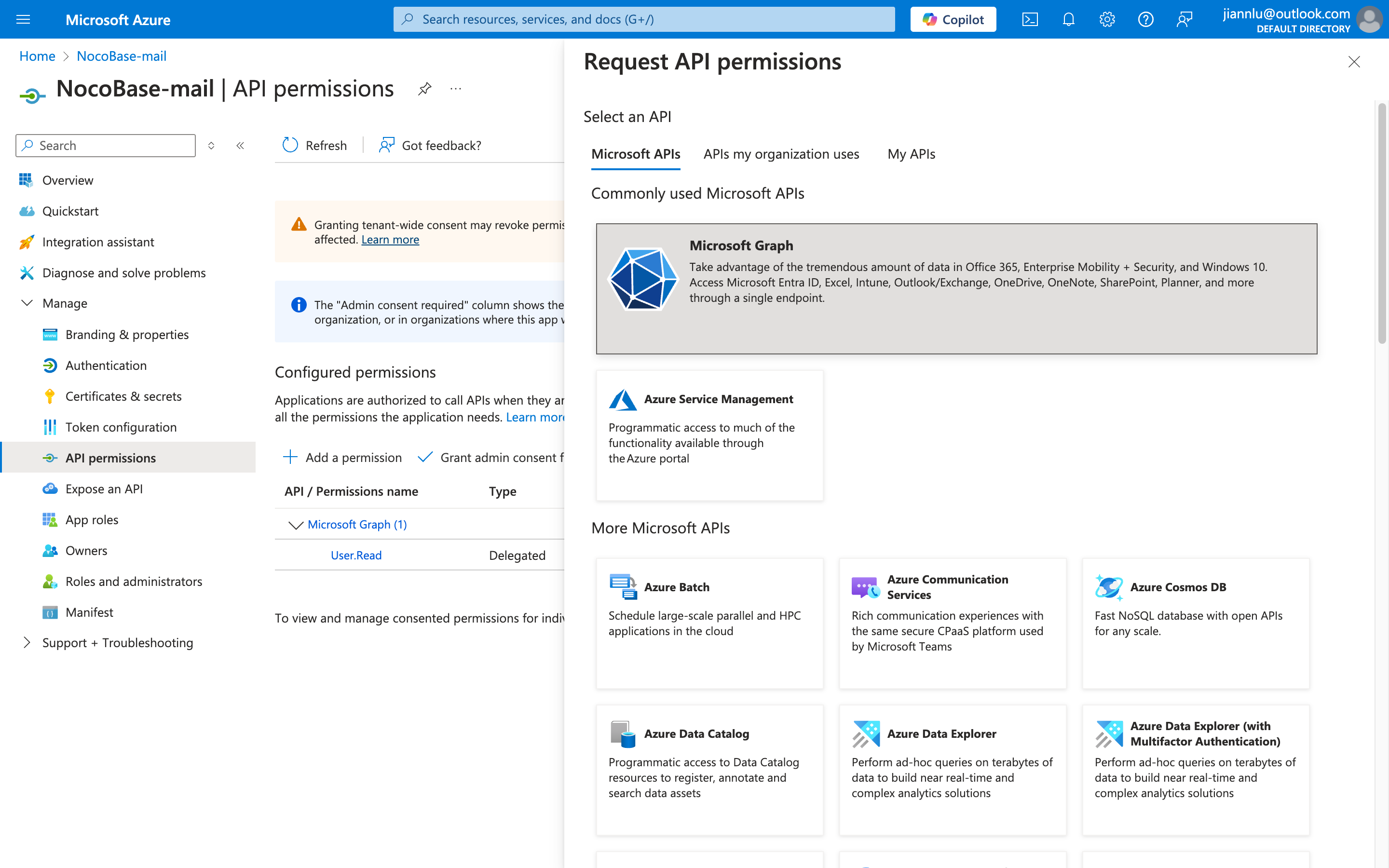
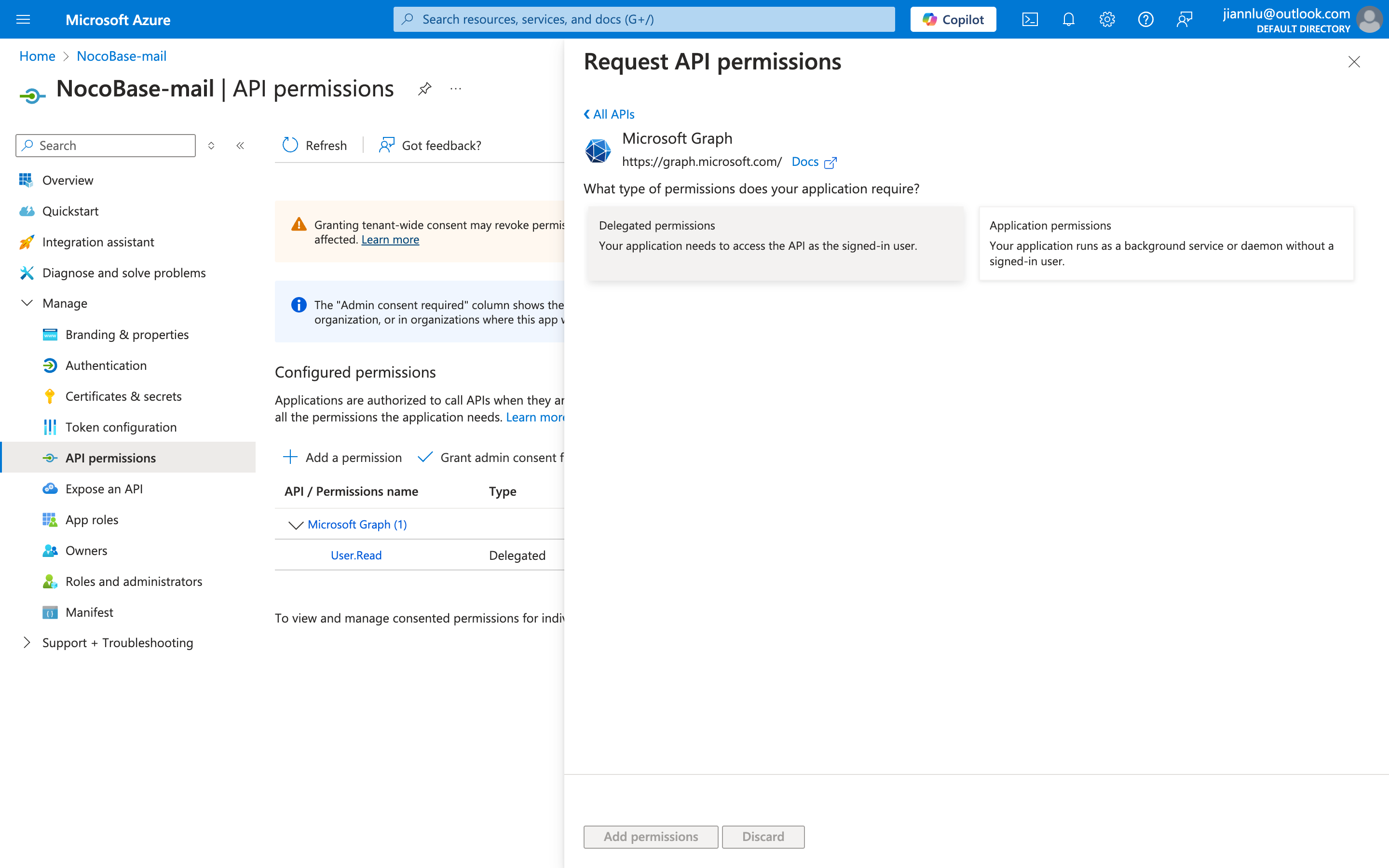
-
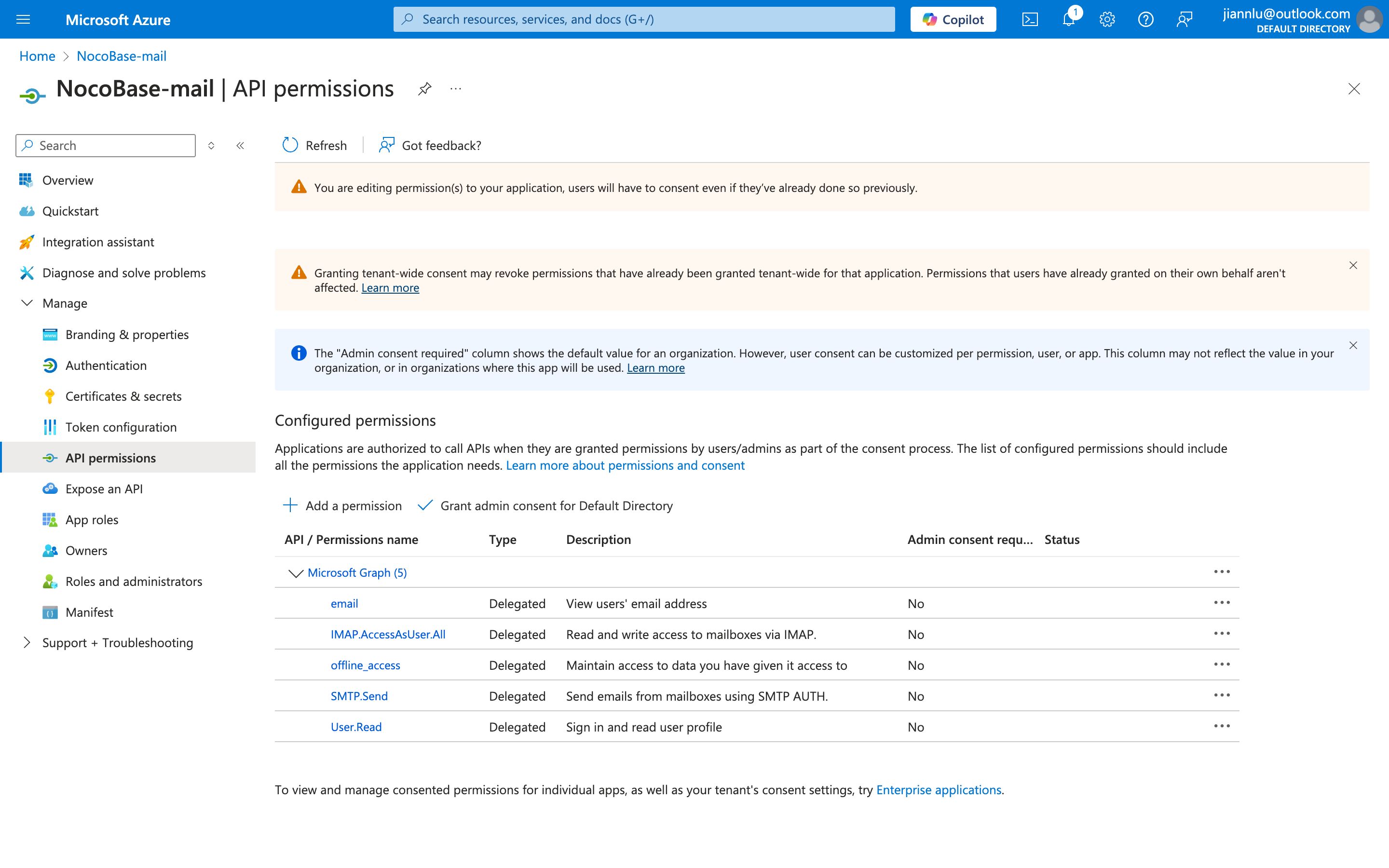
Search and add the following permissions, with the final result shown in the image below
"email""offline_access""IMAP.AccessAsUser.All""SMTP.Send""offline_access""User.Read"(By default)
Get Client Secret
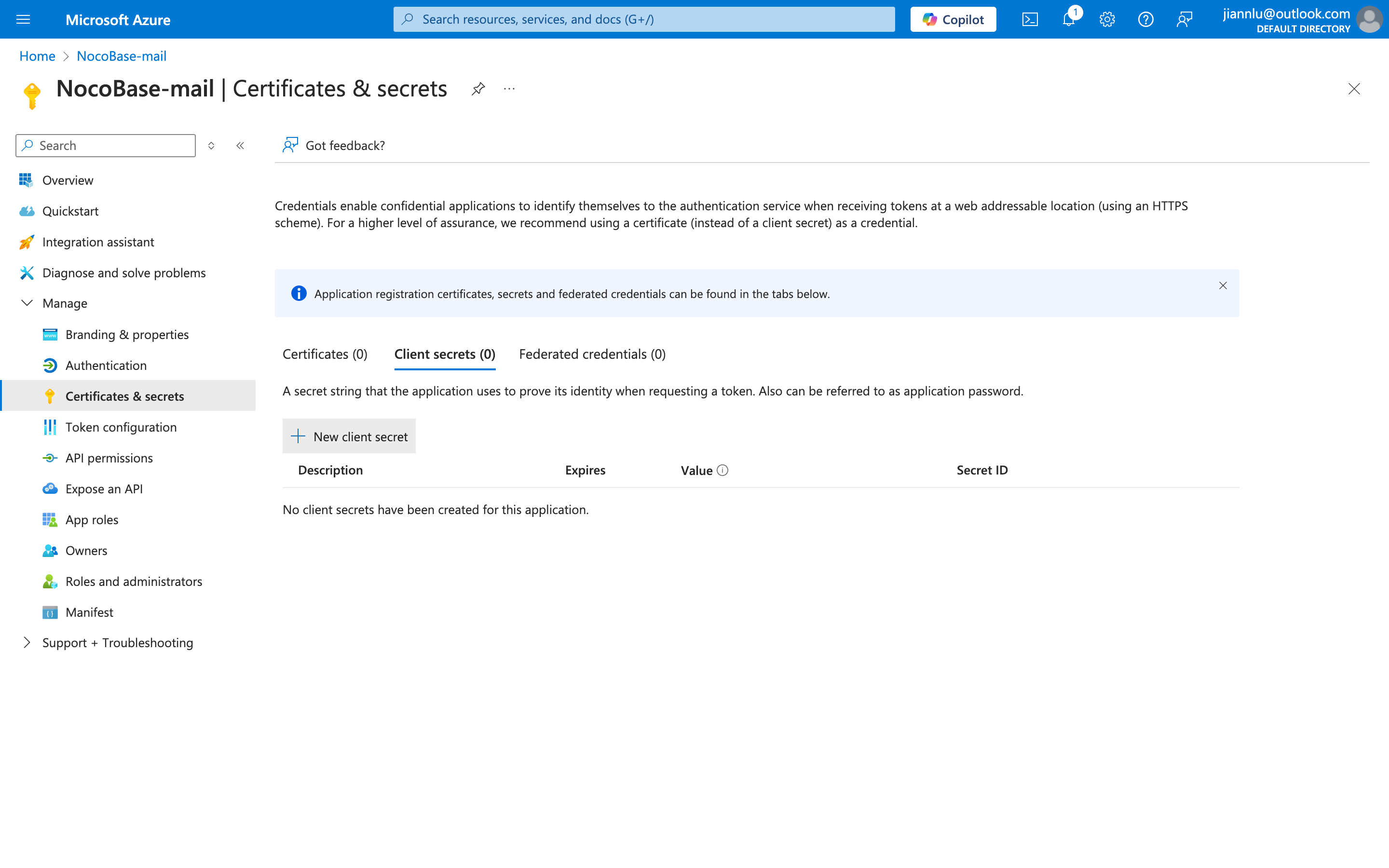
- Click Certificates & secrets on the left
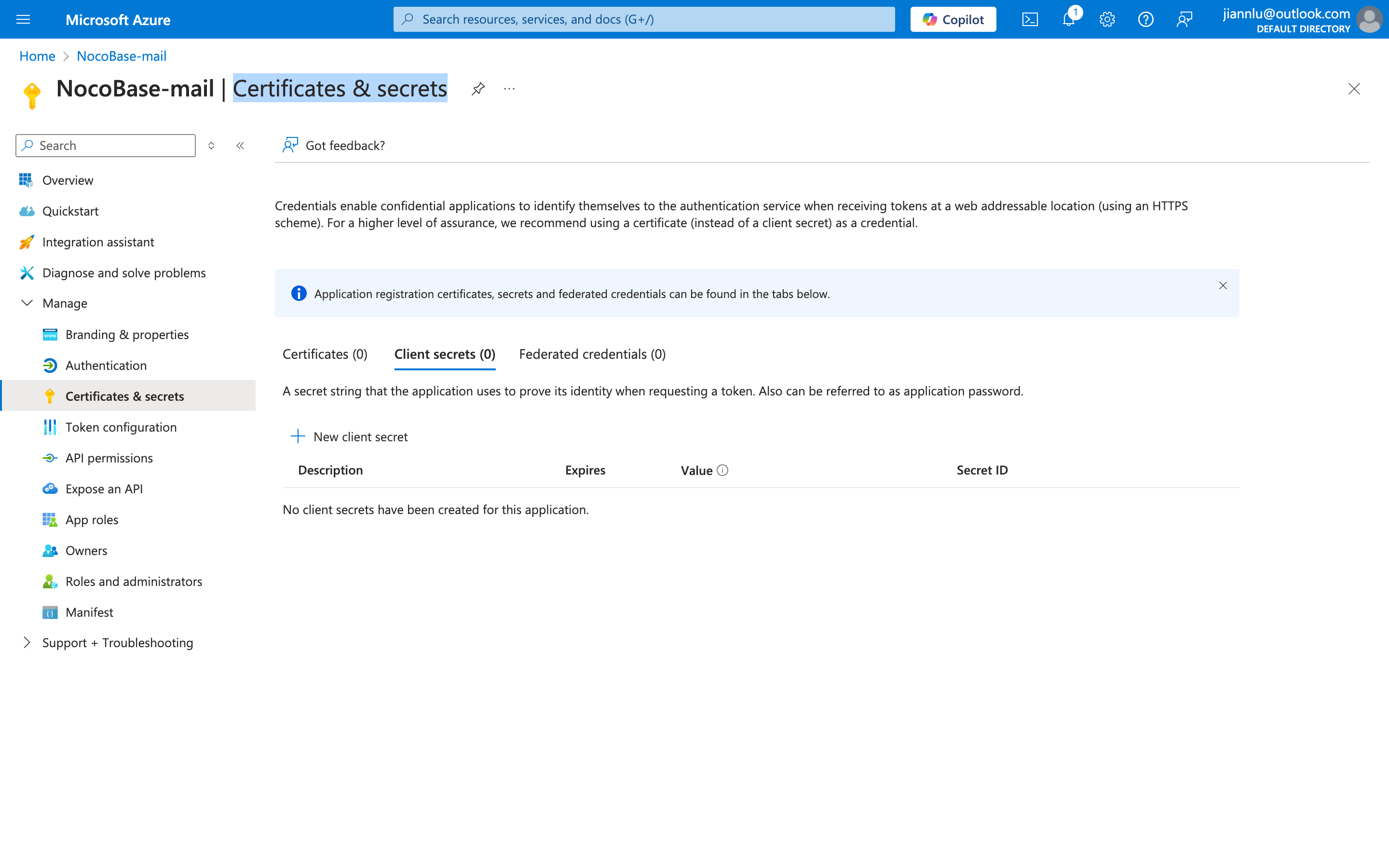
- Click the New client secret button
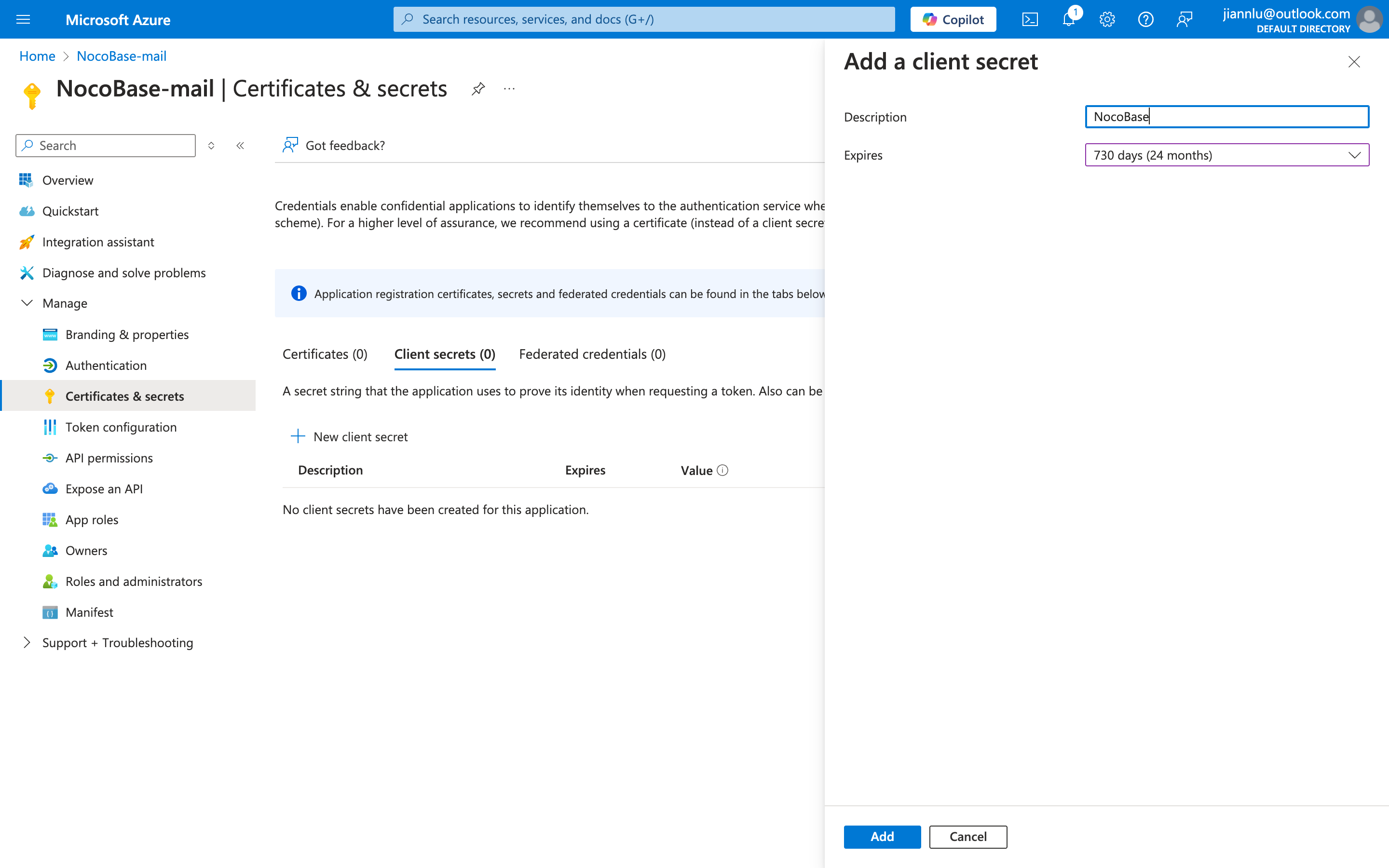
- Fill in the description and expiration time, and add it
- Obtain the Client Secret
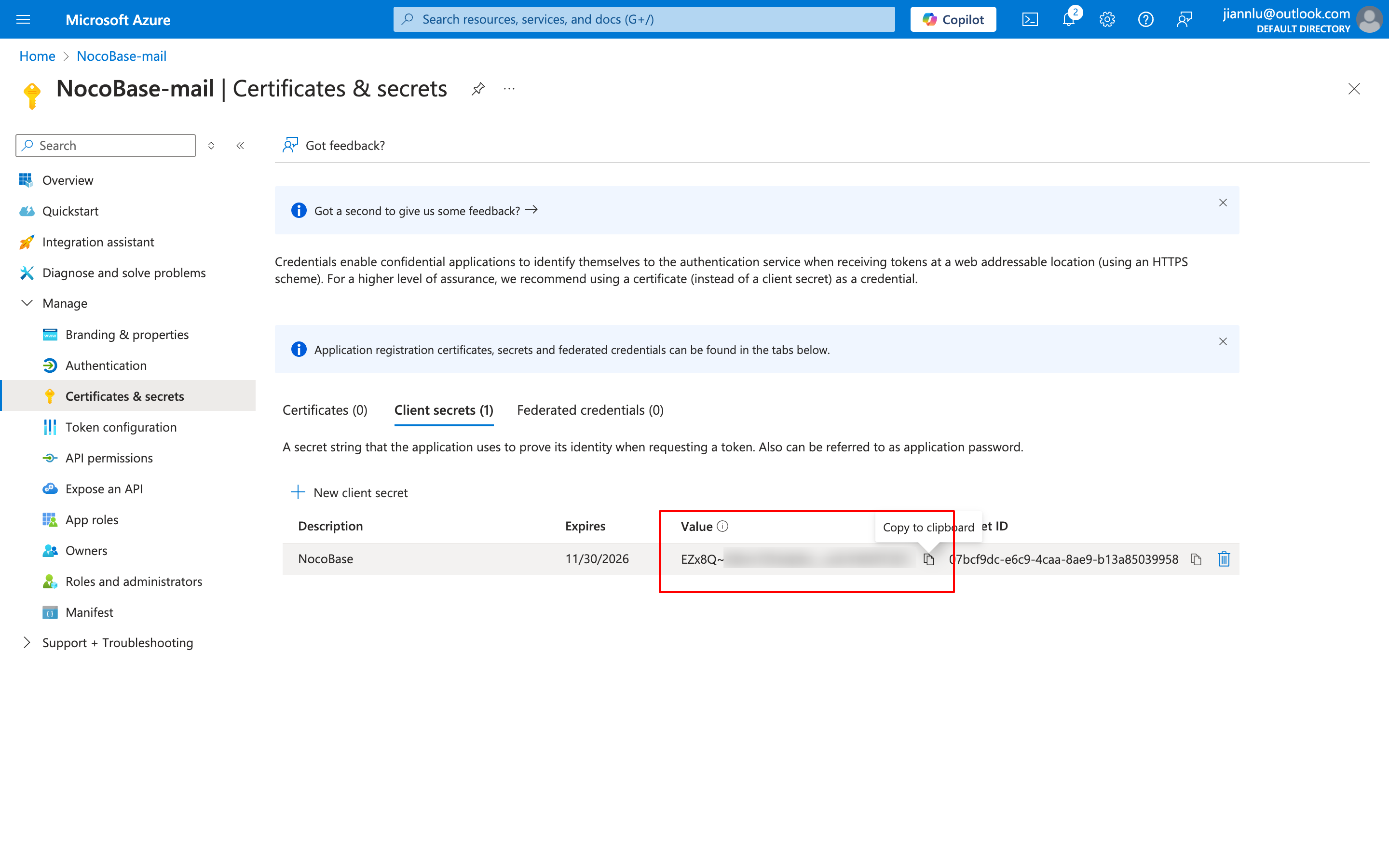
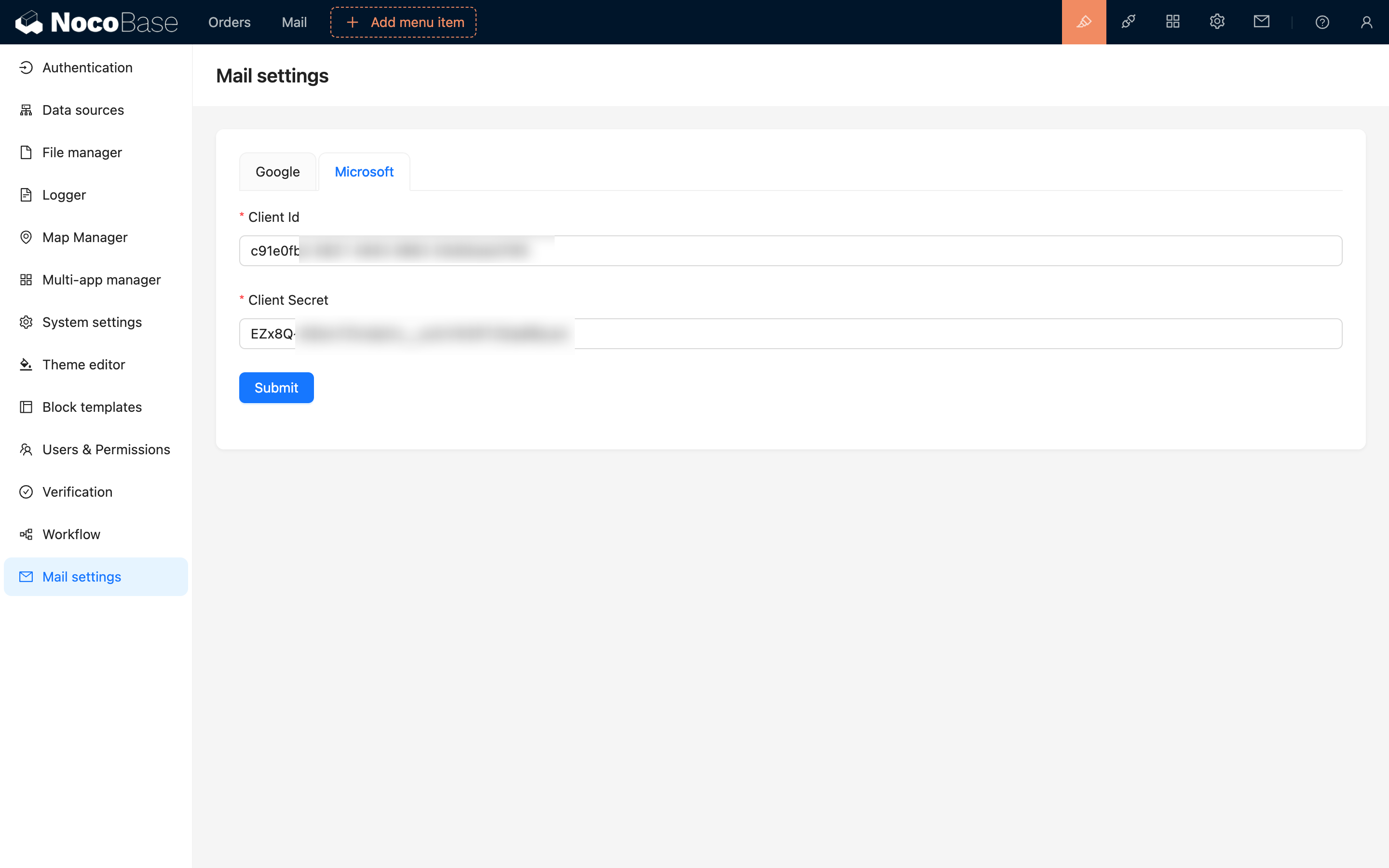
- Copy the Client ID and Client Secret information respectively and fill them into the email configuration page