
Studio brings requirements, Agent execution, and delivery results together in projects and tasks so the team can develop together.
Why use Studio
From personal conversations to shared tasks
When requirements and results stay in personal conversations, colleagues rely on someone to relay progress. Studio tasks keep requirements, owners, code changes, and checks together. Business colleagues and developers can clarify rules, follow progress, and accept results in one place.
Let agents coordinate development and checks
The Lead Agent assigns design, development, testing, and independent review to execution Agents, then arranges fixes when needed. Handoffs and results stay in the task, without people relaying every step. Tasks can advance in parallel on separate branches; see Agent execution rules.
Keep decisions, acceptance, and project knowledge with people
People decide business rules and accept results; the Lead Agent does not merge PRs for them. The knowledge base stores business materials, while project memory keeps agreed rules and design decisions for future requests and handoffs to other people or Agents.
Connect to Studio
Join an existing team
Accept the invitation and sign in, then open the project prepared by your administrator. You do not need to create a local application first.
Prepare the team environment and project
Studio is part of the commercial edition. Administrators follow Installation and configuration to obtain access authorization, deploy the service, connect Git and Agents, prepare a project, and invite members.
The following walkthrough adds a supplier page. Before starting, check that:
- The project's Initialize project task is complete.
- The Lead Agent is configured and at least one runtime is online.
- The repository has a check source. Prepare a preview or test environment if you need to try the application.
Submit a request and confirm the plan
Select New issue in the project and describe the goal and how you will check it. For example:
Add a supplier page with name, contact person, phone, and partnership status. Buyers should be able to add, edit, and view suppliers.

I want to add a supplier, change its status to suspended, and filter the list by status.
The Agent clarifies missing rules and creates a task. Review it and select Start. You can also choose Fill in manually to create the task directly.
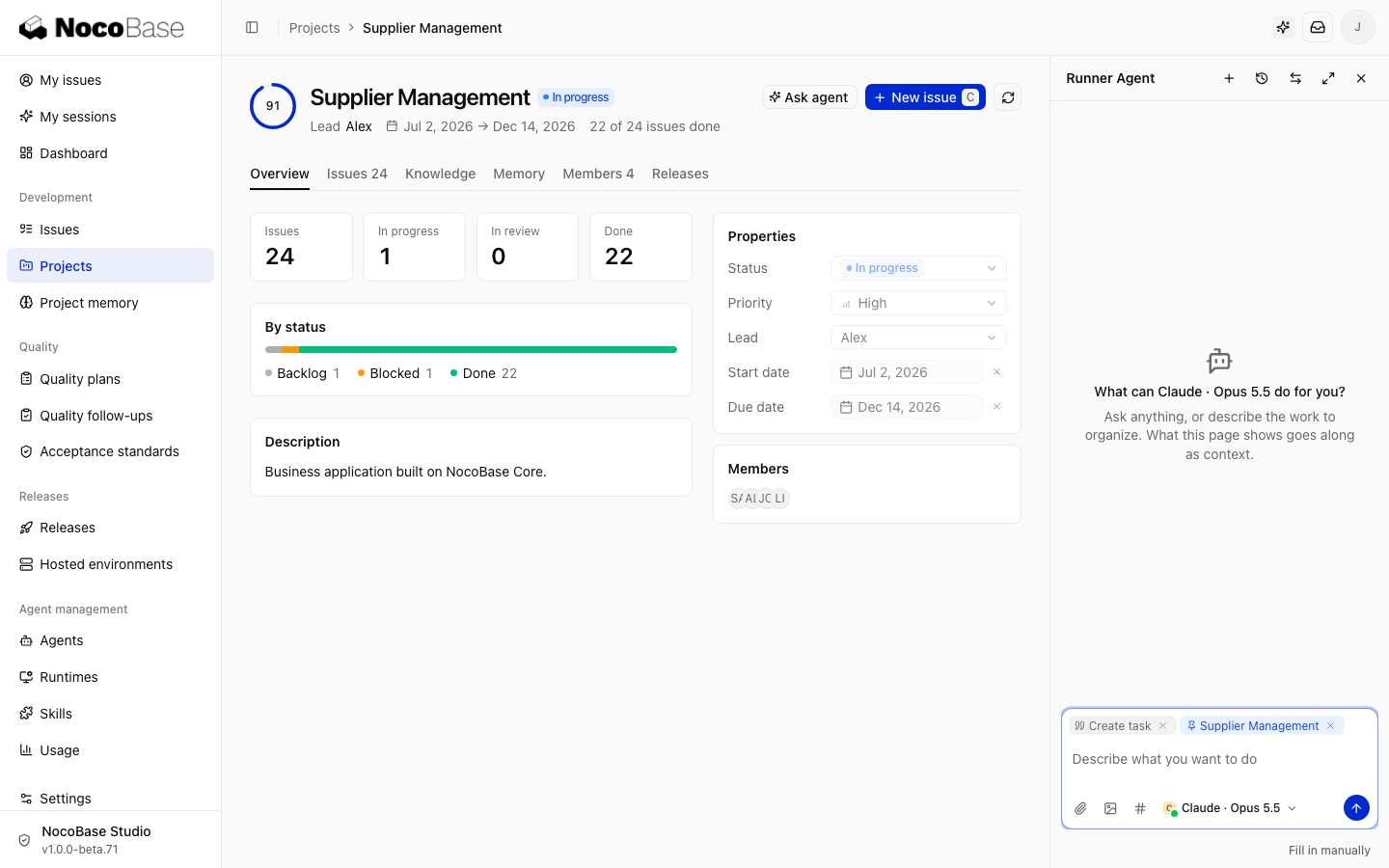
The task moves to In progress. The Lead Agent arranges design, development, and review.
Before starting, confirm the allowed supplier statuses, which suppliers buyers can access, and whether suspending a supplier only changes its partnership status. Tell the Agent which rules are undecided and record the agreed rules in the task. Attach purchasing policies or field definitions to the task or Knowledge base for design and review.
Follow development, checks, and review
The task header shows the active Agent, runtime, and next step. Activity keeps handoffs, replies, and review results. Runs provides execution details.
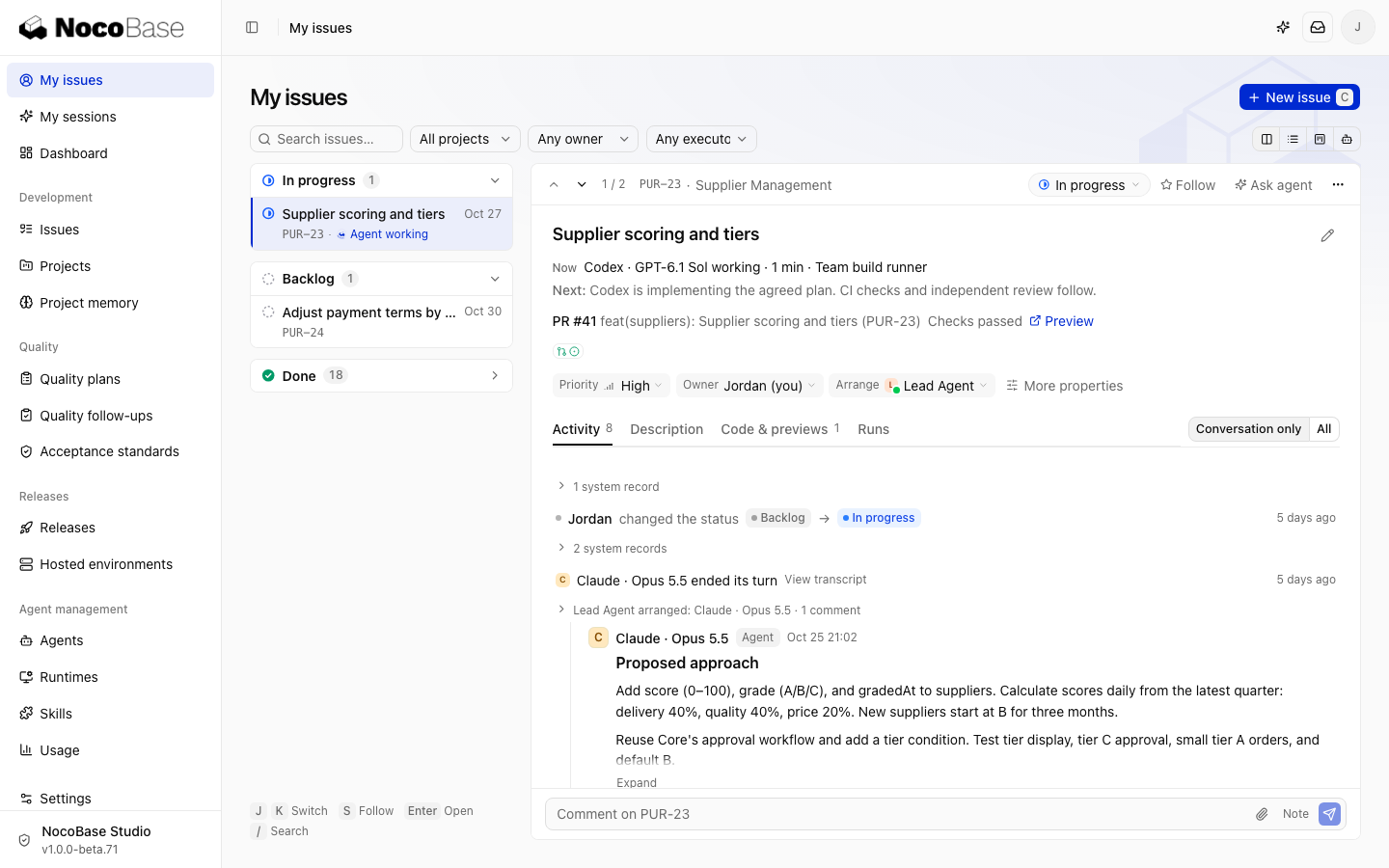
The Lead Agent arranges design and implementation according to the change. An execution Agent edits code on the task branch and creates a PR (pull request). Checks and reviews stay linked to the task. Failed checks or review findings go back for fixes and another check or review before acceptance.
For example, if filtering by supplier status still includes other statuses, the behavior needs fixing and verification before delivery. Read the actual checks and unverified items in the delivery report: an In progress status does not mean every business behavior has passed verification. See Checks and review for the mechanisms.
Answer questions and accept the result
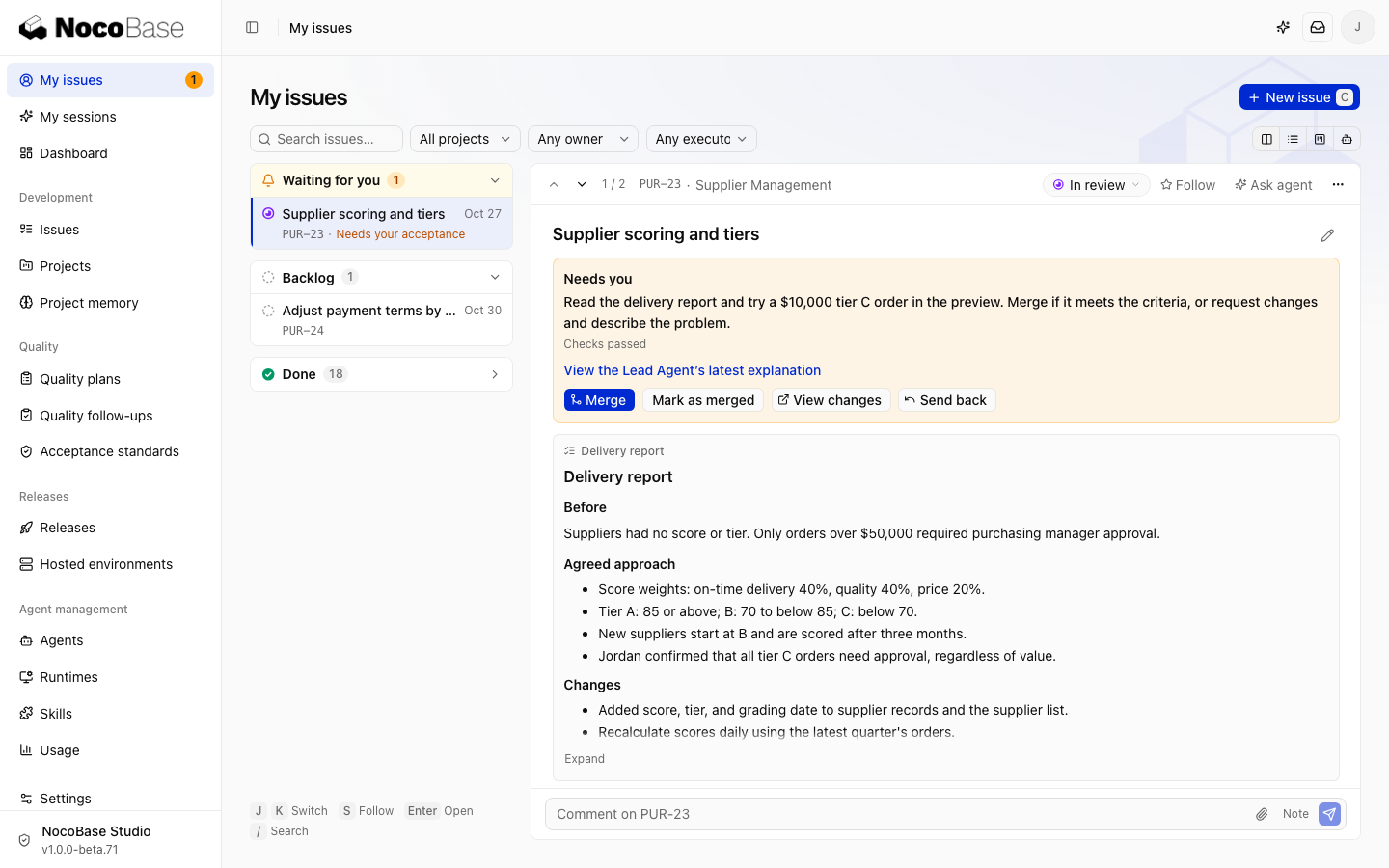
When a business decision is needed, the task becomes Blocked and appears under Waiting for you in My issues. Reply to the Needs you card with the rule or missing information. The Lead Agent continues from your answer.
For missing checks or previews, ask an administrator to follow Checks and CI.
When the task is In review:
- Read the delivery report, including changes, verification, and remaining issues.
- Select View changes to inspect the PR. Try the acceptance scenarios in a preview when available.
- Select Merge when the result meets the requirements. Confirm the target branch and merge method.
- Otherwise, select Send back and describe the problem and expected result.
Development is complete when the task is Done and its changes are on the default branch. Follow testing and release progress in Releases.
Release changes and retain project knowledge
Merging code does not mean it is live. A project with automated deployment can deploy merged code to a test environment through CI; otherwise, follow your team's deployment process. The owner confirms the tasks included in a release and records the production version in Studio after production deployment. See Release management.
Save agreed purchasing rules and design decisions as Project memory, reviewed and merged with code. Keep original policies in the knowledge base. Agents can reuse this context when modifying supplier features later.
After this walkthrough, use My issues for decisions and acceptance. Follow the Learning path for team setup, project management, and reference material.