

Map block
Block: PetaCommunity Edition+Introduction
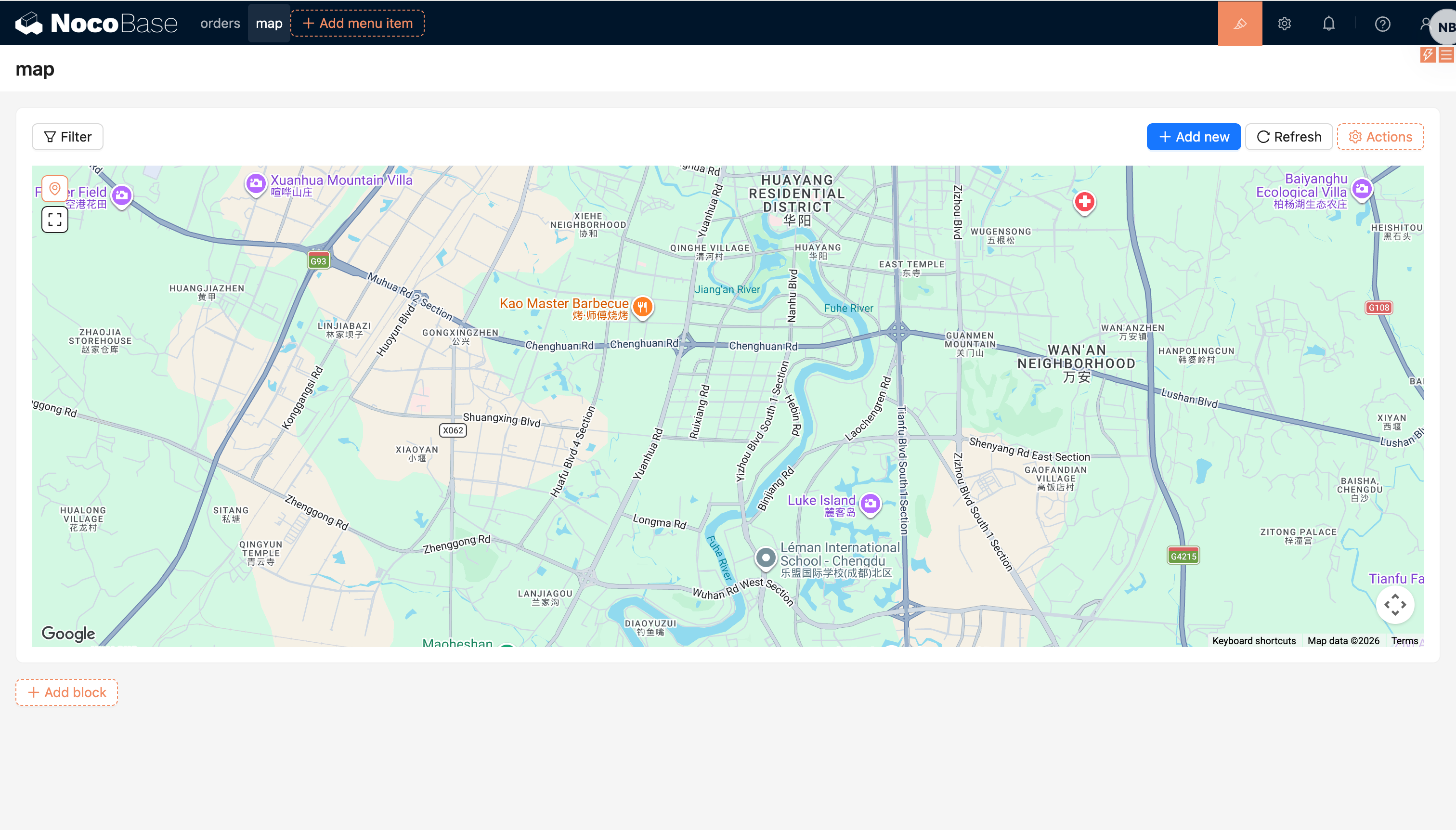
The Map block displays geographic data from a collection on a map. It is suitable for scenarios such as store locations, customer addresses, device distribution, route tracking, and area management.
The Map block supports AMap and Google Maps. It can render point, line, polygon, and circle fields, and can open record views or run block actions from map overlays.
Installation
The Map block is provided by the built-in @nocobase/plugin-map plugin. Enable the plugin before adding the block.
After enabling the plugin, go to "Plugin settings / Map manager" and configure the map provider:
- AMap: configure
Access key, plussecurityJsCodeorserviceHost - Google Maps: configure
Api key
If the map cannot be loaded, check whether the key is valid, whether the domain whitelist includes the current access domain, and whether the browser can access the selected map provider.
Prepare map fields
Before adding a Map block, create at least one map field in the target collection. You can find these field types in the "Map-based geometry" group:
When creating the field, choose the "Map type". This determines whether the field editor and the block use AMap or Google Maps.
Add block
In page configuration mode, click "Add block" and choose "Map" from "Data Blocks".
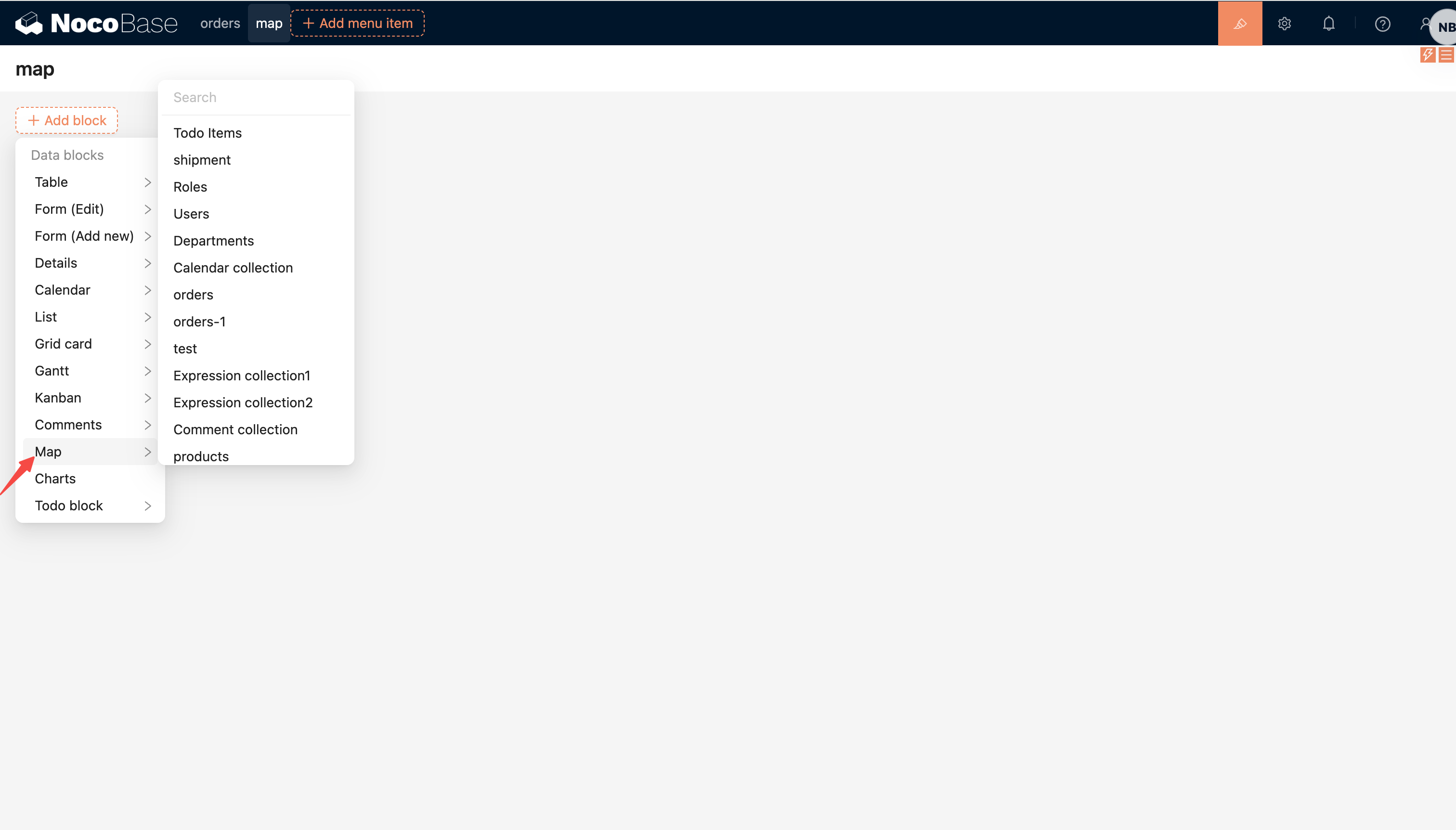
When creating the block, configure:
- Select the collection to display.
- Select the "Map field" used to draw map overlays. It can be a field in the current collection or a map field reached through an association field.
- Optionally select the "Marker field". When the map field is a point field, this field is used as the point label.
If the collection has no available map field, the "Map field" selector will be empty. Add a point, line, polygon, or circle field to the collection first.
Block settings
Map field and marker field
Used to change the map field displayed by the block and the marker label field.
The marker field only applies to point fields. It is usually a text field such as name, address, or code.
Data scope
Used to restrict the records displayed in the Map block.
For large datasets, configure a data scope or add filter actions to narrow the displayed records. The Map block loads all records that match the data scope without pagination.
For more details, see: Set Data Scope
Concatenation order field
Used to sort point records and connect them into a route.
This setting only takes effect when the map field is a point field.
Default zoom level
Used to set the initial zoom level of the map.
Actions
The Map block supports adding actions at the top of the block, such as:
- Filter
- Add new
- Popup
- Link
- Refresh
- Custom request
- AI employee
- JS action
Clicking a map overlay triggers the record opening flow, which is usually used to open a popup, drawer, or another record view.
Select records
The Map block provides selection tools in the upper-left corner:
- Location icon: exits selection mode and returns to normal viewing
- Selection icon: enters selection mode and lets you draw a polygon area on the map
- Confirm icon: confirms the current selection area and adds records inside it to the selected state
Selected records are synced to the block resource and can be used by later block actions.