

Buat dokumen
AI: Knowledge BaseProfessional Edition+Introduction
In NocoBase, the Create document node writes new documents to an AI knowledge base from a workflow. In this example, it listens for new records in Answers and writes the answer body, document name, related questions, and a stable Key to the target knowledge base.
AI knowledge base nodes are asynchronous nodes, so the workflow must use asynchronous execution. Prepare the target knowledge base and vector store first. See Overview for the full scenario.
Workflow structure
The example workflow listens for new records in Answers and synchronizes each answer as one document in the target knowledge base.
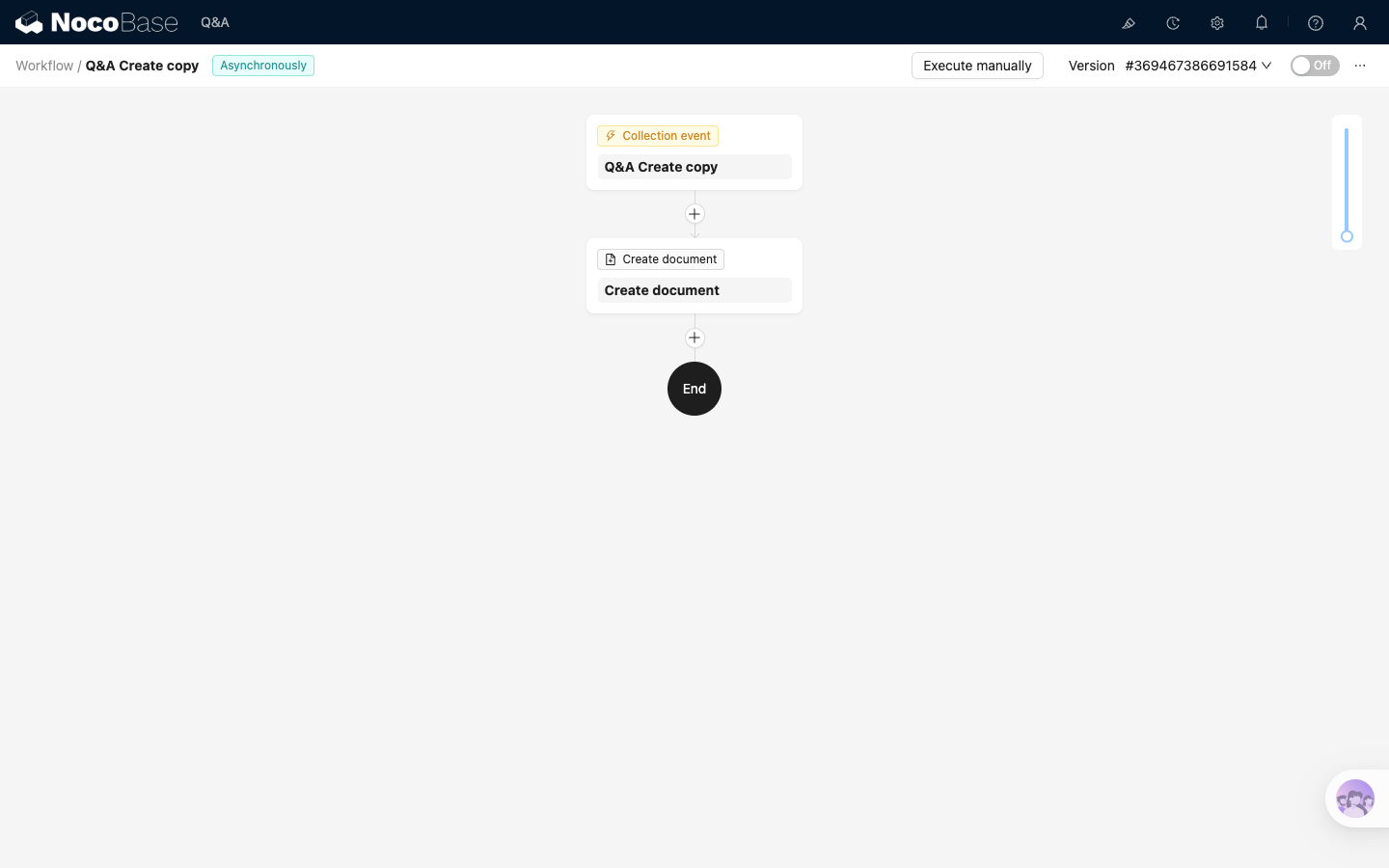
Where:
Collection eventlistens for newly added collection recordsCreate documentwrites record content to the AI knowledge base
Before you start
The example uses the Answers / Questions collections and target knowledge base described in Overview. Before configuring the workflow, confirm that:
- A Local knowledge base has been created, with file storage, vector database, LLM service, and embedding model configured. See Knowledge base overview and Vector database
- The
Answers.questionsrelation field is ready. To review the collection structure, return to Overview - The workflow uses asynchronous execution. See Workflow for the basics
Configure the trigger
Create an asynchronous workflow and select Collection event as the trigger. In the trigger configuration:
- Set
Collectionto the collection to synchronize, such asMain / Answers - Set
Trigger ontoAfter record added - If the document needs fields from related collections, preload relation fields in
Preload associations
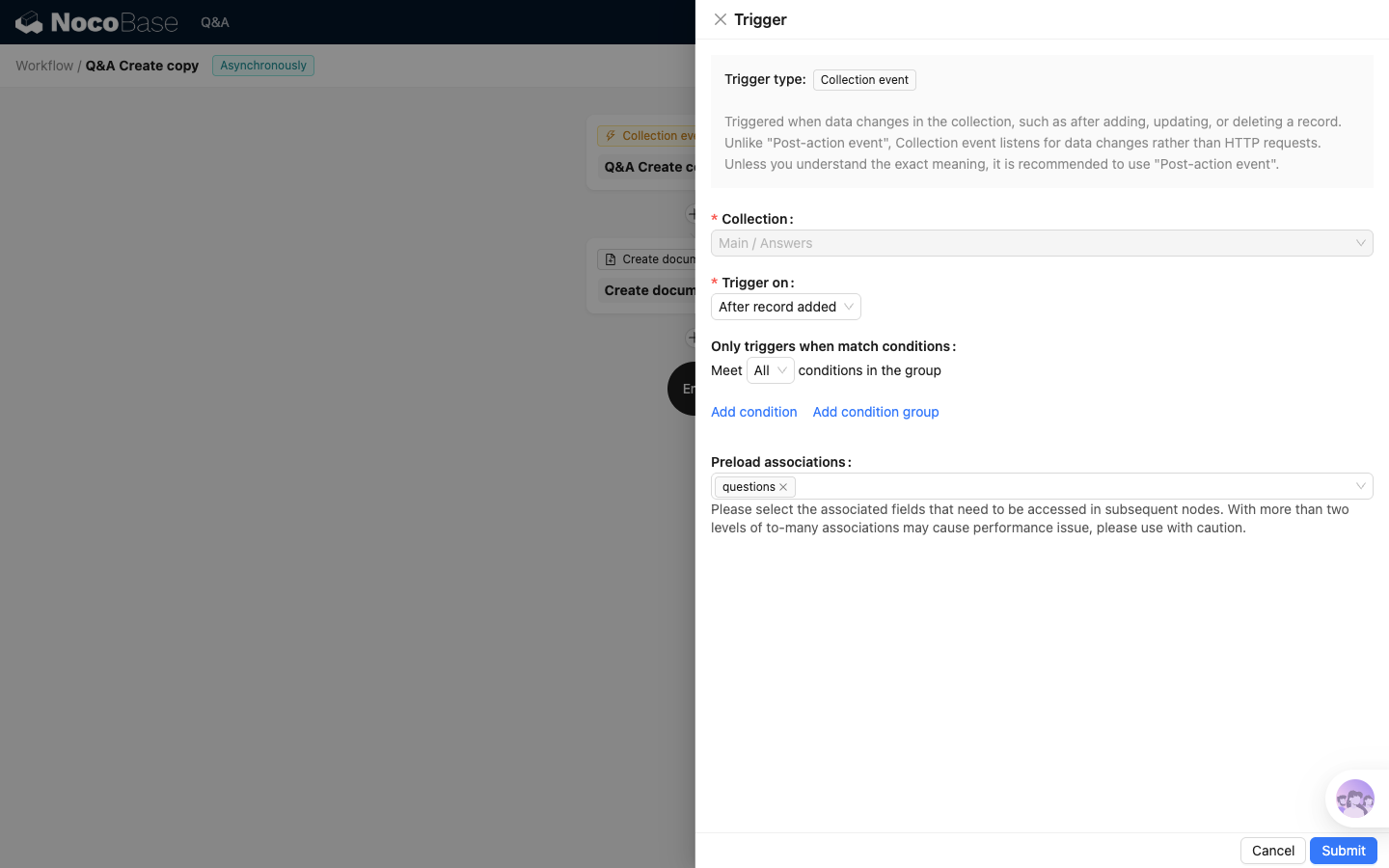
The example preloads the questions relation field so related questions can be written to Related questions.
Configure the Create document node
Add a Create document node after the trigger.
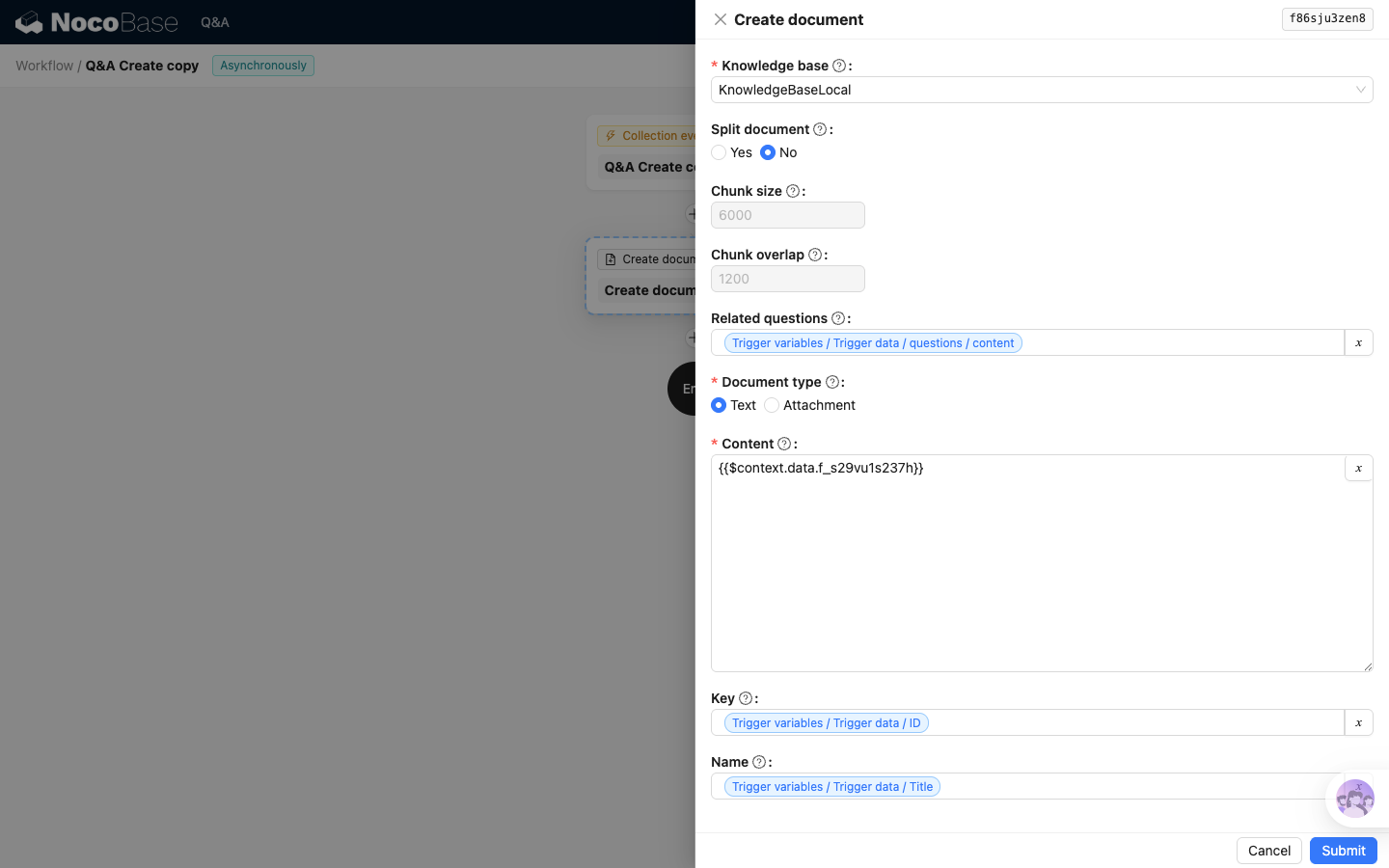
Key settings:
These settings decide the knowledge base document name, body content, splitting behavior, and whether related questions are included.
If Related questions references relation fields, configure Preload associations in the trigger first. Otherwise, the node can only access the current Answers record and cannot read the related questions data.
Key is used by the later update and delete workflows. The Create, Update, and Delete workflows must use the same Key rule, usually the business collection record ID.
Next step
The Create document workflow is the starting point of the synchronization chain. Continue with Update document and Delete document, then return to the "Verify the synchronization chain" section in Overview to verify add, update, and delete in order.