Permitir que funcionários de IA preencham formulários personalizados em blocos JS

Os funcionários de IA do NocoBase podem usar a ferramenta Preencher formulário para extrair informações de e-mails, conversas ou documentos e inseri-las em campos.

O recurso funciona diretamente com blocos de formulário nativos. Um formulário criado dentro de um bloco JS não é nativo e, por isso, não é reconhecido por padrão.

Este guia usa um Event Planning Request para mostrar como criar um formulário Ant Design agrupado e condicional e permitir seu preenchimento por um funcionário de IA.

Como usar

  1. Abra um funcionário de IA, como o Dex: especialista em organização de dados.
  2. Selecione Adicionar contexto e Selecionar bloco.
  3. Selecione o bloco Event Planning Request.
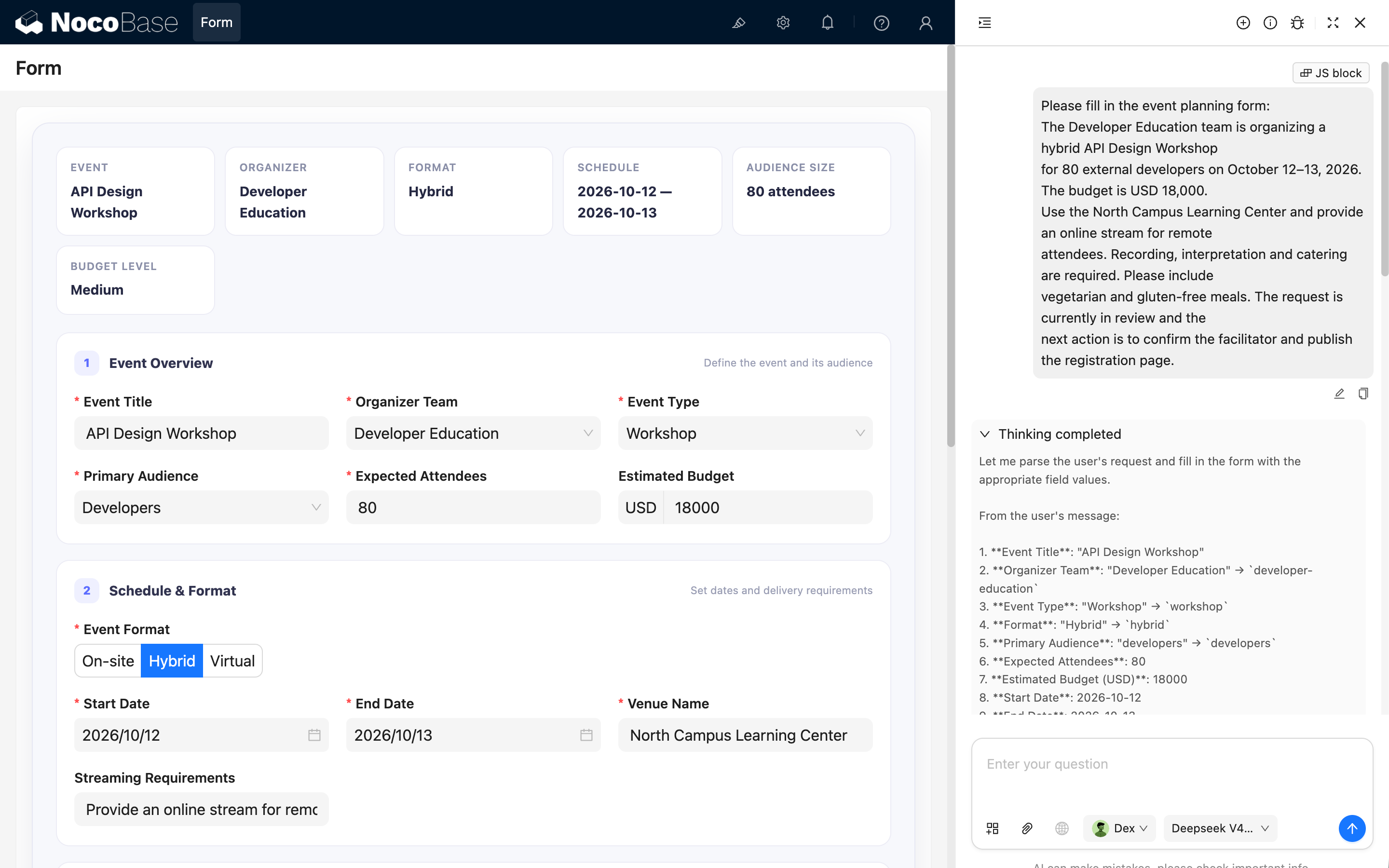
  4. Envie uma descrição dos requisitos do evento.
  5. O funcionário de IA extrai as informações e preenche os campos correspondentes.

Por exemplo, envie:

Please fill in the event planning form:
The Developer Education team is organizing a hybrid API Design Workshop
for 80 external developers on October 12–13, 2026. The budget is USD 18,000.
Use the North Campus Learning Center and provide an online stream for remote
attendees. Recording, interpretation and catering are required. Please include
vegetarian and gluten-free meals. The request is currently in review and the
next action is to confirm the facilitator and publish the registration page.

Como funciona

A implementação tem duas partes. Primeiro, exponha a instância do Ant Design Form pelo modelo do bloco atual.

ctx.model.form = form;

Depois, forneça metadados com nomes, tipos, valores de enumeração, formatos de data e o UID do bloco de destino.

  • Field names and data types;
  • Enum values for Select, Radio, and multi-select fields;
  • Date value formats;
  • The UID of the target block.

Mantenha metadados e formulário no mesmo bloco JS para atualizá-los juntos.

Adicionar o bloco JS

Adicione um bloco JS, abra o editor JavaScript e cole o exemplo completo.

Código completo do exemplo

Clique para expandir e copiar
const React = ctx.libs.React;
const { useEffect, useMemo } = React;
const {
  Form,
  Input,
  InputNumber,
  Select,
  Button,
  Radio,
  Space,
  Tag,
  DatePicker,
} = ctx.libs.antd;
const dayjs = ctx.libs.dayjs;

const BRAND = '#5B6CFF';

const TEAM_OPTIONS = [
  { value: 'product-design', label: 'Product Design' },
  { value: 'developer-education', label: 'Developer Education' },
  { value: 'customer-learning', label: 'Customer Learning' },
  { value: 'operations', label: 'Operations' },
];

const EVENT_TYPE_OPTIONS = [
  { value: 'workshop', label: 'Workshop' },
  { value: 'conference', label: 'Conference' },
  { value: 'webinar', label: 'Webinar' },
  { value: 'community-meetup', label: 'Community Meetup' },
  { value: 'team-offsite', label: 'Team Offsite' },
];

const FORMAT_OPTIONS = [
  { value: 'onsite', label: 'On-site' },
  { value: 'hybrid', label: 'Hybrid' },
  { value: 'virtual', label: 'Virtual' },
];

const AUDIENCE_OPTIONS = [
  { value: 'employees', label: 'Employees' },
  { value: 'customers', label: 'Customers' },
  { value: 'partners', label: 'Partners' },
  { value: 'developers', label: 'Developers' },
  { value: 'public', label: 'General Public' },
];

const STATUS_OPTIONS = [
  { value: 'draft', label: 'Draft', readiness: 15 },
  { value: 'in-review', label: 'In Review', readiness: 45 },
  { value: 'approved', label: 'Approved', readiness: 80 },
  { value: 'scheduled', label: 'Scheduled', readiness: 100 },
  { value: 'cancelled', label: 'Cancelled', readiness: 0 },
];

const SERVICE_OPTIONS = [
  { value: 'catering', label: 'Catering' },
  { value: 'recording', label: 'Recording' },
  { value: 'interpretation', label: 'Interpretation' },
  { value: 'photography', label: 'Photography' },
  { value: 'printed-materials', label: 'Printed Materials' },
  { value: 'accessibility-support', label: 'Accessibility Support' },
];

const CANCELLATION_REASON_OPTIONS = [
  { value: 'schedule-conflict', label: 'Schedule conflict' },
  { value: 'budget-unavailable', label: 'Budget unavailable' },
  { value: 'low-registration', label: 'Low registration' },
  { value: 'venue-unavailable', label: 'Venue unavailable' },
  { value: 'scope-changed', label: 'Scope changed' },
  { value: 'other', label: 'Other' },
];

const FORM_FIELDS = [
  {
    name: 'eventTitle',
    title: 'Event Title',
    type: 'string',
    required: true,
  },
  {
    name: 'organizerTeam',
    title: 'Organizer Team',
    type: 'string',
    required: true,
    enum: TEAM_OPTIONS,
  },
  {
    name: 'eventType',
    title: 'Event Type',
    type: 'string',
    required: true,
    enum: EVENT_TYPE_OPTIONS,
  },
  {
    name: 'format',
    title: 'Event Format',
    type: 'string',
    required: true,
    enum: FORMAT_OPTIONS,
  },
  {
    name: 'audience',
    title: 'Primary Audience',
    type: 'string',
    required: true,
    enum: AUDIENCE_OPTIONS,
  },
  {
    name: 'attendeeCount',
    title: 'Expected Attendees',
    type: 'number',
    required: true,
  },
  {
    name: 'budgetUsd',
    title: 'Estimated Budget (USD)',
    type: 'number',
  },
  {
    name: 'startDate',
    title: 'Start Date',
    type: 'string',
    required: true,
    prompt: 'Use YYYY-MM-DD format.',
  },
  {
    name: 'endDate',
    title: 'End Date',
    type: 'string',
    required: true,
    prompt: 'Use YYYY-MM-DD format.',
  },
  {
    name: 'venueName',
    title: 'Venue Name',
    type: 'string',
    prompt: 'Fill this field only for On-site or Hybrid events.',
  },
  {
    name: 'streamingNotes',
    title: 'Streaming Requirements',
    type: 'string',
    prompt: 'Fill this field only for Hybrid or Virtual events.',
  },
  {
    name: 'services',
    title: 'Required Services',
    type: 'array',
    enum: SERVICE_OPTIONS,
    prompt: 'Use an array containing service option values.',
  },
  {
    name: 'dietaryNotes',
    title: 'Dietary Requirements',
    type: 'string',
    prompt: 'Fill this field when Required Services includes Catering.',
  },
  {
    name: 'status',
    title: 'Request Status',
    type: 'string',
    required: true,
    enum: STATUS_OPTIONS.map(({ value, label }) => ({ value, label })),
  },
  {
    name: 'readiness',
    title: 'Readiness (%)',
    type: 'number',
  },
  {
    name: 'cancellationReason',
    title: 'Cancellation Reason',
    type: 'string',
    enum: CANCELLATION_REASON_OPTIONS,
    prompt: 'Fill this field only when Request Status is Cancelled.',
  },
  {
    name: 'objectives',
    title: 'Event Objectives',
    type: 'string',
  },
  {
    name: 'agendaNotes',
    title: 'Agenda Notes',
    type: 'string',
  },
  {
    name: 'risks',
    title: 'Risks and Constraints',
    type: 'string',
  },
  {
    name: 'nextAction',
    title: 'Next Action',
    type: 'string',
  },
];

ctx.model.setTitle('Event Planning Request');

ctx.model.setProps({
  aiForm: {
    prompt: `This is a fillable Event Planning Request form. Use the Fill form tool when the user asks to populate it. Use the current block UID as the form target: ${ctx.model.uid}. Always use enum values instead of labels, use YYYY-MM-DD for date fields, and use an array for services.`,
    fields: FORM_FIELDS,
  },
});

const styles = {
  shell: {
    overflow: 'hidden',
    border: '1px solid #E7E8F3',
    borderRadius: 18,
    background: '#F7F8FC',
    boxShadow: '0 16px 42px rgba(31, 35, 76, 0.10)',
  },
  body: {
    padding: 24,
  },
  summary: {
    display: 'grid',
    gridTemplateColumns: 'repeat(auto-fit, minmax(150px, 1fr))',
    gap: 10,
    marginBottom: 18,
  },
  summaryItem: {
    minHeight: 72,
    padding: '12px 14px',
    border: '1px solid #ECECF5',
    borderRadius: 12,
    background: '#FFFFFF',
  },
  summaryLabel: {
    marginBottom: 5,
    color: '#8A8FA8',
    fontSize: 11,
    fontWeight: 600,
    textTransform: 'uppercase',
    letterSpacing: 0.5,
  },
  summaryValue: {
    color: '#252842',
    fontSize: 14,
    fontWeight: 700,
  },
  section: {
    marginBottom: 16,
    padding: '18px 18px 4px',
    border: '1px solid #ECECF5',
    borderRadius: 14,
    background: '#FFFFFF',
  },
  sectionHeader: {
    display: 'flex',
    alignItems: 'center',
    gap: 10,
    marginBottom: 16,
  },
  sectionNumber: {
    display: 'inline-flex',
    width: 26,
    height: 26,
    alignItems: 'center',
    justifyContent: 'center',
    borderRadius: 8,
    color: BRAND,
    background: '#EEF0FF',
    fontSize: 12,
    fontWeight: 800,
  },
  sectionTitle: {
    color: '#30334F',
    fontSize: 14,
    fontWeight: 750,
  },
  sectionHint: {
    marginLeft: 'auto',
    color: '#9A9EB4',
    fontSize: 11,
  },
  grid: {
    display: 'grid',
    gridTemplateColumns: 'repeat(auto-fit, minmax(260px, 1fr))',
    columnGap: 18,
  },
  infoPanel: {
    marginBottom: 24,
    padding: '13px 14px',
    border: '1px dashed #D9DDFC',
    borderRadius: 10,
    background: '#F8F9FF',
  },
  actionBar: {
    position: 'sticky',
    bottom: 0,
    zIndex: 2,
    display: 'flex',
    alignItems: 'center',
    gap: 10,
    margin: '18px -24px -24px',
    padding: '13px 24px',
    borderTop: '1px solid #E8E9F2',
    background: 'rgba(255,255,255,0.94)',
    backdropFilter: 'blur(10px)',
  },
};

function Section({ number, title, hint, children }) {
  return (
    <section style={styles.section}>
      <div style={styles.sectionHeader}>
        <span style={styles.sectionNumber}>{number}</span>
        <span style={styles.sectionTitle}>{title}</span>
        {hint ? <span style={styles.sectionHint}>{hint}</span> : null}
      </div>
      {children}
    </section>
  );
}

function SummaryItem({ label, value }) {
  return (
    <div style={styles.summaryItem}>
      <div style={styles.summaryLabel}>{label}</div>
      <div style={styles.summaryValue}>{value || '—'}</div>
    </div>
  );
}

function DateField({ name, label, required = false }) {
  return (
    <Form.Item
      name={name}
      label={label}
      rules={
        required ? [{ required: true, message: `Please select ${label}` }] : []
      }
      getValueProps={(value) => ({
        value: value ? dayjs(String(value).slice(0, 10)) : null,
      })}
      getValueFromEvent={(value) => (value ? value.format('YYYY-MM-DD') : null)}
    >
      <DatePicker
        format="YYYY/MM/DD"
        placeholder="YYYY/MM/DD"
        style={{ width: '100%' }}
      />
    </Form.Item>
  );
}

function EventPlanningForm() {
  const [form] = Form.useForm();
  const watchedValues =
    Form.useWatch([], {
      form,
      preserve: true,
    }) || {};

  const values = {
    format: 'hybrid',
    status: 'draft',
    readiness: 15,
    services: [],
    ...watchedValues,
  };

  const teamLabel = TEAM_OPTIONS.find(
    (item) => item.value === values.organizerTeam,
  )?.label;
  const formatLabel = FORMAT_OPTIONS.find(
    (item) => item.value === values.format,
  )?.label;
  const status = STATUS_OPTIONS.find((item) => item.value === values.status);
  const hasPhysicalVenue =
    values.format === 'onsite' || values.format === 'hybrid';
  const needsStreaming =
    values.format === 'virtual' || values.format === 'hybrid';
  const needsCatering = values.services?.includes('catering');
  const isCancelled = values.status === 'cancelled';

  const dateRange = [values.startDate, values.endDate]
    .filter(Boolean)
    .join(' — ');

  const budgetLevel = useMemo(() => {
    const budget = Number(values.budgetUsd || 0);

    if (budget >= 50000) {
      return 'Large';
    }

    if (budget >= 10000) {
      return 'Medium';
    }

    return budget > 0 ? 'Small' : '';
  }, [values.budgetUsd]);

  useEffect(() => {
    const previousForm = ctx.model.form;

    // Allow the Fill form tool to write values into this form.
    ctx.model.form = form;

    return () => {
      if (ctx.model.form === form) {
        ctx.model.form = previousForm;
      }
    };
  }, [form]);

  useEffect(() => {
    if (!status) {
      return;
    }

    const currentReadiness = form.getFieldValue('readiness');

    if (currentReadiness !== status.readiness) {
      form.setFieldsValue({ readiness: status.readiness });
    }
  }, [form, status]);

  const handleFinish = (formValues) => {
    console.log('Event planning form values:', formValues);
    ctx.message.success('The form is complete and ready for submission.');
  };

  return (
    <div style={styles.shell}>
      <div style={styles.body}>
        <div style={styles.summary}>
          <SummaryItem
            label="Event"
            value={values.eventTitle || 'Untitled event'}
          />
          <SummaryItem label="Organizer" value={teamLabel} />
          <SummaryItem label="Format" value={formatLabel} />
          <SummaryItem label="Schedule" value={dateRange} />
          <SummaryItem
            label="Audience Size"
            value={
              values.attendeeCount
                ? `${values.attendeeCount} attendees`
                : undefined
            }
          />
          <SummaryItem label="Budget Level" value={budgetLevel} />
        </div>

        <Form
          form={form}
          layout="vertical"
          size="large"
          variant="filled"
          initialValues={{
            format: 'hybrid',
            status: 'draft',
            readiness: 15,
            services: [],
          }}
          onFinish={handleFinish}
        >
          <Section
            number="1"
            title="Event Overview"
            hint="Define the event and its audience"
          >
            <div style={styles.grid}>
              <Form.Item
                name="eventTitle"
                label="Event Title"
                rules={[
                  {
                    required: true,
                    message: 'Please enter the event title',
                  },
                ]}
              >
                <Input placeholder="e.g. API Design Workshop" />
              </Form.Item>

              <Form.Item
                name="organizerTeam"
                label="Organizer Team"
                rules={[
                  {
                    required: true,
                    message: 'Please select the organizer team',
                  },
                ]}
              >
                <Select options={TEAM_OPTIONS} placeholder="Select team" />
              </Form.Item>

              <Form.Item
                name="eventType"
                label="Event Type"
                rules={[
                  {
                    required: true,
                    message: 'Please select the event type',
                  },
                ]}
              >
                <Select
                  options={EVENT_TYPE_OPTIONS}
                  placeholder="Select event type"
                />
              </Form.Item>

              <Form.Item
                name="audience"
                label="Primary Audience"
                rules={[
                  {
                    required: true,
                    message: 'Please select the primary audience',
                  },
                ]}
              >
                <Select
                  options={AUDIENCE_OPTIONS}
                  placeholder="Select audience"
                />
              </Form.Item>

              <Form.Item
                name="attendeeCount"
                label="Expected Attendees"
                rules={[
                  {
                    required: true,
                    message: 'Please enter the expected attendee count',
                  },
                ]}
              >
                <InputNumber
                  min={1}
                  precision={0}
                  style={{ width: '100%' }}
                  placeholder="e.g. 80"
                />
              </Form.Item>

              <Form.Item name="budgetUsd" label="Estimated Budget">
                <InputNumber
                  min={0}
                  precision={0}
                  addonBefore="USD"
                  style={{ width: '100%' }}
                  placeholder="e.g. 18000"
                />
              </Form.Item>
            </div>
          </Section>

          <Section
            number="2"
            title="Schedule & Format"
            hint="Set dates and delivery requirements"
          >
            <Form.Item
              name="format"
              label="Event Format"
              rules={[
                {
                  required: true,
                  message: 'Please select the event format',
                },
              ]}
            >
              <Radio.Group
                optionType="button"
                buttonStyle="solid"
                options={FORMAT_OPTIONS}
              />
            </Form.Item>

            <div style={styles.grid}>
              <DateField name="startDate" label="Start Date" required />
              <DateField name="endDate" label="End Date" required />

              {hasPhysicalVenue ? (
                <Form.Item
                  name="venueName"
                  label="Venue Name"
                  rules={[
                    {
                      required: true,
                      message: 'Please enter the venue name',
                    },
                  ]}
                >
                  <Input placeholder="e.g. North Campus Learning Center" />
                </Form.Item>
              ) : null}

              {needsStreaming ? (
                <Form.Item name="streamingNotes" label="Streaming Requirements">
                  <Input placeholder="Access, recording and moderation needs" />
                </Form.Item>
              ) : null}
            </div>
          </Section>

          <Section
            number="3"
            title="Services & Approval"
            hint="Capture operational support and status"
          >
            <div style={styles.grid}>
              <Form.Item name="services" label="Required Services">
                <Select
                  mode="multiple"
                  showSearch
                  optionFilterProp="label"
                  options={SERVICE_OPTIONS}
                  placeholder="Select services"
                />
              </Form.Item>

              {needsCatering ? (
                <Form.Item name="dietaryNotes" label="Dietary Requirements">
                  <Input placeholder="Meal preferences and allergies" />
                </Form.Item>
              ) : null}

              <Form.Item
                name="status"
                label="Request Status"
                rules={[
                  {
                    required: true,
                    message: 'Please select the request status',
                  },
                ]}
              >
                <Select
                  options={STATUS_OPTIONS.map(({ value, label }) => ({
                    value,
                    label,
                  }))}
                  placeholder="Select status"
                />
              </Form.Item>

              <Form.Item name="readiness" label="Readiness (%)">
                <InputNumber
                  min={0}
                  max={100}
                  precision={0}
                  addonAfter="%"
                  style={{ width: '100%' }}
                  disabled
                />
              </Form.Item>

              {isCancelled ? (
                <Form.Item
                  name="cancellationReason"
                  label="Cancellation Reason"
                  rules={[
                    {
                      required: true,
                      message: 'Please select the cancellation reason',
                    },
                  ]}
                >
                  <Select
                    options={CANCELLATION_REASON_OPTIONS}
                    placeholder="Select reason"
                  />
                </Form.Item>
              ) : (
                <div style={styles.infoPanel}>
                  <div
                    style={{
                      marginBottom: 6,
                      color: '#8589A1',
                      fontSize: 11,
                      fontWeight: 700,
                      textTransform: 'uppercase',
                    }}
                  >
                    Current Progress
                  </div>
                  <Space size={6} wrap>
                    <Tag color="geekblue">{status?.label || 'Draft'}</Tag>
                    <Tag color="blue">{values.readiness || 0}% ready</Tag>
                  </Space>
                </div>
              )}
            </div>
          </Section>

          <Section
            number="4"
            title="Planning Notes"
            hint="Keep the delivery handoff clear"
          >
            <Form.Item name="objectives" label="Event Objectives">
              <Input.TextArea
                rows={3}
                placeholder="Describe the intended outcomes"
              />
            </Form.Item>

            <Form.Item name="agendaNotes" label="Agenda Notes">
              <Input.TextArea
                rows={3}
                placeholder="Outline the sessions and timing"
              />
            </Form.Item>

            <Form.Item name="risks" label="Risks and Constraints">
              <Input.TextArea
                rows={3}
                placeholder="Record dependencies, limits and open questions"
              />
            </Form.Item>

            <Form.Item name="nextAction" label="Next Action">
              <Input.TextArea
                rows={3}
                placeholder="Describe the next action, owner and due date"
              />
            </Form.Item>
          </Section>

          <div style={styles.actionBar}>
            <span
              style={{
                marginRight: 'auto',
                color: '#8C90A7',
                fontSize: 12,
              }}
            >
              Review AI-filled values before submission.
            </span>
            <Button onClick={() => form.resetFields()}>Reset</Button>
            <Button
              type="primary"
              htmlType="submit"
              style={{
                minWidth: 150,
                background: BRAND,
                borderColor: BRAND,
              }}
            >
              Validate Form
            </Button>
          </div>
        </Form>
      </div>
    </div>
  );
}

ctx.render(<EventPlanningForm />);

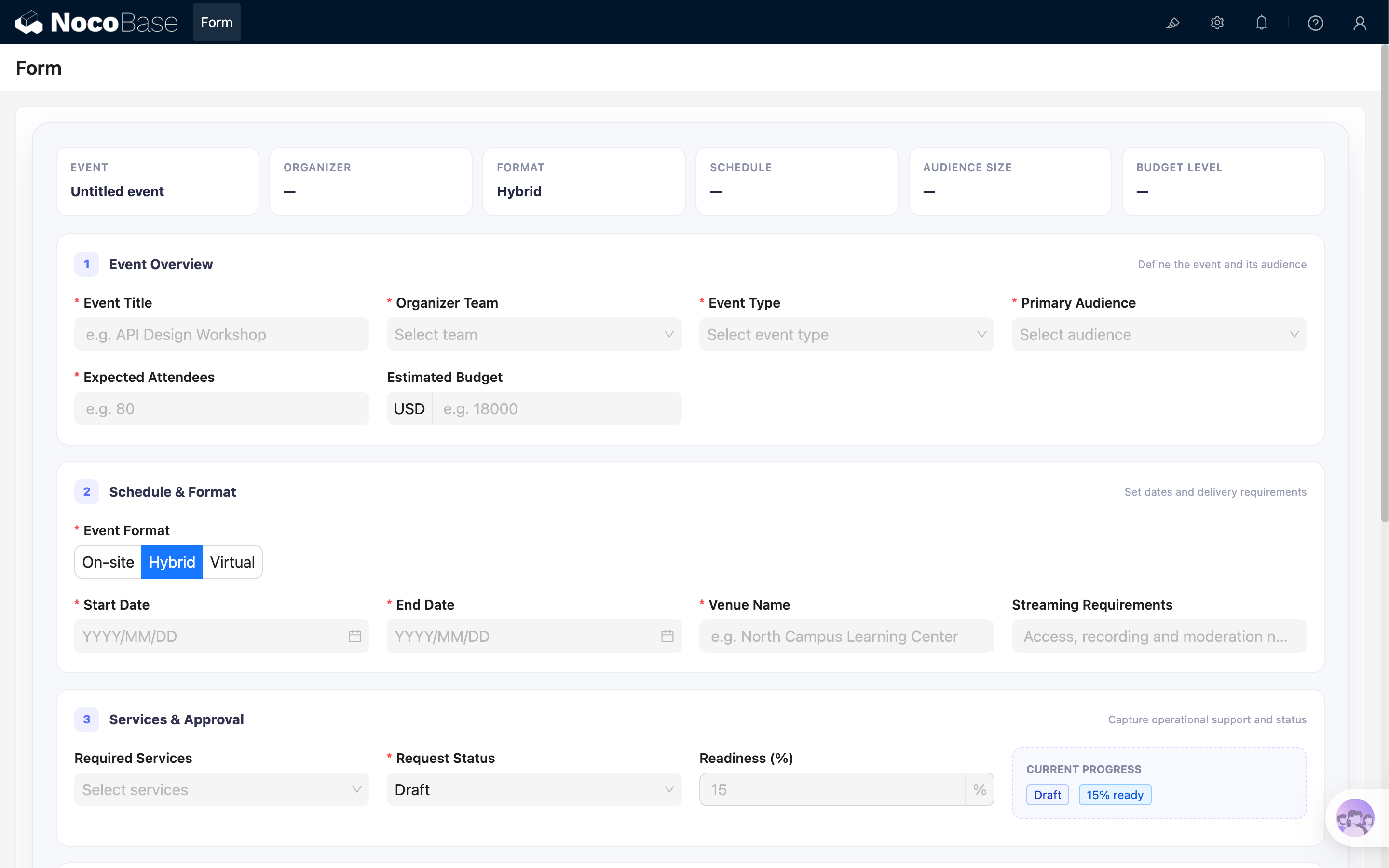
Ao executar o código, o formulário Event Planning Request será exibido.

Detalhes principais da implementação

Expor o Ant Design Form ao funcionário de IA

Atribuir a instância a ctx.model.form permite que a ferramenta escreva valores. A limpeza restaura o valor anterior quando o componente é desmontado.

useEffect(() => {
  const previousForm = ctx.model.form;
  ctx.model.form = form;

  return () => {
    if (ctx.model.form === form) {
      ctx.model.form = previousForm;
    }
  };
}, [form]);

Definir o nome exibido em Selecionar bloco

Por padrão, blocos JS aparecem como JS block em Selecionar bloco. Use ctx.model.setTitle() para definir um nome mais fácil de reconhecer:

ctx.model.setTitle('Event Planning Request');

Depois disso, os usuários verão Event Planning Request ao selecionar o contexto, facilitando a localização do formulário quando a página possui vários blocos.

Use um nome curto e descritivo para cada bloco JS e mantenha esta linha no exemplo completo.

Fornecer informações do formulário à ferramenta Preencher formulário

ctx.model.form fornece a instância Form que recebe os valores. A ferramenta também precisa saber quais campos existem e quais regras seguir durante o preenchimento.

Use ctx.model.setProps() para fornecer essas informações ao bloco JS atual:

ctx.model.setProps({
  aiForm: {
    prompt: `This is a fillable Event Planning Request form. Use the Fill form tool when the user asks to populate it. Use the current block UID as the form target: ${ctx.model.uid}. Always use enum values instead of labels, use YYYY-MM-DD for date fields, and use an array for services.`,
    fields: FORM_FIELDS,
  },
});

aiForm contém dois itens:

  • prompt descreve a finalidade, o UID do bloco e as regras para enumerações, datas e múltipla seleção;
  • fields fornece nomes, tipos, obrigatoriedade e valores disponíveis por meio de FORM_FIELDS.

Quando o usuário adiciona este bloco JS como contexto, a ferramenta lê essas informações para determinar quais campos preencher no bloco de destino.

Os dois pontos de integração são necessários:

// Descrever o formulário para a ferramenta
ctx.model.setProps({
  aiForm: {
    prompt: '...',
    fields: FORM_FIELDS,
  },
});

// Fornecer a instância Ant Design Form que recebe os valores
ctx.model.form = form;

Se as opções vierem de uma API, carregue e converta os dados antes de definir FORM_FIELDS e chamar ctx.model.setProps(). Assim, os valores enum usados pela ferramenta permanecem alinhados às opções exibidas na página.

Descrever campos complexos

FORM_FIELDS descreve o formulário para a IA. Cada name deve corresponder exatamente ao Form.Item. Select e Radio devem fornecer enum; a IA usa valores, não rótulos. Campos de múltipla seleção usam arrays.

{
  name: 'eventTitle',
  title: 'Event Title',
  type: 'string',
  required: true,
}
<Form.Item name="eventTitle" label="Event Title">
  <Input />
</Form.Item>
{
  "status": "in-review",
  "services": ["recording", "interpretation", "catering"]
}

Converter valores de data

DatePicker espera um objeto dayjs, enquanto a IA pode fornecer uma string YYYY-MM-DD. getValueProps e getValueFromEvent fazem a conversão.

<Form.Item
  name="startDate"
  getValueProps={(value) => ({
    value: value ? dayjs(String(value).slice(0, 10)) : null,
  })}
  getValueFromEvent={(value) =>
    value ? value.format('YYYY-MM-DD') : null
  }
>
  <DatePicker format="YYYY/MM/DD" />
</Form.Item>

Manter reações para valores preenchidos por IA

setFieldsValue() não aciona onValuesChange. Use Form.useWatch() em campos dependentes. O exemplo atualiza Readiness conforme Request Status.

const status = STATUS_OPTIONS.find(
  (item) => item.value === values.status,
);

useEffect(() => {
  if (status) {
    form.setFieldsValue({ readiness: status.readiness });
  }
}, [form, status]);

Exibir campos condicionais

Valores de Form.useWatch() podem controlar JSX: Venue Name para eventos presenciais ou híbridos, Dietary Requirements com Catering e Cancellation Reason com status Cancelled.

{values.services?.includes('catering') ? (
  <Form.Item name="dietaryNotes" label="Dietary Requirements">
    <Input />
  </Form.Item>
) : null}

Preencher com um funcionário de IA

1. Ativar a ferramenta Preencher formulário

Use o Dex ou ative a ferramenta para outro funcionário de IA.

2. Selecionar o bloco JS como contexto

Escolha Adicionar contexto → Selecionar bloco e selecione Event Planning Request. Consulte Adicionar contexto - Selecionar bloco.

3. Enviar o material de origem

Digite texto ou cole um e-mail, ata ou briefing. A IA pode mapear conteúdo em outro idioma para campos e valores em inglês.

4. Revisar antes de enviar

Verifique opções, números, unidades, datas, arrays, campos condicionais e requisitos. A ferramenta apenas escreve valores; não clica em Validate Form nem envia dados.

Adaptar o exemplo

Opções estáticas

Para listas pequenas, defina opções no bloco JS e reutilize o mesmo array em FORM_FIELDS e Select.

const TEAM_OPTIONS = [
  { value: 'team-a', label: 'Team A' },
  { value: 'team-b', label: 'Team B' },
];

Carregar opções de uma API

As opções também podem vir de uma API do NocoBase ou de outro endpoint. Conclua a requisição antes de definir FORM_FIELDS e converta os registros em { value, label }.

const { data } = await ctx.request({
  url: 'eventCategories:list',
  method: 'get',
  params: {
    fields: ['id', 'name'],
    sort: ['name'],
    pageSize: 100,
  },
});

const categoryRecords = Array.isArray(data?.data) ? data.data : [];
const CATEGORY_OPTIONS = categoryRecords.map((record) => ({
  value: record.id,
  label: record.name,
}));

const FORM_FIELDS = [
  {
    name: 'categoryId',
    title: 'Event Category',
    type: 'number',
    enum: CATEGORY_OPTIONS,
  },
];

ctx.model.setProps({
  aiForm: {
    fields: FORM_FIELDS,
  },
});
<Form.Item name="categoryId" label="Event Category">
  <Select options={CATEGORY_OPTIONS} />
</Form.Item>

Chame ctx.model.setProps() após carregar as opções para manter o enum da IA alinhado à interface. Preserve o tipo do valor.

As requisições usam a identidade e permissões atuais. Endpoints externos exigem CORS e, quando necessário, autenticação. Consulte ctx.request.

Metadados dos campos

Ajuste nomes, títulos, tipos, enumerações, obrigatoriedade e instruções.

const FORM_FIELDS = [
  {
    name: 'yourFieldName',
    title: 'Your Field Title',
    type: 'string',
  },
];

Campos e layout

Atualize os Form.Item e o layout. Section, SummaryItem e styles.grid podem ser reutilizados.

<Form.Item name="yourFieldName" label="Your Field Title">
  <Input />
</Form.Item>

Escopo e considerações

Um formulário principal por bloco JS

Mantenha um formulário principal por bloco para que a IA identifique o destino. Separe formulários independentes.

Não incluir listas muito grandes no contexto

Opções estáticas e dinâmicas funcionam. Para centenas de registros, limite a consulta, solicite uma seleção prévia ou use um fluxo de correspondência específico.

Resumo

Para tornar um formulário de bloco JS preenchível, gerencie valores com Ant Design Form, exponha a instância pelo modelo e forneça metadados precisos. O exemplo também demonstra JSX, grades responsivas, cartões, resumos, dependências e campos condicionais.