Let AI employees fill custom forms in JS blocks

NocoBase AI employees can use the Fill form tool to extract information from emails, conversations, or documents and place it into form fields.

This works directly with native NocoBase form blocks. A form written inside a JS block is not a native form block, so an AI employee cannot recognize or fill it by default.

This guide uses an Event Planning Request form to show how to build a grouped, conditional Ant Design form in a JS block and make it fillable by an AI employee.

How to use it

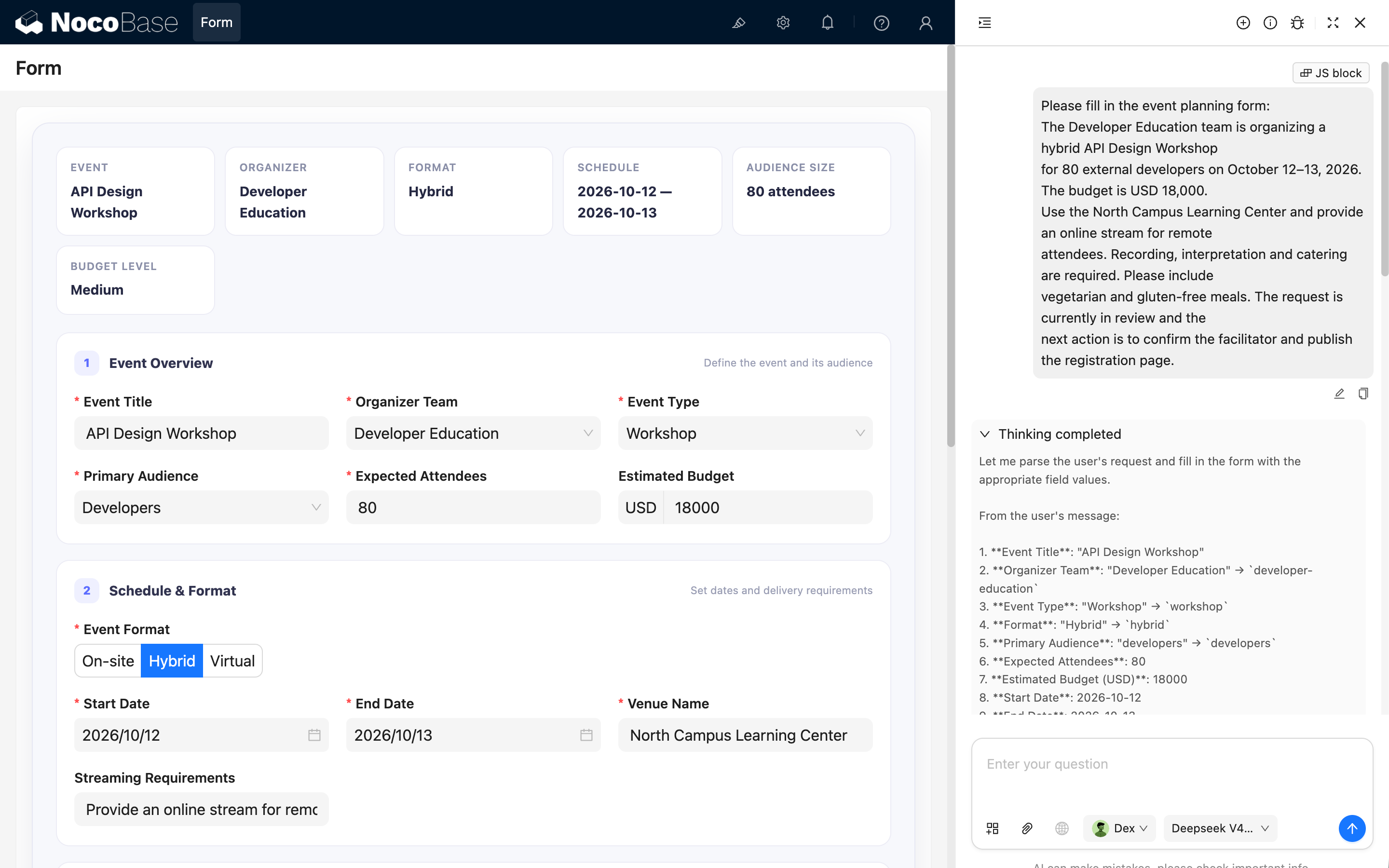
  1. Open an AI employee, such as the built-in Dex: Data Organizer.
  2. Select Add context, then Pick block.
  3. Select the Event Planning Request block on the page.
  4. Send a description of the event requirements.
  5. The AI employee extracts the information and fills the matching fields.

For example, send:

Please fill in the event planning form:
The Developer Education team is organizing a hybrid API Design Workshop
for 80 external developers on October 12–13, 2026. The budget is USD 18,000.
Use the North Campus Learning Center and provide an online stream for remote
attendees. Recording, interpretation and catering are required. Please include
vegetarian and gluten-free meals. The request is currently in review and the
next action is to confirm the facilitator and publish the registration page.

How it works

The implementation has two parts. First, expose the Ant Design Form instance through the current block model:

ctx.model.form = form;

Second, provide field metadata so the AI knows the field names, types, enum values, date formats, and target block UID.

  • Field names and data types;
  • Enum values for Select, Radio, and multi-select fields;
  • Date value formats;
  • The UID of the target block.

Keep the metadata and the form in the same JS block so they can be updated together.

Add the JS block

Add a JS block, open the JavaScript editor, and paste the complete example below.

Complete example code

Click to expand and copy
const React = ctx.libs.React;
const { useEffect, useMemo } = React;
const {
  Form,
  Input,
  InputNumber,
  Select,
  Button,
  Radio,
  Space,
  Tag,
  DatePicker,
} = ctx.libs.antd;
const dayjs = ctx.libs.dayjs;

const BRAND = '#5B6CFF';

const TEAM_OPTIONS = [
  { value: 'product-design', label: 'Product Design' },
  { value: 'developer-education', label: 'Developer Education' },
  { value: 'customer-learning', label: 'Customer Learning' },
  { value: 'operations', label: 'Operations' },
];

const EVENT_TYPE_OPTIONS = [
  { value: 'workshop', label: 'Workshop' },
  { value: 'conference', label: 'Conference' },
  { value: 'webinar', label: 'Webinar' },
  { value: 'community-meetup', label: 'Community Meetup' },
  { value: 'team-offsite', label: 'Team Offsite' },
];

const FORMAT_OPTIONS = [
  { value: 'onsite', label: 'On-site' },
  { value: 'hybrid', label: 'Hybrid' },
  { value: 'virtual', label: 'Virtual' },
];

const AUDIENCE_OPTIONS = [
  { value: 'employees', label: 'Employees' },
  { value: 'customers', label: 'Customers' },
  { value: 'partners', label: 'Partners' },
  { value: 'developers', label: 'Developers' },
  { value: 'public', label: 'General Public' },
];

const STATUS_OPTIONS = [
  { value: 'draft', label: 'Draft', readiness: 15 },
  { value: 'in-review', label: 'In Review', readiness: 45 },
  { value: 'approved', label: 'Approved', readiness: 80 },
  { value: 'scheduled', label: 'Scheduled', readiness: 100 },
  { value: 'cancelled', label: 'Cancelled', readiness: 0 },
];

const SERVICE_OPTIONS = [
  { value: 'catering', label: 'Catering' },
  { value: 'recording', label: 'Recording' },
  { value: 'interpretation', label: 'Interpretation' },
  { value: 'photography', label: 'Photography' },
  { value: 'printed-materials', label: 'Printed Materials' },
  { value: 'accessibility-support', label: 'Accessibility Support' },
];

const CANCELLATION_REASON_OPTIONS = [
  { value: 'schedule-conflict', label: 'Schedule conflict' },
  { value: 'budget-unavailable', label: 'Budget unavailable' },
  { value: 'low-registration', label: 'Low registration' },
  { value: 'venue-unavailable', label: 'Venue unavailable' },
  { value: 'scope-changed', label: 'Scope changed' },
  { value: 'other', label: 'Other' },
];

const FORM_FIELDS = [
  {
    name: 'eventTitle',
    title: 'Event Title',
    type: 'string',
    required: true,
  },
  {
    name: 'organizerTeam',
    title: 'Organizer Team',
    type: 'string',
    required: true,
    enum: TEAM_OPTIONS,
  },
  {
    name: 'eventType',
    title: 'Event Type',
    type: 'string',
    required: true,
    enum: EVENT_TYPE_OPTIONS,
  },
  {
    name: 'format',
    title: 'Event Format',
    type: 'string',
    required: true,
    enum: FORMAT_OPTIONS,
  },
  {
    name: 'audience',
    title: 'Primary Audience',
    type: 'string',
    required: true,
    enum: AUDIENCE_OPTIONS,
  },
  {
    name: 'attendeeCount',
    title: 'Expected Attendees',
    type: 'number',
    required: true,
  },
  {
    name: 'budgetUsd',
    title: 'Estimated Budget (USD)',
    type: 'number',
  },
  {
    name: 'startDate',
    title: 'Start Date',
    type: 'string',
    required: true,
    prompt: 'Use YYYY-MM-DD format.',
  },
  {
    name: 'endDate',
    title: 'End Date',
    type: 'string',
    required: true,
    prompt: 'Use YYYY-MM-DD format.',
  },
  {
    name: 'venueName',
    title: 'Venue Name',
    type: 'string',
    prompt: 'Fill this field only for On-site or Hybrid events.',
  },
  {
    name: 'streamingNotes',
    title: 'Streaming Requirements',
    type: 'string',
    prompt: 'Fill this field only for Hybrid or Virtual events.',
  },
  {
    name: 'services',
    title: 'Required Services',
    type: 'array',
    enum: SERVICE_OPTIONS,
    prompt: 'Use an array containing service option values.',
  },
  {
    name: 'dietaryNotes',
    title: 'Dietary Requirements',
    type: 'string',
    prompt: 'Fill this field when Required Services includes Catering.',
  },
  {
    name: 'status',
    title: 'Request Status',
    type: 'string',
    required: true,
    enum: STATUS_OPTIONS.map(({ value, label }) => ({ value, label })),
  },
  {
    name: 'readiness',
    title: 'Readiness (%)',
    type: 'number',
  },
  {
    name: 'cancellationReason',
    title: 'Cancellation Reason',
    type: 'string',
    enum: CANCELLATION_REASON_OPTIONS,
    prompt: 'Fill this field only when Request Status is Cancelled.',
  },
  {
    name: 'objectives',
    title: 'Event Objectives',
    type: 'string',
  },
  {
    name: 'agendaNotes',
    title: 'Agenda Notes',
    type: 'string',
  },
  {
    name: 'risks',
    title: 'Risks and Constraints',
    type: 'string',
  },
  {
    name: 'nextAction',
    title: 'Next Action',
    type: 'string',
  },
];

ctx.model.setTitle('Event Planning Request');

ctx.model.setProps({
  aiForm: {
    prompt: `This is a fillable Event Planning Request form. Use the Fill form tool when the user asks to populate it. Use the current block UID as the form target: ${ctx.model.uid}. Always use enum values instead of labels, use YYYY-MM-DD for date fields, and use an array for services.`,
    fields: FORM_FIELDS,
  },
});

const styles = {
  shell: {
    overflow: 'hidden',
    border: '1px solid #E7E8F3',
    borderRadius: 18,
    background: '#F7F8FC',
    boxShadow: '0 16px 42px rgba(31, 35, 76, 0.10)',
  },
  body: {
    padding: 24,
  },
  summary: {
    display: 'grid',
    gridTemplateColumns: 'repeat(auto-fit, minmax(150px, 1fr))',
    gap: 10,
    marginBottom: 18,
  },
  summaryItem: {
    minHeight: 72,
    padding: '12px 14px',
    border: '1px solid #ECECF5',
    borderRadius: 12,
    background: '#FFFFFF',
  },
  summaryLabel: {
    marginBottom: 5,
    color: '#8A8FA8',
    fontSize: 11,
    fontWeight: 600,
    textTransform: 'uppercase',
    letterSpacing: 0.5,
  },
  summaryValue: {
    color: '#252842',
    fontSize: 14,
    fontWeight: 700,
  },
  section: {
    marginBottom: 16,
    padding: '18px 18px 4px',
    border: '1px solid #ECECF5',
    borderRadius: 14,
    background: '#FFFFFF',
  },
  sectionHeader: {
    display: 'flex',
    alignItems: 'center',
    gap: 10,
    marginBottom: 16,
  },
  sectionNumber: {
    display: 'inline-flex',
    width: 26,
    height: 26,
    alignItems: 'center',
    justifyContent: 'center',
    borderRadius: 8,
    color: BRAND,
    background: '#EEF0FF',
    fontSize: 12,
    fontWeight: 800,
  },
  sectionTitle: {
    color: '#30334F',
    fontSize: 14,
    fontWeight: 750,
  },
  sectionHint: {
    marginLeft: 'auto',
    color: '#9A9EB4',
    fontSize: 11,
  },
  grid: {
    display: 'grid',
    gridTemplateColumns: 'repeat(auto-fit, minmax(260px, 1fr))',
    columnGap: 18,
  },
  infoPanel: {
    marginBottom: 24,
    padding: '13px 14px',
    border: '1px dashed #D9DDFC',
    borderRadius: 10,
    background: '#F8F9FF',
  },
  actionBar: {
    position: 'sticky',
    bottom: 0,
    zIndex: 2,
    display: 'flex',
    alignItems: 'center',
    gap: 10,
    margin: '18px -24px -24px',
    padding: '13px 24px',
    borderTop: '1px solid #E8E9F2',
    background: 'rgba(255,255,255,0.94)',
    backdropFilter: 'blur(10px)',
  },
};

function Section({ number, title, hint, children }) {
  return (
    <section style={styles.section}>
      <div style={styles.sectionHeader}>
        <span style={styles.sectionNumber}>{number}</span>
        <span style={styles.sectionTitle}>{title}</span>
        {hint ? <span style={styles.sectionHint}>{hint}</span> : null}
      </div>
      {children}
    </section>
  );
}

function SummaryItem({ label, value }) {
  return (
    <div style={styles.summaryItem}>
      <div style={styles.summaryLabel}>{label}</div>
      <div style={styles.summaryValue}>{value || '—'}</div>
    </div>
  );
}

function DateField({ name, label, required = false }) {
  return (
    <Form.Item
      name={name}
      label={label}
      rules={
        required ? [{ required: true, message: `Please select ${label}` }] : []
      }
      getValueProps={(value) => ({
        value: value ? dayjs(String(value).slice(0, 10)) : null,
      })}
      getValueFromEvent={(value) => (value ? value.format('YYYY-MM-DD') : null)}
    >
      <DatePicker
        format="YYYY/MM/DD"
        placeholder="YYYY/MM/DD"
        style={{ width: '100%' }}
      />
    </Form.Item>
  );
}

function EventPlanningForm() {
  const [form] = Form.useForm();
  const watchedValues =
    Form.useWatch([], {
      form,
      preserve: true,
    }) || {};

  const values = {
    format: 'hybrid',
    status: 'draft',
    readiness: 15,
    services: [],
    ...watchedValues,
  };

  const teamLabel = TEAM_OPTIONS.find(
    (item) => item.value === values.organizerTeam,
  )?.label;
  const formatLabel = FORMAT_OPTIONS.find(
    (item) => item.value === values.format,
  )?.label;
  const status = STATUS_OPTIONS.find((item) => item.value === values.status);
  const hasPhysicalVenue =
    values.format === 'onsite' || values.format === 'hybrid';
  const needsStreaming =
    values.format === 'virtual' || values.format === 'hybrid';
  const needsCatering = values.services?.includes('catering');
  const isCancelled = values.status === 'cancelled';

  const dateRange = [values.startDate, values.endDate]
    .filter(Boolean)
    .join(' — ');

  const budgetLevel = useMemo(() => {
    const budget = Number(values.budgetUsd || 0);

    if (budget >= 50000) {
      return 'Large';
    }

    if (budget >= 10000) {
      return 'Medium';
    }

    return budget > 0 ? 'Small' : '';
  }, [values.budgetUsd]);

  useEffect(() => {
    const previousForm = ctx.model.form;

    // Allow the Fill form tool to write values into this form.
    ctx.model.form = form;

    return () => {
      if (ctx.model.form === form) {
        ctx.model.form = previousForm;
      }
    };
  }, [form]);

  useEffect(() => {
    if (!status) {
      return;
    }

    const currentReadiness = form.getFieldValue('readiness');

    if (currentReadiness !== status.readiness) {
      form.setFieldsValue({ readiness: status.readiness });
    }
  }, [form, status]);

  const handleFinish = (formValues) => {
    console.log('Event planning form values:', formValues);
    ctx.message.success('The form is complete and ready for submission.');
  };

  return (
    <div style={styles.shell}>
      <div style={styles.body}>
        <div style={styles.summary}>
          <SummaryItem
            label="Event"
            value={values.eventTitle || 'Untitled event'}
          />
          <SummaryItem label="Organizer" value={teamLabel} />
          <SummaryItem label="Format" value={formatLabel} />
          <SummaryItem label="Schedule" value={dateRange} />
          <SummaryItem
            label="Audience Size"
            value={
              values.attendeeCount
                ? `${values.attendeeCount} attendees`
                : undefined
            }
          />
          <SummaryItem label="Budget Level" value={budgetLevel} />
        </div>

        <Form
          form={form}
          layout="vertical"
          size="large"
          variant="filled"
          initialValues={{
            format: 'hybrid',
            status: 'draft',
            readiness: 15,
            services: [],
          }}
          onFinish={handleFinish}
        >
          <Section
            number="1"
            title="Event Overview"
            hint="Define the event and its audience"
          >
            <div style={styles.grid}>
              <Form.Item
                name="eventTitle"
                label="Event Title"
                rules={[
                  {
                    required: true,
                    message: 'Please enter the event title',
                  },
                ]}
              >
                <Input placeholder="e.g. API Design Workshop" />
              </Form.Item>

              <Form.Item
                name="organizerTeam"
                label="Organizer Team"
                rules={[
                  {
                    required: true,
                    message: 'Please select the organizer team',
                  },
                ]}
              >
                <Select options={TEAM_OPTIONS} placeholder="Select team" />
              </Form.Item>

              <Form.Item
                name="eventType"
                label="Event Type"
                rules={[
                  {
                    required: true,
                    message: 'Please select the event type',
                  },
                ]}
              >
                <Select
                  options={EVENT_TYPE_OPTIONS}
                  placeholder="Select event type"
                />
              </Form.Item>

              <Form.Item
                name="audience"
                label="Primary Audience"
                rules={[
                  {
                    required: true,
                    message: 'Please select the primary audience',
                  },
                ]}
              >
                <Select
                  options={AUDIENCE_OPTIONS}
                  placeholder="Select audience"
                />
              </Form.Item>

              <Form.Item
                name="attendeeCount"
                label="Expected Attendees"
                rules={[
                  {
                    required: true,
                    message: 'Please enter the expected attendee count',
                  },
                ]}
              >
                <InputNumber
                  min={1}
                  precision={0}
                  style={{ width: '100%' }}
                  placeholder="e.g. 80"
                />
              </Form.Item>

              <Form.Item name="budgetUsd" label="Estimated Budget">
                <InputNumber
                  min={0}
                  precision={0}
                  addonBefore="USD"
                  style={{ width: '100%' }}
                  placeholder="e.g. 18000"
                />
              </Form.Item>
            </div>
          </Section>

          <Section
            number="2"
            title="Schedule & Format"
            hint="Set dates and delivery requirements"
          >
            <Form.Item
              name="format"
              label="Event Format"
              rules={[
                {
                  required: true,
                  message: 'Please select the event format',
                },
              ]}
            >
              <Radio.Group
                optionType="button"
                buttonStyle="solid"
                options={FORMAT_OPTIONS}
              />
            </Form.Item>

            <div style={styles.grid}>
              <DateField name="startDate" label="Start Date" required />
              <DateField name="endDate" label="End Date" required />

              {hasPhysicalVenue ? (
                <Form.Item
                  name="venueName"
                  label="Venue Name"
                  rules={[
                    {
                      required: true,
                      message: 'Please enter the venue name',
                    },
                  ]}
                >
                  <Input placeholder="e.g. North Campus Learning Center" />
                </Form.Item>
              ) : null}

              {needsStreaming ? (
                <Form.Item name="streamingNotes" label="Streaming Requirements">
                  <Input placeholder="Access, recording and moderation needs" />
                </Form.Item>
              ) : null}
            </div>
          </Section>

          <Section
            number="3"
            title="Services & Approval"
            hint="Capture operational support and status"
          >
            <div style={styles.grid}>
              <Form.Item name="services" label="Required Services">
                <Select
                  mode="multiple"
                  showSearch
                  optionFilterProp="label"
                  options={SERVICE_OPTIONS}
                  placeholder="Select services"
                />
              </Form.Item>

              {needsCatering ? (
                <Form.Item name="dietaryNotes" label="Dietary Requirements">
                  <Input placeholder="Meal preferences and allergies" />
                </Form.Item>
              ) : null}

              <Form.Item
                name="status"
                label="Request Status"
                rules={[
                  {
                    required: true,
                    message: 'Please select the request status',
                  },
                ]}
              >
                <Select
                  options={STATUS_OPTIONS.map(({ value, label }) => ({
                    value,
                    label,
                  }))}
                  placeholder="Select status"
                />
              </Form.Item>

              <Form.Item name="readiness" label="Readiness (%)">
                <InputNumber
                  min={0}
                  max={100}
                  precision={0}
                  addonAfter="%"
                  style={{ width: '100%' }}
                  disabled
                />
              </Form.Item>

              {isCancelled ? (
                <Form.Item
                  name="cancellationReason"
                  label="Cancellation Reason"
                  rules={[
                    {
                      required: true,
                      message: 'Please select the cancellation reason',
                    },
                  ]}
                >
                  <Select
                    options={CANCELLATION_REASON_OPTIONS}
                    placeholder="Select reason"
                  />
                </Form.Item>
              ) : (
                <div style={styles.infoPanel}>
                  <div
                    style={{
                      marginBottom: 6,
                      color: '#8589A1',
                      fontSize: 11,
                      fontWeight: 700,
                      textTransform: 'uppercase',
                    }}
                  >
                    Current Progress
                  </div>
                  <Space size={6} wrap>
                    <Tag color="geekblue">{status?.label || 'Draft'}</Tag>
                    <Tag color="blue">{values.readiness || 0}% ready</Tag>
                  </Space>
                </div>
              )}
            </div>
          </Section>

          <Section
            number="4"
            title="Planning Notes"
            hint="Keep the delivery handoff clear"
          >
            <Form.Item name="objectives" label="Event Objectives">
              <Input.TextArea
                rows={3}
                placeholder="Describe the intended outcomes"
              />
            </Form.Item>

            <Form.Item name="agendaNotes" label="Agenda Notes">
              <Input.TextArea
                rows={3}
                placeholder="Outline the sessions and timing"
              />
            </Form.Item>

            <Form.Item name="risks" label="Risks and Constraints">
              <Input.TextArea
                rows={3}
                placeholder="Record dependencies, limits and open questions"
              />
            </Form.Item>

            <Form.Item name="nextAction" label="Next Action">
              <Input.TextArea
                rows={3}
                placeholder="Describe the next action, owner and due date"
              />
            </Form.Item>
          </Section>

          <div style={styles.actionBar}>
            <span
              style={{
                marginRight: 'auto',
                color: '#8C90A7',
                fontSize: 12,
              }}
            >
              Review AI-filled values before submission.
            </span>
            <Button onClick={() => form.resetFields()}>Reset</Button>
            <Button
              type="primary"
              htmlType="submit"
              style={{
                minWidth: 150,
                background: BRAND,
                borderColor: BRAND,
              }}
            >
              Validate Form
            </Button>
          </div>
        </Form>
      </div>
    </div>
  );
}

ctx.render(<EventPlanningForm />);

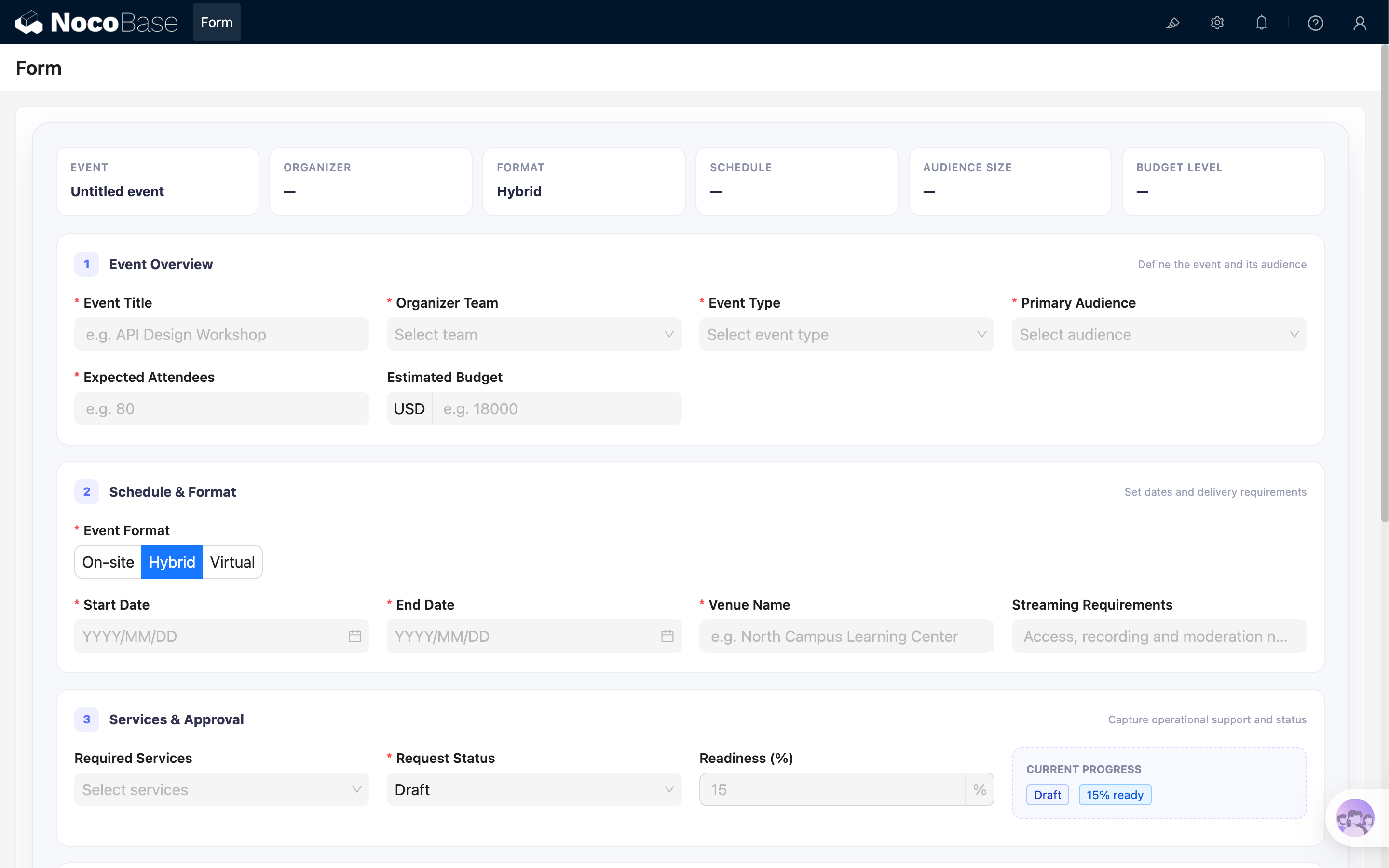
After running the code, the Event Planning Request form appears on the page.

Key implementation details

Expose the Ant Design Form to the AI employee

Assigning the form instance to ctx.model.form allows the Fill form tool to write values into the form. The cleanup restores the previous value when the component is unmounted.

useEffect(() => {
  const previousForm = ctx.model.form;
  ctx.model.form = form;

  return () => {
    if (ctx.model.form === form) {
      ctx.model.form = previousForm;
    }
  };
}, [form]);

Set the name shown in Pick block

JS blocks are shown as JS block by default in Pick block. Use ctx.model.setTitle() to provide a name that is easier to recognize:

ctx.model.setTitle('Event Planning Request');

After this is set, users will see Event Planning Request when selecting context, making the target form easier to find when a page contains multiple blocks.

Use a short, descriptive name for each JS block and keep this line in the complete example.

Provide form information to the Fill form tool

ctx.model.form provides the Form instance that receives field values. The tool also needs to know which fields the form contains and which rules apply when filling them.

Use ctx.model.setProps() to provide this information for the current JS block:

ctx.model.setProps({
  aiForm: {
    prompt: `This is a fillable Event Planning Request form. Use the Fill form tool when the user asks to populate it. Use the current block UID as the form target: ${ctx.model.uid}. Always use enum values instead of labels, use YYYY-MM-DD for date fields, and use an array for services.`,
    fields: FORM_FIELDS,
  },
});

aiForm contains two parts:

  • prompt describes the form purpose, target block UID, and rules for enum, date, and multi-select fields;
  • fields provides field names, types, required states, and available values through FORM_FIELDS.

When the user adds this JS block as AI employee context, the Fill form tool reads this information to determine which fields should be filled in the target block.

Both integration points are required:

// Describe the form to the tool
ctx.model.setProps({
  aiForm: {
    prompt: '...',
    fields: FORM_FIELDS,
  },
});

// Provide the Ant Design Form instance that receives values
ctx.model.form = form;

If options come from an API, load and convert them before defining FORM_FIELDS and calling ctx.model.setProps(). This keeps the enum values available to the tool aligned with the options shown on the page.

Describe complex form fields

FORM_FIELDS describes the form to the AI. Every name must exactly match the corresponding Form.Item name. Select and Radio fields should provide enum; the AI writes option values rather than labels. Multi-select fields use arrays.

{
  name: 'eventTitle',
  title: 'Event Title',
  type: 'string',
  required: true,
}
<Form.Item name="eventTitle" label="Event Title">
  <Input />
</Form.Item>
{
  "status": "in-review",
  "services": ["recording", "interpretation", "catering"]
}

Convert date values

Ant Design DatePicker expects a dayjs object, while the AI can reliably provide a YYYY-MM-DD string. getValueProps and getValueFromEvent convert between the two formats.

<Form.Item
  name="startDate"
  getValueProps={(value) => ({
    value: value ? dayjs(String(value).slice(0, 10)) : null,
  })}
  getValueFromEvent={(value) =>
    value ? value.format('YYYY-MM-DD') : null
  }
>
  <DatePicker format="YYYY/MM/DD" />
</Form.Item>

Keep field reactions working for AI-filled values

setFieldsValue() does not trigger onValuesChange. Use Form.useWatch() when fields depend on one another. In this example, Request Status automatically updates Readiness whether the status was selected by a user or filled by AI.

const status = STATUS_OPTIONS.find(
  (item) => item.value === values.status,
);

useEffect(() => {
  if (status) {
    form.setFieldsValue({ readiness: status.readiness });
  }
}, [form, status]);

Render conditional fields

Values returned by Form.useWatch() can control JSX directly. The example shows Venue Name for on-site or hybrid events, Dietary Requirements when Catering is selected, and Cancellation Reason when the status is Cancelled.

{values.services?.includes('catering') ? (
  <Form.Item name="dietaryNotes" label="Dietary Requirements">
    <Input />
  </Form.Item>
) : null}

Fill the form with an AI employee

1. Enable the Fill form tool

Use the built-in Dex employee, or enable the Fill form tool for another AI employee.

2. Select the JS block as context

Open the AI employee dialog, select Add context → Pick block, and choose the Event Planning Request block. See Add context - Pick block.

3. Send the source material

Enter natural language or paste an email, meeting note, or event brief. The AI can extract content in one language and map it to the English field labels and option values.

4. Review before submitting

Verify option mappings, numbers and units, dates, multi-select arrays, conditional fields, and any required information that was not explicit in the source. The Fill form tool writes values only; it does not click Validate Form or submit business data.

Adapt the example to your form

Static options

For a small fixed list, define options in the JS block and reuse the same array in both FORM_FIELDS and the Select component.

const TEAM_OPTIONS = [
  { value: 'team-a', label: 'Team A' },
  { value: 'team-b', label: 'Team B' },
];

Load options from an API

Options can also come from a NocoBase API or another endpoint. Complete the request before defining FORM_FIELDS and rendering the form, then map records to { value, label }.

const { data } = await ctx.request({
  url: 'eventCategories:list',
  method: 'get',
  params: {
    fields: ['id', 'name'],
    sort: ['name'],
    pageSize: 100,
  },
});

const categoryRecords = Array.isArray(data?.data) ? data.data : [];
const CATEGORY_OPTIONS = categoryRecords.map((record) => ({
  value: record.id,
  label: record.name,
}));

const FORM_FIELDS = [
  {
    name: 'categoryId',
    title: 'Event Category',
    type: 'number',
    enum: CATEGORY_OPTIONS,
  },
];

ctx.model.setProps({
  aiForm: {
    fields: FORM_FIELDS,
  },
});
<Form.Item name="categoryId" label="Event Category">
  <Select options={CATEGORY_OPTIONS} />
</Form.Item>

Call ctx.model.setProps() after the request and mapping are complete so the AI enum matches the options displayed on the page. Keep the option value type consistent with the field type.

Requests use the current user identity and permissions. Cross-origin endpoints must allow CORS and may require their own authentication. See ctx.request.

Field metadata

Update each field name, title, type, enum, requirement, and prompt to match the target form.

const FORM_FIELDS = [
  {
    name: 'yourFieldName',
    title: 'Your Field Title',
    type: 'string',
  },
];

Form fields and layout

Update the matching Form.Item components and layout. Section, SummaryItem, and styles.grid can be reused or adjusted.

<Form.Item name="yourFieldName" label="Your Field Title">
  <Input />
</Form.Item>

Scope and considerations

One main form per JS block

Keep one primary form in each JS block so the AI can identify the target clearly. Put independent forms in separate blocks.

Do not place very large option lists in context

Static or API-loaded options both work. For hundreds of teams, venues, or services, limit the query, let the user select a related record first, or use a more focused matching flow instead of sending every option to the AI.

Summary

To make a JS block form fillable, manage its values with Ant Design Form, expose the form instance through the block model, and provide accurate field metadata. The example also demonstrates JSX, responsive grids, grouped cards, summaries, dependent fields, and conditional rendering.