

Storage Engine: Aliyun OSS
A storage engine based on Aliyun OSS. Before use, you need to prepare the relevant account and permissions.
This engine does not support private access. After a file is uploaded, NocoBase generates a directly accessible URL, and anyone who has that URL can access the file.
Even if the OSS bucket itself is private, the built-in Aliyun OSS engine does not generate temporary signed URLs for file access. If you need private access, use S3 Pro. If historical files already exist, see Migrate to S3 Pro.
Configuration Parameters
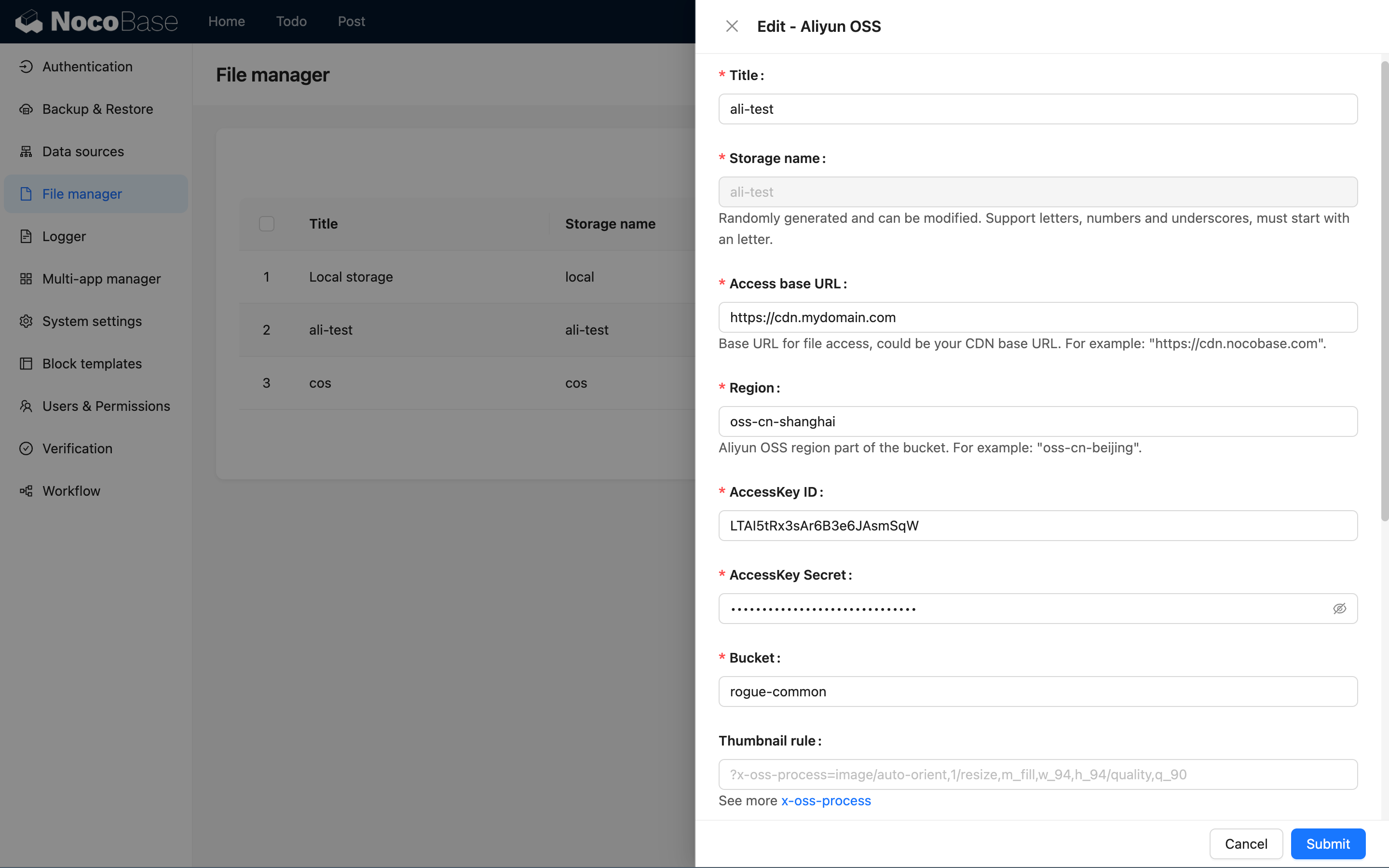
This section only introduces the specific parameters for the Aliyun OSS storage engine. For general parameters, see General Engine Parameters.
Base URL
Enter the file access URL prefix, such as a custom domain bound to the current bucket: https://oss.example.com. Accessing PDFs through the default Aliyun OSS domain may cause the browser to download them. We recommend binding a custom domain first. See Common issues below for details.
Region
Enter the region of the OSS storage, for example: oss-cn-hangzhou.
You can view the region information of your bucket in the Aliyun OSS Console, and you only need to use the region prefix (not the full domain name).
AccessKey ID
Enter the ID of your Aliyun access key.
AccessKey Secret
Enter the Secret of your Aliyun access key.
Bucket
Enter the name of the OSS bucket.
Timeout
Enter the timeout for uploading to Aliyun OSS, in milliseconds. The default is 60000 milliseconds (i.e., 60 seconds).
Common issues
A PDF is downloaded instead of previewed
NocoBase previews cross-origin PDFs in an iframe. The browser accesses the OSS file URL directly, so the OSS response headers determine whether the file is displayed or downloaded.
If a PDF is downloaded from the iframe, inspect the file request in the browser developer tools. A typical problematic response looks like this:
Content-Type: application/pdf identifies the file correctly, but Content-Disposition: attachment instructs the browser to download it. The default Aliyun OSS domain forces downloads in some cases. See the official Aliyun documentation: How do I configure a PDF file to be previewed instead of downloaded?.
We recommend the following configuration:
- Follow Access OSS resources through a custom domain to bind a custom domain to the bucket
- Configure DNS and the HTTPS certificate, then verify that the custom domain can access the file directly
- Configure the access URL for the NocoBase storage engine in use
For step 3:
- With the built-in Aliyun OSS engine, set Base URL to the bound custom domain, such as
https://oss.example.com - With S3 Pro connected to Aliyun OSS, the upload endpoint can continue to use the regional OSS endpoint; set the access endpoint to the custom domain and set
Full access URL styletoIgnore
Upload a new PDF to verify the configuration. If an existing file record stores a complete URL, also make sure that the URL returned to the frontend now uses the custom domain.
Previewing a cross-origin PDF in an iframe does not itself require CORS. Whether the PDF can be displayed inline primarily depends on Content-Type and Content-Disposition. This is separate from the CORS requirement for the download button described below.
An image previews correctly, but the download button reports a CORS error
Images are usually previewed with <img>, and cross-origin PDFs are previewed with an iframe. Both can display resources without CORS response headers. The download button, however, reads the file with fetch and creates a Blob for the browser to download. This request is subject to the browser's same-origin policy.
The following console error means that OSS did not return Access-Control-Allow-Origin for the current NocoBase site:
Follow the official Aliyun guide Configure cross-origin resource sharing and create a CORS rule for the bucket. For downloads from the preview component, use values like these:
If S3 Pro also uploads files directly from the browser, add methods such as PUT and POST according to the actual upload requests shown in the browser Network panel, or create a separate upload rule.
After saving the rule, request the file again with the NocoBase site origin. The response should include at least:
The browser may already have cached the response used for the image preview. That request did not include an Origin header, and the cached response may not contain Access-Control-Allow-Origin. If downloading still fails after you configure CORS, clear the browser cache for the file or select Disable cache in the developer tools and try again.
Verify the response headers
Use curl to simulate a cross-origin request from the NocoBase site. Replace the example origin, file URL, and signature parameters with the actual values:
Check the following results:
- PDF preview returns
Content-Type: application/pdfwithoutContent-Disposition: attachment - Cross-origin download returns an
Access-Control-Allow-Originmatching the NocoBase site - The actual file URL uses the custom domain instead of the default
*.oss-cn-*.aliyuncs.comdomain
It is normal for a request without an Origin header to omit CORS response headers. Keep the Origin header in the example when verifying CORS.