

Multi-portal
Multi-portalProfessional Edition+What is a portal
A portal is used to provide multiple access entries within the same application.
Each portal can have its own:
- Pages
- Menus
- Navigation structure
- Layout
- Permission settings
The Multi-portal plugin provides the following capabilities:
- Portal management
- Portal switching
- Portal permission control
With these capabilities, you can provide different experiences for different roles while sharing the same data and business capabilities.
Why use portals
In real business scenarios, different roles often need different interfaces.
For example, in a retail management system:
Headquarters staff focus on:
- Product management
- Inventory management
- Data analysis
Store staff focus on:
- Cashiering
- Stocktaking
- Order processing
Distributors focus on:
- Purchasing
- Reconciliation
- Shipment status
Although everyone uses the same system, different roles do not need to see the same menus and pages.
That is exactly the problem portals solve.
Relationship between portals and menus
Each portal has its own menu tree.
Menus in different portals do not affect each other.
For example:
Relationship between portals and pages
Pages belong to their respective portals.
The same page can also be shown only in specific portals.
This makes it possible to design completely different workflows for different roles.
Relationship between portals and permissions
Portals themselves can be configured with access permissions.
Only authorized users can access the corresponding portal.
Unauthorized portals:
- Do not appear in the switcher list
- Cannot be accessed directly
Portal management
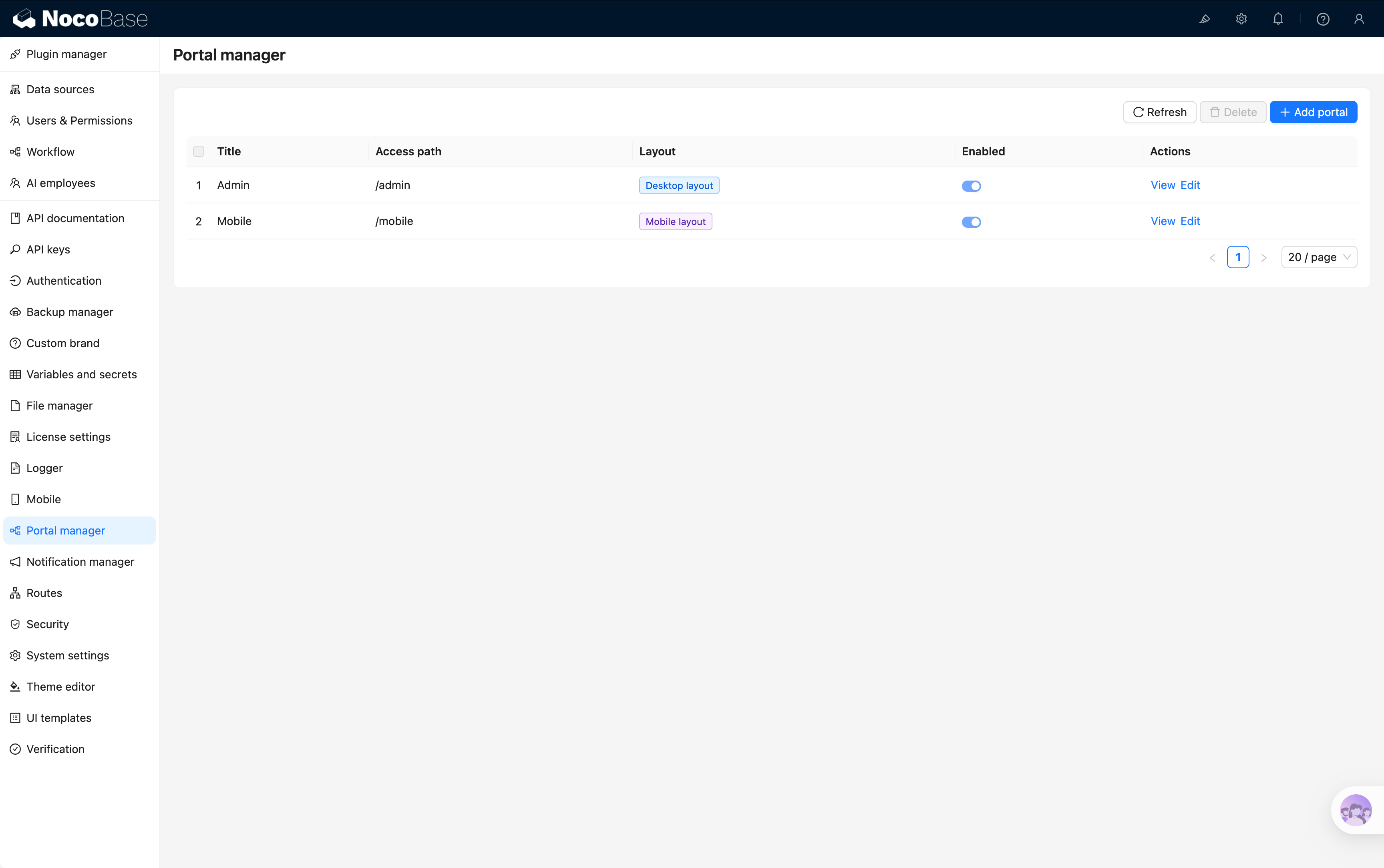
After enabling the Multi-portal plugin, the system provides two built-in portals by default:
Built-in portals
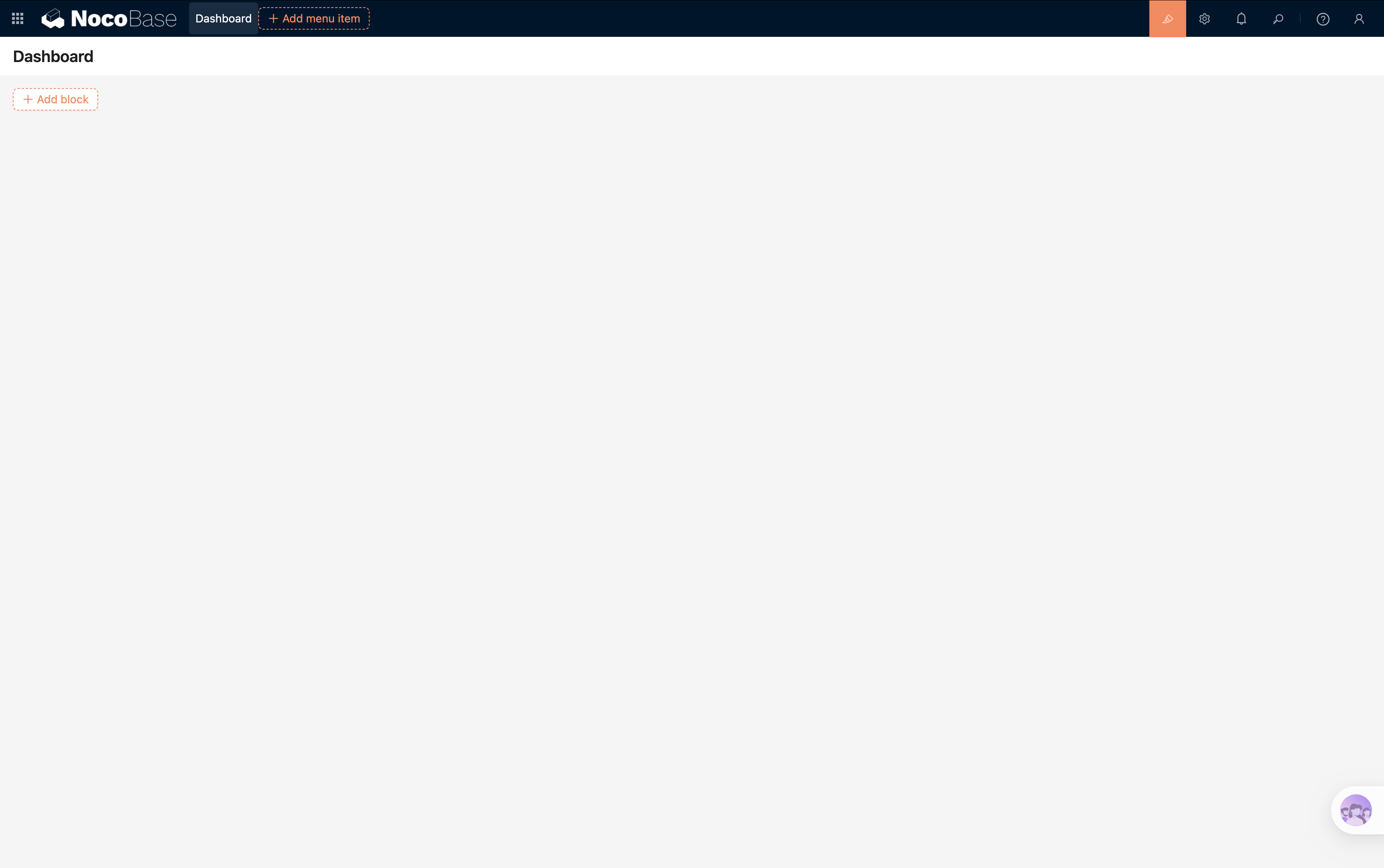
Desktop portal
Access path:
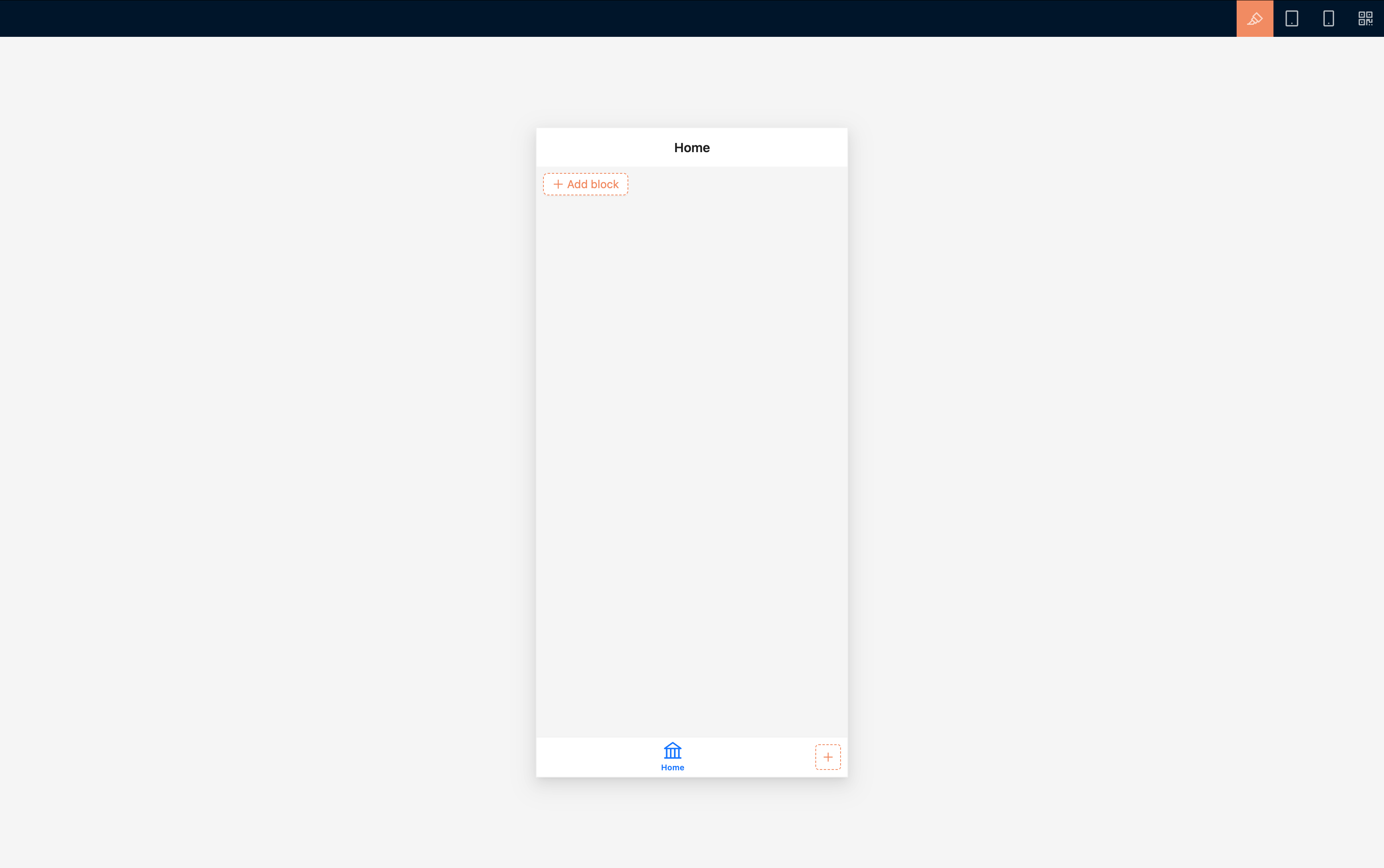
Mobile portal
Access path:
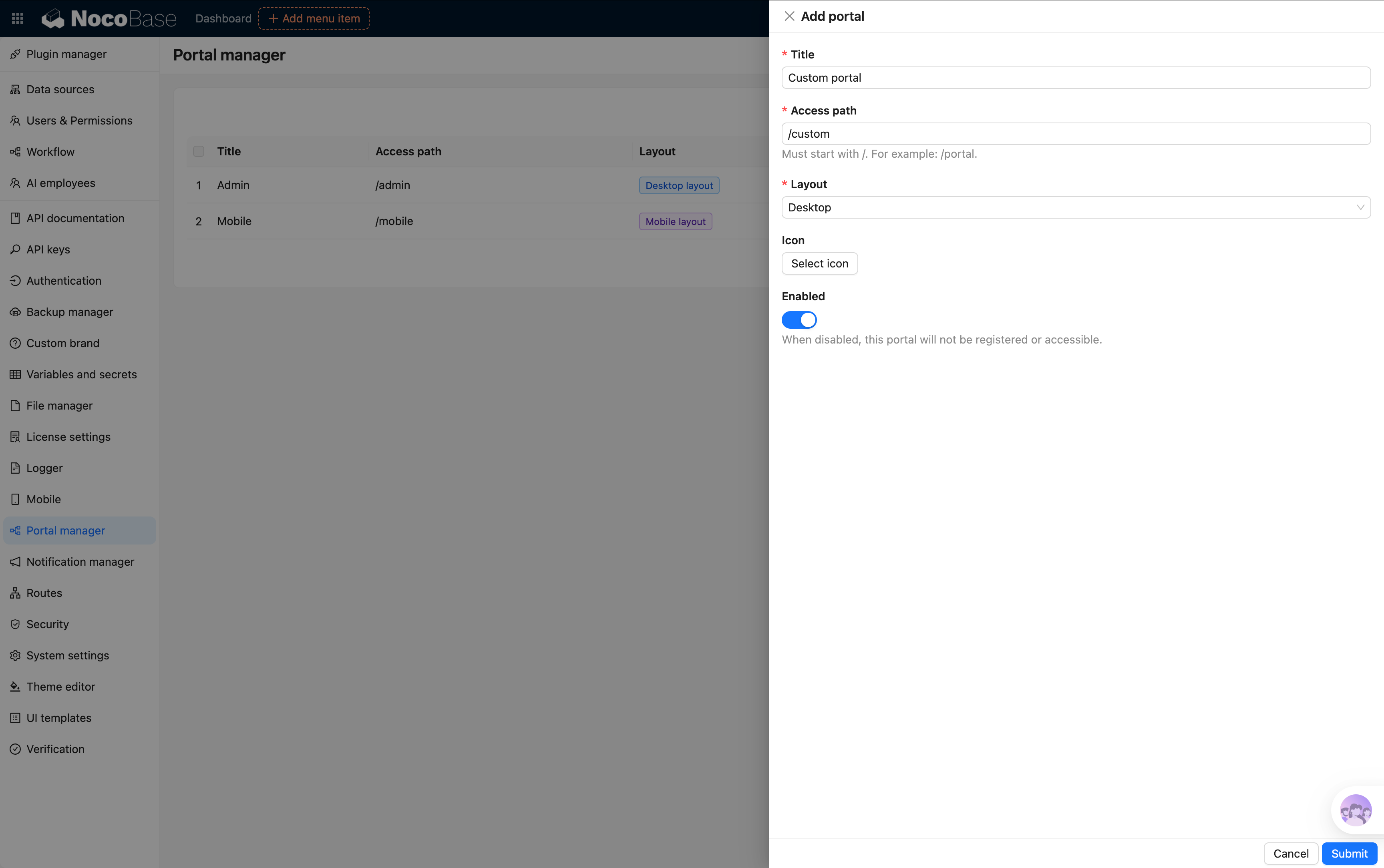
Create a portal
In addition to the built-in portals, you can create more portals based on business needs.
For example:
- Store portal
- Distributor portal
- Customer service portal
- Data analysis portal
After creation, you can configure:
- Pages
- Menus
- Permissions
- Navigation
Switch portals
Users can quickly switch between portals through the portal switcher.
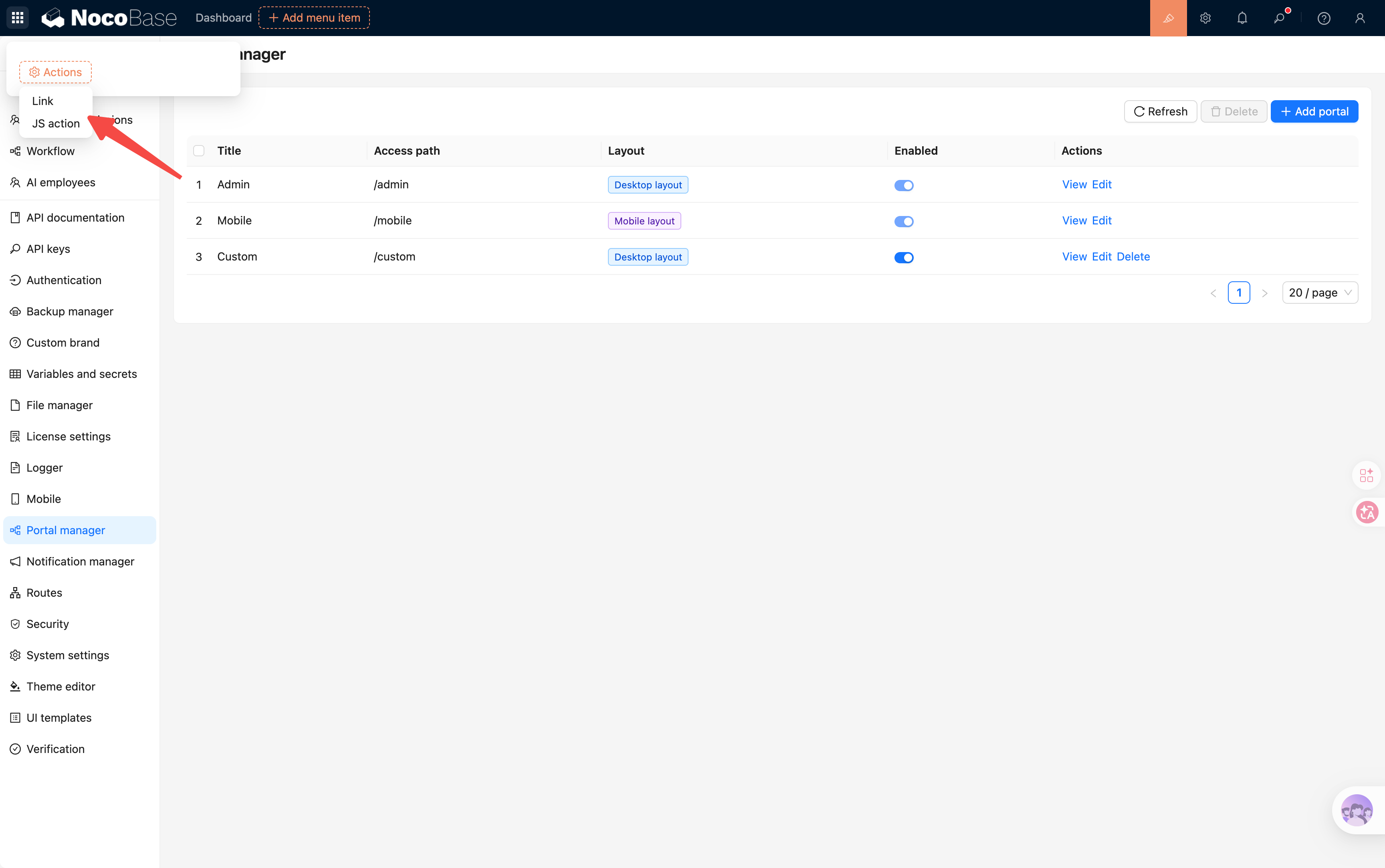
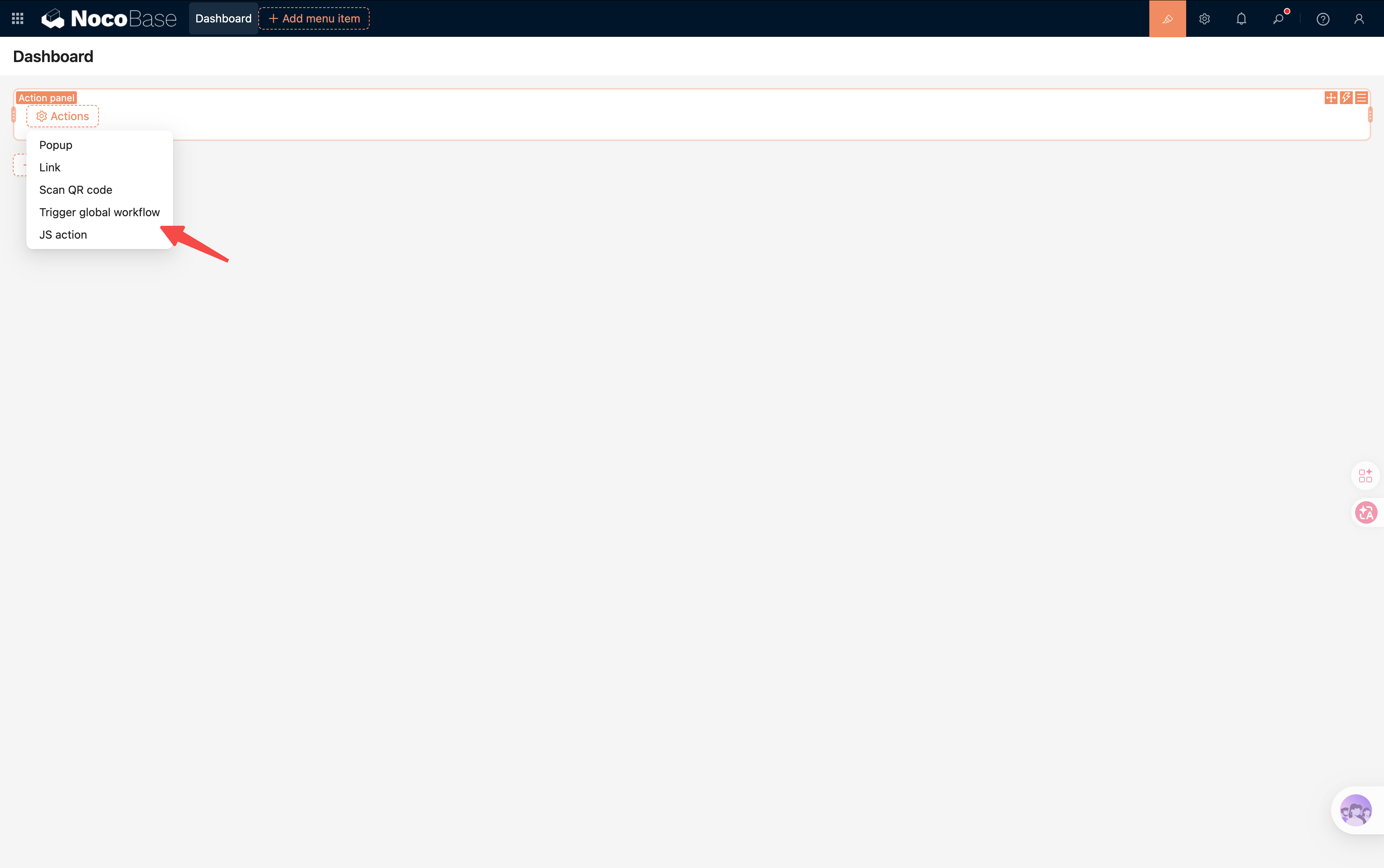
Switch portals within a single app
Add it to the portal switcher panel in the upper-left corner
Add it to the action panel block
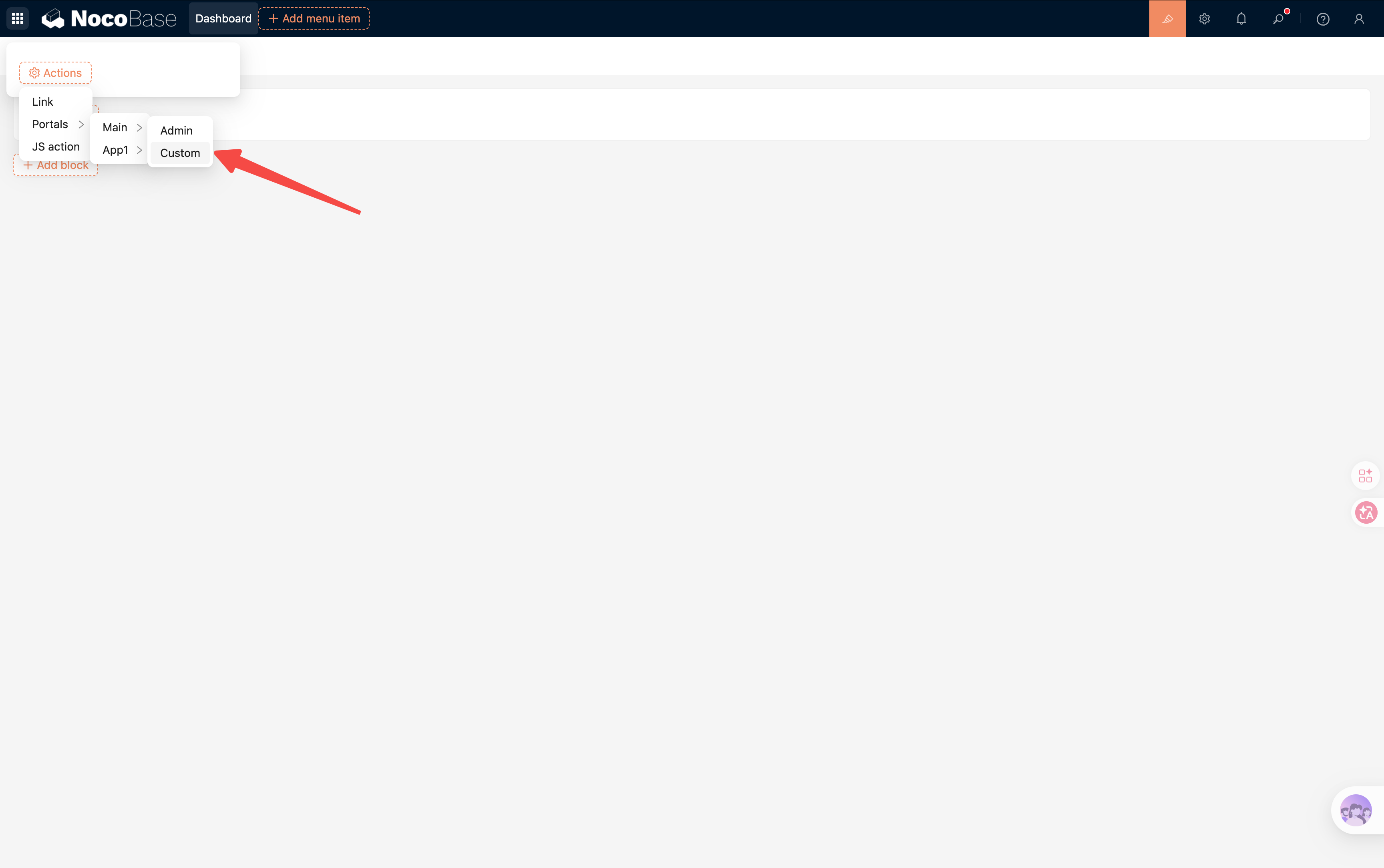
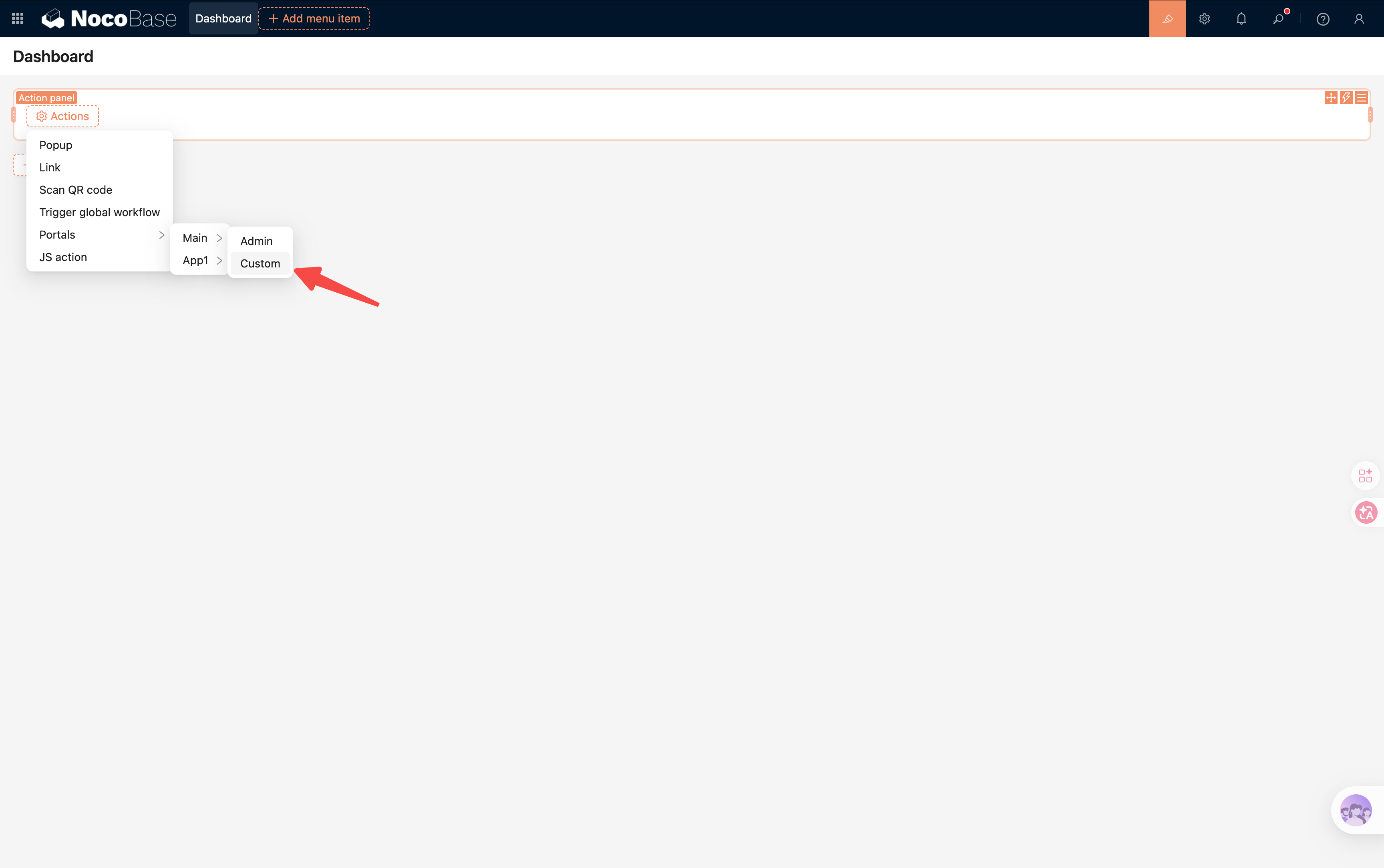
Switch portals across apps
After enabling Multi-app and configuring SSO, users can also switch between portals across different apps through the portal switcher.
Add it to the portal switcher panel in the upper-left corner
Add it to the action panel block
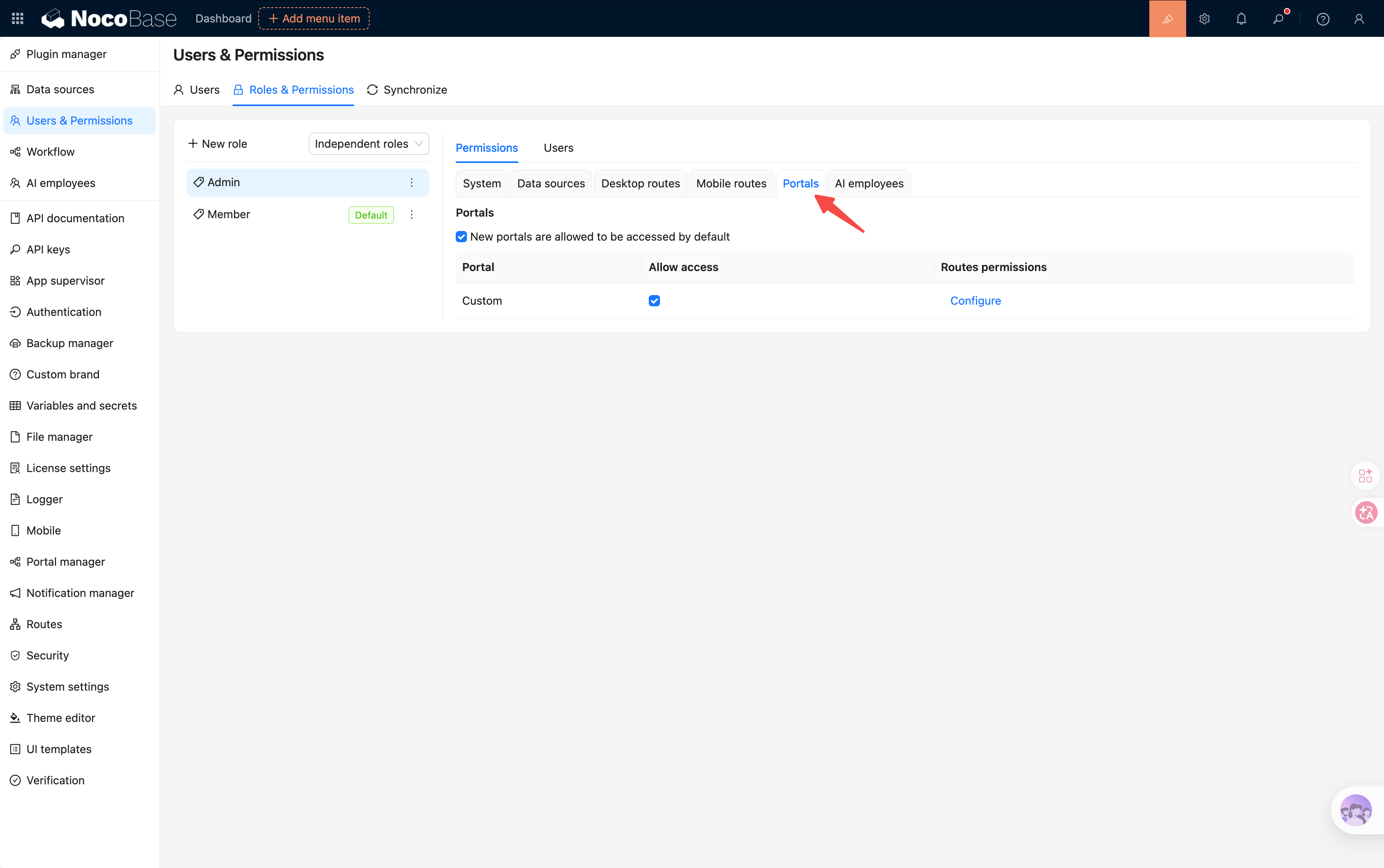
Portal permissions
You can control which portals a user can access through role permissions.
Unauthorized portals do not appear in the portal switcher list, and users cannot access those entries directly.
Related links
For the differences and combination patterns among Multi-portal, Multi-app, and Multi-space, see: Multi-portal, Multi-app, and Multi-space.