

Data Modeling
Before reading this page, make sure you have installed the NocoBase CLI and completed initialization as described in AI Builder Quick Start.
Introduction
The Data Modeling Skill enables creating and managing NocoBase data tables through natural language — creating tables, adding fields, setting up relationships, and more.
Before use, make sure the target data source has been configured in "Data Source Management."
Capabilities
- Create, modify, and delete data tables, supporting general tables, tree tables, file tables, calendar tables, SQL tables, view tables, and inheritance tables
- Add, modify, and delete fields, including all NocoBase built-in field types (including relationship fields) and plugin-extended field types
Prompt Examples
Scenario A: Creating a data table
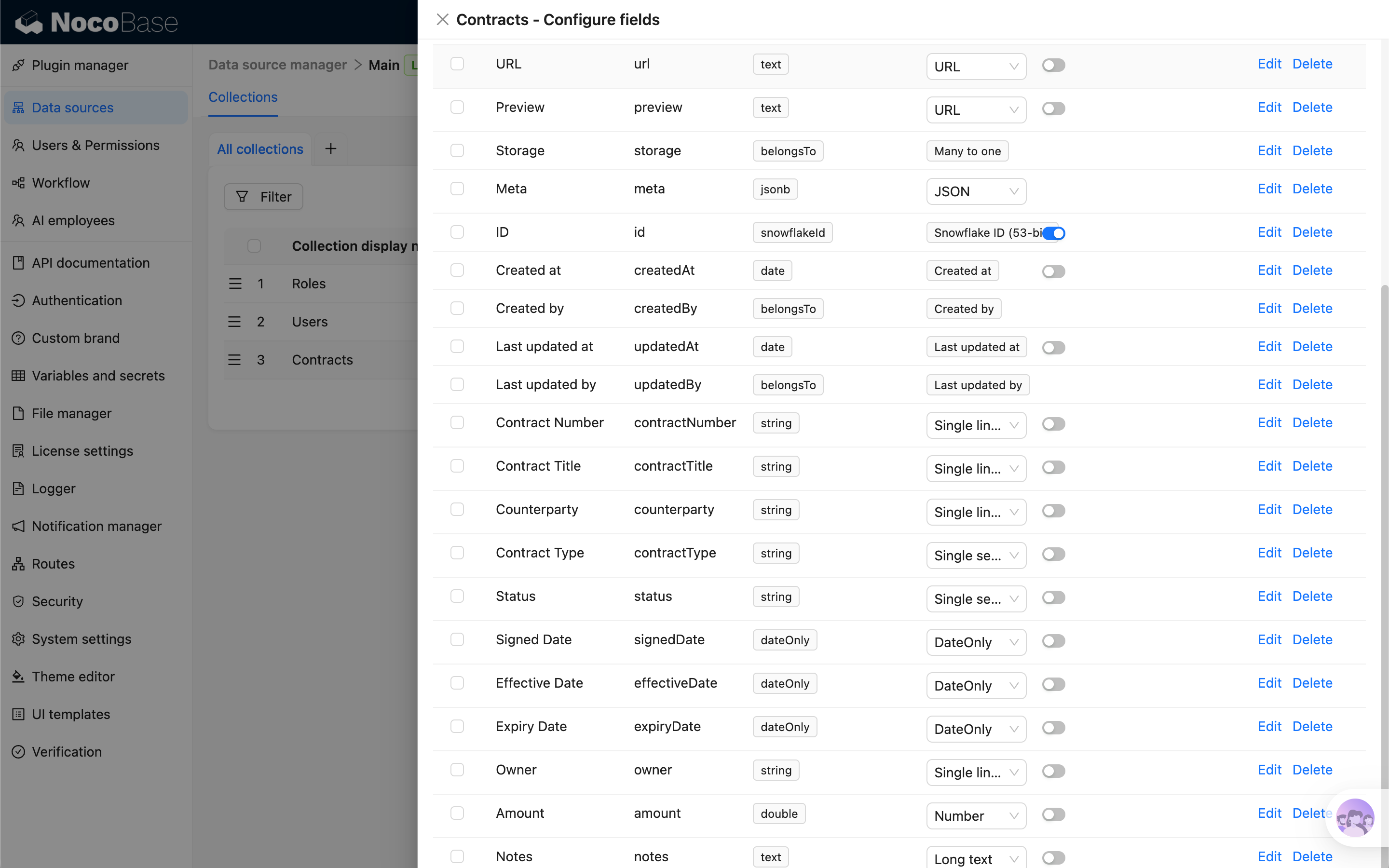
The Skill will guide the AI to analyze the fields needed for the data table and their corresponding NocoBase field types, then create a file-type data table and add the appropriate fields in the system.
Scenario B: Adding fields
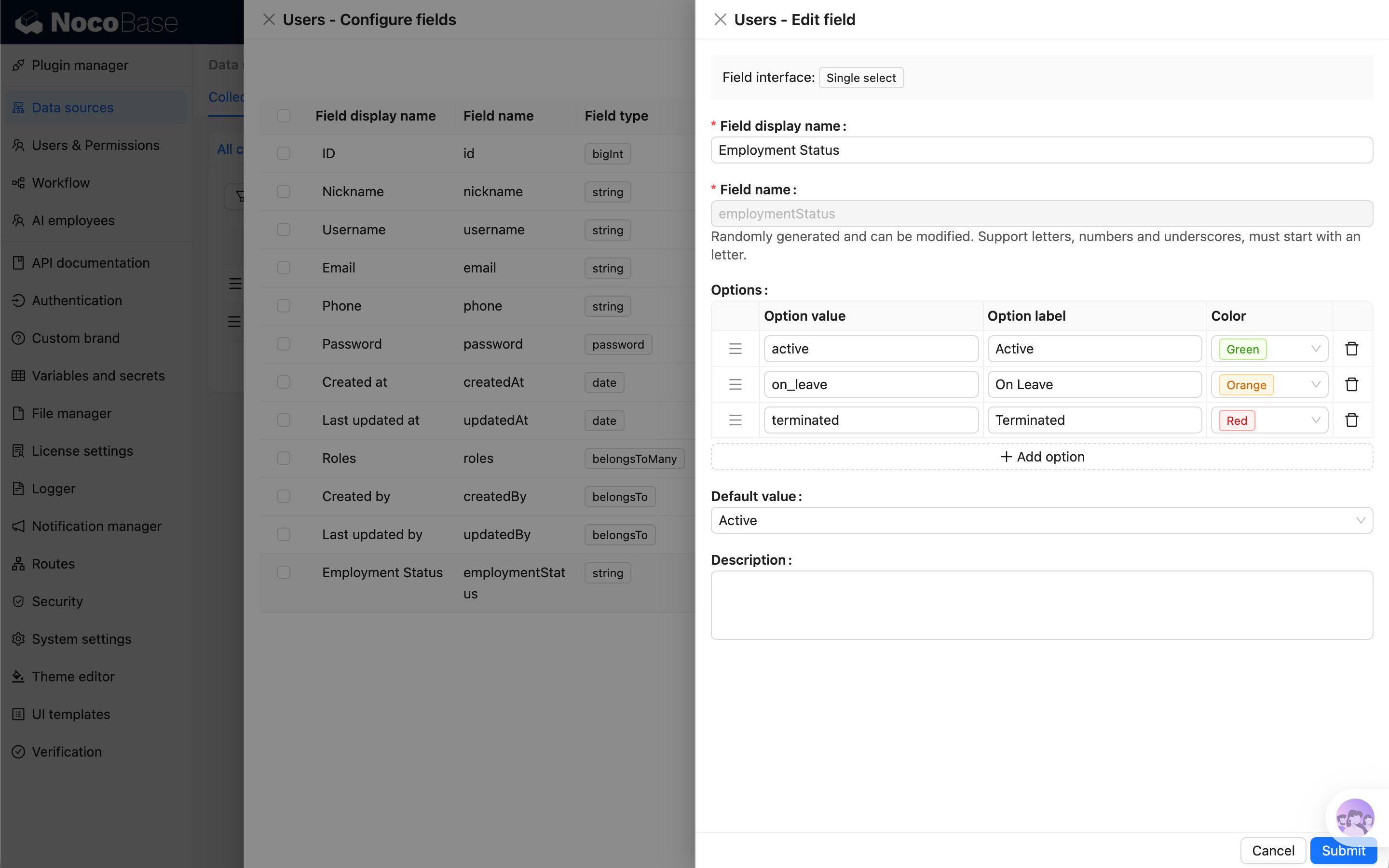
The Skill will guide the AI to retrieve the users table metadata and determine that an employment status field corresponds to a "Dropdown (single select)" field type in NocoBase, then add the field to the users table and configure the enum values.
Scenario C: Initializing a data model
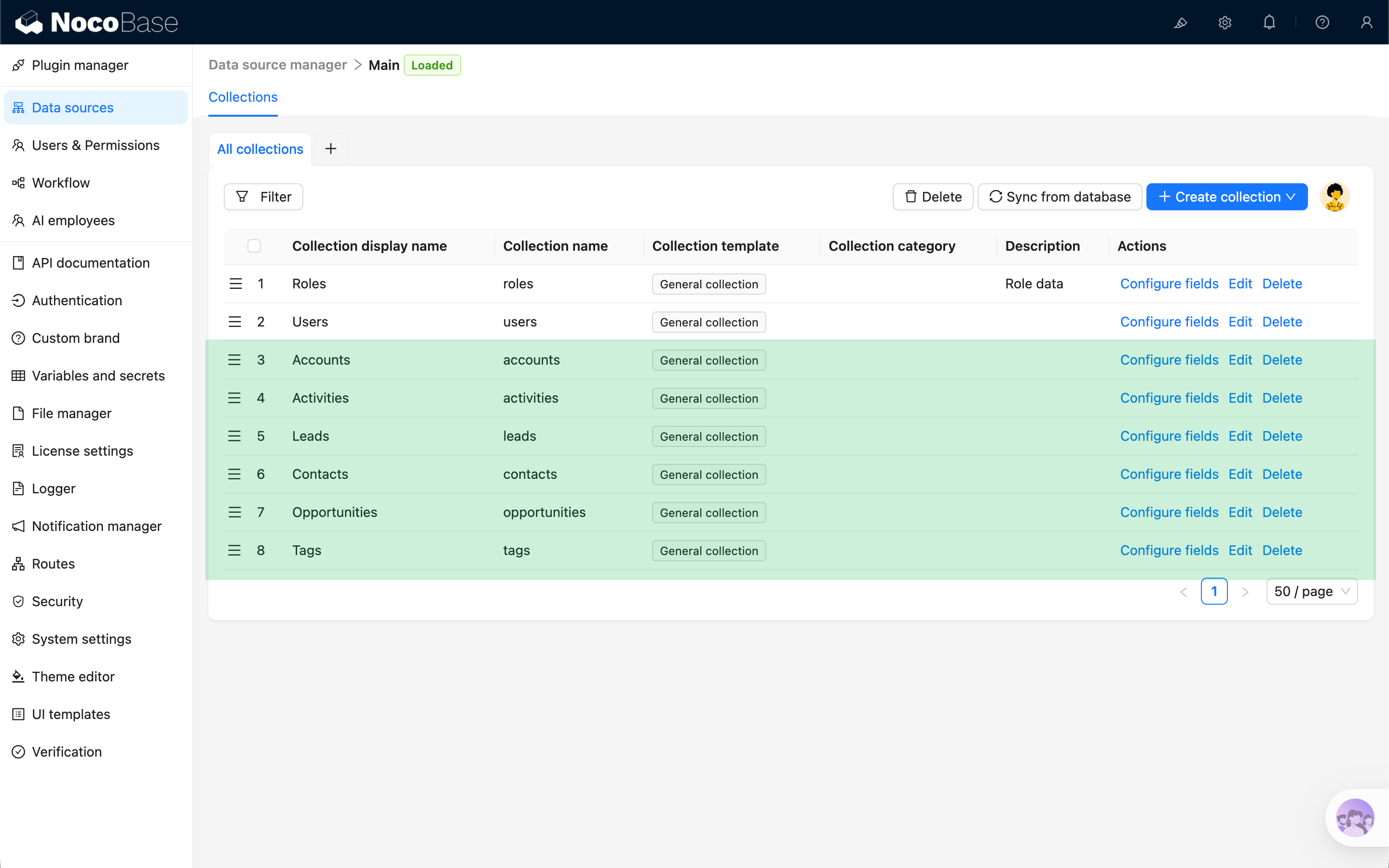
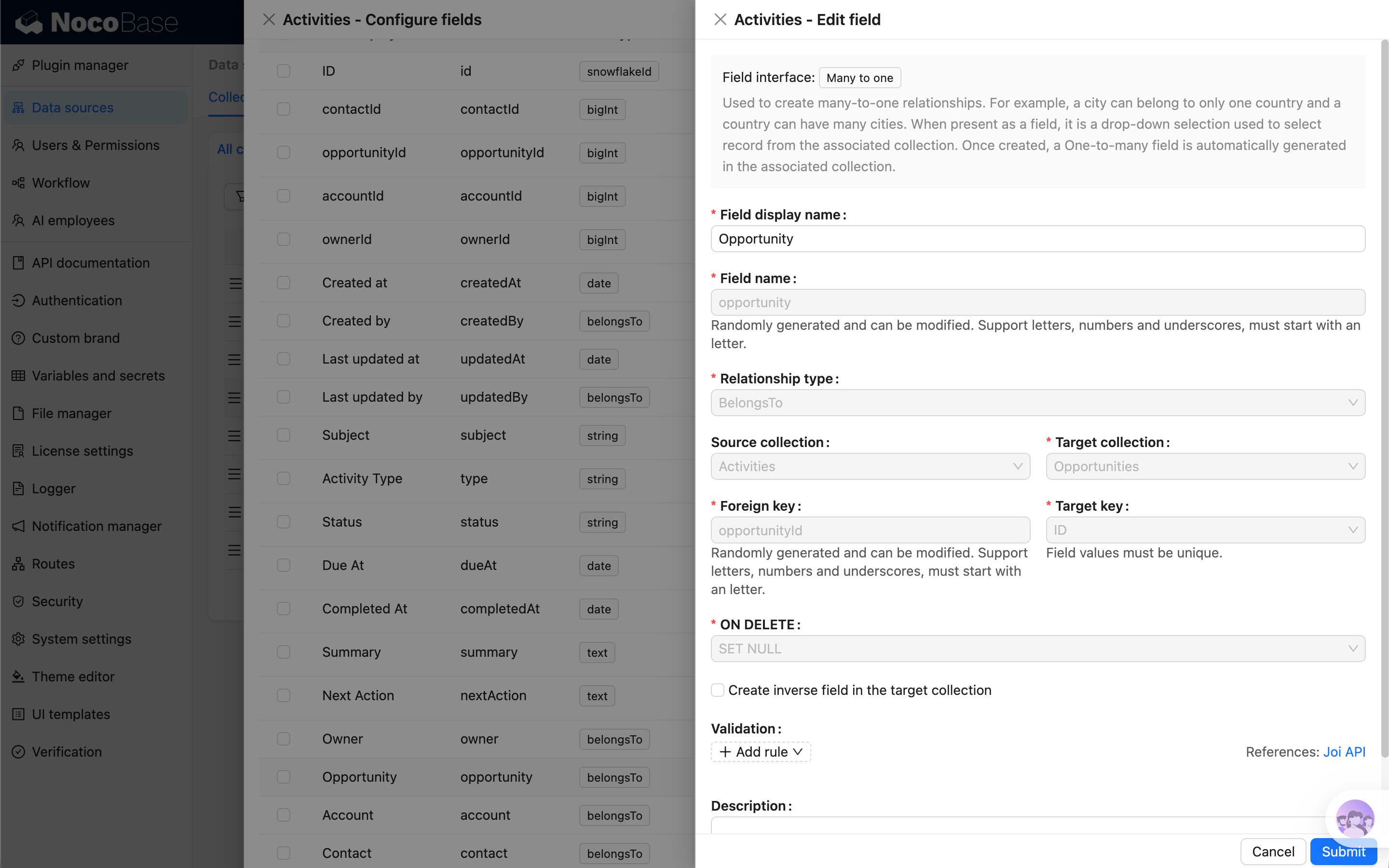
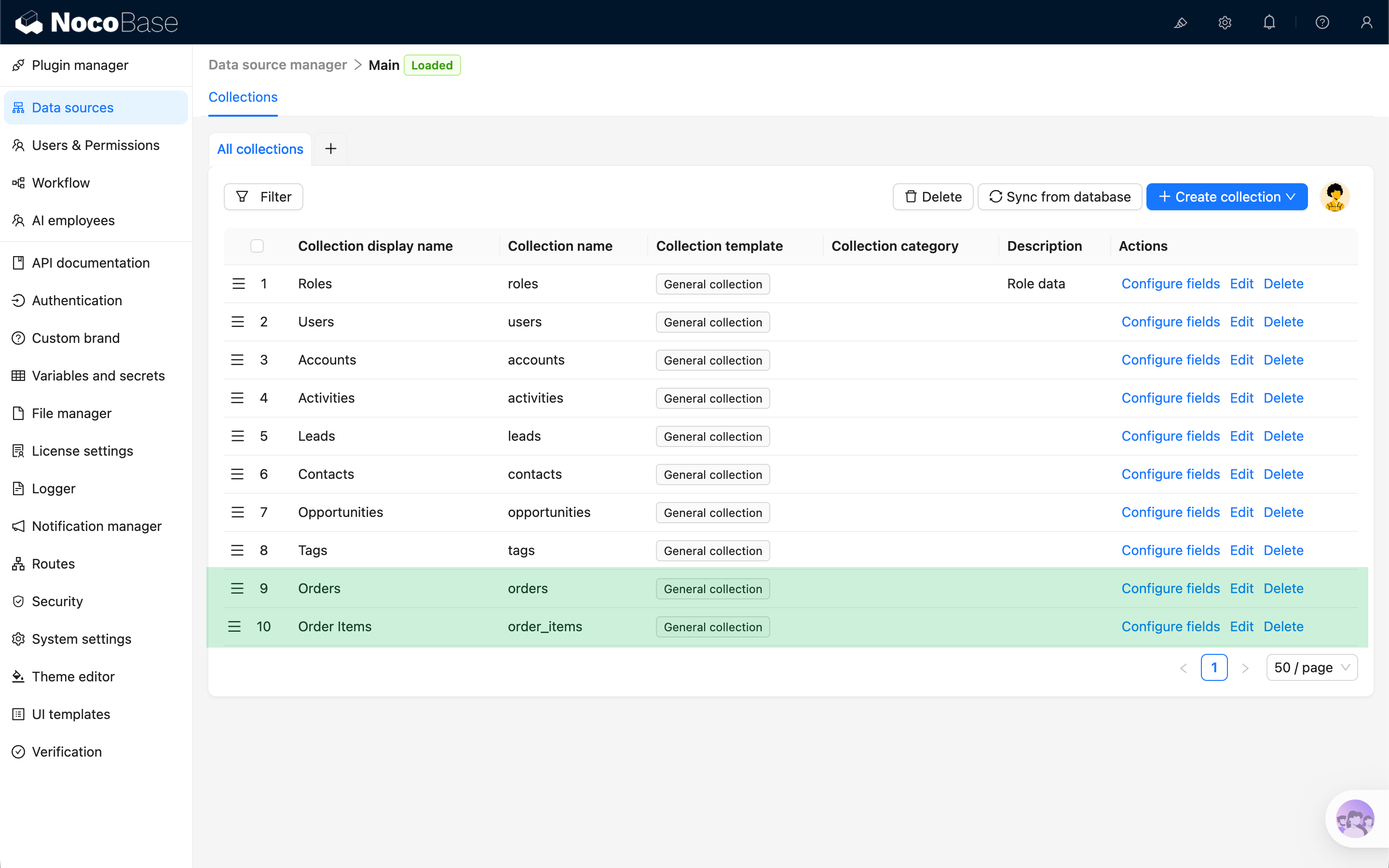
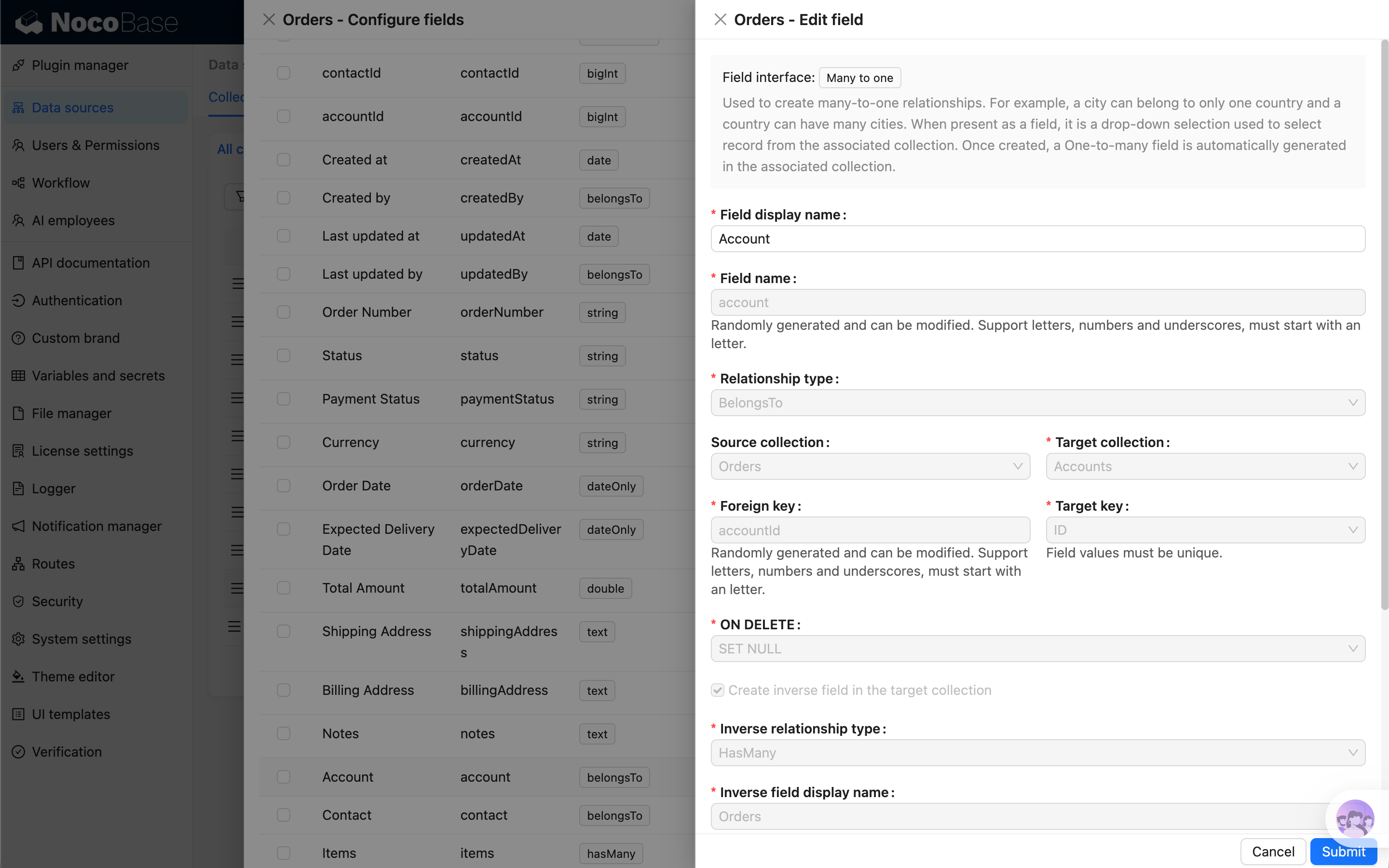
The Skill will create data tables, add fields, and configure relationships in the system based on the data model designed by the AI.
Scenario D: Adding a feature module
The Skill will guide the AI to retrieve the current system's data model and design the new feature's data modeling based on it, then automatically create data tables, add fields, and configure relationships.
FAQ
Are system fields created automatically when creating a table?
Yes. System fields like id, createdAt, createdBy, updatedAt, and updatedBy are automatically generated by the server and do not need to be specified manually.
How do I fix an incorrectly configured relationship?
It's recommended to first check the current relationship field's foreign key and inverse field, then decide whether to modify or delete and recreate it. The Skill will read back and verify the relationship status on both ends after any changes.
How do I create a data table based on a plugin-extended table type?
The corresponding plugin must be enabled. If it's not enabled, the AI will typically attempt to enable the plugin. If the AI doesn't succeed, please enable the plugin manually.
How do I add a field based on a plugin-extended field type?
Same as above.
Related Links
- AI Builder Overview — Overview and installation guide for all AI Builder Skills
- UI Configuration — Use AI to build pages and blocks after creating data tables
- Solutions — Batch-build entire business systems from YAML