

Plugin Management
Before reading this page, make sure you have installed the NocoBase CLI and completed initialization as described in AI Builder Quick Start.
Introduction
The Plugin Management Skill views, enables, and disables NocoBase plugins — it automatically identifies local or remote environments, selects the appropriate execution backend, and verifies operations through read-back validation.
Capabilities
- View the plugin directory and enabled status.
- Enable plugins.
- Disable plugins.
Prompt Examples
Scenario A: Viewing plugin status
Prompt mode
CLI mode
It will list all plugins along with their enabled status and version information.
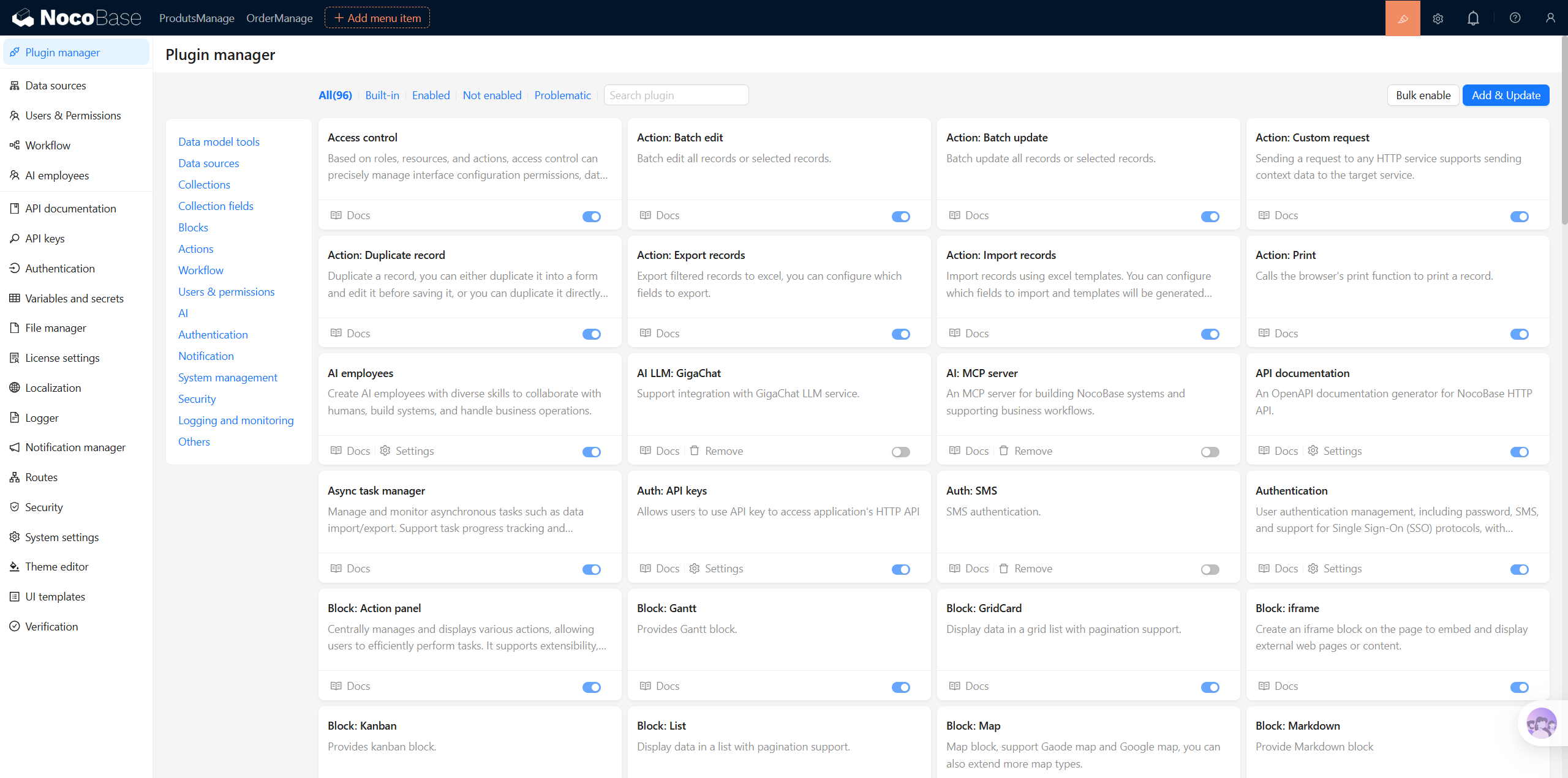
Scenario B: Enabling a plugin
Prompt mode
CLI mode
The Skill will enable plugins in order, with a read-back verification after each enable to confirm enabled=true.
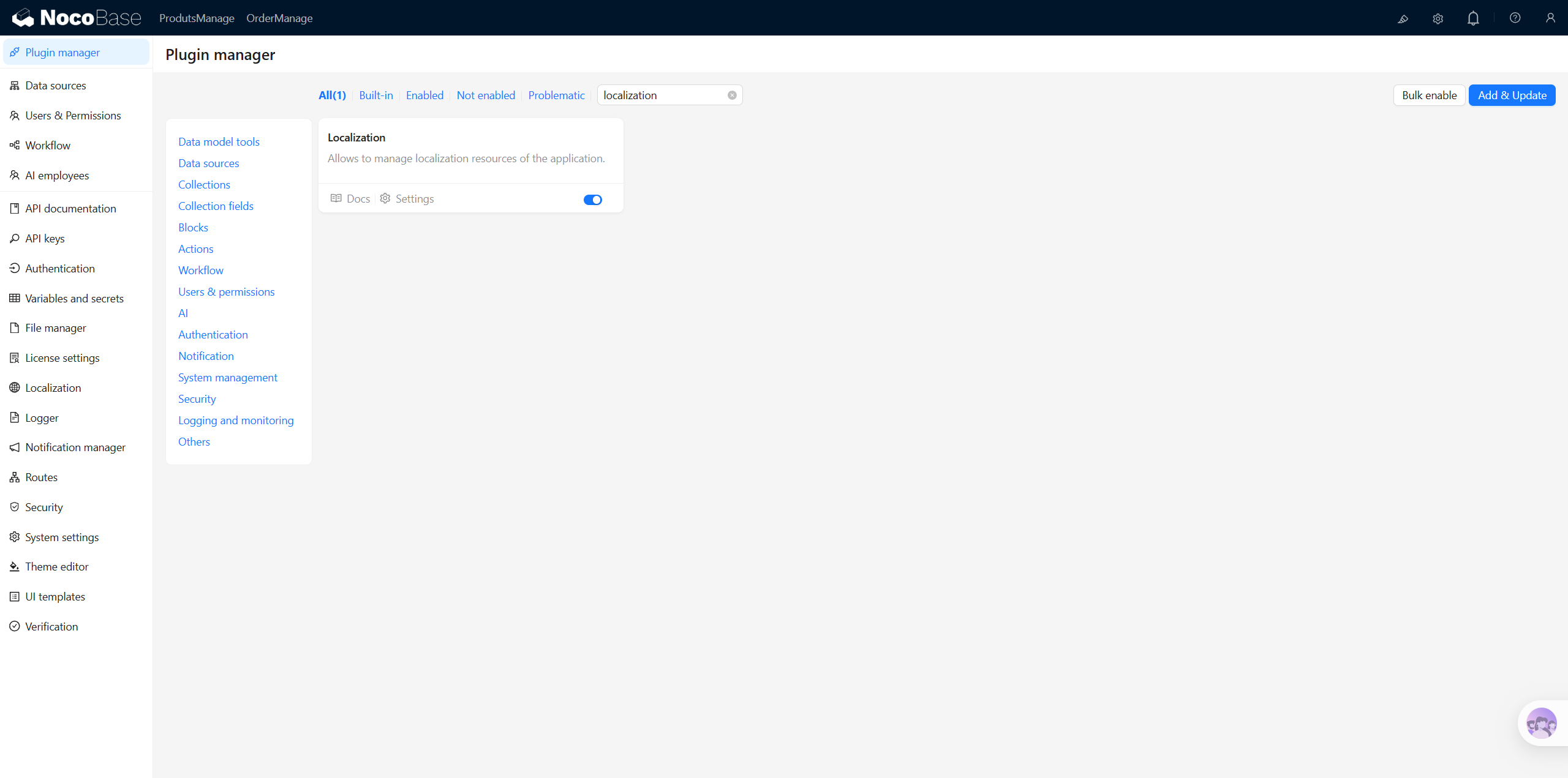
Scenario C: Disabling a plugin
Prompt mode
CLI mode
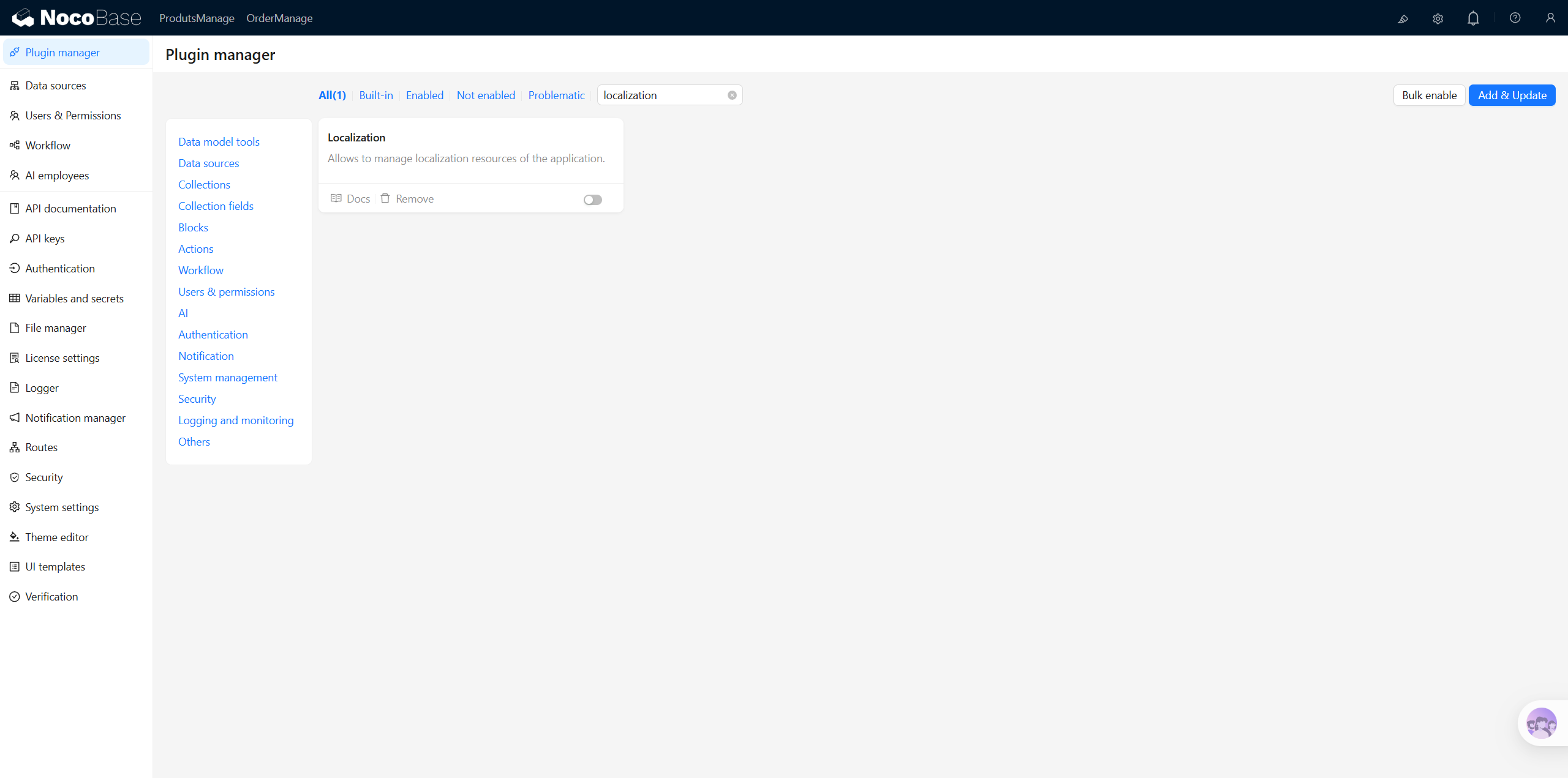
FAQ
What should I do if a plugin doesn't take effect after enabling?
Some plugins require an application restart to take effect after being enabled. The Skill will indicate in the results whether a restart is needed.
Related Links
- AI Builder Overview — Overview and installation guide for all AI Builder Skills
- NocoBase CLI — Command-line tool for installing and managing NocoBase