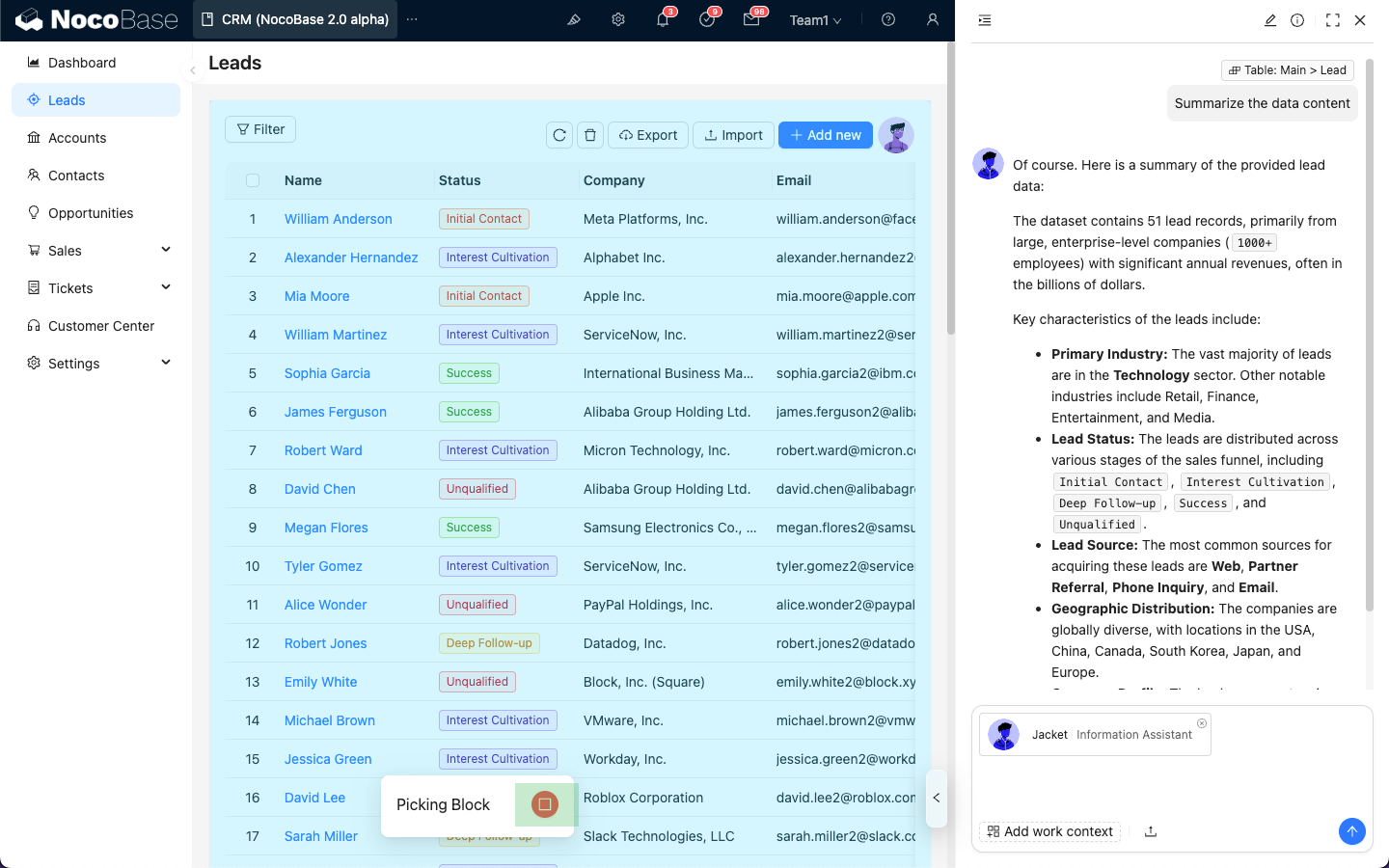
Add Context - Block
When chatting with an AI Employee, besides sending files, you can also send application Context information to the AI Employee, allowing the AI Employee to reply based on the application Context information.
Send Block Information
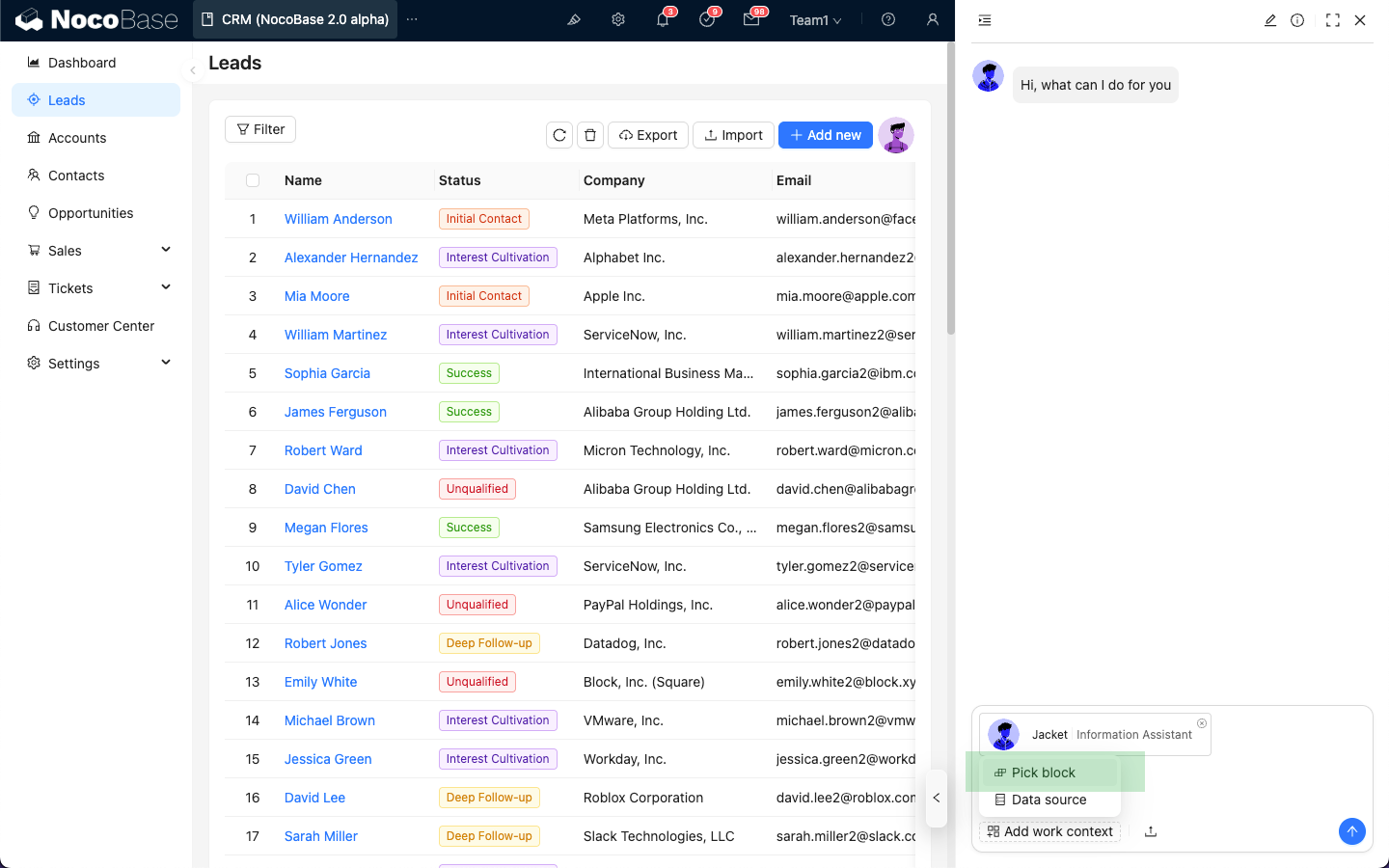
In the AI Employee Chatbox, click the Add work context button in the lower left corner and select Pick Block. The application page will enter the Block selection state.
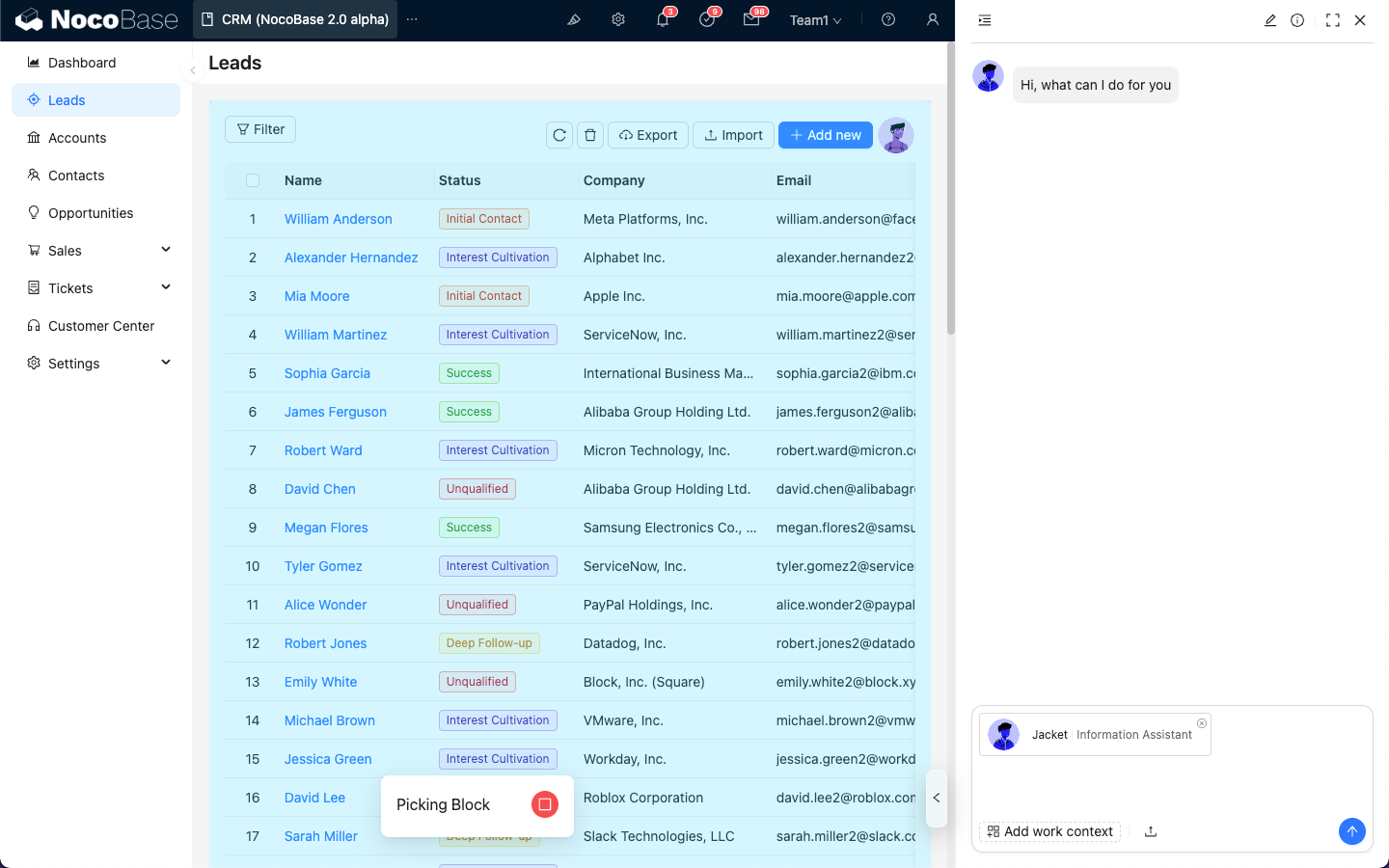
When hovering over a Block, the color of the Block that can be sent as Context will change.
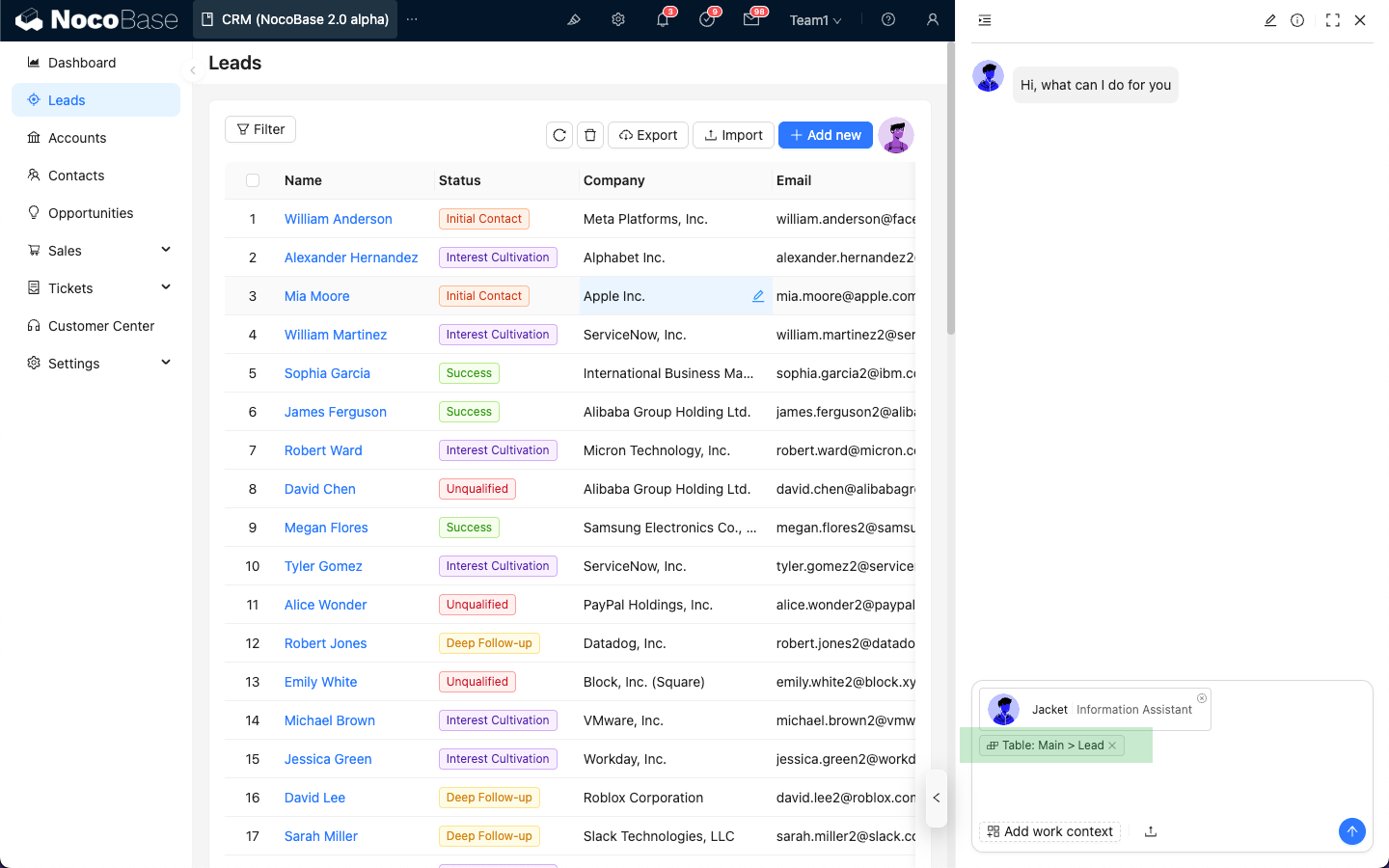
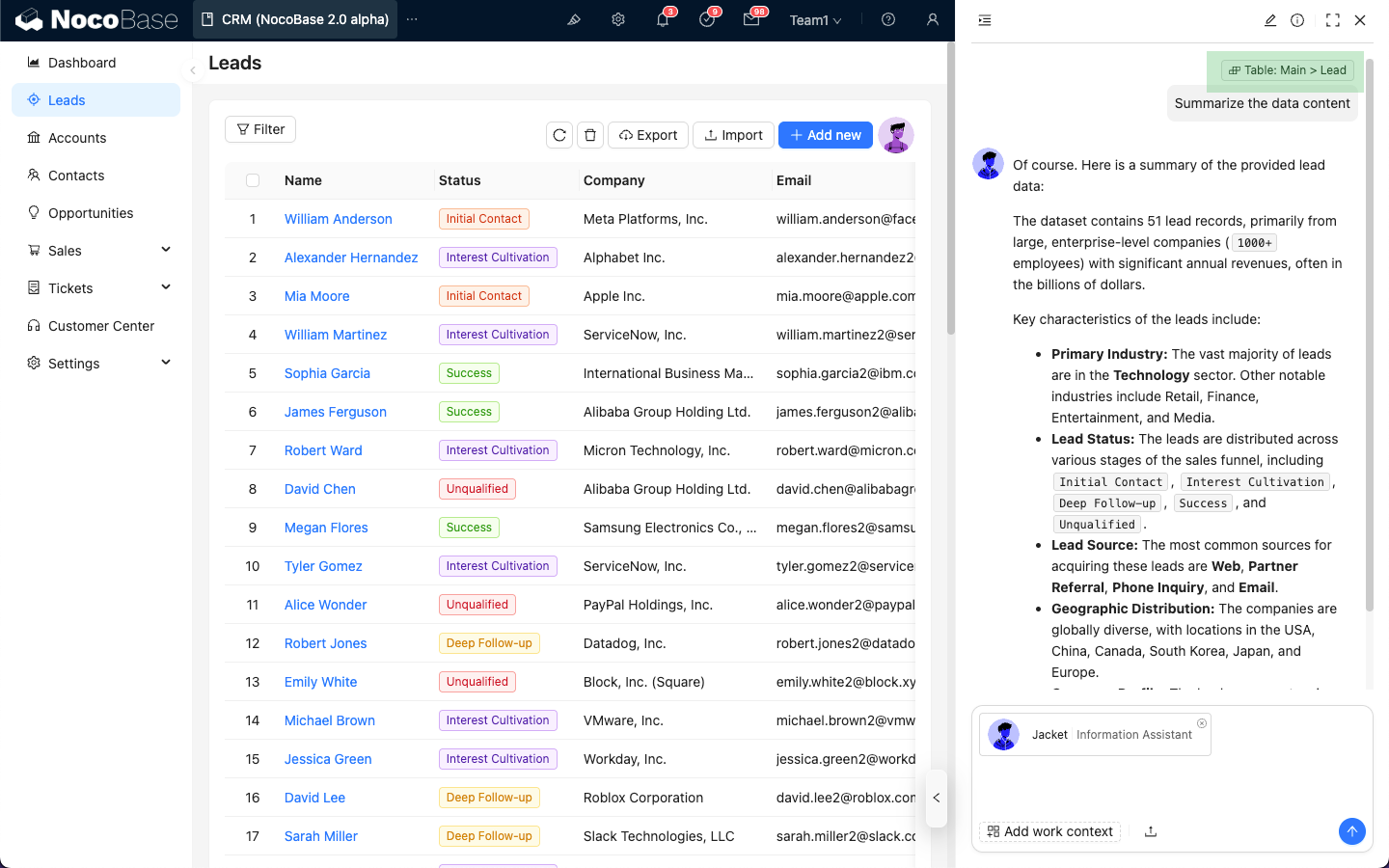
After selecting the Block to be sent, the Block Context information will be attached to the Chatbox.
After entering the question message, just like sending a message, click the send button, and the AI Employee will reply based on the Block information.
The Block information will also appear in the message list.
End Block Selection
When the application page enters the Block selection state but you do not want to select any Block, click the "Stop" icon at the bottom to exit the Block selection state.