

ドキュメント更新
AI: Knowledge baseProfessional Edition+Introduction
In NocoBase, the Update document node updates existing documents in an AI knowledge base from a workflow. In this example, it listens for updated records in Answers, finds the document in the target knowledge base by the same Key used by Create document, and rewrites it with the latest fields.
The Update document node is asynchronous. It is not used as an independent entry point. It should follow the Create document workflow and use the same target knowledge base and the same Key rule as Create and Delete document nodes.
Workflow structure
The example workflow listens for updated records in Answers and synchronizes the latest answer content to the same document in the target knowledge base.
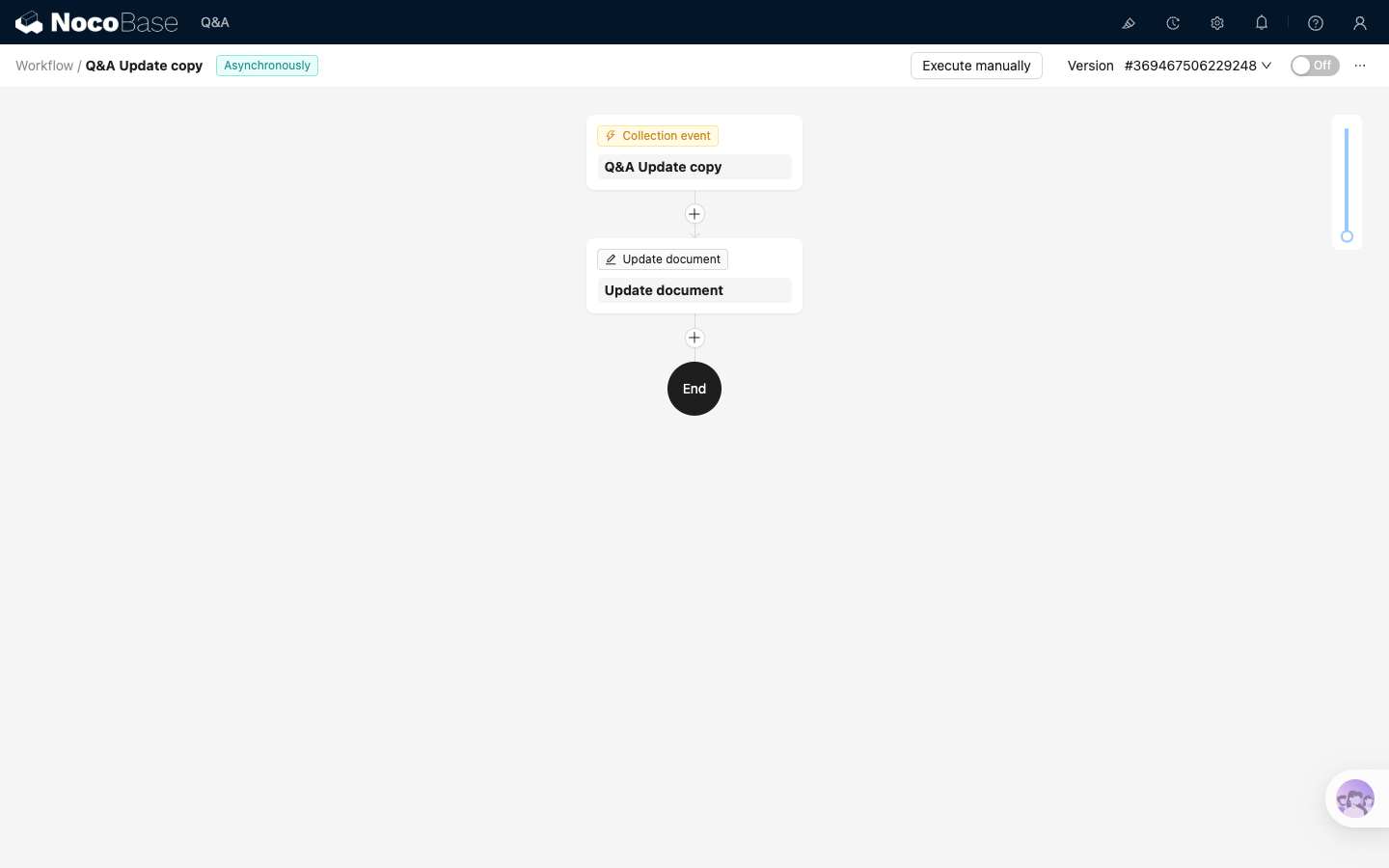
Where:
Collection eventlistens for collection updatesUpdate documentupdates the document with the sameKeyin the target knowledge base
Before you start
The example uses the target knowledge base and Key rule from Create document. Before configuring the workflow, confirm that:
- The Create document workflow is enabled and has created at least one knowledge base document
Keyuses a stable and unique business field. The example uses theAnswersrecord ID- If updates should also synchronize related questions, preload the
questionsrelation field in the trigger
Configure the trigger
Select Collection event as the trigger. In the trigger configuration:
- Set
Collectionto the collection to listen to, such asMain / Answers - Set
Trigger ontoAfter record updated - Use
Changed fieldsto limit which field changes trigger the workflow, such as title or body changes - If the node needs relation fields, preload them in
Preload associations
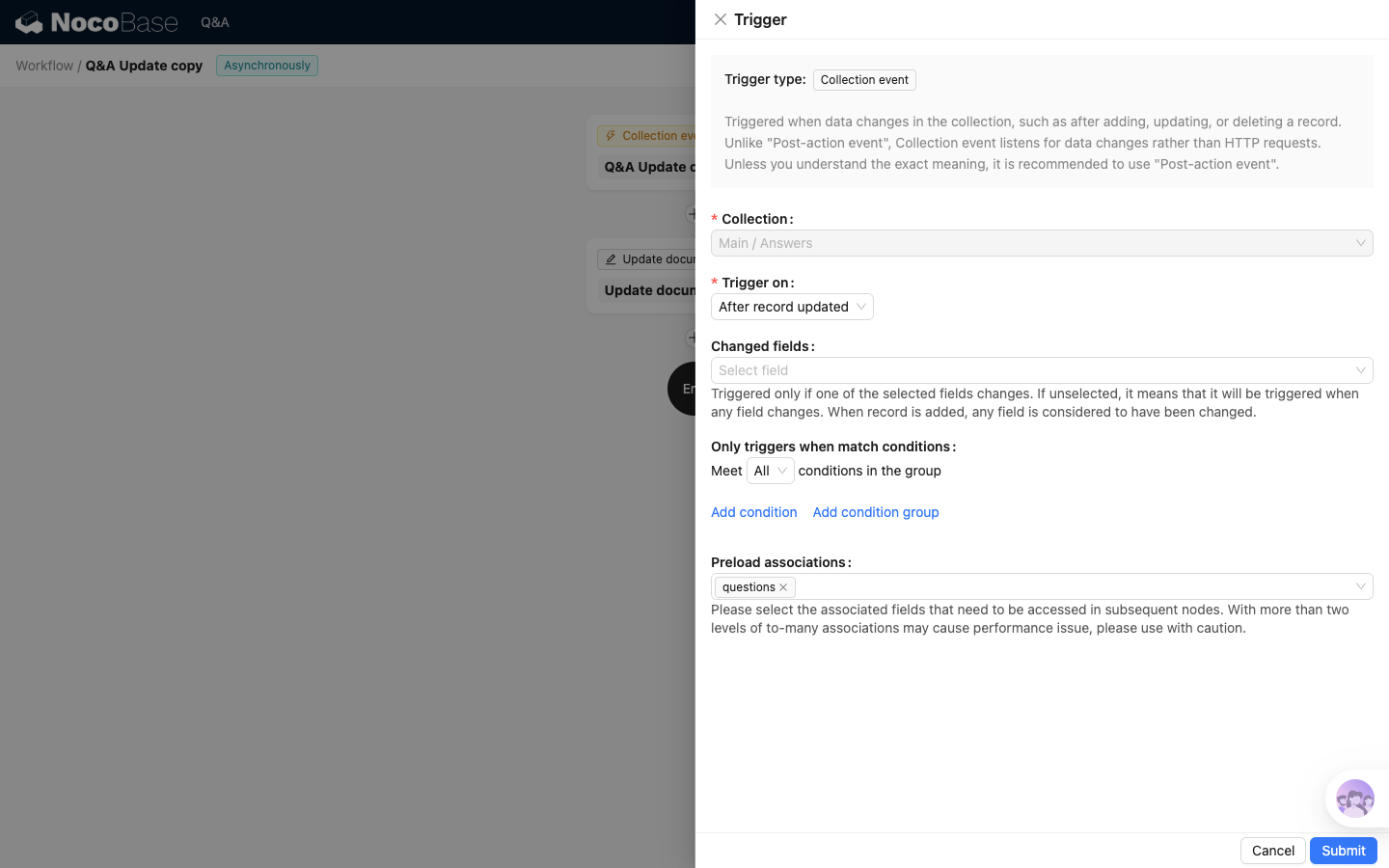
If Changed fields is not selected, any field change triggers this workflow.
Configure the Update document node
Add an Update document node after the trigger.
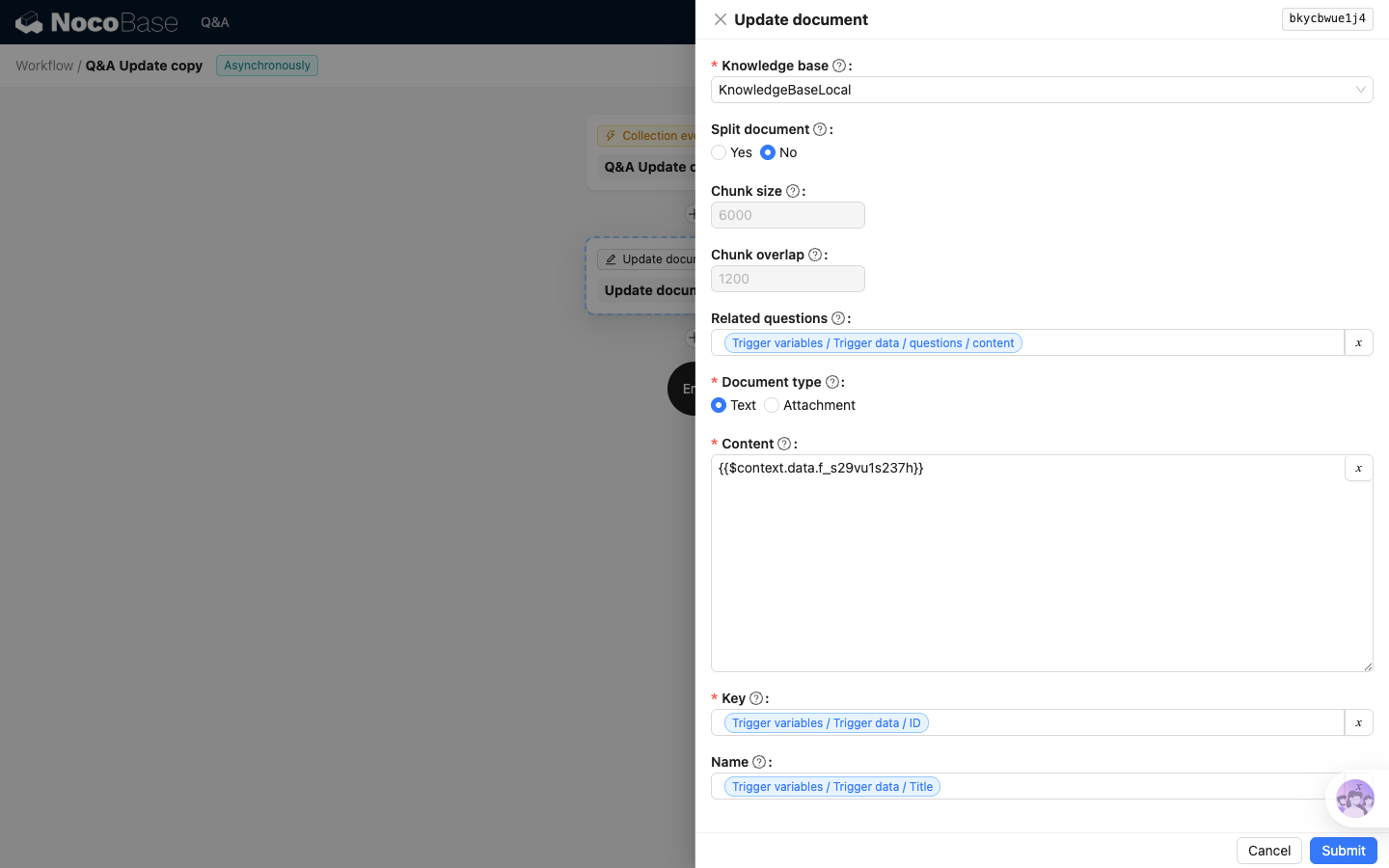
Key settings:
Most Update document settings are the same as Create document. Usually, continue using the same target knowledge base, splitting behavior, body field, and title field. If related questions also need to be synchronized, continue using Answers.questions.content.
The important difference is Key: in the Update document node, Key is required and must be exactly the same as in the Create document node. The example continues to use Answers.ID, so the node can find and overwrite the same knowledge base document.
If no document is found for the specified Key, the update fails. Before configuring this workflow, make sure the Create document workflow has already created documents with the same Key.
Next step
After configuring the Update document node, continue with Delete document. After all three workflows are configured, return to the "Verify the synchronization chain" section in Overview to verify add, update, and delete in order.