

快速开始:构建可编排的按钮组件

在 React 中,我们通常这样渲染一个按钮组件:

import { Button } from 'antd';

export default function App() {
  return <Button type="primary">Primary Button</Button>;
}

上述代码虽然简单,但属于静态组件,无法满足无代码平台对可配置性和编排能力的需求。

在 NocoBase 的 FlowEngine 中,我们可以通过 FlowModel + FlowDefinition 快速构建支持配置和事件驱动的组件,实现更强大的无代码能力。


第一步:使用 FlowModel 渲染组件

🧠 关键概念

  • FlowModel 是 FlowEngine 中的核心组件模型,封装组件逻辑、渲染和配置能力。
  • 每个 UI 组件都可以通过 FlowModel 进行实例化并统一管理。

📌 实现步骤

1. 创建自定义模型类

class MyModel extends FlowModel {
  render() {
    return <Button {...this.props} />;
  }
}

2. 创建 model 实例

const model = await this.flowEngine.createModelAsync({
  uid: 'my-model',
  use: 'MyModel',
  props: {
    type: 'primary',
    children: 'Primary Button',
  },
});

3. 使用 <FlowModelRenderer /> 渲染

<FlowModelRenderer model={model} />

第二步:添加 PropsFlow,使按钮属性可配置

💡 为什么要用 PropsFlow?

使用 Flow 而非静态 props,可以实现属性的:

  • 动态配置
  • 可视化编辑
  • 状态回放与持久化

🛠 关键改造点

1. 定义按钮属性的 Flow


const buttonSettings = defineFlow({
  key: 'buttonSettings',
  
  title: '按钮设置',
  steps: {
    setProps: {
      title: '通用配置',
      uiSchema: {
        title: {
          type: 'string',
          title: '按钮标题',
          'x-decorator': 'FormItem',
          'x-component': 'Input',
        },
        type: {
          type: 'string',
          title: '类型',
          'x-decorator': 'FormItem',
          'x-component': 'Select',
          enum: [
            { label: '主要', value: 'primary' },
            { label: '次要', value: 'default' },
            { label: '危险', value: 'danger' },
            { label: '虚线', value: 'dashed' },
            { label: '链接', value: 'link' },
            { label: '文本', value: 'text' },
          ],
        },
        icon: {
          type: 'string',
          title: '图标',
          'x-decorator': 'FormItem',
          'x-component': 'Select',
          enum: [
            { label: '搜索', value: 'SearchOutlined' },
            { label: '添加', value: 'PlusOutlined' },
            { label: '删除', value: 'DeleteOutlined' },
            { label: '编辑', value: 'EditOutlined' },
            { label: '设置', value: 'SettingOutlined' },
          ],
        },
      },
      defaultParams: {
        type: 'primary',
      },
      // 步骤处理函数,设置模型属性
      handler(ctx, params) {
        ctx.model.setProps('children', params.title);
        ctx.model.setProps('type', params.type);
        ctx.model.setProps('icon', params.icon ? React.createElement(icons[params.icon]) : undefined);
      },
    },
  },
});

MyModel.registerFlow(buttonSettings);

2. 使用 stepParams 替代静态 props

const model = await this.flowEngine.createModelAsync({
  uid: 'my-model',
  use: 'MyModel',
- props: {
-   type: 'primary',
-   children: 'Primary Button',
- },
+ stepParams: {
+   buttonSettings: {
+     general: {
+       title: 'Primary Button',
+       type: 'primary',
+     },
+   },
+ },
});

✅ 使用 stepParams 是 FlowEngine 推荐方式,可避免不可序列化数据(如 React 组件)的问题。

3. 启用属性配置界面

- <FlowModelRenderer model={model} />
+ <FlowModelRenderer model={model} showFlowSettings />

第三步:支持按钮事件流(EventFlow)

🎯 场景:点击按钮后弹出确认框

1. 监听 onClick 事件

使用无入侵的方式,添加 onClick

const myPropsFlow = defineFlow({
  key: 'buttonSettings',
  steps: {
    general: {
      // ... 省略
      handler(ctx, params) {
        // ... 省略
+       ctx.model.setProps('onClick', (event) => {
+         ctx.model.dispatchEvent('click', { event });
+       });
      },
    },
  },
});

2. 定义事件流

const myEventFlow = defineFlow({
  key: 'clickSettings',
  on: 'click',
  title: '按钮事件',
  steps: {
    confirm: {
      title: '确认操作配置',
      uiSchema: {
        title: {
          type: 'string',
          title: '弹窗提示标题',
          'x-decorator': 'FormItem',
          'x-component': 'Input',
        },
        content: {
          type: 'string',
          title: '弹窗提示内容',
          'x-decorator': 'FormItem',
          'x-component': 'Input.TextArea',
        },
      },
      defaultParams: {
        title: '确认操作',
        content: '你点击了按钮,是否确认?',
      },
      async handler(ctx, params) {
        // 弹窗
        const confirmed = await ctx.modal.confirm({
          title: params.title,
          content: params.content,
        });
        // 消息
        await ctx.message.info(`你点击了按钮,确认结果:${confirmed ? '确认' : '取消'}`);
      },
    },
  },
});
MyModel.registerFlow(myEventFlow);

补充说明:

  • 事件流(EventFlow)可以让按钮的行为通过流程灵活配置,比如弹窗、消息、API 调用等。
  • 你可以为不同事件(如 onClick, onMouseEnter 等)注册不同的事件流,满足复杂业务需求。

3. 配置事件流参数

在创建模型时,可以通过 stepParams 配置事件流的默认参数:

const model = await this.flowEngine.createModelAsync({
  uid: 'my-model',
  use: 'MyModel',
  stepParams: {
    buttonSettings: {
      general: {
        title: 'Primary Button',
        type: 'primary',
      },
    },
    clickSettings: {
      confirm: {
        title: '确认操作',
        content: '你点击了按钮,是否确认?',
      },
    },
  },
});

模型对比图:ReactComponent vs FlowModel

Flow 并不会改变组件的实现方式。它只是为 ReactComponent 增加了对 PropsFlow 和 EventFlow 的支持,从而让组件的属性和事件都可以通过可视化方式配置和编排。
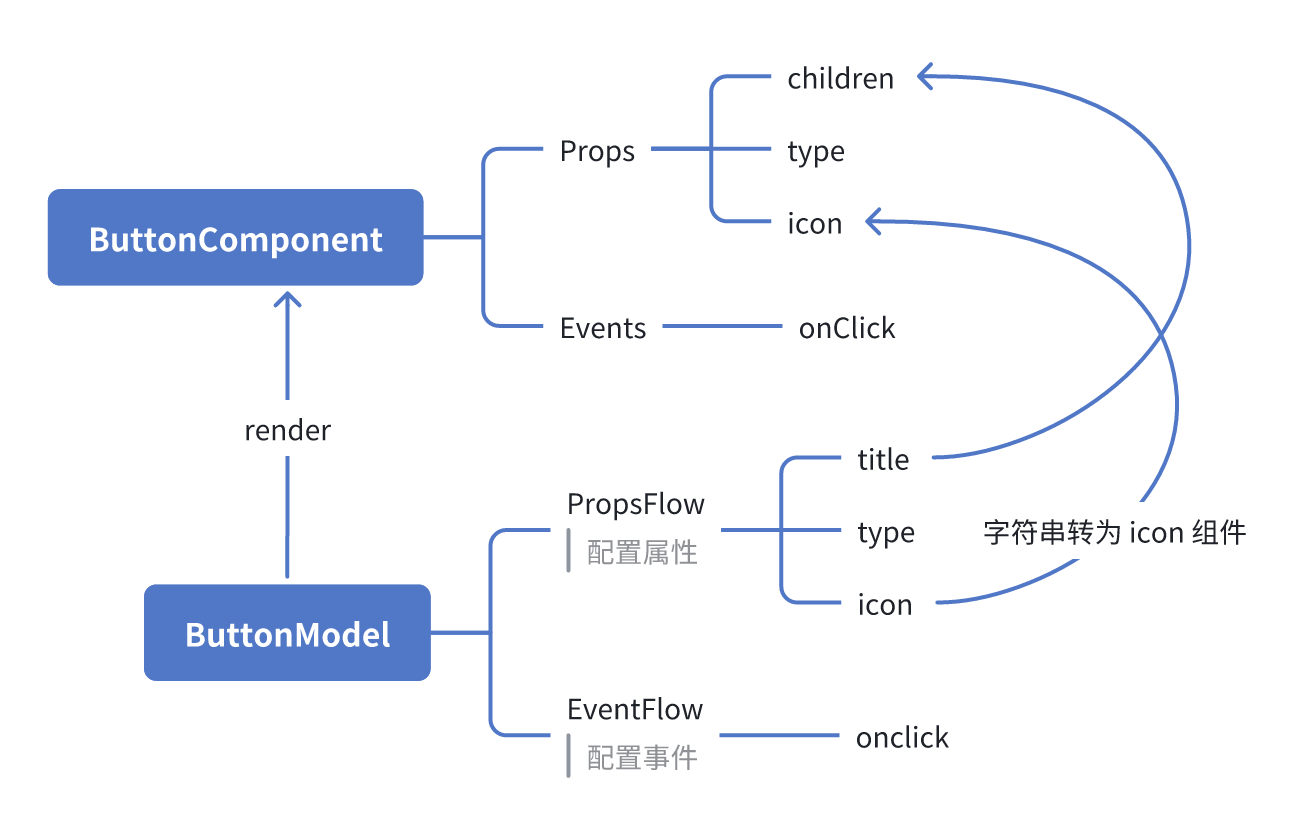
ReactComponent

graph TD
  Button[ButtonComponent]
  Button --> Props[Props]
  Button --> Events[Events]
  Props --> title[title]
  Props --> type[type]
  Props --> icon[icon]
  Events --> onClick[onClick]

FlowModel

graph TD
  Button[ButtonModel]
  Button --> Props[PropsFlow]
  Button --> Events[EventFlow]
  Props --> title[title]
  Props --> type[type]
  Props --> icon[icon]
  Events --> onClick[onClick]

总结

通过以上三步,我们完成了一个支持配置与事件编排的按钮组件,具备以下优势:

  • 🚀 可视化配置属性(如标题、类型、图标)
  • 🔄 事件响应可被流程接管(如点击弹窗)
  • 🔧 支持后续拓展(如条件逻辑、变量绑定等)

这种模式也适用于表单、列表、图表等任何 UI 组件,在 NocoBase 的 FlowEngine 中,一切皆可编排