

Gerenciamento de segmentos
AI: Knowledge baseProfessional Edition+After a document is uploaded, NocoBase first splits the body into segments according to the segmentation parameters, then writes enabled segments into the vector store. RAG retrieval matches these segments, not the original whole document. Split document, Chunk size, and Chunk overlap affect the number of segments, context length, and continuity between adjacent segments.
Open segment management
Open the knowledge base Documents page, then click Segments on the right side of a document. The Segment management dialog shows all segments generated for the current document.
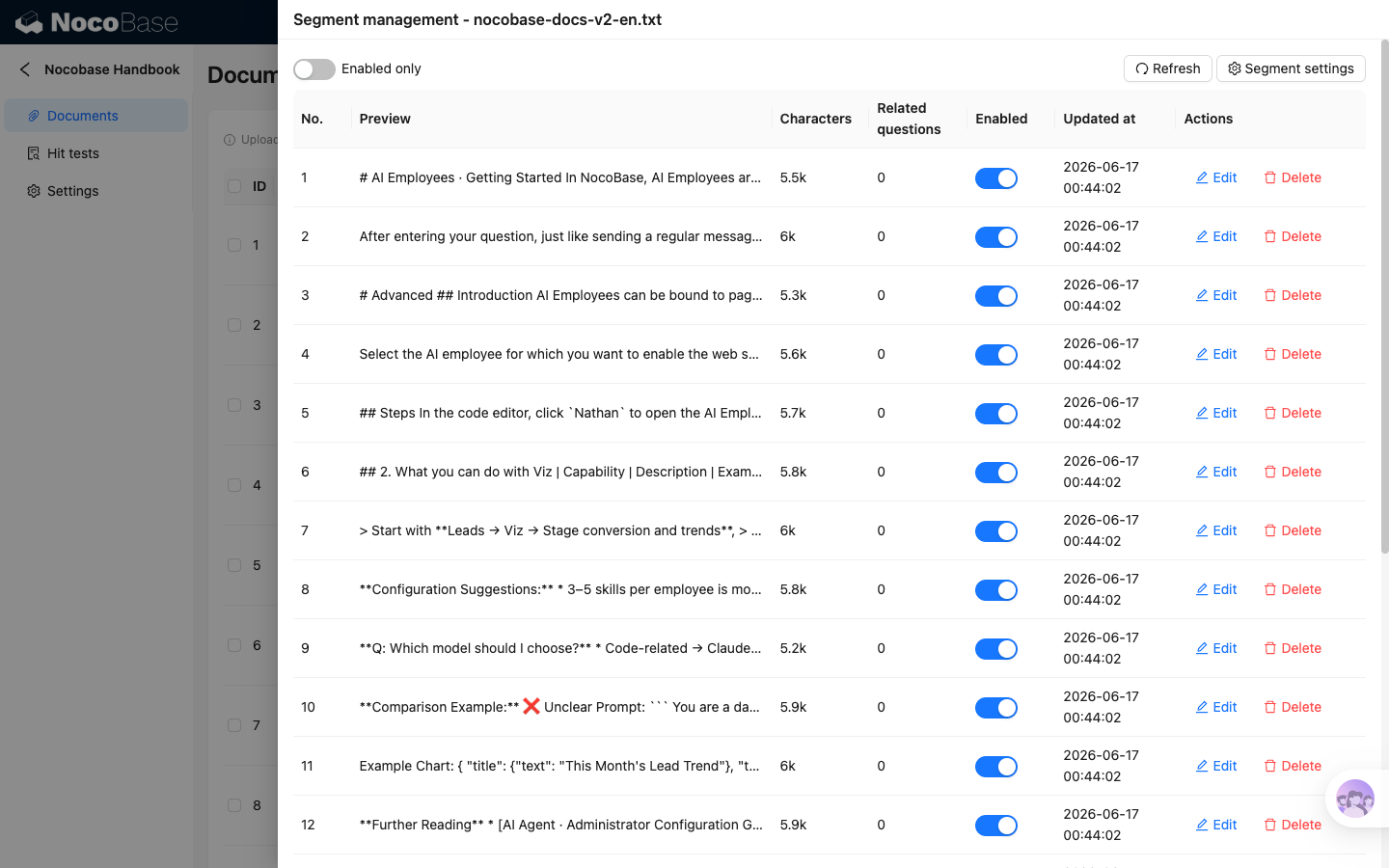
View the segment list
The segment list shows:
After Enabled only is turned on, the list only shows enabled segments. This switch only affects display and does not modify segment data.
If a document was uploaded with an earlier version of the knowledge base plugin, its segment information may not have been saved separately. Earlier versions of the knowledge base plugin stored segment content and segment vectors together in the vector database, so the segment list in Segment management may be empty.
This does not affect knowledge base retrieval. You only need to run vectorization again or regenerate segments if you need to view or edit the segment list. Usually, you do not need to reprocess documents only to make data appear in the list.
Edit a segment
Click Edit on the right side of a segment to open its detail view.
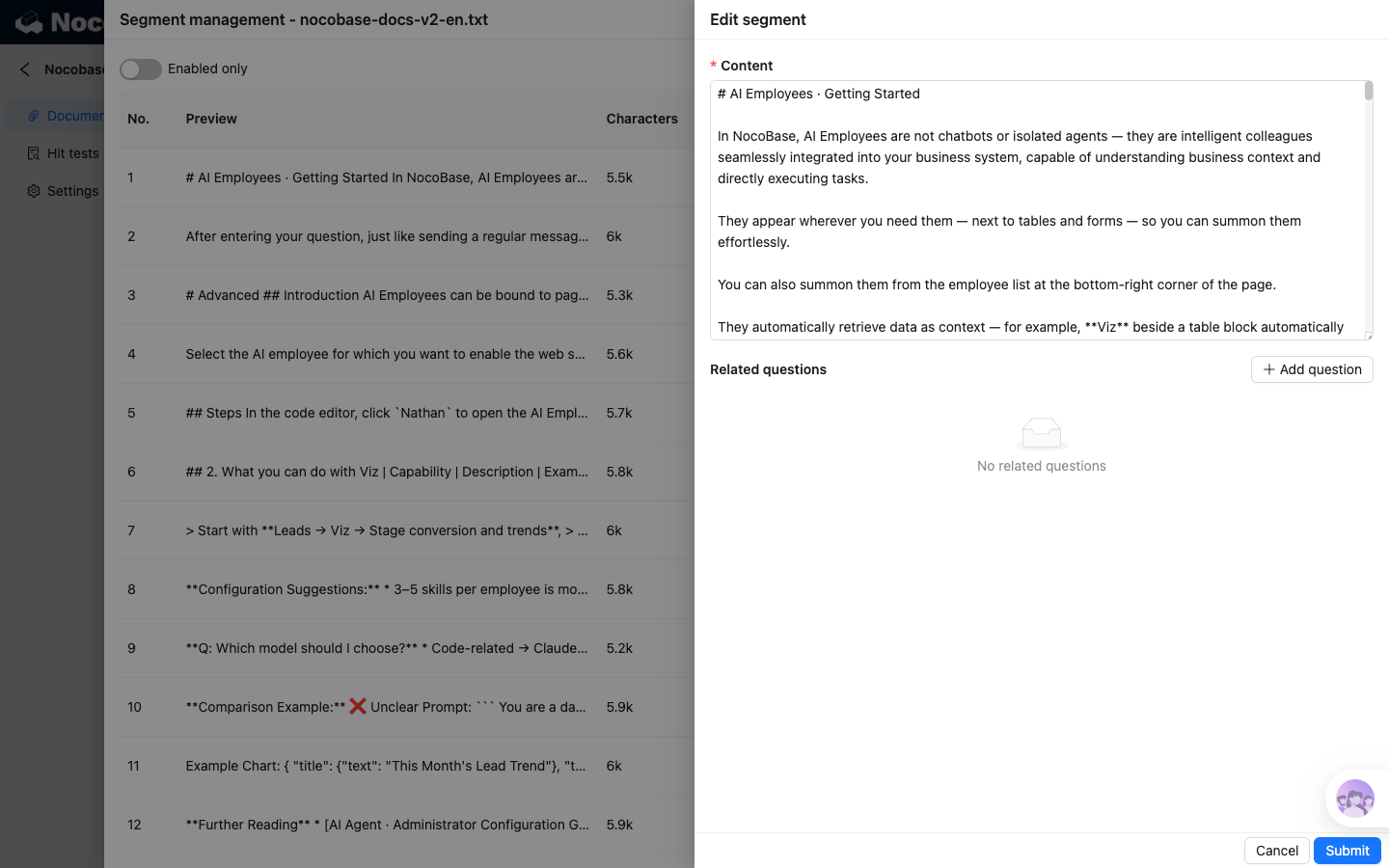
You can edit:
- Content: segment body
- Related questions: additional searchable phrasings
Related questions are used to add common phrasings for the current segment. They do not rewrite the segment body, but they participate in vector retrieval. If a user question closely matches a related question, the retrieval result returns the document segment associated with that related question.
After saving, NocoBase updates the segment file and triggers vectorization for the current document. When you return to the Documents list, the status may briefly show Pending.
Enable, disable, and delete segments
The Enabled switch controls whether a single segment participates in retrieval:
- Enabled: the segment is written to the vector store and can be retrieved by RAG and hit tests
- Disabled: the segment remains in the list but does not participate in later vectorization or retrieval
Click Delete to delete the current segment and its vector data. After deletion, the document segment count and character count are recalculated.
Disabling or deleting a segment triggers vectorization again. Before processing finishes, the document status may show Pending.
Regenerate segments
Click Segment settings in the upper-right corner to reset segmentation parameters for the current document.
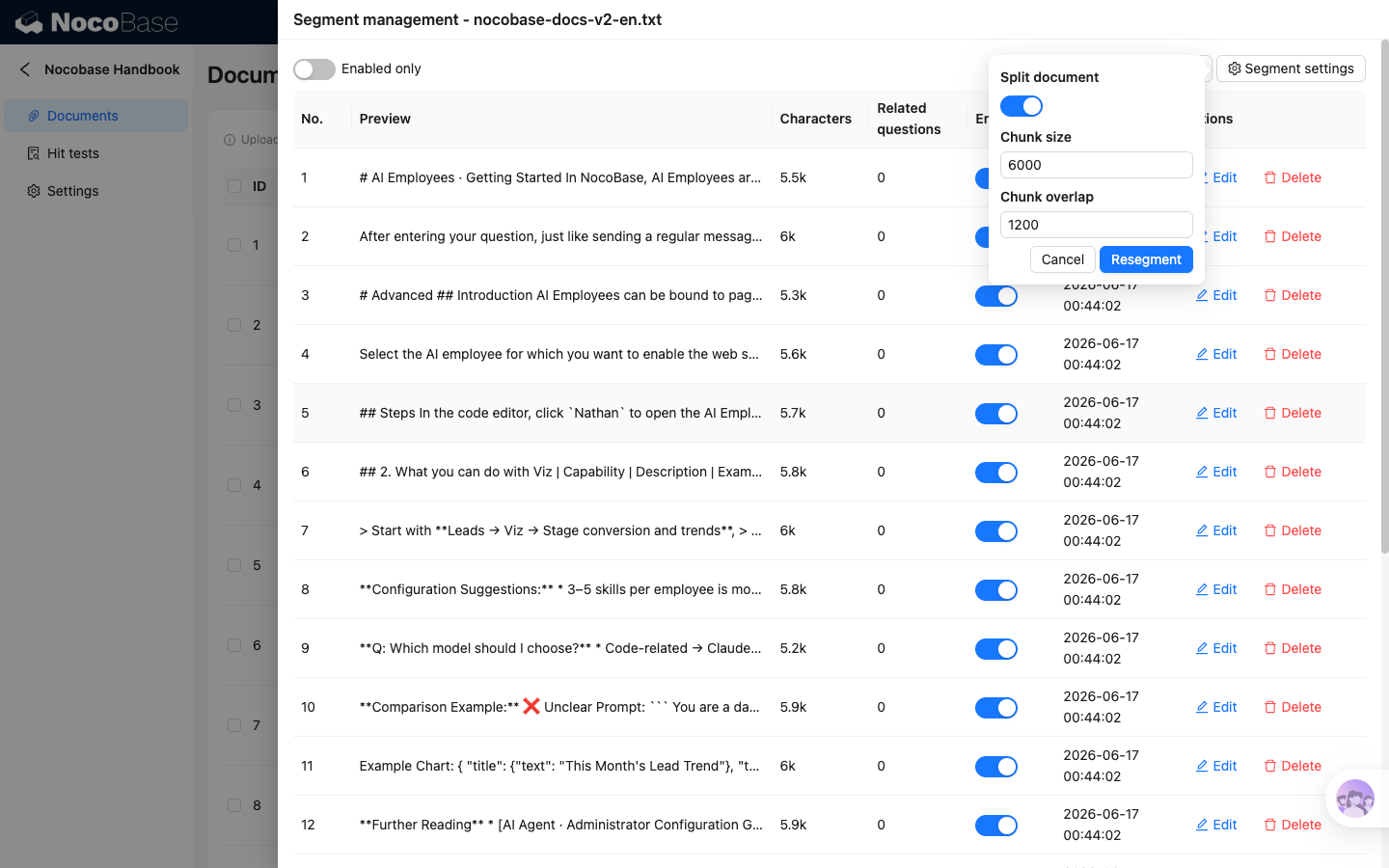
The settings are:
- Split document: whether to split the document according to the parameters. When enabled, multiple segments are generated; when disabled, the whole document is used as one segment
- Chunk size: maximum number of characters in each segment, default
6000. Smaller values create finer segments; larger values keep more context in a single matched result - Chunk overlap: number of overlapping characters kept between adjacent segments, default
1200. A reasonable overlap reduces context breaks at segment boundaries
Click Resegment to regenerate segments with the current parameters.
Regenerating segments discards manually edited segment content and related questions. Only run this action when you are sure the document should be rebuilt with new parameters.