

Multi-conditions v2.0.0+
Introduction
Similar to switch / case or if / else if statements in programming languages. The system evaluates configured conditions sequentially. Once a condition is met, the workflow executes the corresponding branch and skips subsequent condition checks. If no conditions are met, the "Otherwise" branch is executed.
Create Node
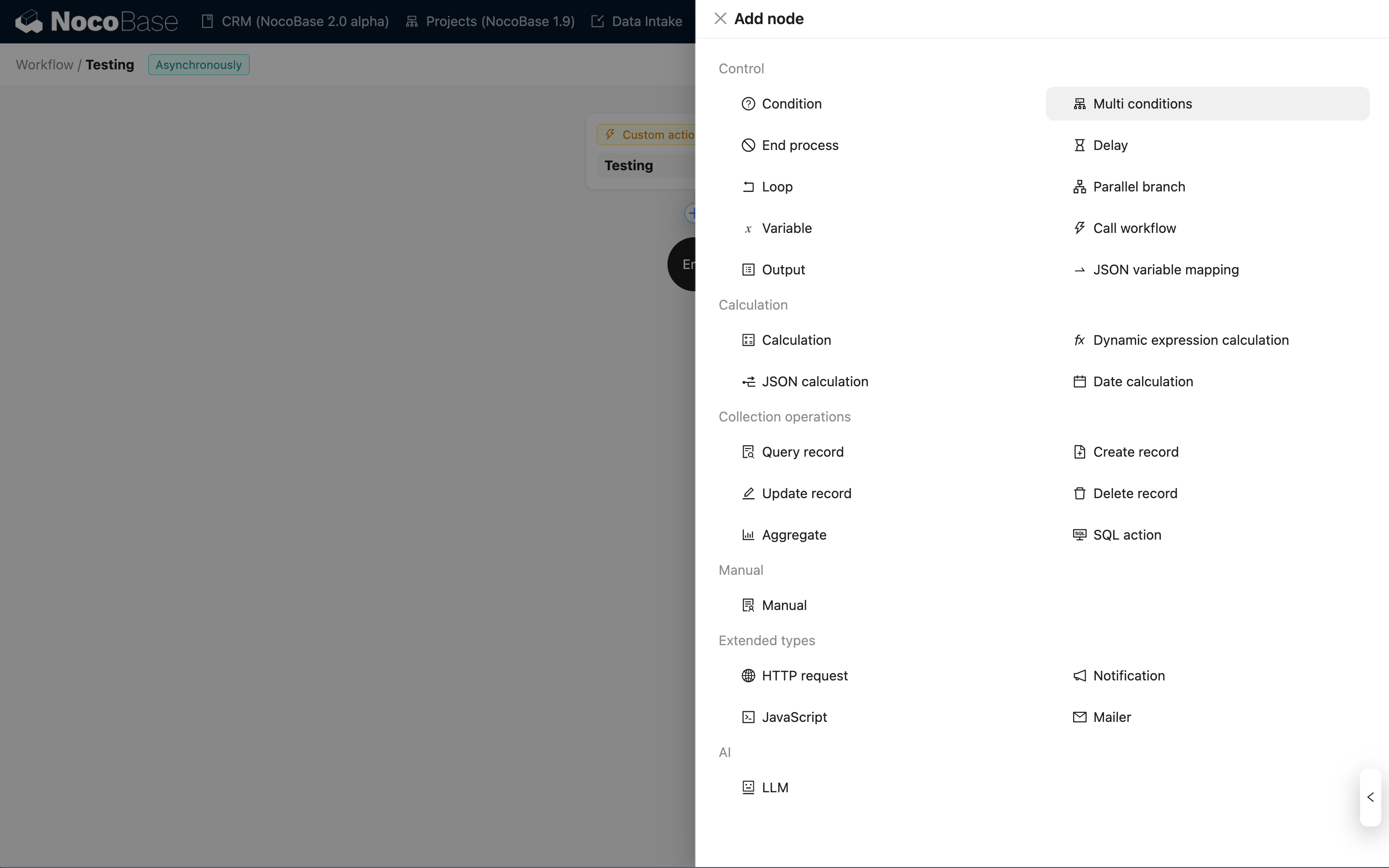
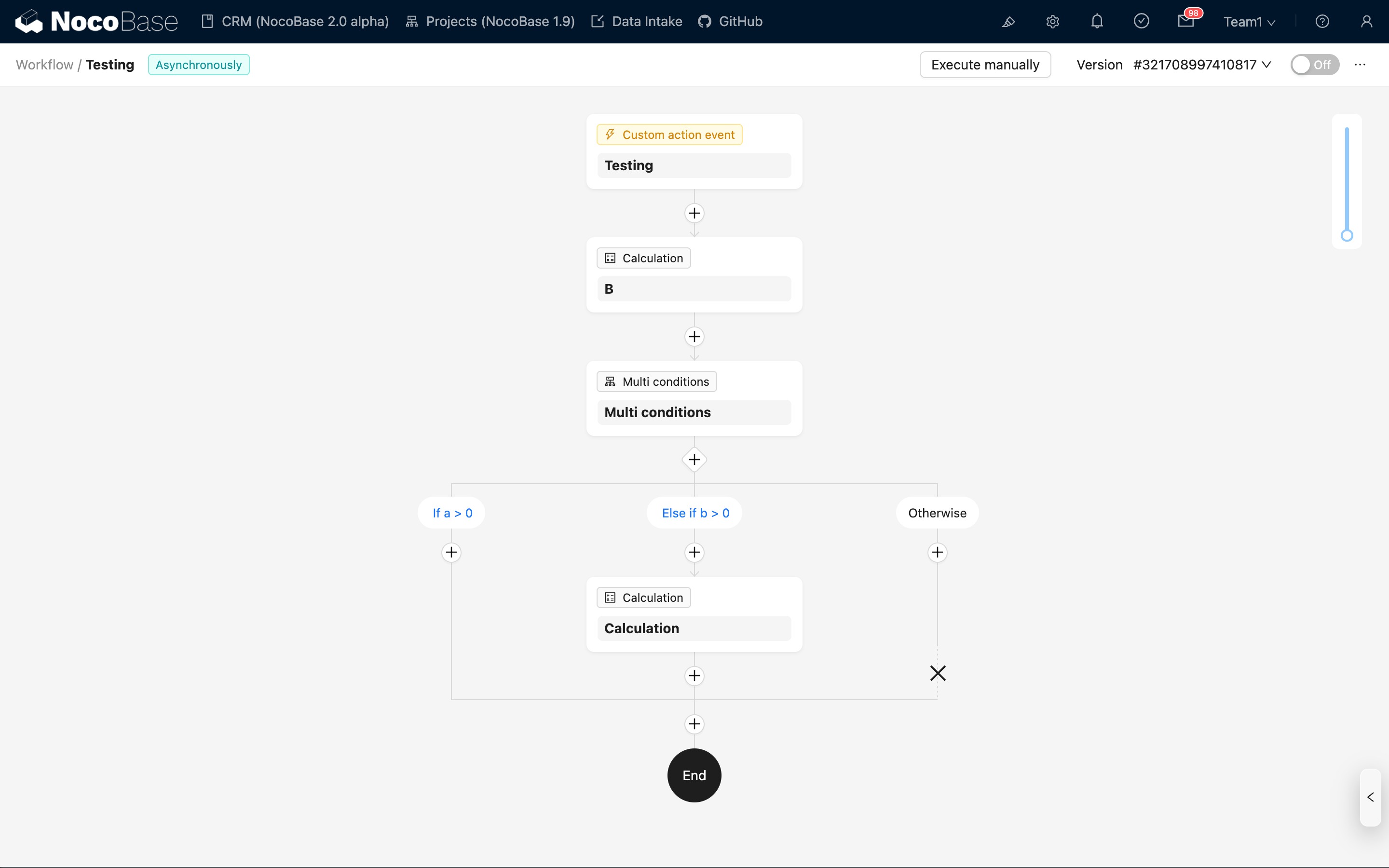
In the workflow configuration interface, click the plus ("+") button in the flow to add a "Multi-conditions" node:
Branch Management
Default Branches
After creation, the node includes two branches by default:
- Condition Branch: For configuring specific judgment conditions.
- Otherwise Branch: Entered when no condition branches are met; requires no condition configuration.
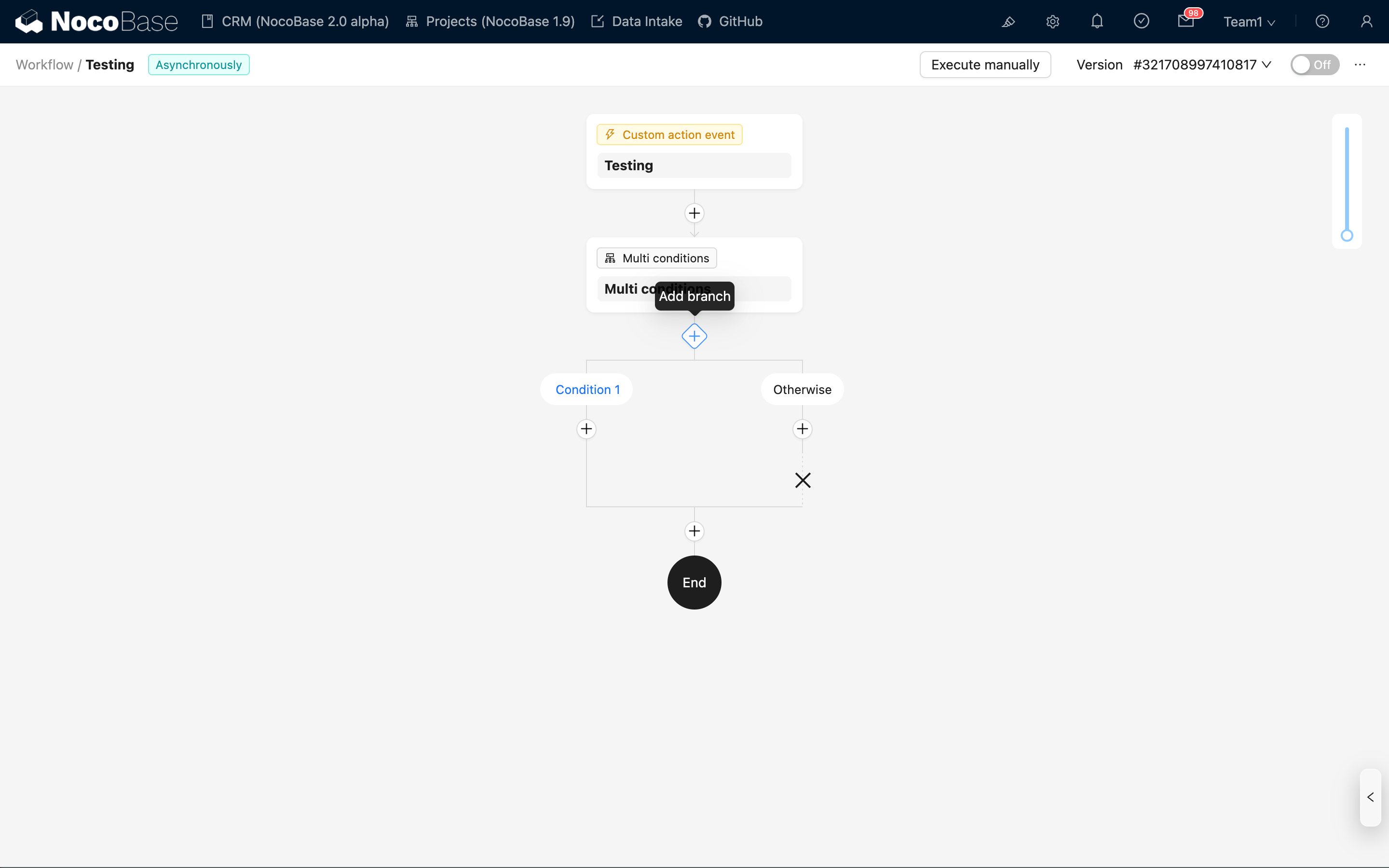
Click the "Add branch" button below the node to add more condition branches.
Add Branch
After clicking "Add branch", the new branch is appended before the "Else" branch.
Delete Branch
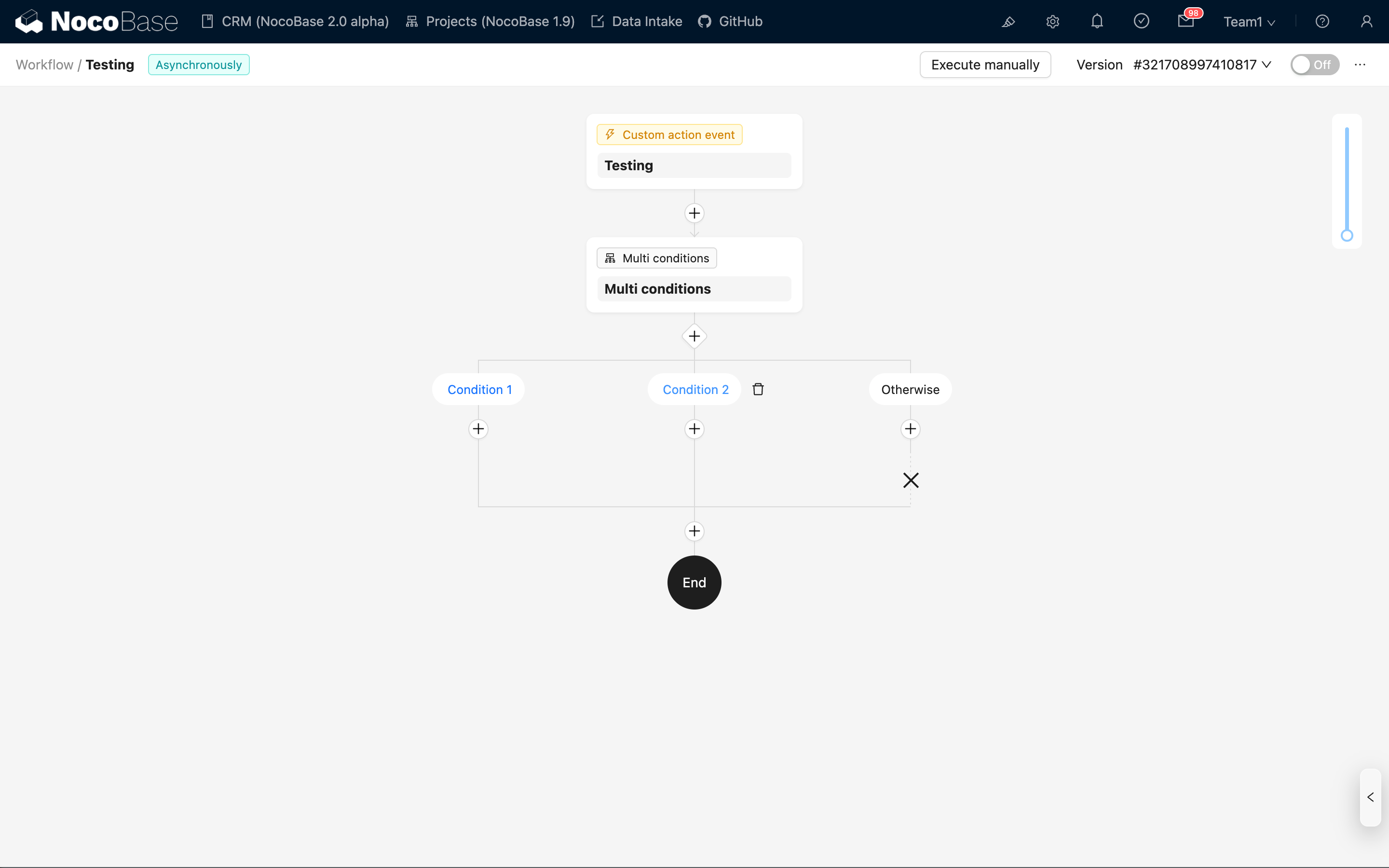
When multiple condition branches exist, click the trash icon on the right of a branch to delete it. If only one condition branch remains, it cannot be deleted.

Deleting a branch will also delete all nodes within it; please proceed with caution.
The "Else" branch is a built-in branch and cannot be deleted.
Node Configuration
Condition Configuration
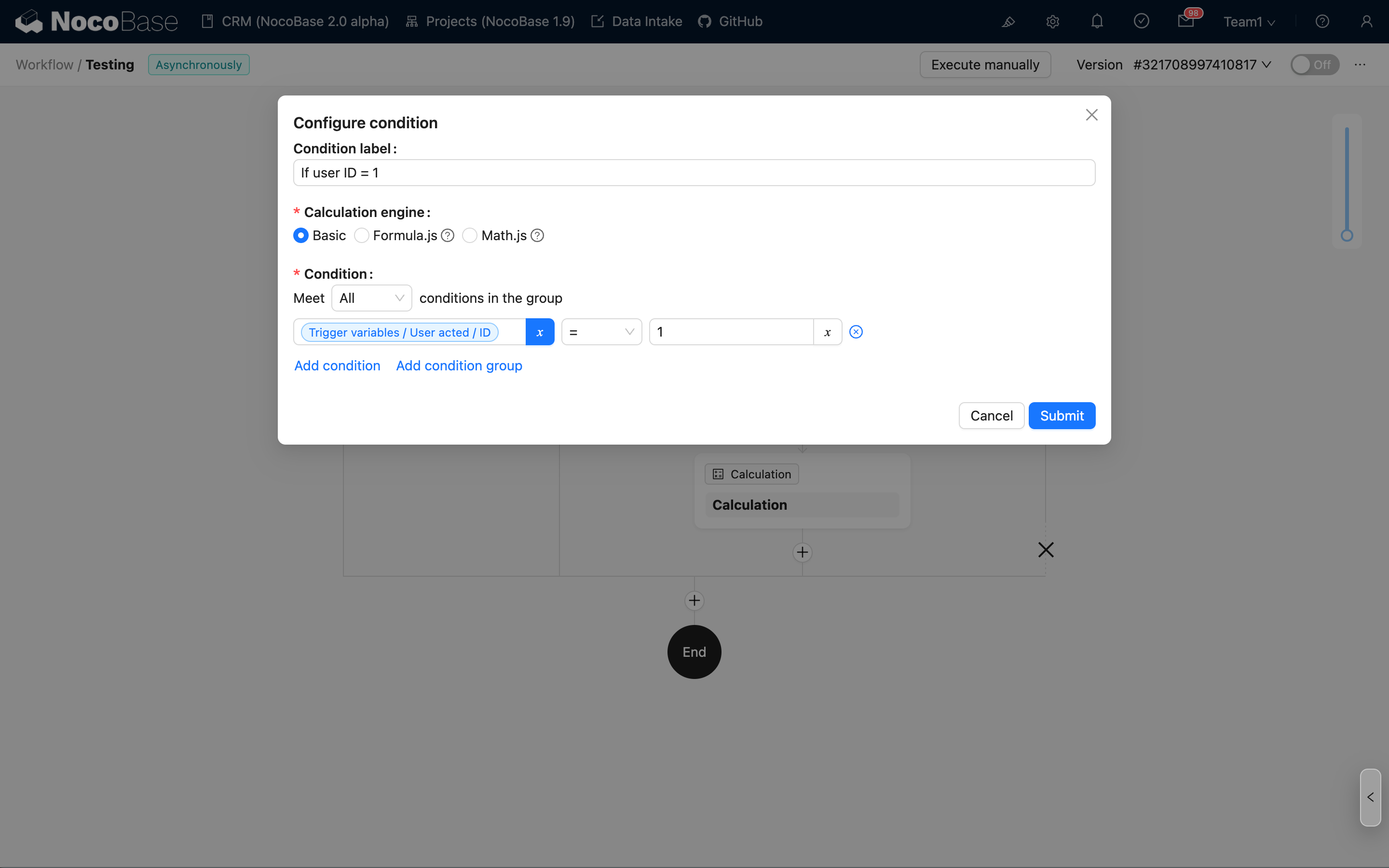
Click the condition name at the top of a branch to edit specific condition details:
Condition Label
Supports custom labels. Once filled, it will be displayed as the condition name in the flowchart. If not configured (or left empty), it defaults to "Condition 1", "Condition 2", etc., in sequence.
Calculation Engine
Currently supports three engines:
- Basic: Uses simple logical comparisons (e.g., equals, contains) and "AND"/"OR" combinations to determine results.
- Math.js: Supports expression calculation using Math.js syntax.
- Formula.js: Supports expression calculation using Formula.js syntax (similar to Excel formulas).
All three modes support using workflow context variables as parameters.
When No Conditions Are Met
In the node configuration panel, you can set the subsequent action when no conditions are met:
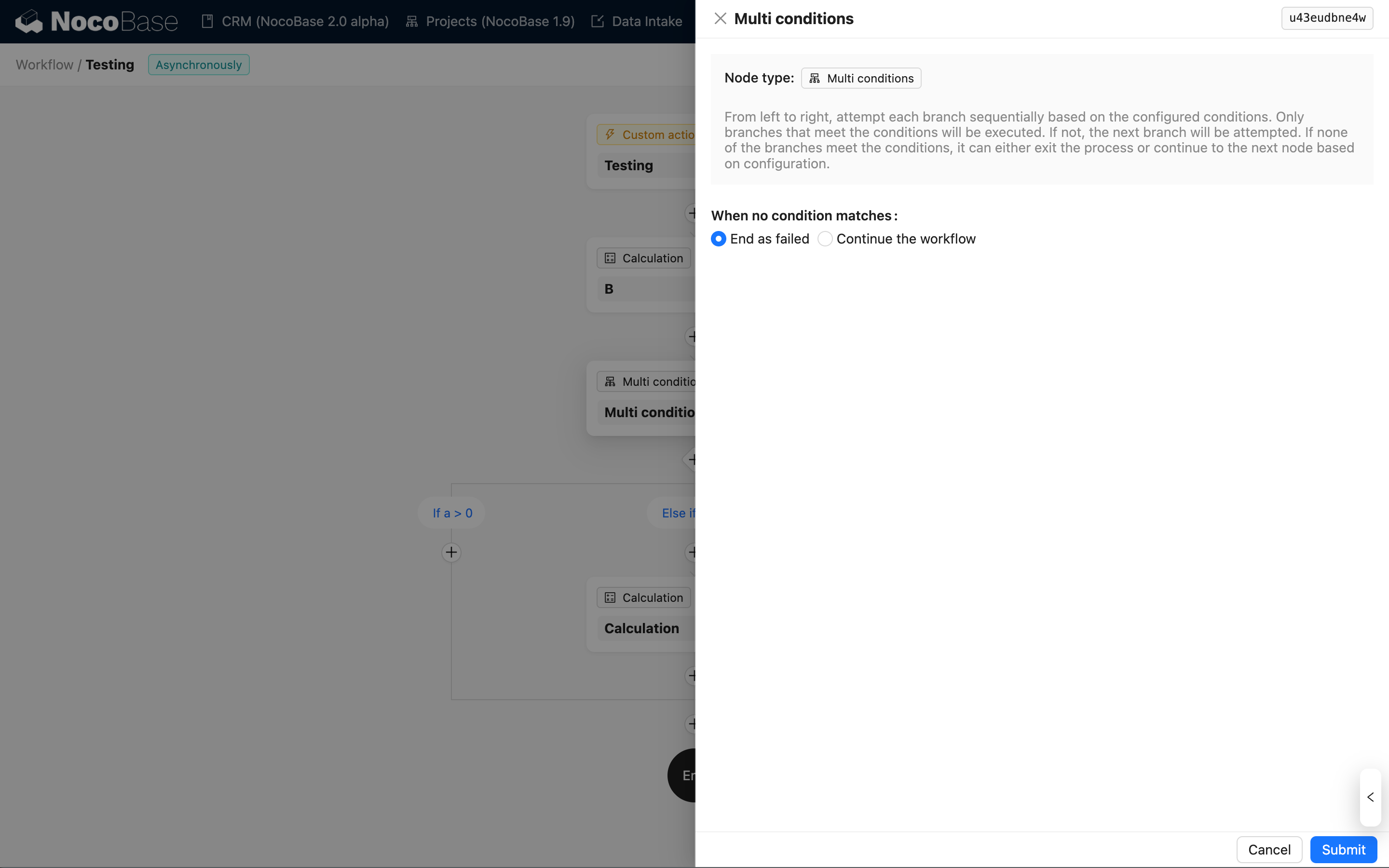
- End workflow with failure (Default): Marks the workflow status as failed and terminates the process.
- Continue to execute subsequent nodes: After the current node finishes, continues executing subsequent nodes in the workflow.
Regardless of the chosen handling method, when no conditions are met, the flow will first enter the "Else" branch to execute nodes within it.
Execution History
In the workflow execution history, the Multi-conditions node identifies the result of each condition using different colors:
- Green: Condition met; entered this branch.
- Red: Condition not met (or calculation error); skipped this branch.
- Blue: Judgment not executed (skipped because a preceding condition was already met).

If a configuration error causes a calculation exception, in addition to displaying as red, hovering over the condition name will show specific error information:
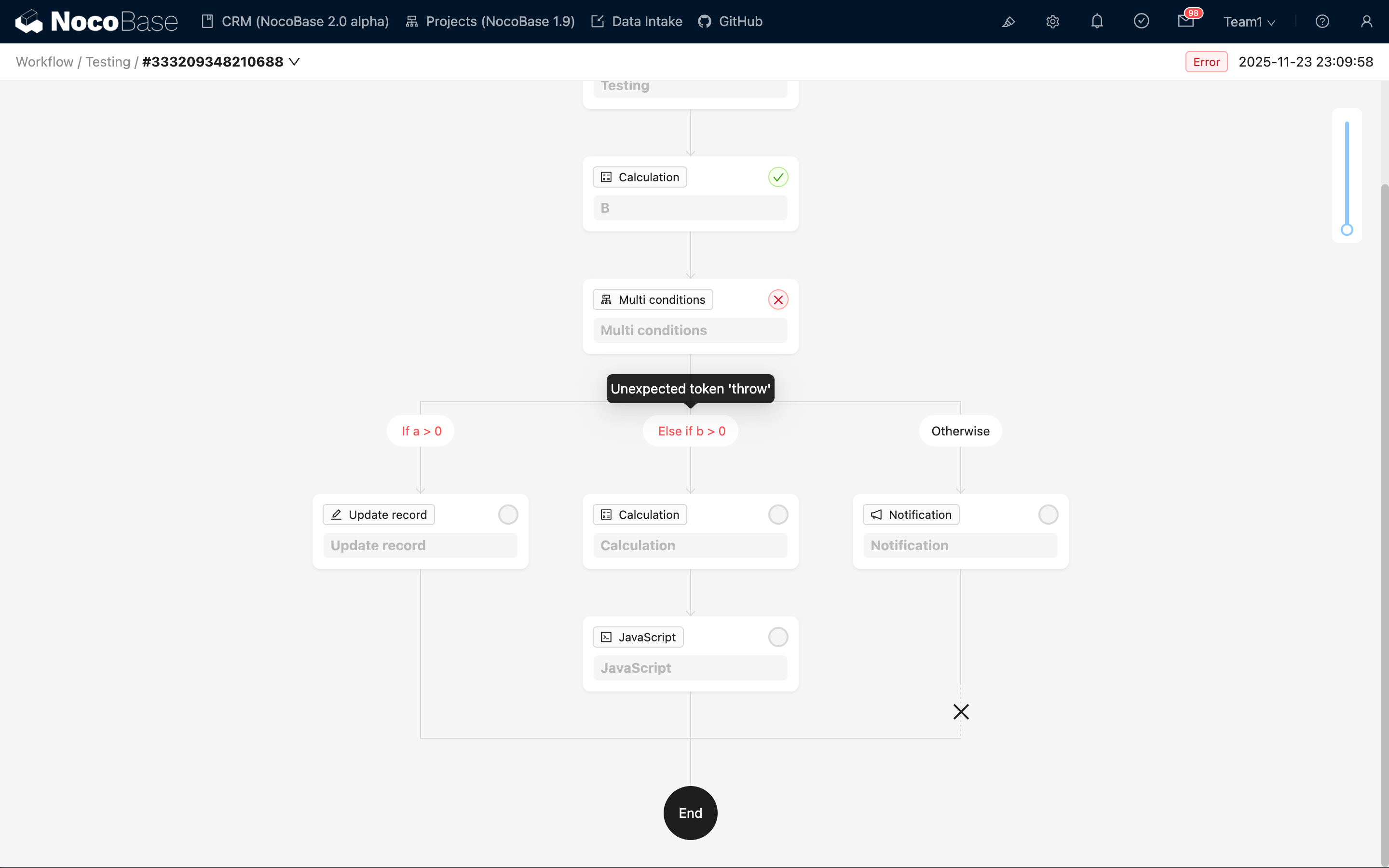
When a condition calculation exception occurs, the Multi-conditions node will end with an "Error" status and will not continue executing subsequent nodes.