

Database Transaction
Workflow: Database transaction nodeEnterprise Edition+Introduction
The database transaction node runs a group of database operations in the same transaction. It is suitable for scenarios where multiple data steps must either all succeed or all roll back, such as creating an order, deducting inventory, writing order details, and updating status.
The transaction node currently supports database data sources only. Data operations from the same data source inside the node are automatically included in the transaction; other data sources do not use this transaction.
This node has been supported since 2.2.0.
Create Node
In the workflow configuration interface, click the plus ("+") button in the flow to add a "Database transaction" node.
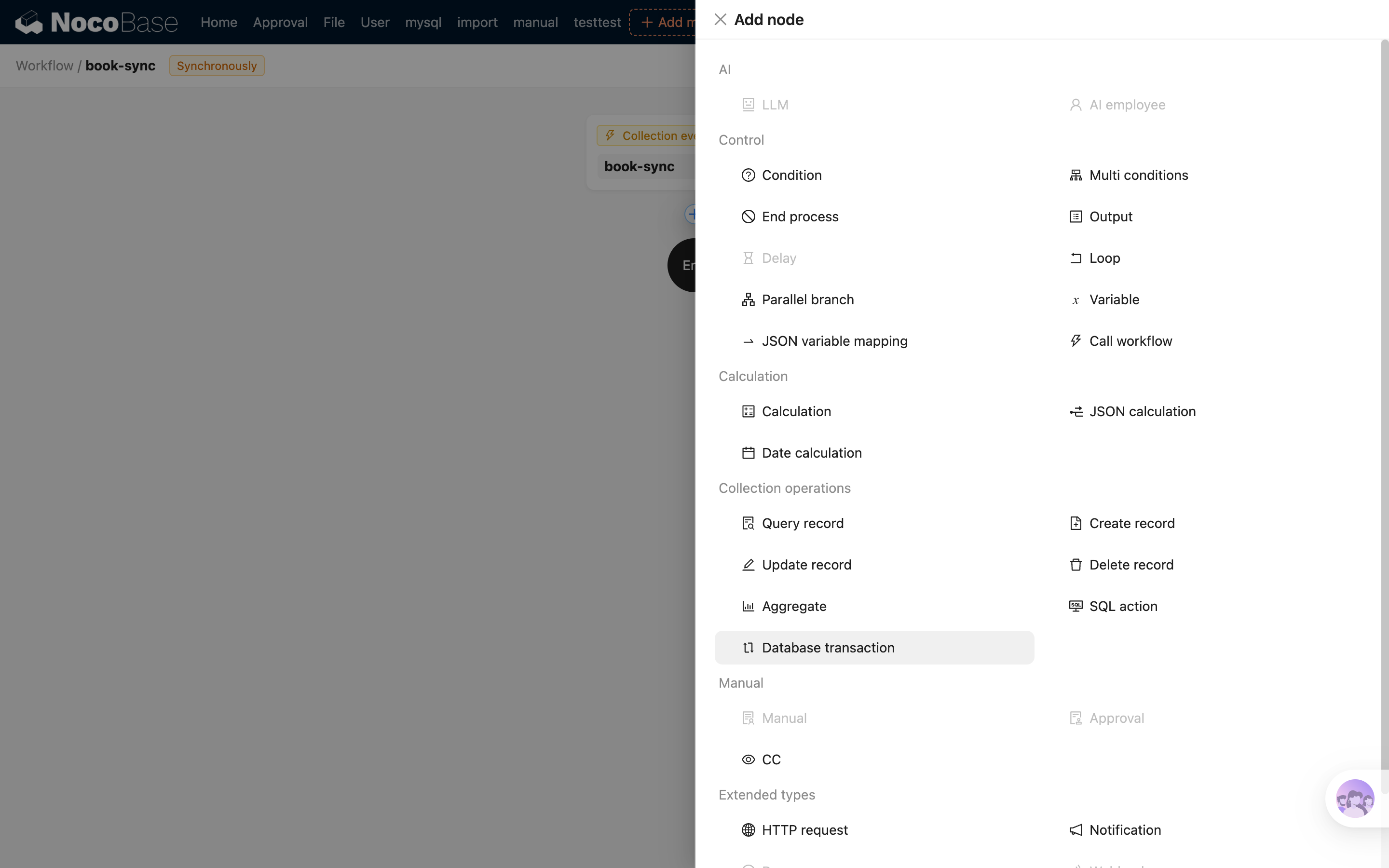
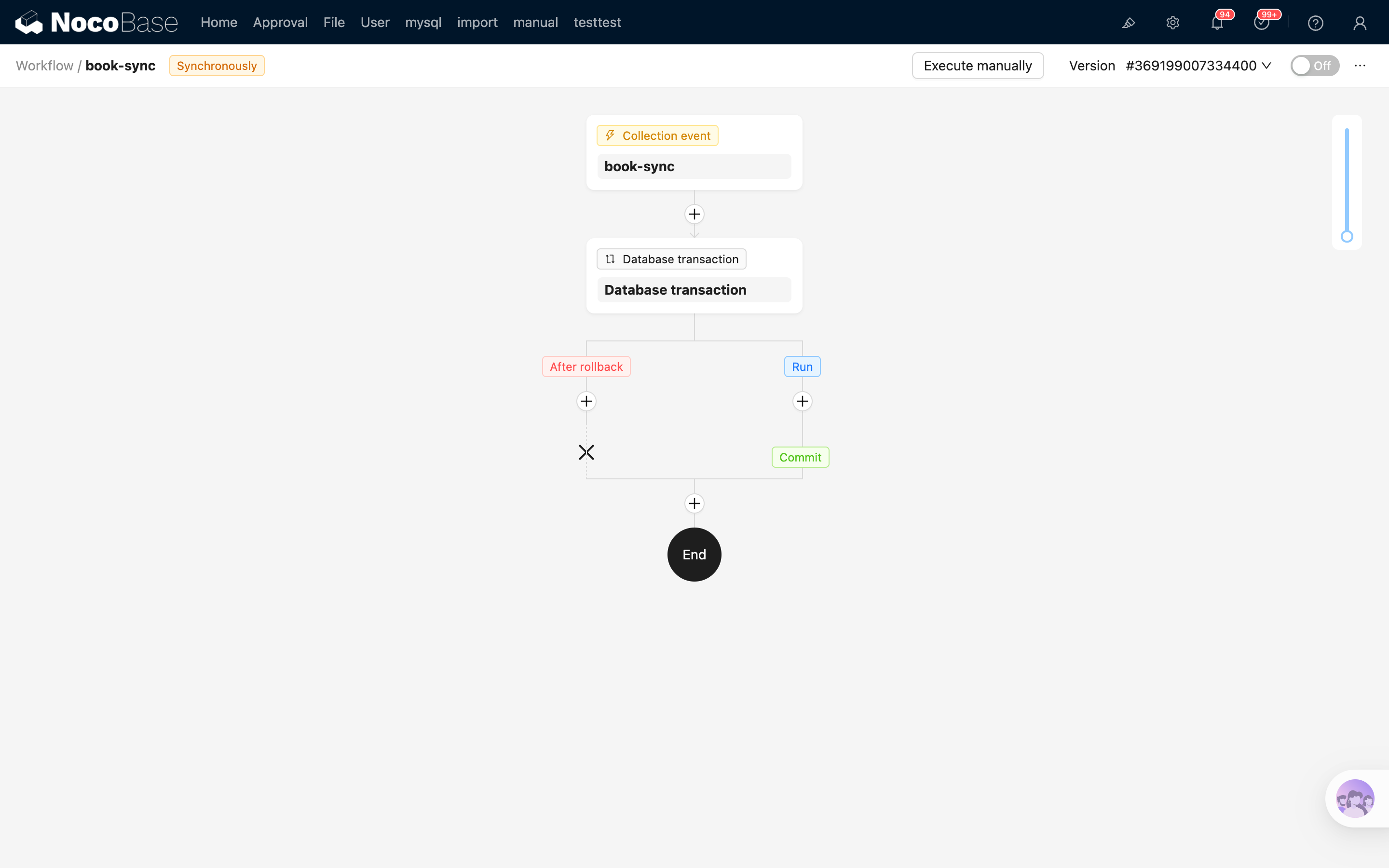
After creation, two branches are generated:
- Run: The main branch executed inside the transaction. If all nodes in this branch succeed, the transaction is committed automatically. If any node fails or throws an error, the transaction is rolled back automatically.
- After rollback: The branch executed after rollback. This branch runs outside the transaction and can be used to record logs, send notifications, or perform compensation handling.
Node Configuration
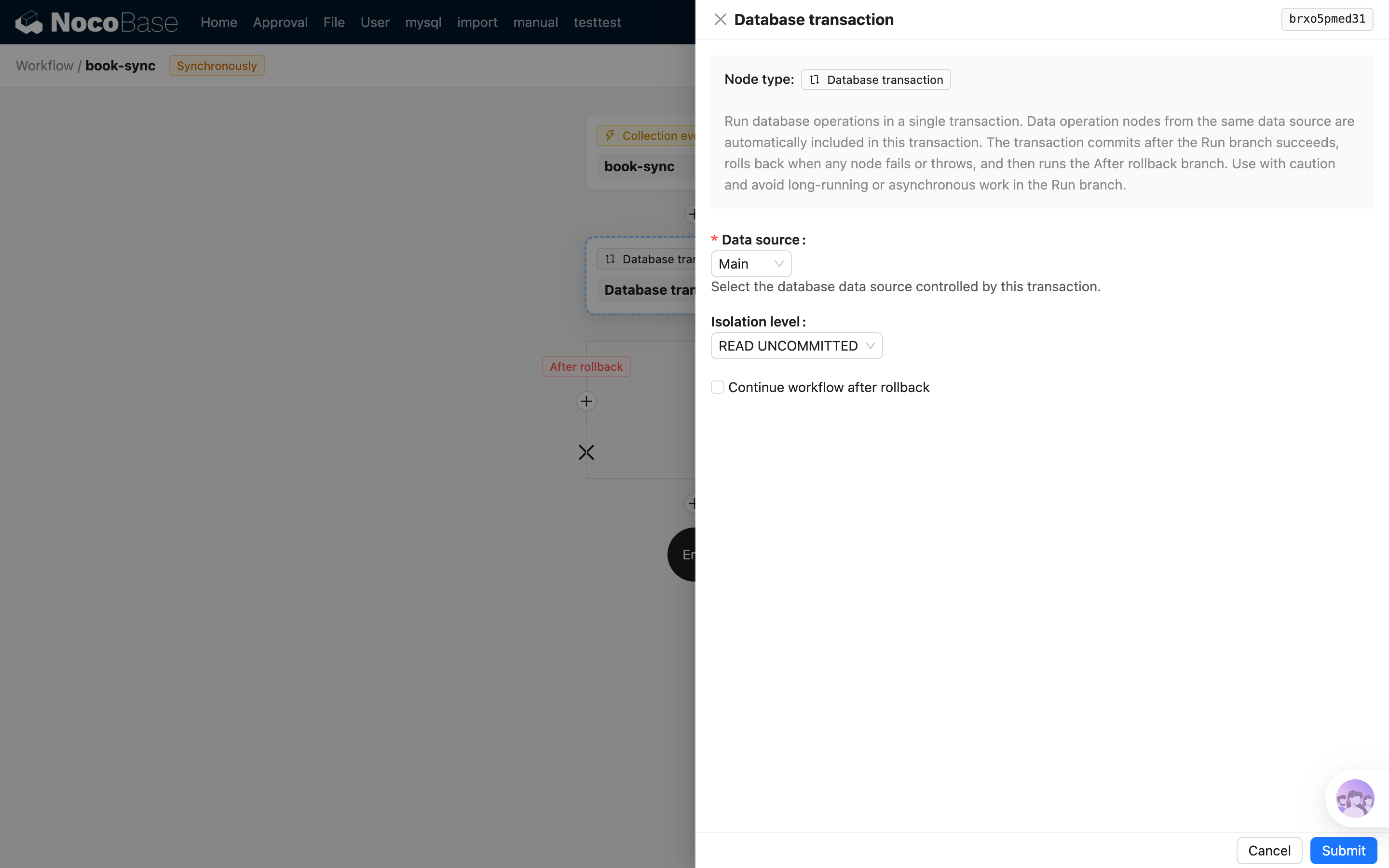
Data Source
Select the database data source controlled by this transaction. Only data operation nodes from the same data source are automatically included in the transaction.
Isolation Level
Set the transaction isolation level. The default value is READ UNCOMMITTED. If your business requires stricter data consistency, choose another isolation level based on database capabilities and concurrency requirements.
Continue Workflow After Rollback
When enabled, the workflow continues to the nodes after the transaction node after the After rollback branch finishes.
When disabled, the workflow stops at the transaction node after the After rollback branch finishes, and subsequent nodes are not executed.
Usage
Constraints
The Run branch does not support asynchronous nodes that suspend the workflow, such as manual handling and delay nodes. The transaction must be committed or rolled back during the current execution. If the Run branch enters a waiting state, the system rolls back the transaction and marks the workflow as failed.
The After rollback branch runs outside the transaction, so it is not subject to the above restriction. You can use asynchronous nodes in this branch as needed, such as sending requests, waiting for manual confirmation, or delaying processing.
Transactions occupy database connections until they are committed or rolled back. Avoid long-running operations in the Run branch and keep only the necessary data reads, writes, and checks there.
Nested Transactions
Transaction nodes can be nested, but you need to pay attention to the data source scope:
- If the inner and outer transactions use the same data source, the inner transaction is created within the outer transaction scope and is handled according to the database and Sequelize capabilities.
- If the inner transaction uses a different data source, it does not reuse the outer transaction and creates an independent transaction for that data source.
- If the workflow is triggered by a synchronous collection event, the trigger itself may already provide a top-level transaction for the same data source. The transaction node preferentially reuses the outer transaction of the same data source and does not reuse transactions from different data sources.
Nested transactions increase the cost of understanding and troubleshooting. In general, use nested transactions only when you really need a local rollback boundary. Otherwise, prefer wrapping the complete data processing flow in a single transaction node.
Common Scenario
A typical flow is as follows:
- Query or create related data in the
Runbranch. - Continue updating inventory, status, details, and other data from the same data source in the
Runbranch. - If all steps succeed, the transaction is committed automatically.
- If any node fails or throws an error, the transaction is rolled back automatically and the workflow enters the
After rollbackbranch. - Record the failure reason, send notifications, or perform compensation logic in the
After rollbackbranch.
If the workflow needs to continue after rollback, enable "Continue workflow after rollback".