

Set Up a Local Development Environment on Windows with WSL
For local NocoBase development on Windows, we recommend preparing WSL 2 first. This lets Node.js, Yarn, NocoBase CLI, Docker commands, and AI Agents run in the same Linux shell, with paths, permissions, and native dependency builds closer to common Linux deployment environments.
If you are not sure whether you need WSL, see Local Development Setup first.
Before You Start
Before installing WSL, check your Windows version and virtualization status.
Check the Windows Version
Press Win + R, enter winver, and confirm that your system meets one of the following requirements:
- Windows 11
- Windows 10 version 2004 or later, Build 19041 or later
If your version is older, upgrade Windows before continuing.
Check Virtualization
Open Task Manager, go to Performance / CPU, and confirm that Virtualization is shown as Enabled.
If virtualization is not enabled, enable it in BIOS / UEFI. The option name varies by vendor, such as Intel VT-x, Intel Virtualization Technology, AMD-V, or SVM Mode.
Step 1: Install WSL 2
Open PowerShell as administrator:
- Open the Windows Start menu
- Search for
PowerShell - Right-click and choose Run as administrator
Run:
Restart your computer after installation.
By default, this command installs Ubuntu. When Ubuntu starts for the first time, it asks you to create a Linux username and password. This username and password are only used inside WSL and do not need to match your Windows account.
To install a specific distribution, list the available distributions first:
Then install a distribution, such as Ubuntu:
Step 2: Confirm the WSL Version
Run the following command in PowerShell:
The output should look like this:
Confirm that VERSION is 2. If a distribution is still using WSL 1, convert it to WSL 2:
We also recommend setting WSL 2 as the default version for newly installed distributions:
You can also update WSL once:
Step 3: Install Docker Desktop
If you plan to install or run NocoBase with Docker, install Docker Desktop for Windows.
Download the installer from the Docker documentation:
During installation, pay attention to these options:
- Usually, choose
Per-userfor personal local development - On the configuration page, select
Use WSL 2 instead of Hyper-V - After installation, start Docker Desktop from the Windows Start menu
- On first launch, read and accept the Docker Desktop Subscription Service Agreement
Step 4: Enable Docker WSL Integration
After Docker Desktop starts, first confirm that the WSL 2 backend is enabled:
- Go to Docker Desktop / Settings / General
- Confirm that Use the WSL 2 based engine is enabled
- Click Apply
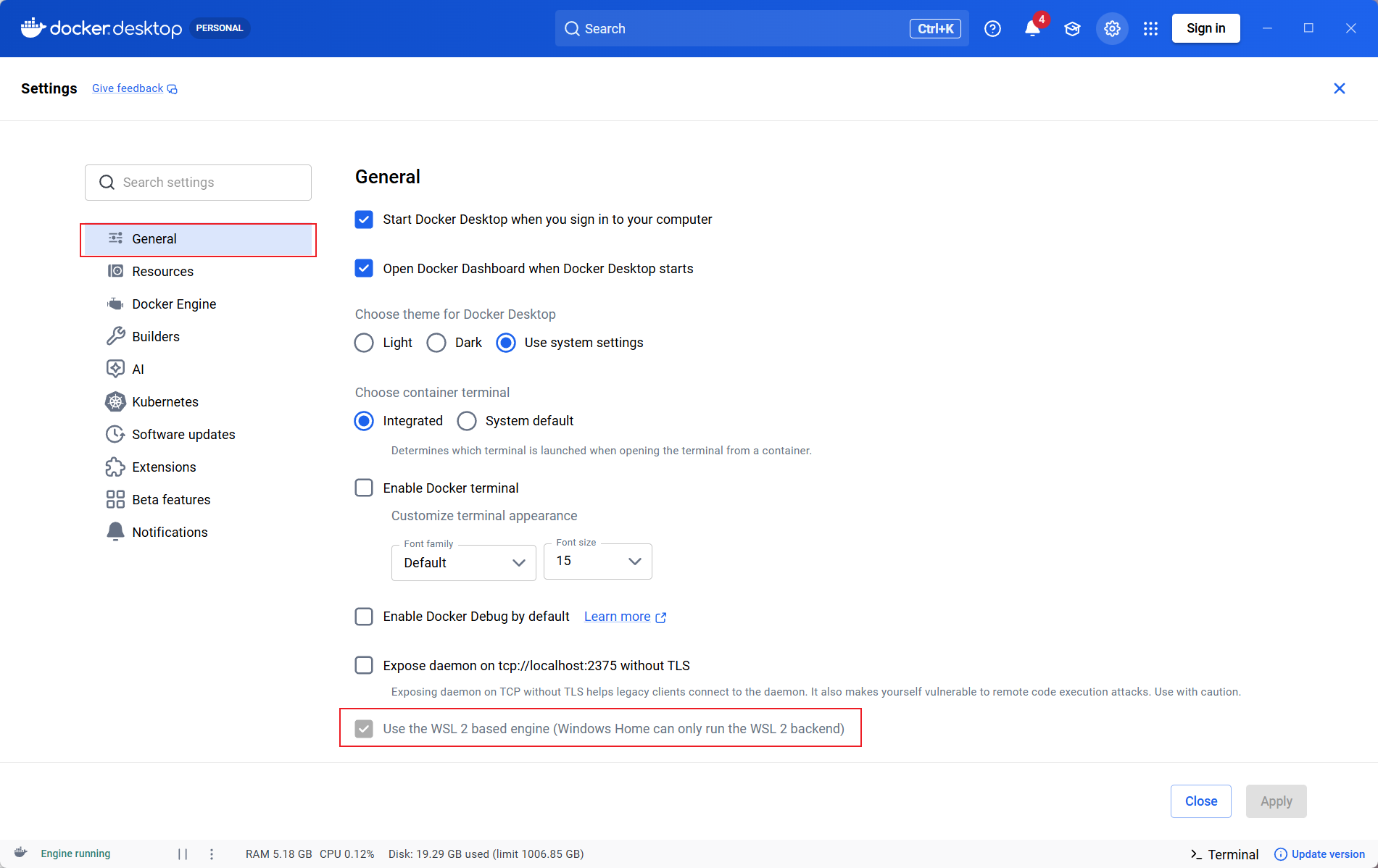
Then enable distribution integration:
- Go to Docker Desktop / Settings / Resources / WSL Integration
- Enable Enable integration with my default WSL distro
- Find the distribution you want to use, such as
Ubuntu - Enable the switch for that distribution
- Click Apply & restart or Apply
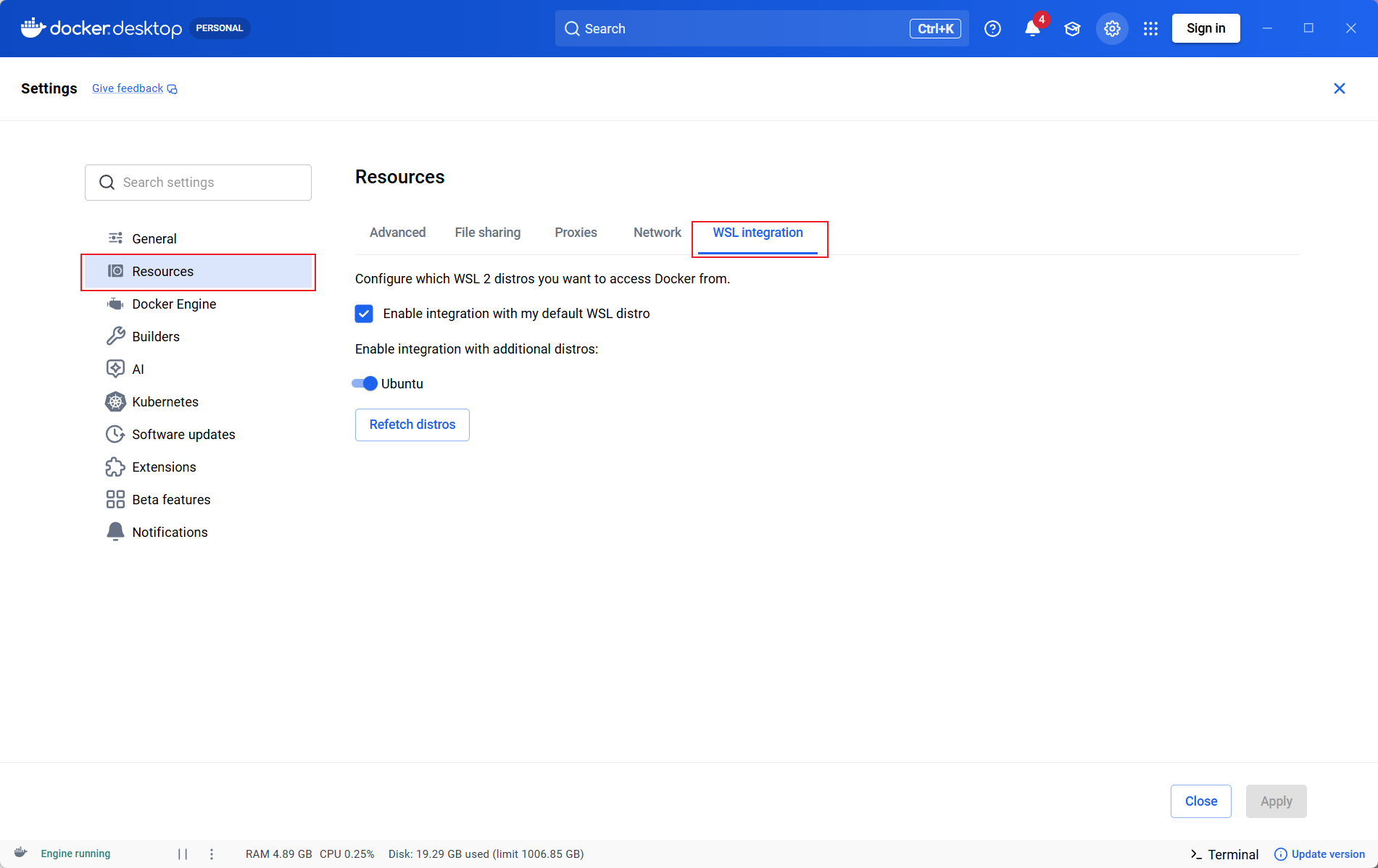
If WSL Integration does not appear under Resources, Docker Desktop is usually in Windows containers mode. Click the Docker icon in the Windows system tray, switch to Linux containers, and check again.
Step 5: Verify Docker
First verify from PowerShell:
Then enter WSL:
Run the following commands inside WSL:
If the hello-world container is pulled and runs successfully, Docker Desktop and WSL 2 integration are working.
Step 6: Install Node.js and Yarn in WSL
WSL itself is not a Node.js runtime environment. Ubuntu installed through wsl --install usually does not include Node.js or npm, so install them inside the WSL distribution.
Enter WSL from PowerShell:
All commands below are run in the WSL terminal.
First check whether Node.js is already installed:
If you see command not found, install Node.js with one of the following methods.
Option A: Install Node.js 22 with NodeSource
If this WSL environment only needs one shared Node.js version, NodeSource is recommended.
Verify the installation:
Option B: Install Node.js 22 with nvm
If you need to switch Node.js versions across projects, or if a project uses .nvmrc to pin the version, use nvm.
Verify the installation:
If the project root needs to pin Node.js 22, create .nvmrc:
Later, run this command after entering the project directory:
This switches to the version specified by the project.
Choose either NodeSource or nvm. We do not recommend mixing both Node.js management methods in the same WSL user environment.
Install Yarn 1.x
NocoBase local development requires Yarn 1.x. After Node.js is installed, you can enable Yarn through Corepack:
If Corepack is not available in your environment, install Yarn with npm:
Step 7: Install Codex CLI
Codex CLI can also be used in the native Windows command line. In this guide, it is installed inside WSL so Codex and the NocoBase local toolchain stay in the same Linux environment. When Codex runs commands such as nb, yarn, or docker, it uses the same file paths, shell syntax, and runtime environment.
Confirm that you are currently inside WSL:
If it outputs a distribution name such as Ubuntu, you are inside WSL.
Run the Codex CLI installer inside WSL:
For non-interactive installation, use:
After installation, run:
The first run prompts you to sign in. Follow the prompts and authenticate with a ChatGPT account or OpenAI API key.
Verify that the Codex command is available:
We recommend starting Codex from a project directory inside WSL:
Because Codex is installed inside WSL, run codex from the WSL terminal afterward. If you run codex from Windows PowerShell, it uses the native Windows command-line environment, which is not the same environment prepared in this guide.
Where to Put Project Files
We recommend putting project files inside the WSL filesystem, for example:
Avoid using the Windows mounted path as the default project location, for example:
This usually gives better filesystem performance and reduces symlink and permission issues. The difference is especially visible for projects with many dependency files, such as Node.js, Python, Java, or Go projects.
To access WSL files from Windows Explorer, open:
FAQ
WSL Says the docker Command Is Not Found
First confirm that the distribution uses WSL 2:
If it is WSL 1, convert it to WSL 2:
Then return to Docker Desktop, go to Settings / Resources / WSL Integration, enable integration for the corresponding distribution, and apply the change.
WSL Integration Is Missing
Usually, Docker Desktop is currently in Windows containers mode.
You can handle it like this:
- Click the Docker icon in the Windows system tray
- Choose Switch to Linux containers
- Wait for Docker Desktop to restart
- Go to Settings / Resources / WSL Integration again
Docker Desktop Fails to Start or WSL Looks Abnormal
Try this first:
Then restart Docker Desktop.
Docker Engine Was Manually Installed in WSL
Docker recommends uninstalling Docker Engine or Docker CLI that was installed directly inside the WSL Linux distribution before installing Docker Desktop. Otherwise, it may conflict with Docker Desktop WSL integration.
Usually, uninstall docker-ce, docker-ce-cli, containerd.io, and related packages inside the WSL distribution, and then use the Docker CLI integration provided by Docker Desktop.
WSL Says the codex Command Is Not Found
First confirm that you are running the command inside WSL, not PowerShell:
Then check whether Codex is in PATH:
If it cannot be found, reopen the WSL terminal or run the installer again:
Official References
- Microsoft Learn: How to install Linux on Windows with WSL
- Microsoft Learn: Install Node.js on Windows Subsystem for Linux
- Docker Docs: Install Docker Desktop on Windows
- Docker Docs: Docker Desktop WSL 2 backend on Windows
- Docker Docs: Change your Docker Desktop settings
- OpenAI Developers: Codex CLI
- OpenAI Developers: Codex on Windows
- nvm: Node Version Manager
- npm Docs: Downloading and installing Node.js and npm