

Roles & Permissions
Different roles see different menus and can operate on different data when they log in to the CRM. This chapter answers one question: "What can I see, and what can I do?"
What Is My Role?
Roles come from two sources:
-
Personal role — A role directly assigned to you by an Admin; it follows you wherever you go
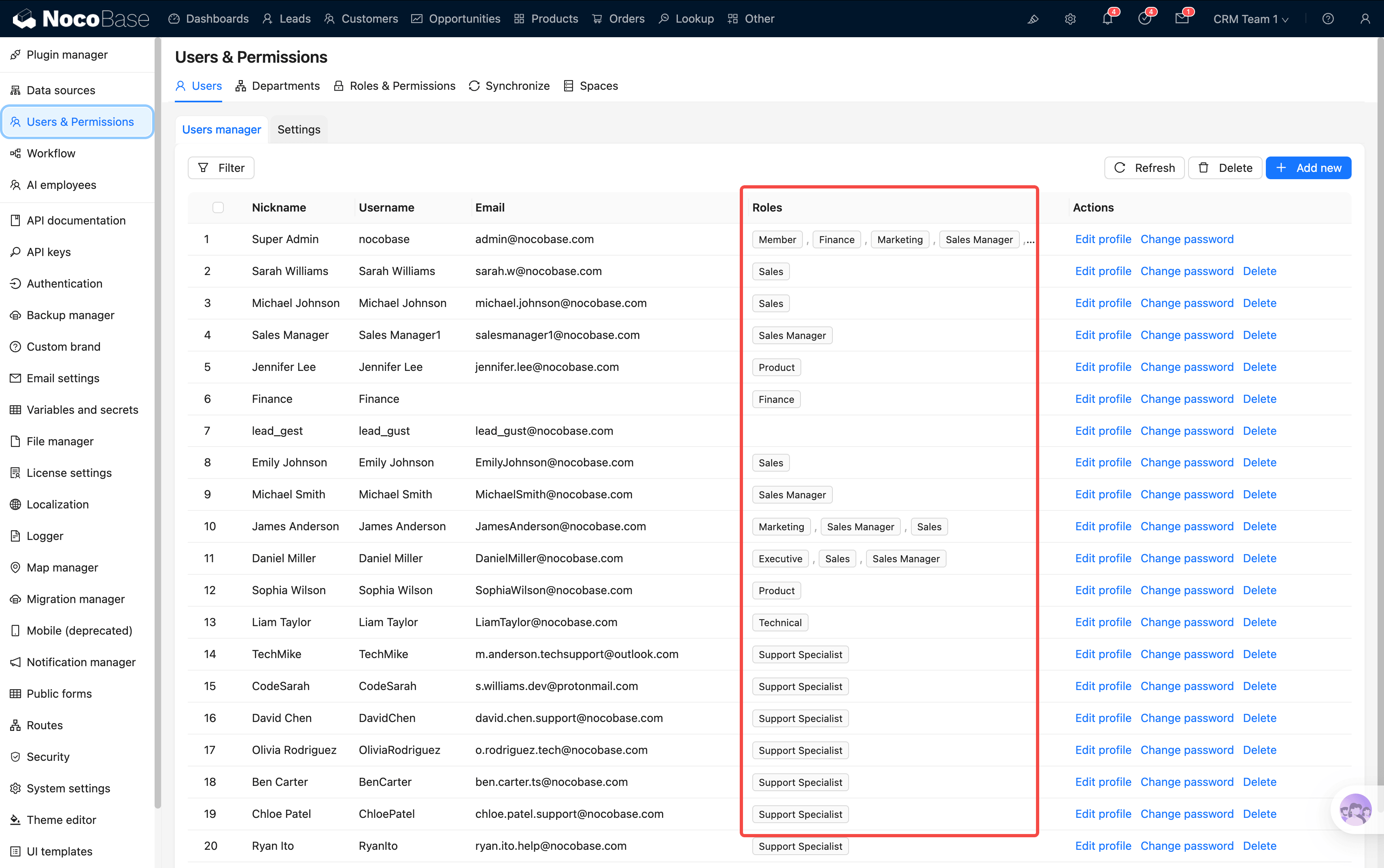
-
Department role — A role bound to your department; you inherit it automatically when you join the department
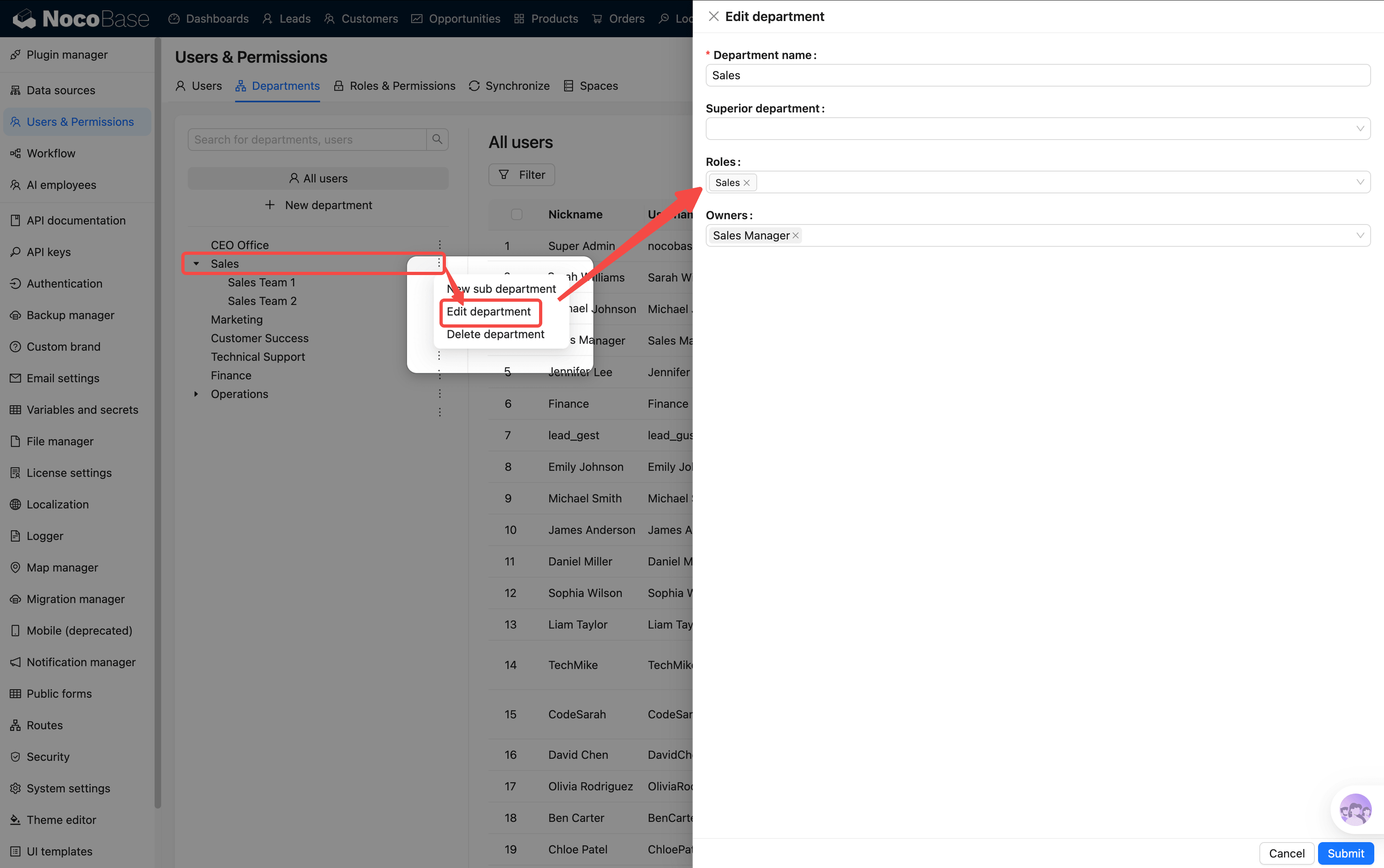
Both sources stack. For example, if you personally have the "Sales Rep" role and are also added to the Marketing department, you hold the permissions of both the Sales and Marketing roles.
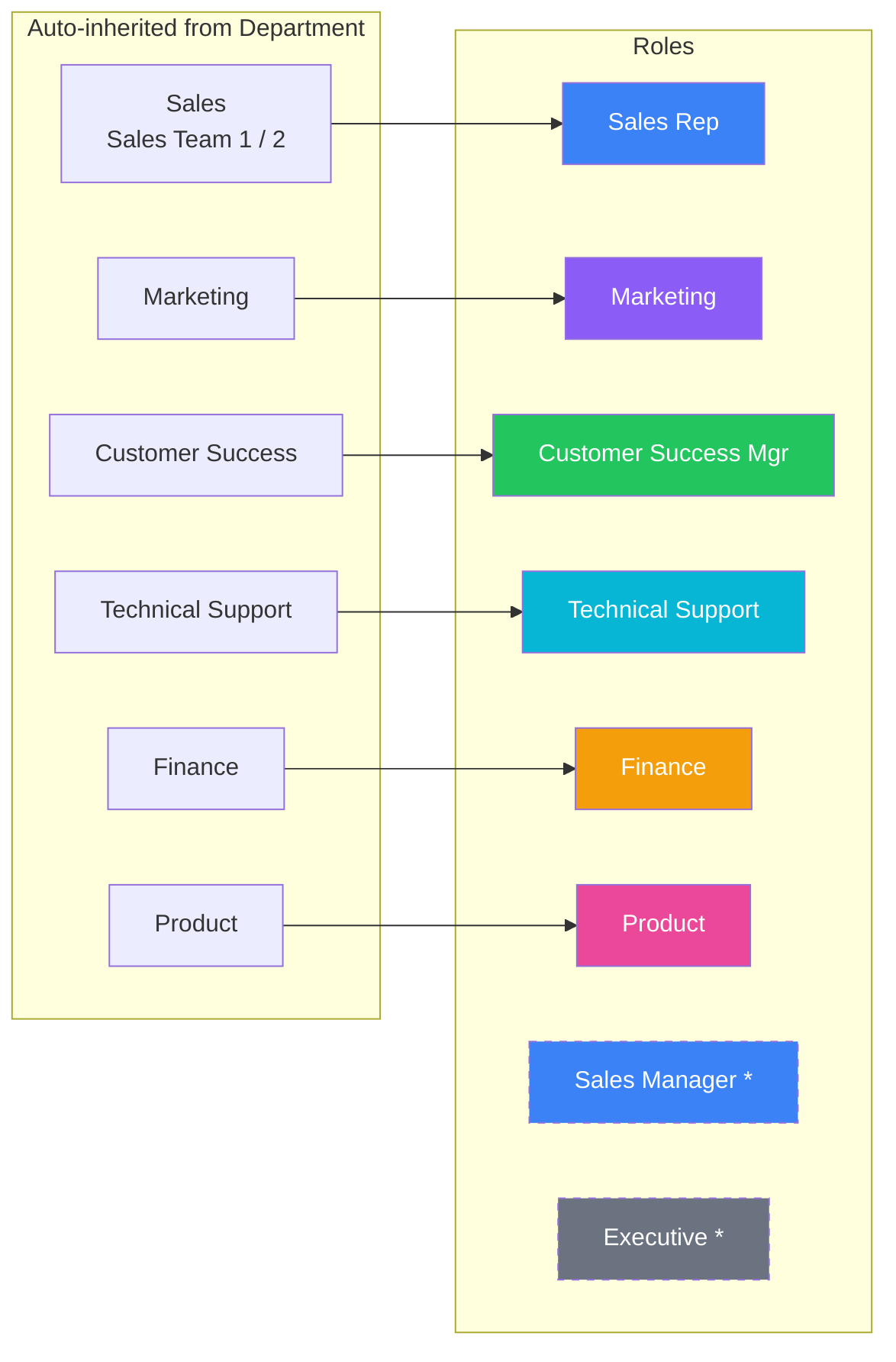
* Sales Manager and Executive are not bound to any department; they are assigned directly to individuals by the Admin.
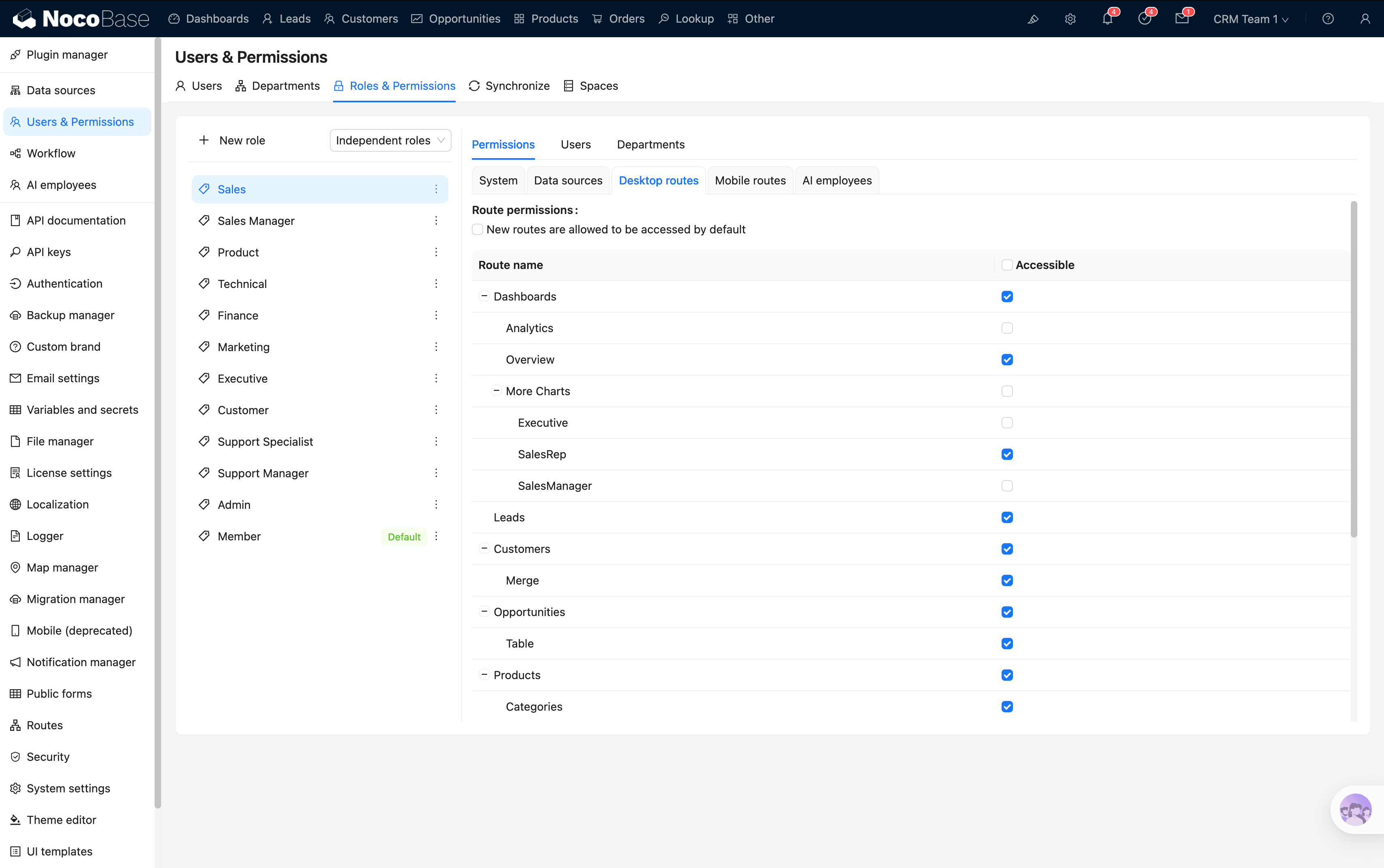
Pages Visible to Each Role
After logging in, the menu bar only shows pages you have permission to access:
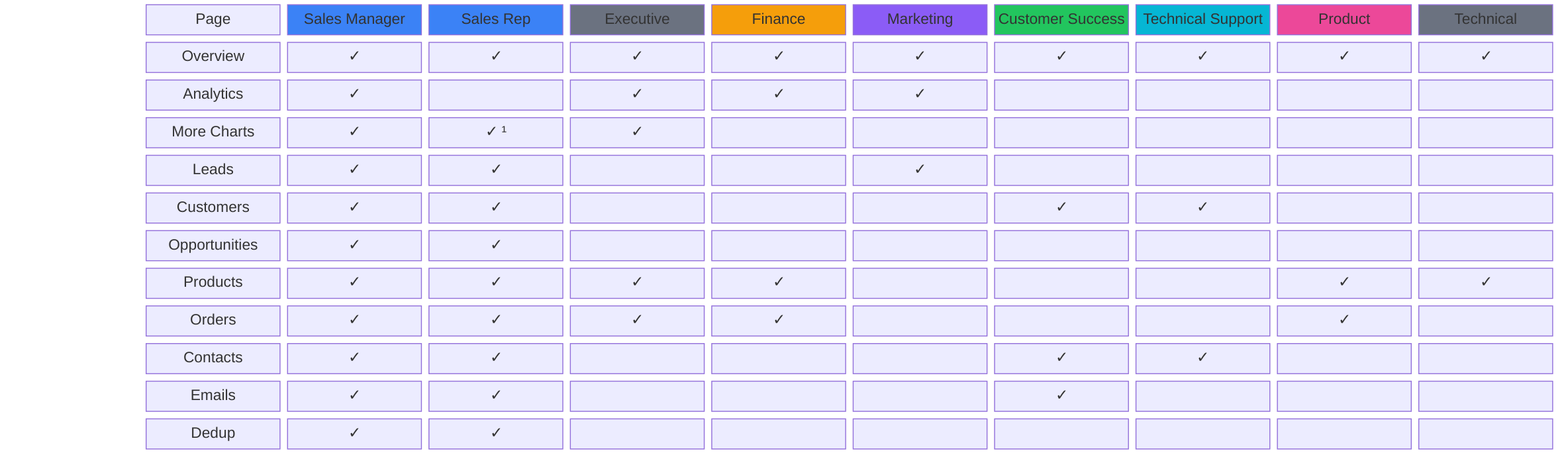
¹ Sales Reps only see the SalesRep personal dashboard; they cannot see the SalesManager or Executive views.
What Data Can I Operate On?
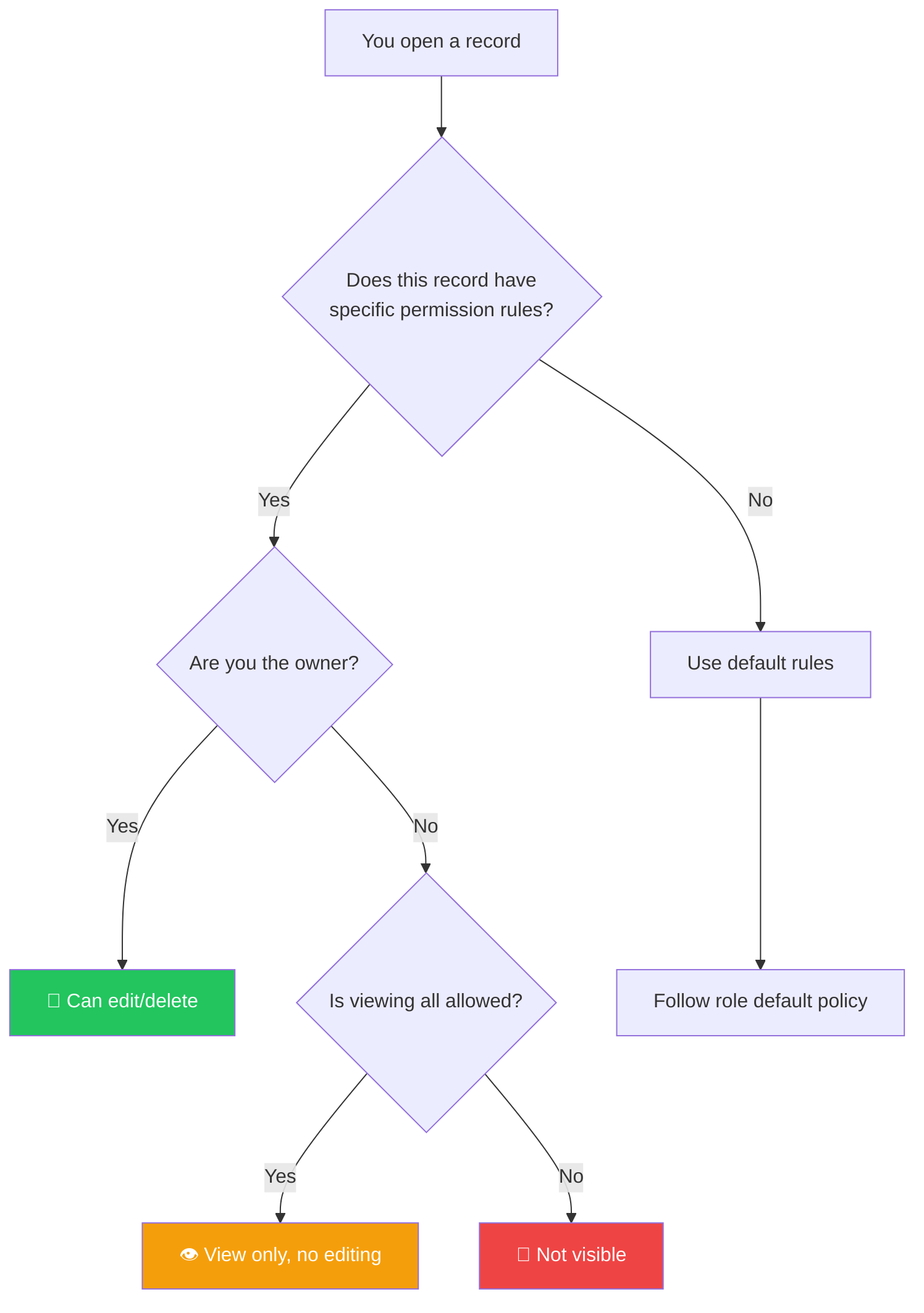
Core Logic of Data Permissions
Sales Rep Data Permissions
This is the most common role; here is a detailed breakdown:
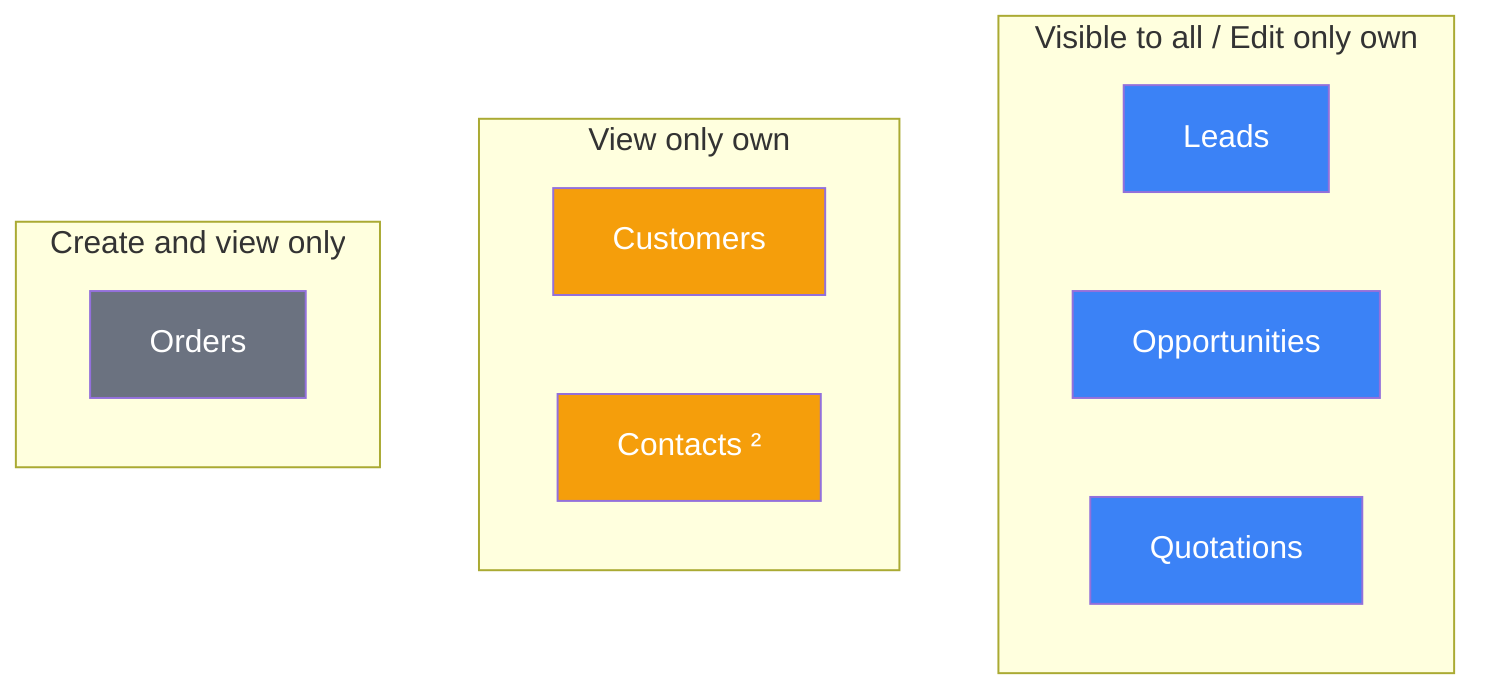
Why are leads visible to everyone?
- You need to see "unassigned" leads to proactively claim them
- Deduplication requires access to the full dataset to avoid duplicate entries
- You can view other people's leads but cannot modify them
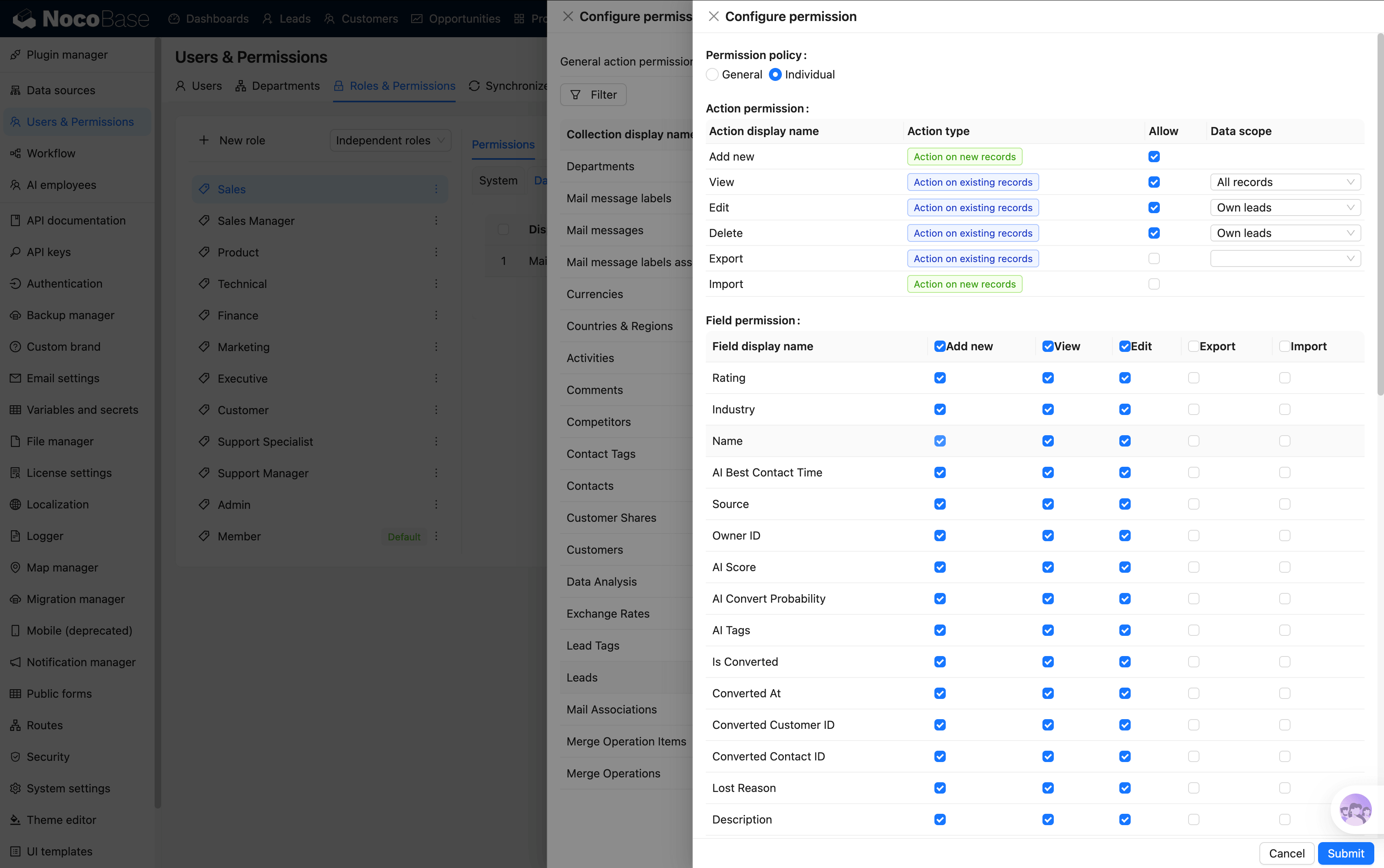
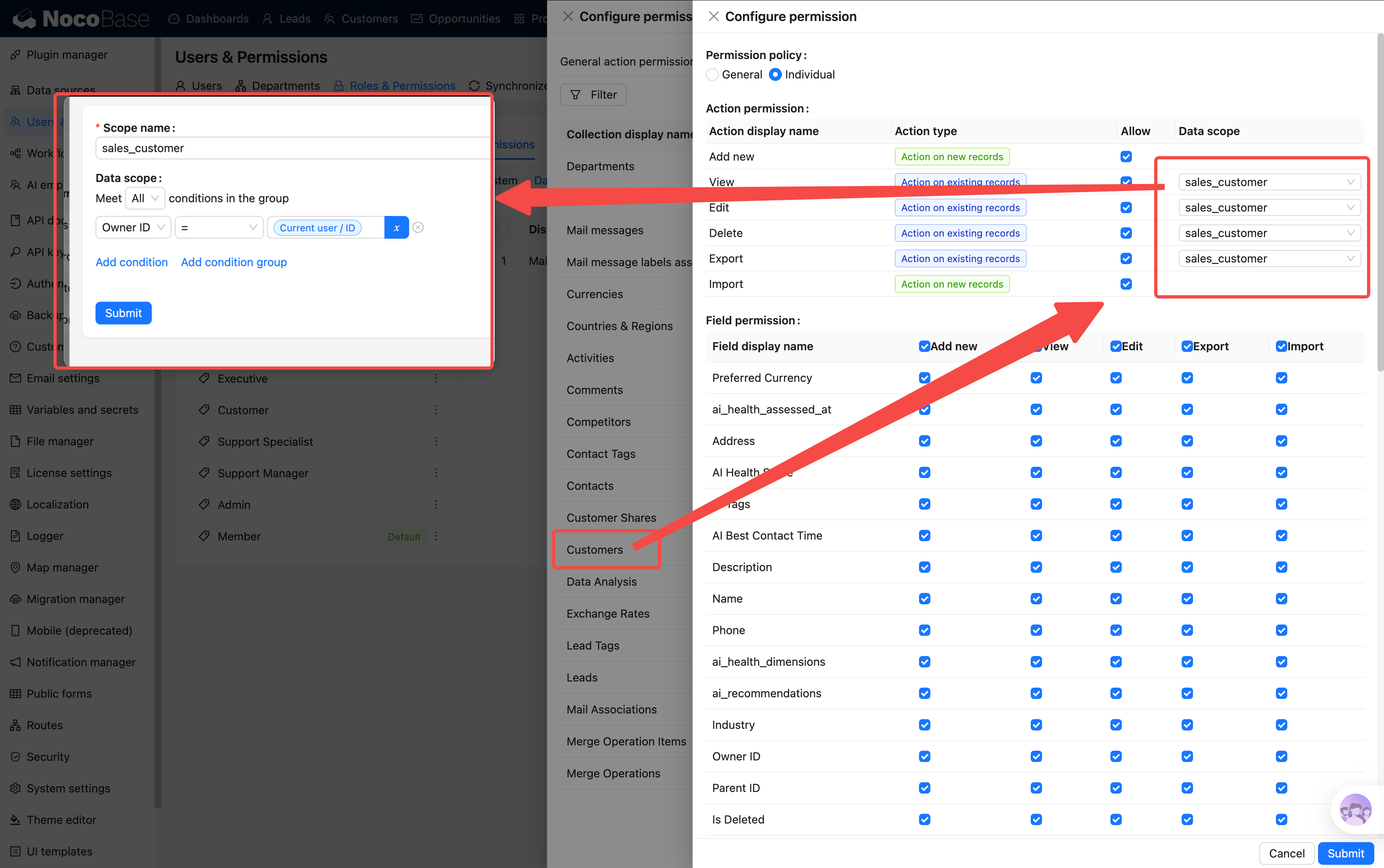
Why are customers restricted to your own?
- Customers are core assets with clear ownership
- Prevents access to other reps' customer contact information
- When a transfer is needed, ask your manager to handle it
² Contacts follow the customer
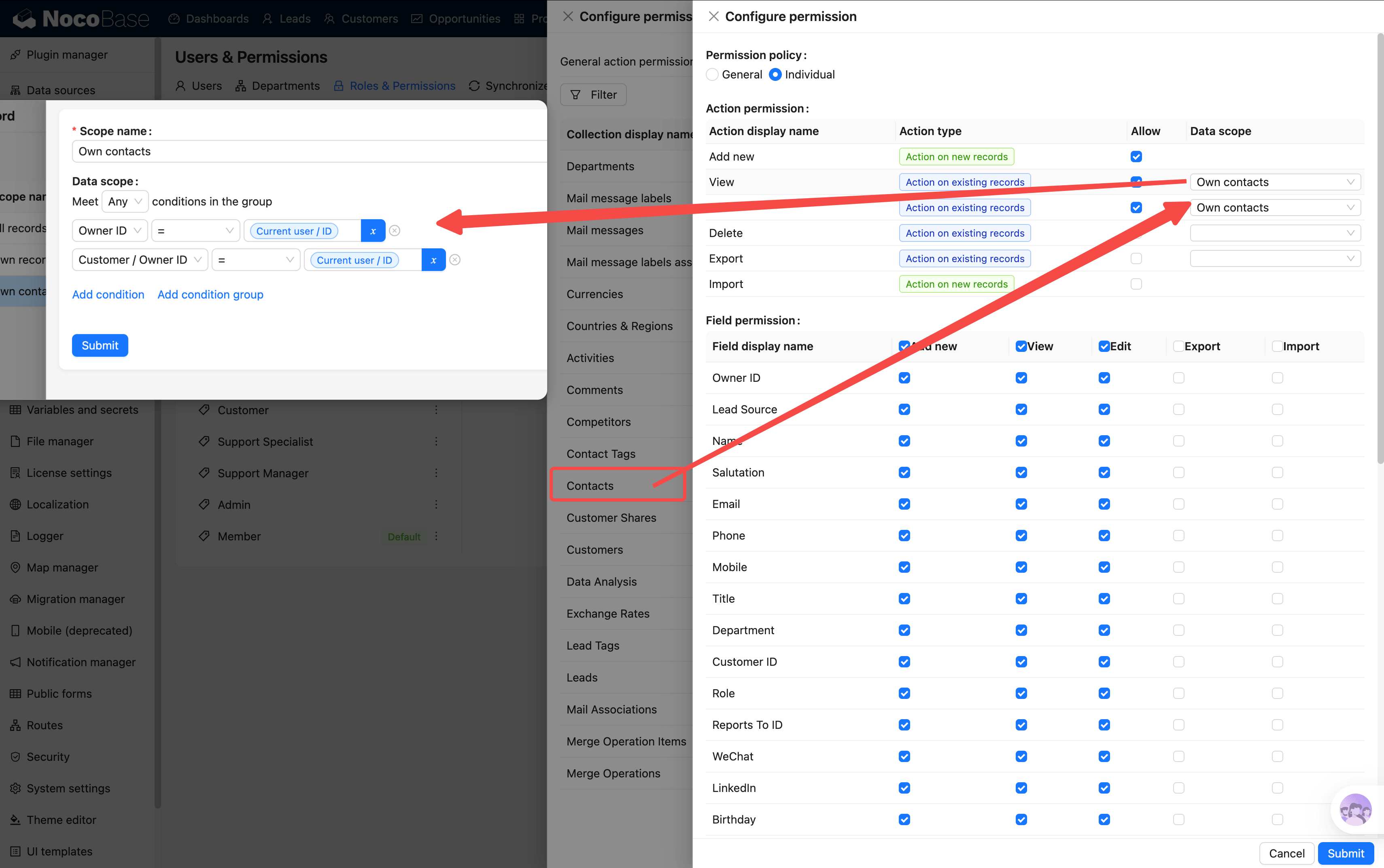
The contacts you can see:
- Contacts you are directly responsible for
- All contacts under customers you own (even if created by someone else)
Example: If you own the "Huawei" customer, you can see all contacts under Huawei, regardless of who entered them.
Other Roles' Data Permissions
Deduplication: Solving the "I Can't See It" Problem
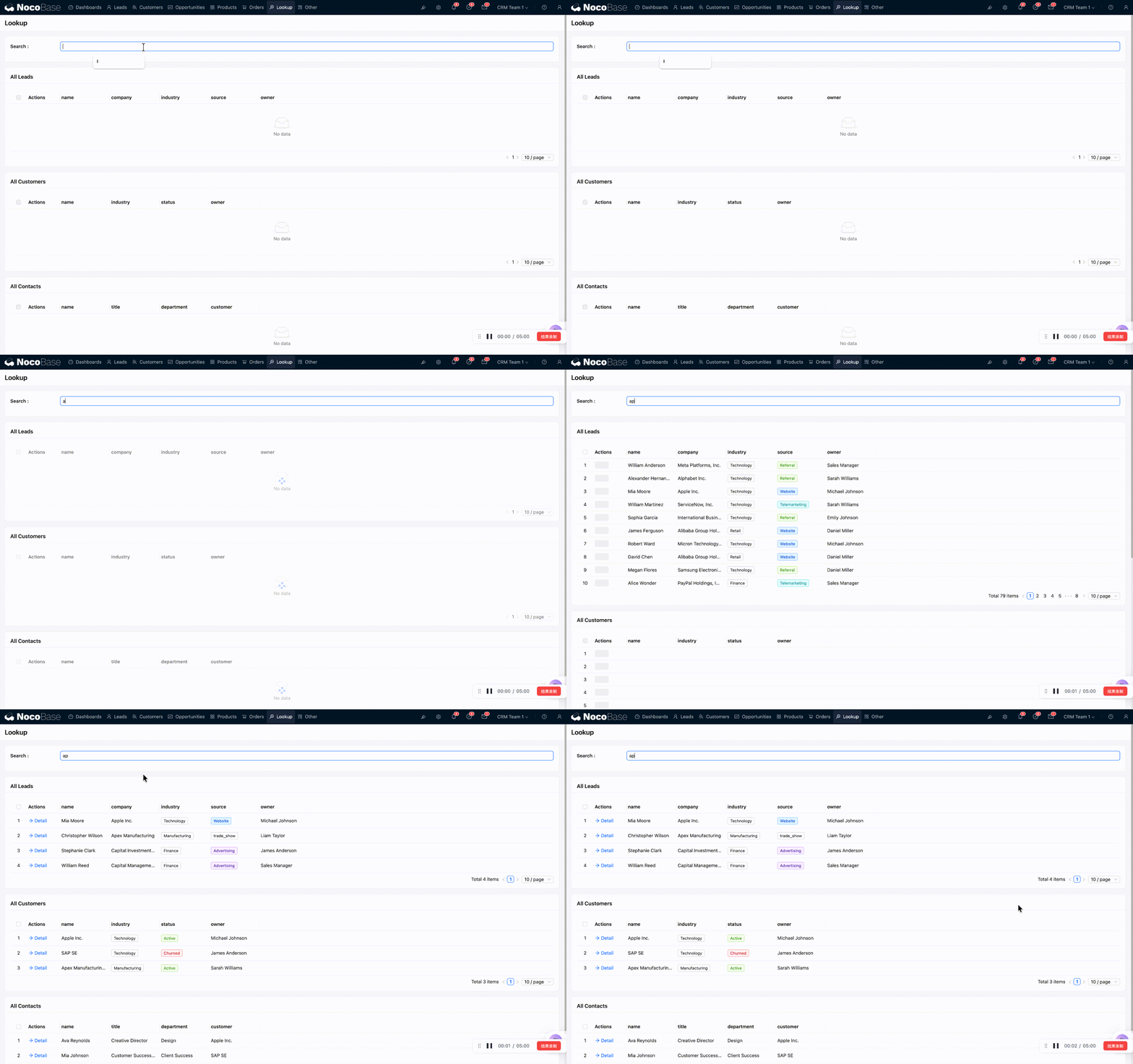
Because customer data is isolated by ownership, you cannot see other reps' customers. But before entering a new lead or customer, you need to confirm whether someone is already working on it.

The deduplication page supports three types of searches:
- Lead dedup: Search by name, company, email, or phone
- Customer dedup: Search by company name or phone
- Contact dedup: Search by name, email, or phone
Search results show who the owner is. If a match exists, contact the corresponding colleague directly to coordinate and avoid conflicts.
FAQ
Q: I can't see a certain page. What should I do?
Your role does not have access to that page. If you need it for your work, contact an Admin to adjust your permissions.
Q: I can see data but there's no edit/delete button?
You have view-only permission for that data. This is usually because you are not the owner. Buttons for actions you don't have permission for are hidden entirely rather than shown as disabled.
Q: I just joined a new department. When do the permissions take effect?
Immediately. Refresh the page to see the new menus.
Q: Can one person have multiple roles?
Yes. Personal roles and department roles stack. For example, if you are personally assigned the "Sales Rep" role and also join the Marketing department, you hold the permissions of both the Sales and Marketing roles.
Related Pages
- System Overview & Dashboard — How to use each dashboard
- Lead Management — Full lead workflow
- Customer Management — Customer 360 view