

Customers, Contacts & Emails
Customers, contacts, and emails are three tightly linked modules — the customer is the entity, contacts are the people you communicate with, and emails are the communication records. This chapter covers all three together.
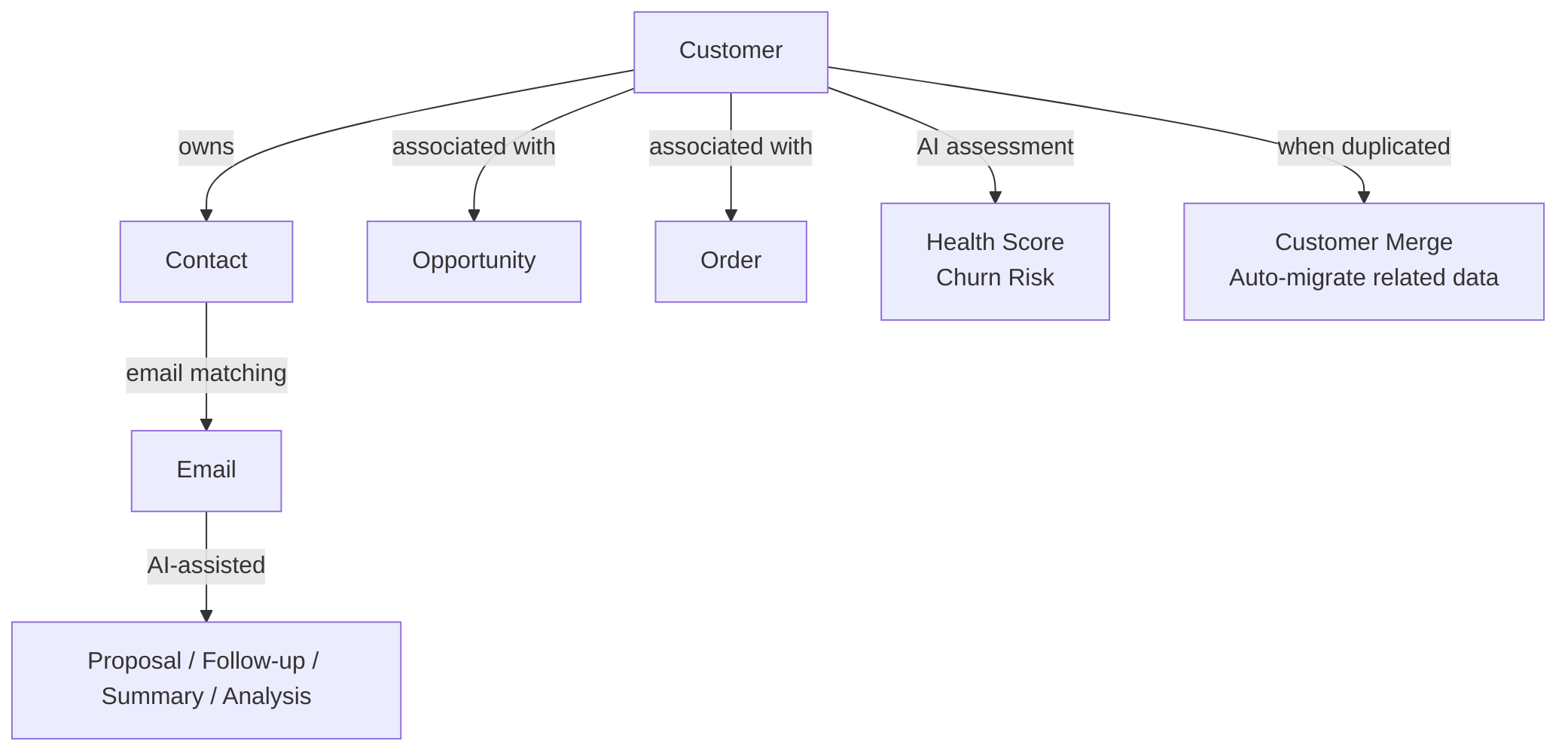
Customer Management
Navigate to the Customers page from the top menu. It contains two tabs: Customer List and Customer Merge Tool.
Customer List
Filter buttons above the list:
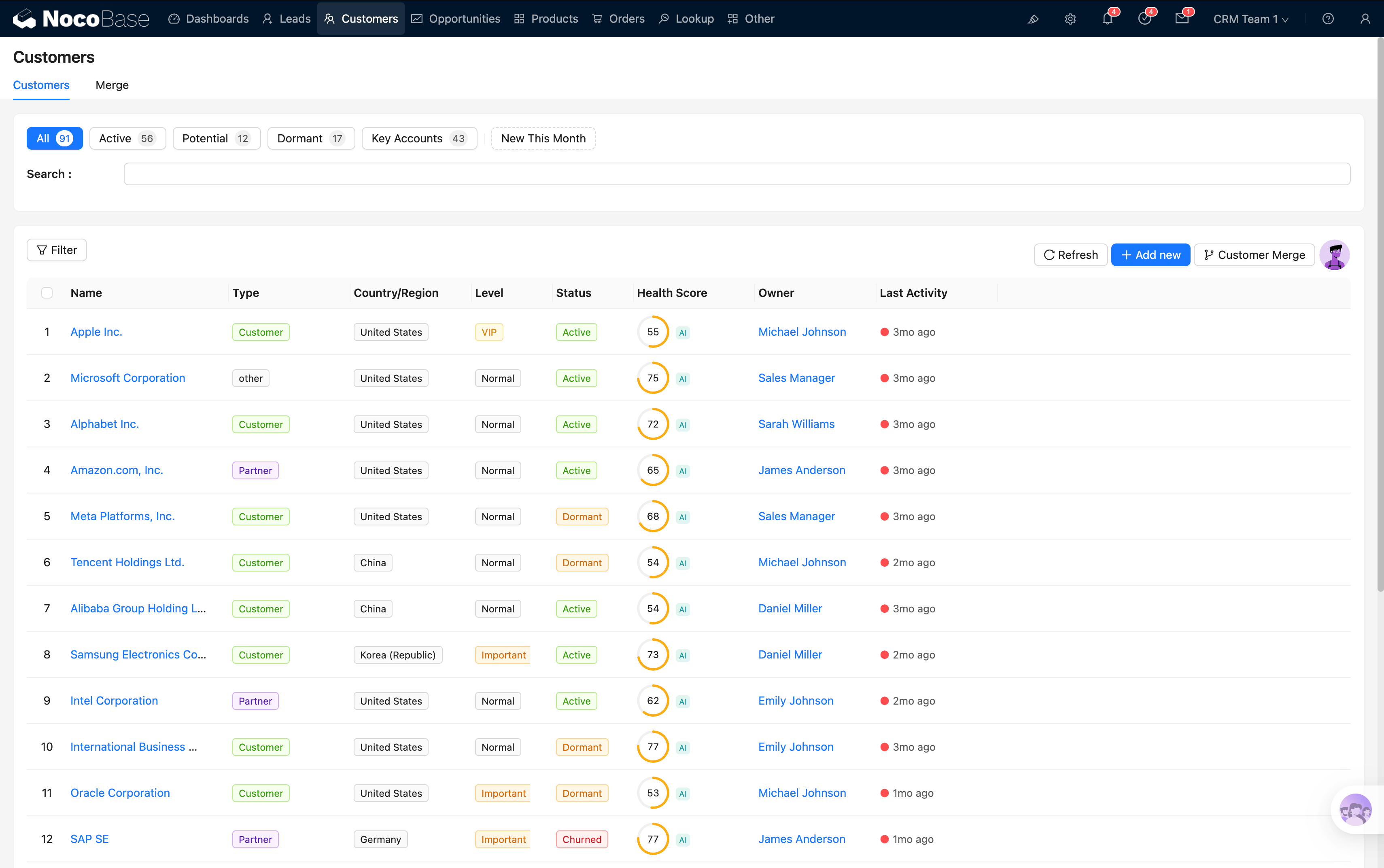
Key columns:
- AI Health Score: Ring progress bar 0–100 (🟢 70–100 Healthy / 🟡 40–69 Warning / 🔴 0–39 Critical)
- Last Activity: Relative time + color coding — the longer since last contact, the darker the color
Customer Detail
Click a customer name to open the detail popup, which contains 3 tabs:
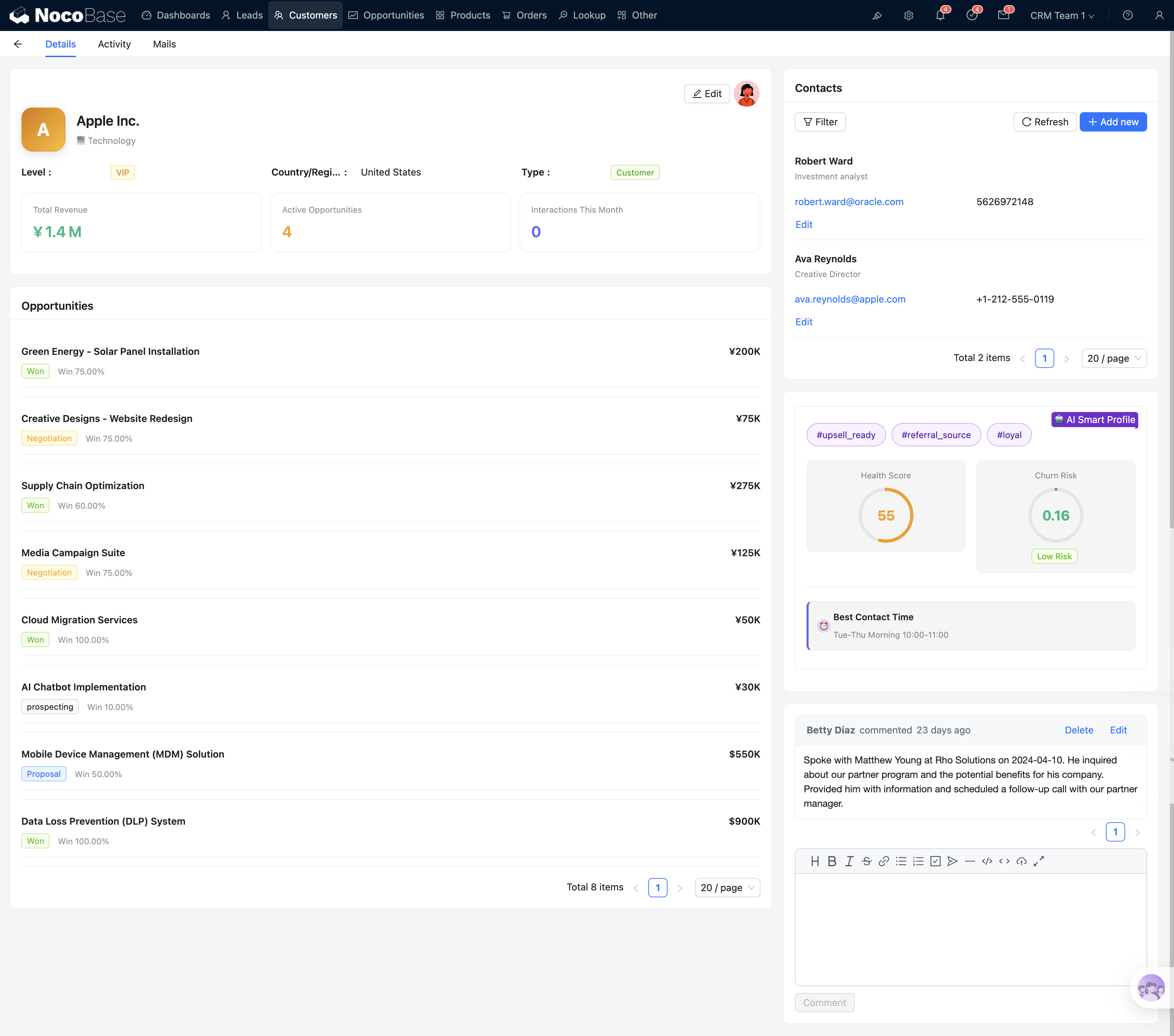
The Details tab uses a left 2/3 + right 1/3 two-column layout:
- Left column: Customer avatar (color-coded by tier: Normal=gray, Important=amber, VIP=gold), 4-column summary (tier/size/region/type), stat cards (total closed amount / active opportunities / interactions this month, real-time API queries), contact list, opportunity list, comment section
- Right column: AI smart profile (AI tags, health score ring chart, churn risk, best contact time, communication strategy)
AI Health Score
The health score is automatically calculated across these dimensions: interaction frequency, opportunity activity, order status, and contact coverage.
Recommended usage:
- Open the customer list daily and sort by health score
- Prioritize red (Critical) customers — they may be churning
- Yellow (Warning) customers — schedule lightweight follow-ups
- Green (Healthy) customers — maintain normal cadence
Customer Merge
When duplicate customer records appear, use the merge tool to clean up:
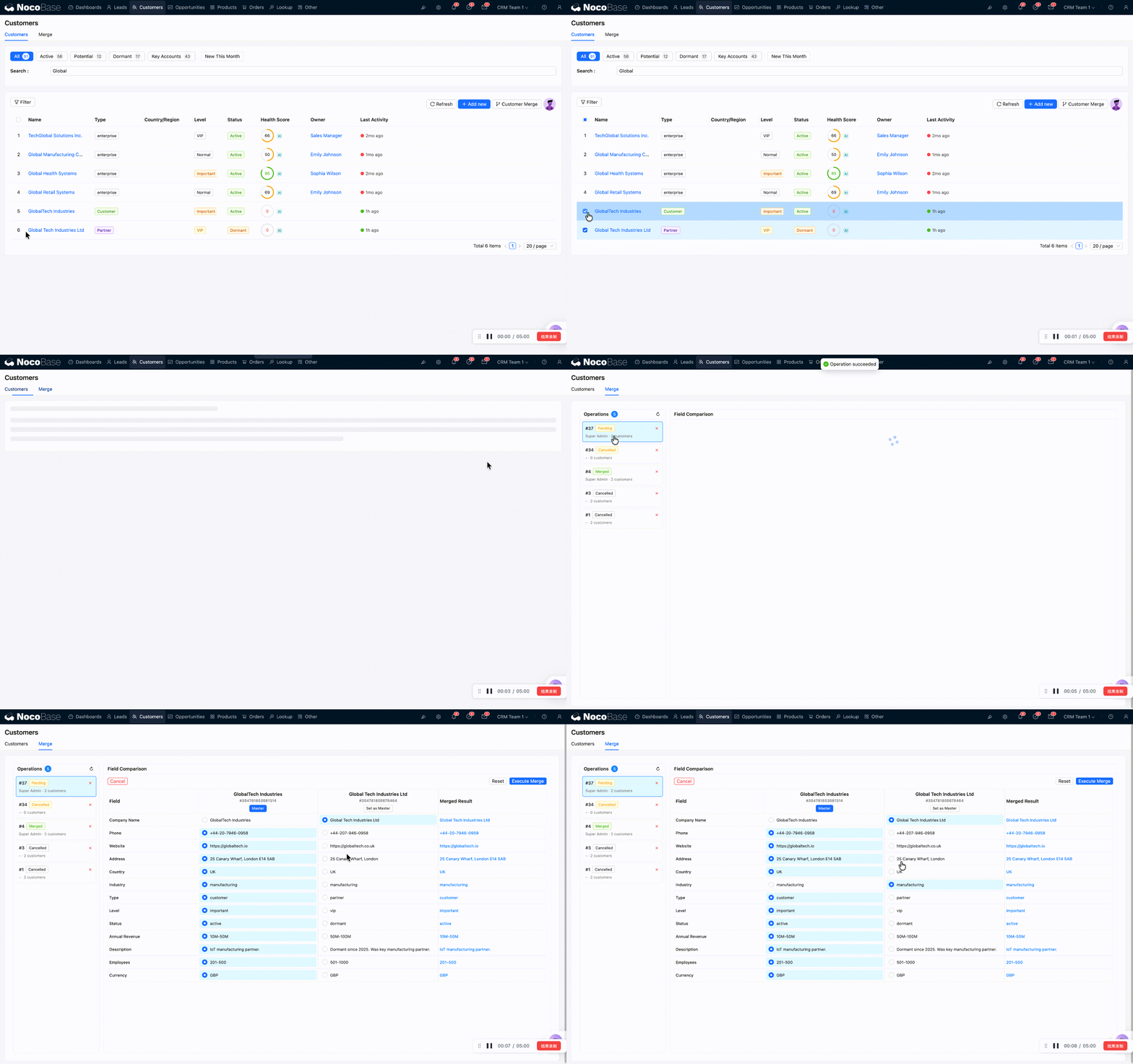
- Initiate merge: Select multiple customers in the customer list → click the "Customer Merge" button
- Enter the merge tool: Switch to the second tab to view the merge request list (Pending / Merged / Cancelled)
- Execute merge: Select the master record → compare field differences side by side → preview → confirm. A backend workflow automatically migrates all related data (opportunities, contacts, activities, comments, orders, quotations, sharing) and deactivates the merged customer
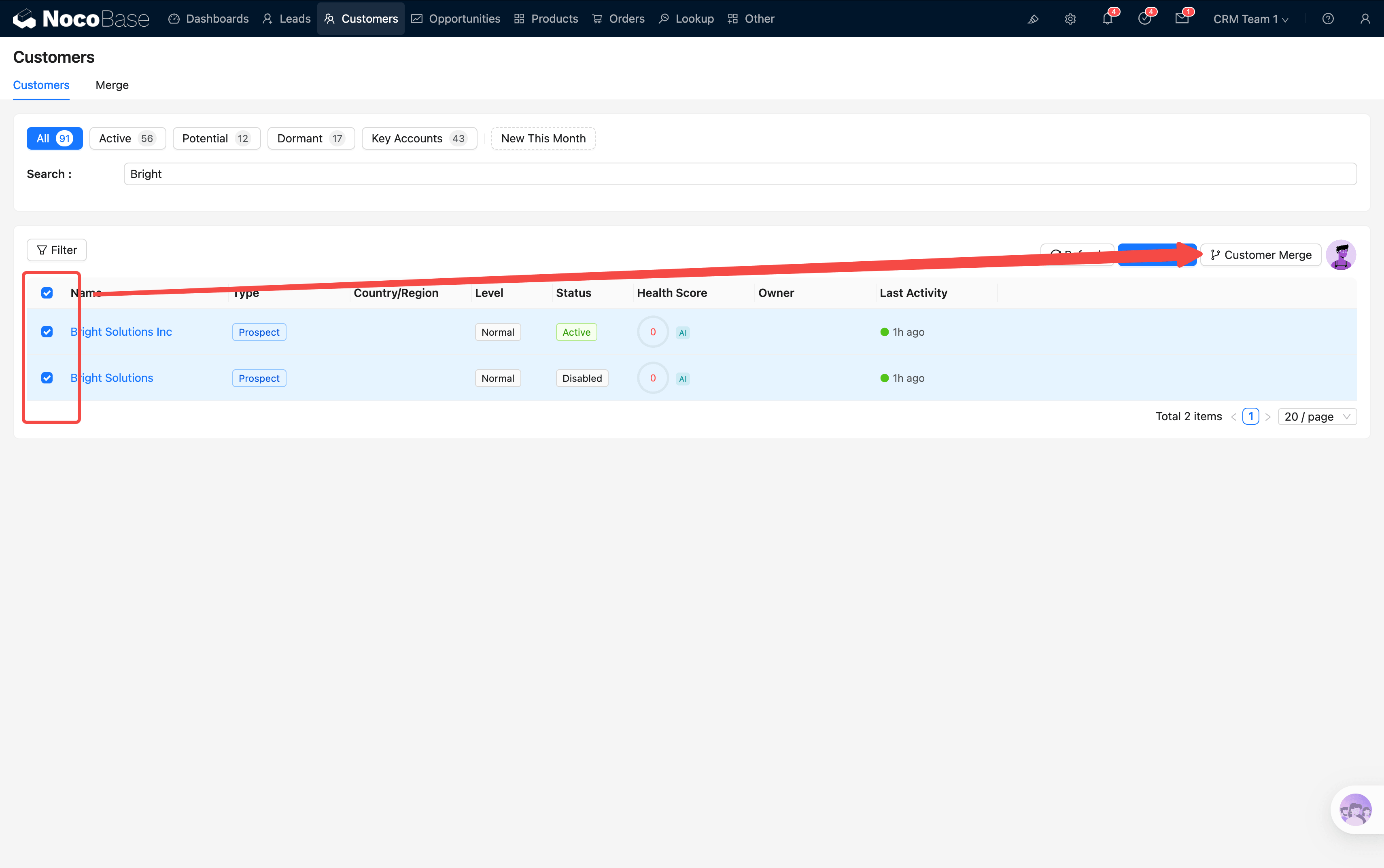
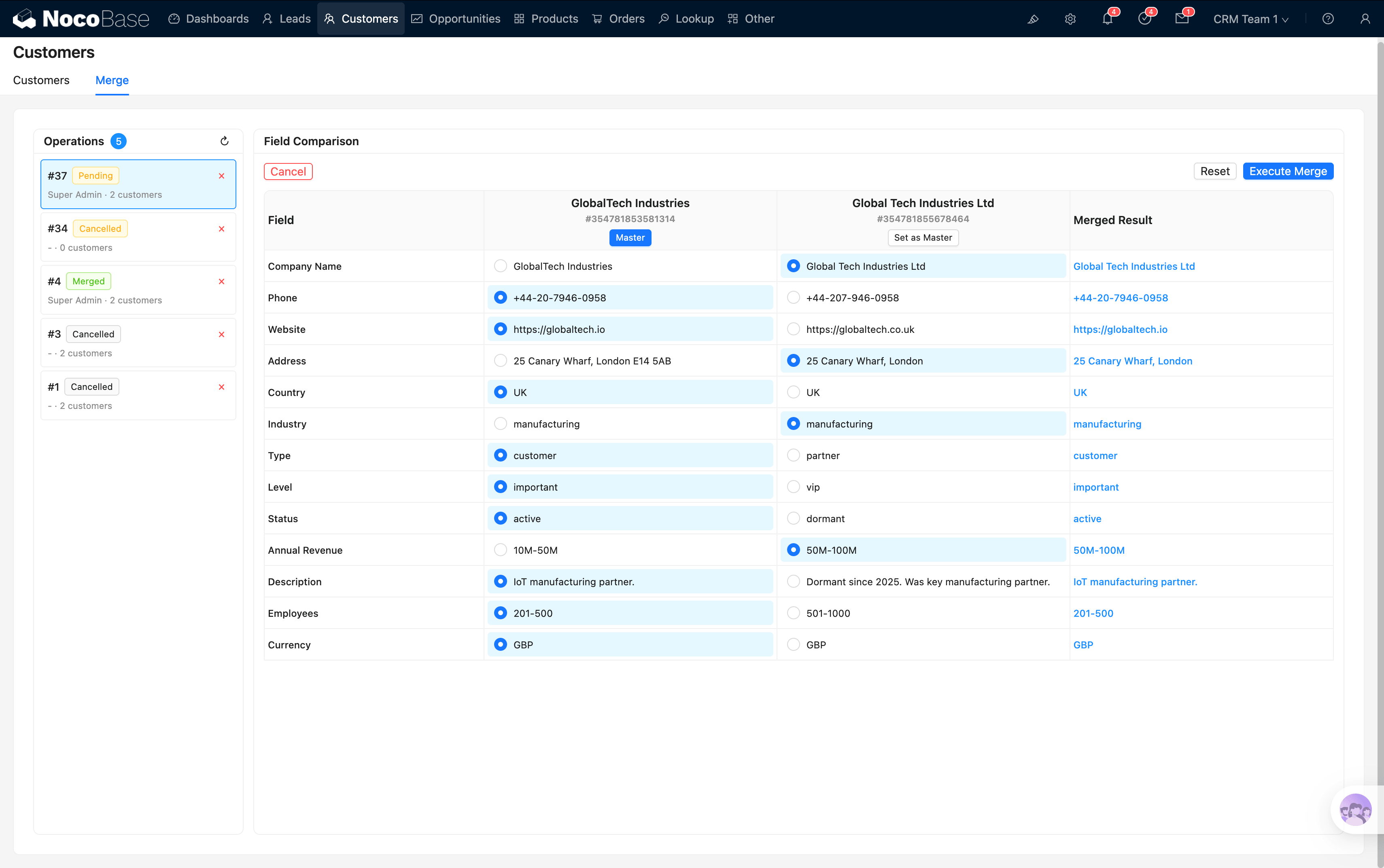
Customer merge is an irreversible operation. Before executing, carefully verify the master record selection and field value choices.
Contact Management
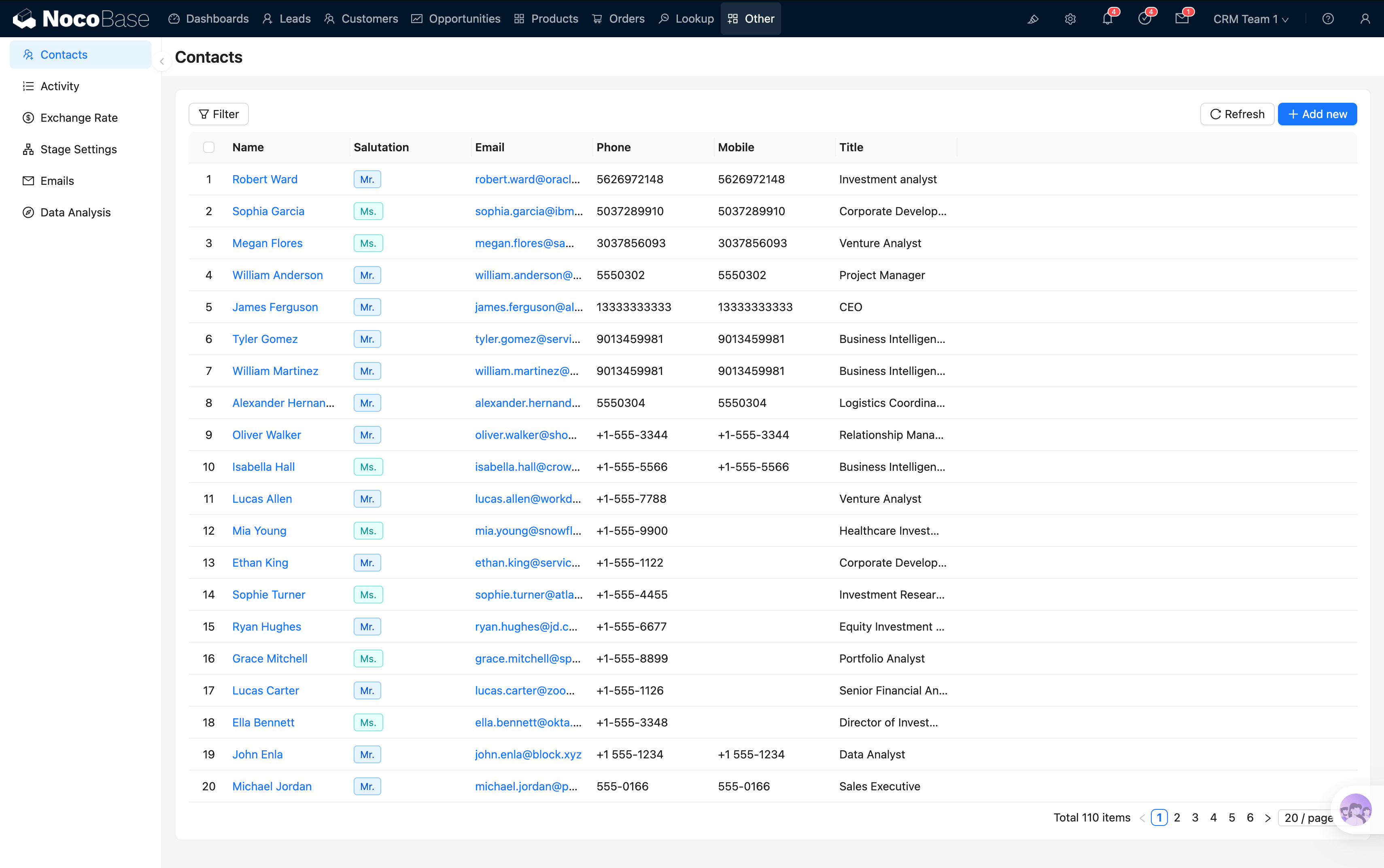
Navigate to the Settings → Contacts page from the top menu.
Contact Information
Role Tags
Sending Emails from a Contact
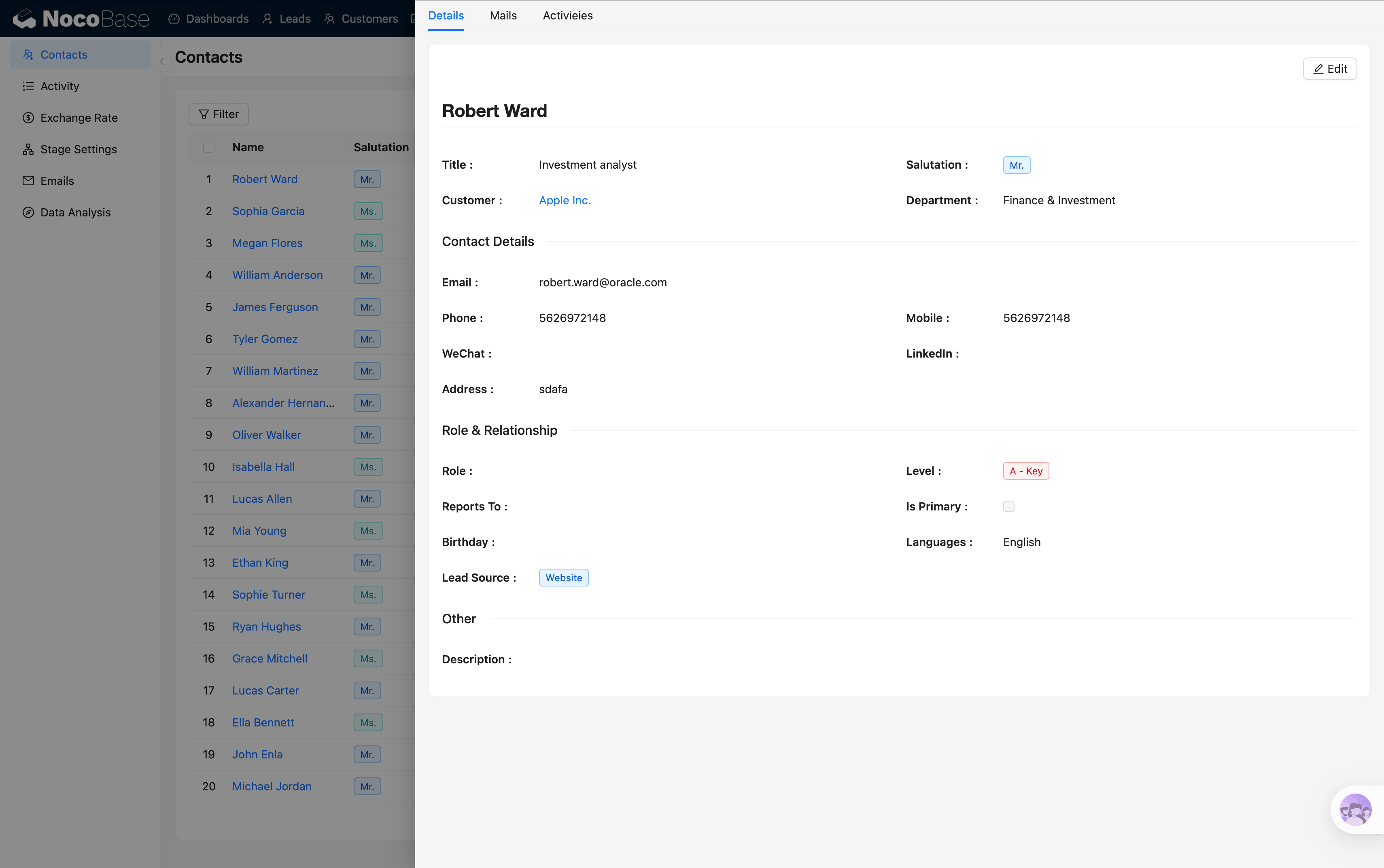
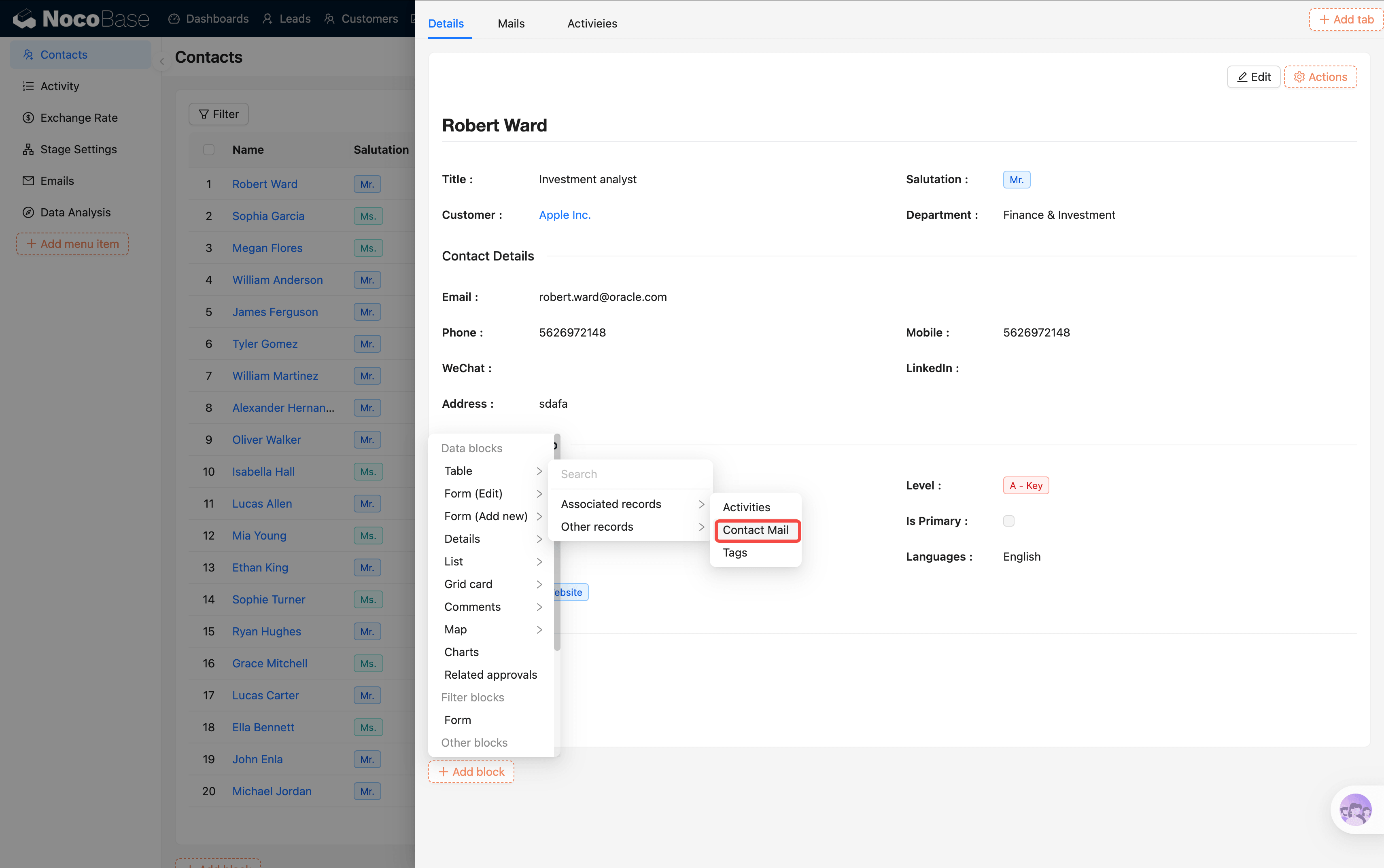
Open the contact detail page. Similar to other data management views, it includes tabs for details, emails, field records, etc.
Email & CRM Integration
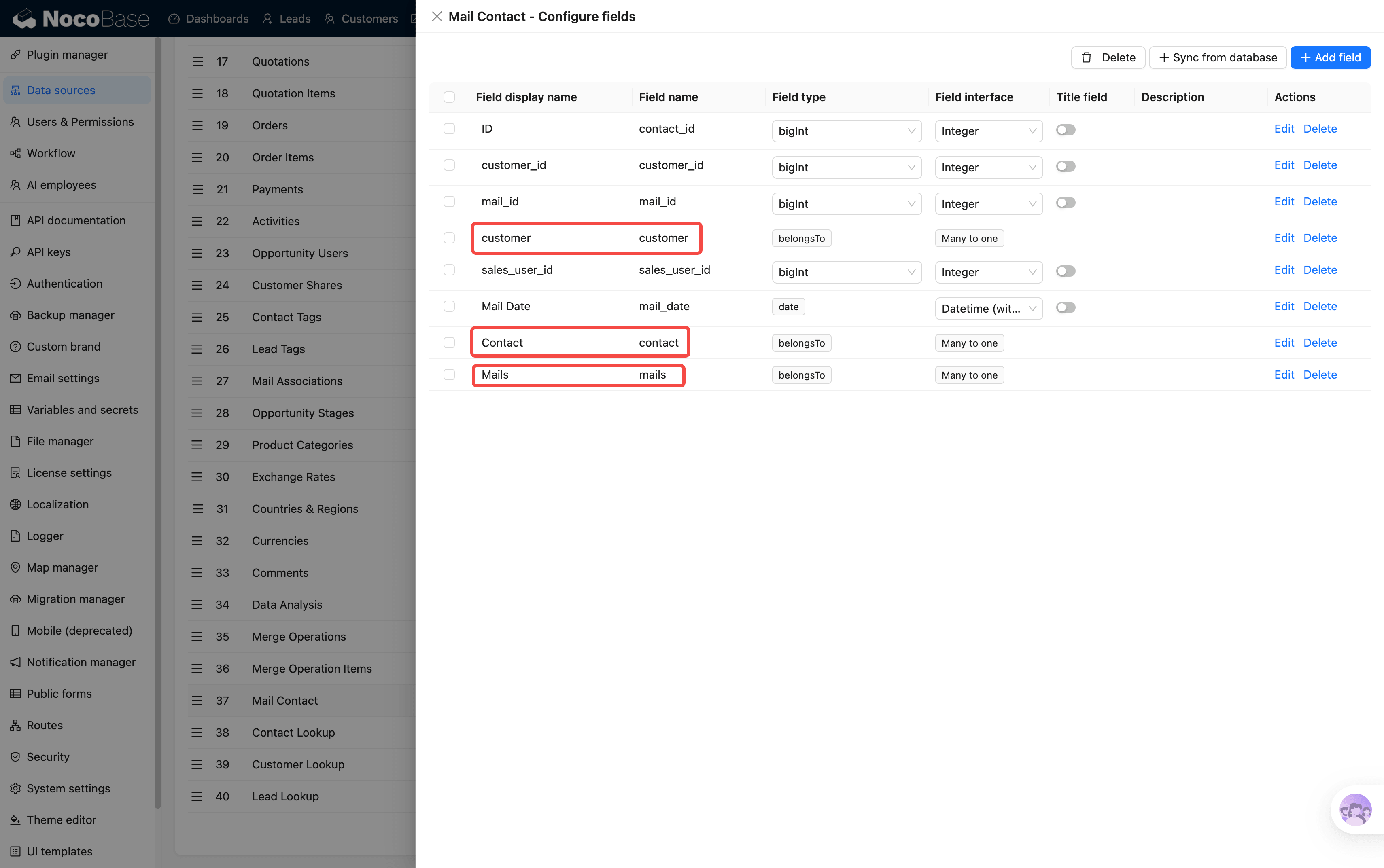
Emails are automatically linked to customers, contacts, and opportunities:
- Customer detail "Emails" tab → all emails with that customer's contacts
- Contact detail → the contact's complete email history
- Opportunity detail → related communication records
The association is done through views, automatically matching based on the contact's email address.
AI Email Assistance
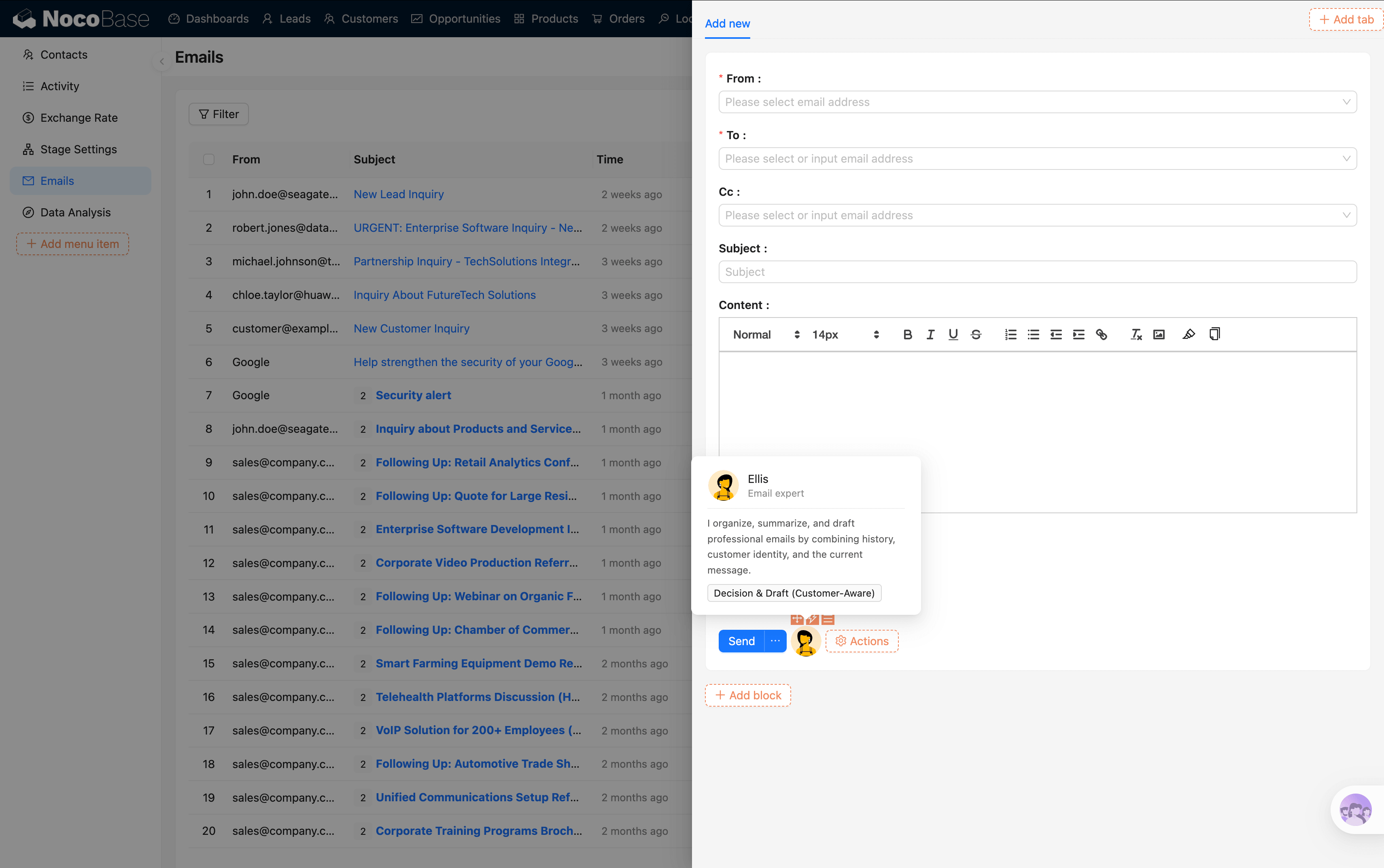
The email page provides 6 AI-assisted scenarios:
Activity Log
Navigate to the Settings → Activities page from the top menu. This is the central log for all customer interactions.
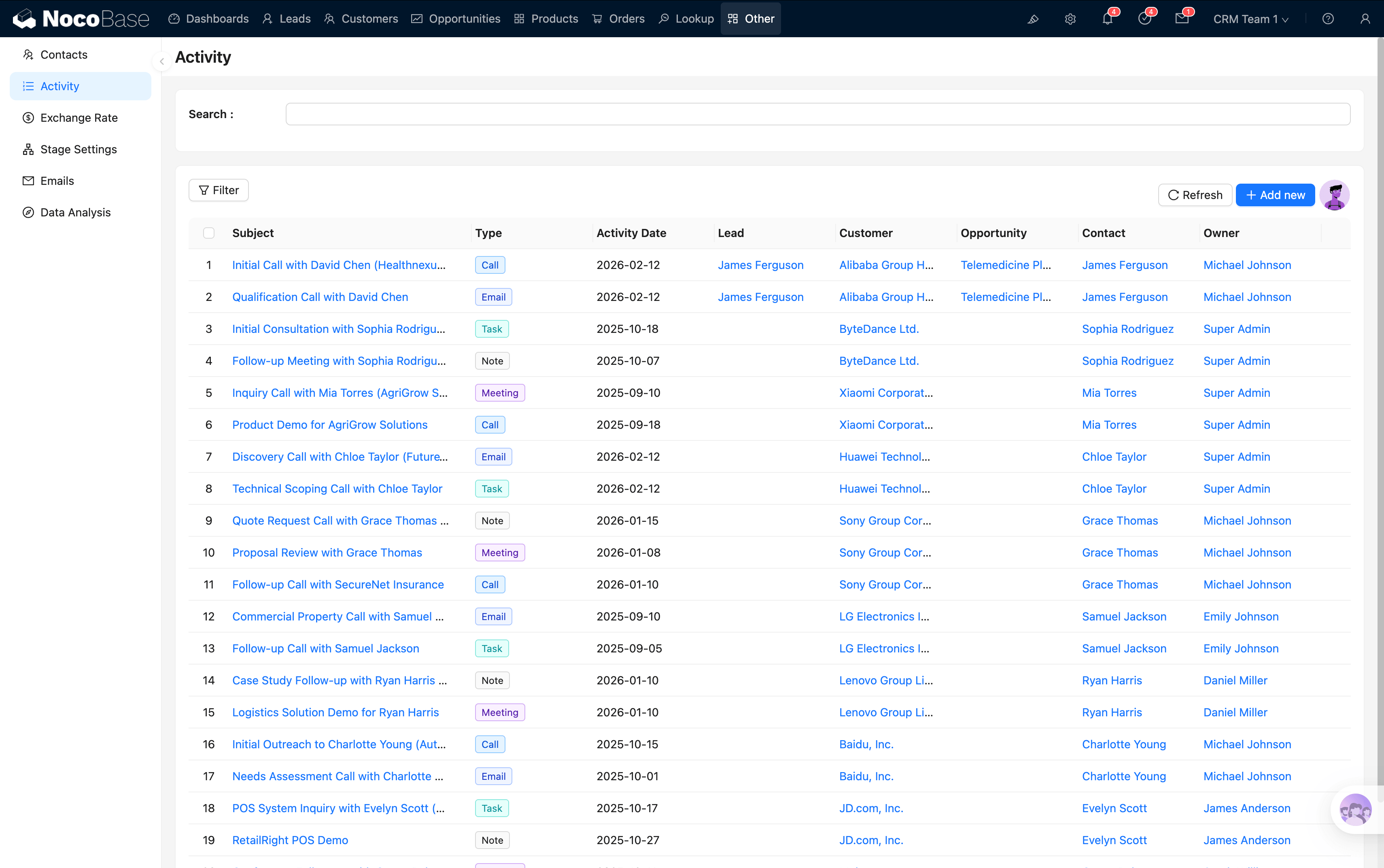
Activity records also appear in the calendar view on the Overview dashboard.
Related Pages
- CRM User Guide
- Lead Management — Leads automatically create customers and contacts upon conversion
- Opportunity Management — Opportunities linked to customers
- AI Employees