

Products, Quotations & Orders
This chapter covers the second half of the sales process: product catalog maintenance, quotation creation and approval, and order fulfillment and payment tracking. Quotations are also discussed in Opportunity Management (from the opportunity perspective); this chapter focuses on the product and order perspective.

Product Catalog
Navigate to the Products page from the top menu. It contains two tabs:
Product List
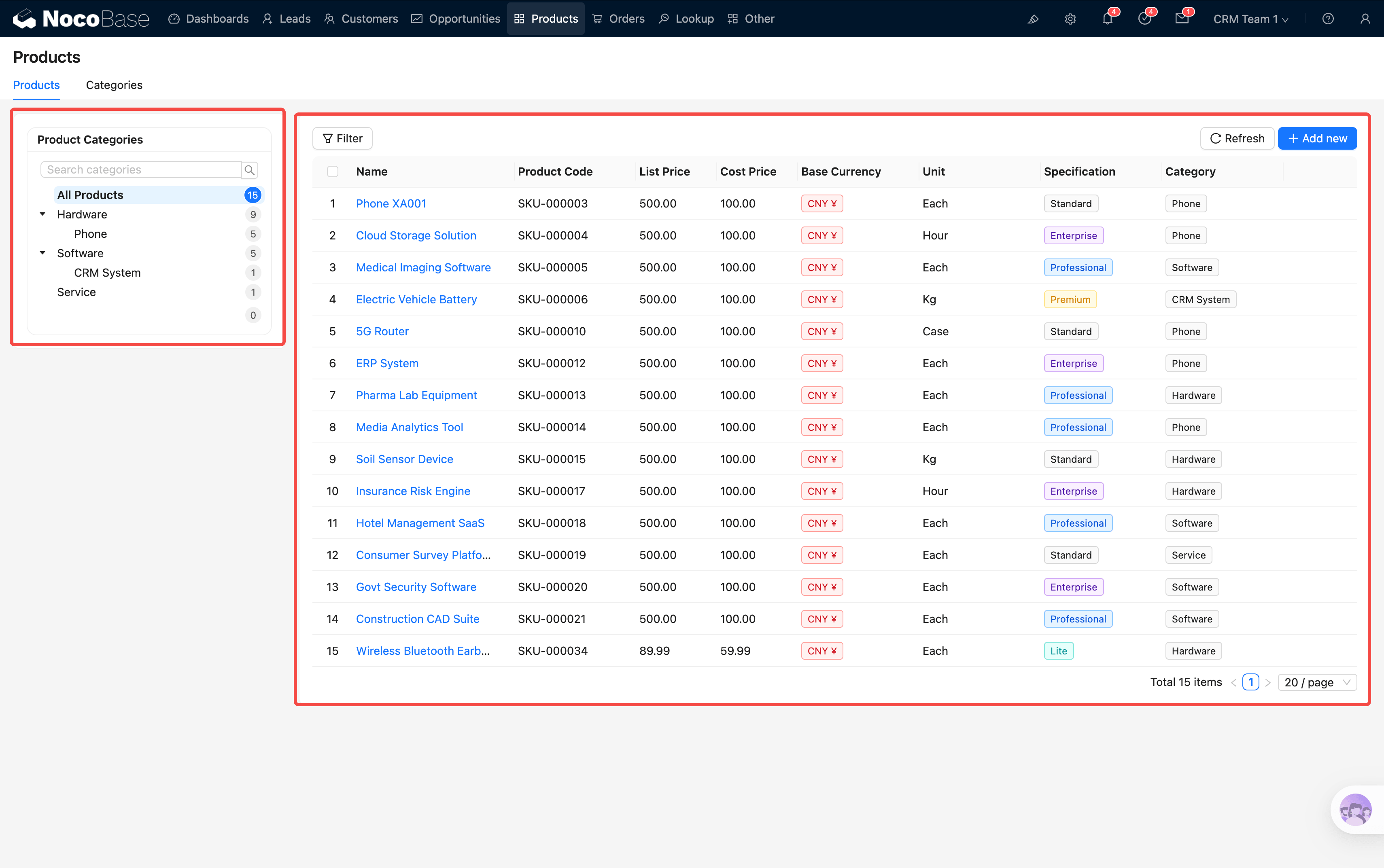
The left side shows a category tree (JS filter), and the right side shows the product table. Each product includes: name, code, category, specification, unit, list price, cost, and currency.
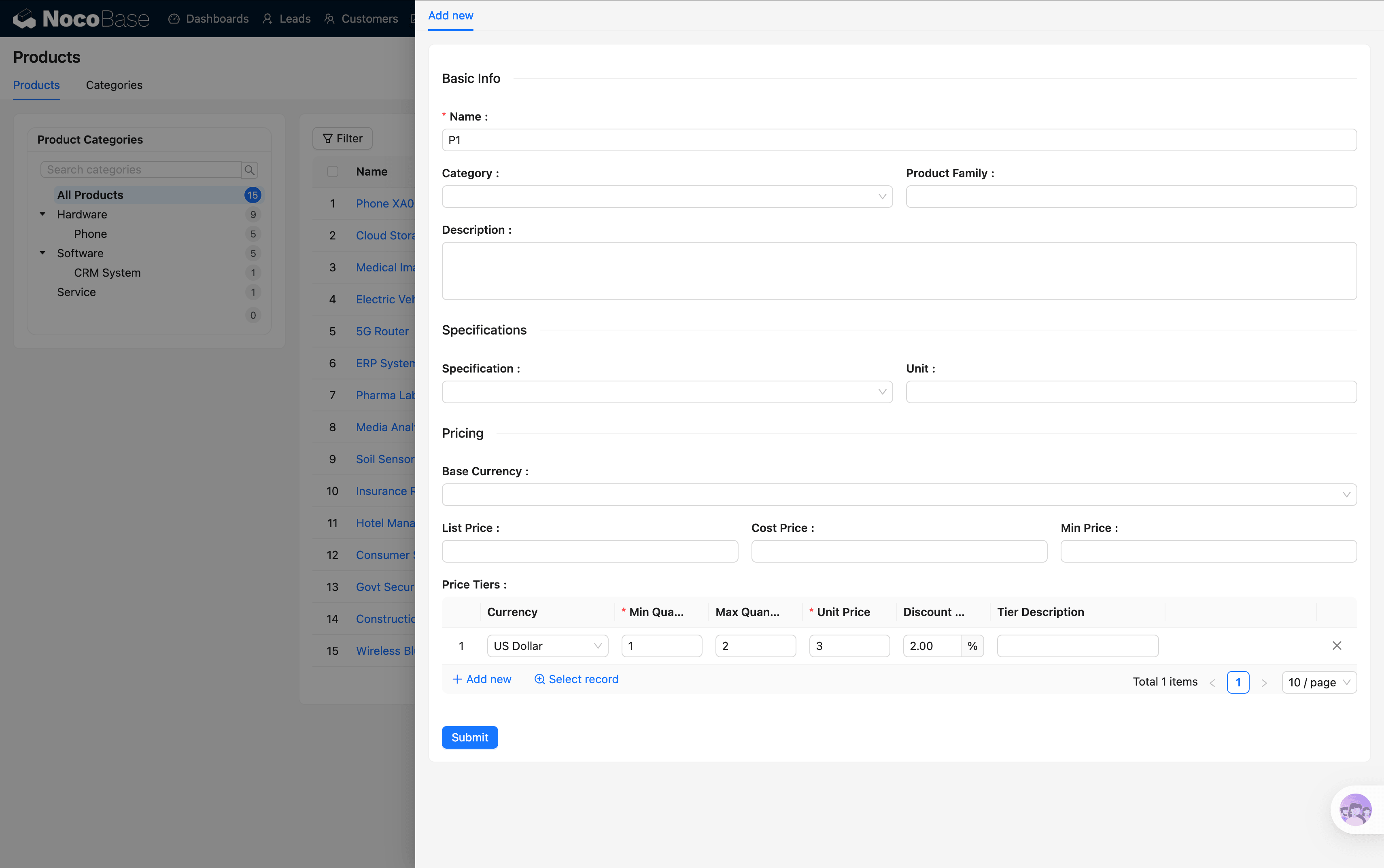
When creating a new product, in addition to basic information, you can configure a Tiered Pricing sub-table:
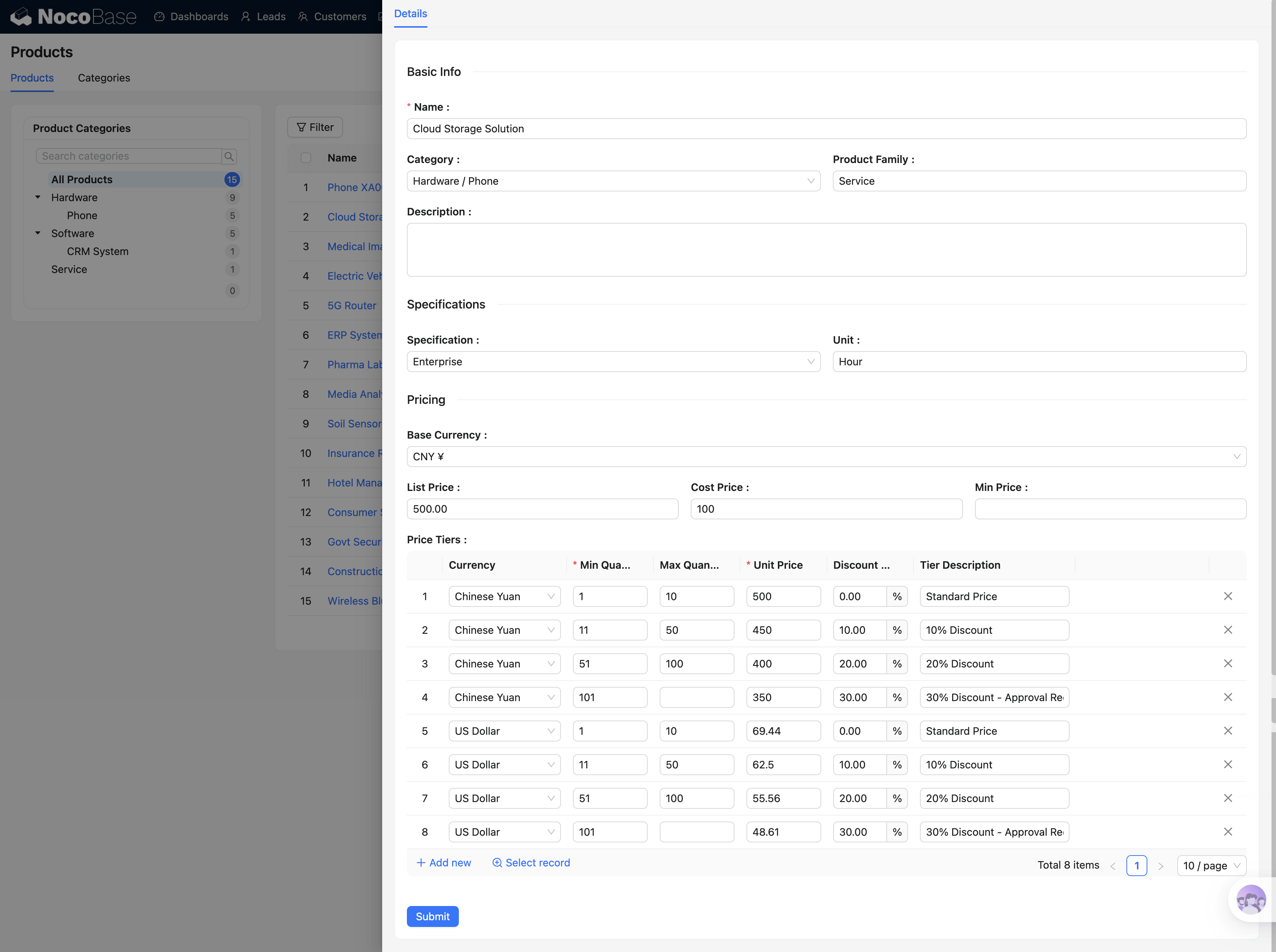
When creating a quotation, the system automatically matches the tiered pricing based on the quantity after you select a product.
Category Management
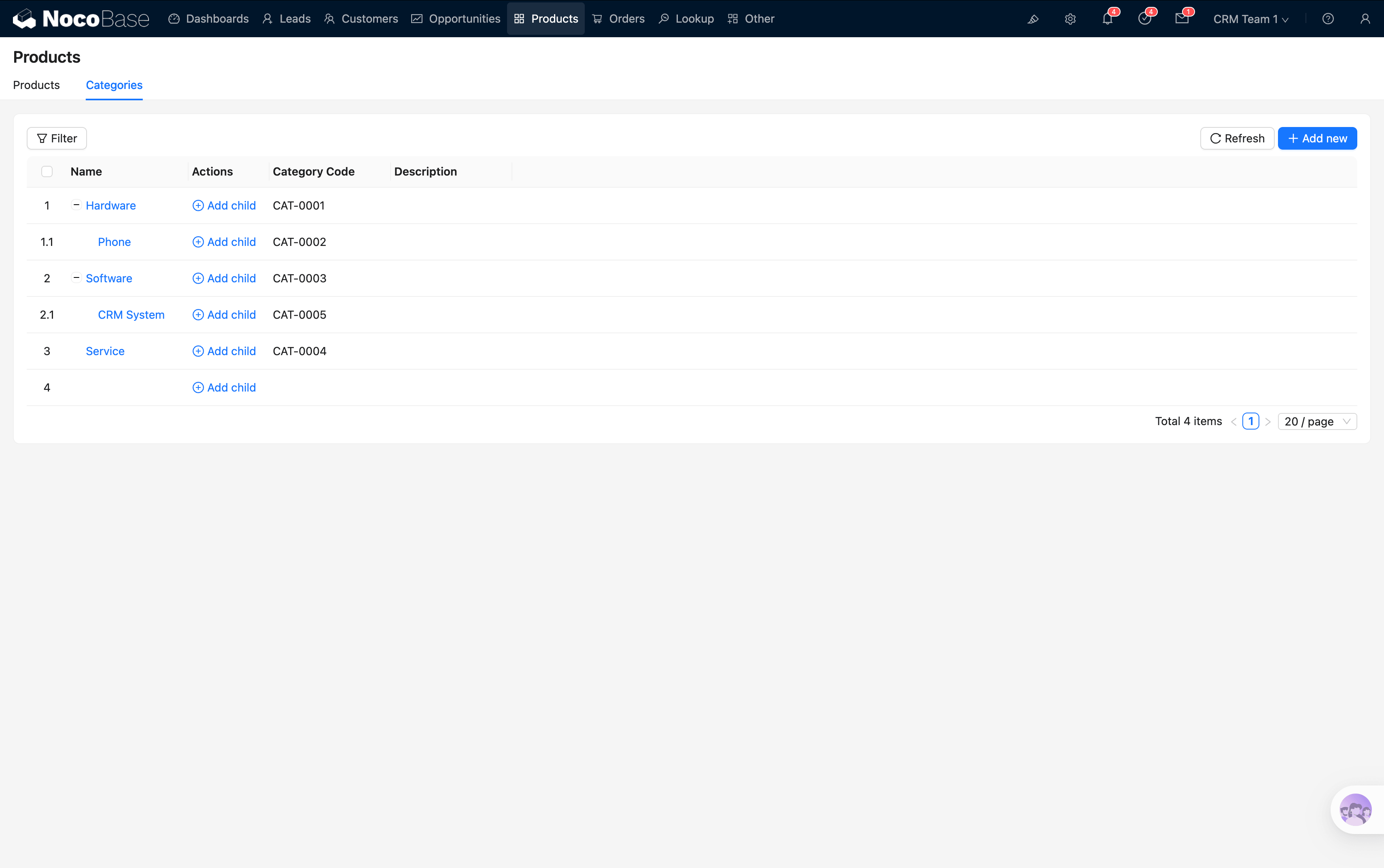
The second tab is a tree table for product categories, supporting multi-level nested categories. Click "Add Subcategory" to create a subcategory under the current node.
Quotations
Quotations are typically created from the opportunity detail view (see the "Create Quotation" section in Opportunities & Quotations). This section covers quotation line items and the approval workflow in more detail.
Line Items
When you select a product in the quotation's line item sub-table, several fields are auto-populated:
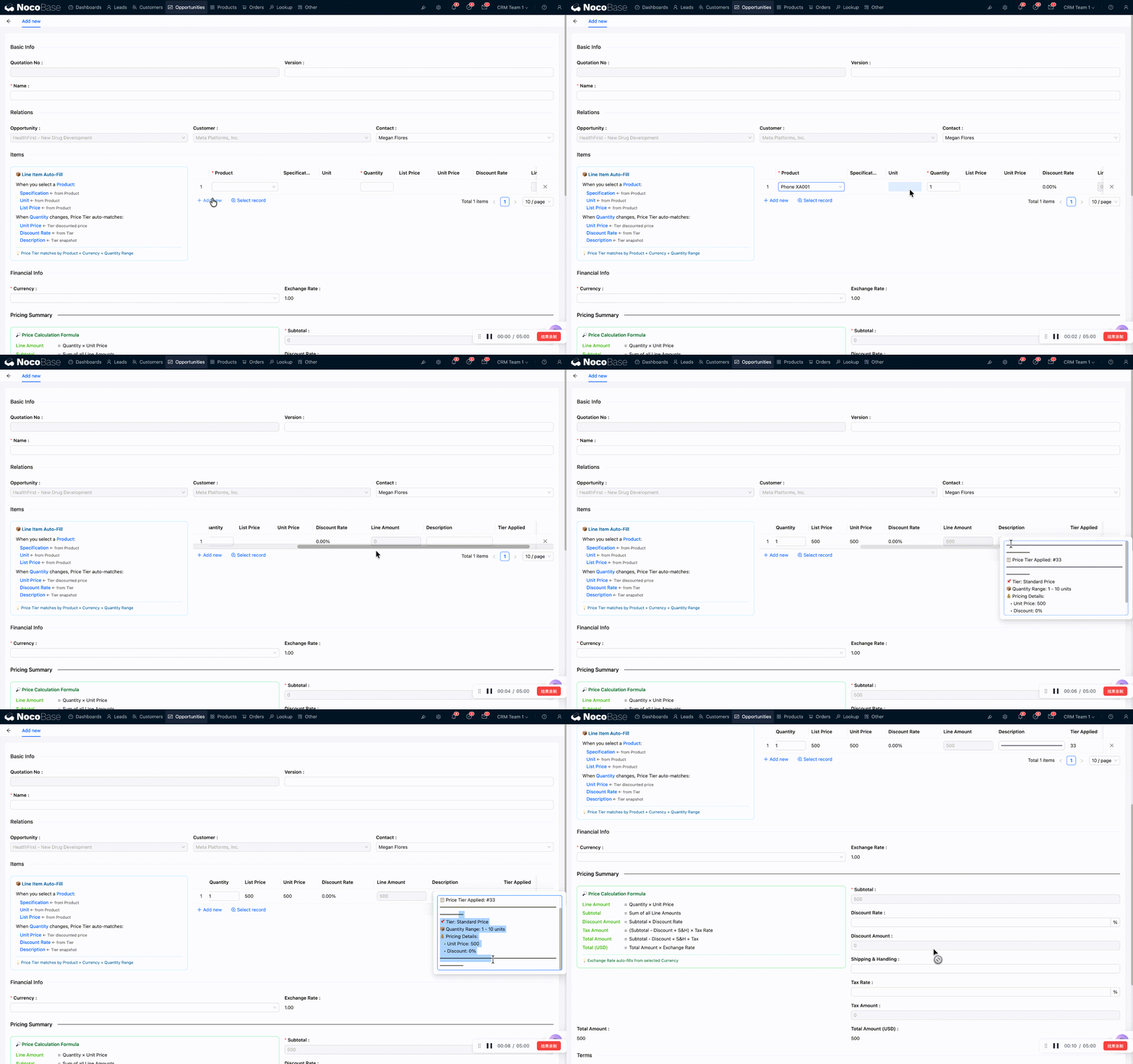
The system automatically calculates the full amount chain: Subtotal → Discount → Tax → Shipping → Total Amount → USD Equivalent.
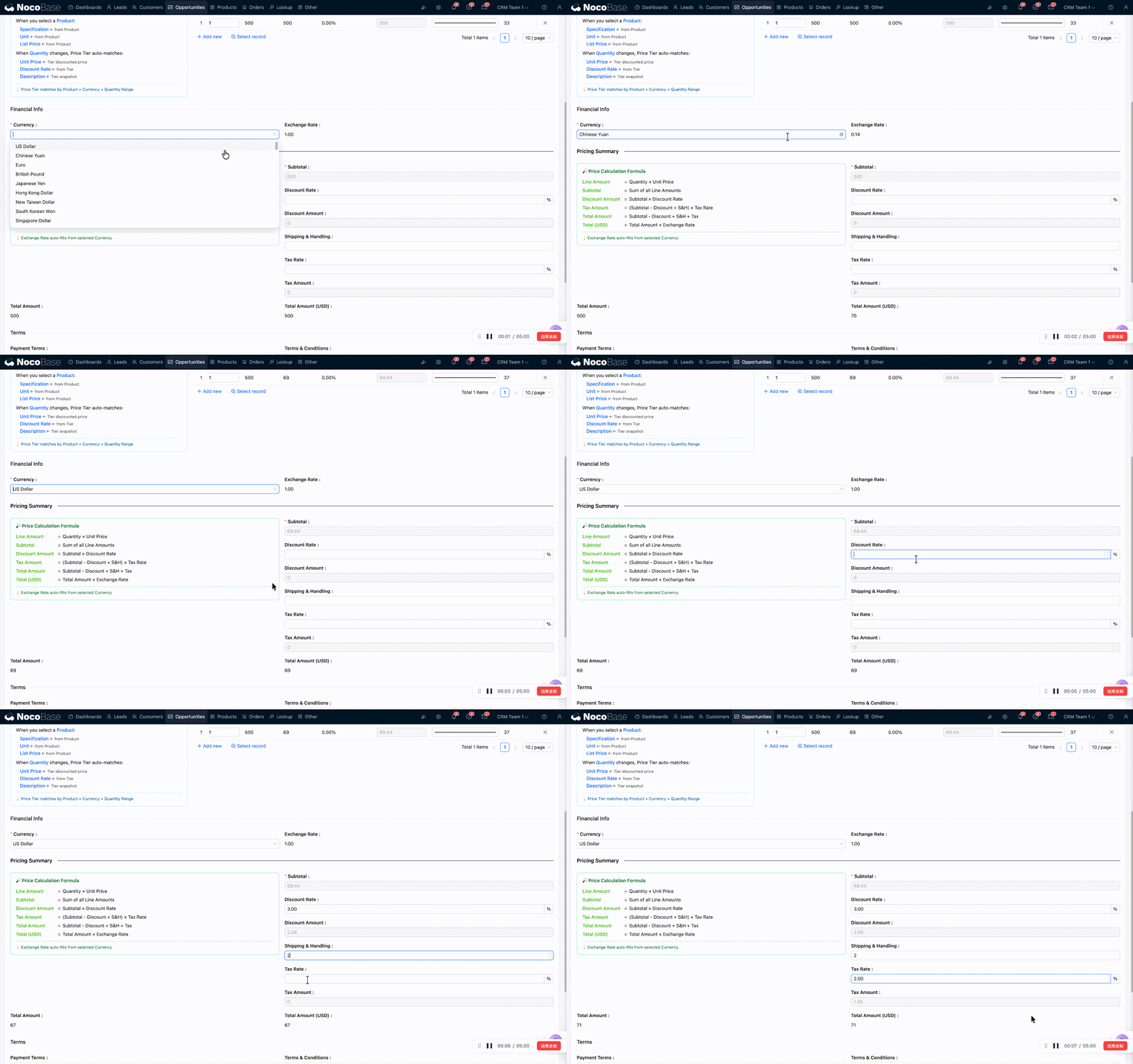
Multi-Currency Support
If a customer transacts in a non-USD currency, select the corresponding currency. The system locks the current exchange rate at the time of creation and automatically converts to a USD equivalent. Exchange rates are maintained on the Settings → Exchange Rates page.
Approval
Quotations require approval after creation. Once approved, a new order can be created.
Order Management
Navigate to the Orders page from the top menu. You can also create an order directly from an approved quotation by clicking "New Order" in the opportunity detail view.
Order List
Filter buttons are available at the top of the page:
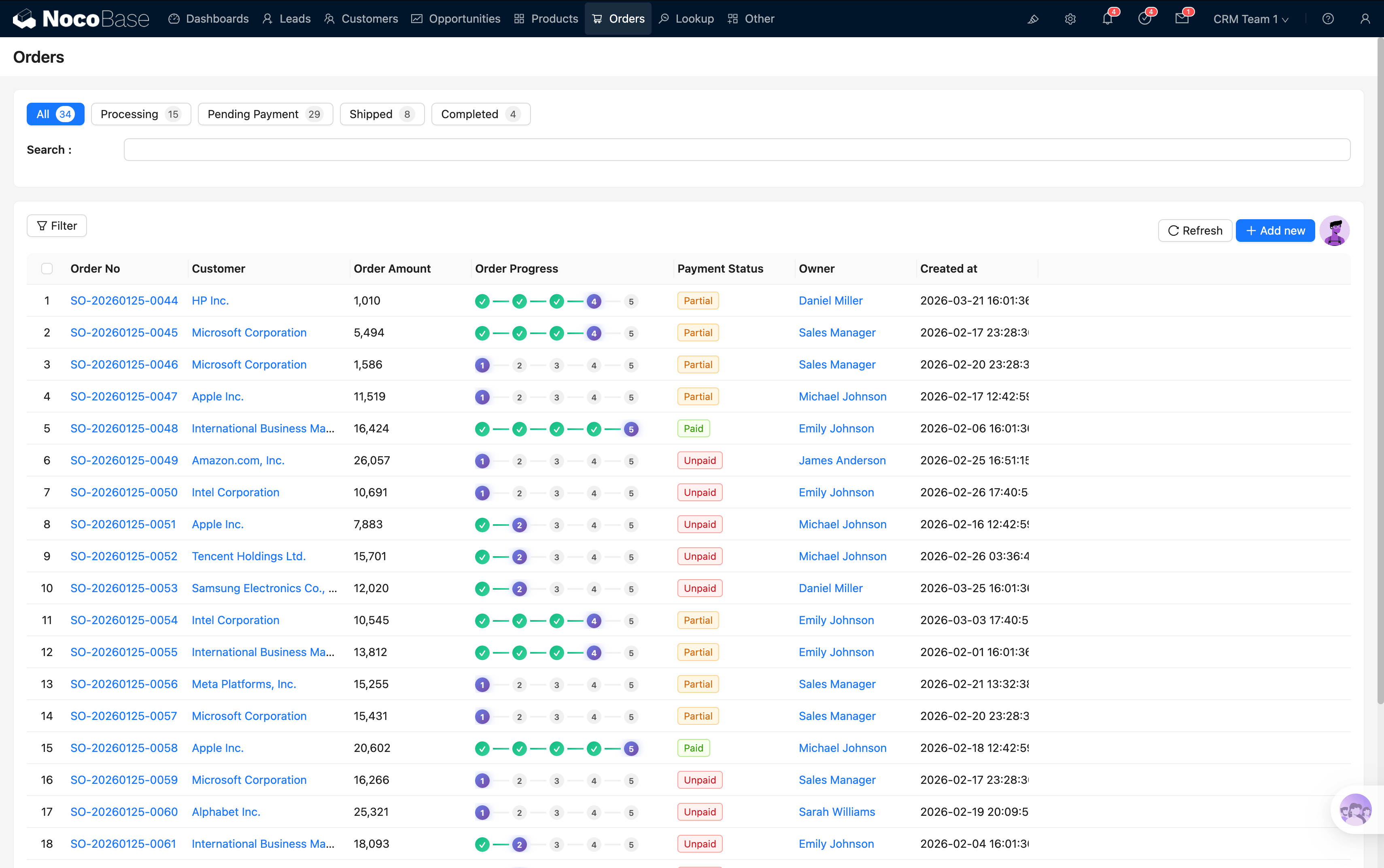
Order Progress Column
The "Order Progress" column in the table displays the current status as a visual dot-line progress bar:
Completed steps are highlighted; steps not yet reached are grayed out.
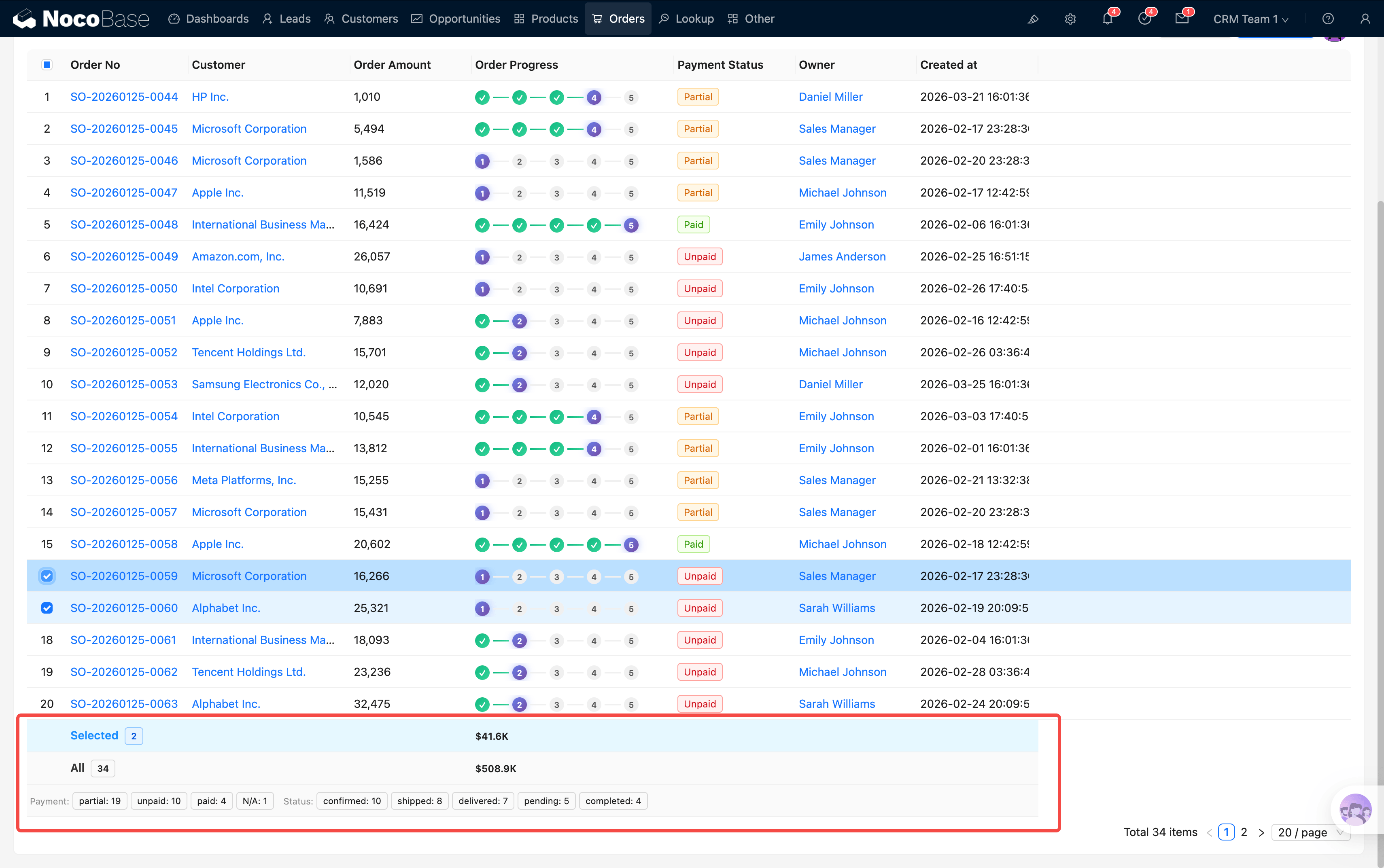
Summary Row
Summary information at the bottom of the table:
- Selected / Total order amount
- Payment status distribution (shown as tags)
- Order status distribution (shown as tags)
Creating an Order
From quotation to order (recommended): In the opportunity detail view, quotations with Approved status display a "New Order" button. Clicking it automatically carries over the customer, line items, amounts, currency, exchange rate, and other information.
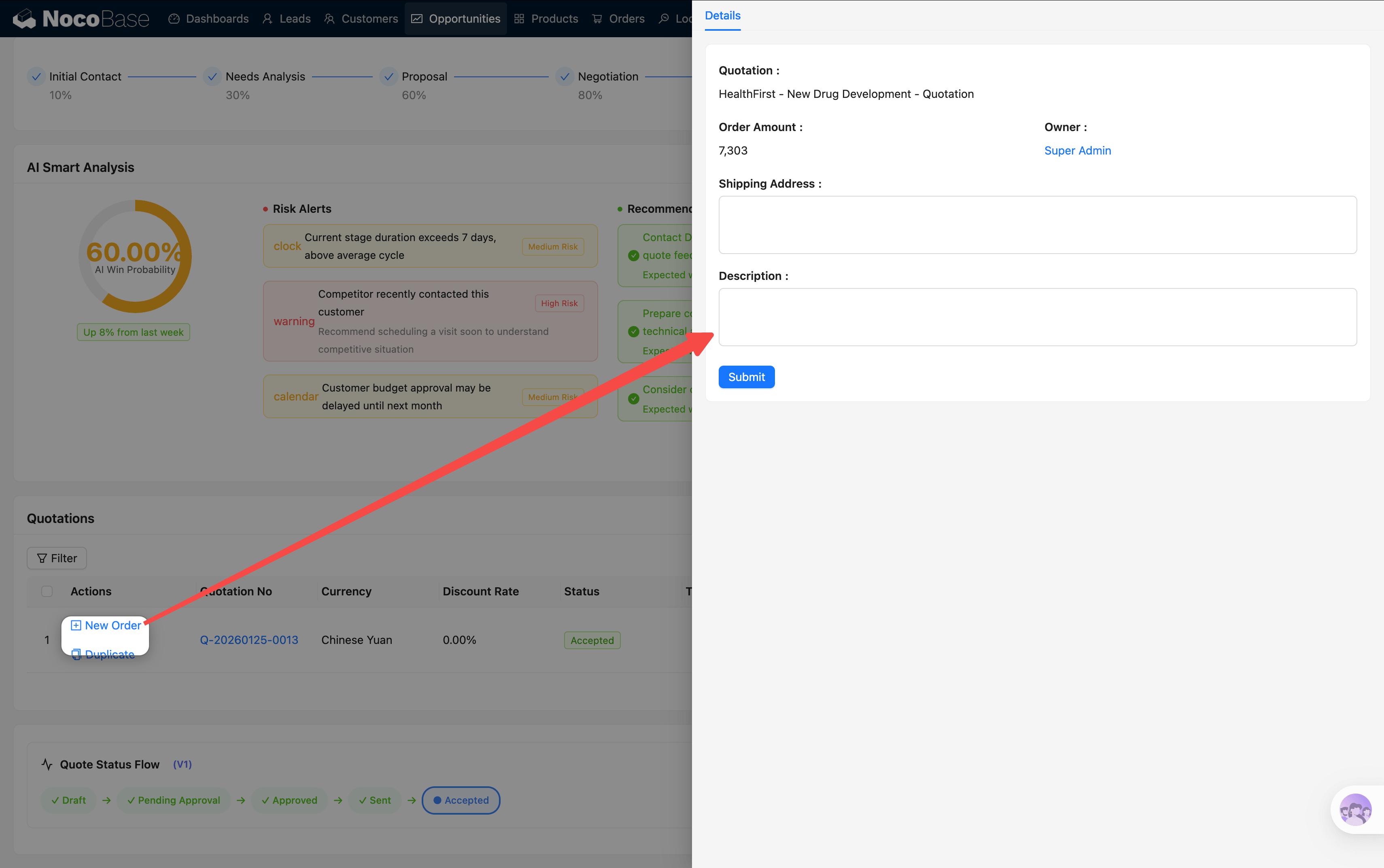
Manual creation: Click "New" on the order list page and fill in the customer, line items, order amount, and payment terms.
Order Status Progression
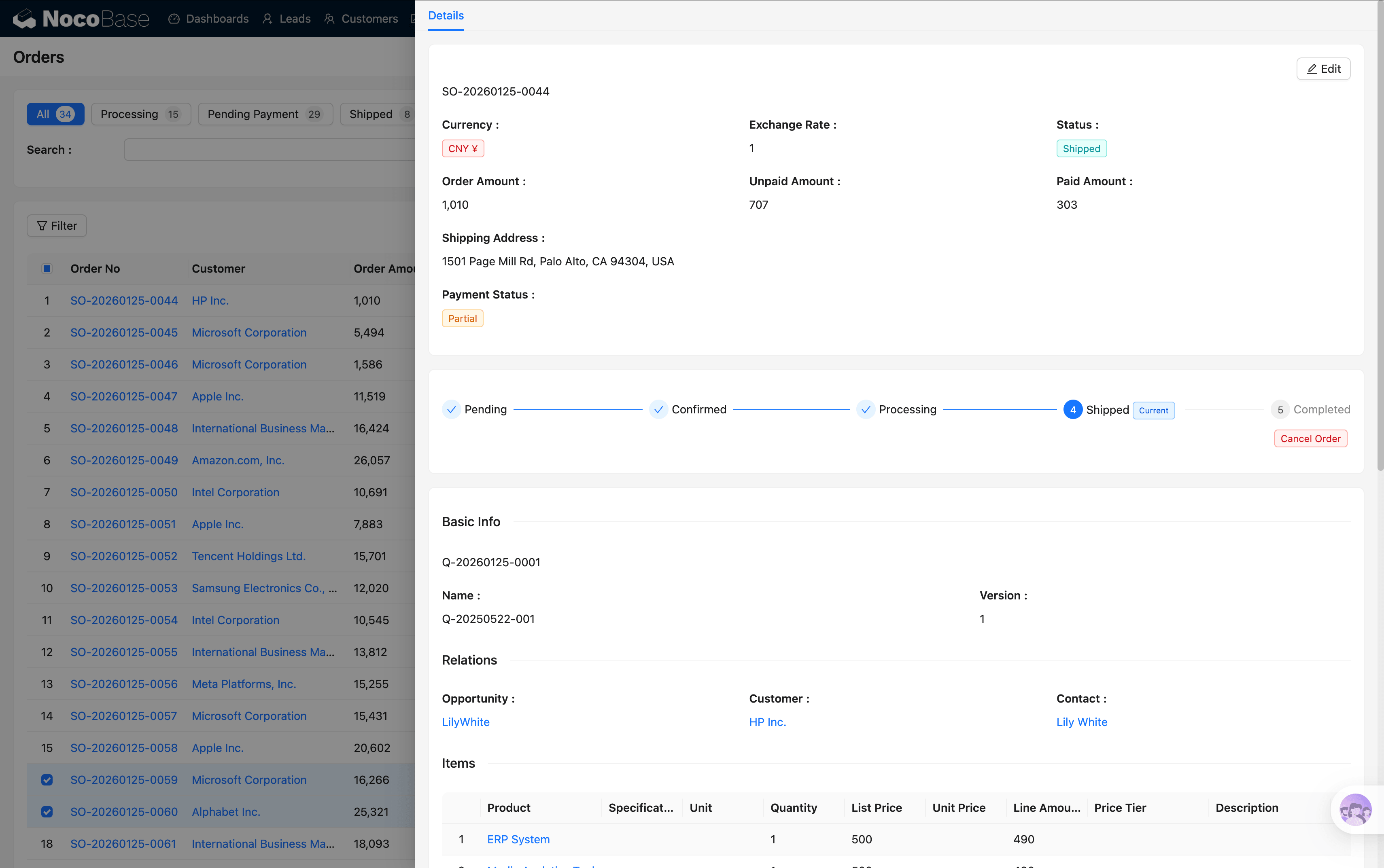
Click an order to open the detail popup. An interactive status flow is displayed at the top; click the next status node to advance. Every status change is recorded by the system.
Payment Tracking
Order status and payment status run on two independent tracks:
- Order status: Confirmed → Processing → Shipped → Completed (fulfillment flow)
- Payment status: Pending → Partial Payment → Paid (collection flow)
Currently, the CRM focuses on the front-end sales process and does not enforce conditional restrictions on order status. These statuses serve as records only. If needed, you can use linkage rules or data table events for enforcement.
After an order is completed, the full sales cycle is closed. Next, learn about managing Customers, Contacts & Emails.
Related Pages
- CRM User Guide
- Opportunity Management — Quotations from the opportunity perspective
- Customers, Contacts & Emails
- Dashboard — Order data drill-through