

Quick Start
AI employeesCommunity Edition+Let's complete a minimal usable AI Employee setup in 5 minutes.
Install Plugin
AI Employees are built into NocoBase (@nocobase/plugin-ai), so no separate installation is required.
Configure Models
You can configure LLM services from either entry:
- Admin entry:
System Settings -> AI Employees -> LLM Service. - Frontend shortcut: In the AI chat panel, click the "Add LLM Service" shortcut when selecting a model to jump directly to configuration.
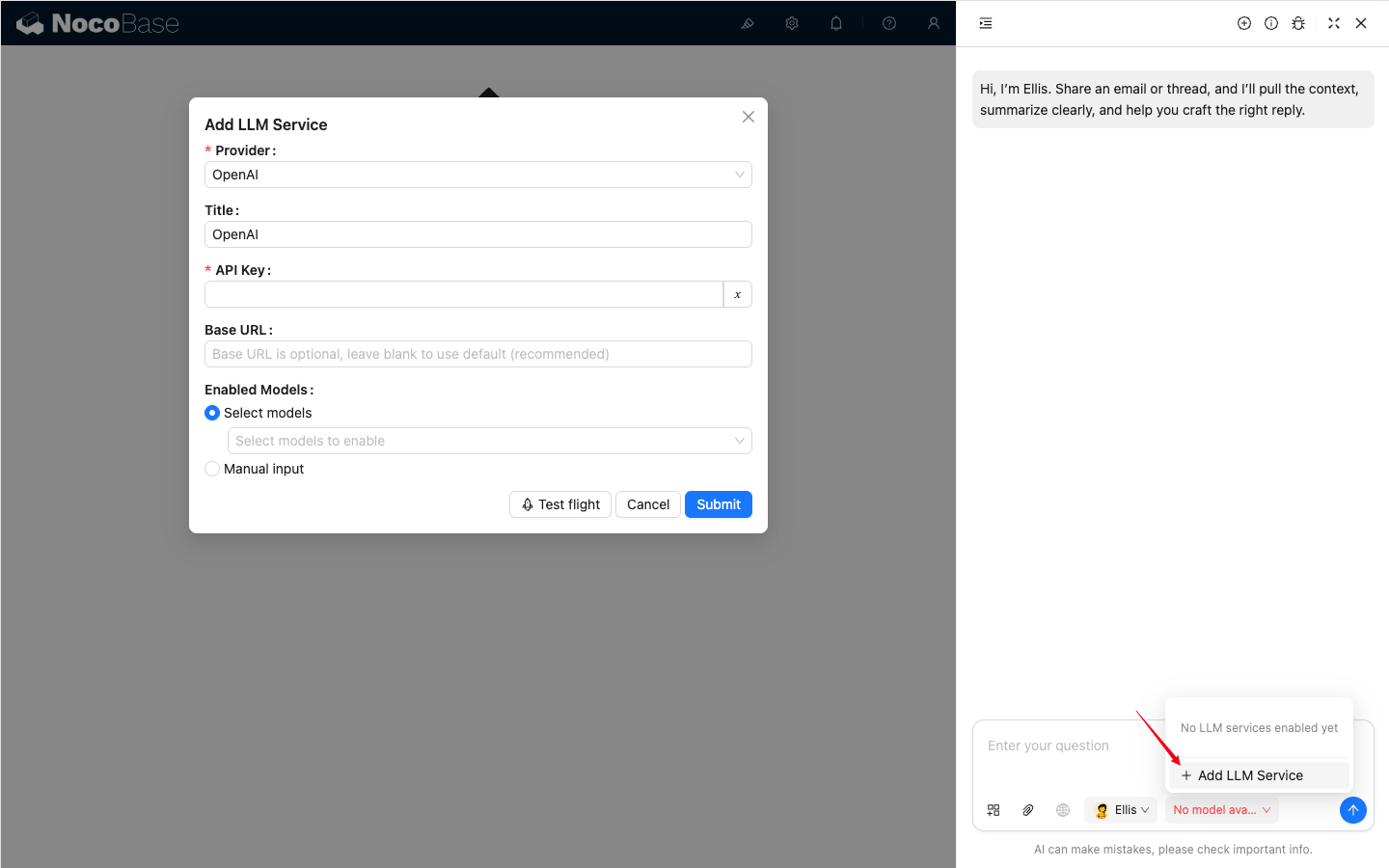
Usually you need to:
- Select a Provider.
- Fill in the API Key.
- Configure Enabled Models; simply use Recommended models by default.
Enable Built-in Employees
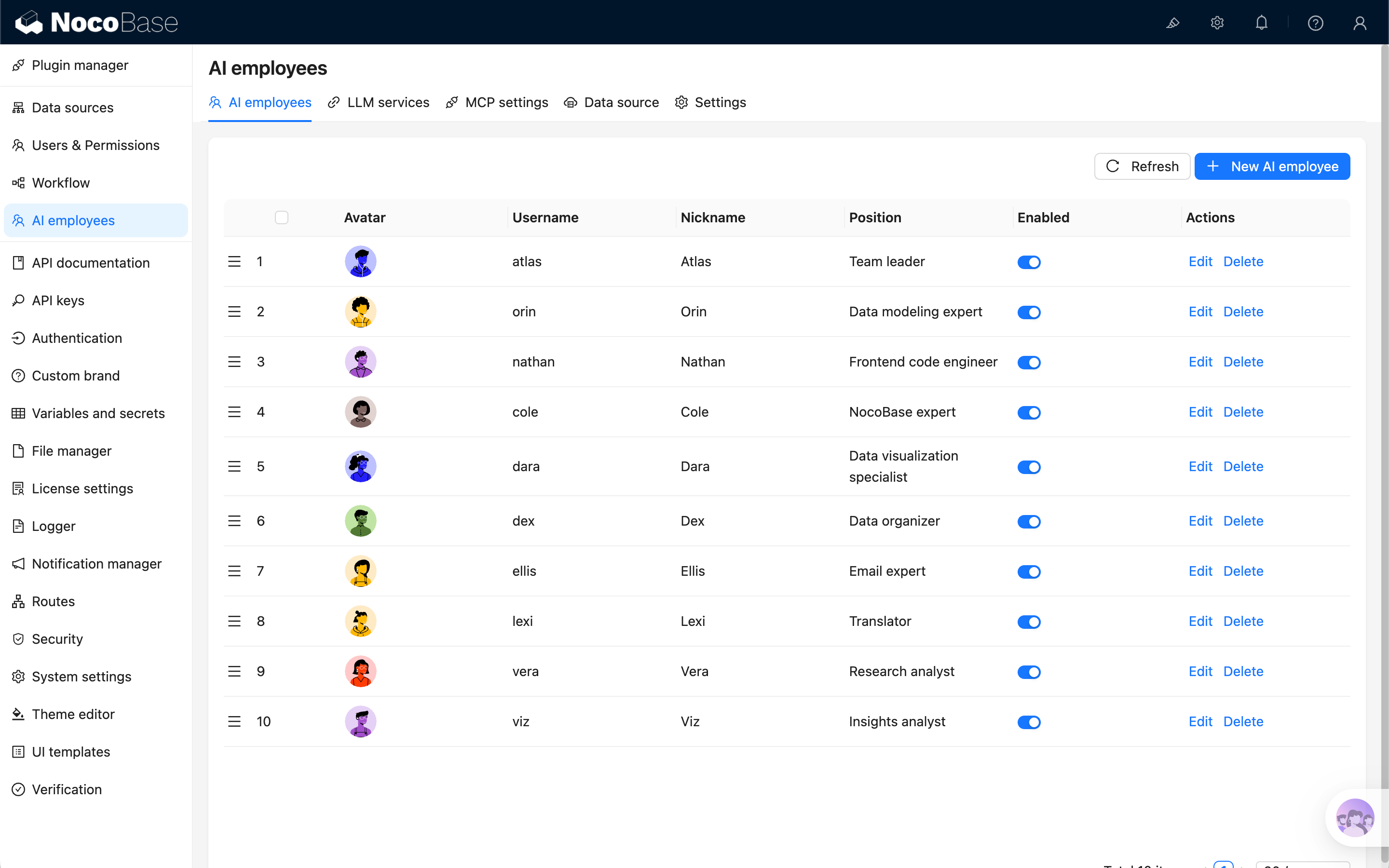
Built-in AI Employees are all enabled by default, and usually do not need to be enabled one by one.
If you need to adjust availability (enable/disable a specific employee), update the Enabled switch in System Settings -> AI Employees list.
Start Collaborating
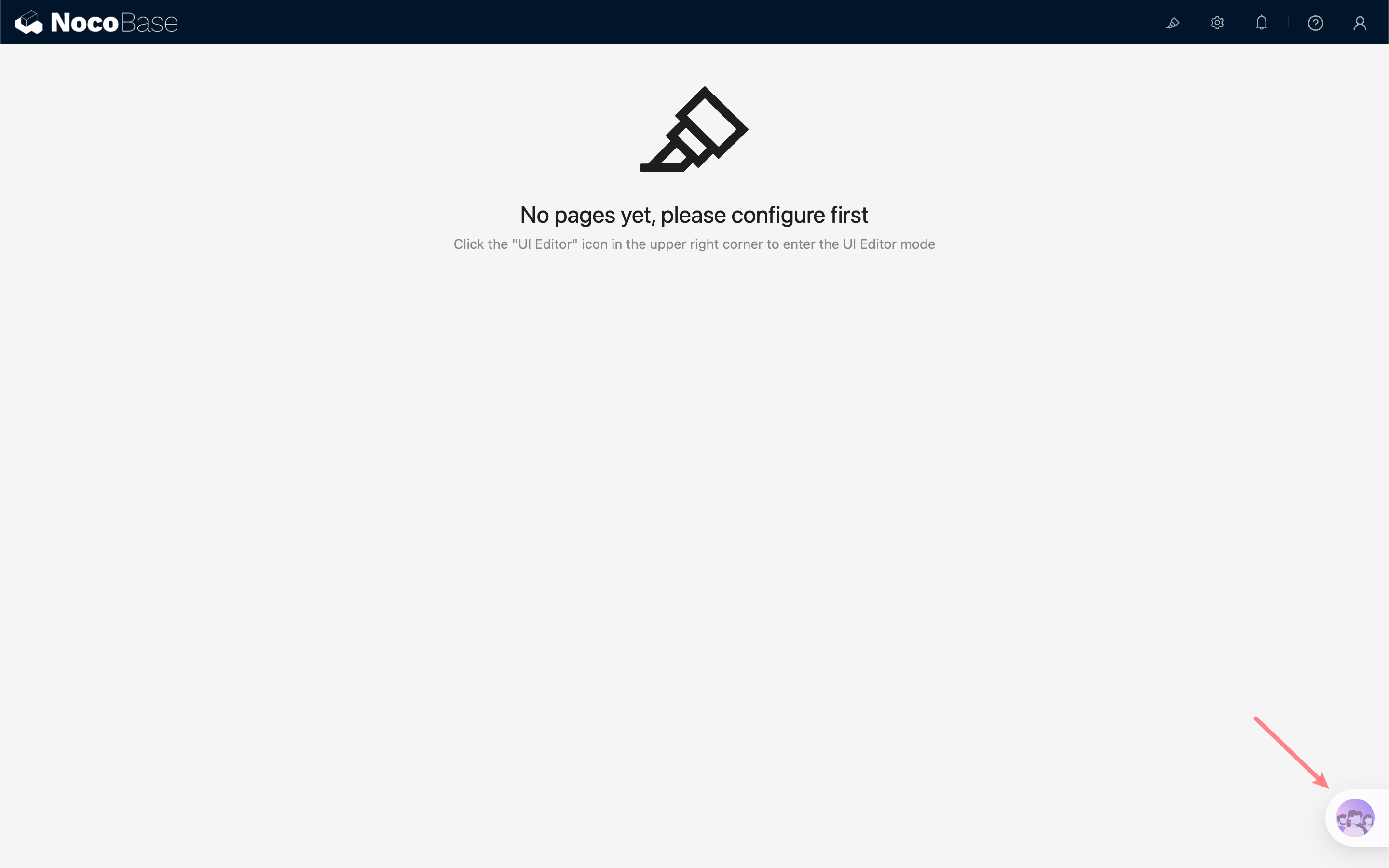
Click the AI Employee entry at the bottom right to open the chat dialog.
The default AI Employee is the team leader Atlas. You can type your question to start a conversation directly. When needed, Atlas will call the appropriate employees based on your question to collaborate and complete the task. You can also manually switch to a suitable employee and model for your specific scenario.
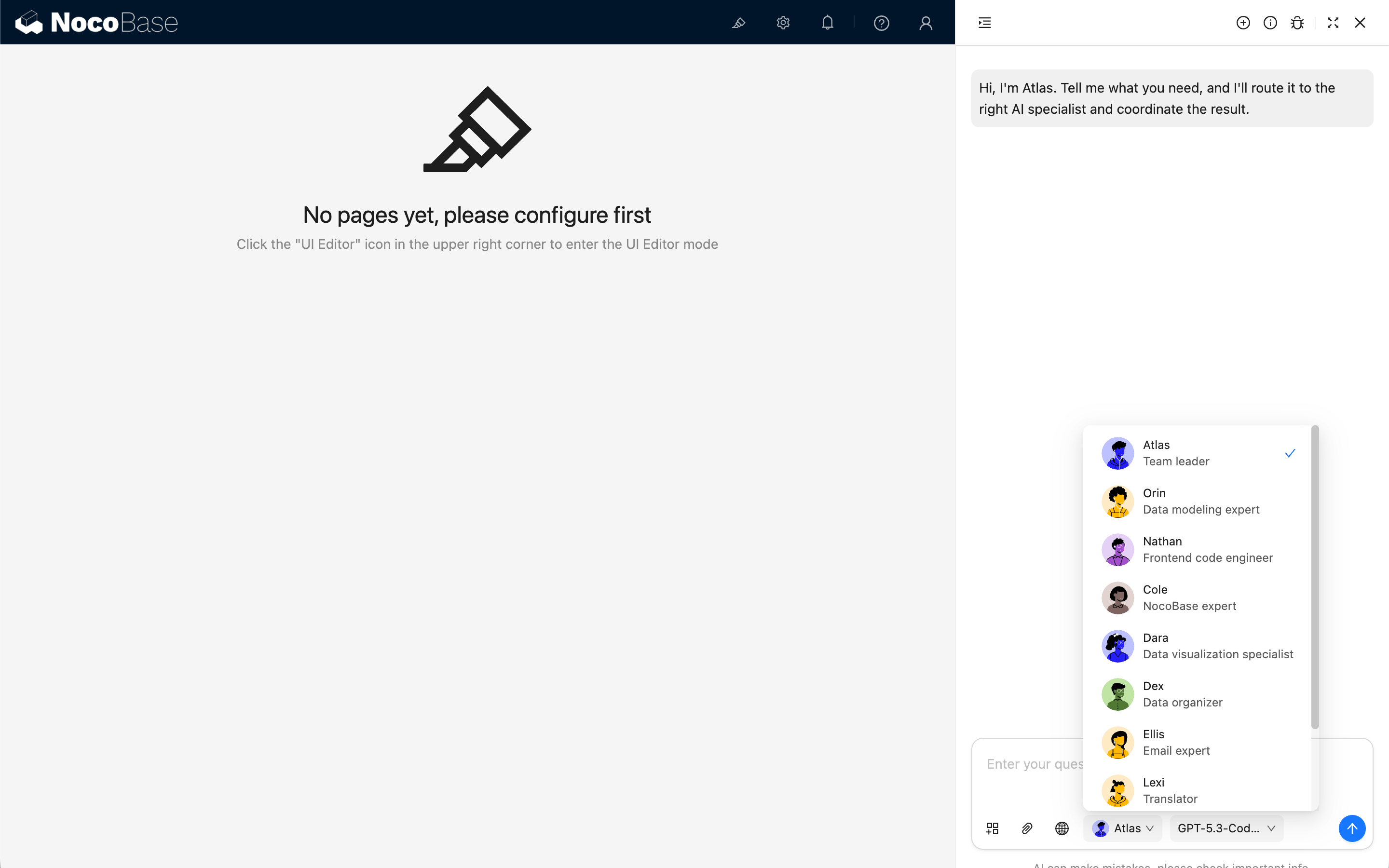
You can also:
- Add blocks
- Add attachments
- Enable Web Search
Shortcut Tasks
You can preset common tasks for each AI Employee at the current location, with pre-configured task background, user messages, block context, and more. This way you can start working with just one click, making it fast and convenient.
Built-in Employees Overview
NocoBase provides multiple built-in AI Employees for different scenarios.
You only need to:
- Configure LLM services.
- Adjust employee enable status when needed (enabled by default).
- Select a model in chat and start collaborating.
Notes
Some built-in AI Employees have dedicated work scenarios:
- Orin: data modeling pages.
- Dara: chart configuration blocks.
- Nathan: JS Block and similar code editors.