

Configure AI Employee Models
AI employeesCommunity Edition+By default, AI Employees can use all enabled LLM services and models in the system. Administrators can also enable dedicated model settings for a specific AI Employee and restrict that employee to selected models.
This is useful when you need stable model capability, cost control, or a task-specific model. For example, Lina can be fixed to a translation model, while Viz can be limited to models that are better at data analysis.
Prerequisites
Before configuring models for an AI Employee, make sure that:
- The AI Employees plugin is enabled.
- At least one LLM service has been configured.
- The LLM service has available
Enabled Models. - The target AI Employee is enabled.
For LLM service setup, see Configure LLM Service.
Entry Point
Go to System Settings -> AI Employees -> AI employees, open the AI Employee you want to configure, and switch to Model settings.
You can enable or disable dedicated model settings for the current employee on this page.
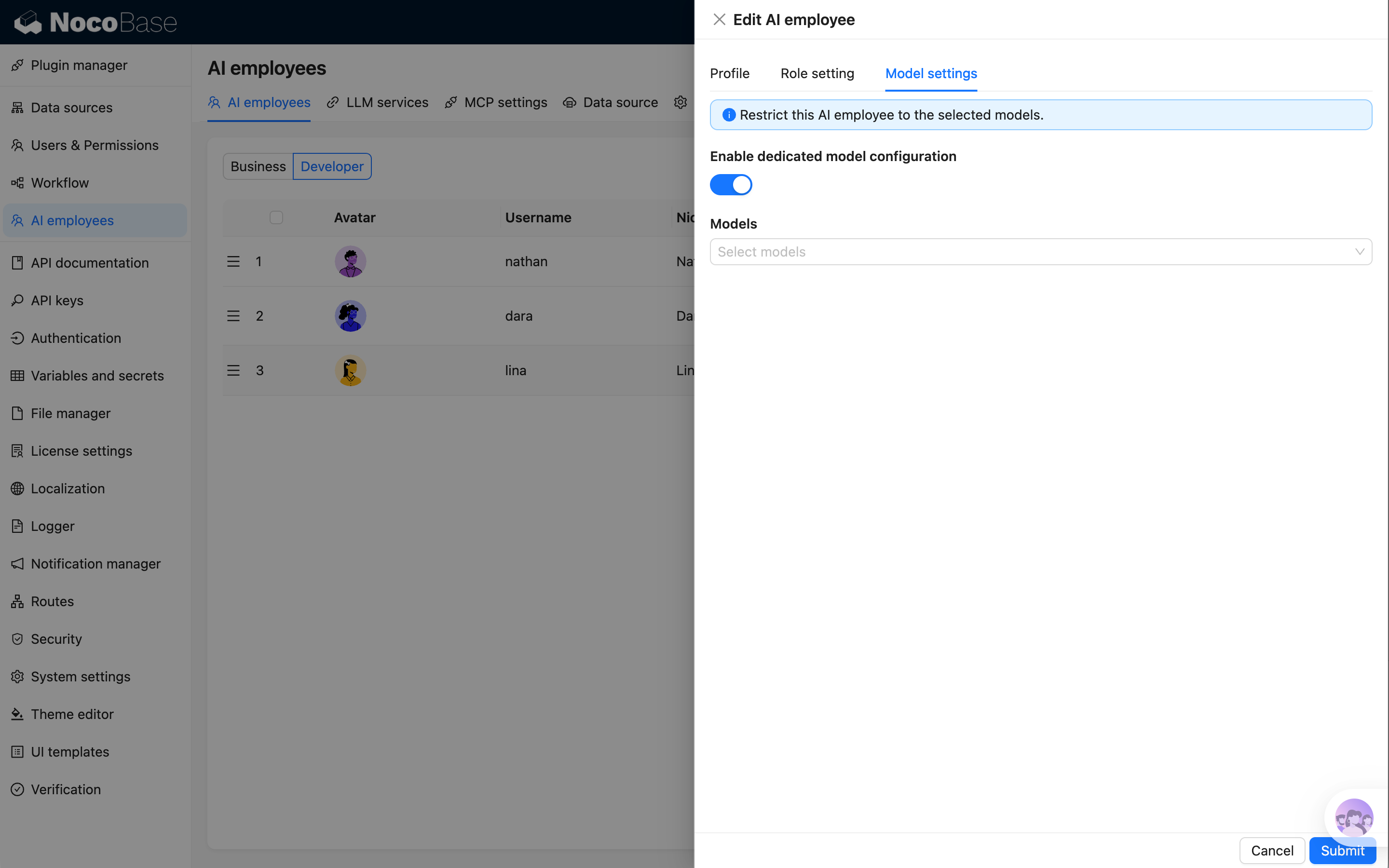
Enable Dedicated Model Settings
After enabling Enable dedicated model configuration, select the models that this AI Employee is allowed to use in Models.
Multiple models can be selected. The options come from enabled LLM services and their Enabled Models.
After this option is enabled, the AI Employee can only use the selected models:
- The model switcher in chat only shows selected models.
- Shortcut tasks can only use selected models.
- Workflow AI Employee nodes can only select selected models.
- If a request passes a model outside the allowed range, the system uses the first allowed model instead.
If dedicated model settings are enabled but no model is selected, the AI Employee cannot resolve an available model and will report that the model is not configured.
Disable Dedicated Model Settings
After disabling Enable dedicated model configuration, the AI Employee returns to the default model rules:
- It can use all enabled LLM service models.
- Users can switch to any available model in chat.
- If no model is selected manually, the system uses the global default model.
Model Resolution Rules
When an AI Employee executes a task, the final model is resolved in this order:
- If dedicated model settings are enabled, resolve within the selected model range first.
- If the request specifies a model and that model is allowed, use the specified model.
- If the specified model is not allowed, use the first allowed model.
- If dedicated model settings are not enabled, prefer the model specified by the request.
- If no model is specified, use the global default model.
Recommendations
- Configure task-specific models for specialized employees. Translation, localization, data analysis, and code generation may benefit from different models.
- Use lower-cost models for cost-sensitive scenarios and prevent users from switching to expensive models.
- For employees that need tool calling, web search, or structured output, choose models that support those capabilities.
- Keep at least one stable model available for key built-in employees to avoid task failures.
FAQ
Why is the model list empty?
Usually because no LLM service has been configured, or no model is enabled in the LLM service. Check Enabled Models in LLM service first.
Why can't users switch to other models?
If the AI Employee has dedicated model settings enabled, the chat window only allows switching within the selected model range. Add more models in Model settings or disable dedicated model settings if other models are needed.
Which entries are affected after model settings are changed?
The change affects new chats, shortcut tasks, workflow AI Employee nodes, and plugin built-in tasks started by this AI Employee. Completed historical messages are not regenerated.