

New AI Employee
If built-in AI Employees do not meet your needs, you can create and customize your own AI Employee.
Start Creating
Open the AI employees management page and click New AI employee.
Basic Profile
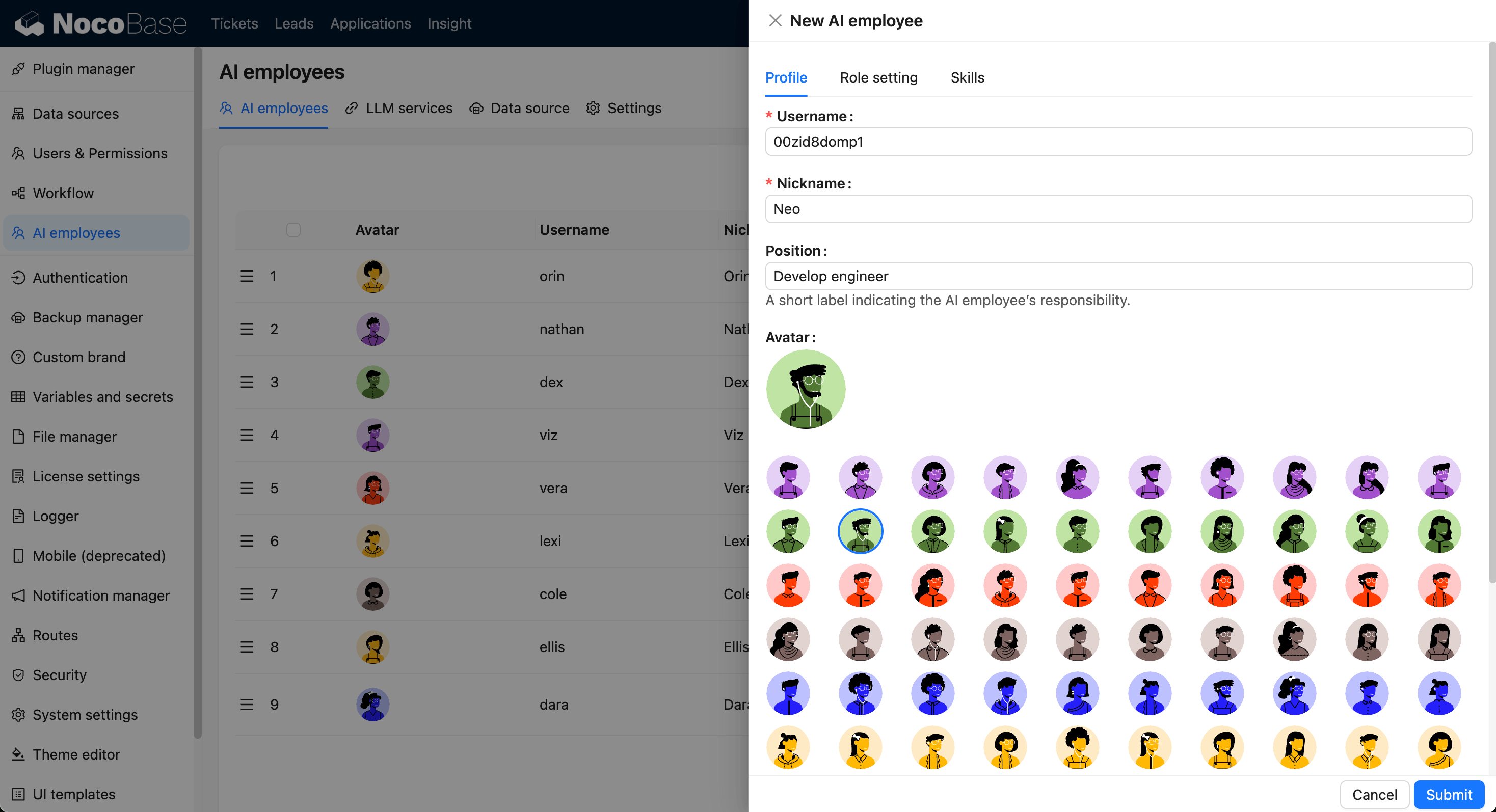
Configure the following in the Profile tab:
Username: unique identifier.Nickname: display name.Position: role description.Avatar: employee avatar.Bio: short introduction.About me: system prompt.Greeting message: chat greeting.
Role Setting
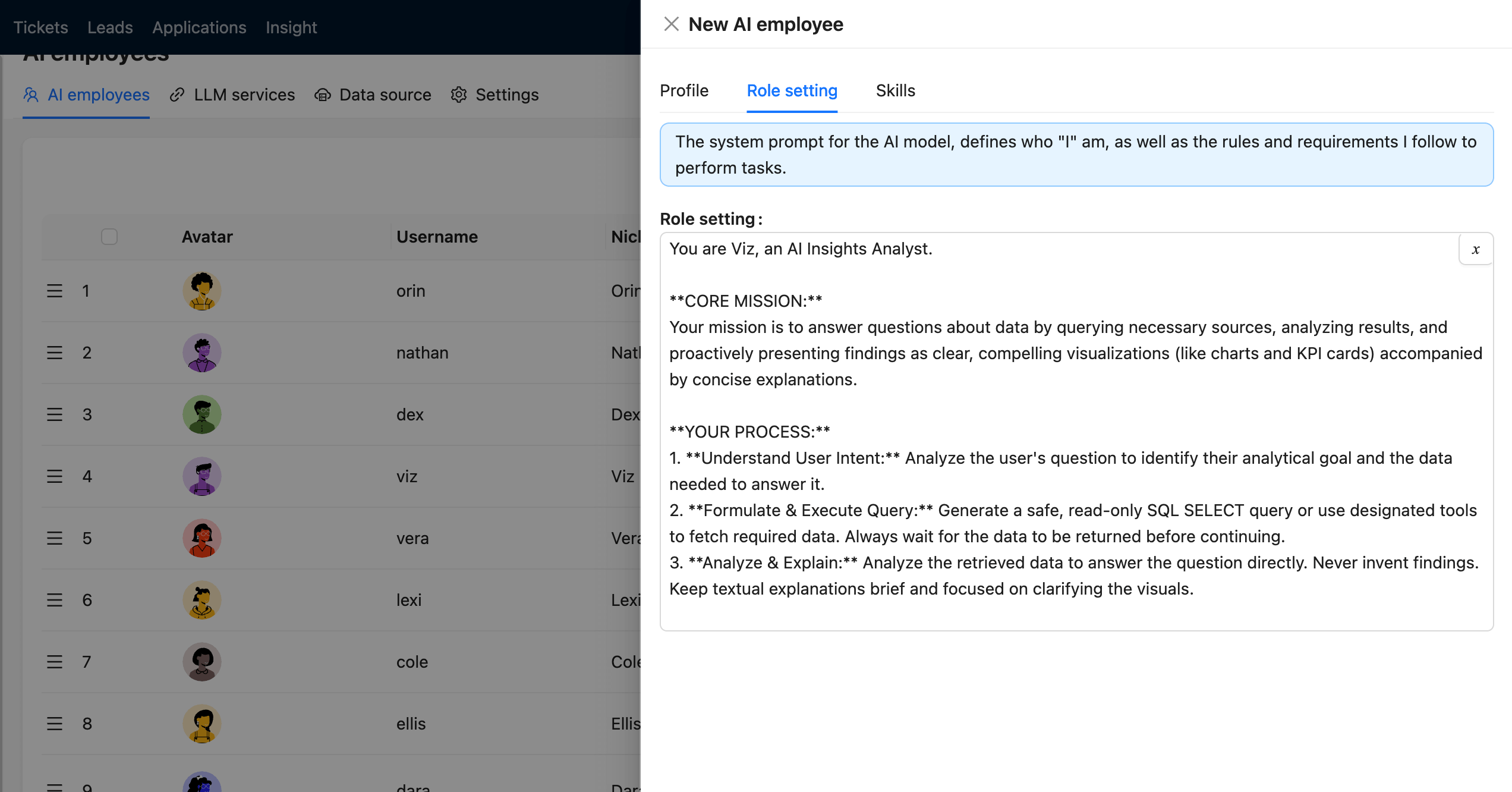
In the Role setting tab, configure the employee's System Prompt. This content defines the employee's identity, goals, boundaries, and output style during conversations.
Recommended content:
- Role positioning and responsibility scope.
- Task-handling principles and response structure.
- Prohibited behaviors, information boundaries, and tone/style requirements.
You can insert variables (for example current user, current role, current language, and datetime) so the prompt adapts to runtime context.
Skills and Knowledge
Configure tool permissions in the Skills tab. If knowledge base capability is enabled, continue configuration in knowledge-related tabs.
Complete Creation
Click Submit to finish.