

Configure LLM Service
AI employeesCommunity Edition+Before using AI Employees, configure available LLM services first.
Supported providers include OpenAI, Gemini, Claude, DeepSeek, Qwen, Kimi, and Ollama local models.
Create Service
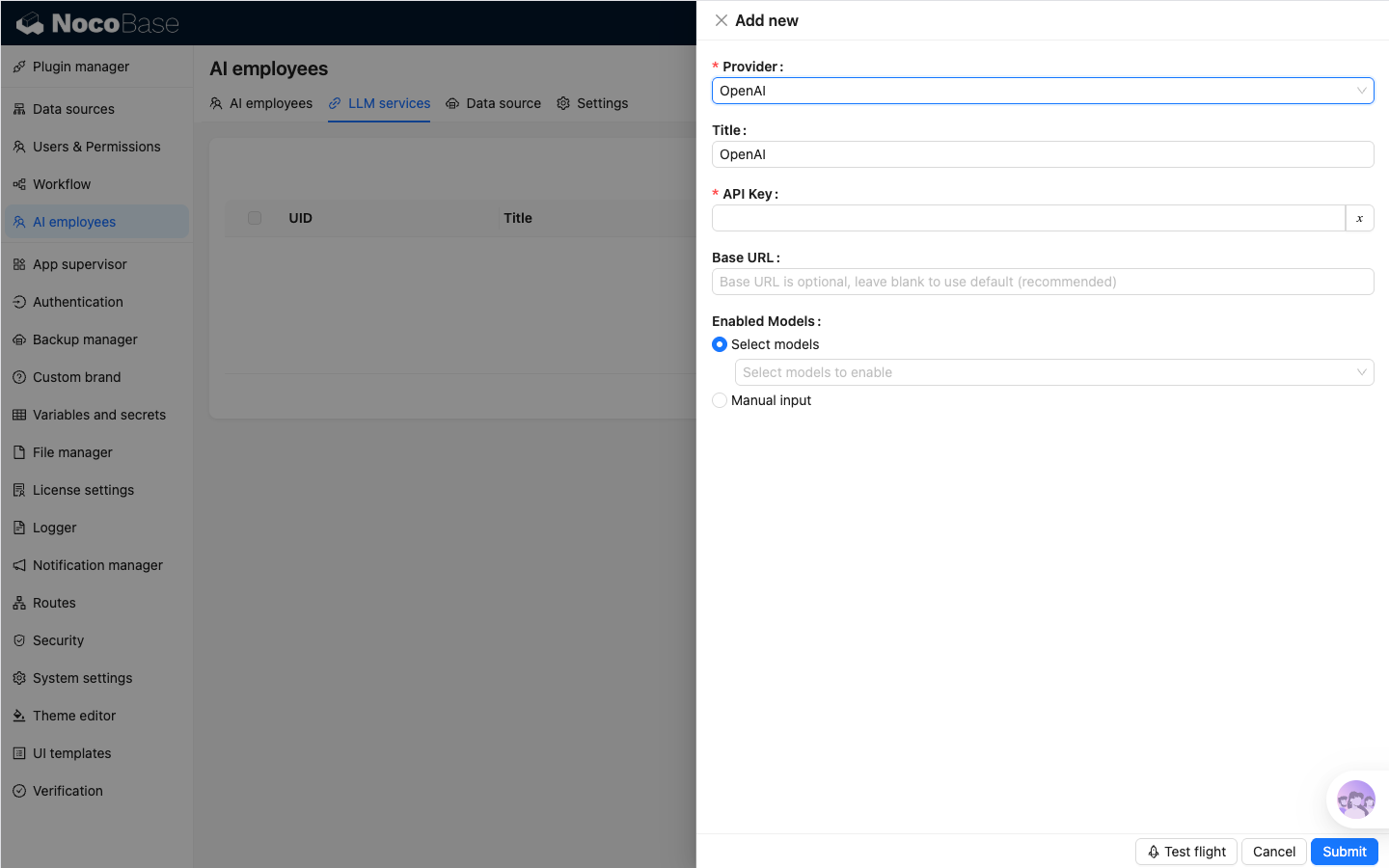
Go to System Settings -> AI Employees -> LLM service.
- Click
Add Newto open the creation dialog. - Select
Provider. - Fill
Title,API Key, andBase URL(optional). - Configure
Enabled Models:Select models: select from the provider model list.Manual input: manually enter model ID and display name when the model list cannot be retrieved from the provider API.
- Click
Submitto save.
Enable and Sort Services
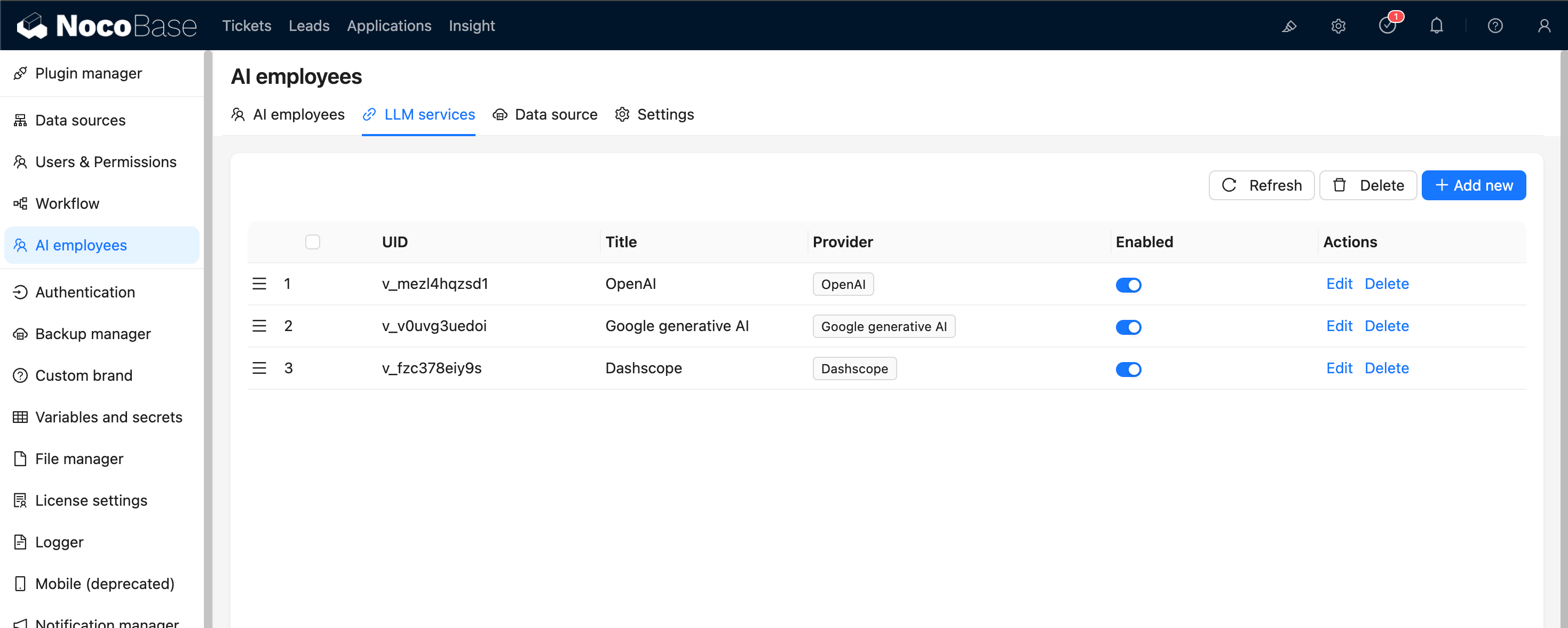
In the LLM service list, you can:
- Toggle service status with the
Enabledswitch. - Drag to reorder services (affects model display order).
Availability Test
Use Test flight at the bottom of the service dialog to verify service and model availability.
It is recommended to run this test before production use.