AI Employee Node
Introduction
The AI Employee node lets you assign an AI Employee to complete a specific task in a Workflow and output structured data.
After creating a Workflow, you can select the AI Employee node when adding Workflow nodes.
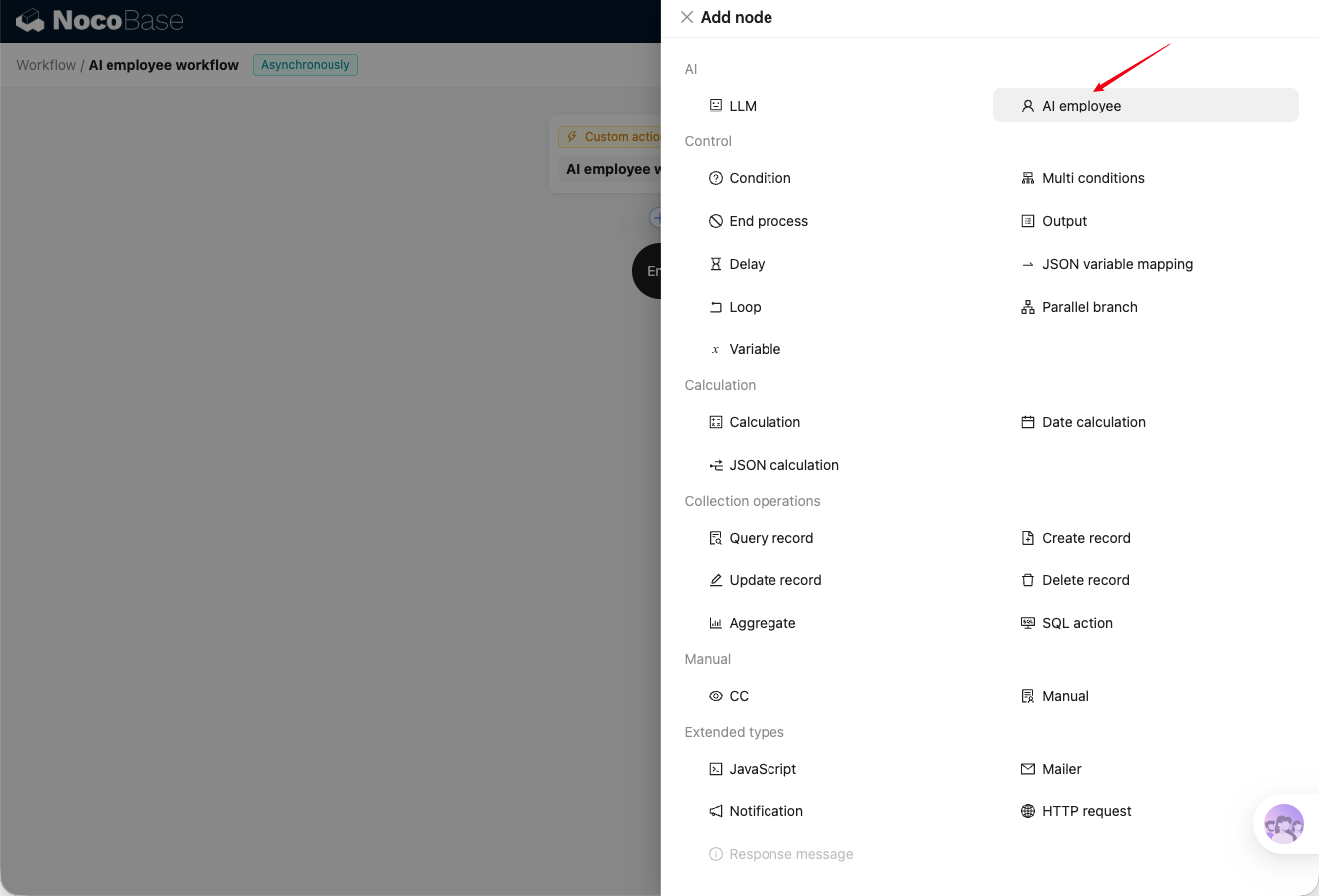
Node Configuration
Preparation
Before configuring the AI Employee node, you should understand how to build a Workflow, how to configure an LLM service, what built-in AI Employees are for, and how to create an AI Employee.
You can refer to the following documents:
Task
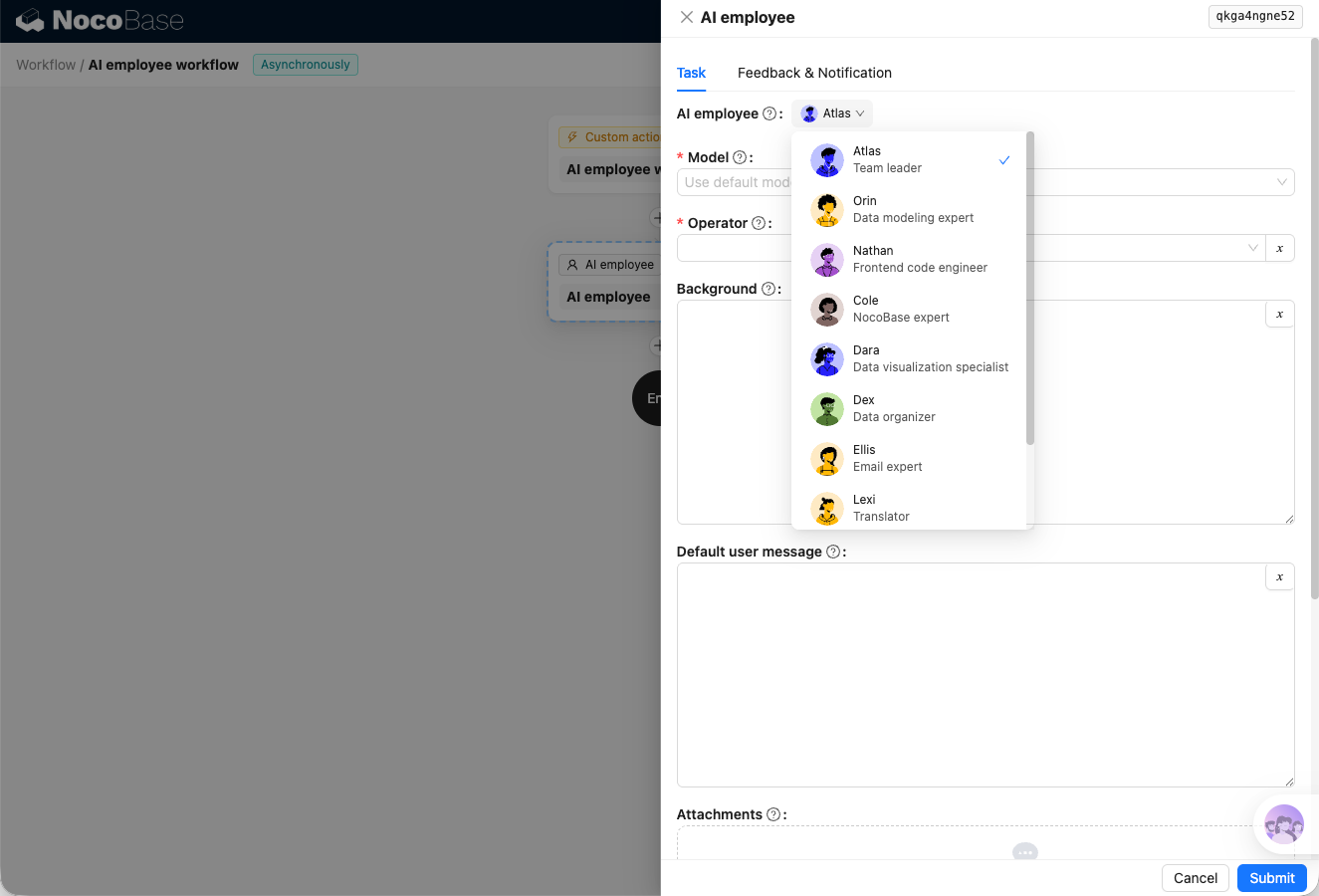
Select AI Employee
Select an AI Employee to handle the task for this node. Choose an enabled built-in AI Employee or a custom AI Employee from the drop-down list.
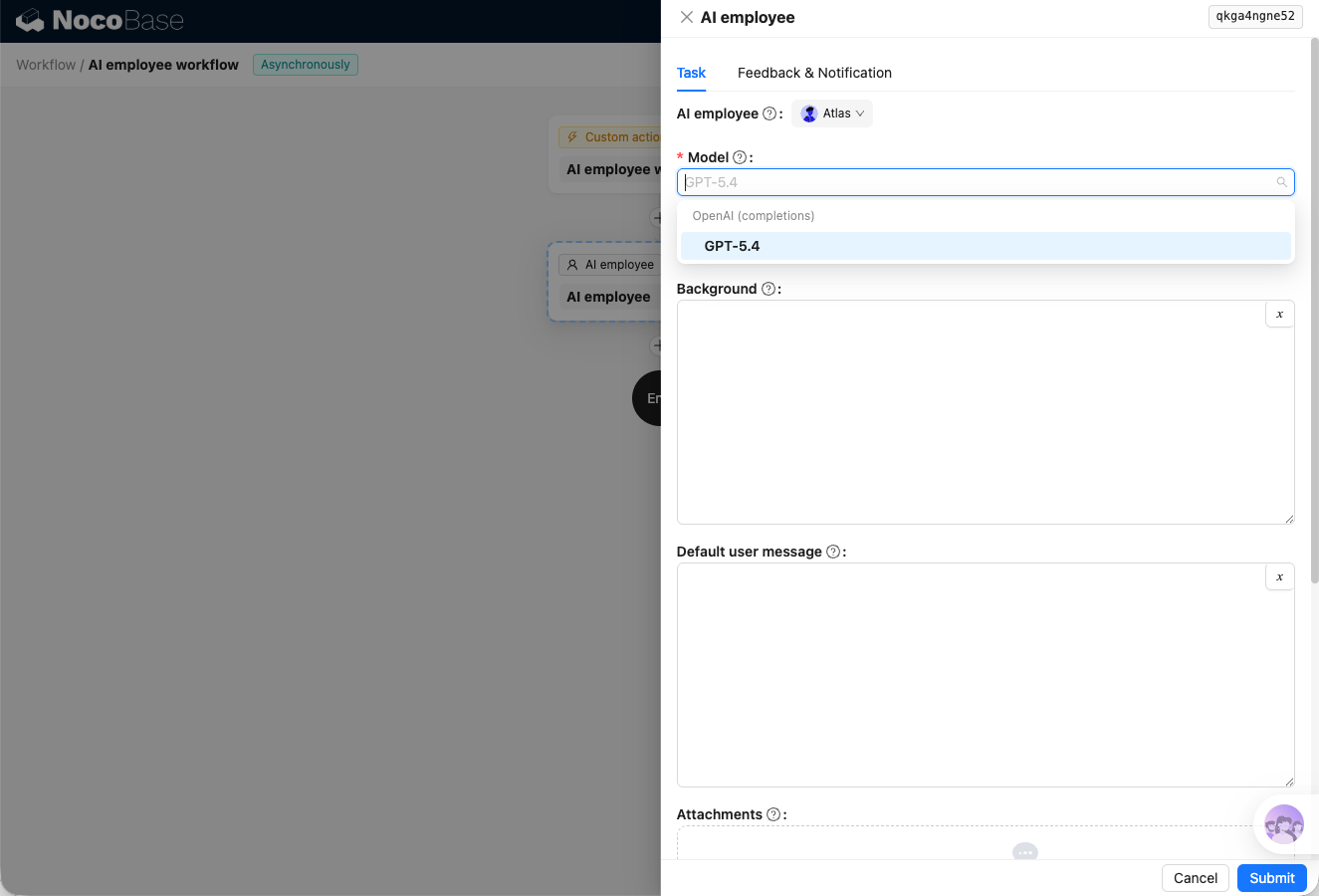
Select Model
Select the large language model that powers the AI Employee. Choose a model provided by an LLM service configured in the system.
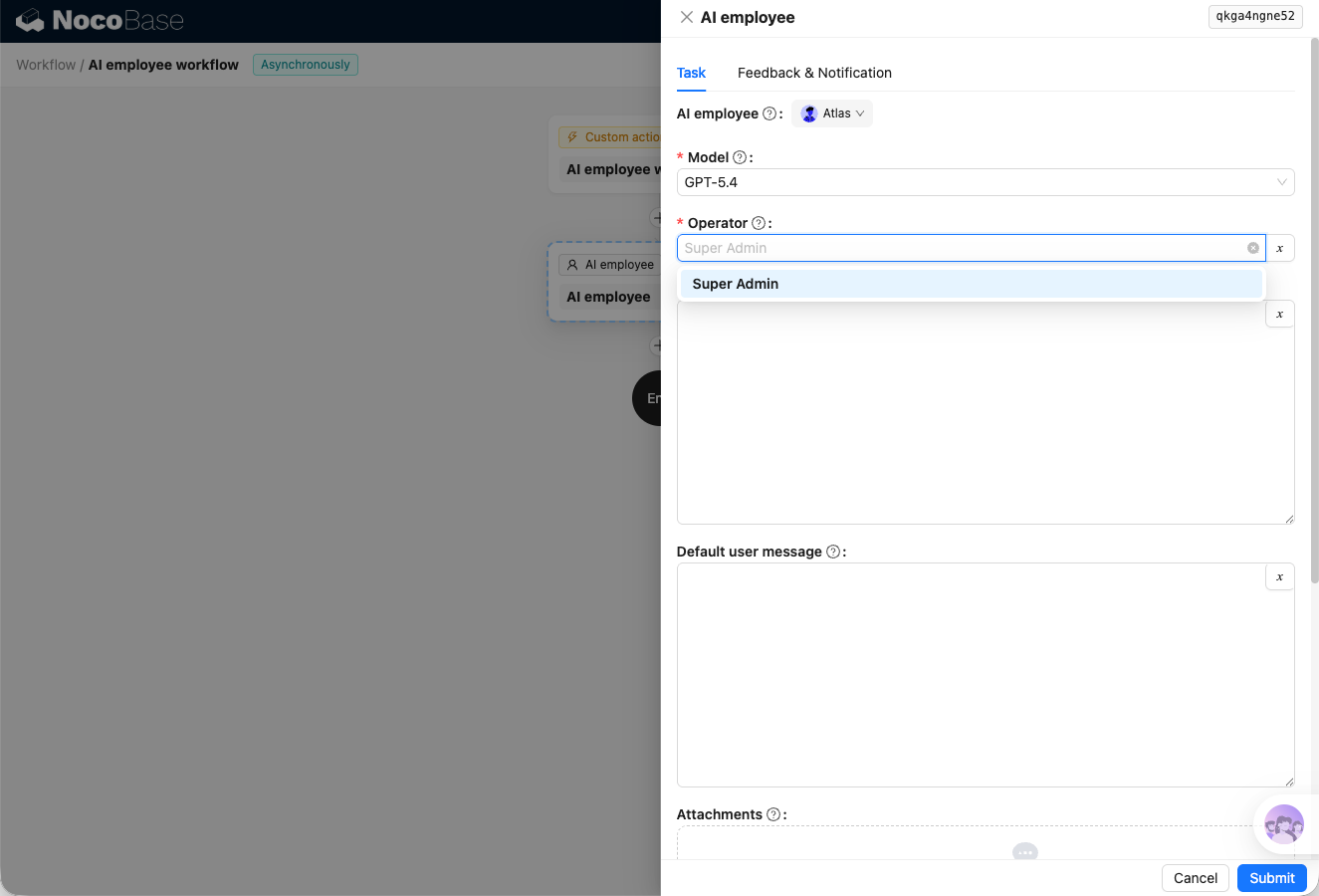
Select Operator
Select a system user to provide data access permissions for the AI Employee. When the AI Employee queries data, it is limited by that user's permissions.
If the Trigger provides an operator, such as Custom action event, that operator's permissions take precedence.
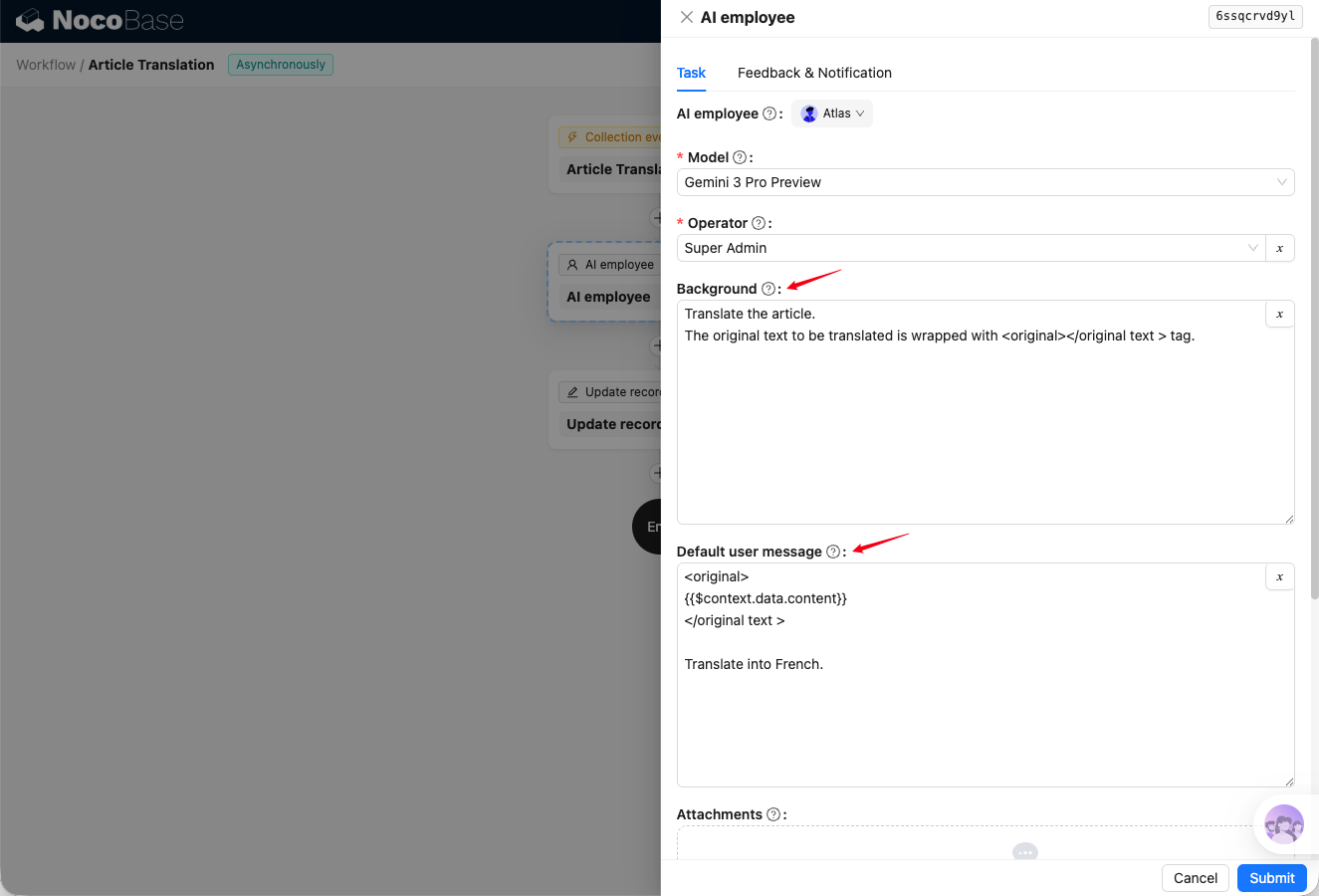
Prompts and Task Description
Background is sent to the AI as the system prompt and is typically used to describe background information and task constraints.
Default user message is the user prompt sent to the AI. It usually describes the task itself and tells the AI what to do.
Attachments
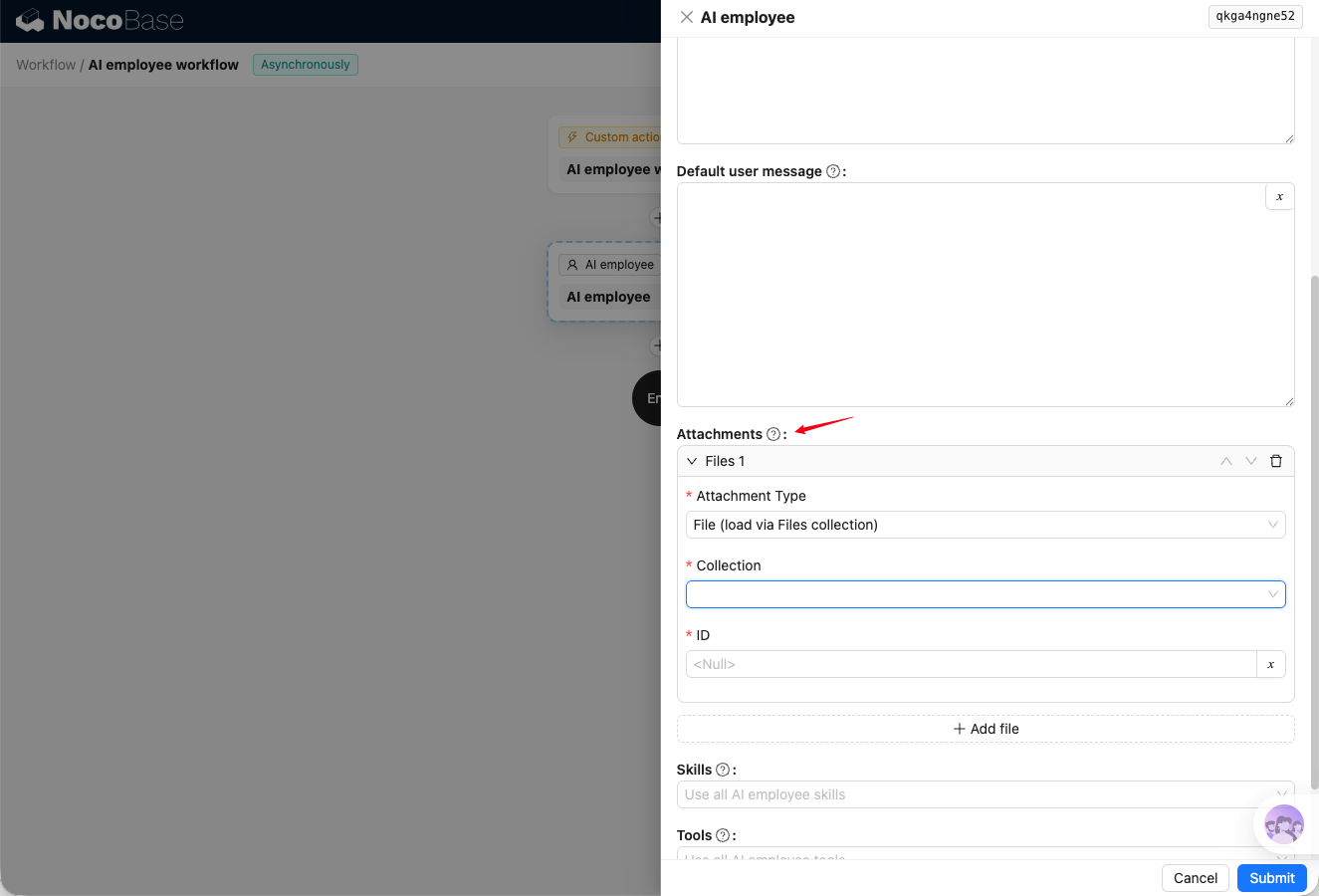
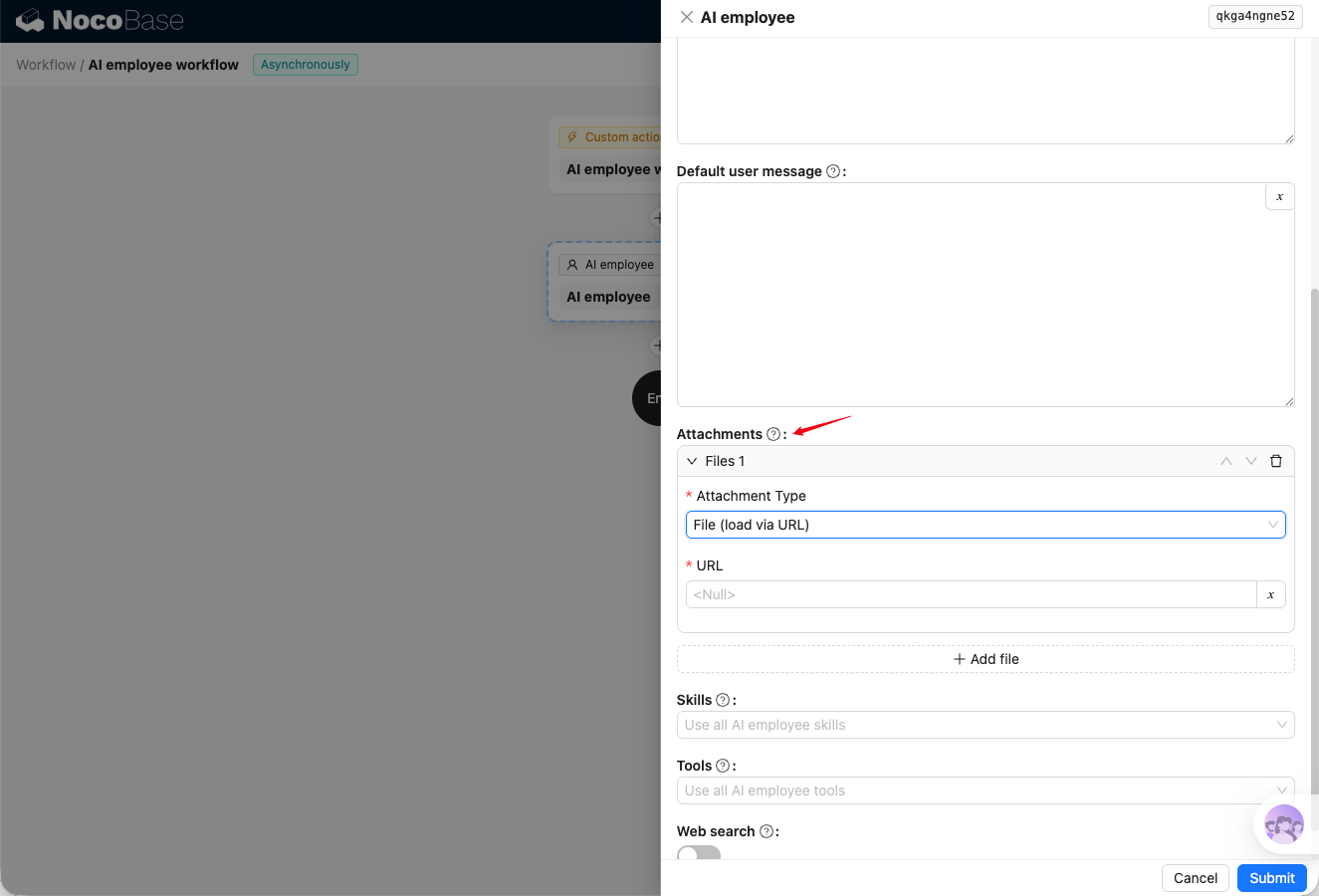
Attachments are sent to the AI together with Default user message. They are typically documents or images that need to be processed as part of the task.
Attachments support two types:
File(load via Files collection)retrieves data from the specified file Collection by primary key and sends it to the AI as an attachment.
File via URLretrieves a file from the specified URL and sends it to the AI as an attachment.
Skills and Tools
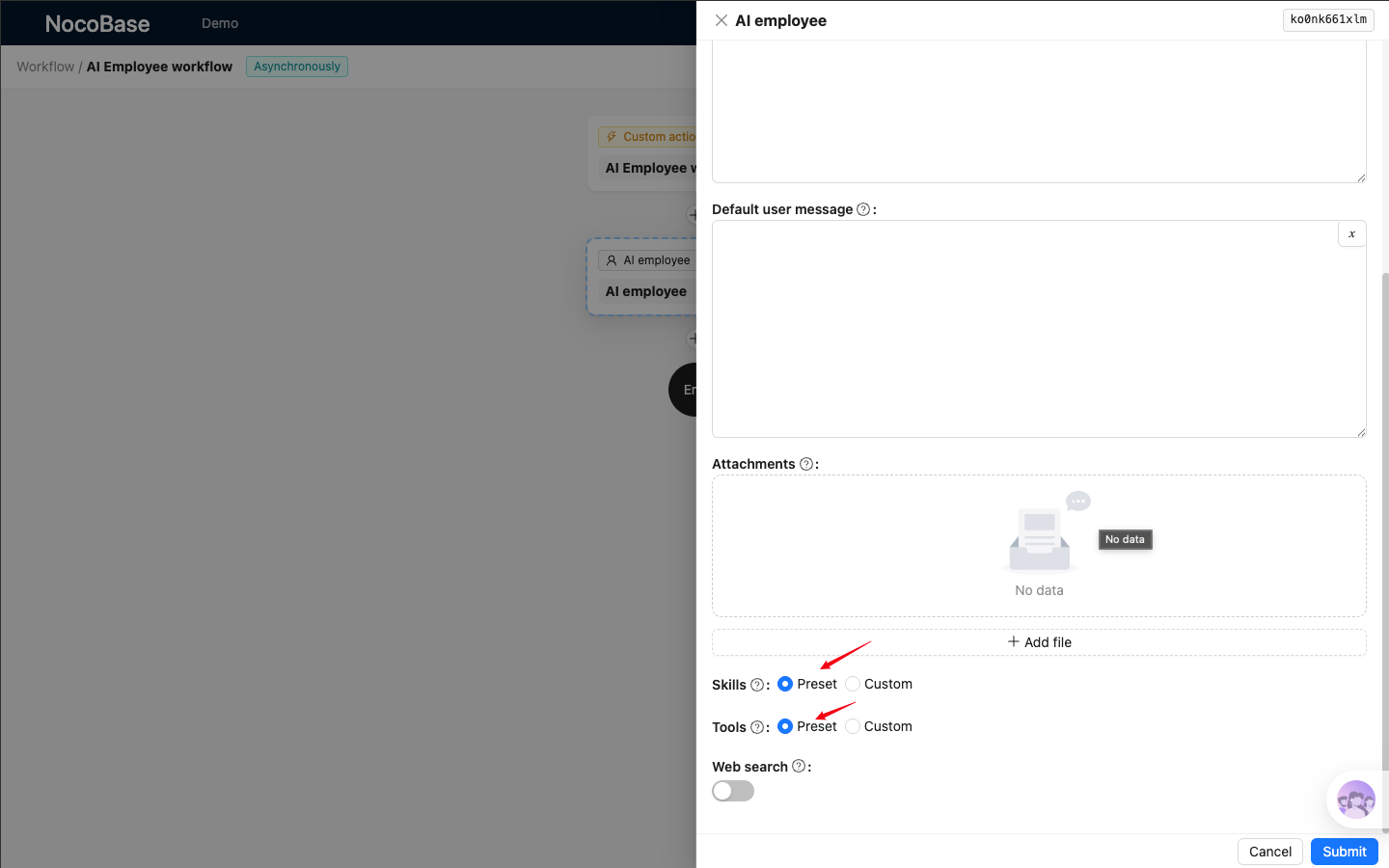
An AI Employee is usually bound to multiple skills and tools. Here, you can restrict the current task to use only specific skills or tools.
By default, Preset uses the AI Employee's preset skills and tools. Set it to Customer to choose only some of the AI Employee's skills or tools.
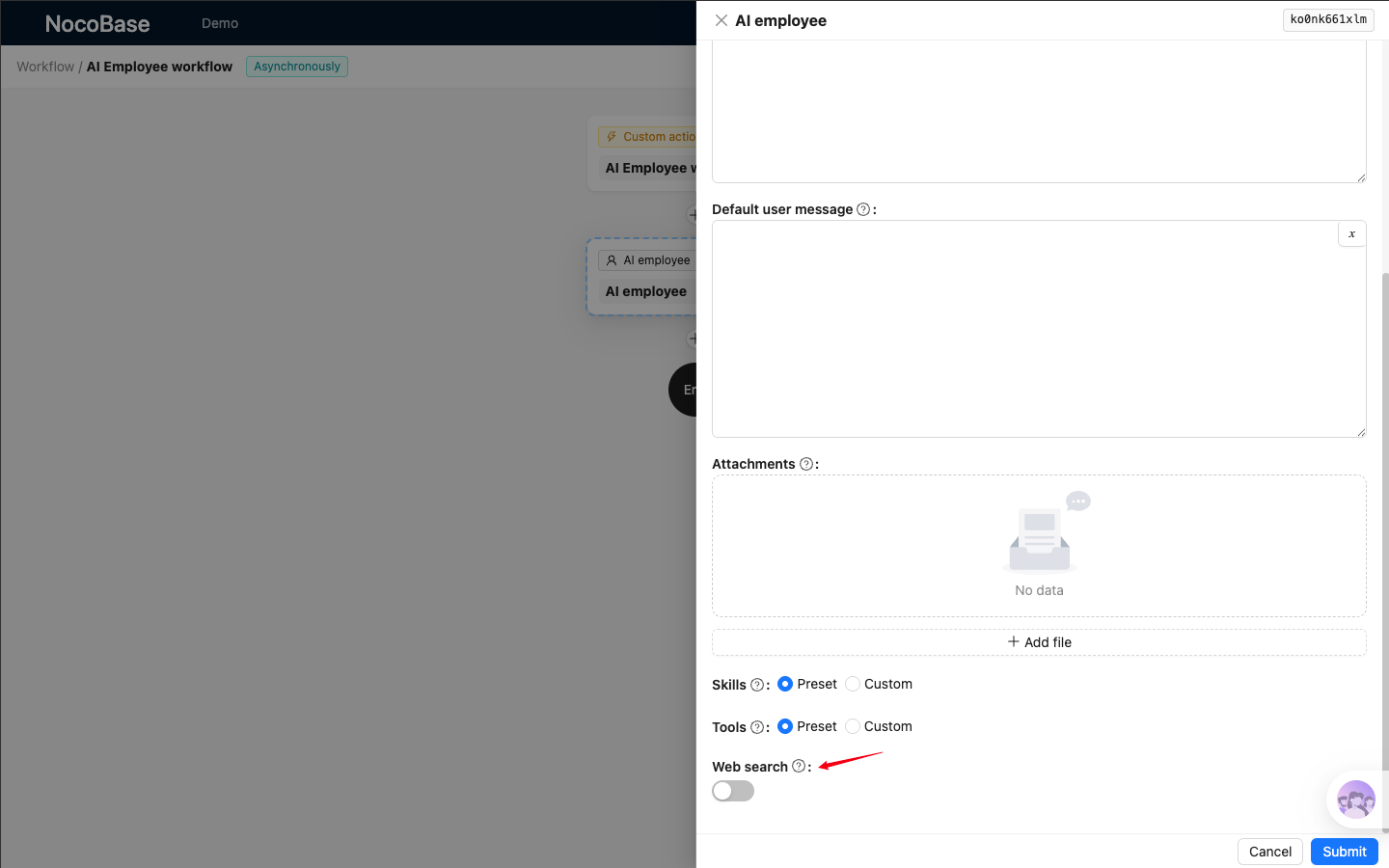
Web Search
The Web search toggle controls whether the AI for the current node uses Web Search. For details about AI Employee Web Search, see Web Search.
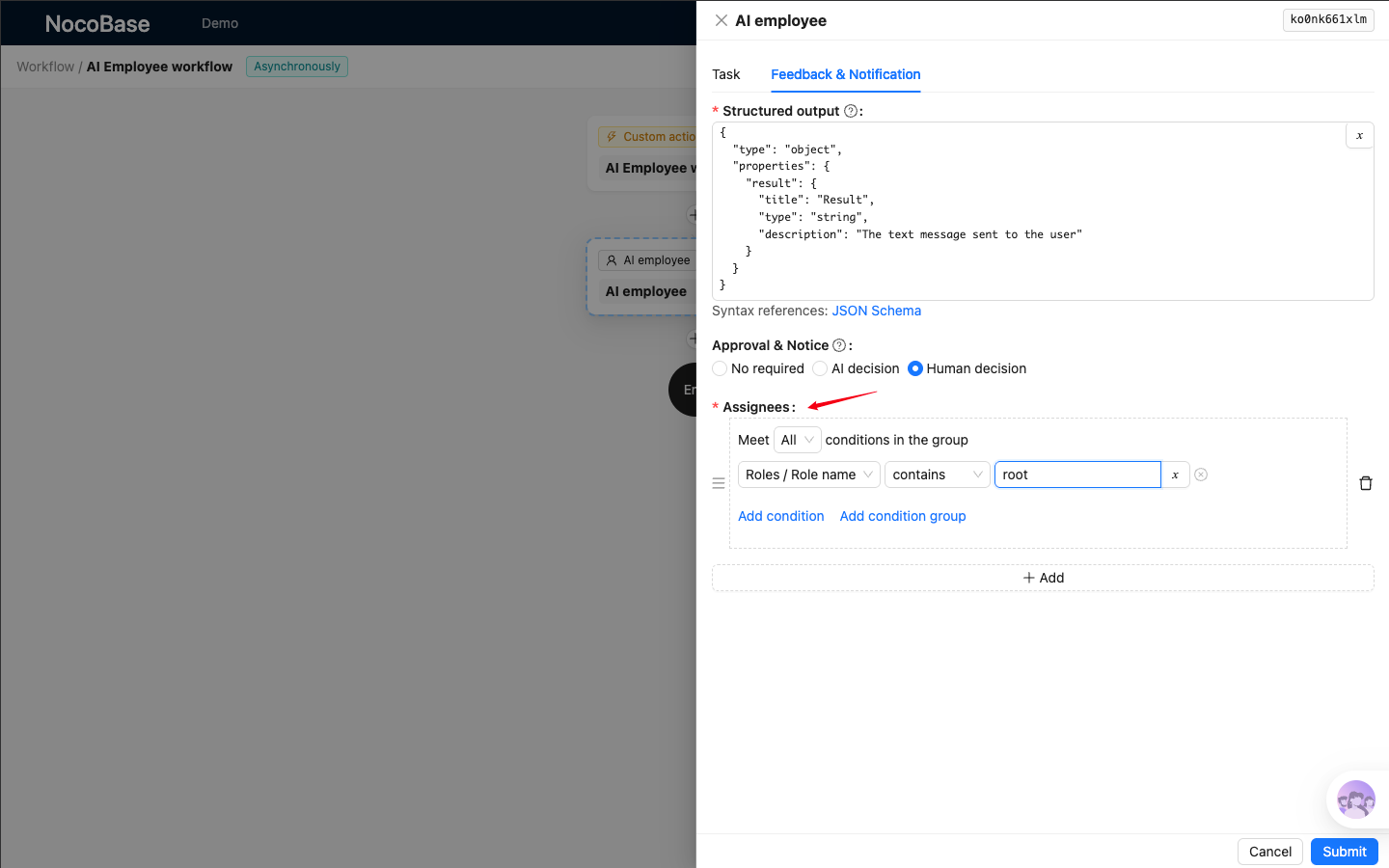
Output and Notifications
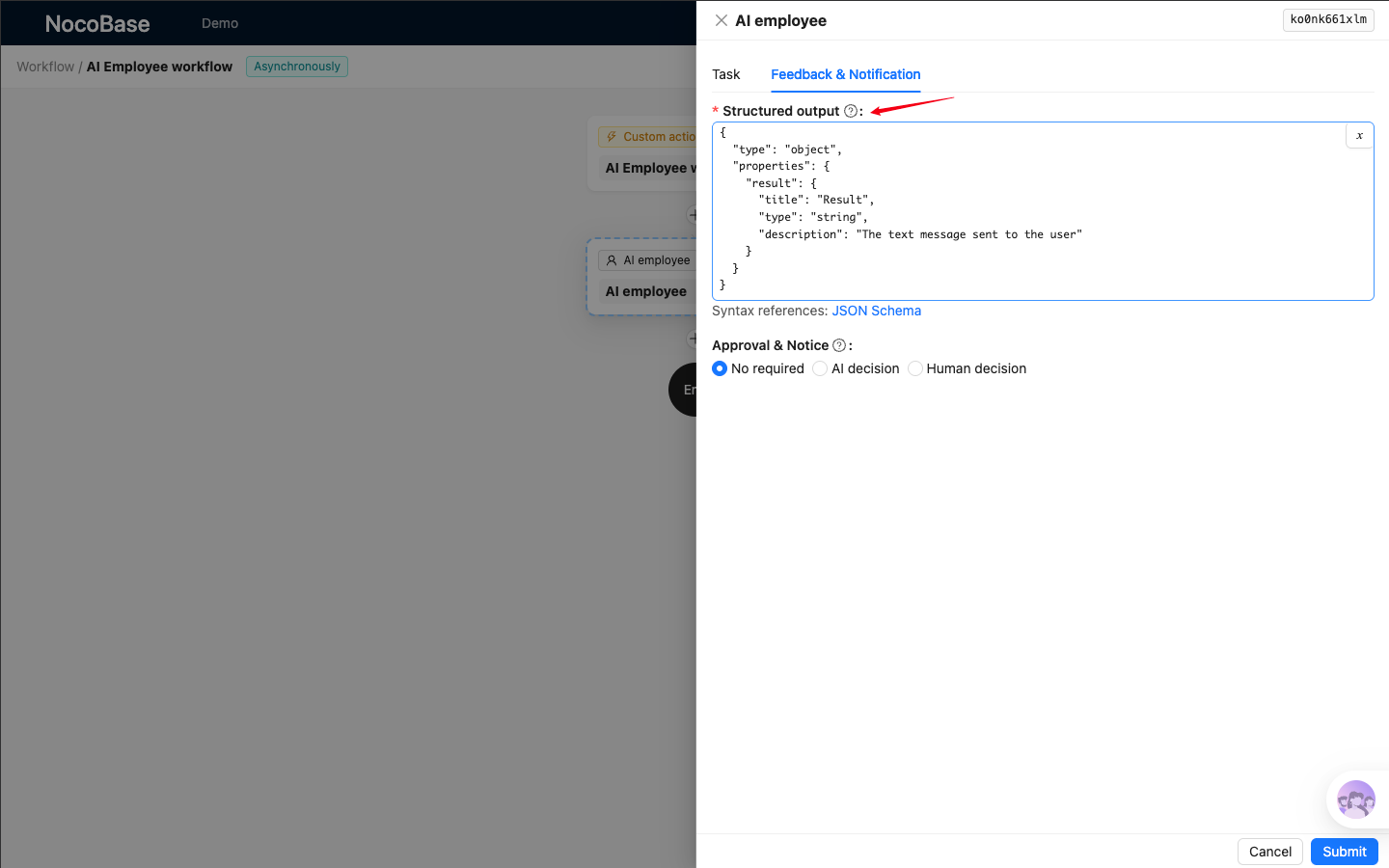
Structured Output
You can define the final output data structure of the AI Employee node according to the JSON Schema specification.
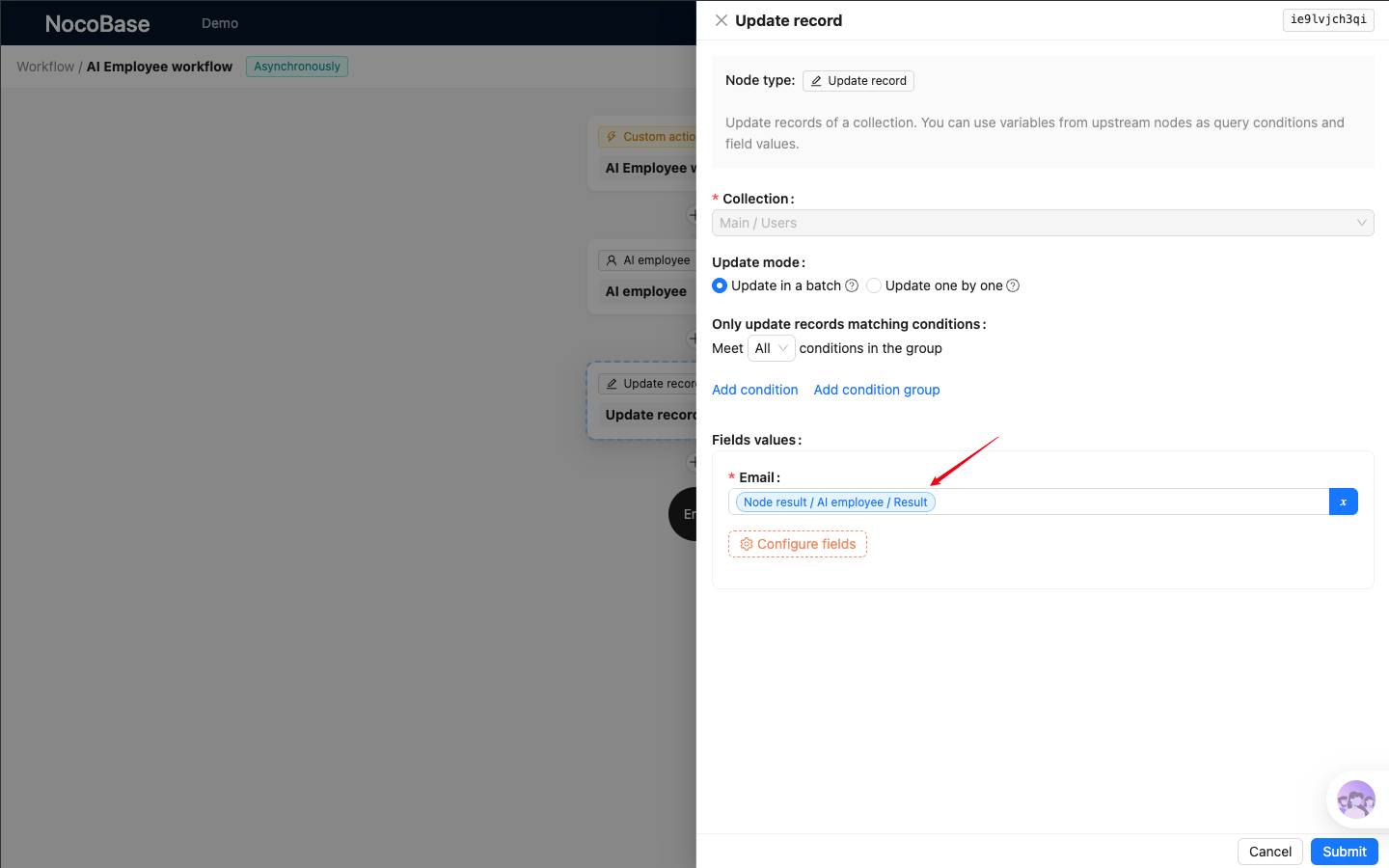
When other nodes in the Workflow reference data from the AI Employee node, their selectable options are also generated according to this JSON Schema.
Default Value
By default, the following JSON Schema is provided. It defines an object with a string property named result, and sets the property's title to Result.
Based on this definition, the AI Employee node outputs JSON data that matches the schema:
Approval Settings
The node supports three approval modes:
No required: the AI output does not require manual review. After the AI finishes generating the output, the Workflow continues automatically.Human decision: the AI output must be sent to an approver for manual review, and the Workflow continues only after approval is completed.AI decision: the AI decides whether the output should be sent to an approver for manual review.
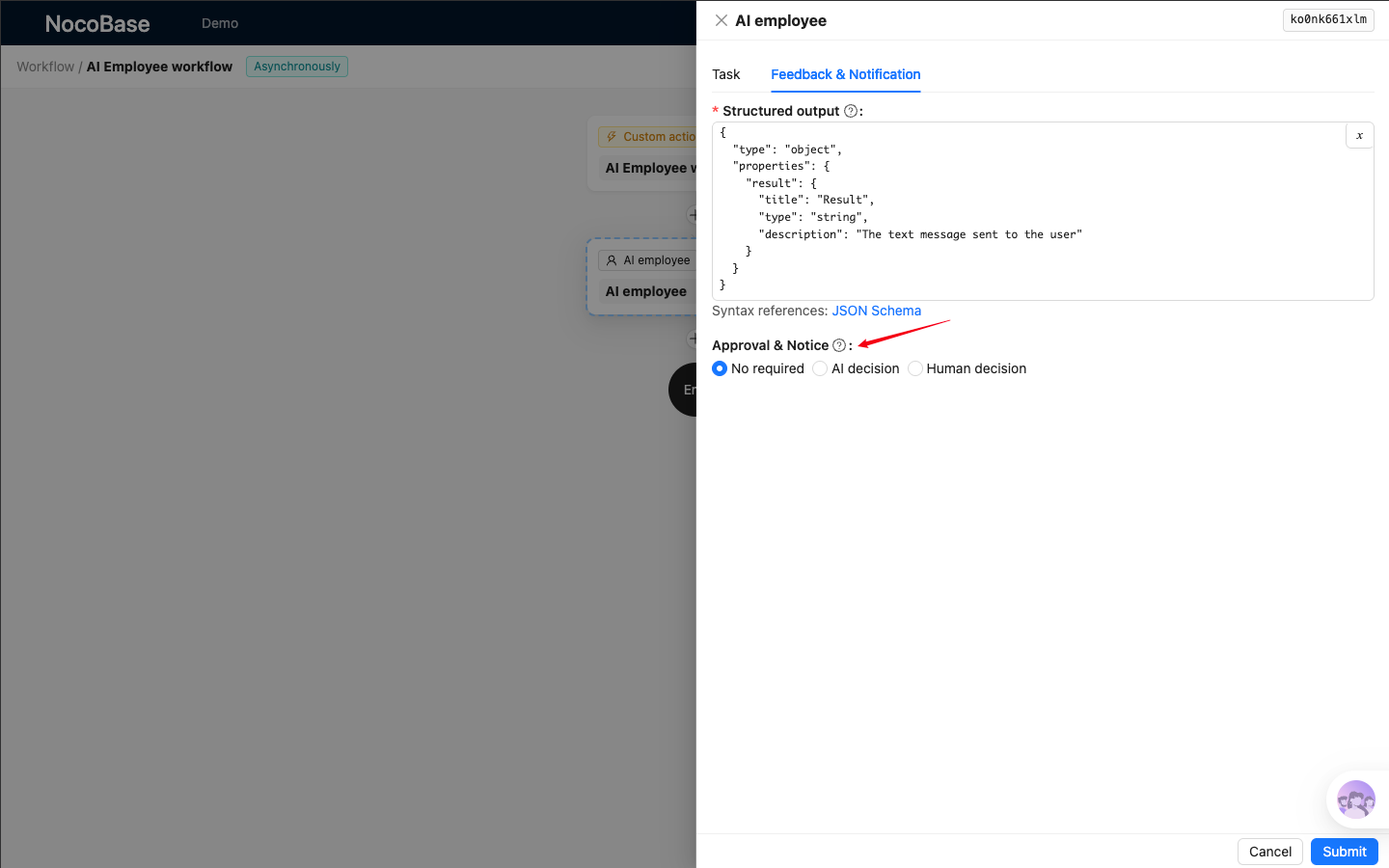
If the approval mode is not No required, you must configure one or more approvers for the node.
After the AI Employee node finishes outputting all content, notifications are sent to all approvers configured for the node. The Workflow can continue as soon as any one of the notified approvers completes the approval action.