
Choose a version and runtime node to create an instance
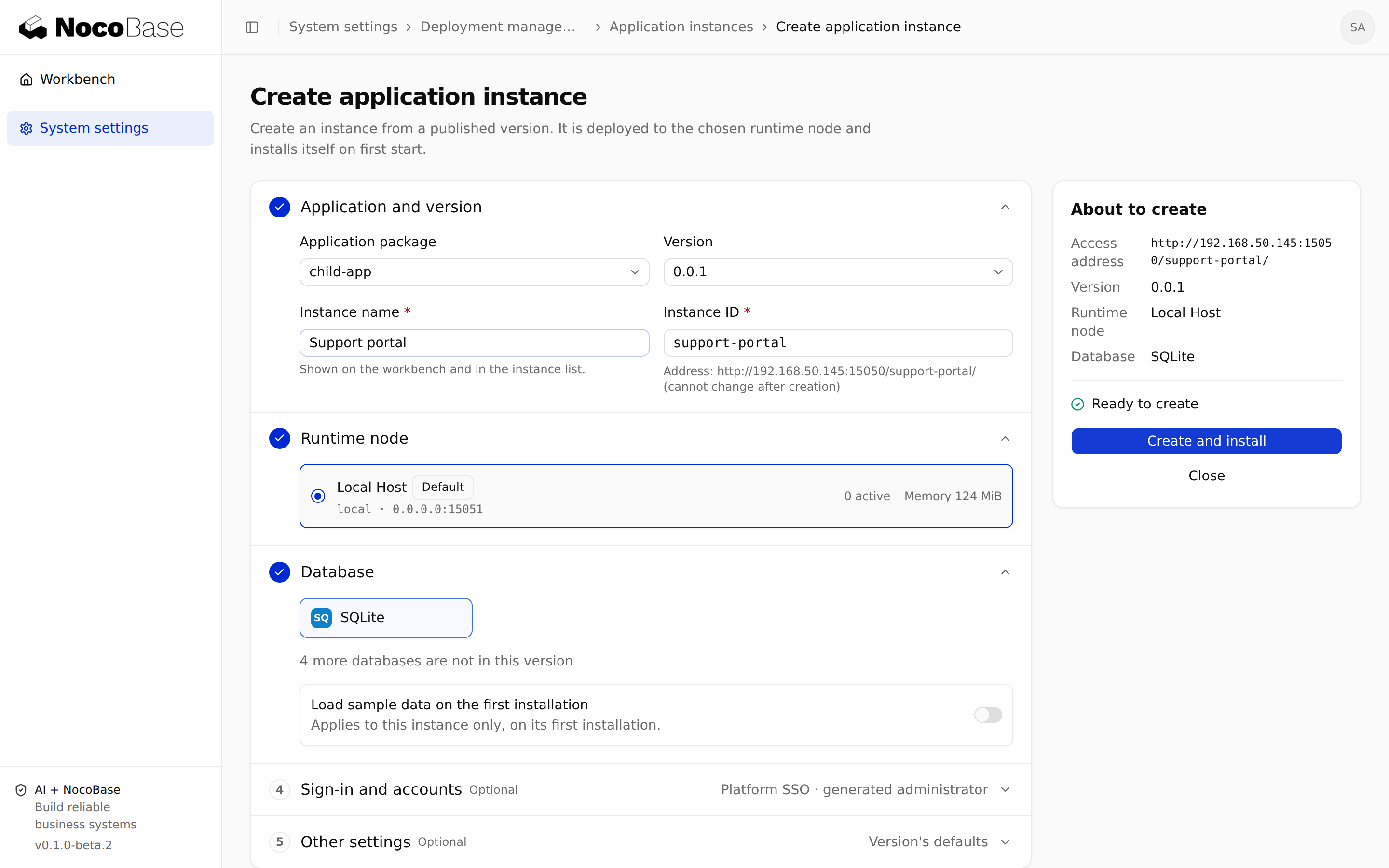
In System settings → Deployment management → Application instances, select Create instance, or start from a version's more menu under Build artifacts.
Choose a package, version and available runtime node. Supply a display name and unique instance ID, then configure the database, instance settings, initial administrator and platform access. The ID affects the access path; main is reserved by Main.
Check runtime requirements and required settings before submitting. Main creates a deployment record. Nodes requiring approval wait first; others proceed through deployment phases. Verify the real application only after completion and a healthy runtime state.
Inspect runtime state and open the application
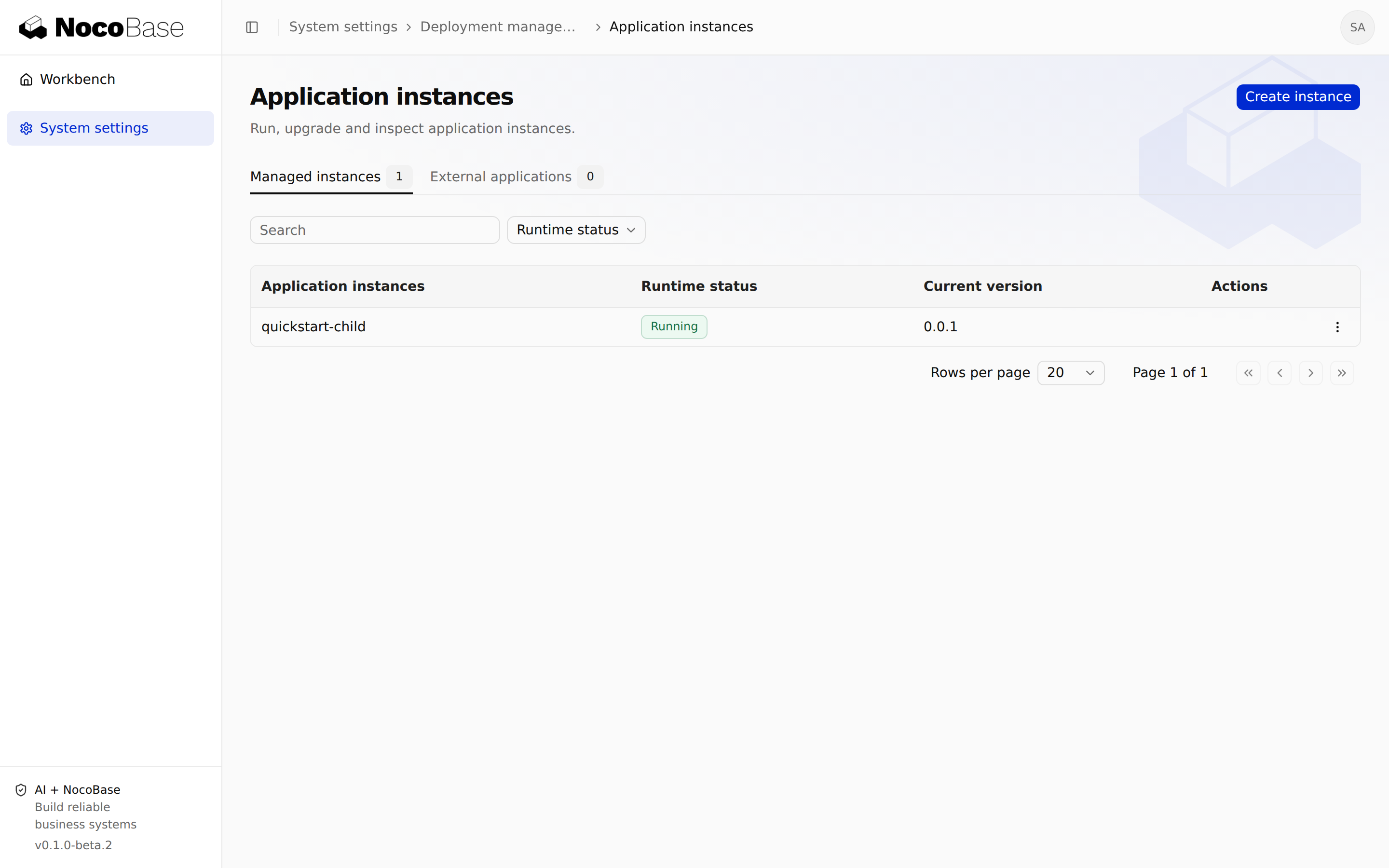
Instance details show the actual version, runtime node and address. Open application opens the instance; other maintenance actions are in the more menu. The workbench supplies ordinary users' entry points.
Running describes process state. It does not prove login or business functionality. Check real pages after first deployment, upgrades and login configuration changes.
Save the initial administrator account
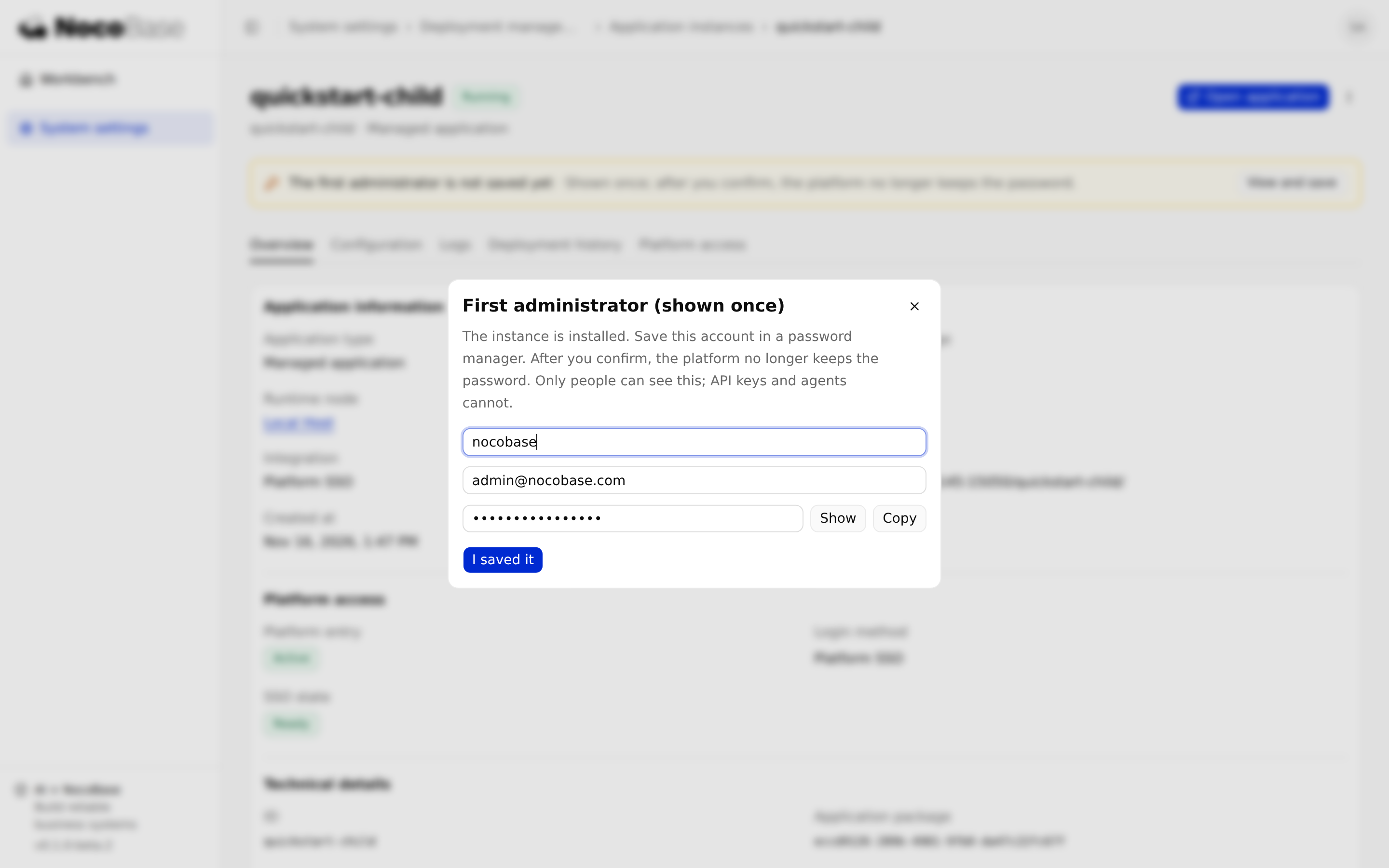
When Main generates the initial administrator, the detail page offers View and save. An authorized administrator should store the credentials securely and confirm saving. Main then stops retaining the password. The project deployment CLI cannot read it.
This account is created during initialization only. Editing initialization settings does not reset an existing password. Use the child's local login and account recovery mechanisms for later maintenance.
Change the name and instance configuration
Rename through the more menu. This changes the display name, not the instance ID or access path.
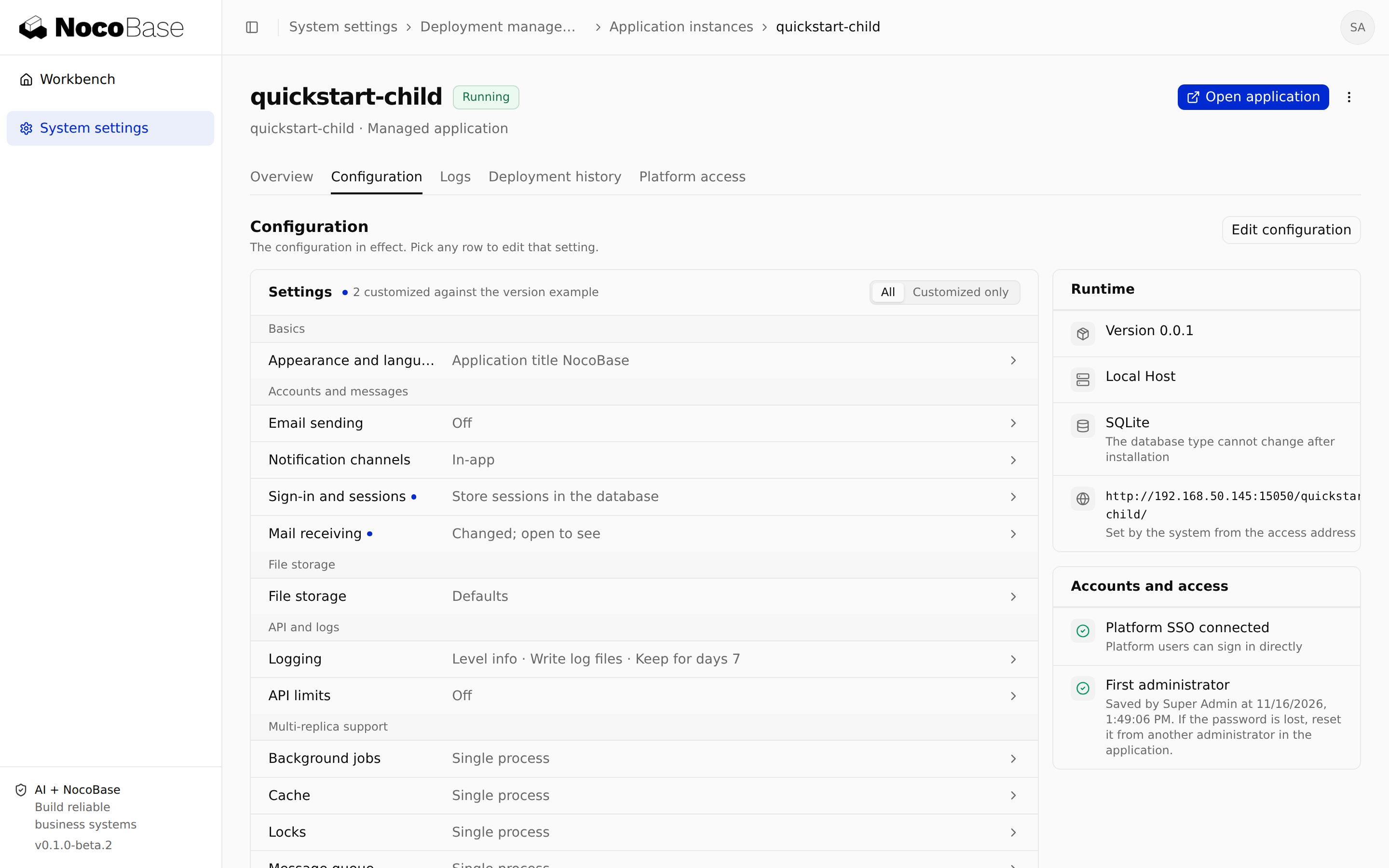
The Configuration tab shows effective settings and provides editing. An installed instance's database type cannot change. Main owns issued SSO credentials; do not overwrite them through ordinary configuration. Publish a new version first if you need another plugin or database driver.
Review changes and acknowledge a verified backup before applying configuration. The operation may restart the instance. Follow its deployment record and inspect effective settings afterward.
Start, stop and restart
Choose the action from the more menu, wait for its operation to finish and refresh status. Stopping retains data and platform entry settings, allowing a later start. Restart interrupts connections; schedule it around business usage.
Disabling a platform entry controls platform access. Stopping an instance controls its runtime process.
Upgrade versions
Publish the new version, then choose upgrade from the instance's more menu. Review its version, configuration changes, required variables and database requirements. Resolve conflicts, confirm backups and submit.
Afterward, verify the target version, login, business data and critical operations. A version downgrade does not reverse database migrations and is not a general recovery method.
Handle deployment approvals
Operations on nodes requiring approval remain pending. Another administrator with approval permission must review the instance, version, configuration and impact before approving or rejecting. The requester cannot approve their own operation.
If node configuration or instance state changes before approval, follow the prompt to recheck or regenerate the request. Pending approval is not success. Do not change nodes simply to bypass required approval.
Inspect deployment records and runtime logs
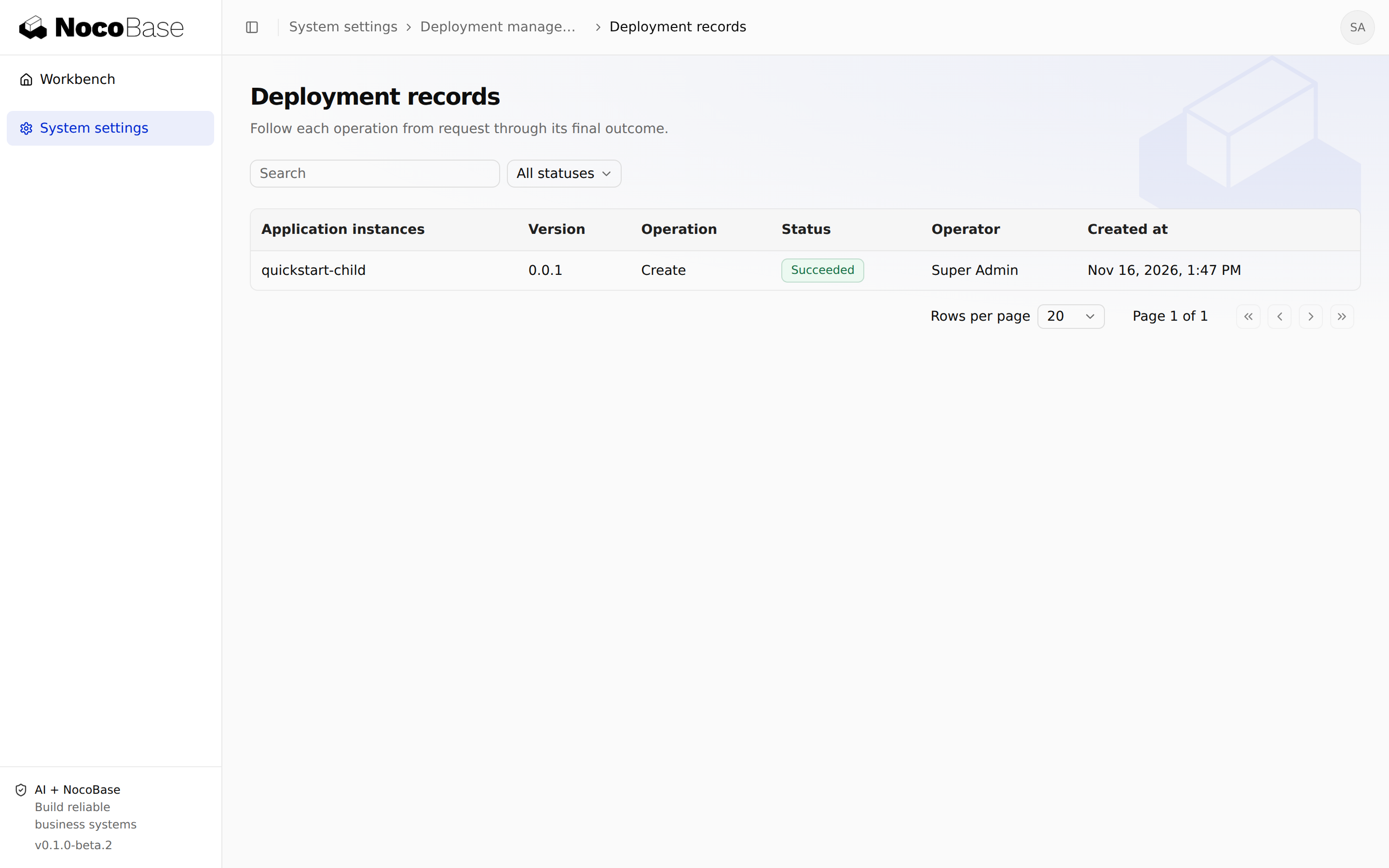
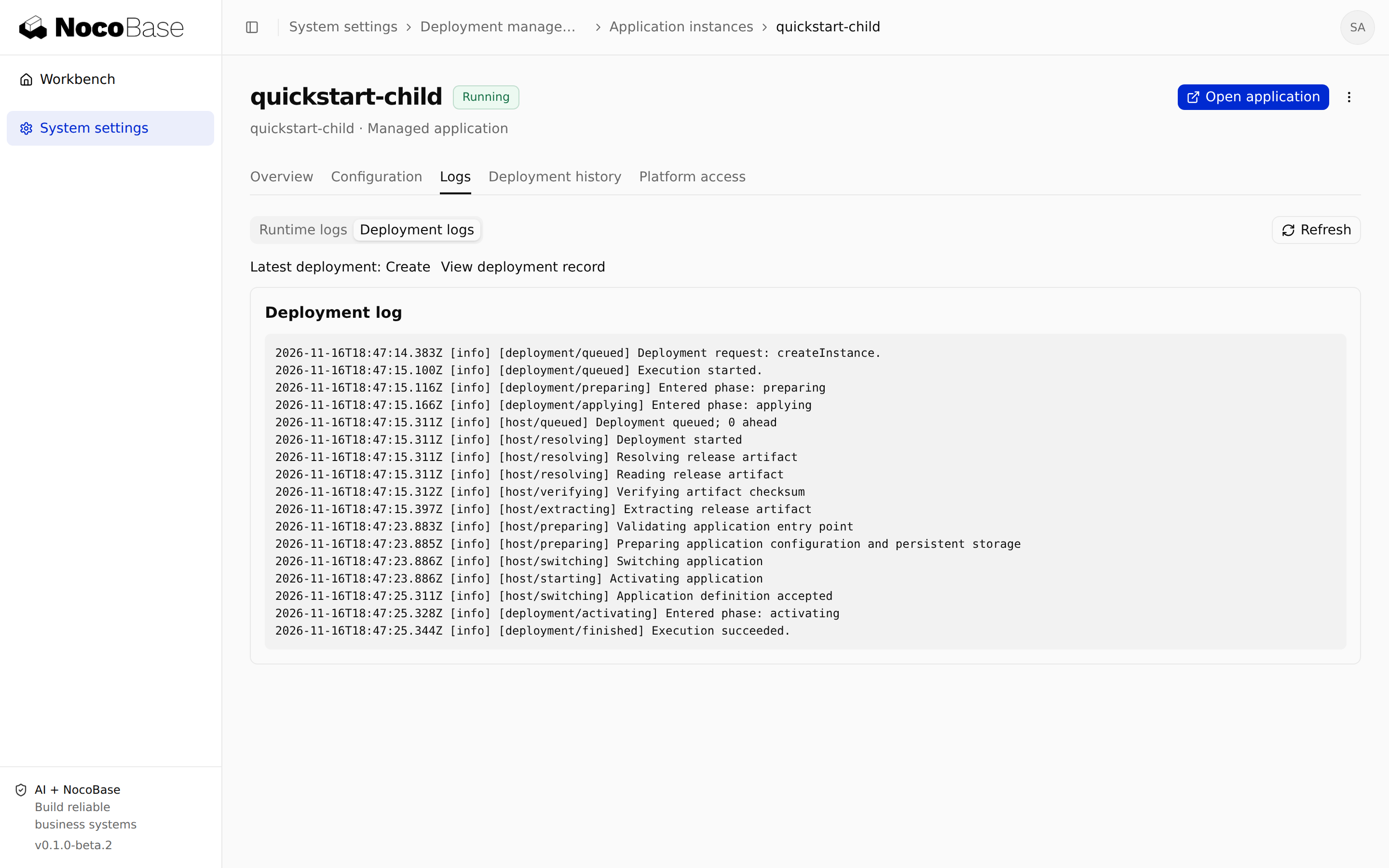
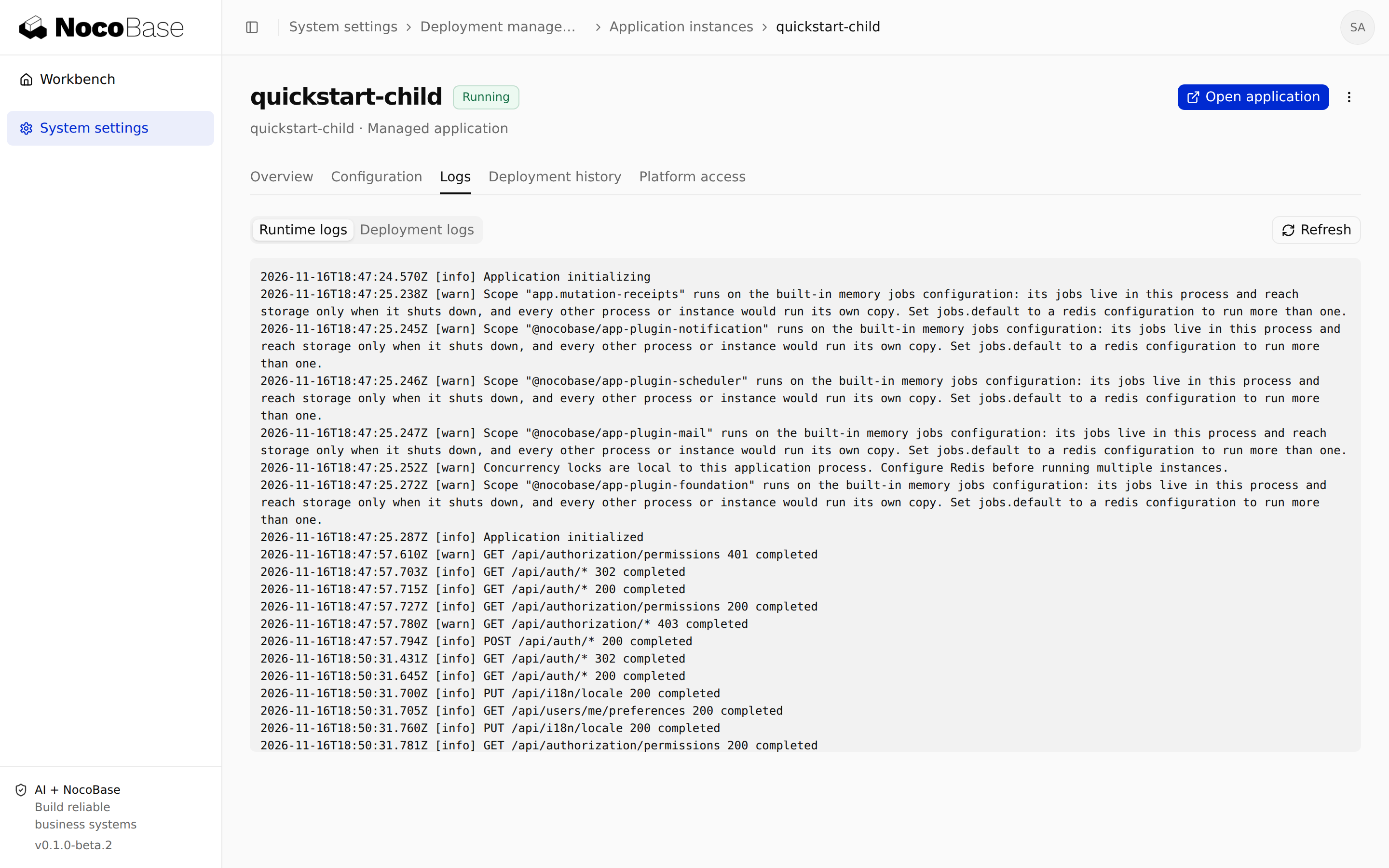
An instance's Deployment history lists creation, configuration, upgrades and lifecycle operations. Global Deployment records provides a cross-instance view. Open a record for phases, errors and deployment logs. The instance's Logs tab shows runtime output instead.
Record the instance ID, operation ID, time and error code when investigating. Size and retention limits can affect logs; missing logs do not prove an operation never ran.
Investigate failures and recover interrupted operations
Read the specific error and instance logs first. Determine whether the cause is node availability, platform incompatibility, a database connection, missing variables or callback policy. Fix it, then use the retry or recovery action offered by the original operation.
For a timeout, disconnected request or unknown outcome, query the original record before acting again. Do not immediately delete the instance, create another with the same ID or clear operation files. Recovery remains subject to permissions, current state and approval rules.
For CLI receipts and exit codes, see Develop and deploy child applications.
Delete instances and retain data
Verify the instance ID and save necessary backups before deletion. Removal retains persistent data by default. Purging it requires an explicit option and additional confirmation. Retention is not automatic migration or one-click instance restoration.
Main revokes platform access before removing runtime resources. On failure, inspect the original deployment record to avoid leaving an active entry or repeating deletion. For externally connected applications, Main manages enrollment only; their original operators retain runtime and data ownership.