
The multi-portal plugin does not include the portal permission editor or access rules shown here out of the box. First ask an Agent to build portal entry checks, page access, navigation filtering, and server authorization using the application’s existing permission system. Administrators can then configure roles and users. The screenshots show an example after this integration.
Have the Agent implement and configure portal permissions
In an application with a portal already created and installed, ask an Agent to implement portal access control using the existing permission system. This example uses Portal 1 and its Overview and Examples pages from Develop a portal. Give the development Agent in your application project the following request and identify two ordinary test accounts:
Implement portal access control using this application's existing permission system. Add a portal permission section to the role editor, listing portals and pages with an entry switch for each portal and individual page checkboxes. Retain page selections when a portal is disabled, leave new pages ungranted, and preserve the other permission settings.

Create Portal reader and Portal explorer roles: readers can access only Overview in Portal 1; explorers can access Overview and Examples. Assign them to the two test accounts I provide without changing existing members' default permissions.

The workbench, portal switcher, and navigation should show only accessible content. Entering a URL directly must not bypass permissions. Ordinary users must not be able to install or uninstall portals. Start a preview when it is ready for review.
Portal entry and page access are separate grants; both are required. Portals in one application share identities and roles, so there is no need for a separate portal account and role system.
The Agent needs to connect portal entry, page routes, navigation, and the current user's portal directory to consistent authorization rules, storing grants in the application's existing role system. The server must filter the ordinary user's directory by identity; opening the administrator directory API is not a substitute.
Pages must declare access permissions to appear in the corresponding editor. If a new page is missing, ask the Agent to check its route permission declaration and directory integration. Portal management retains its separate administrator permissions.
Pages that read or write business data also need server-side operation permissions and data scopes. See Authentication, permissions, and data scopes.
Review and adjust the configuration
After the Agent completes the integration, sign in as an administrator, open System settings → Permission management → Roles and permissions, edit Portal reader, and select Portal permissions.
- Enable entry to Portal 1.
- Select Overview, leaving Examples unselected.
- Click Save, reopen the role, and confirm the settings persist.
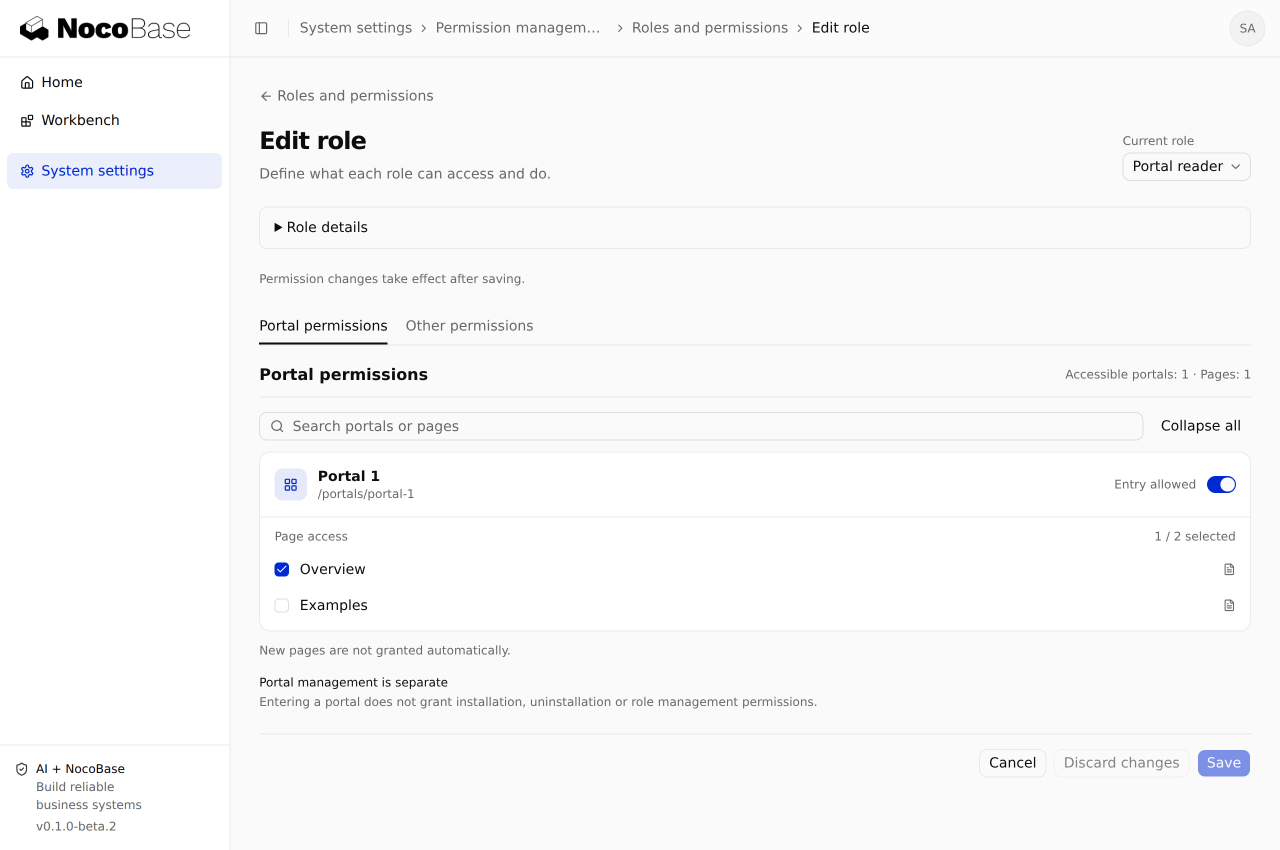
Disabling portal entry preserves page selections but makes them ineffective; enabling it restores their effect. Uninstalled portals remain unavailable. Other permissions retains the application's existing page and operation settings. Entry does not grant installation, uninstallation, or role management.
Verify access with different users
In user management, confirm each test account holds its intended role, then sign in using separate browser sessions. Do not validate ordinary access with an unrestricted administrator account. A user may hold several roles; check their combined effective permissions.
| Check | Portal reader | Portal explorer |
|---|---|---|
| Enter Portal 1 from the workbench | Allowed | Allowed |
| Open Overview | Allowed | Allowed |
| Examples appears in navigation | No | Yes |
Open /main/portals/portal-1/examples directly | Denied | Allowed |
| Install or uninstall a portal | Denied | Denied |
Replace /main if your application uses another base path. A user without portal grants should see an empty workbench, not an error or the administrator directory.
Revoke portal entry and save, then refresh the user's workbench and portal page. The entry should disappear and direct access should be denied. Newly added pages should remain ungranted until explicitly enabled.
For business APIs, also make direct requests to verify that unauthorized operations, records, and fields remain inaccessible. Hiding navigation or buttons does not replace server authorization. See Manage portals for installation and uninstallation.