
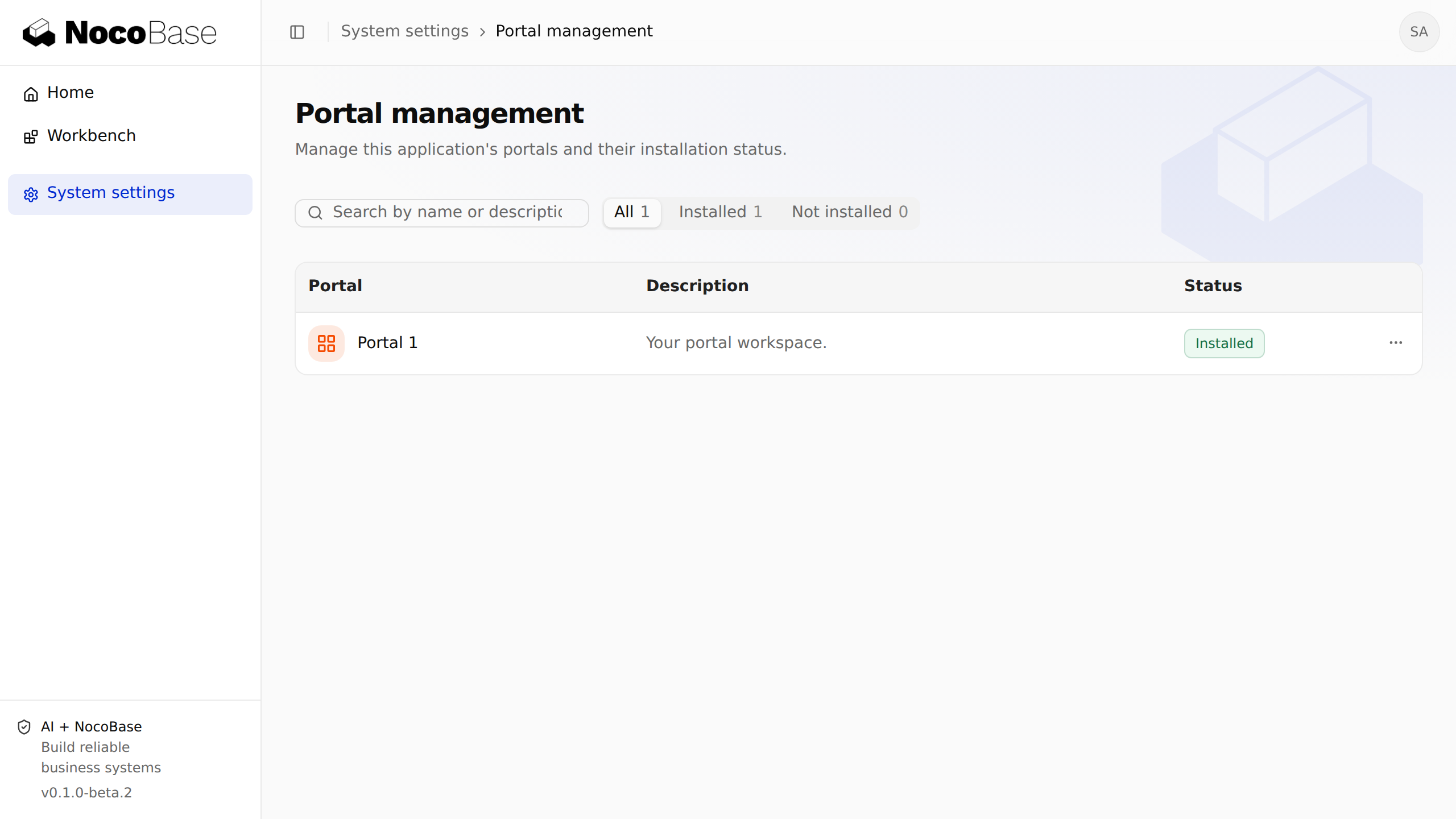
Open portal management
Sign in as an administrator with unrestricted access and open System settings → Portal management.
The list shows registered portals and their installation status. Management operates on code already included in the app; it does not download portals from npm. To add one, follow Develop a portal, register it and restart development. Production requires a rebuild and deployment.
Find and filter portals
Search by name or description, or filter with All, Installed and Not installed. Search and status filters work together.
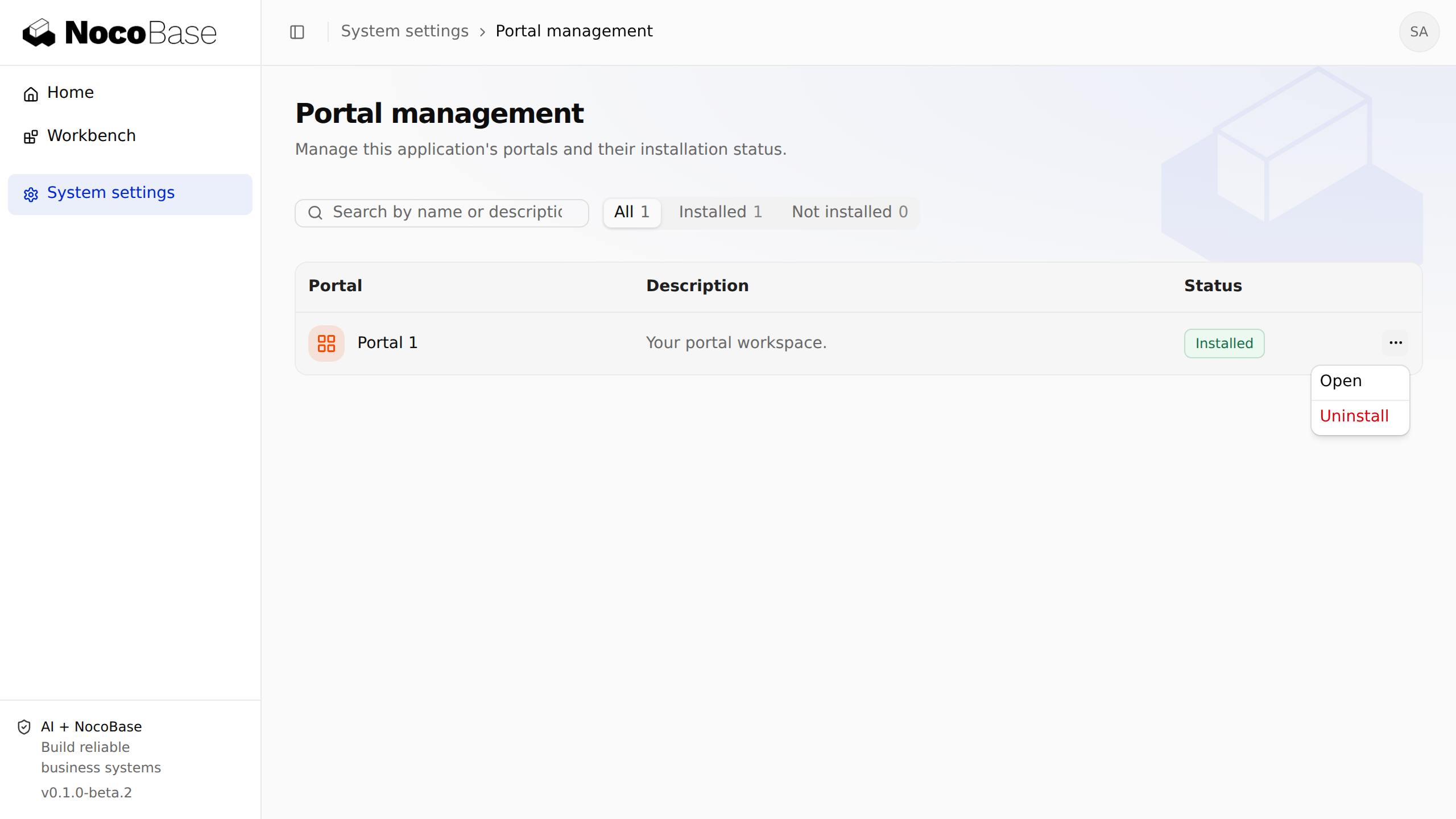
Each row's … menu contains the actions available for its current state:
| Portal state | Available actions |
|---|---|
| Not installed | Install |
| Installed | Open, Uninstall |
| Failed | Retry |
| Installing, upgrading or uninstalling | Wait for completion; further actions are temporarily disabled |
Install and open a portal
- Find an uninstalled portal and select … → Install.
- Wait for installation. The system checks dependencies, runs required database tasks and starts portal resources.
- Once the status is Installed, select … → Open.
Generated portals start uninstalled. Configure the required database connections and drivers in the app first. If the portal depends on others, install those portals first. Generating source or registering a package does not complete installation.
The following menu belongs to an installed portal:
Uninstall and reinstall
- Select Uninstall from an installed portal's … menu.
- Read the confirmation and select Uninstall if the portal is no longer needed. Select Cancel to keep its current state.
- Wait for the status to become Not installed.
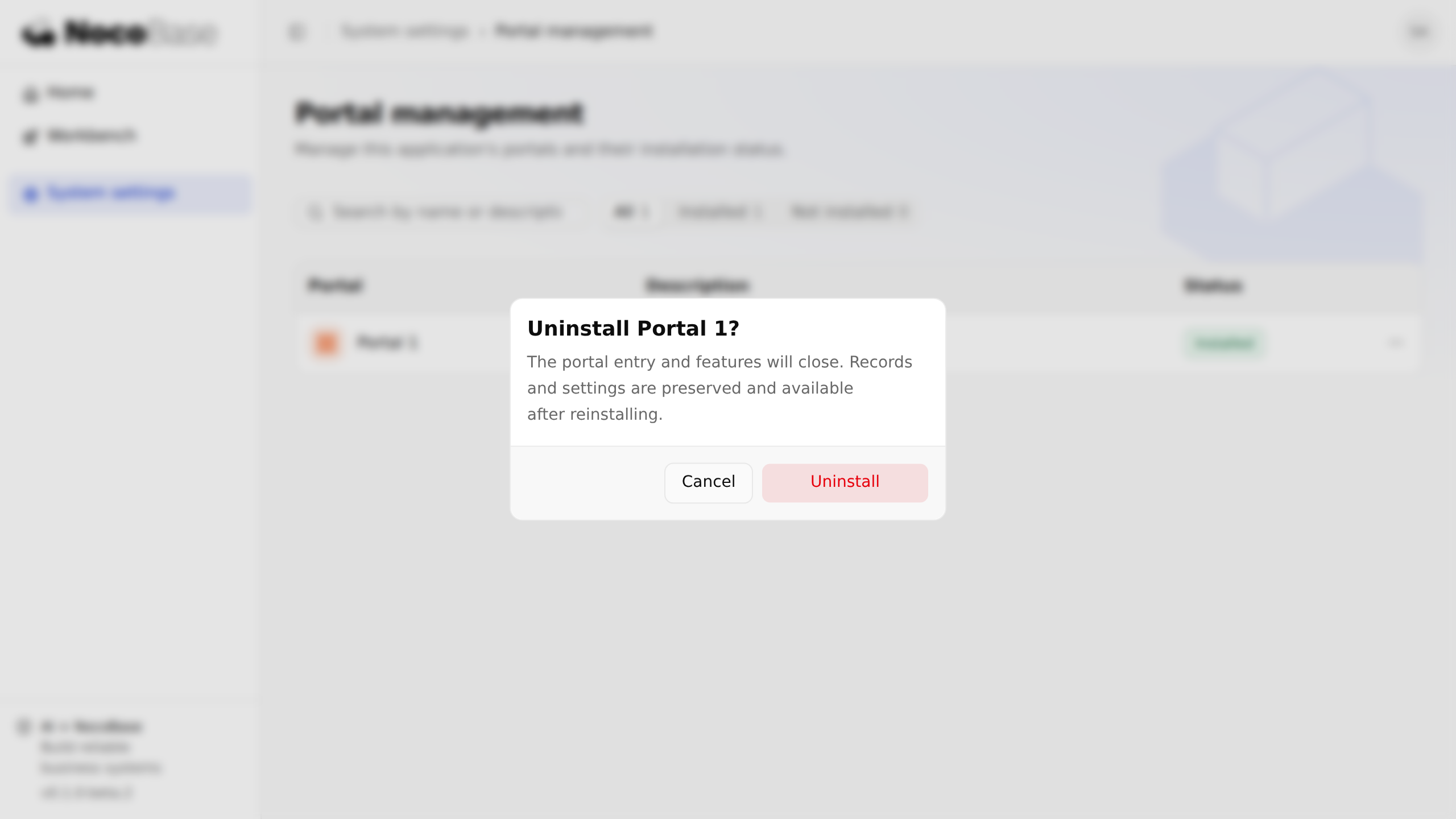
Uninstallation closes the portal entry and stops registered runtime resources. Business data, configuration records and database task history are retained. It does not delete source, npm packages or business databases. If another installed portal depends on it, the system blocks removal; resolve the dependent portal first.
To restore access, select … → Install again. Reinstallation uses execution history to process outstanding tasks and preserves existing data; it does not reset the portal to a fresh installation.
Check status and retry failed operations
A portal is temporarily unavailable while installing, upgrading or uninstalling. If its status is Failed, inspect the failed stage in the list and the server logs:
| Failed stage | What to check |
|---|---|
| Dependencies | Whether required portals are installed, or installed portals still depend on this one |
| Database initialization | Connection and driver configuration, database account permissions, and failed migrations or seeds |
| Startup or shutdown | Portal service errors and whether registered resources can start and clean up correctly |
After fixing the cause, select … → Retry. Retry continues the previous installation or uninstallation goal using each connection's task history. A multi-connection operation may have completed some tasks without rolling everything back. Do not edit installation state, delete execution history or rewrite executed migrations to bypass errors.
If another administrator has changed the portal, refresh its state before deciding what to do. An app restart also attempts to recover admitted but unfinished operations.
Upgrade with the app
Portal code builds, releases and upgrades with the app; management does not offer independent portal version selection. Installed portals participate in pending database upgrades at app startup or when running pnpm nocobase db apply. Uninstalled portals are not automatically installed.
For startup execution, enable the relevant migration and seed autoRun settings on each connection. An explicit database plan must cover the complete task set required by the portal. Failed upgrades leave the portal unavailable until the cause is resolved.
Back up data and verify the upgrade path before release. Keep historical migration and seed sources even for uninstalled portals, for validation and reinstallation. See Publish an app release for deployment steps.