

Phone
Introduction
In NocoBase, the Phone field stores mobile phone numbers.
It is suitable for mobile numbers, contact numbers, and service hotlines. Compared with normal Input fields, it provides clearer phone-number semantics and format validation.
Use cases
Phone fields are suitable for these business scenarios:
- Customer and contact mobile numbers
- Employee contact numbers
- Supplier and service hotlines
- Emergency contact numbers
Create and configure
On the collection's Configure fields page, click Add field and select Phone to create this field.
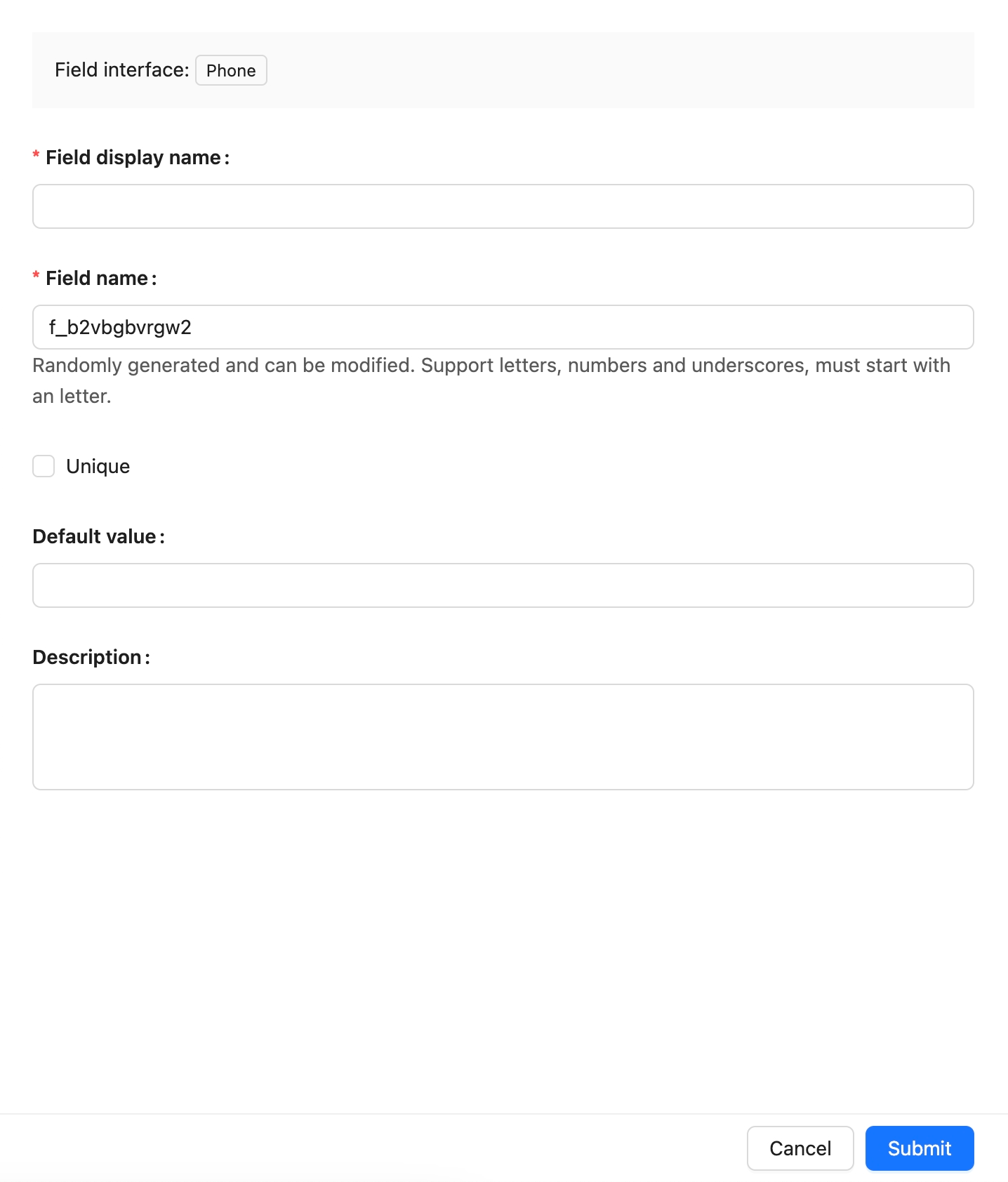
Field names are referenced by page blocks, permissions, workflows, and APIs after creation. Confirm the name before creating the field to avoid later configuration changes.
Field behavior
The default behavior of a Phone field is as follows:
Edit configuration
After creation, click Edit beside the field to edit its configuration. Edit fields to adjust how they are displayed and used in NocoBase, such as the display name, description, default value, validation rules, or field-specific settings.
When a field comes from a synchronized main-database table, editing usually maps the database field to a NocoBase Field type and Field interface.
Changing a Field type or Field interface is more than changing a display name. It affects field storage, input components, validation rules, filters, and workflow-variable usage. When the field contains substantial existing data, confirm that its data format is compatible first.
Delete field
Click Delete beside a Phone field to delete it. You can also select multiple fields and delete them in the main data source.
Deleting a Phone field created in the main database usually also deletes the actual database column and its values. For a synchronized or external-data-source field, the impact depends on the corresponding data source and field origin.
Deleting a field can affect page blocks, forms, filters, permissions, workflows, APIs, imports and exports, and existing data. Confirm that the field is no longer referenced by business configuration before deleting it.
Use in pages
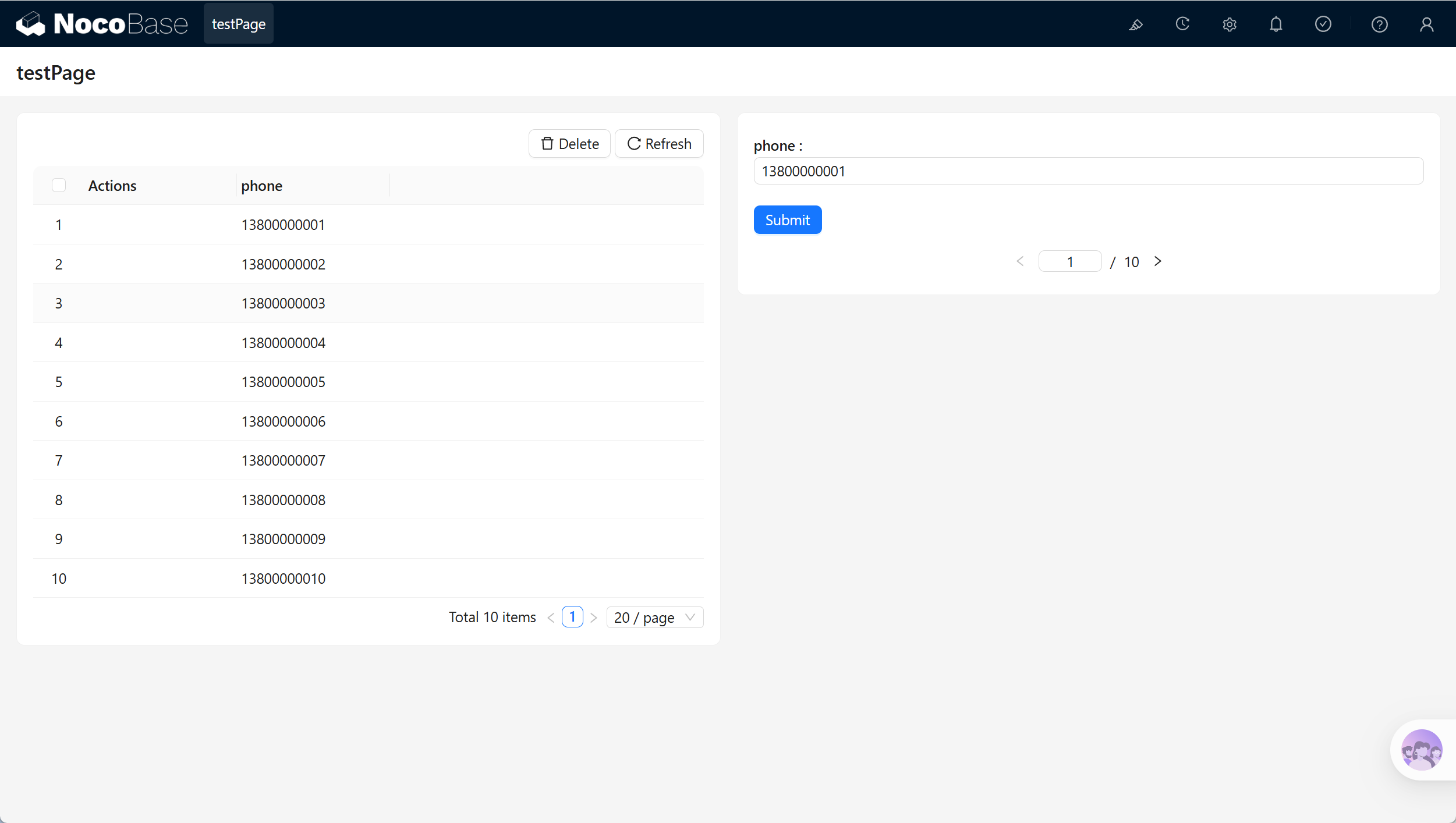
Phone fields are suitable for forms, details, filters, and notification contacts.
Related links
- Fields - Learn about field categories and mapping.
- General collection - Create and manage fields in a collection.
- Input - Store ordinary short text.
- Email - Store email addresses.