External databases
Introduction
An external database connects an existing business database to NocoBase. NocoBase reads tables, fields, and views so they can be used in page blocks, permissions, workflows, and APIs.
Unlike the main database, the original system and database tools maintain the external schema. NocoBase reads the structure and views; it does not change real tables in the external database.
KingbaseES supports only PostgreSQL compatibility mode. OceanBase, ClickHouse, and Doris support only MySQL compatibility mode.
Typical use cases include:
- Connect an existing ERP, MES, WMS, or CRM database and build management pages, permissions, workflows, and reports without changing its schema.
- Add lightweight approval, data-correction, exception-handling, or operations-dashboard capabilities without replacing the original system.
- Query, analyze, or display existing data for reporting or BI.
- Migrate a historical system gradually: keep the old database connected first, then put new business data in the main database over time.
- Leave the database structure to DBAs, migration scripts, or the original system while NocoBase provides pages and data usage.
An external database is not the NocoBase system database. NocoBase does not manage its backup, restore, migrations, or schema changes.
Plugin installation
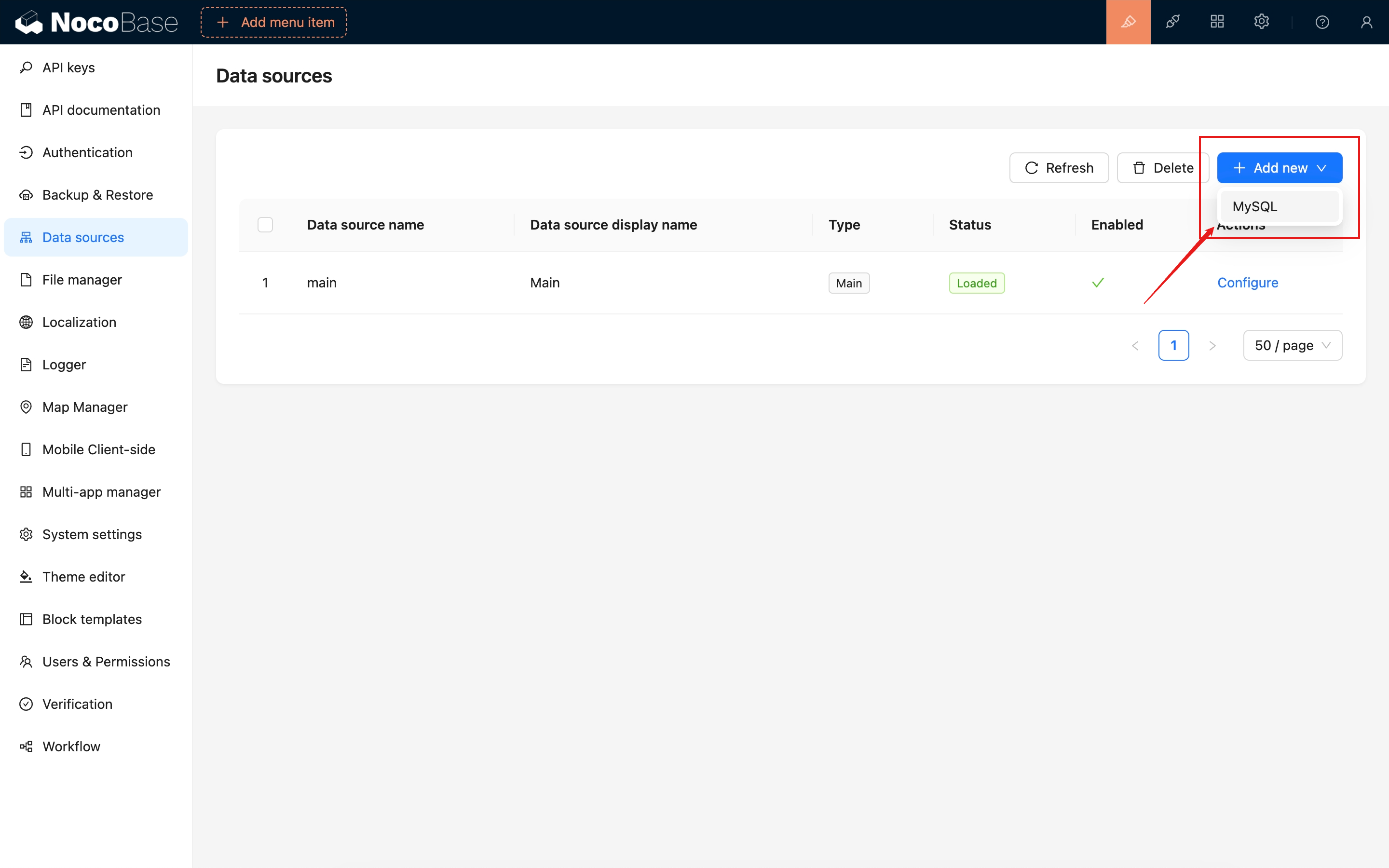
Each external database is supplied by a data-source plugin. Install and enable the plugin before its database type appears in Data source management > Add new.
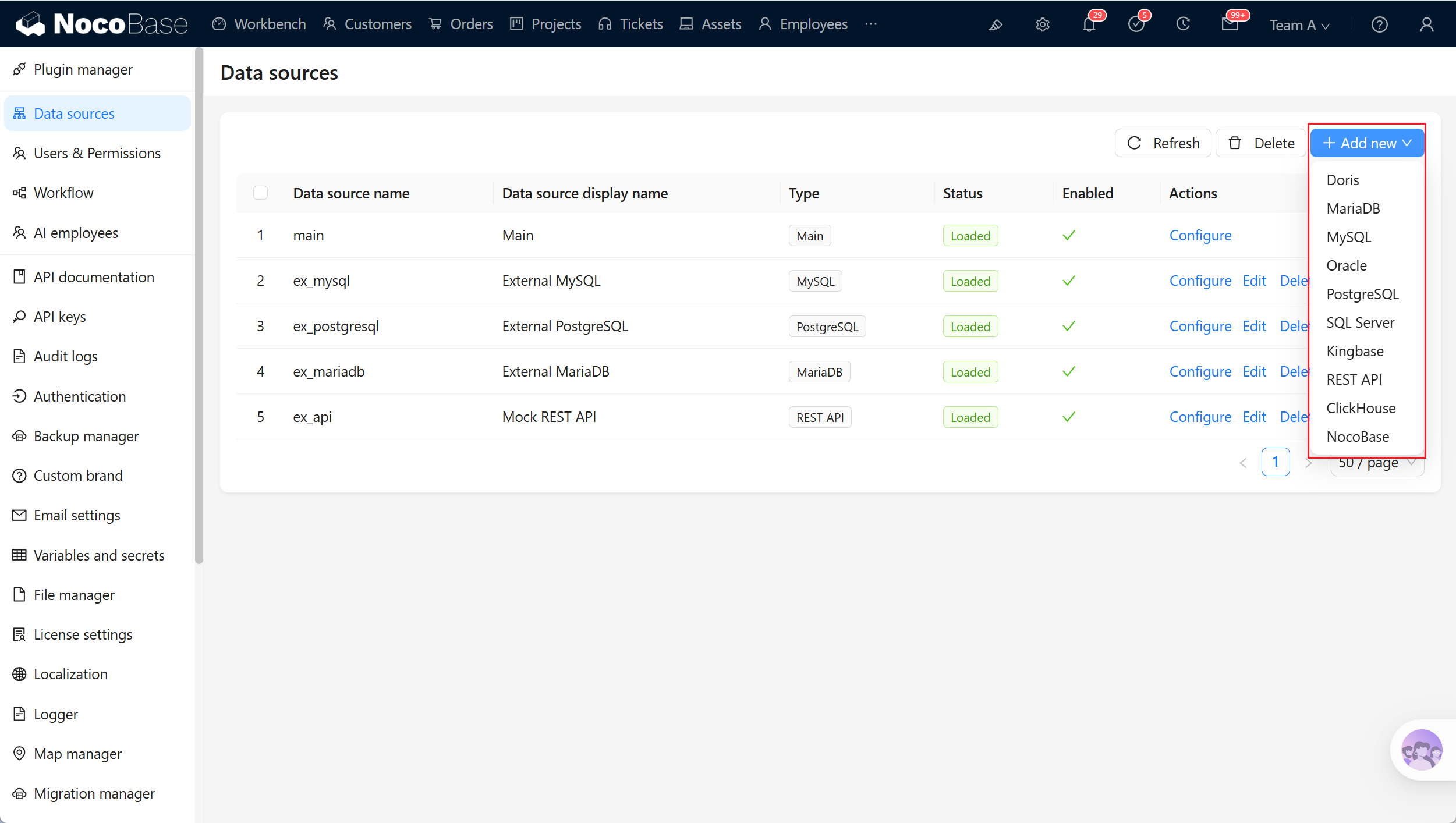
If a database type is missing from Add new, check that its plugin is installed and enabled, the commercial license includes it, and the current user can manage data sources.
Usage
Add an external database
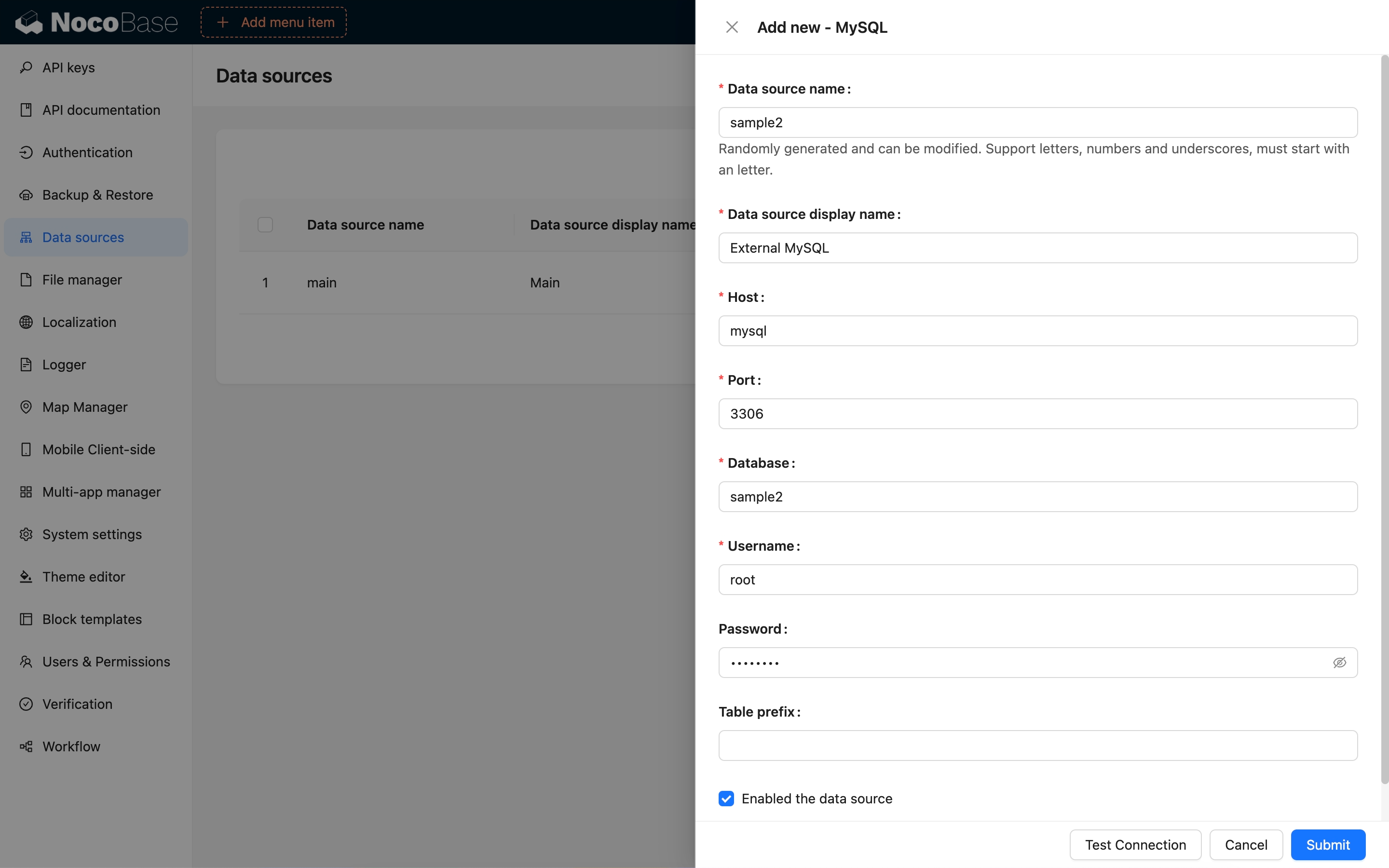
After the plugin is activated, choose the database type from Add new and provide its connection information.
Synchronize collections
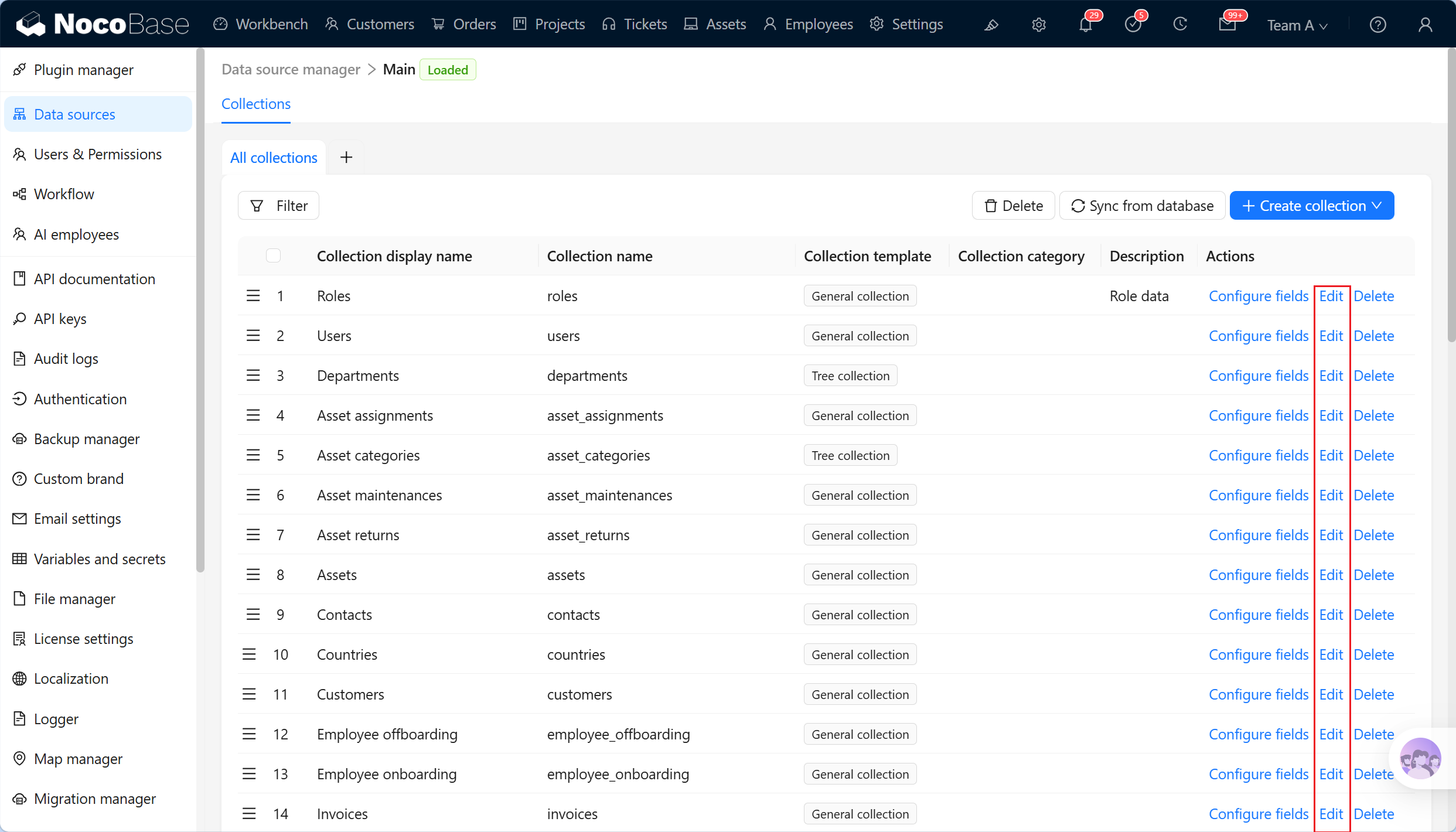
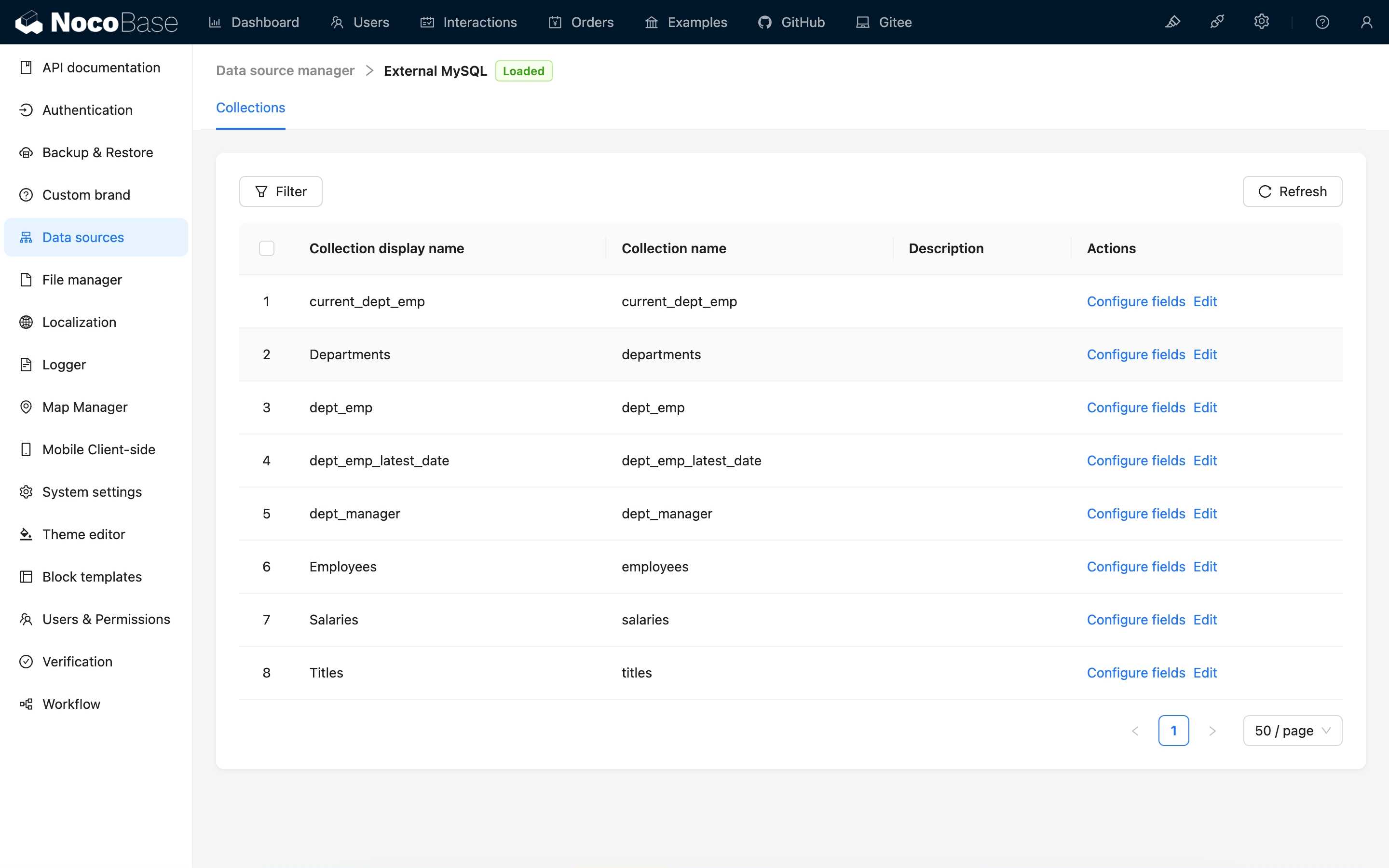
After an external database is connected, NocoBase reads its collections. It cannot create collections or change the external schema. Make schema changes through database tools, then use the refresh action to synchronize metadata.
Configure fields
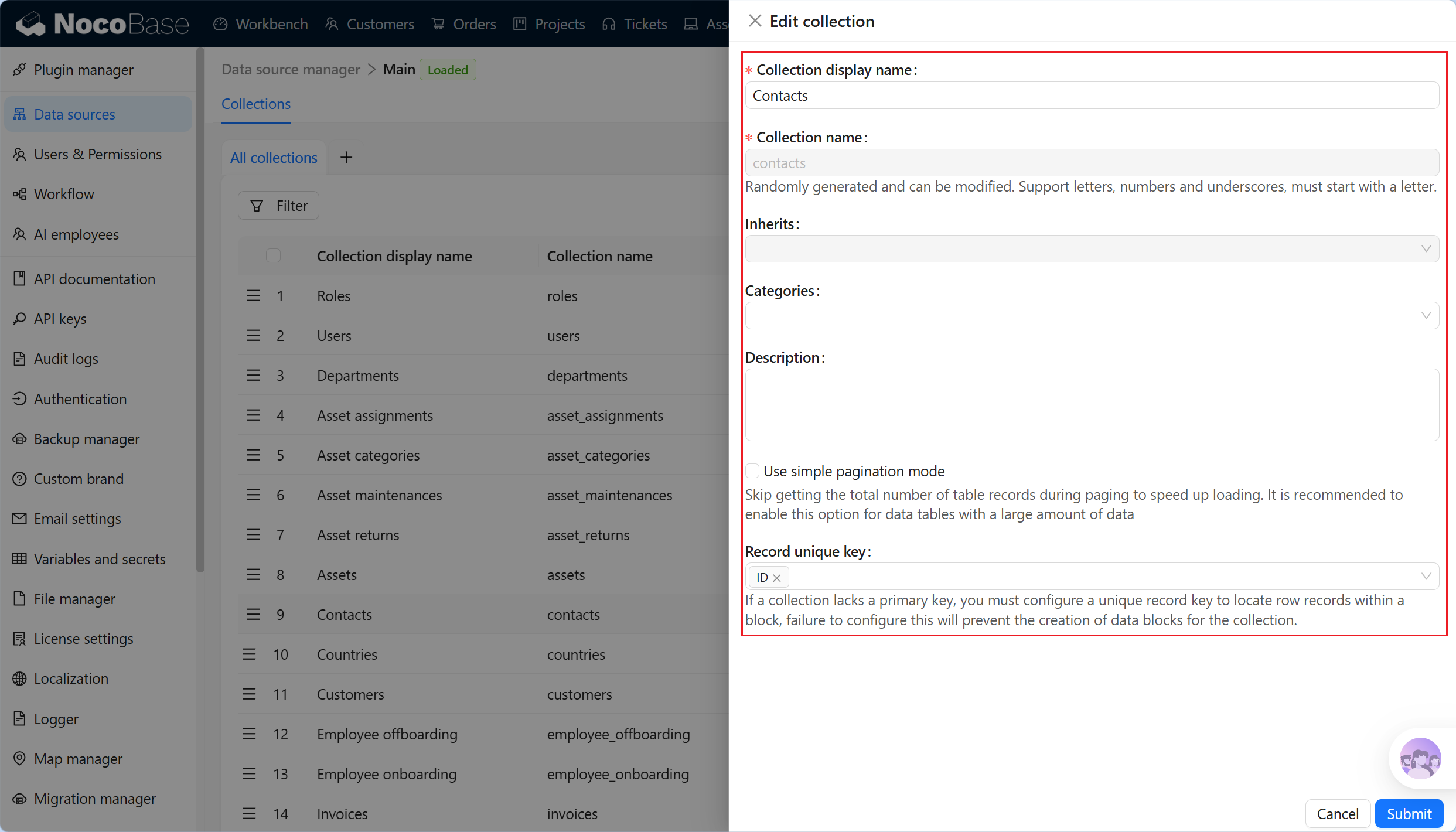
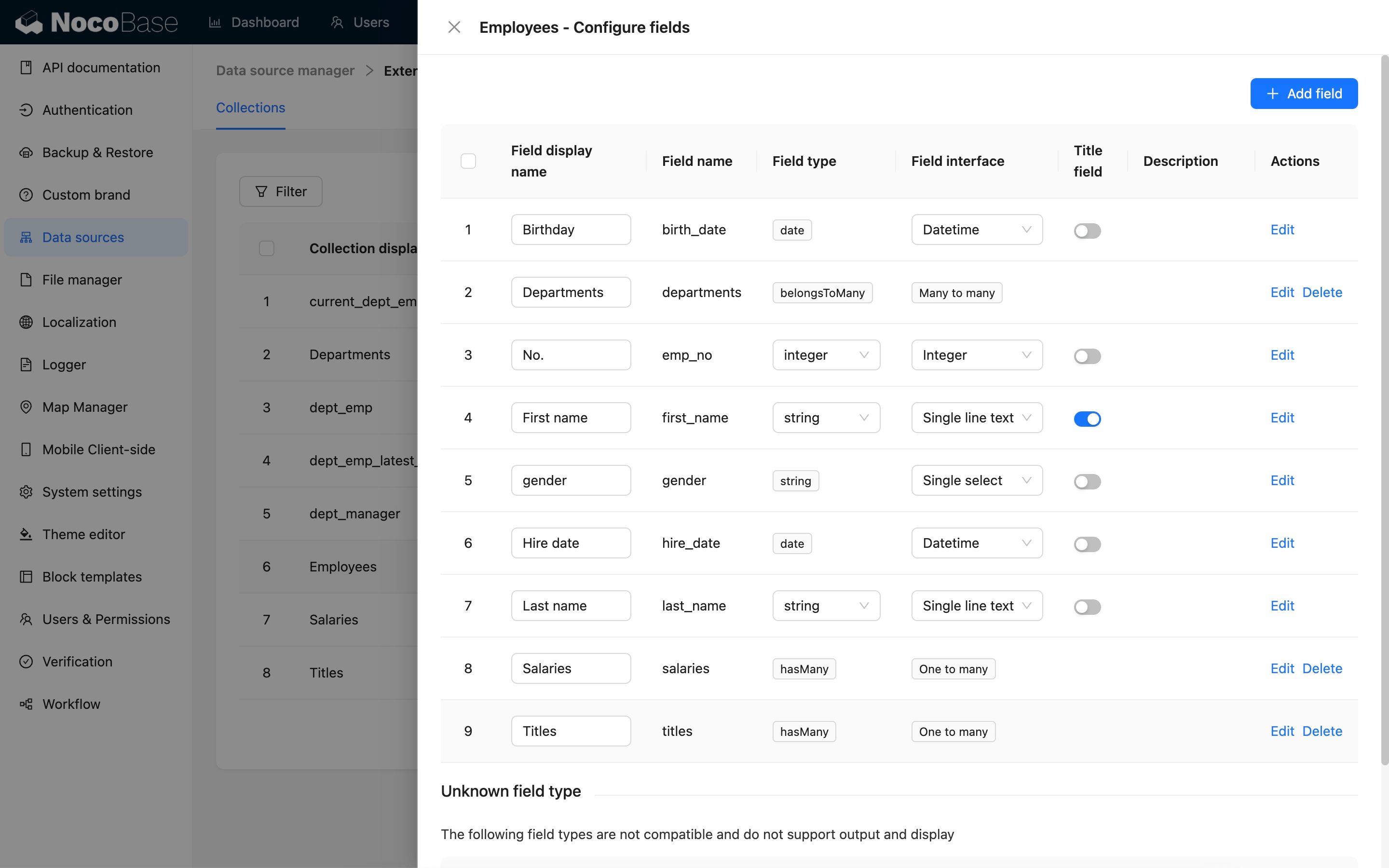
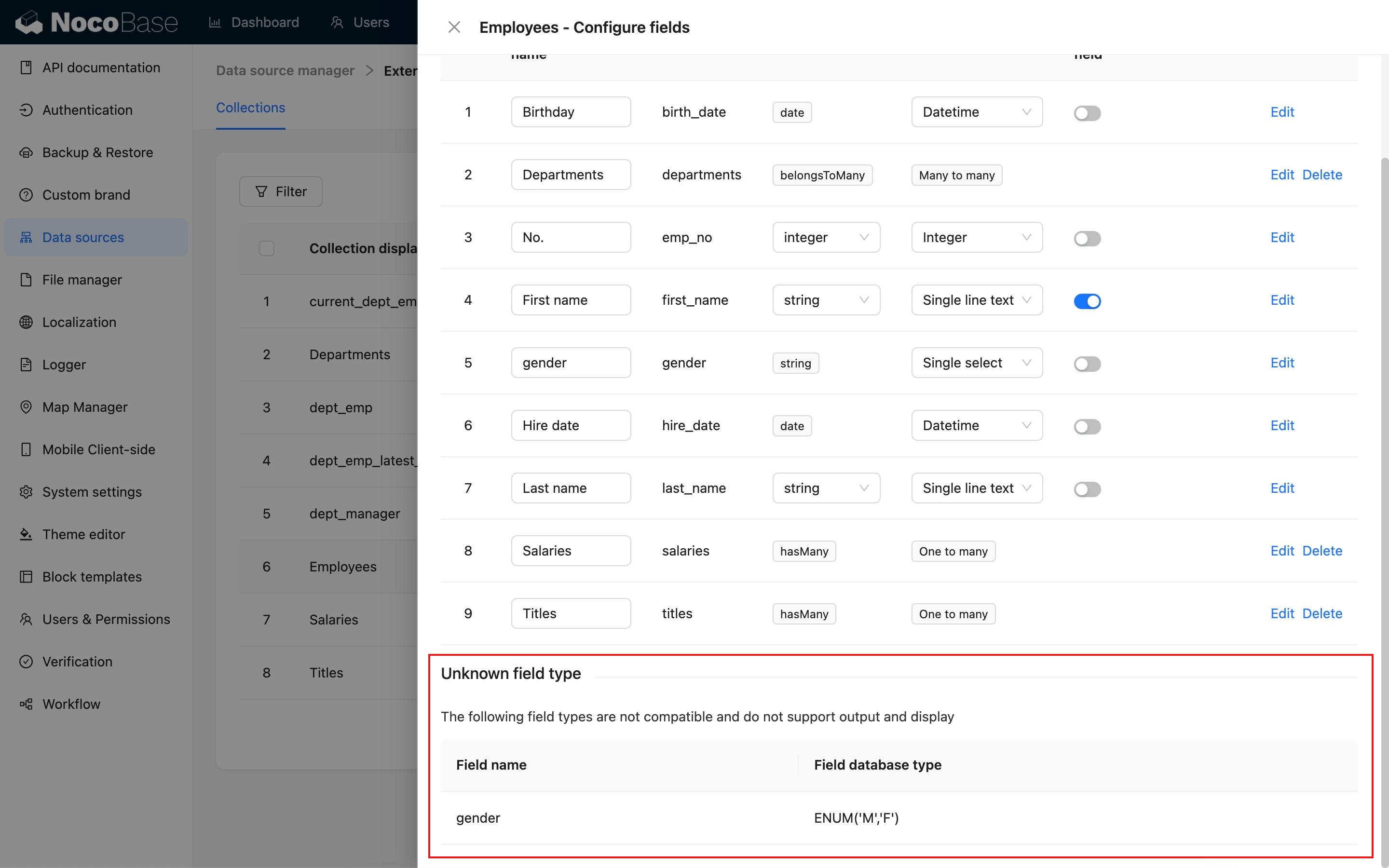
NocoBase reads and displays existing fields. You can configure their title, Field type, and Field interface, or use Edit for additional configuration.
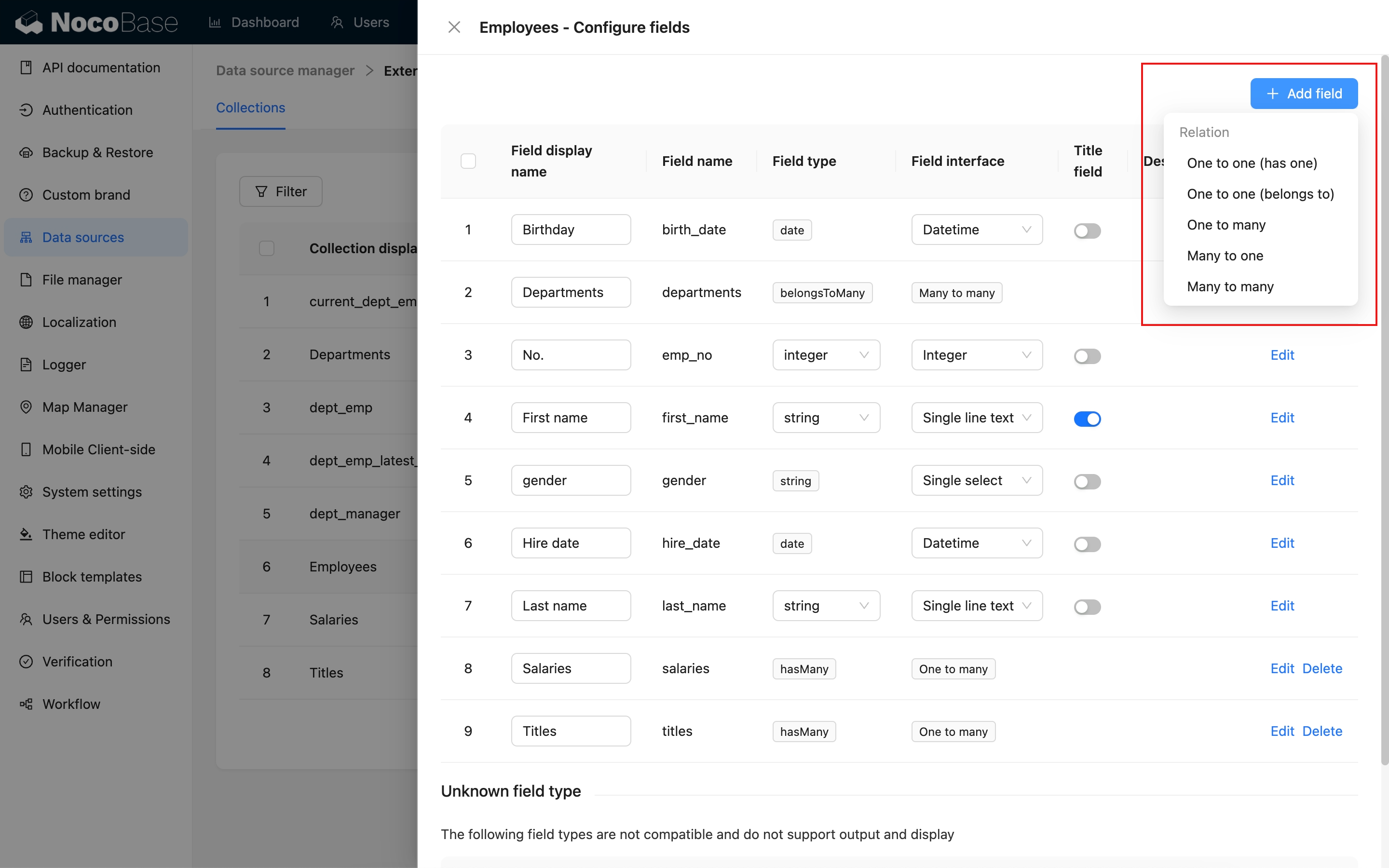
Because an external database schema cannot be changed from NocoBase, the only field type you can add is a relation field. A relation field is not a real database column; it connects collections in NocoBase.
See Collection fields for details.
Field type mapping
NocoBase maps external database types to a corresponding Field type and Field interface. Field type defines the kind, format, and structure of stored data; Field interface defines the control used to display and enter the value.
Unsupported field types
Unsupported field types are shown separately. They require development support before they can be used.
Record unique key
A collection shown in a block needs a Record unique key to locate a record, usually a primary key or unique field.
For a view, table without a primary key, or composite-primary-key table, set the Record unique key manually in the collection configuration. Without a usable unique key, blocks might not be created correctly or might not be able to view and edit records.