

Single line text

Introduction

In NocoBase, Single line text is the most common text field. It is suitable for short text that fits on one line, such as customer names, order numbers, contacts, address summaries, and external-system identifiers.

Single line text uses the Input interface and the string Field type by default. It can be used as a title field and can participate in filters, sorting, permission rules, workflow conditions, and API queries.

When content might contain line breaks or be long, use Textarea by default. When content has a fixed format, such as an email address, phone number, or URL, use the corresponding specialized field first.

Use cases

Single line text is suitable for these business scenarios:

  • Customer names, company names, and contact names
  • Order numbers, contract numbers, and project numbers
  • Task titles, work-order titles, and article titles
  • External-system IDs, synchronization numbers, and business codes
  • Short text such as cities, address summaries, and store names

Create and configure

On the collection's Configure fields page, click Add field and select Single line text to create the field.
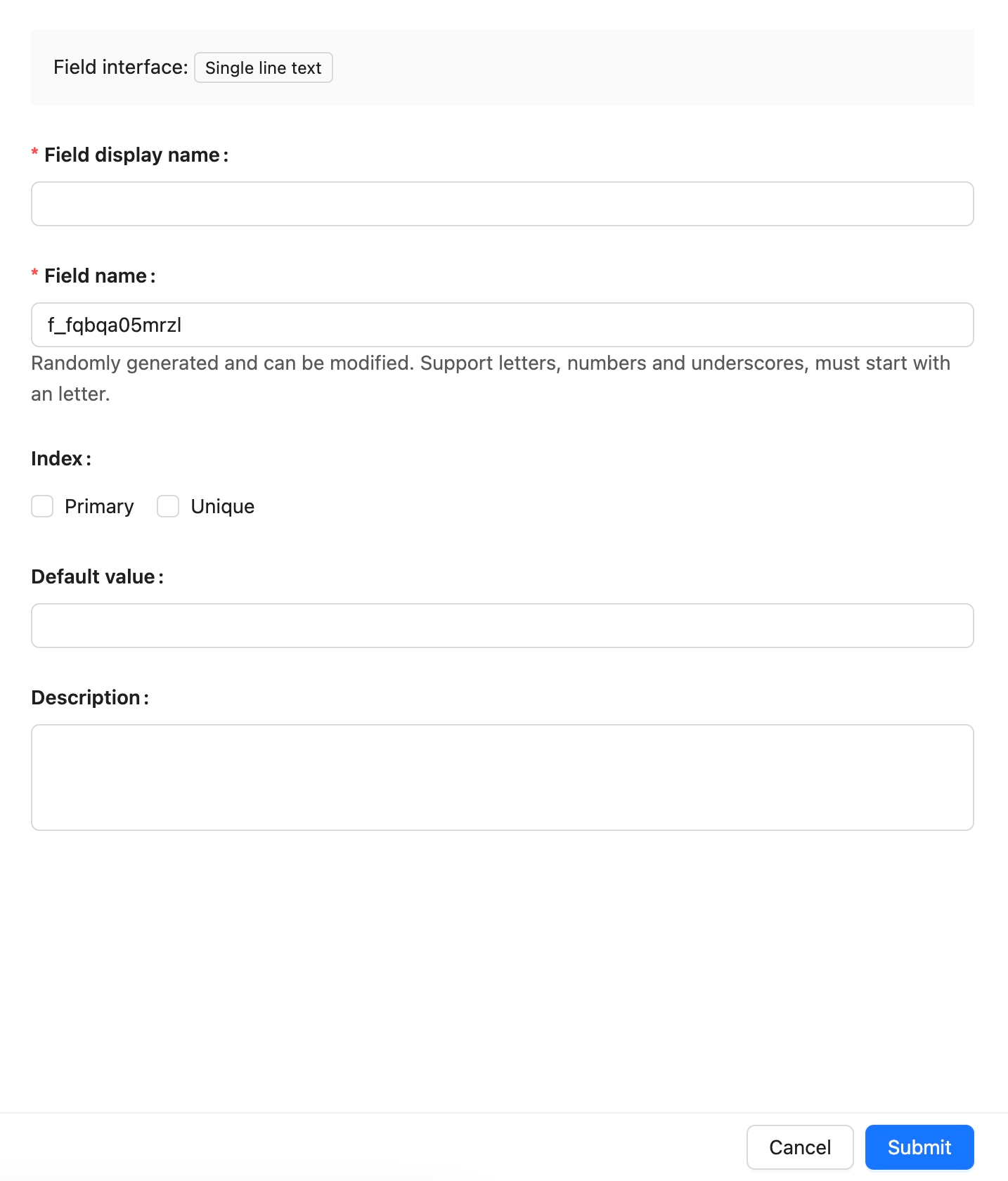
Create a Single line text field

SettingDescription
Field interfaceThe field interface. Single line text uses input and an Input component for entry and display.
Field display nameThe name displayed for the field, such as Customer name, Order number, or Task title. Use a name that business users can recognize.
Field nameThe field identifier used internally by APIs, relation fields, permissions, and workflows. It usually cannot be changed after creation. It supports only letters, numbers, and underscores, and must begin with a letter.
Field typeThe data-layer type. Single line text uses string by default and can also use uid. Use string for ordinary short text.
Automatically remove heading and tailing spacesRemoves leading and trailing spaces automatically. Suitable for names, codes, and titles where leading or trailing spaces should not be retained.
Default valueThe default value. When a new record has no value, NocoBase can fill the default text automatically.
PrimaryMakes the field a primary key. Available only when creating a field in the main database; ordinary business text is not recommended as a primary key.
UniqueA unique constraint. Suitable for text values that cannot repeat, such as order numbers, contract numbers, and external-system IDs.
Validation rulesValidation rules. You can limit minimum length, maximum length, fixed length, or a regular expression.
DescriptionA field description. Record the field meaning, entry requirements, data source, or maintainer.
Note

Field names are referenced by page blocks, permissions, workflows, and APIs after creation. Confirm the name before creating the field to avoid later configuration changes.

Field behavior

The default behavior of a Single line text field is as follows:

BehaviorDescription
Default Field interfaceinput.
Default Field typestring.
Available Field typesstring, uid.
Page componentUses an Input component in edit mode.
Title fieldCan be used as a collection title field. It is suitable to set fields such as Customer name, Order number, or Task title as the title field.
SortingSupports sorting in Table blocks.
FilteringSupports text filters such as contains, does not contain, equals, does not equal, is empty, and is not empty.
ValidationSupports minimum length, maximum length, fixed length, regular-expression, and other validation.

Edit configuration

After creation, click Edit beside the field to edit its configuration. Edit fields to adjust how they display and are used in NocoBase, such as the display name, description, default value, validation rules, or automatic removal of leading and trailing spaces.

When a field comes from a synchronized main-database table, editing usually maps the database field to a NocoBase Field type and Field interface. For example, short-text database columns such as varchar and char can be mapped to a Single line text field.

SettingCan be editedDescription
Field display nameYesChanges the name displayed in the interface without changing the field identifier.
Field nameNoThe field identifier normally cannot be changed in the edit form after creation.
Field interfaceConditionalMain-database fields and synchronized fields can be adjusted during field mapping. Changes affect page input, display, and validation.
Field typeConditionalMain-database fields and synchronized fields can be adjusted during field mapping. Confirm that existing values can be used by the new type first.
Automatically remove heading and tailing spacesYesControls whether leading and trailing spaces are removed when saving.
Default valueYesAdjusts the default text for new records.
UniqueConditionalAvailable when creating a field in the main database. Adding it can fail if existing data already contains duplicate values.
Validation rulesYesAdjusts length, format, or regular-expression validation.
DescriptionYesAdds the field meaning, entry requirements, data source, or maintainer.
Note

Changing a Field type or Field interface is more than changing a display name. It affects field storage, input components, validation rules, filters, and workflow-variable usage. When the field contains substantial existing data, confirm that its data format is compatible first.

Delete field

Click Delete beside a Single line text field to delete it. You can also select multiple fields and delete them in the main data source.

Deleting a Single line text field created in the main database usually also deletes the actual database column and its values. For a synchronized or external-data-source field, the impact depends on the corresponding data source and field origin.

Warning

Deleting a field can affect page blocks, forms, filters, permissions, workflows, APIs, imports and exports, and existing data. Confirm that the field is no longer referenced by business configuration before deleting it.

Use in pages

Single line text fields can be used in most data blocks and form scenarios.

ScenarioUse
Form blockEnter or edit short text such as a customer name, order number, or task title.
Table blockDisplay, sort, and filter short text. Long values are truncated in tables according to interface configuration.
Details blockDisplay text information for one record.
Filter blockUse the field as a query condition, such as filtering by customer name, code, or title.
Relation field displayWhen a Single line text field is a title field, relation fields preferentially display this text when selecting a record.
Workflows and permissionsUse it in conditions, such as whether an order number is empty or a customer name contains a keyword.

Edit mode

In edit mode, Single line text uses an Input component.
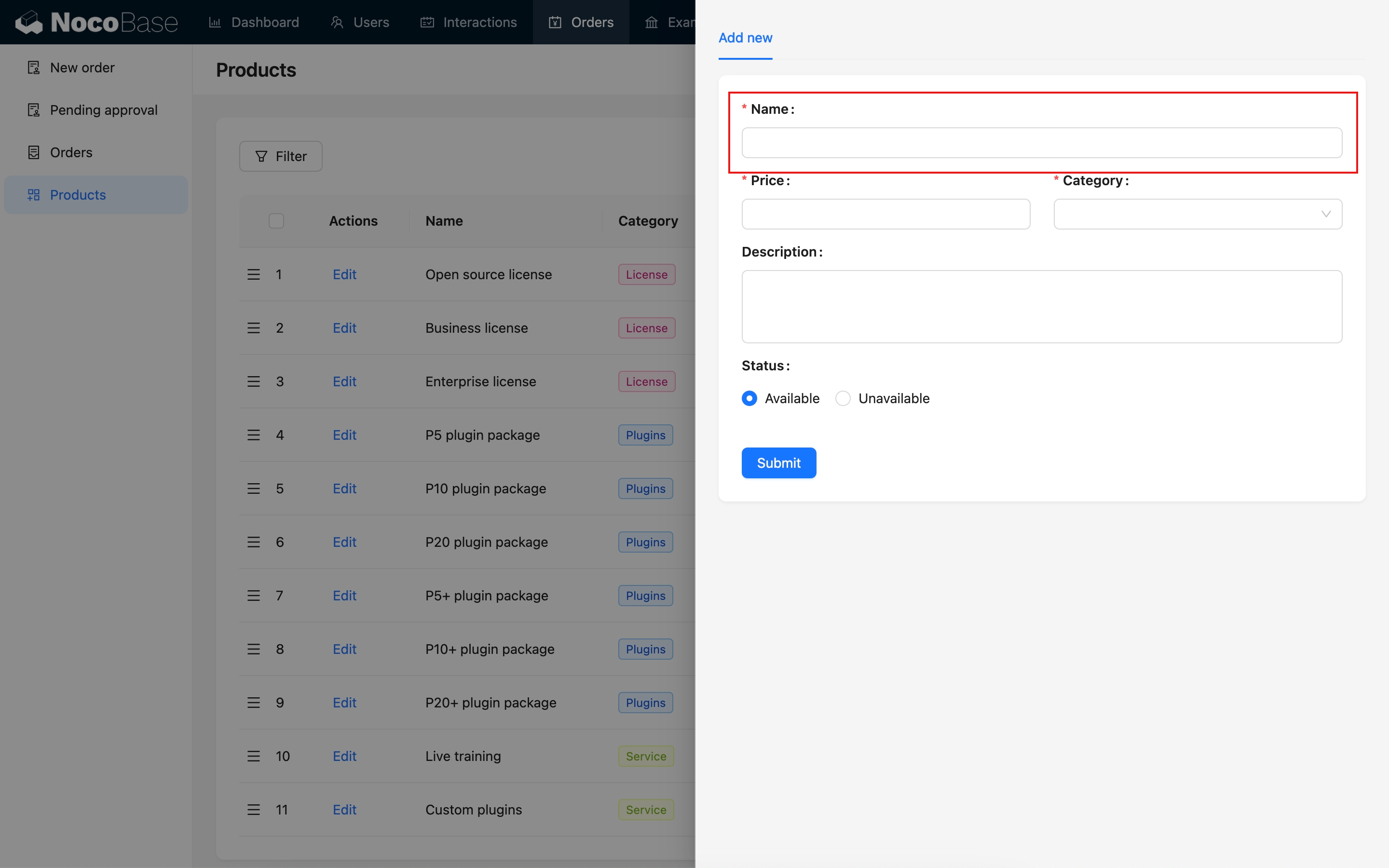
Single line text edit mode

Read mode

In read mode, Single line text is displayed as ordinary text.
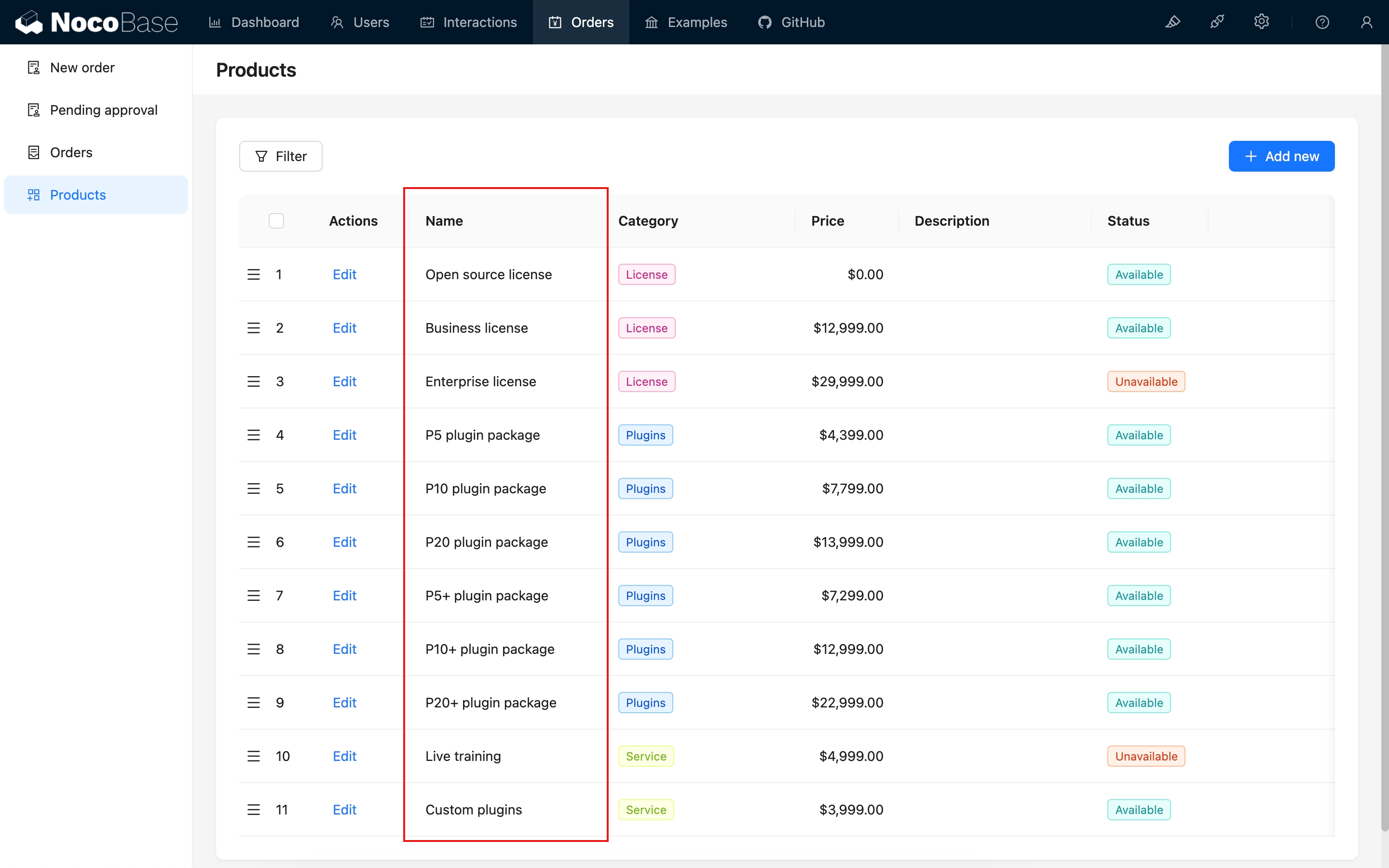
Single line text read mode