

File collection
Introduction
File collections are suitable for file metadata, such as file names, extensions, sizes, MIME types, paths, URLs, preview addresses, storage locations, and custom metadata. The file binary is stored by the file-storage engine; the File collection stores the file metadata.
You can create File collections only from the main data source. External databases, REST API data sources, and External NocoBase data sources do not support creating File collections.
Use cases
File collections are suitable for these business scenarios:
- Contract attachments, invoice files, and reimbursement receipts
- Product images, employee certificates, and project documents
- Files uploaded, previewed, and downloaded from business records
- Attachment libraries that need independent management of file metadata
Usage flow
File collections are usually not used directly as main business collections. A common flow is:
- Create a File collection to store metadata such as file title, file name, size, type, URL, and storage location.
- Create a relation field in the business collection and relate it to the File collection. For example, relate a
Contract attachmentsFile collection to theContractscollection. - Add the relation field to a Form block for the business collection so that users can upload files while creating or editing a business record.
- After upload, NocoBase writes file metadata to the File collection and relates the file record to the current business record through the relation field.
- Display the attachment field in a Details block, Table block, or List block for the business collection so that users can view, preview, or download files.
Create and configure
In the main data source, click Create collection and select File collection to create a File collection.
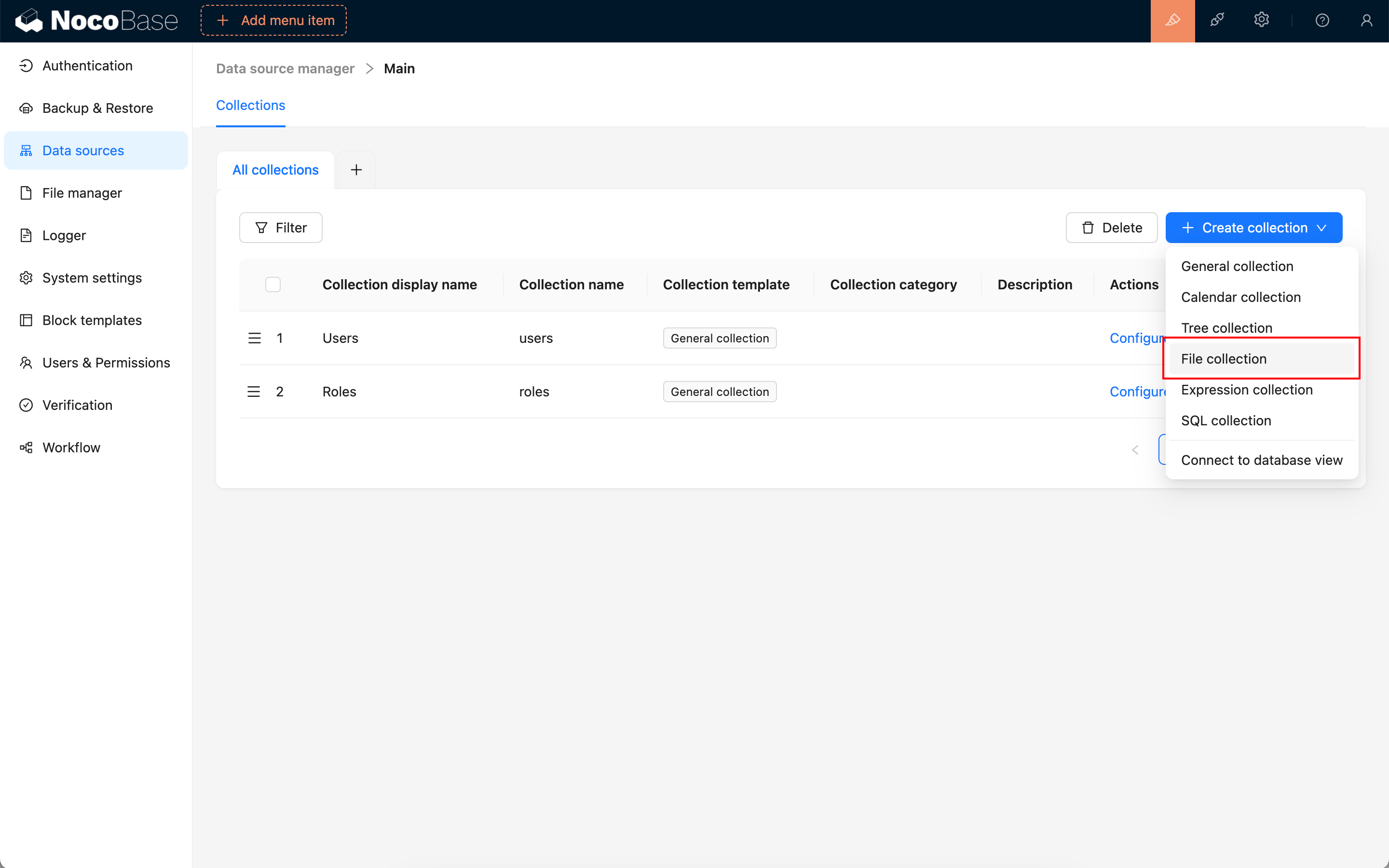
File collection settings are mostly the same as those for a general collection. A File collection includes file-metadata fields for storing uploaded file titles, paths, URLs, storage locations, and extended information.
Built-in fields
After a File collection is created, it usually includes the following built-in fields. File binaries are stored in file storage, while the File collection stores this metadata.
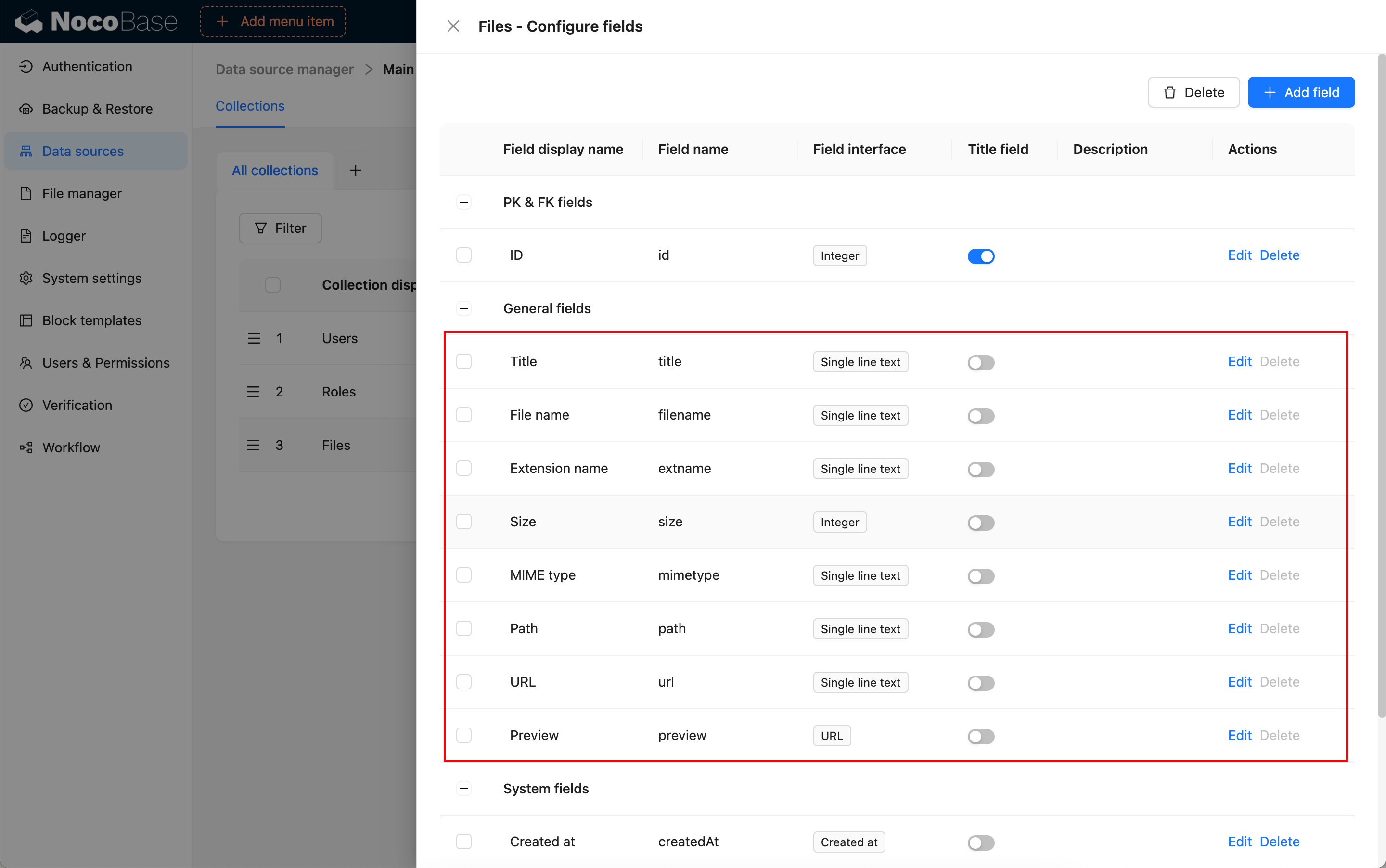
Primary key field
Like a general collection, a File collection needs a primary key. Attachment fields and relation fields use the primary key to relate file metadata records.
If a File collection has no primary key, set Record unique key when editing the collection. Otherwise, attachment records might not be related, previewed, or edited correctly.
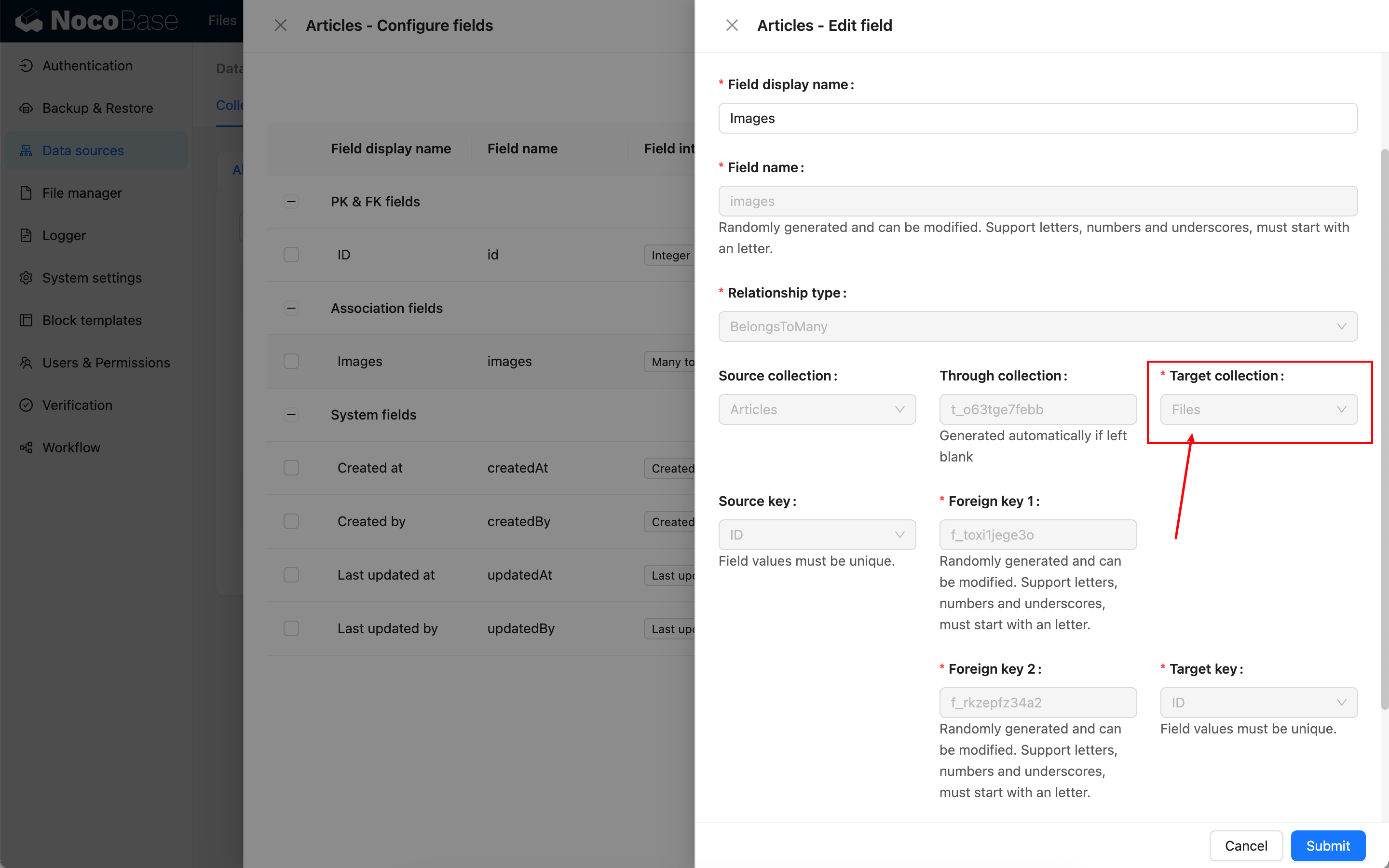
Create a relation
Create a relation field in the business collection and relate it to the File collection.
Use in pages
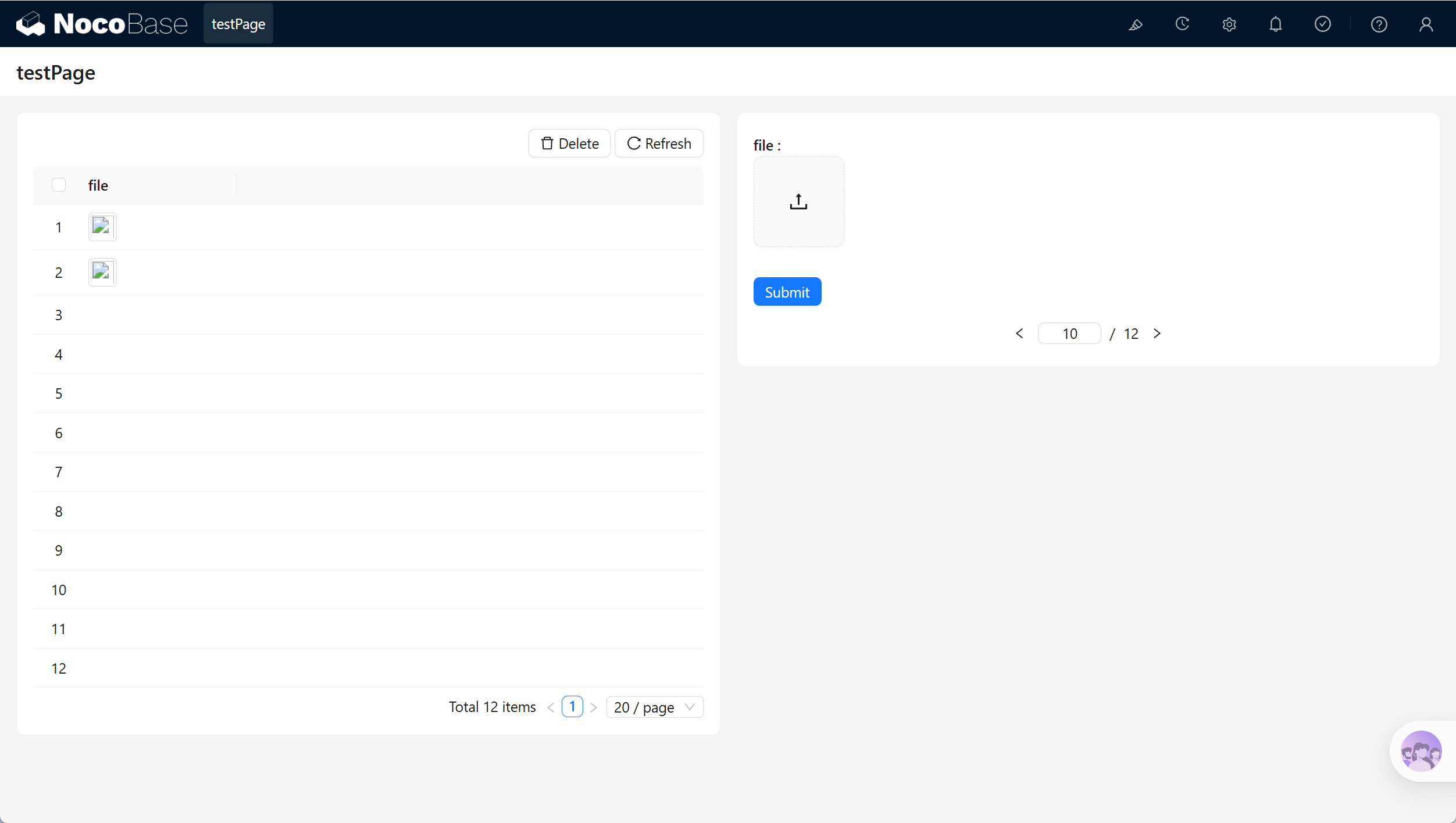
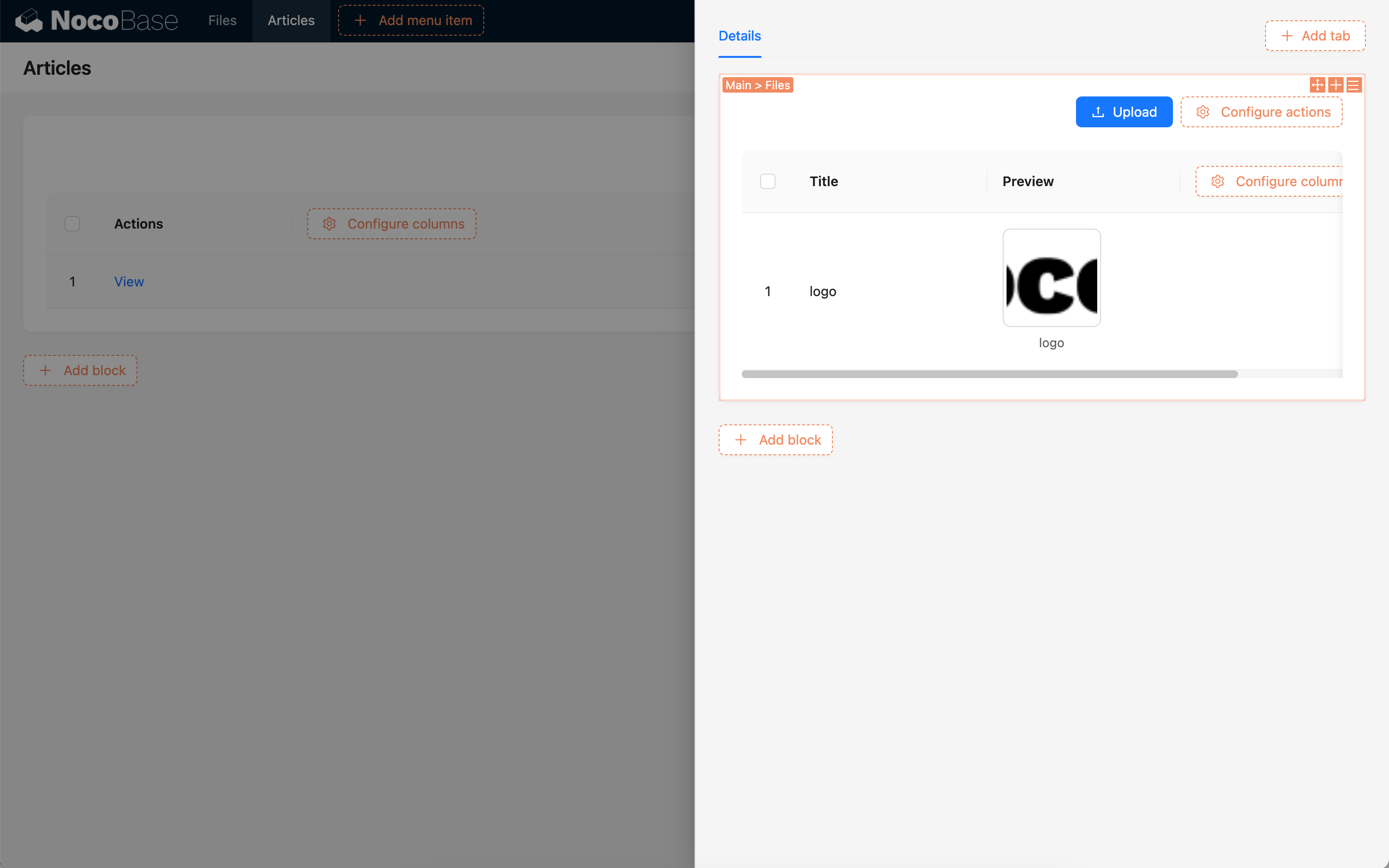
File collection data is usually created automatically when files are uploaded through attachment interfaces. Use it in Form blocks, Details blocks, or relation blocks.
Edit configuration
In the collection list, click Edit next to a File collection to change its display name, category, description, simple pagination mode, Record unique key, and other settings.
File metadata fields are normally written automatically during upload. Do not repurpose fields such as url, path, or storageId for other business meanings. To extend file-related business information, add fields such as File type, Project phase, or Archived.
Delete a collection
In the collection list, click Delete next to a File collection to delete it.
Deleting a File collection deletes file-metadata records and related collection metadata. Before deleting it, confirm whether attachment fields and relation fields in business collections, page blocks, permissions, workflows, or APIs still depend on it.
A File collection stores file metadata. Deleting File collection records might invalidate attachment references in business records. Whether file binaries are also deleted depends on the file storage and business configuration. Confirm that files are no longer used by the business before proceeding.
Related links
- General collection - General configuration and block usage.
- Collection fields - Configure attachment fields and relation fields.
- File manager - Configure file storage.
- Multi-space - Learn about the Space field and data isolation by space.