
Prepare a project repository, an enabled Agent, and an online runtime. Automatic tests also need an active project lead. The execution identity needs project management, task reading, and attachment upload permissions.
Choose the scope
- Open Quality and select a project.
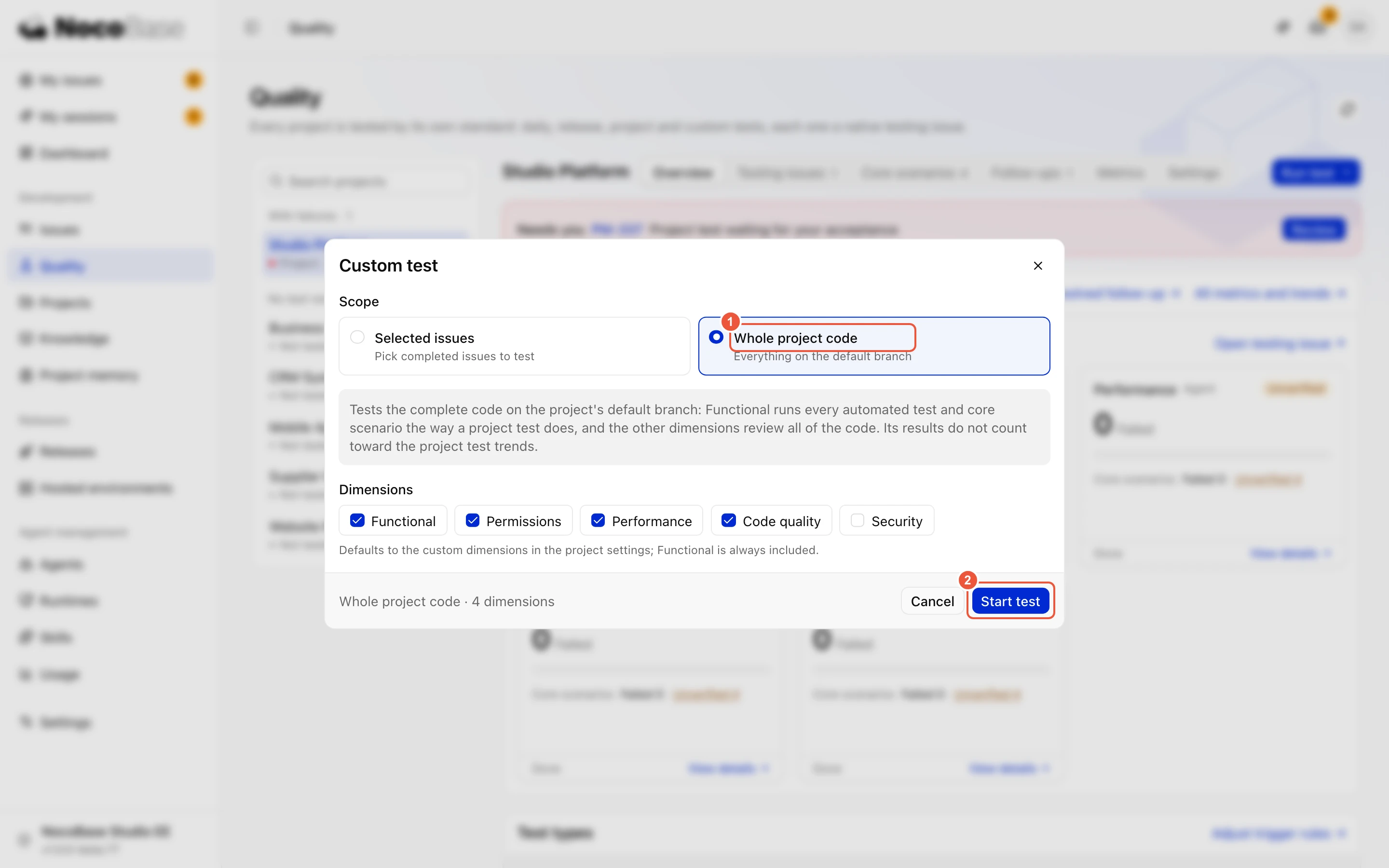
- Select Run test, then Release, Project, or Custom.
- For a custom test, select completed tasks or the whole project code. Adjust the dimensions if needed.
- Confirm and open the new testing task.
Release tests use the current tasks awaiting release. An empty eligible scope does not create a test. Project tests and whole-project custom tests use core scenarios.
Studio freezes the scope and Skill versions when it creates the test. Later settings changes do not alter that test. Start another test to use a new scope or standard.
Follow progress and resolve blockers
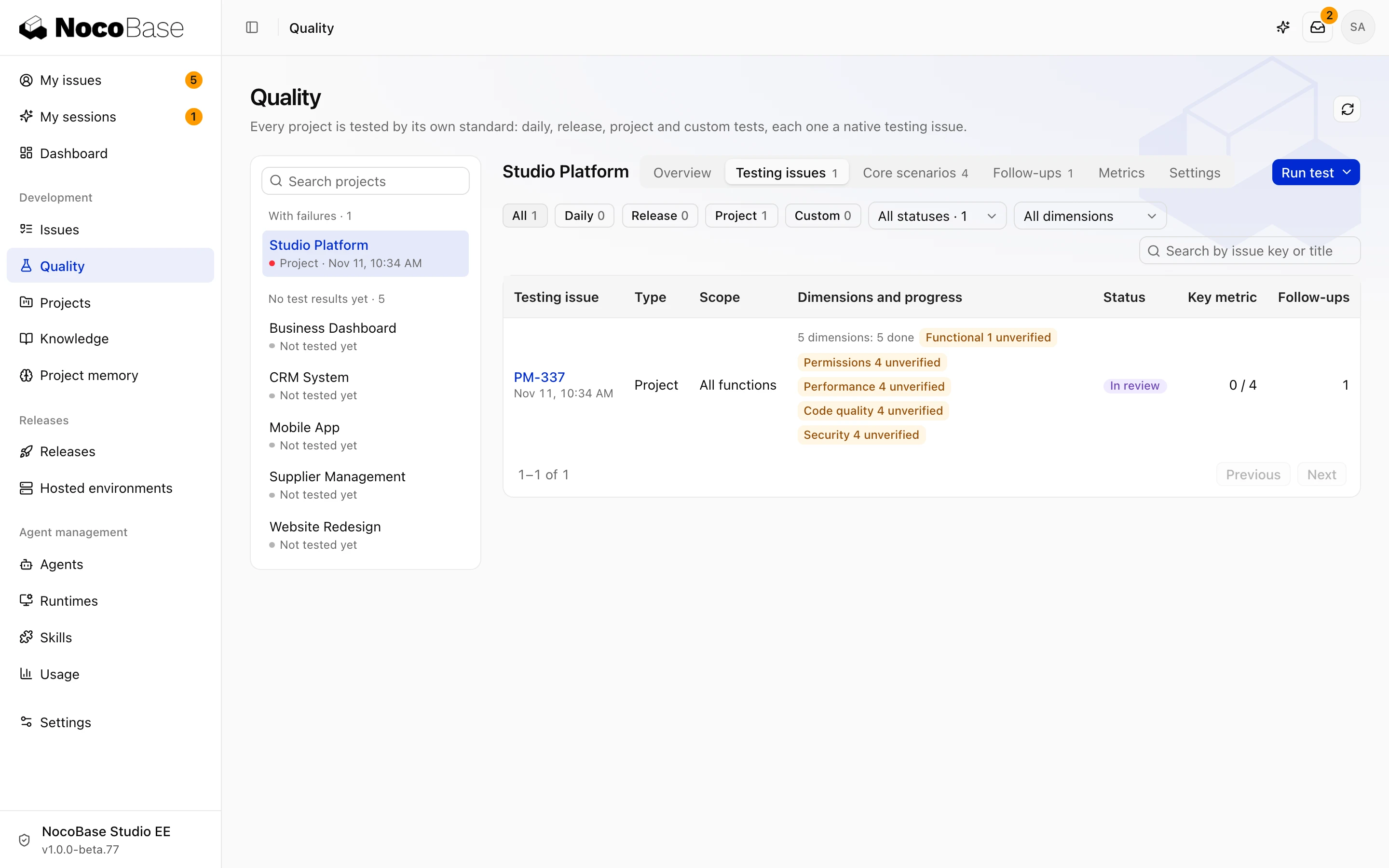
Open Testing issues to see each test, or open it from My issues. The task shows dimension progress, elapsed time, checked items, and missing information.
If a runtime, permission, or test account is missing, provide it and reply on the task. The owner answers business questions. See Answer questions.
Cancel a test when it is no longer needed. Existing records remain, and unfinished dimensions show as cancelled. After execution, review the report and accept the delivery.