Built-in AI Employees
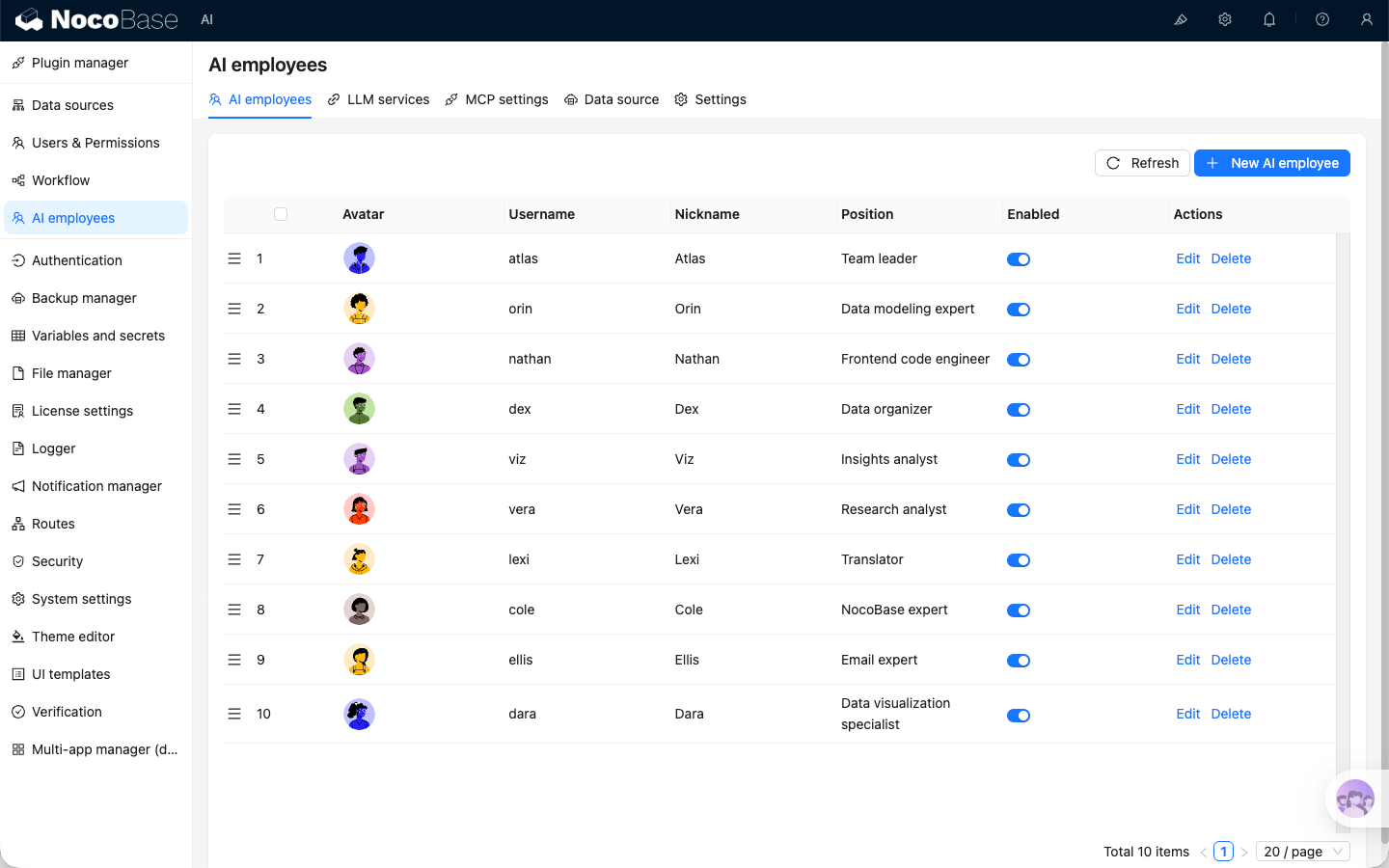
NocoBase comes with several built-in AI employees tailored for specific scenarios.
You only need to configure the LLM service and enable the corresponding employee to start working; models can be switched on-demand within the conversation.
Introduction
Click the AI floating ball in the bottom-right corner of the application interface to open an AI conversation and start collaborating.
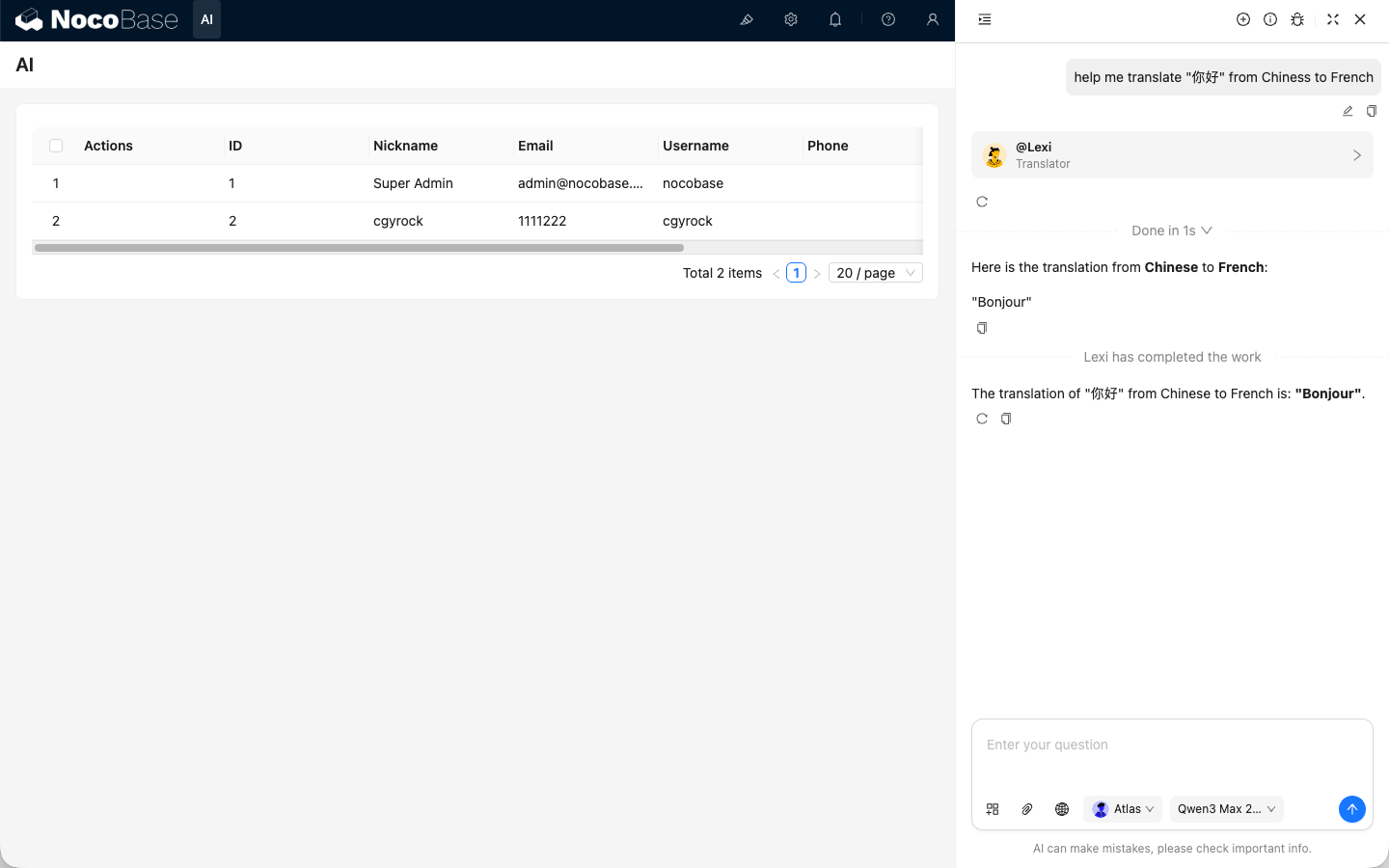
To switch to a different AI employee, use the AI employee dropdown in the conversation.
Default AI Employee Atlas
Introduction
The default entry point for AI employees, understanding user intent and coordinating the appropriate AI employee to help.
Atlas is NocoBase's built-in default AI employee and the central entry point. In most cases, you can simply talk to Atlas directly. He understands your intent from the context and coordinates the most suitable AI employee to help with the current task.
Usage
Click the AI floating ball in the bottom-right corner of the application interface to enter a conversation with Atlas.
In most scenarios, you can simply describe what you need. Atlas will either continue responding directly or coordinate the appropriate AI employee to assist.
Dedicated Scenario AI Employees
Some built-in AI employees (builder types) do not appear in the bottom-right AI employee list; they have dedicated workspaces, for example:
- only appears on the Data Source configuration page;
- Dara only appears on the chart configuration page;
- Nathan only appears in the JS editor.
Below are several typical application scenarios for AI employees to provide you with inspiration. More potential awaits your further exploration in actual business scenarios.
Viz: Insight Analyst
Introduction
Generate charts and insights with one click, let the data speak for itself.
Viz is the built-in AI Insight Analyst. He knows how to read the data on your current page (such as Leads, Opportunities, Accounts) and automatically generate trend charts, comparison charts, KPI cards, and concise conclusions, making business analysis easy and intuitive.
Want to know "Why have sales dropped recently?" Just say a word to Viz, and he can tell you where the drop occurred, what the possible reasons are, and what the next steps could be.
Use Scenarios
Whether it's monthly business reviews, channel ROI, or sales funnels, you can let Viz analyze, generate charts, and interpret results.
Usage
Page Entry Points
-
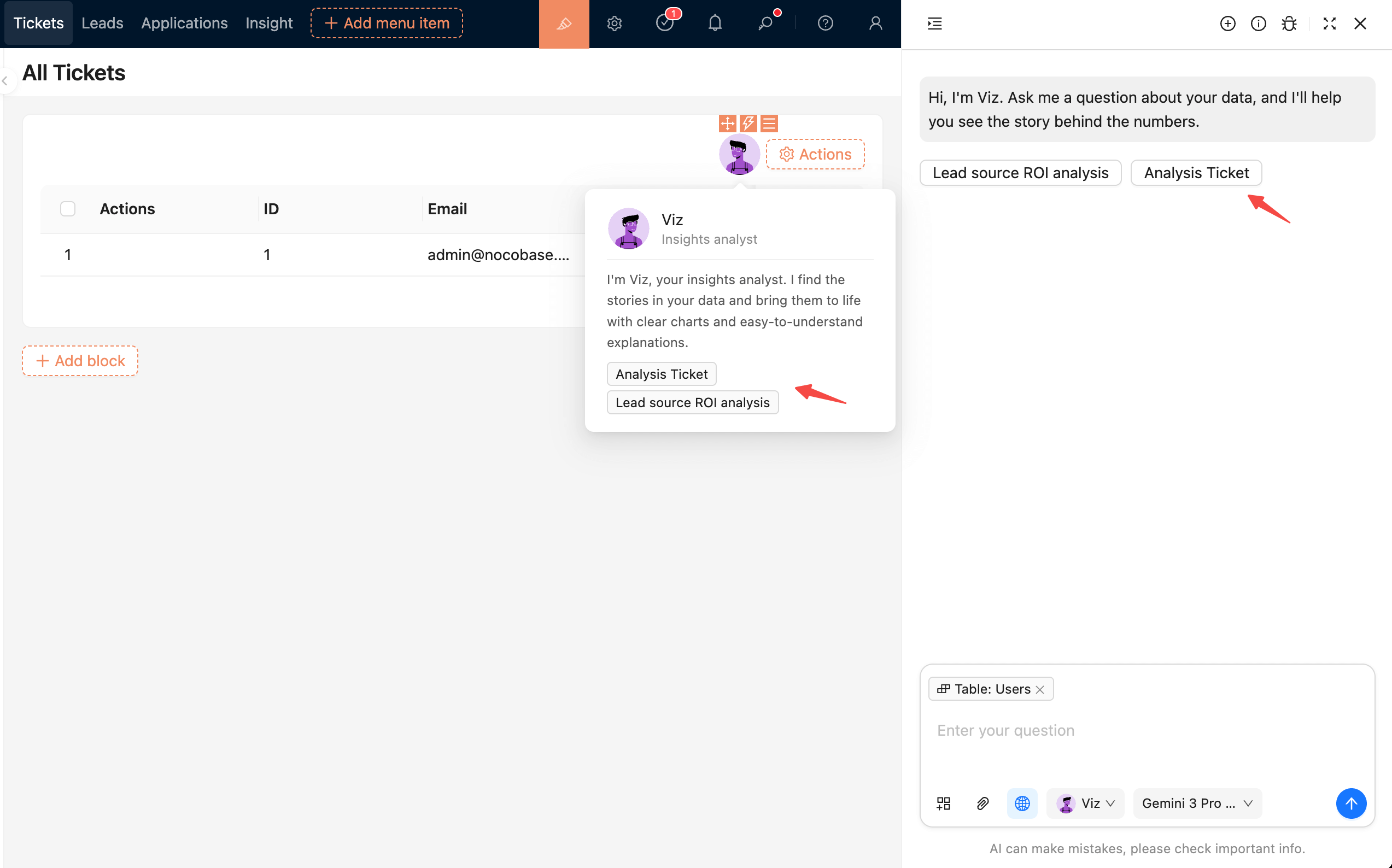
Top-right button (Recommended)
On pages like Leads, Opportunities, and Accounts, click the Viz icon in the top right corner to select preset tasks, such as:
- Stage conversion and trends
- Source channel comparison
- Monthly review analysis
-
Bottom-right global panel
On any page, you can call up the global AI panel and speak directly to Viz:
Viz will automatically bring in the data context of your current page.
Interaction
Viz supports natural language questions and understands multi-turn follow-ups. Example:
Each follow-up question will continue to delve deeper based on the previous analysis results, without needing to re-enter data conditions.
Tips for Chatting with Viz
Dex: Data Organizer
Introduction
Quickly extract and fill forms, turning messy information into structured data.
Dex is a data organizer who extracts required information from unstructured data or files and organizes it into structured information. He can also call tools to fill the information into forms.
Usage
Invoke Dex on the form page to open the conversation window.
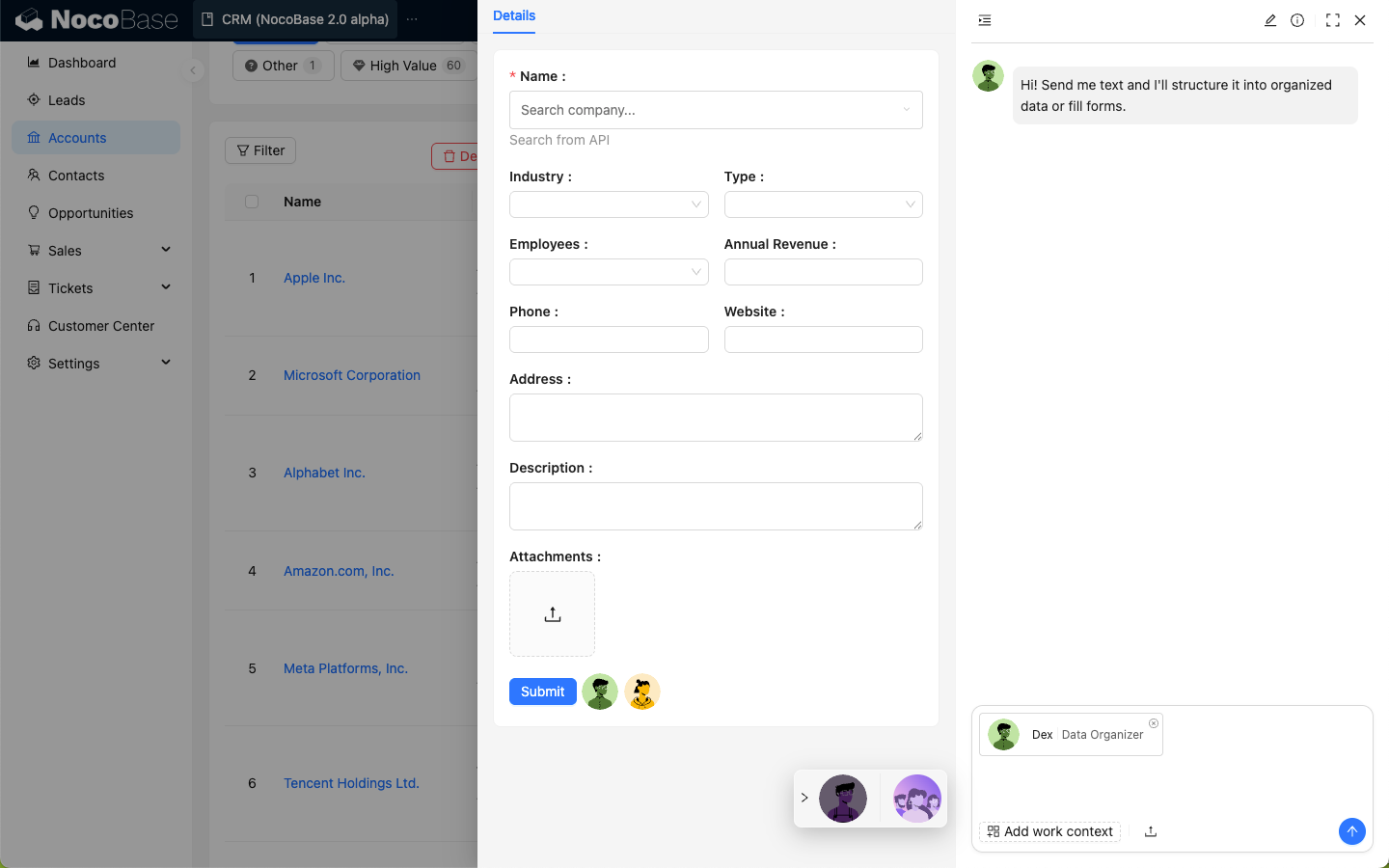
Click Add work context in the input box and select Pick block; the page will enter the block selection state.
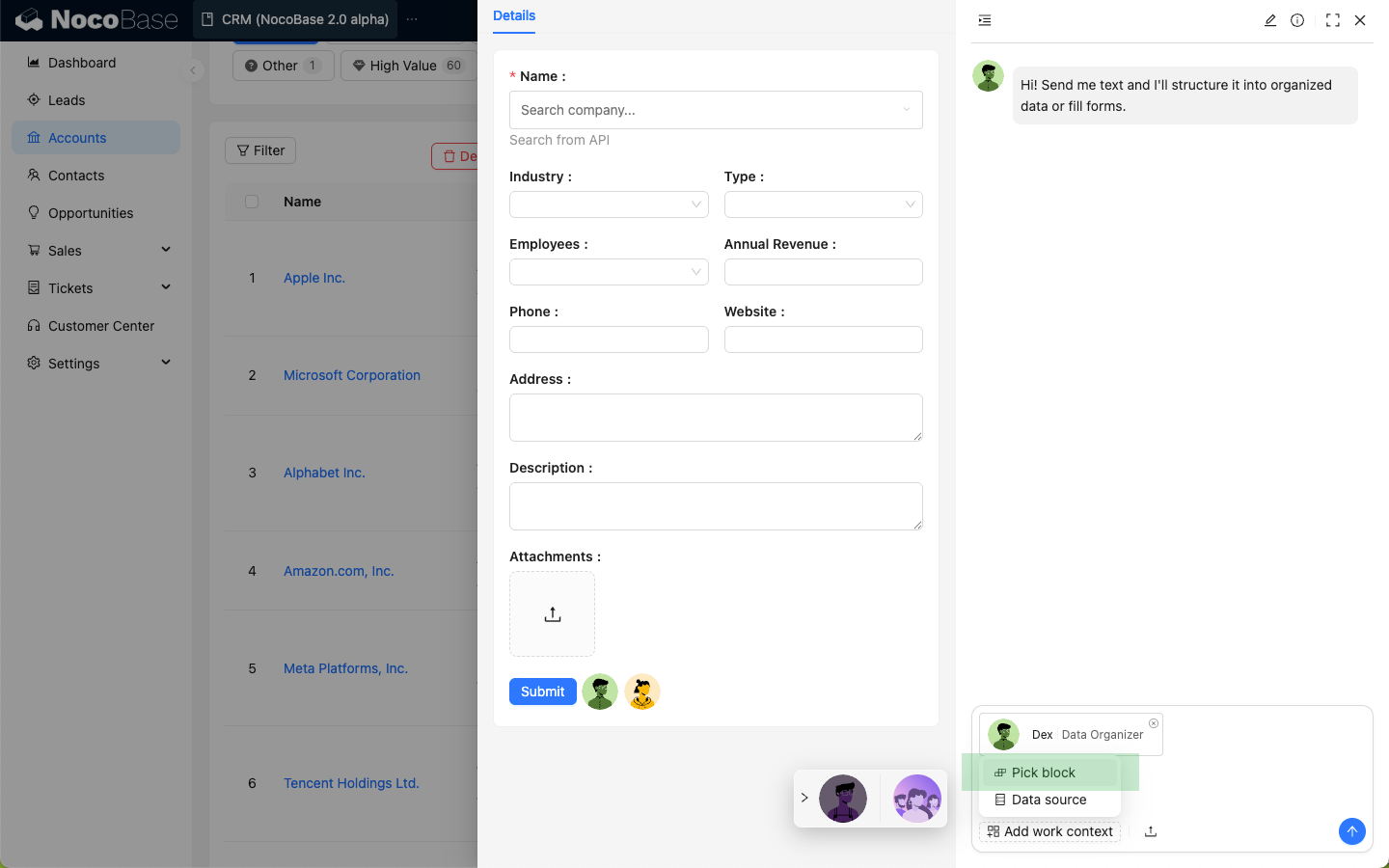
Select the form block on the page.
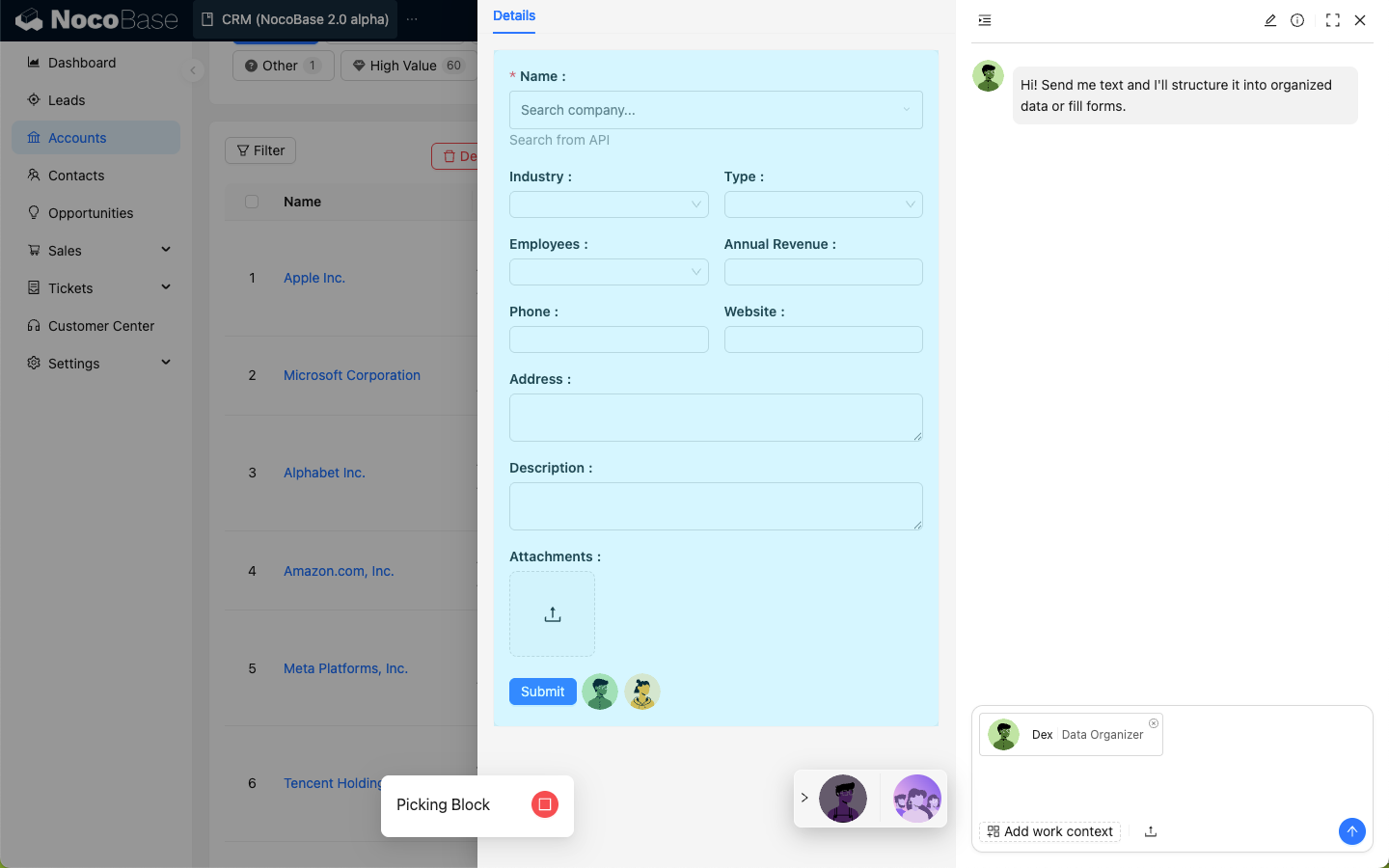
Enter the data you want Dex to organize in the dialog box.
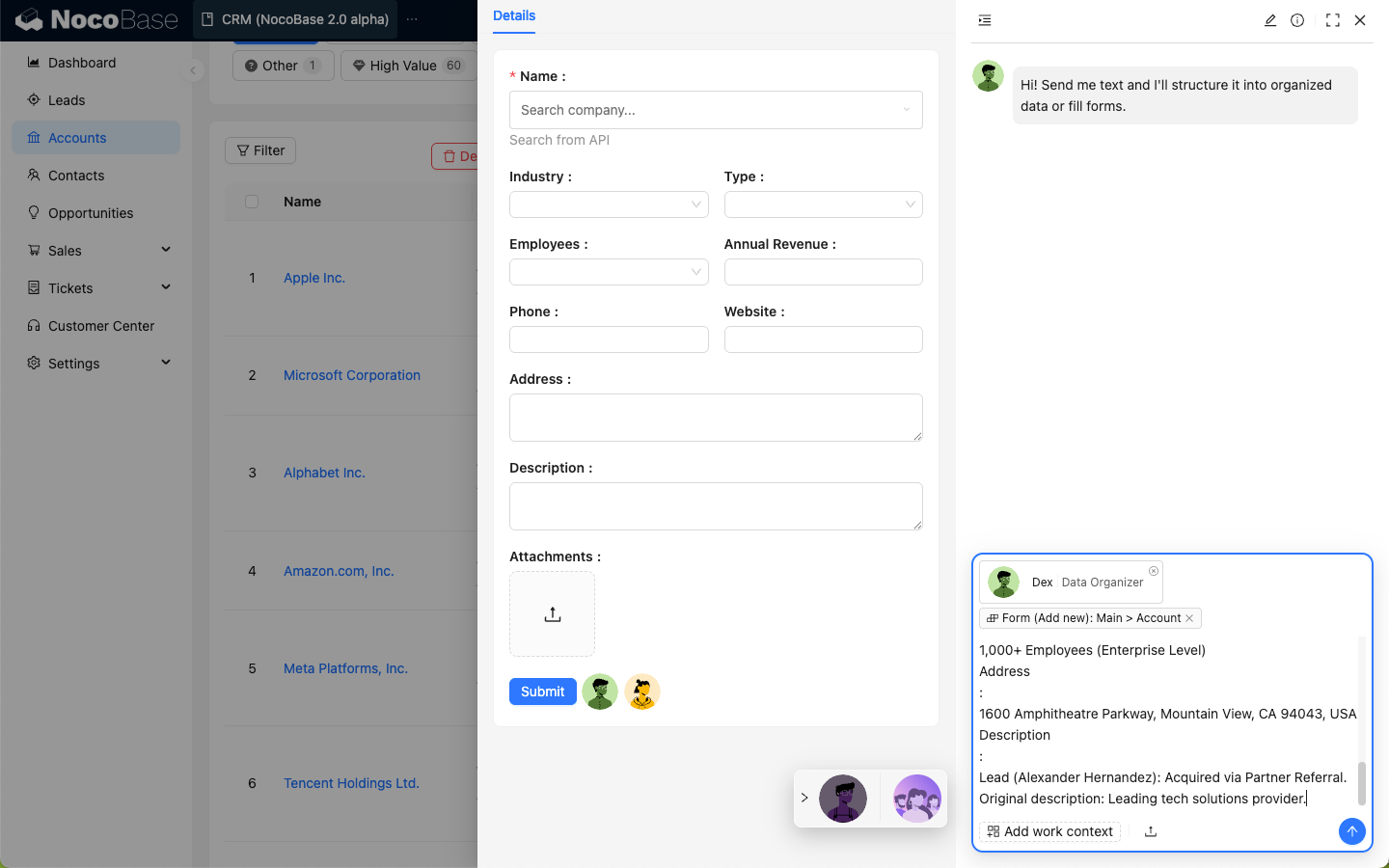
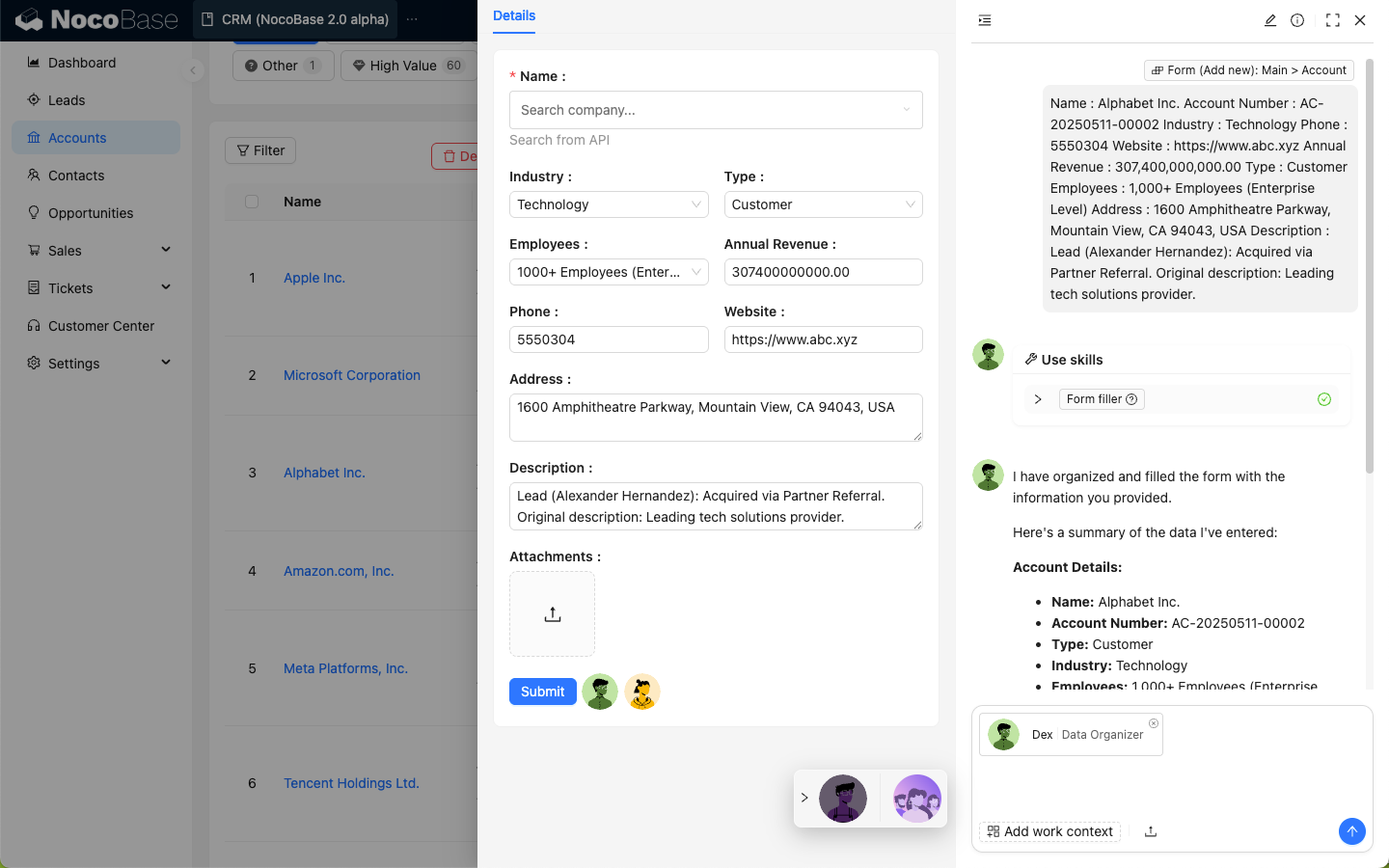
After sending, Dex will structure the data and use its skills to update the data in the selected form.
Nathan: Frontend Engineer
Introduction
Helps you write and optimize frontend code to implement complex interaction logic.
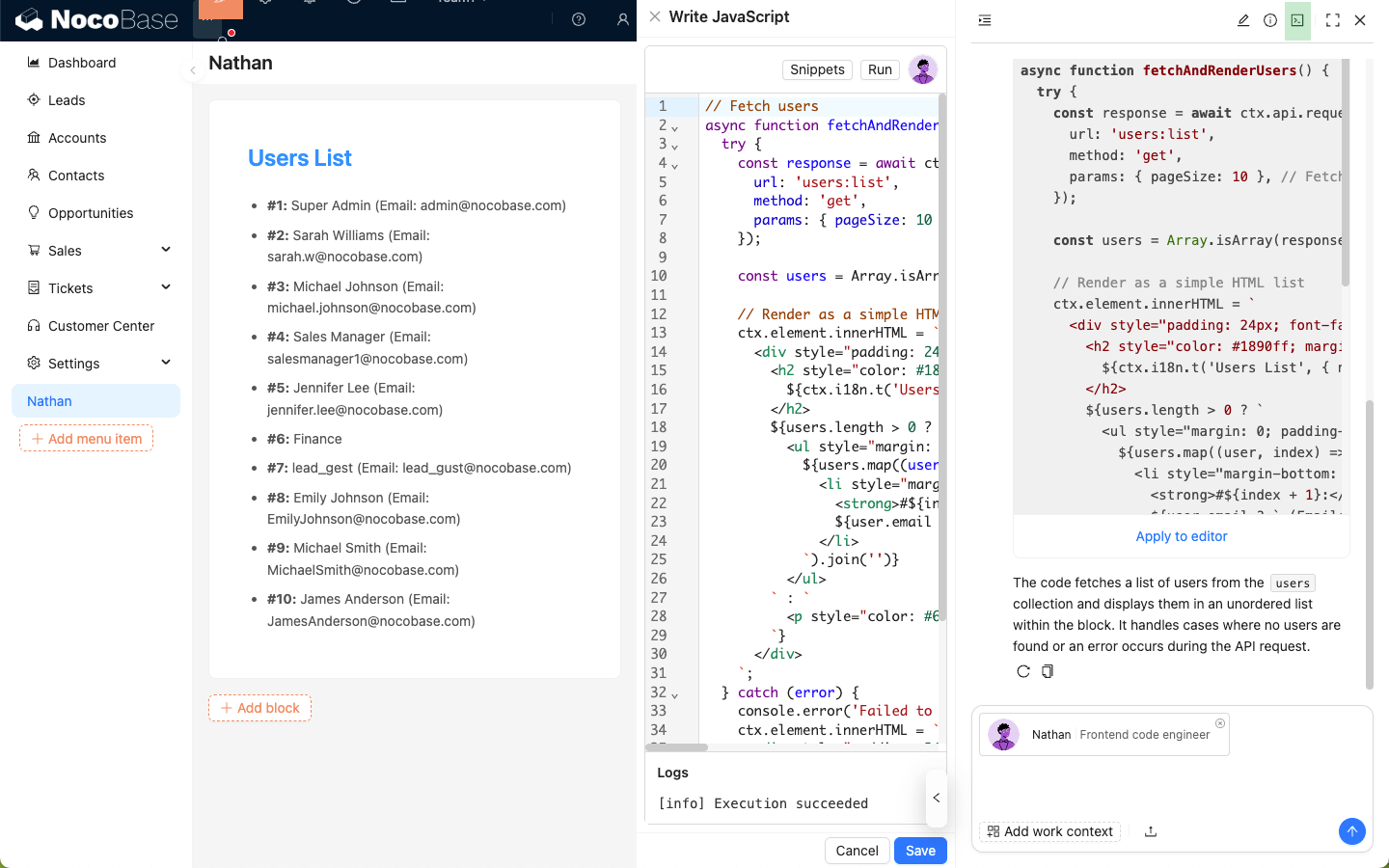
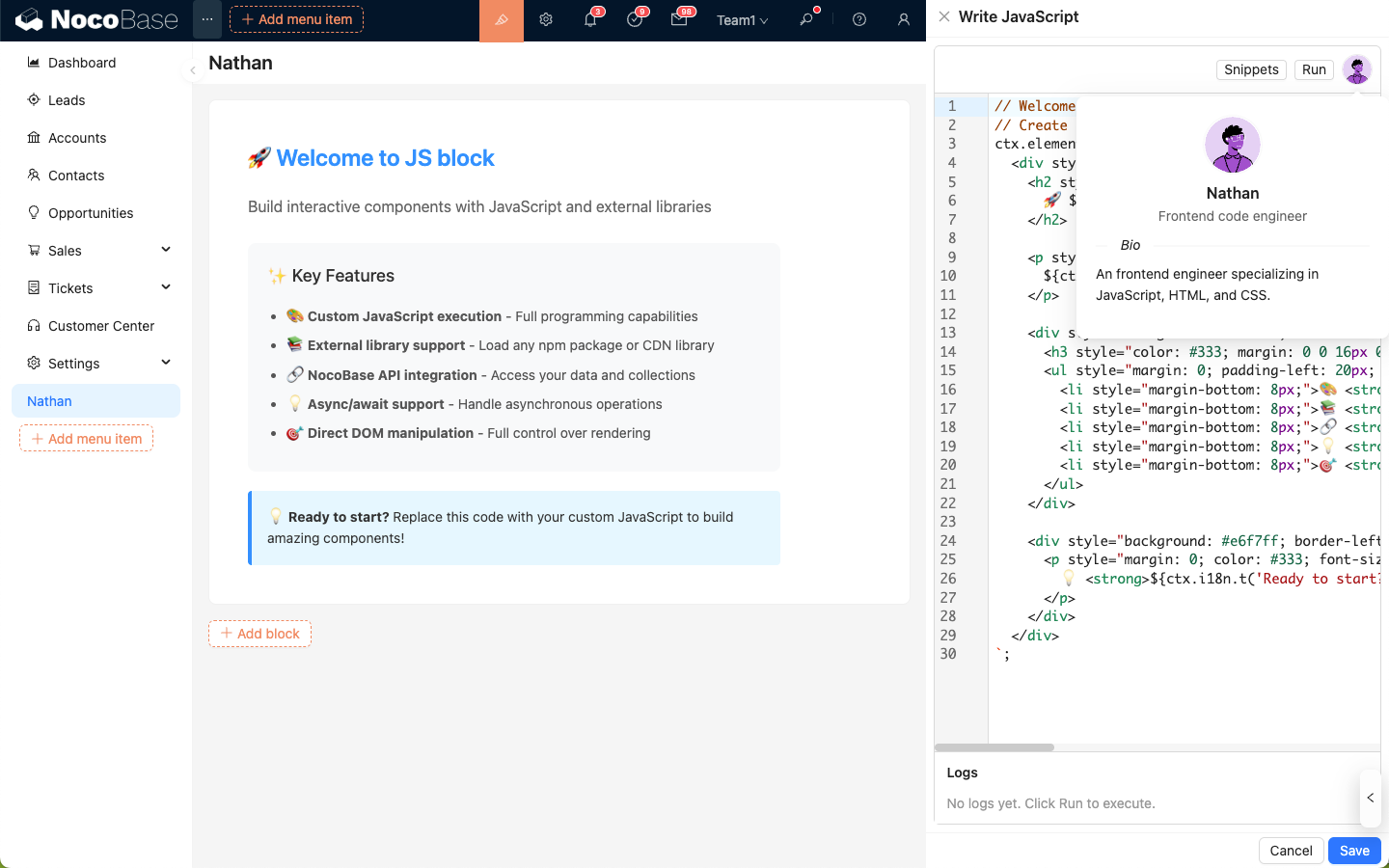
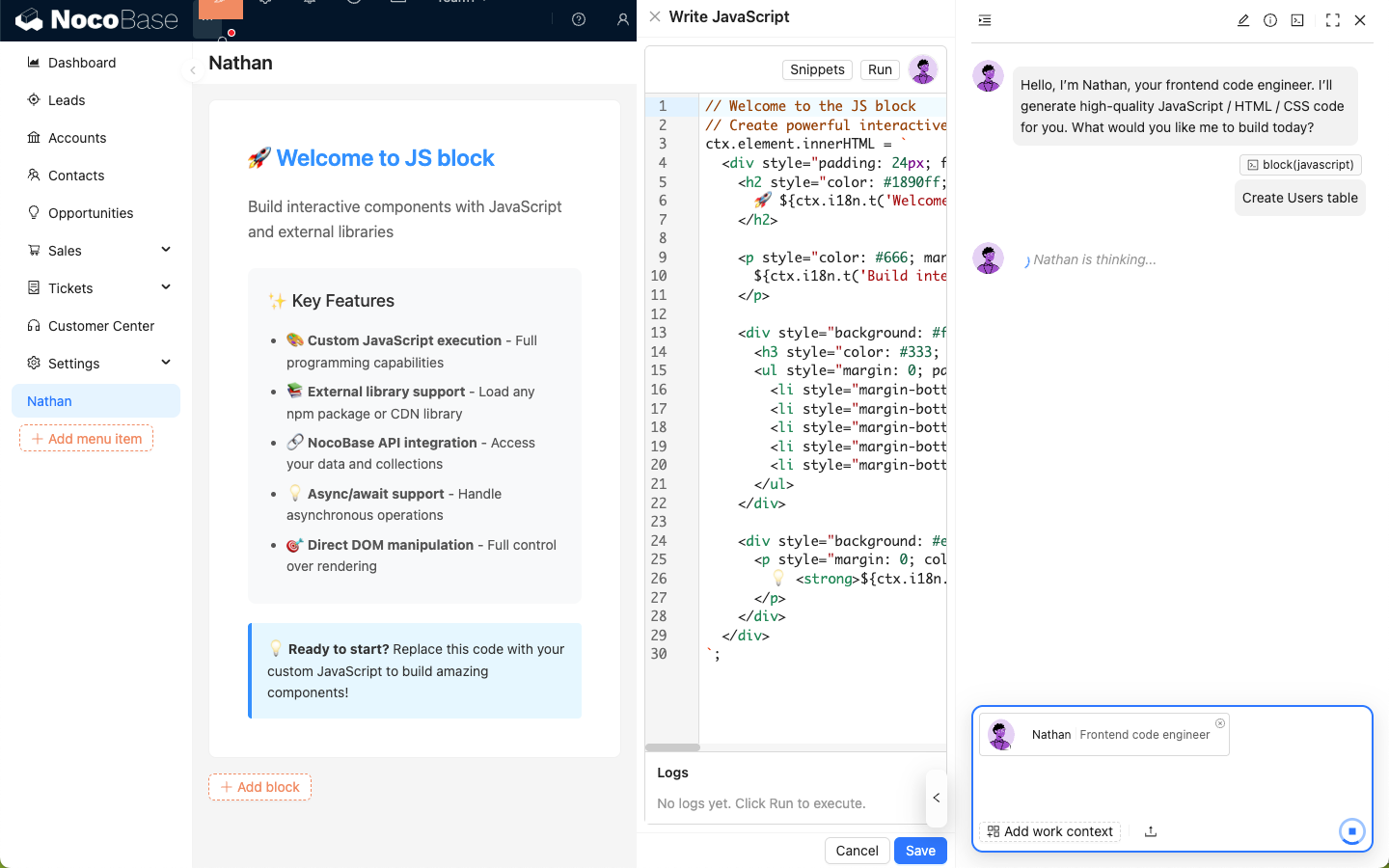
Nathan is the frontend development expert in NocoBase. In scenarios where JavaScript is required, such as JSBlock, JSField, JSItem, JSColumn, JSAction, Event Flow, and Linkage, Nathan's avatar will appear in the top right corner of the code editor, allowing you to ask him to help write or modify the code in the editor.
Usage
In the code editor, click Nathan to open the AI employee dialog box; the code in the editor will be automatically attached to the input box and sent to Nathan as application context.
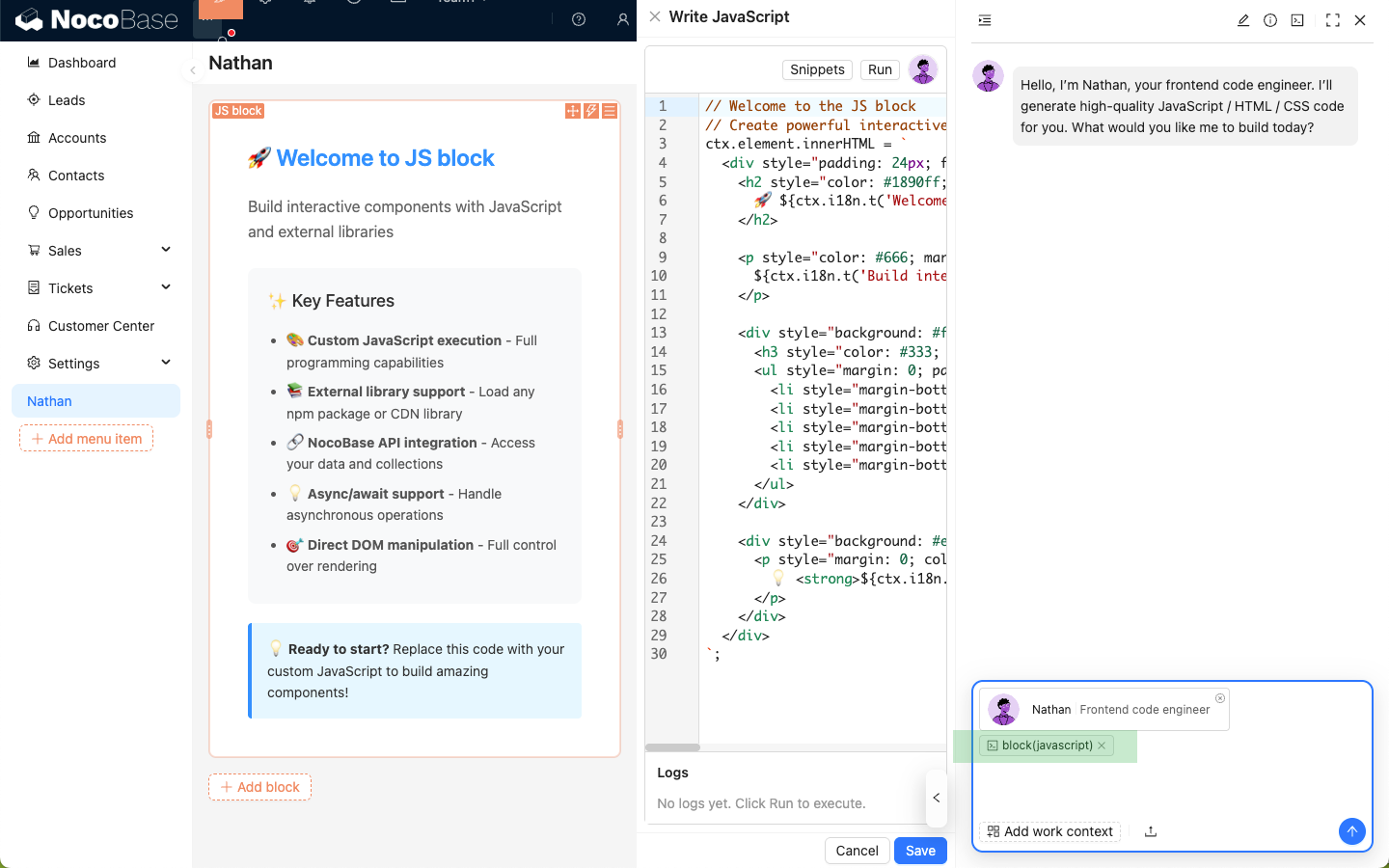
Enter your coding requirements, send them to Nathan, and wait for his reply.
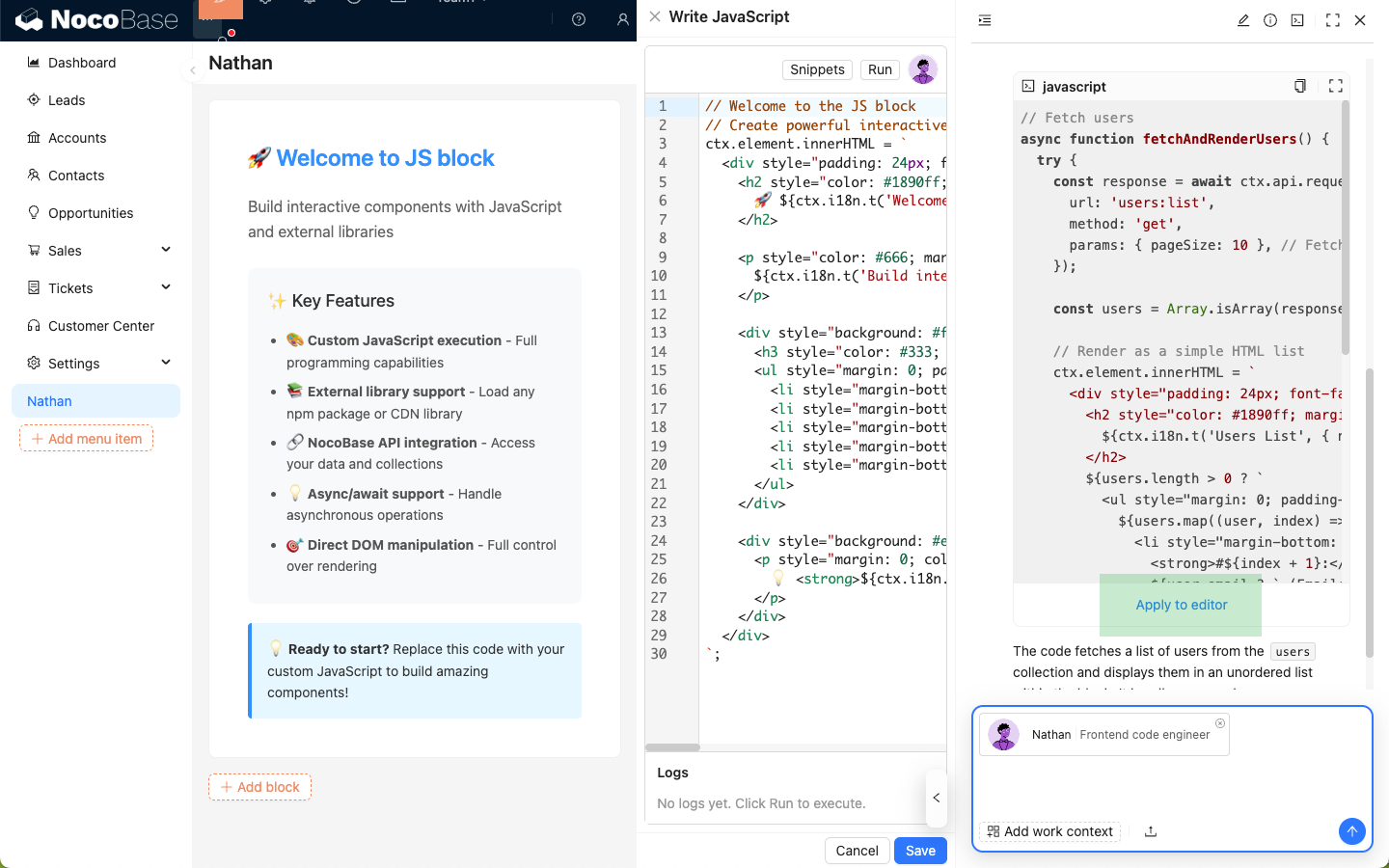
Click the Apply to editor button on the code block replied by Nathan to overwrite the code in the editor with his code.
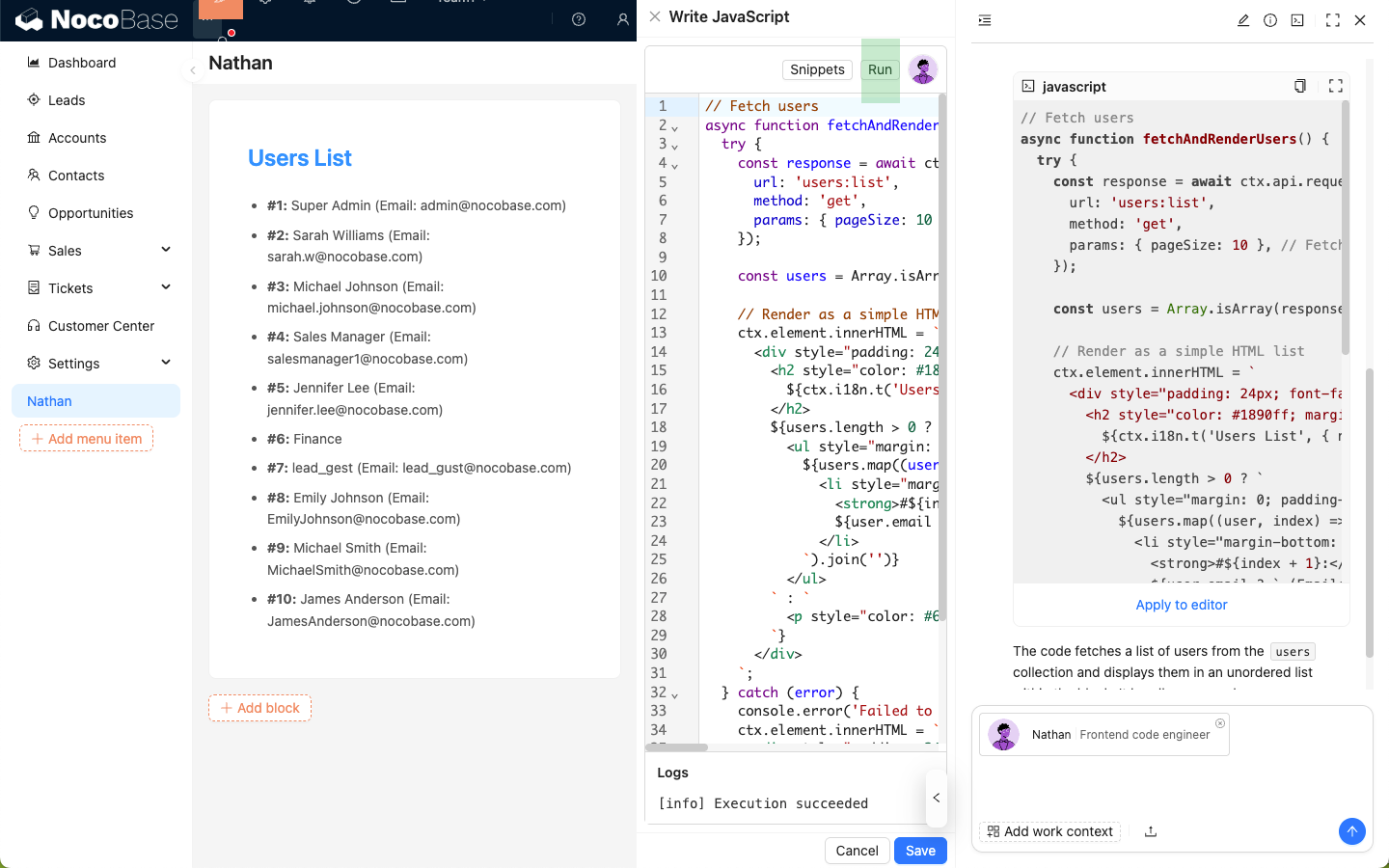
Click the Run button in the code editor to view the effects in real-time.
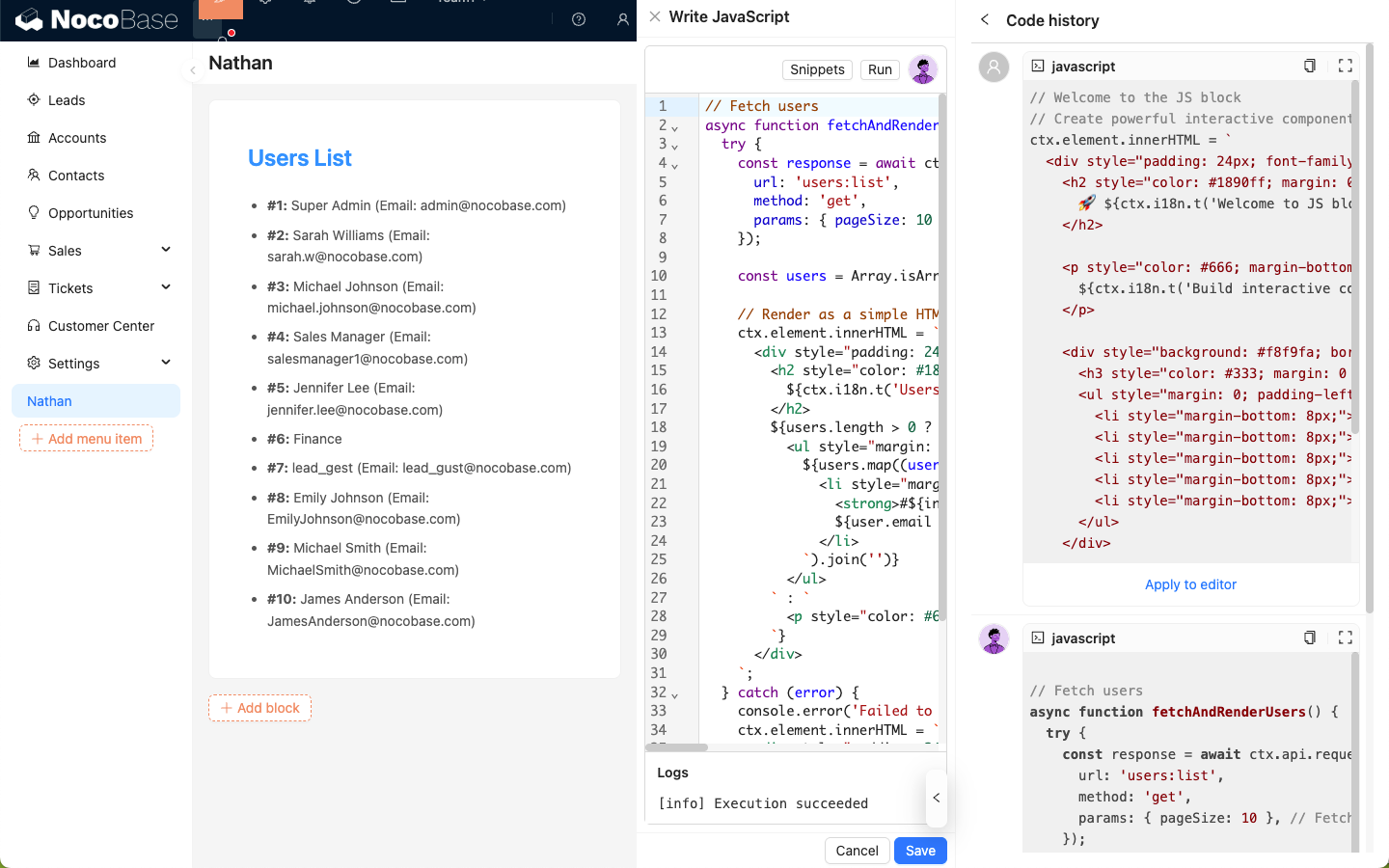
Code History
Click the Command Line icon in the top right corner of Nathan's dialog box to view the code snippets you have sent and the code snippets Nathan has replied with in the current session.