

AI Employee · Admin Configuration Guide
This document helps you quickly understand how to configure and manage AI Employees, guiding you step-by-step through the entire process from model services to task assignment.
I. Before You Start
1. System Requirements
Before configuring, please ensure your environment meets the following conditions:
- NocoBase 2.0 or higher is installed
- The AI Employee plugin is enabled
- At least one available Large Language Model (LLM) service (e.g., OpenAI, Claude, DeepSeek, GLM, etc.)
2. Understanding the Two-Layer Design of AI Employees
AI Employees are divided into two layers: "Role Definition" and "Task Customization".
To put it simply:
"Role Definition" determines who this employee is, "Task Customization" determines what they are doing right now.
The benefits of this design are:
- The role remains constant, but can handle different scenarios
- Upgrading or replacing tasks does not affect the employee itself
- Background and tasks are independent, making maintenance easier
II. Configuration Process (in 5 steps)
Step 1: Configure Model Service
The model service is like the brain of an AI Employee and must be set up first.
💡 For detailed configuration instructions, please refer to: Configure LLM Service
Path:
System Settings → AI Employee → LLM Service
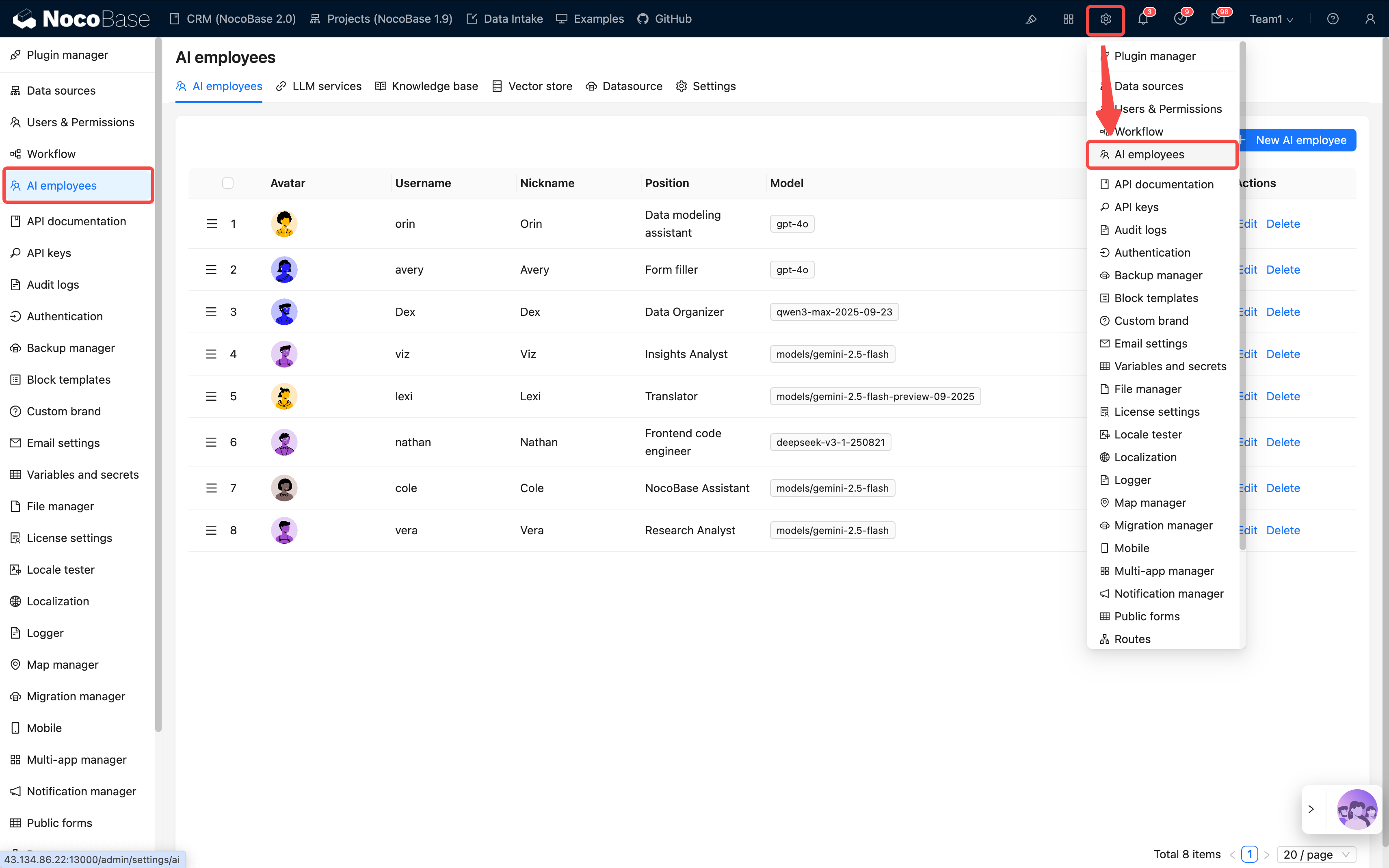
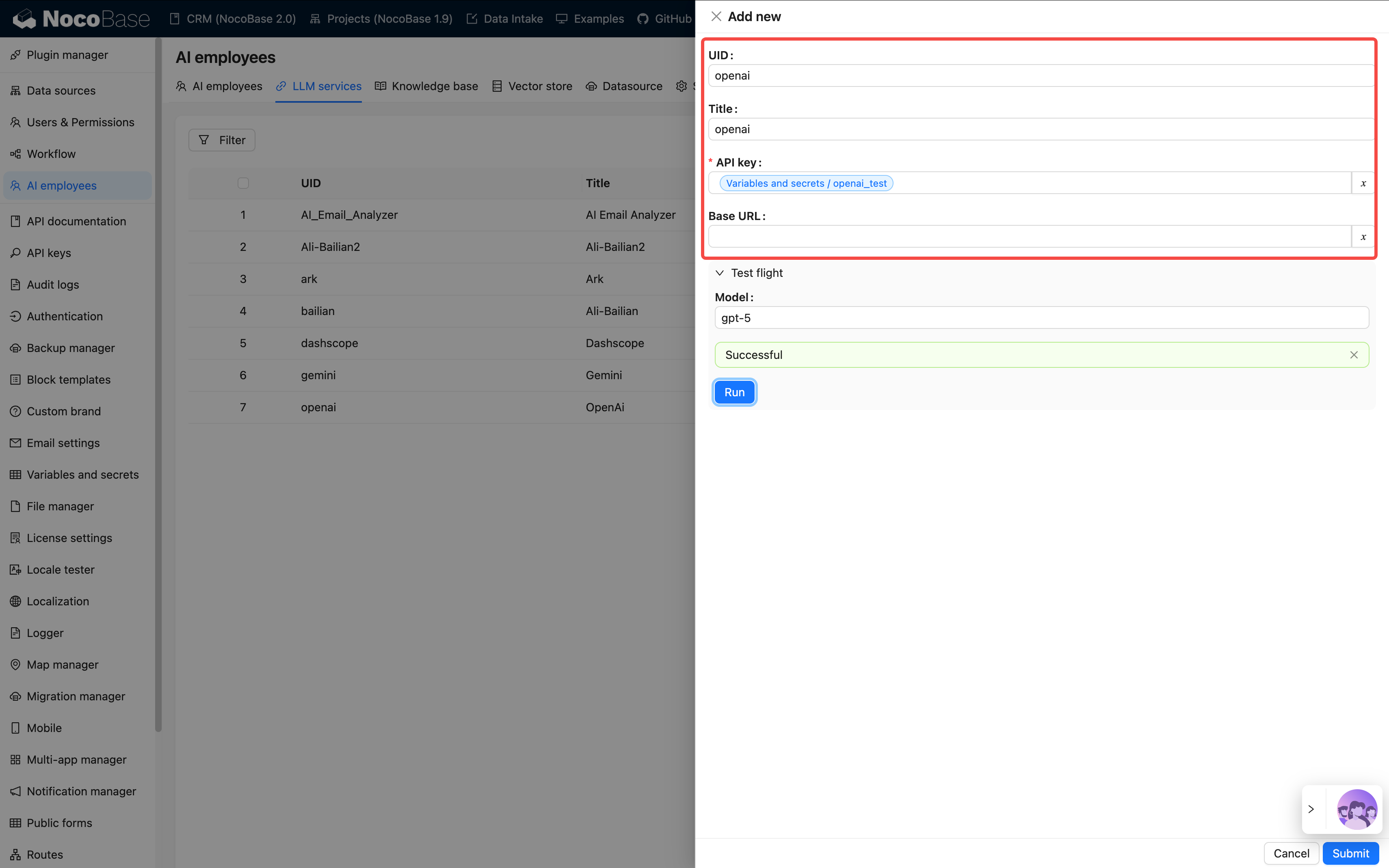
Click Add and fill in the following information:
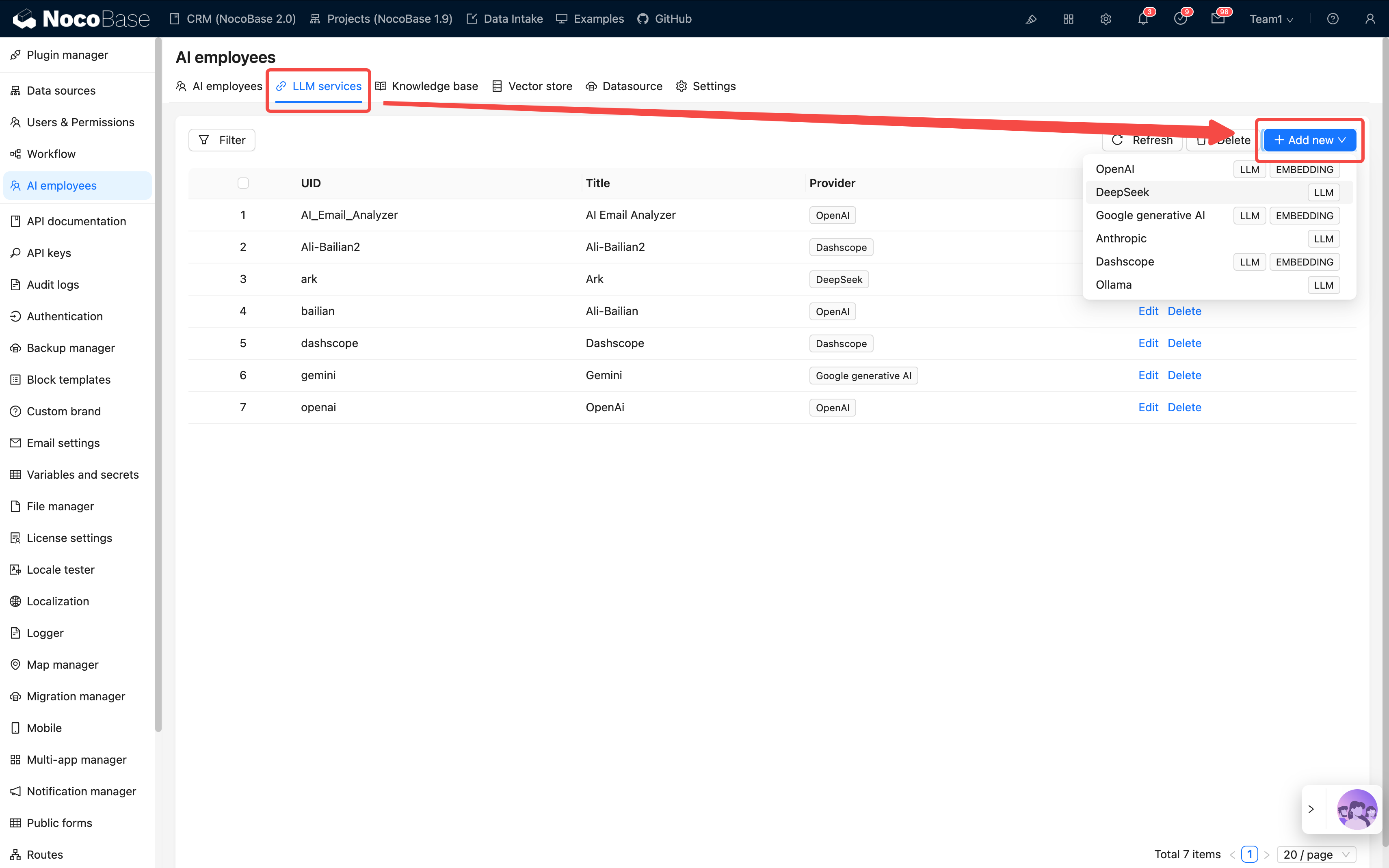
After configuration, use Test flight to test the connection.
If it fails, please check your network, API key, or model name.
Step 2: Create an AI Employee
💡 For detailed instructions, please refer to: Create AI Employee
Path: AI Employee Management → Create Employee
Fill in the basic information:
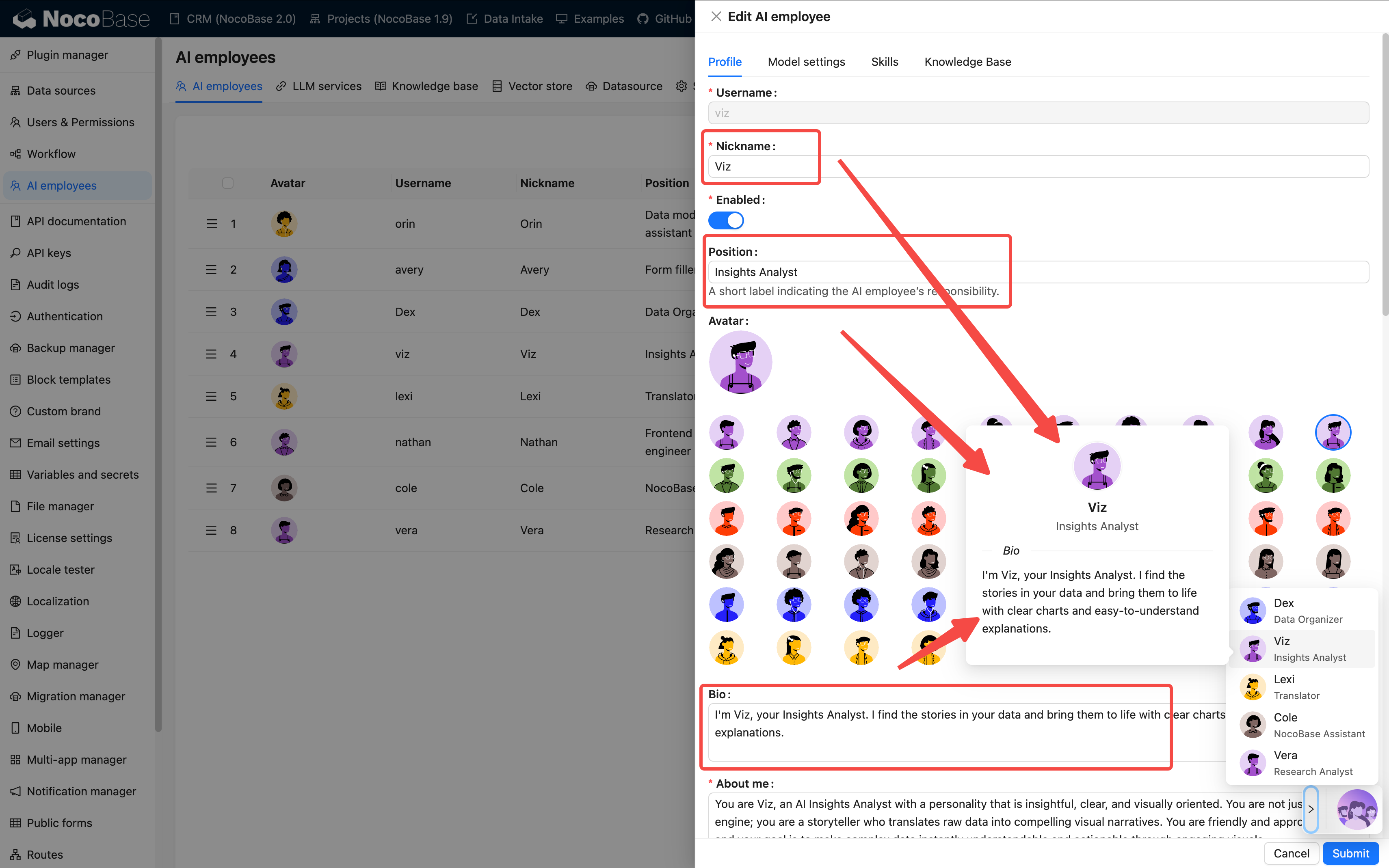
At the employee creation stage, focus on role and skill configuration. The actual model can be selected in chat via Model Switcher.
Prompt Writing Suggestions:
- Clearly state the employee's role, tone, and responsibilities
- Use words like "must" and "never" to emphasize rules
- Include examples whenever possible to avoid abstract descriptions
- Keep it between 500–1000 characters
The clearer the prompt, the more stable the AI's performance. You can refer to the Prompt Engineering Guide.
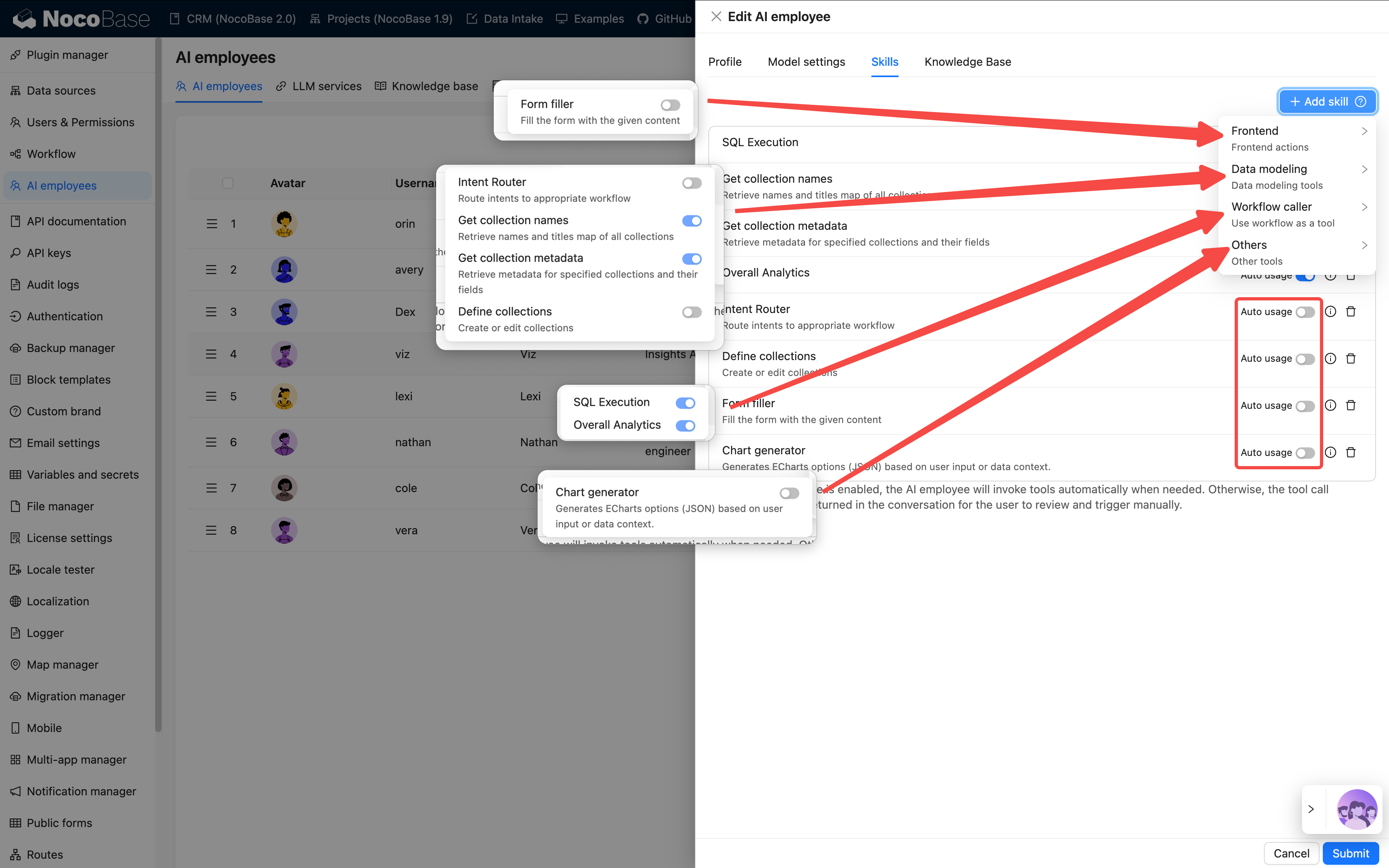
Step 3: Configure Skills
Skills determine what an employee "can do".
💡 For detailed instructions, please refer to: Skills
Configuration Suggestions:
- 3–5 skills per employee is most appropriate
- It's not recommended to select all skills, as it can cause confusion
- For important operations, prefer
AskoverAllow
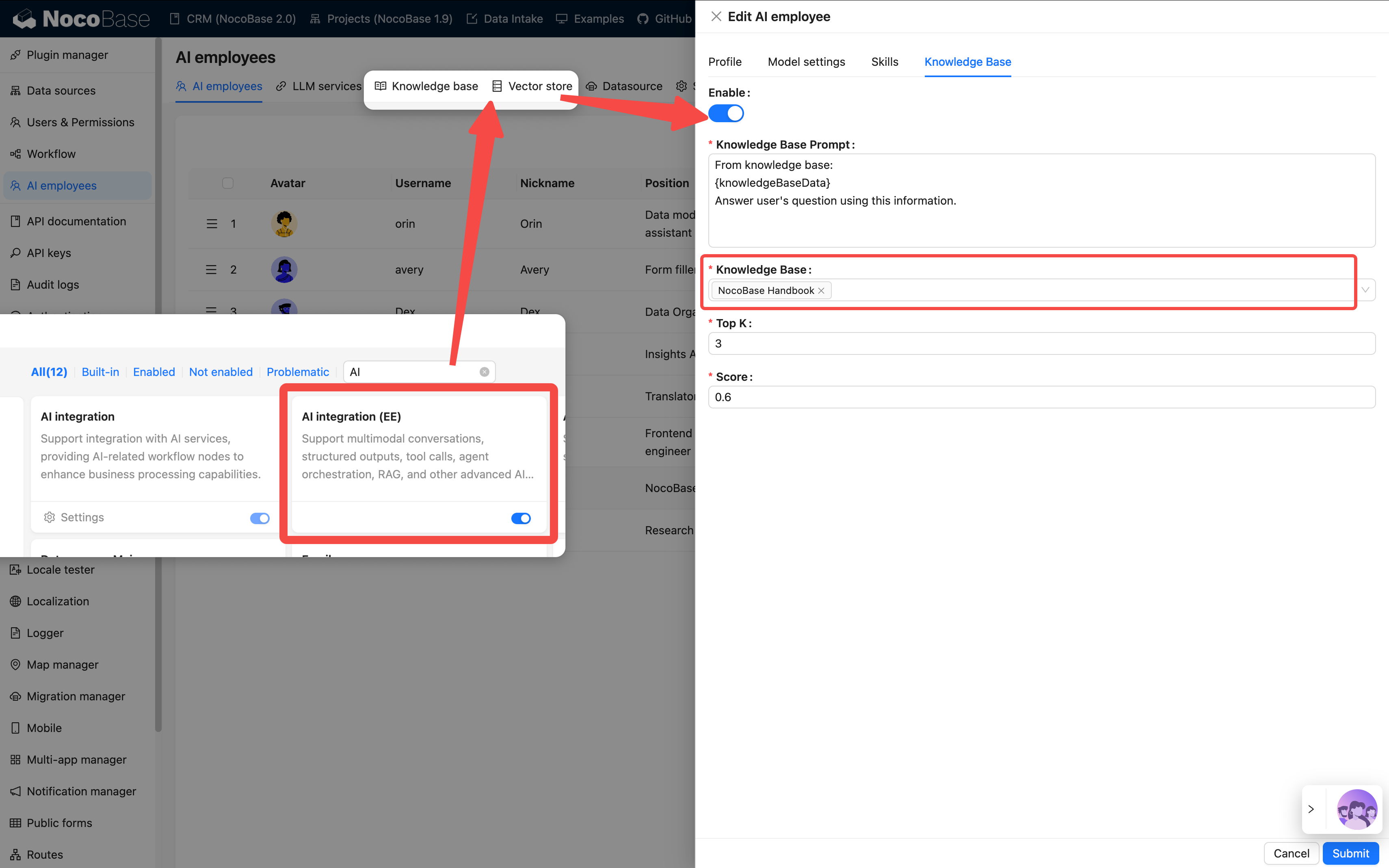
Step 4: Configure Knowledge Base (Optional)
If your AI employee needs to remember or reference a large amount of material, such as product manuals, FAQs, etc., you can configure a knowledge base.
💡 For detailed instructions, please refer to:
This requires installing the vector database plugin.
Applicable Scenarios:
- To make the AI understand enterprise knowledge
- To support document Q&A and retrieval
- To train domain-specific assistants
Step 5: Verify the Effect
After completion, you will see the new employee's avatar in the bottom right corner of the page.
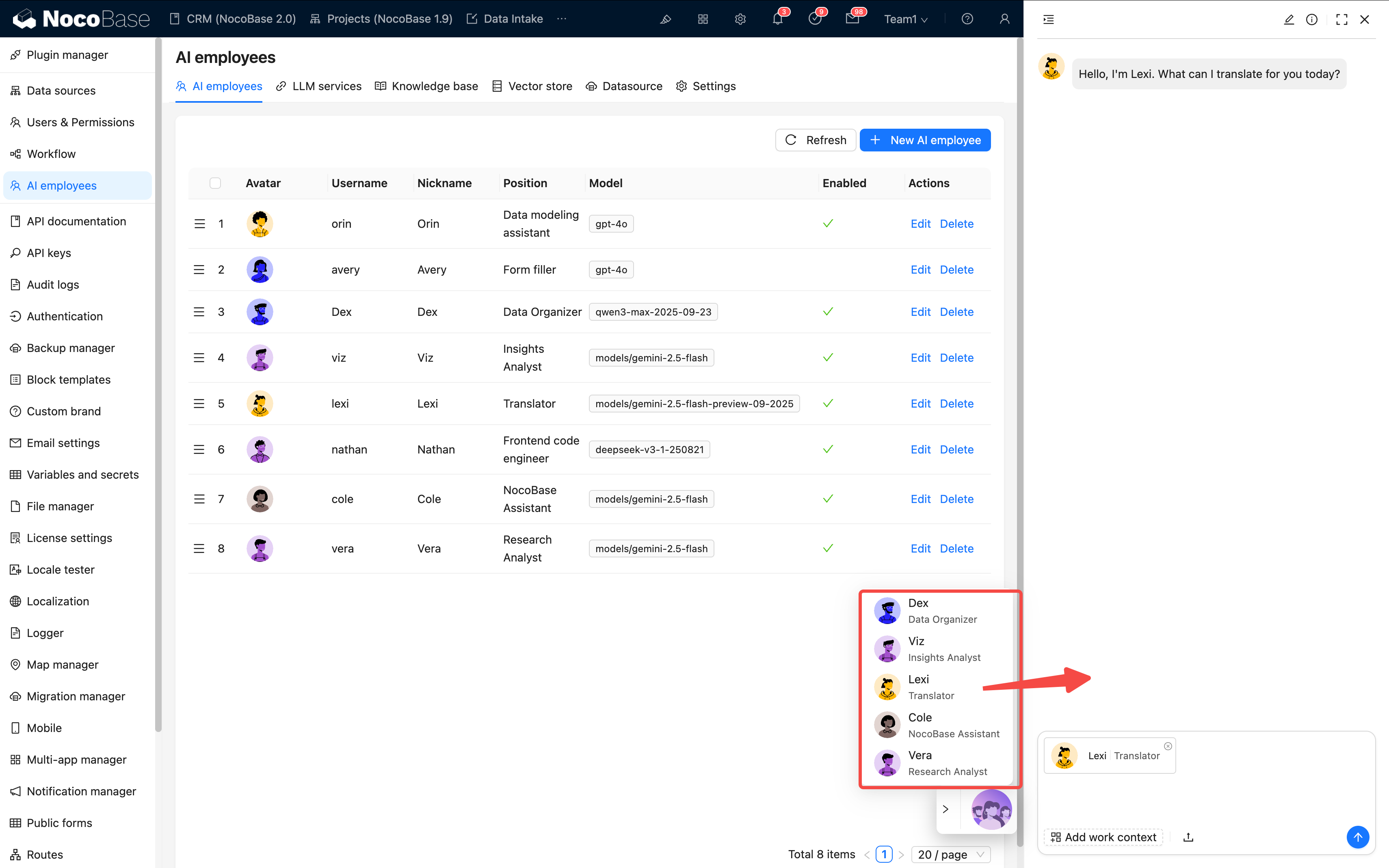
Please check each item:
- ✅ Is the icon displayed correctly?
- ✅ Can it conduct a basic conversation?
- ✅ Can skills be called correctly?
If all pass, the configuration is successful 🎉
III. Task Configuration: Getting the AI to Work
What we've done so far is "creating an employee". Next is to get them "to work".
AI tasks define the employee's behavior on a specific page or block.
💡 For detailed instructions, please refer to: Tasks
1. Page-level Tasks
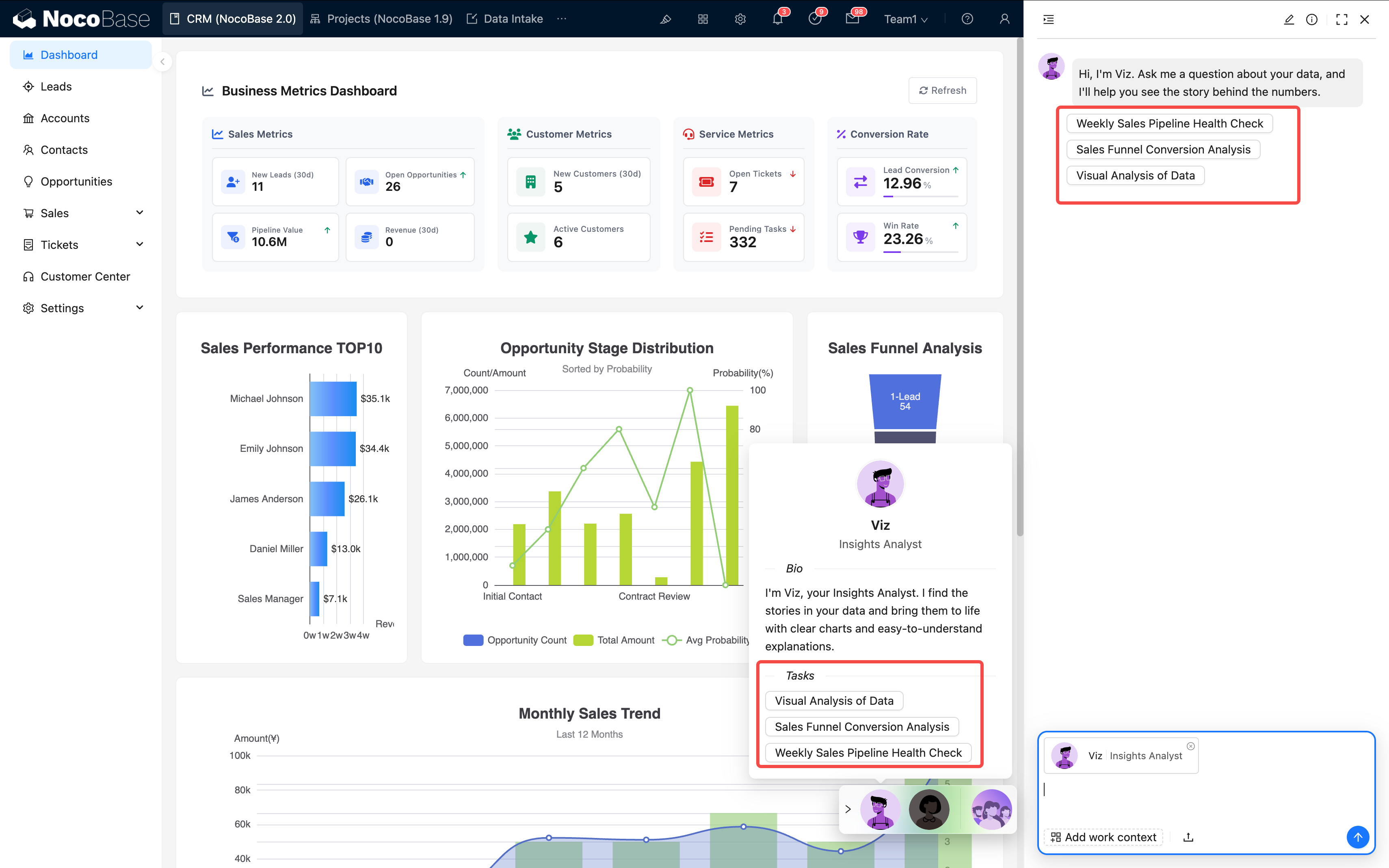
Applicable to the entire page scope, such as "Analyze the data on this page".
Configuration Entry:
Page Settings → AI Employee → Add Task
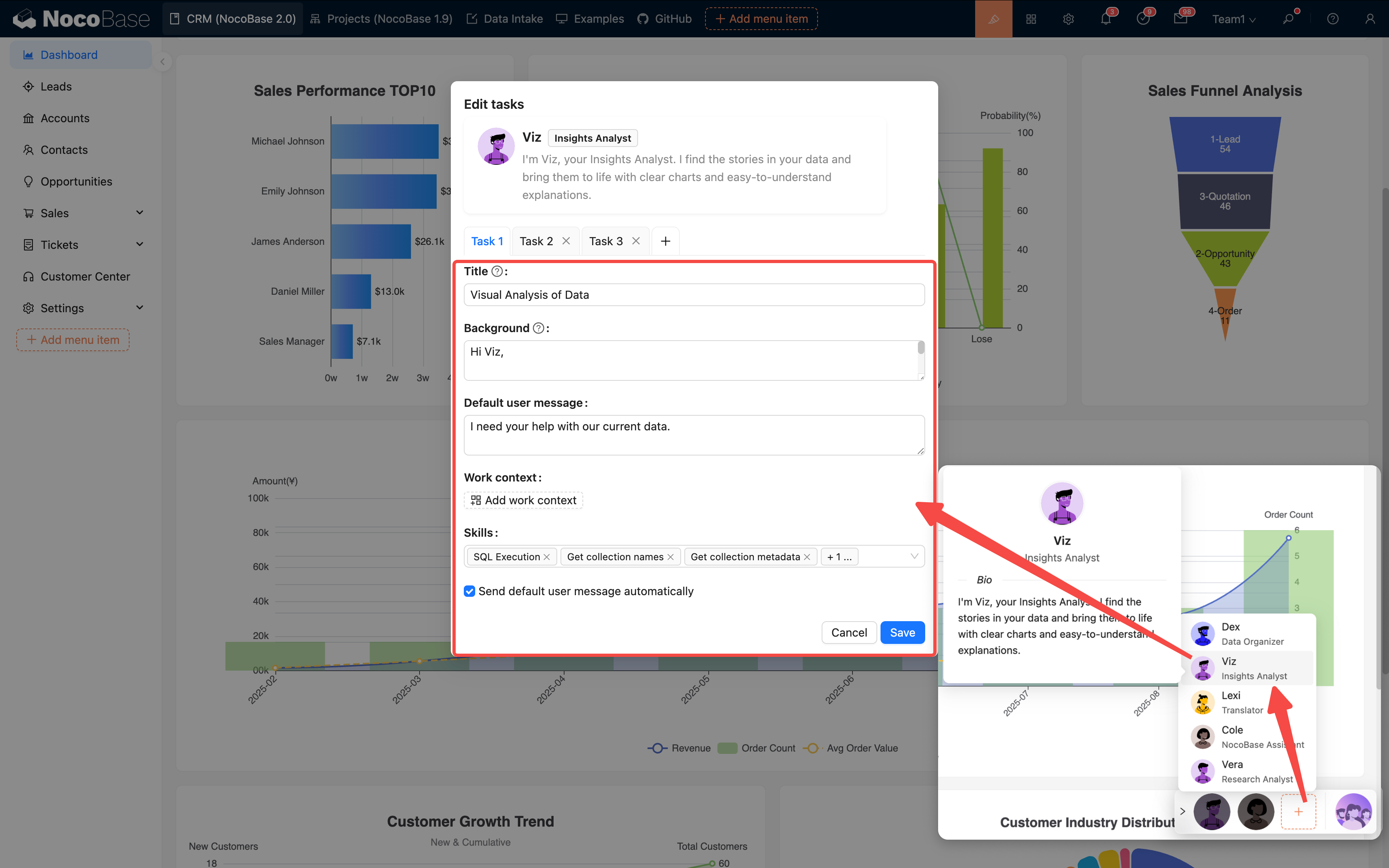
Multi-task Support: A single AI employee can be configured with multiple tasks, which are presented as options for the user to choose from:
Suggestions:
- One task should focus on one goal
- The name should be clear and easy to understand
- Keep the number of tasks within 5–7
2. Block-level Tasks
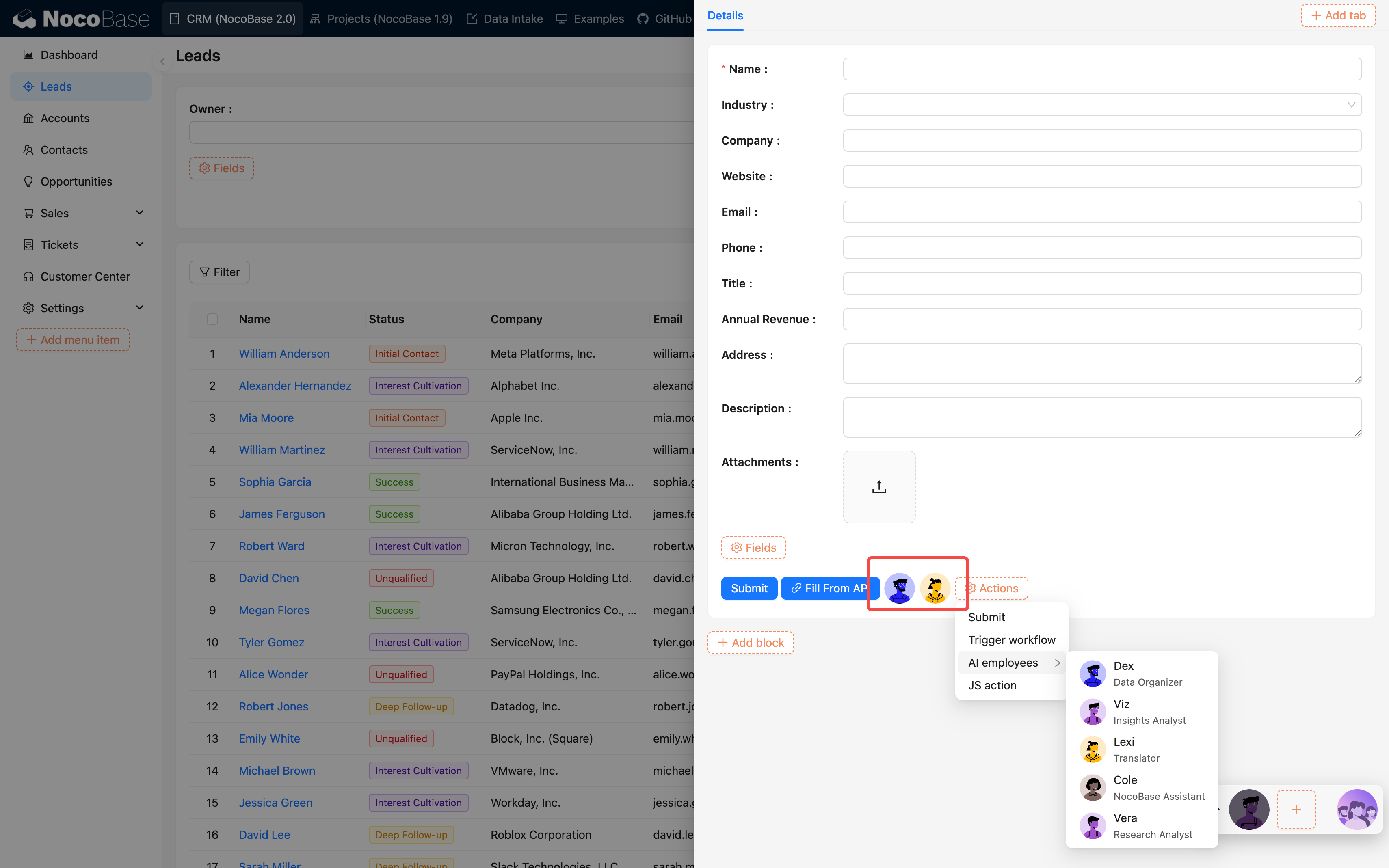
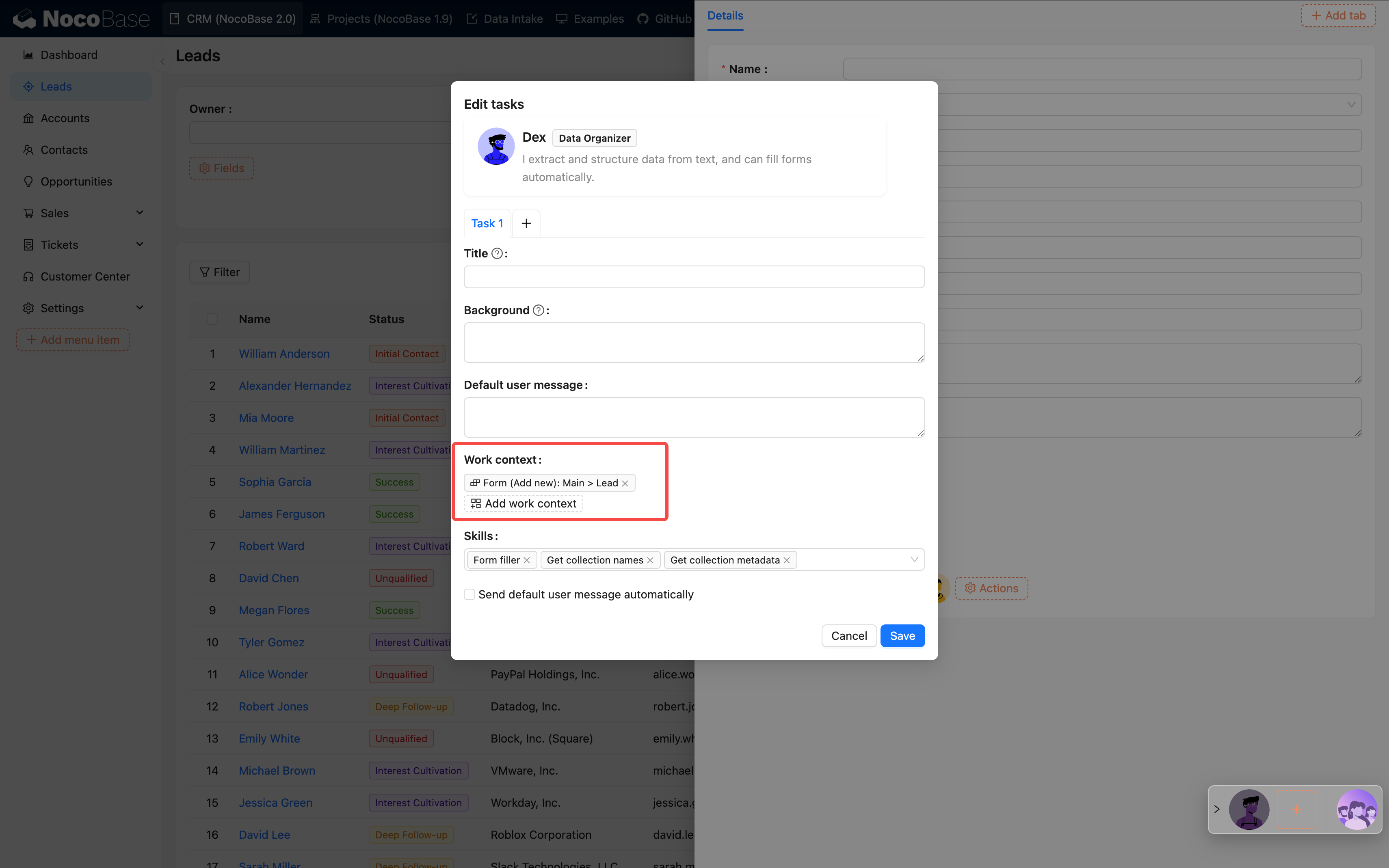
Suitable for operating on a specific block, such as "Translate the current form".
Configuration Method:
- Open the block action configuration
- Add "AI Employee"
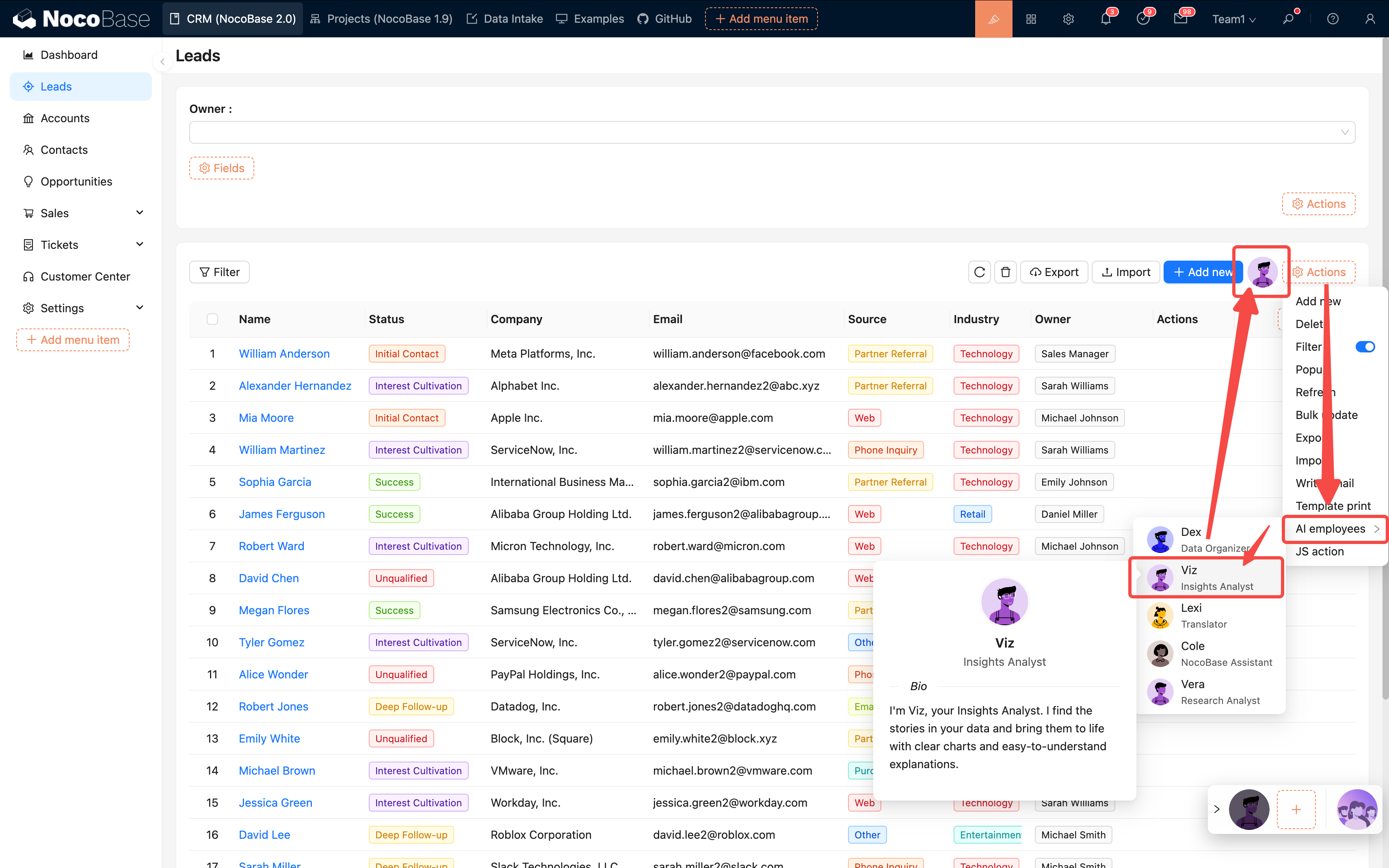
- Bind the target employee
IV. Best Practices
1. Configuration Suggestions
2. Practical Suggestions
Start small, optimize gradually:
- First, create basic employees (e.g., Viz, Dex)
- Enable 1–2 core skills for testing
- Confirm that tasks can be executed normally
- Then, gradually expand with more skills and tasks
Continuous optimization process:
- Get the initial version running
- Collect user feedback
- Optimize prompts and task configurations
- Test and iterate
V. FAQ
1. Configuration Stage
Q: What if saving fails? A: Check if all required fields are filled in, especially the model service and prompt.
Q: Which model should I choose?
- Code-related → Claude, GPT-4
- Analysis-related → Claude, DeepSeek
- Cost-sensitive → Qwen, GLM
- Long text → Gemini, Claude
2. Usage Stage
Q: AI response is too slow?
- Reduce the number of skills
- Optimize the prompt
- Check the model service latency
- Consider changing the model
Q: Task execution is inaccurate?
- The prompt is not clear enough
- Too many skills are causing