

Comment Block
Block: CommentCommunity Edition+Introduction
The Comment block adds commenting capabilities to business records. You can add it to detail pages or pop-ups for tasks, articles, tickets, customers, and other records, so users can view, reply to, and create comments around the current record.
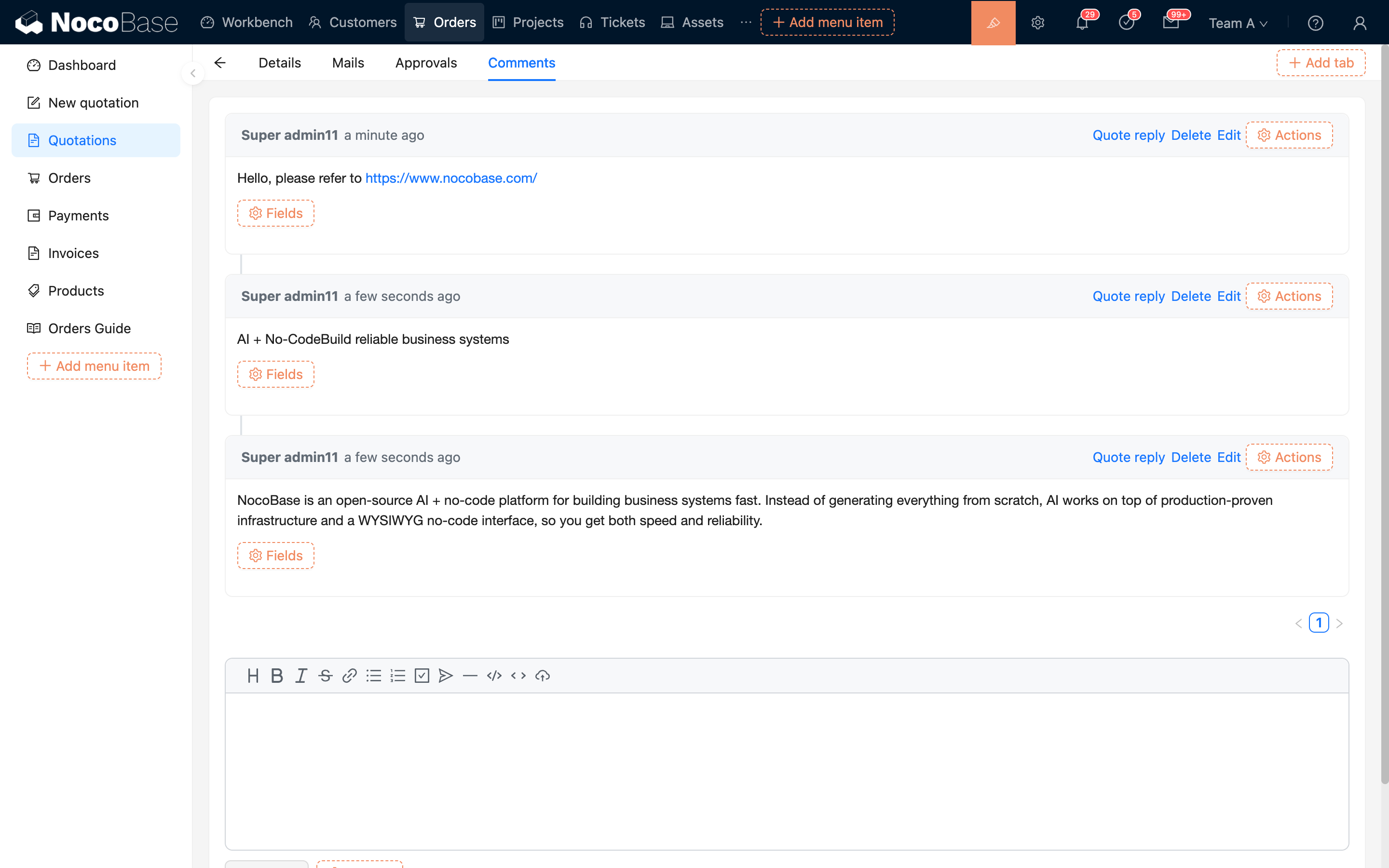
The Comment block does not create a collection by itself. Before using it, prepare a collection for storing comments and configure fields such as comment content, commenter, comment owner, and comment time.
Add a block
The Comment block is usually added to the detail page or pop-up of a business record.
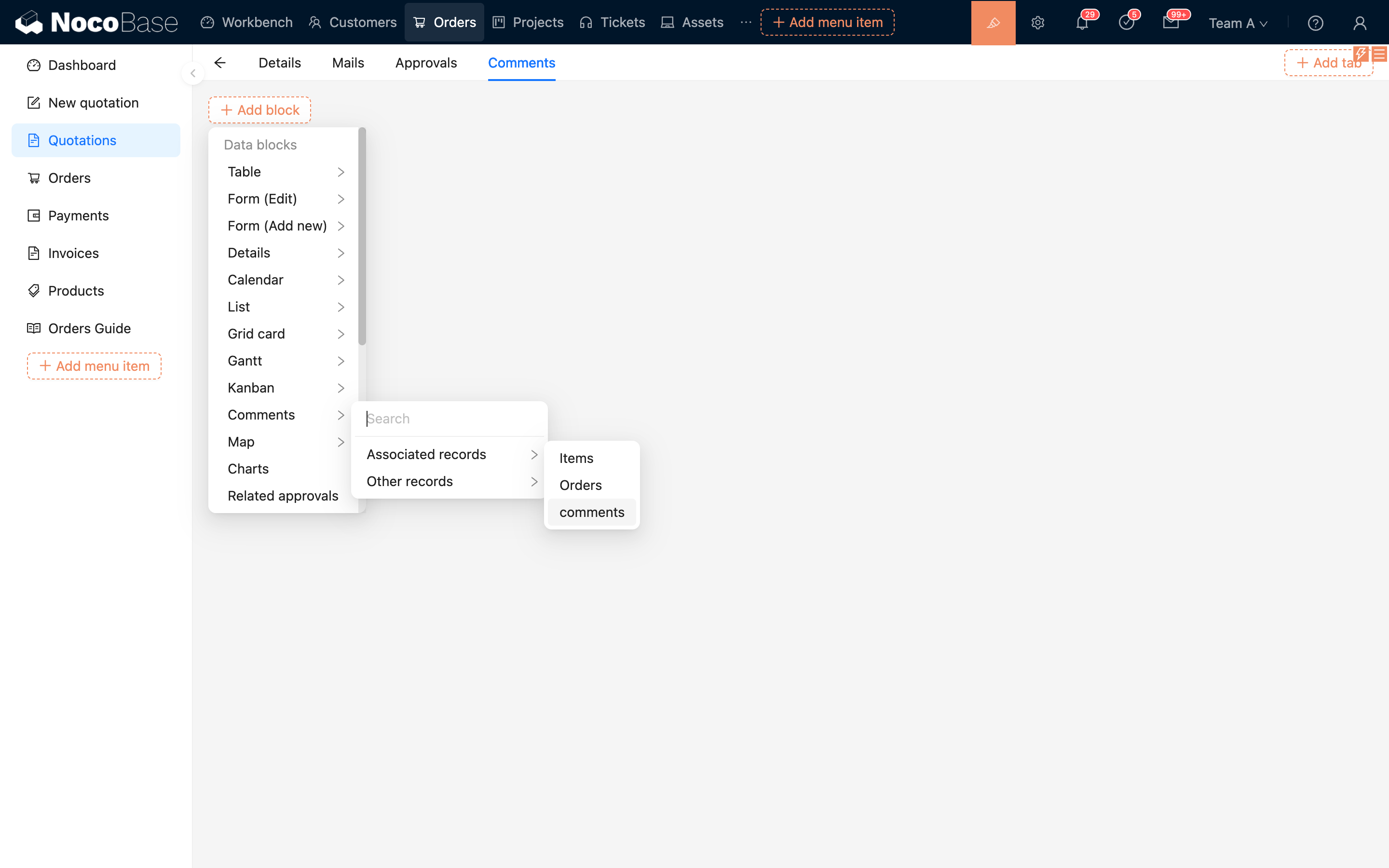
- Open the target record detail page or pop-up
- Click "Add block"
- Select "Comment"
- Select the collection used to store comments
- Complete field mapping as prompted
If the Comment block is created from an association, NocoBase will try to automatically identify the comment owner field and the current record value based on the current association. In this case, "Comment owner field" and "Comment owner field value" are filled automatically, and usually do not need manual configuration.
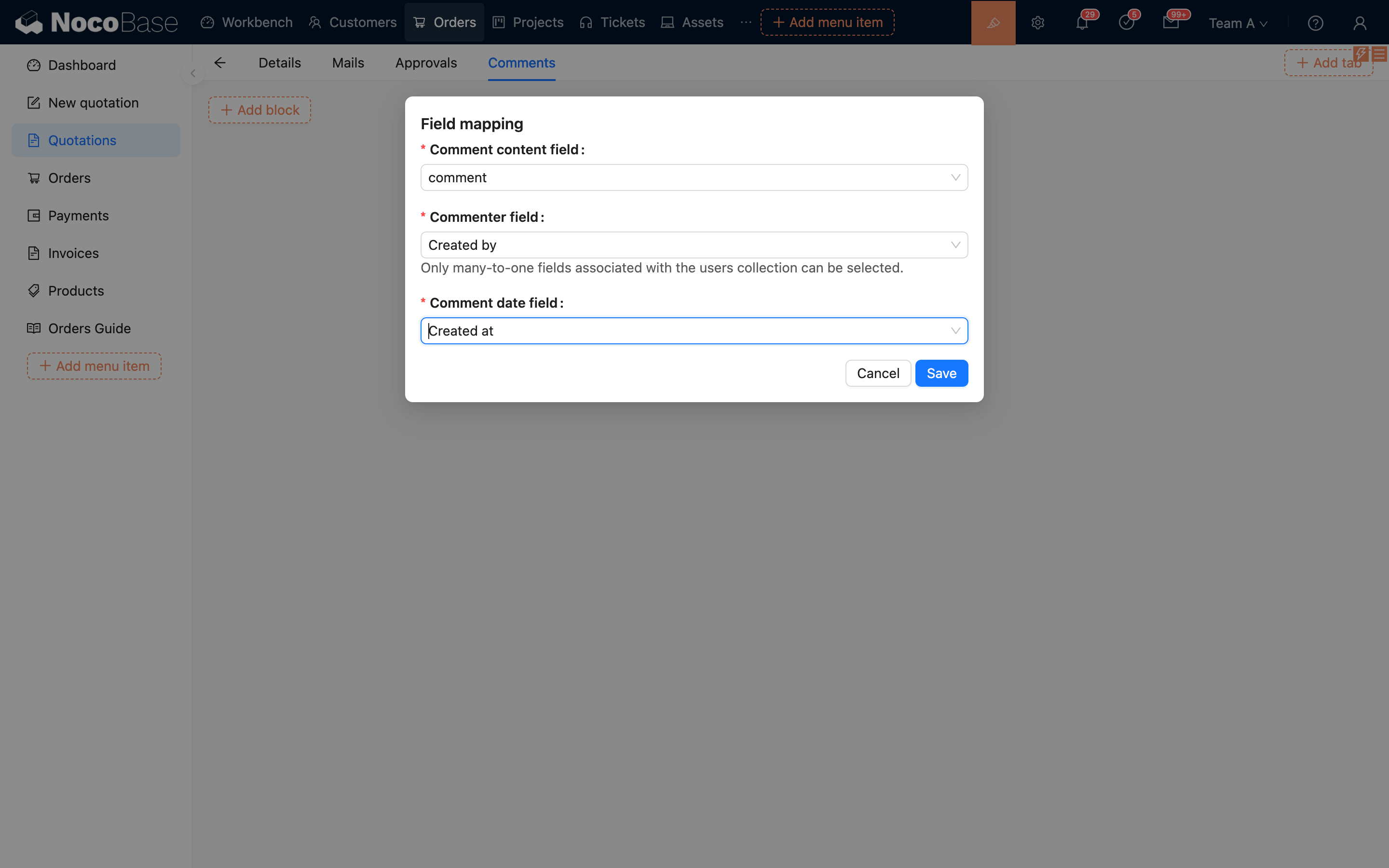
If the block is created directly from the comment collection, you need to manually configure the comment owner field and value.
.png)
Field mapping
The Comment block uses "Field mapping" to know how each comment should be displayed and saved.
Comment owner field
"Comment owner field" is used to filter comments for the current record, and is also written when a new comment is created.
When selected manually, the dropdown only shows ordinary scalar fields and does not show association fields. Common configurations are:
If the current record uses a unique identifier other than id, change "Comment owner field value" to the corresponding field, such as {{ ctx.popup.record.uuid }}.
Automatic mapping from associations
If the block is created from an association of the business record, the Comment block prioritizes the foreign key field of that association as the comment owner field, and uses the current record value as the comment owner field value.
For example, if there is a one-to-many association between the task collection and the task comment collection, and the foreign key field in the task comment collection is taskId, then when you add a Comment block from the association in the task detail page, the block automatically uses:
- Comment owner field:
taskId - Comment owner field value: the identifier of the current task record
This approach is suitable for most scenarios and reduces manual configuration errors.
Block settings
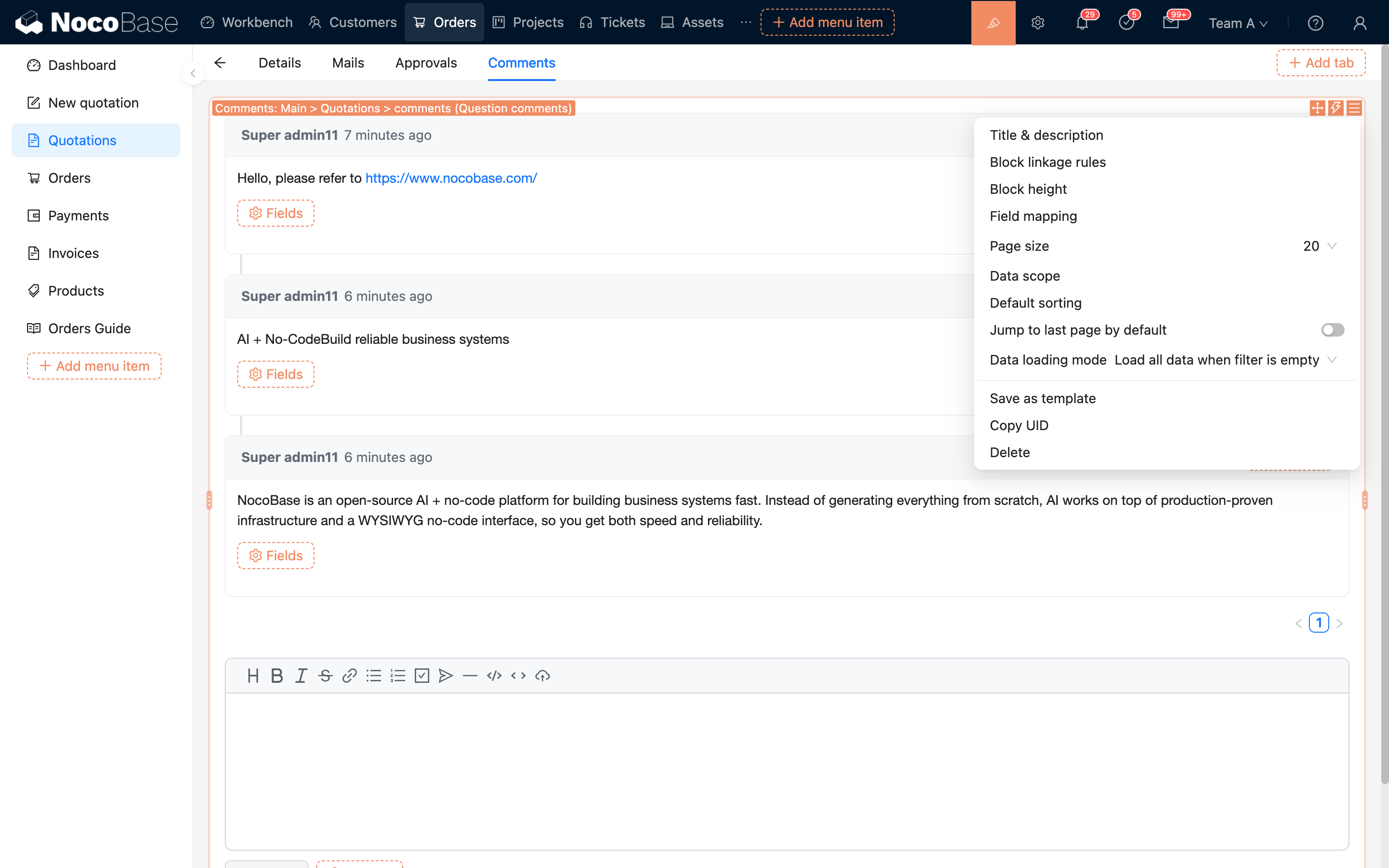
Page size
Set how many comments are displayed on each page. Available values include 5, 10, 20, 50, 100, and 200.
Data scope
Set the data filtering scope for the comment list. You can add more conditions here, such as showing only comments that match certain status or permission conditions.
For more details, see Set data scope.
Default sorting rule
Set the default sorting rule for the comment list. Usually, you can sort by the comment date field in ascending or descending order.
If no default sorting rule is configured separately, the Comment block prioritizes the "Comment date field" as the default sorting field.
For more details, see Set sorting rule.
Auto jump to last page
Disabled by default. When disabled, the Comment block stays on the first page after opening.
When enabled, the Comment block jumps to the last page on first load. This is suitable when you want users to see the latest comments first.